
The Save Incomplete Response feature in FormGent helps prevent losing those partially filled responses. It allows users to save their progress and continue filling out the form later using a resume link. This means users do not need to start over, and form owners have a better chance of receiving completed submissions.
This is a Pro feature, which means it is available only to users with an active FormGent Premium subscription. You can find this option inside the settings of an individual form.
If you have a FormGent Pro subscription but cannot see this feature, you may be using an older version of the plugin. In that case, download the latest version from your FormGent dashboard and update the plugin.
If you have not activated your Pro license yet, please follow the Activating Your Pro Subscription guide for step-by-step instructions. Once the license is activated and the plugin is updated, the feature will become available in the form settings.
Accessing Form Settings #
To configure advanced options such as Save Incomplete Response and Resume Later, you first need to open the Form Settings panel inside the form builder.
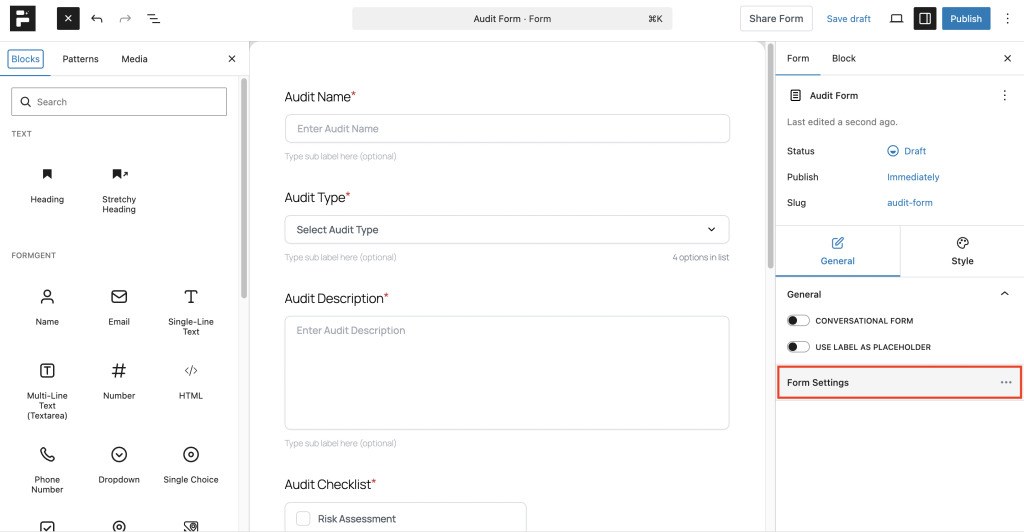
Follow these steps to locate it:
- Go to FormGent → All Forms from your WordPress dashboard.
- Select Edit on one of your existing forms, or create a new form.
- Once the form builder opens, look at the right side panel of the screen.
- Under the General tab, scroll down until you find Form Settings.
- Click on Form Settings to expand the available configuration options.
From here, you will be able to configure settings related to saving incomplete responses and allowing users to resume a form later.
Save & Resume Settings #
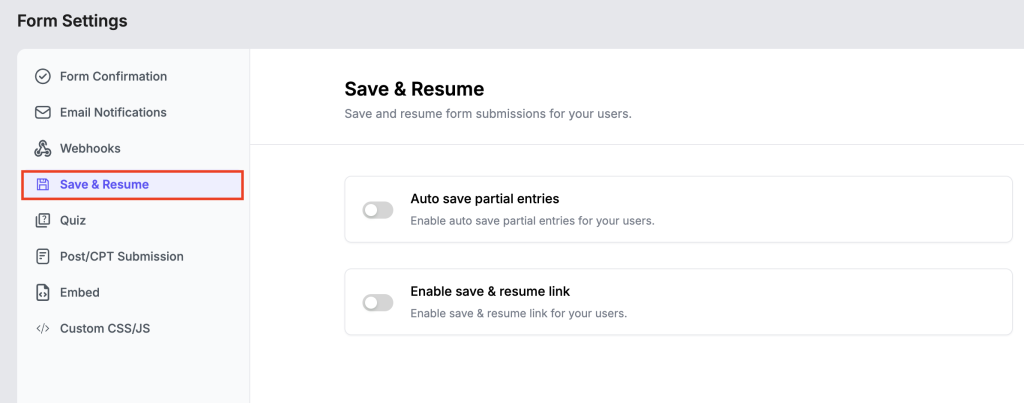
Inside Form Settings, open the Save & Resume section. This area controls how FormGent handles partially completed forms so users do not lose their progress.
Here you will find two toggle options:
1. Auto Save Partial Entries #
When this option is enabled, FormGent automatically saves the information a user enters while filling out the form. If the user leaves the page before submitting, their progress is stored as an Incomplete entry in the entries section.
This helps prevent data loss. If a user accidentally closes the page, refreshes the browser, or gets interrupted, the information they already entered can still be recovered from the saved incomplete entry.
Enable Save & Resume Link #
When this option is enabled, FormGent allows users to manually save their progress and continue the form later using a unique resume link.
After saving the form, the user receives a special link that loads the form with their previously entered information. They can open this link anytime to continue filling out the form and complete the submission without starting from the beginning.
This option is especially useful for long or detailed forms where users may need more time or additional information before finishing.
Auto Save Partial Entries #
When Auto Save Partial Entries is enabled, FormGent automatically saves the information a user enters while filling out the form. This means the user’s progress is stored even if they leave the page before submitting the form.
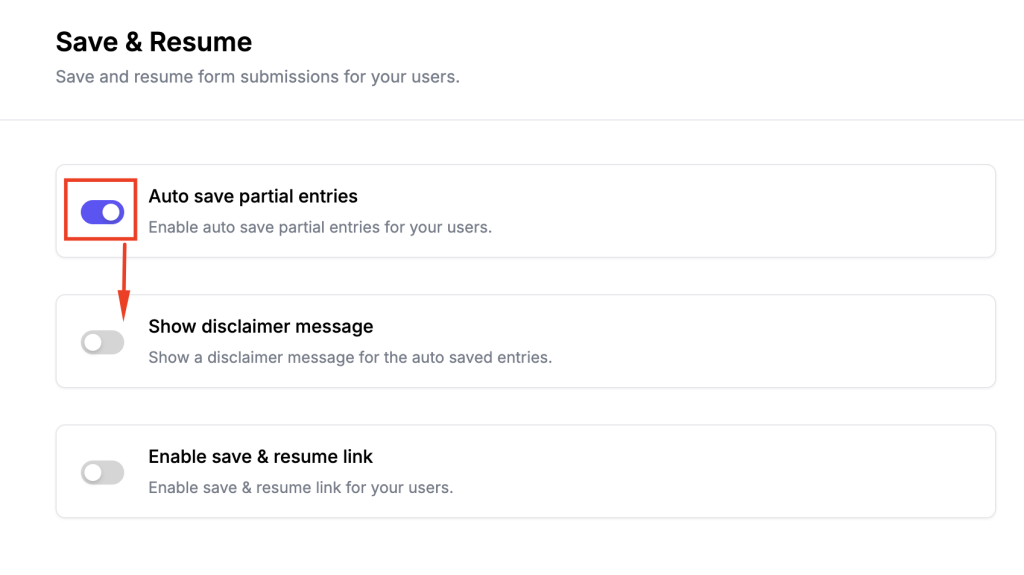
This feature helps prevent data loss. If a user closes the browser, refreshes the page, or gets interrupted, the information they already entered remains saved as a partial entry.
Show Disclaimer Message #
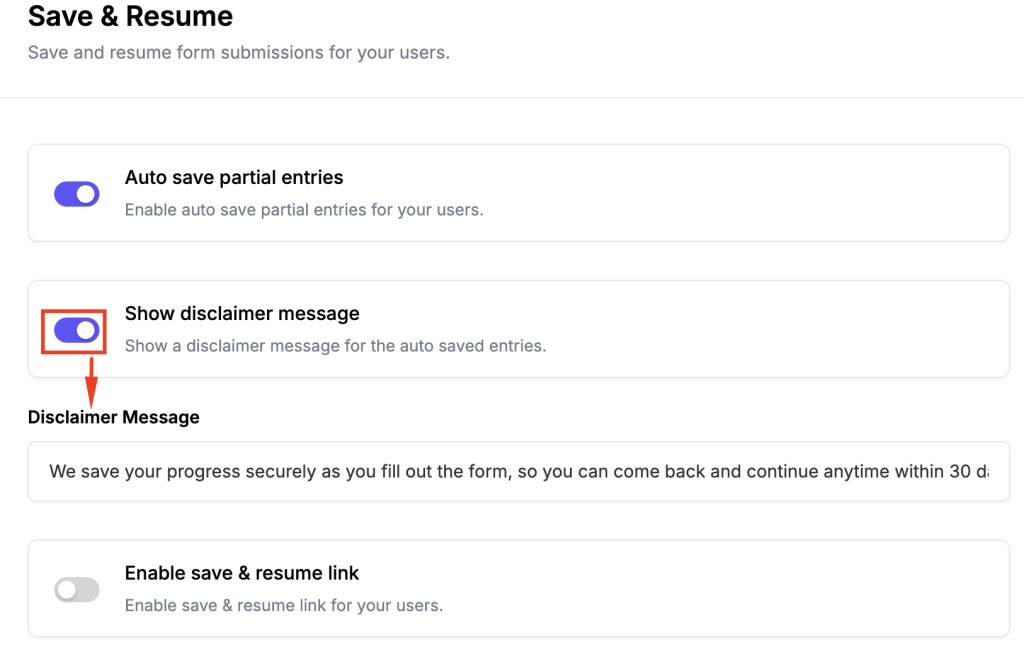
When Auto Save Partial Entries is turned on, you can also enable the Show Disclaimer Message option. This displays a short message on the form informing users that their progress is being saved automatically.
The disclaimer helps users understand that they can safely leave the form and return later without losing the information they already entered. You can also customize the message text to clearly explain how the auto-save feature works for your form.
Enable Save & Resume Link #
When you enable Save & Resume Link, FormGent allows users to manually save their progress and continue filling out the form later. This option is useful for longer forms where users may need more time or additional information before completing their submission.
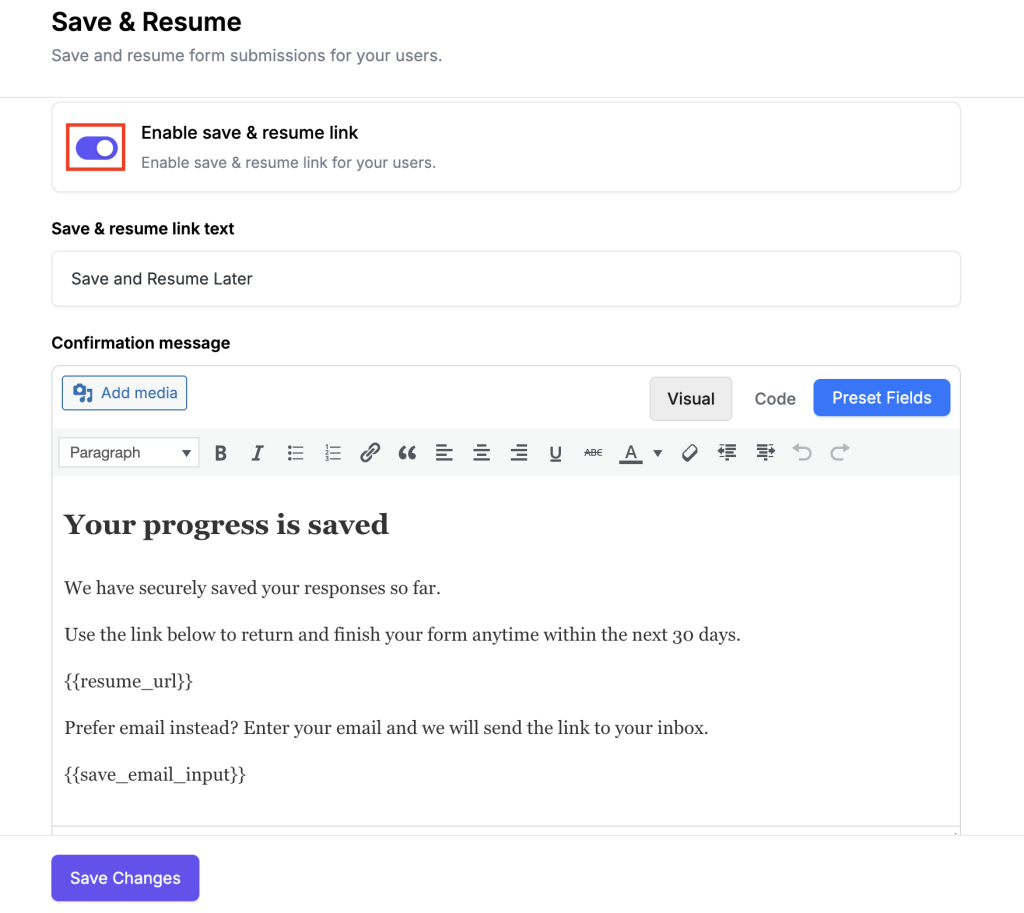
Once this option is turned on, several additional settings become available.
Save & Resume Link Text #
This field controls the label of the button that appears on the form. By default, it is set to “Save and Resume Later.”
Users can click this button while filling out the form to save their progress and generate a personal resume link.
Confirmation Message #
After a user clicks the Save and Resume Later button, this confirmation message appears on the screen. It informs the user that their progress has been saved and provides a resume link they can use to continue the form later.
You can customize this message to match your communication style. The message can also include dynamic fields such as:
- {{resume_url}} – Inserts the unique link that allows the user to return to the saved form.
- {{save_email_input}} – Displays an email input field so the user can receive the resume link in their inbox.
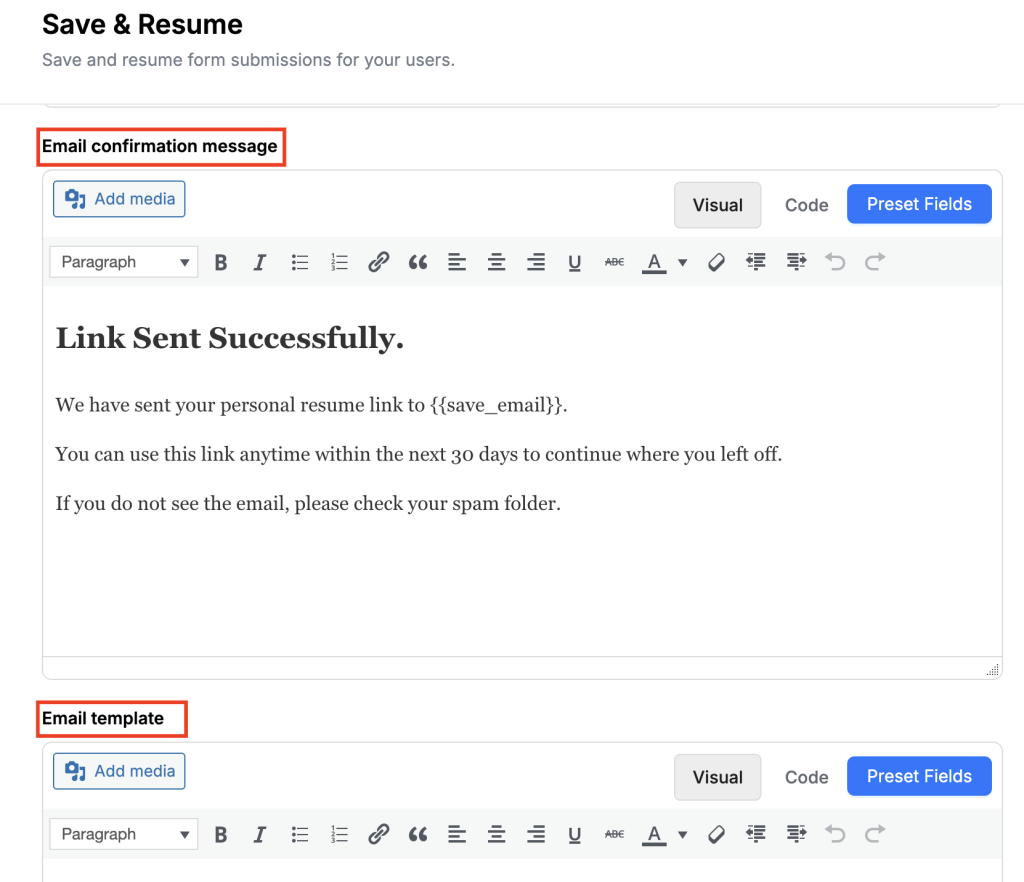
Email Confirmation Message #
This message appears after a user requests the resume link to be sent by email. It confirms that the link has been successfully sent and reminds the user to check their inbox or spam folder if needed.
Email Template #
The Email Template defines the message sent to the user’s email address. It contains the resume link that allows them to reopen the form and continue from where they left off.
You can edit this email content and use dynamic fields such as:
- {{form_title}} – Displays the name of the form.
- {{resume_url}} – Inserts the unique link that allows the user to resume the form.
This resume link is personal to the user and automatically expires after a certain period (for example, 30 days).
Save Changes #
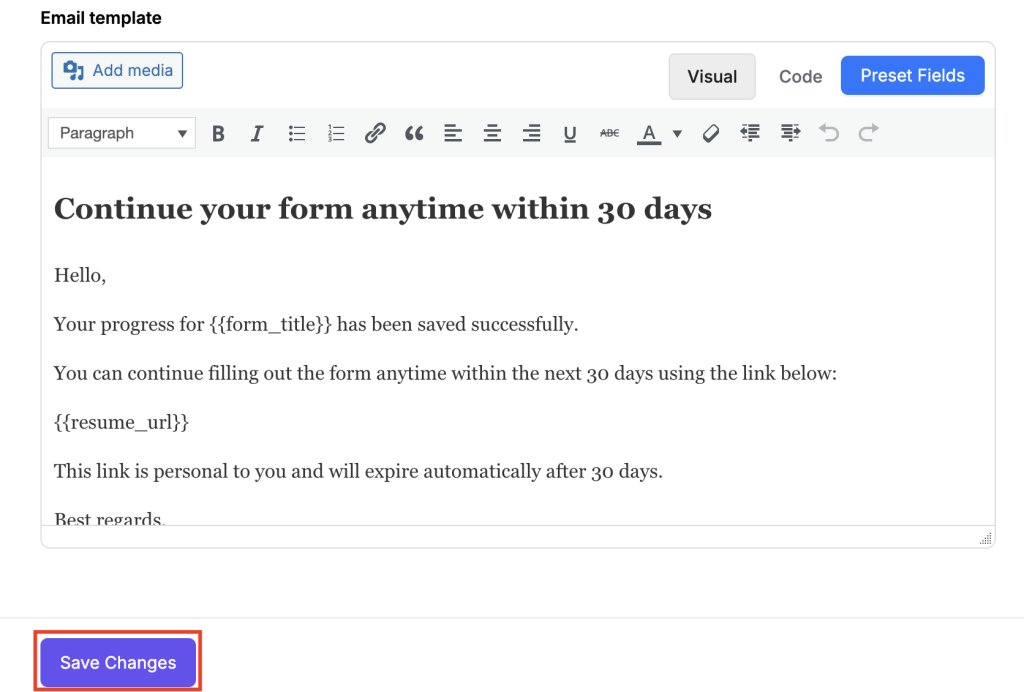
After configuring these settings, click Save Changes to apply the updates to your form. This ensures that the Save and Resume Later feature works correctly for your users.
With these settings enabled, FormGent ensures users never lose their progress and can conveniently return later to complete their form submission.


