
FormGent forms are made with blocks. A block can be a field, a piece of text, a button, a page break, or a payment section.
FormGent has 30 user-facing blocks across its two form types. The Classic editor shows 28 blocks, and the Conversational editor also shows 28 blocks.
The two editors do not show the same 28 blocks:
- Classic forms include Repeater and Page Break.
- Conversational forms include Welcome and End instead.
- The other 26 blocks are available in both editors.
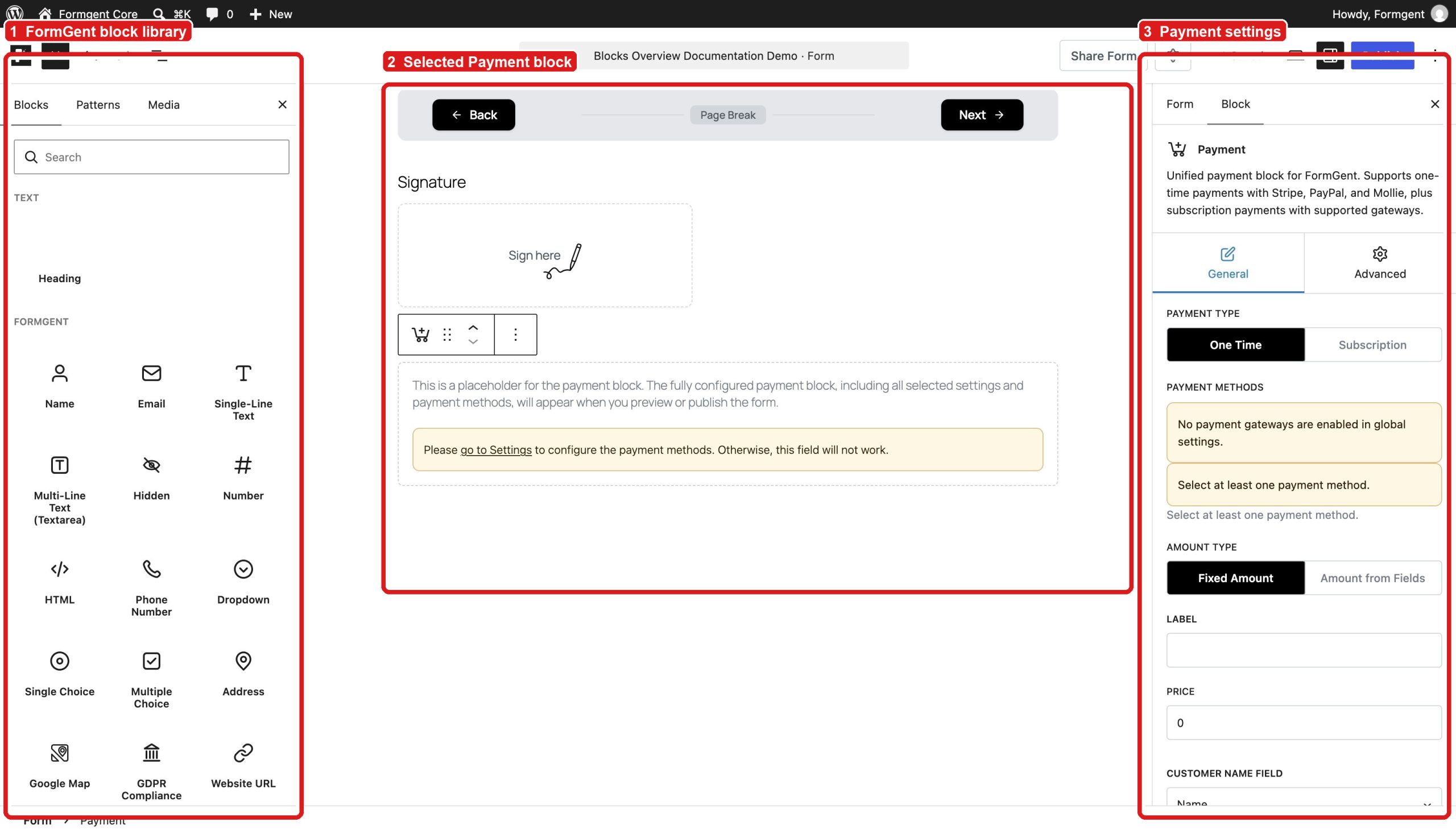
Add a block #
- Go to FormGent → All Forms.
- Open a form.
- Click the + button in the top-left corner.
- Find the FormGent section. You can also search for a block by name.
- Click a block to add it to the form.
- Click the new block on the form to open its settings.
- Save the form when you finish.
Edit and arrange blocks #
Click a block to show its toolbar.
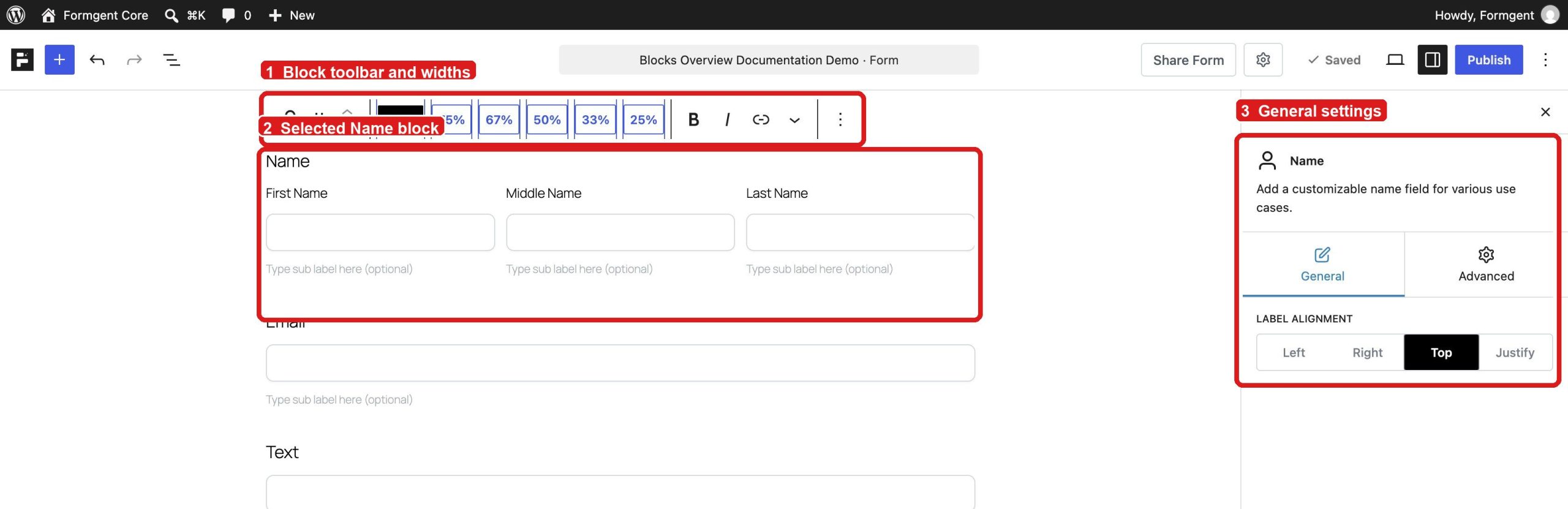
You can use the toolbar to:
- Drag the block to another position.
- Move the block up or down.
- Change its width to 100%, 75%, 67%, 50%, 33%, or 25%.
- Format the label when text formatting is available.
- Open the three-dot menu to duplicate, insert, rename, or delete the block.
To rename a label, click the label on the form and type the new text.
Use the General and Advanced settings #
Most fields have General and Advanced tabs.
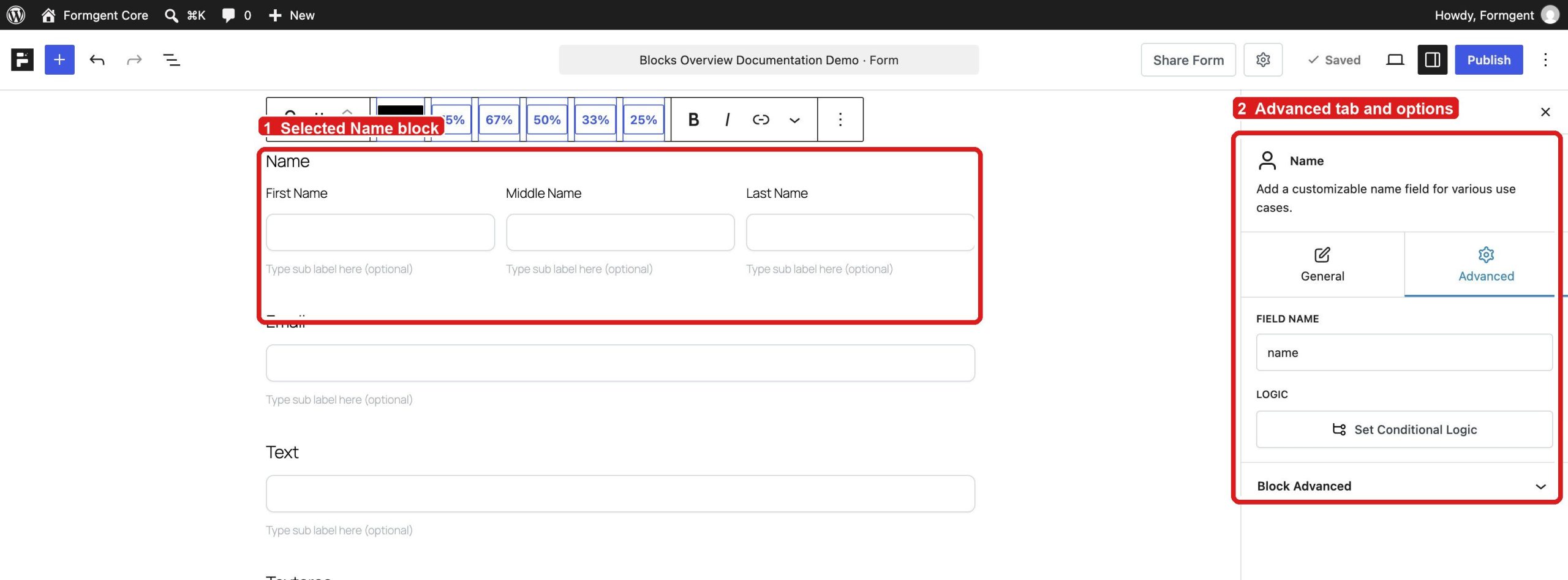
General #
Use the General tab for the field’s main options. These options may include:
- Label position
- Placeholder text
- Required field
- Character or number limits
- Choices
- Default selection
- Field-specific controls
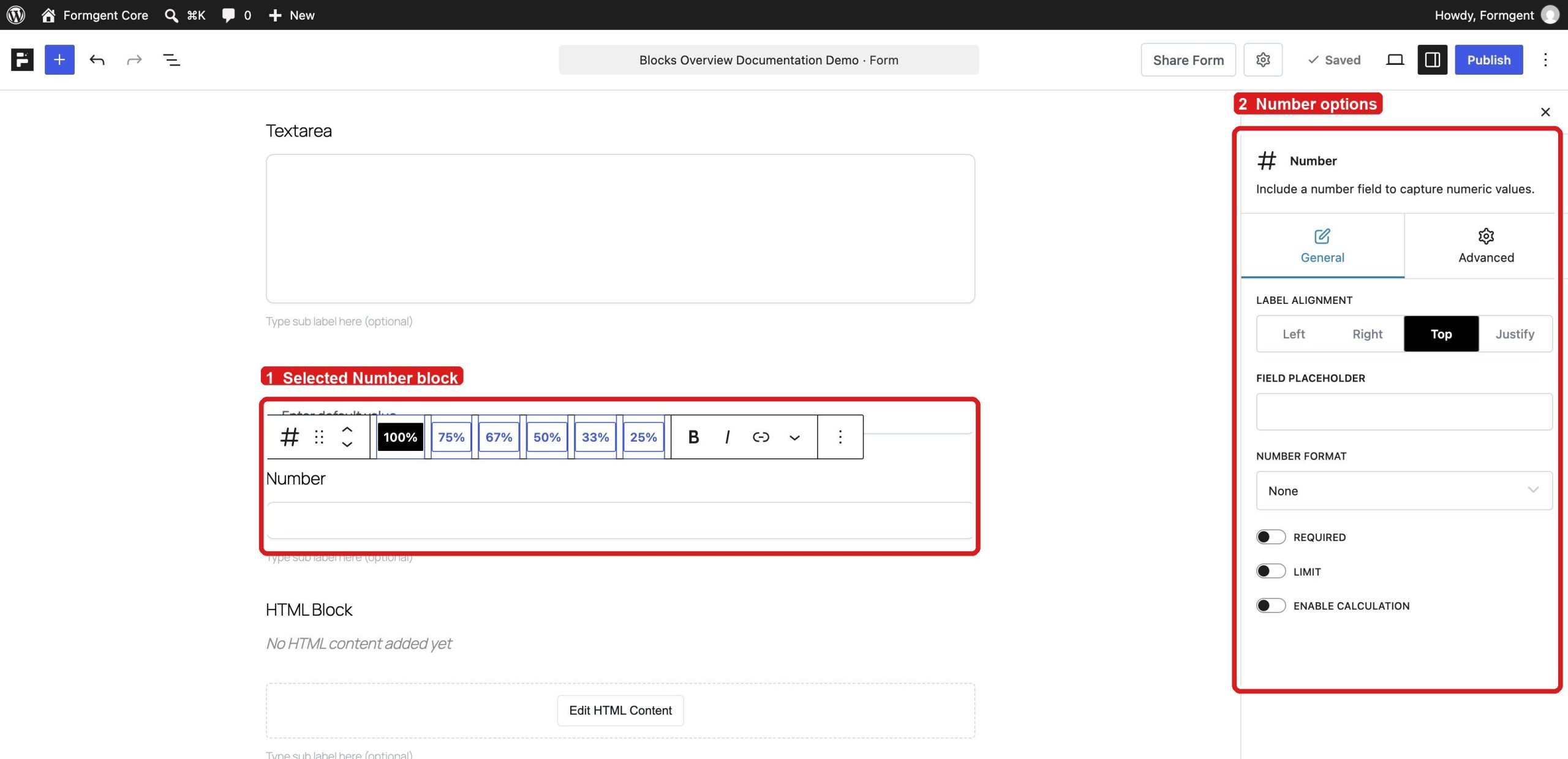
Advanced #
Use the Advanced tab to change the field name, add conditional logic, or open the WordPress advanced block options. The available settings depend on the block.
Text and number blocks #
These blocks collect typed answers.
Name #
Collects a first, middle, and last name. You can show or hide name parts and edit their labels, placeholders, and required settings.
Email #
Collects a valid email address. You can add a confirmation field and show an email icon.
Example: use this field for a contact form or newsletter form.
Single-Line Text #
Collects a short answer, such as a company name, job title, or order number. You can set a placeholder and character limit.
Multi-Line Text (Textarea) #
Collects a longer answer, such as feedback or a message. You can change its height and set a character limit.
Hidden #
Saves a value without showing a field to the visitor.
Example: store a campaign name, referral source, or internal ID.
Number #
Collects a numeric value. You can set the number format, minimum value, maximum value, and calculation options.
Example: collect age, quantity, team size, or a value used in a calculation.
Phone Number #
Collects a phone number. You can show a country code and turn on automatic country detection.
Website URL #
Collects a website address and checks that the value uses a valid URL format.
Input Masking #
Controls the format a visitor must follow while typing.
Example: use a mask for a phone number, date, membership number, or custom ID.
Choice, rating, and slider blocks #
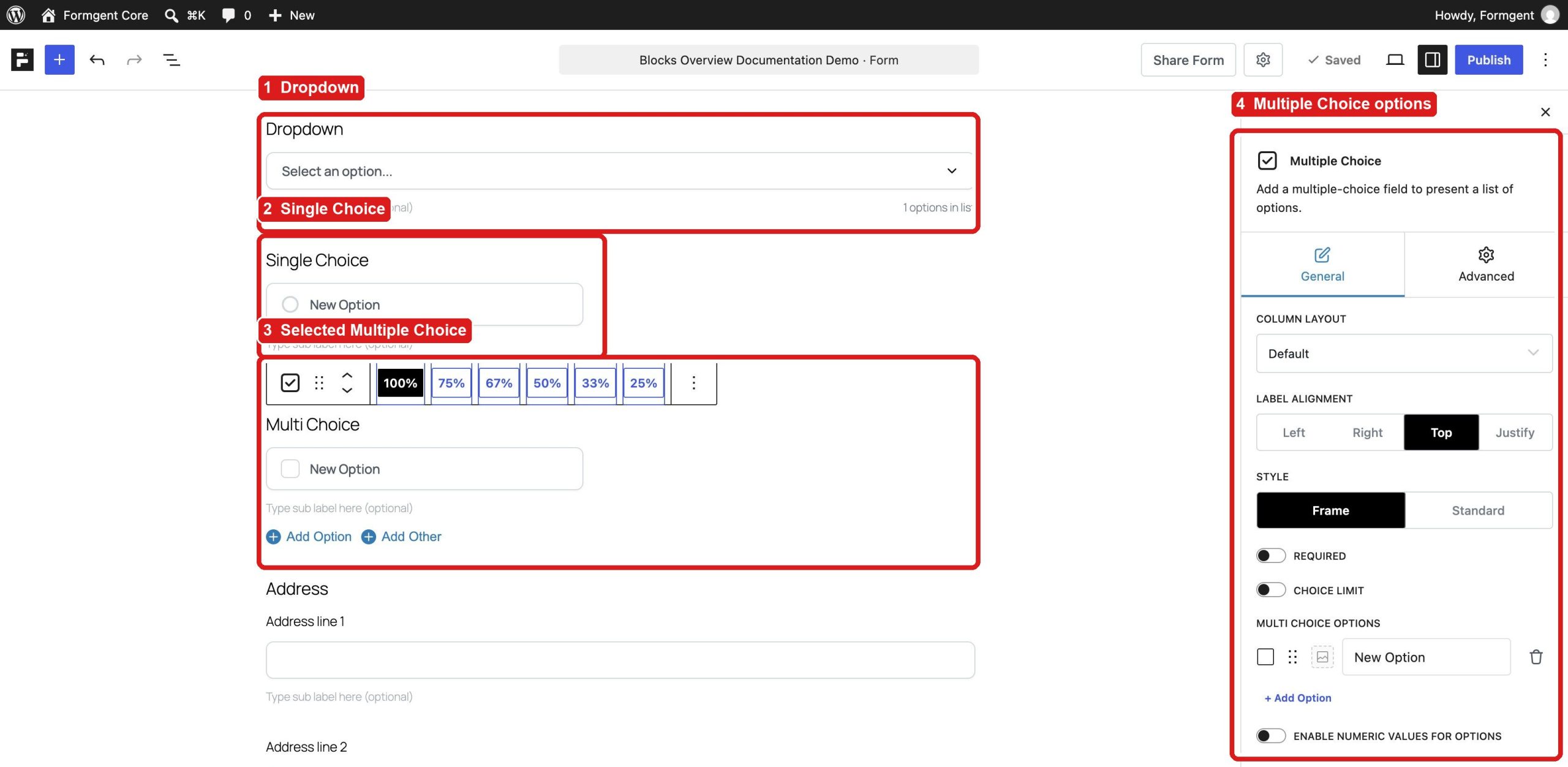
Use these blocks when the visitor should choose from a list or select a score.
Dropdown #
Shows a list of choices and allows one selection. You can choose the default option and turn on search for a long list.
Single Choice #
Shows radio buttons and allows one selection. You can display the choices in a row or a vertical list.
Multiple Choice #
Shows checkboxes and allows more than one selection. You can add an Other choice and limit how many choices a visitor can select.
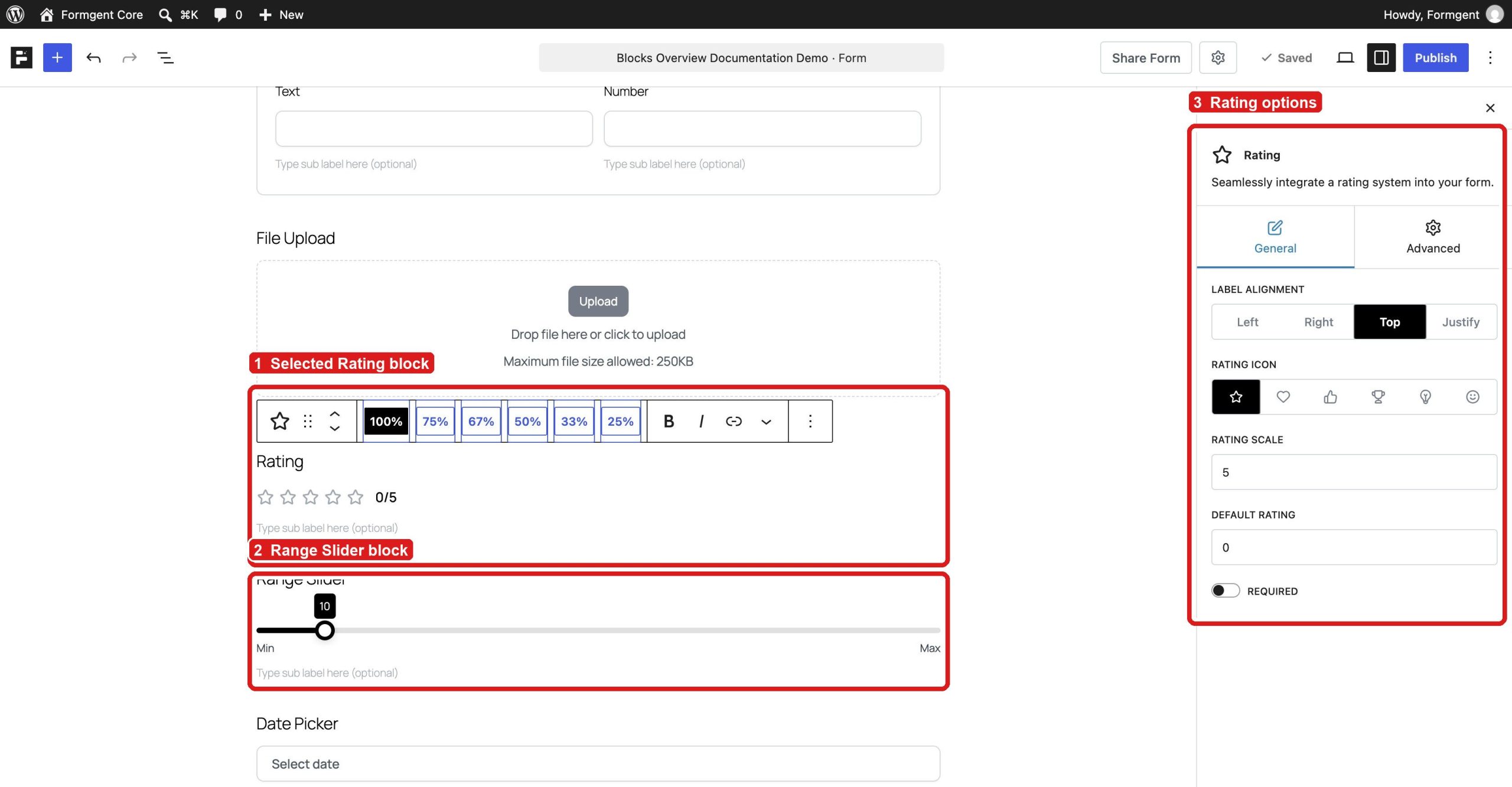
Rating #
Collects a rating. Available icons include stars, hearts, thumbs, trophies, light bulbs, and faces. You can set the rating scale and default rating.
Range Slider #
Lets a visitor choose a number by moving a slider. You can set the minimum, maximum, step, default value, and tooltip text.
Example: let a visitor choose a budget range before requesting a quote.
Content and layout blocks #
These blocks add instructions, repeated fields, and form actions.
HTML #
Adds text or other content without collecting an answer. The HTML editor has three modes:
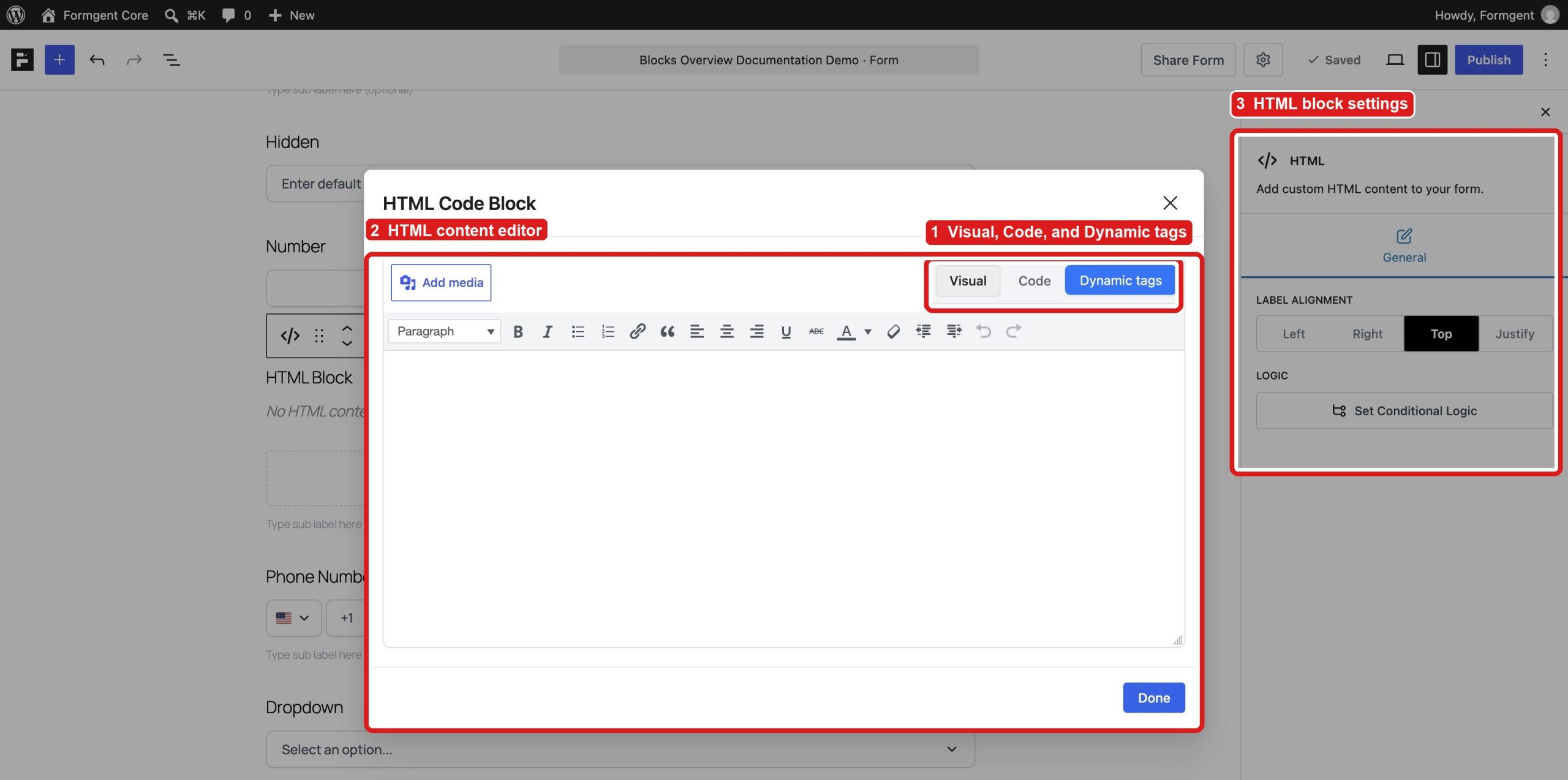
- Visual: Write and format content without code.
- Code: Add HTML code.
- Dynamic tags: Insert supported dynamic values.
Example: add instructions, a warning, or a message between form fields.
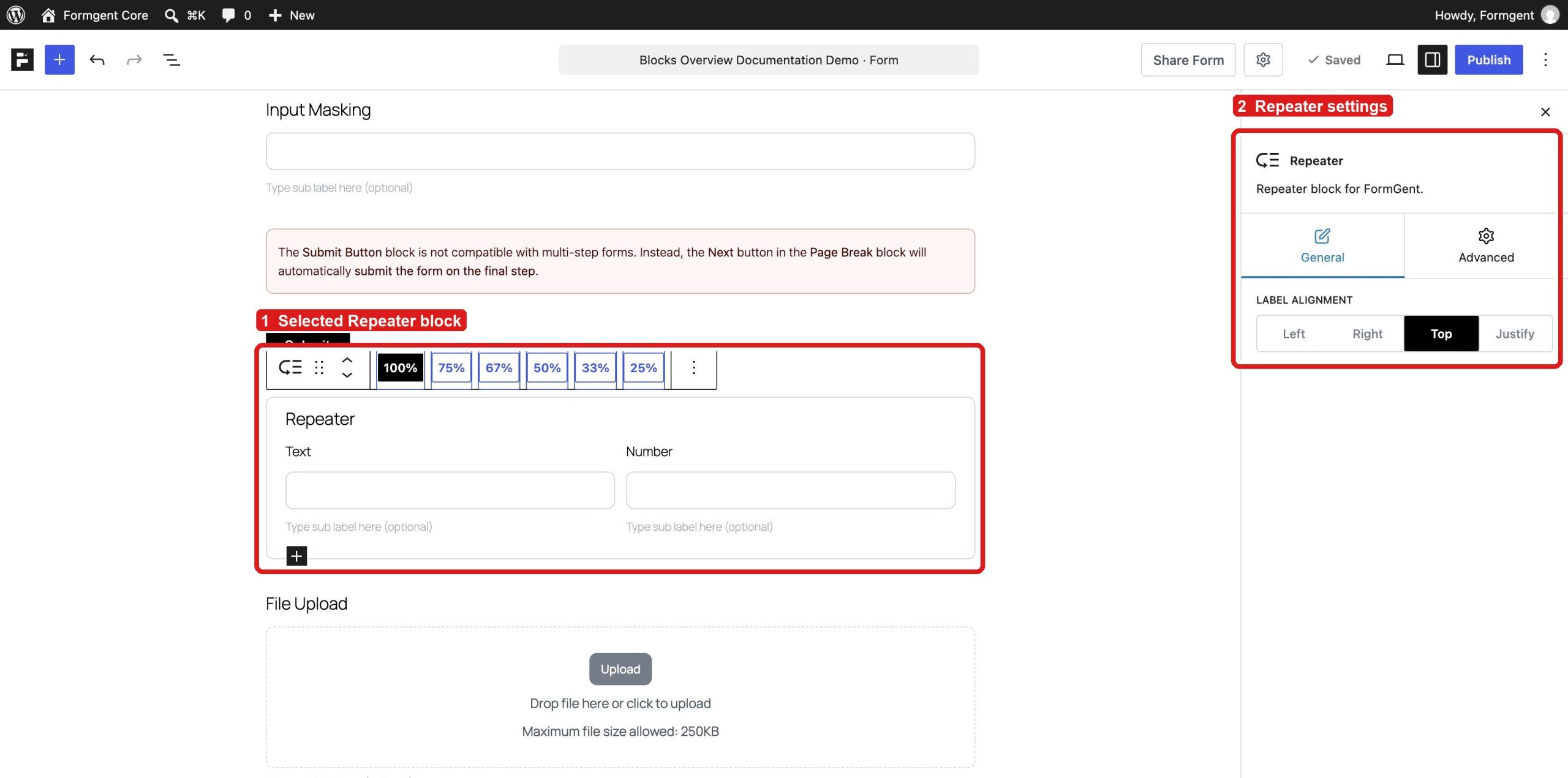
Repeater #
Creates a group of fields that the visitor can repeat. A Repeater can contain supported Text and Number fields.
Example: collect several work experiences, team members, or order items.
Repeater is available in Classic forms. It does not appear in the Conversational block library.
Custom Button #
Adds a form action button. You can edit the button text and alignment.
The Advanced tab contains conditional logic and the standard advanced block options. In a Classic form that uses Page Break, the final Next button submits the form.
Address, map, and date blocks #
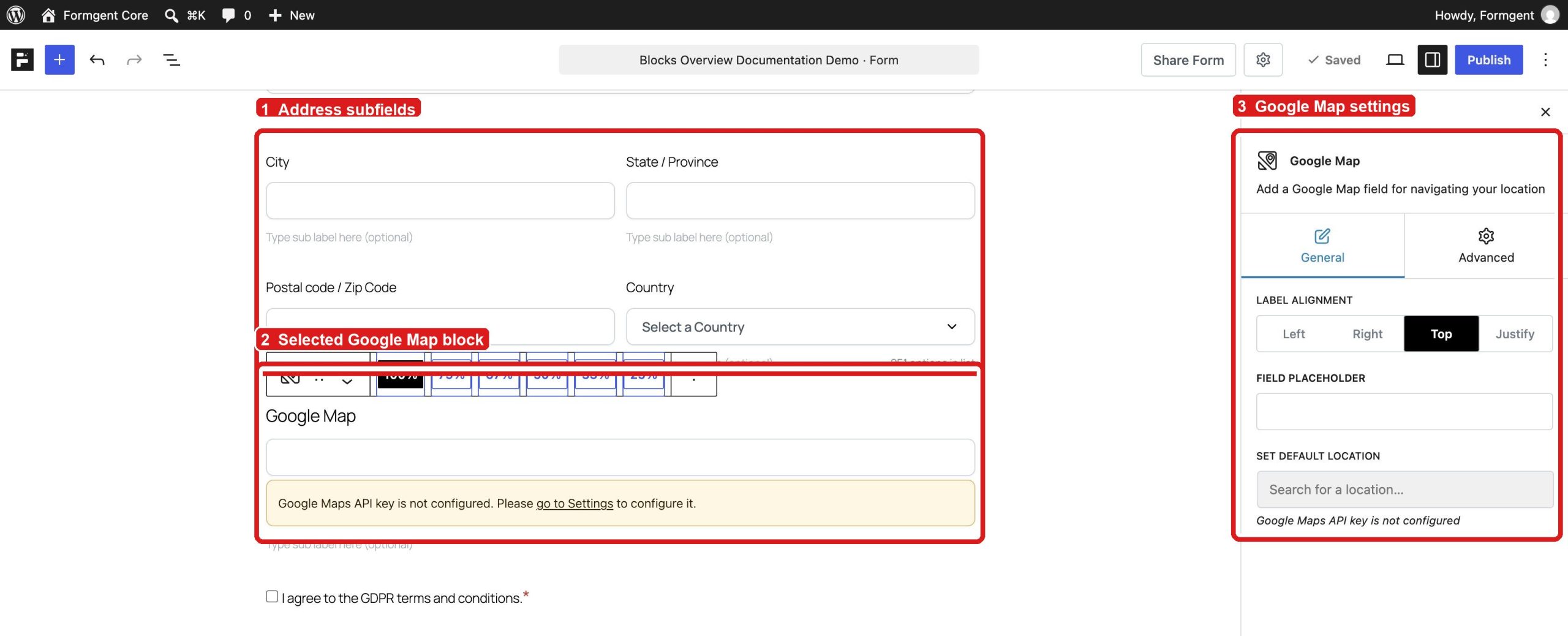
Address #
Collects a complete address. The block contains:
- Address line 1
- Address line 2
- City
- State or Province
- Postal or Zip Code
- Country
You can edit the subfields separately.
Google Map #
Lets a visitor search for or select a location. Add a Google Maps API key in the global FormGent settings before using this block.
The editor shows a warning when the API key is missing.
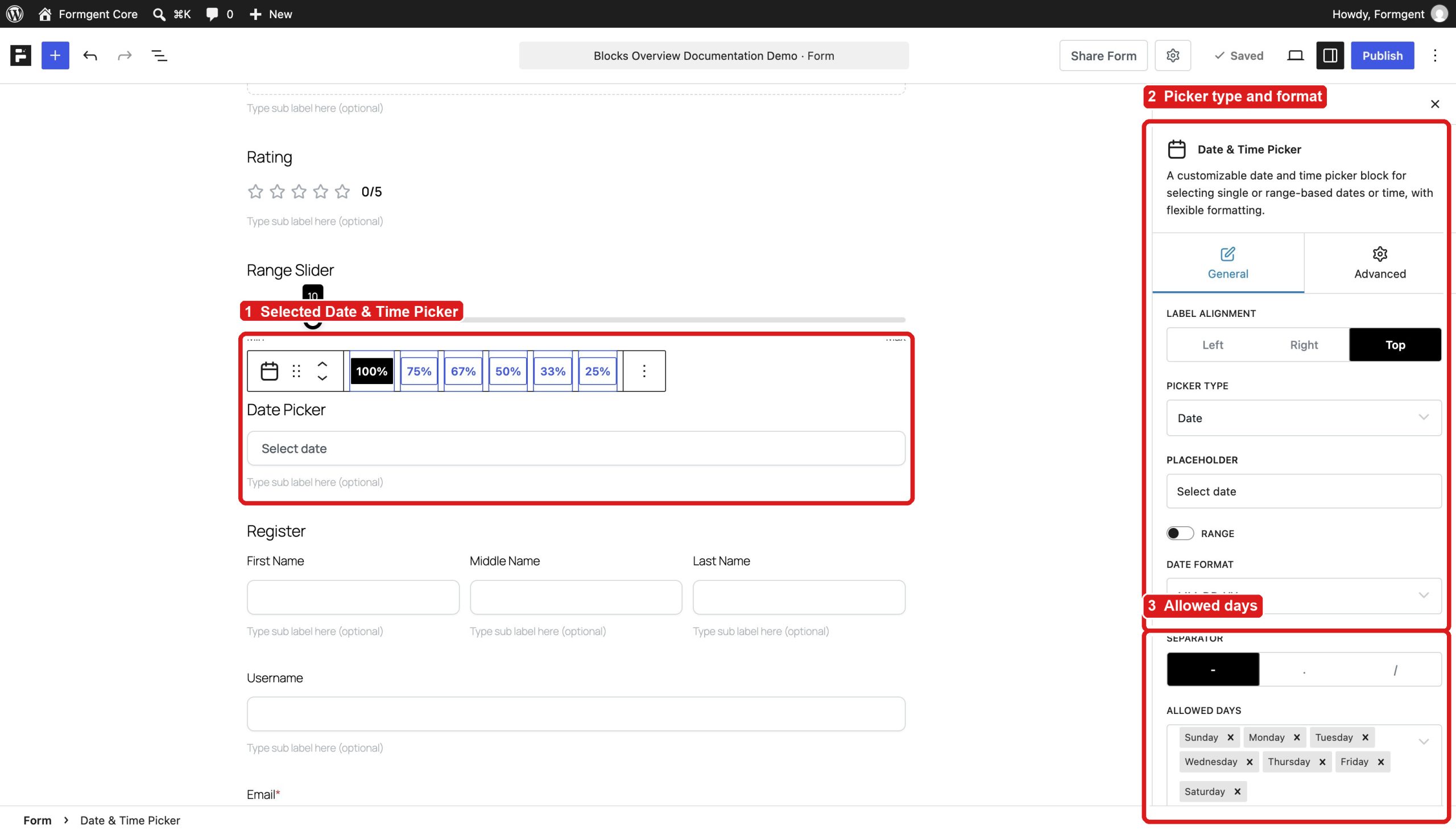
Date & Time Picker #
Collects a date, a time, or both. You can set a default value, date limits, time steps, and allowed days. Allowed-day settings can be used to keep bookings within working days or to block unavailable dates.
Upload, consent, and security blocks #
File Upload #
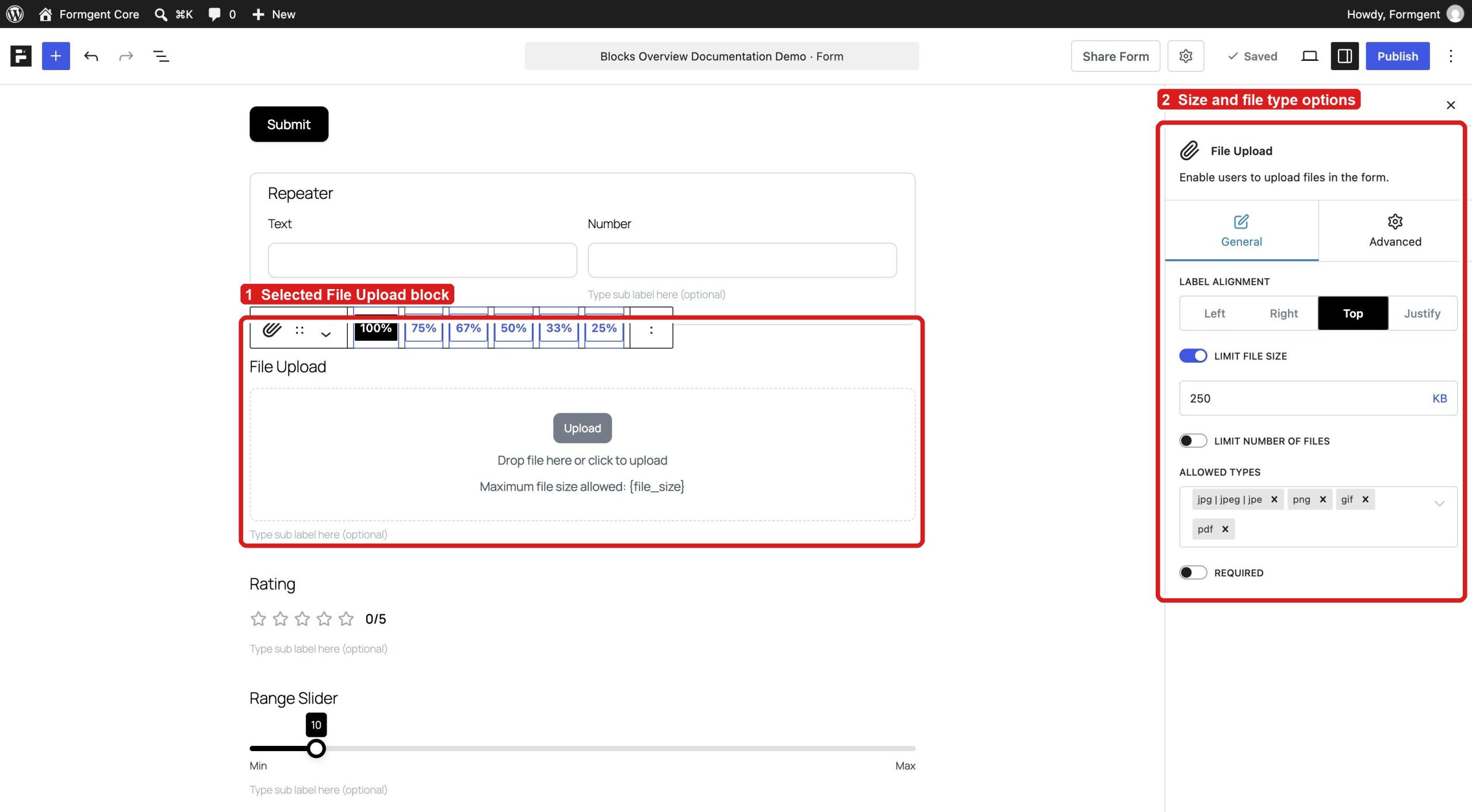
Lets visitors upload files. Set these options before publishing:
- Maximum file size
- Maximum number of files
- Allowed file types
- Required or optional
The screenshot shows a 250 KB limit. JPG, PNG, GIF, and PDF files are allowed in the example.
GDPR Compliance #
Adds a consent checkbox. You can edit the agreement text and make the checkbox required.
Captcha #
Adds spam protection. FormGent supports Google reCAPTCHA, hCaptcha, and Cloudflare Turnstile. Choose a provider and add its credentials under FormGent → Settings → Security & Protection.
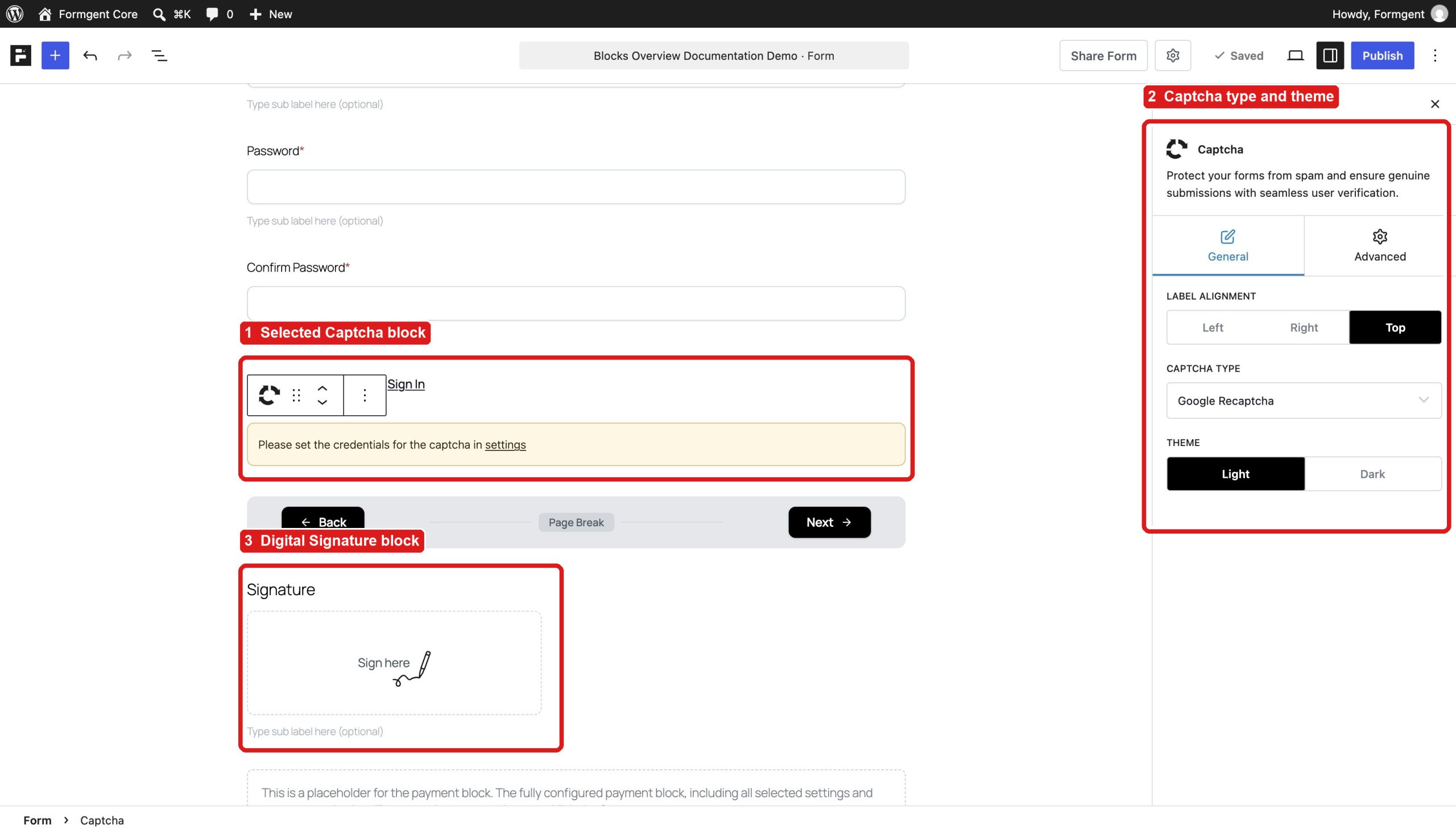
Digital Signature #
Collects a signature by typing, drawing, or uploading it. The available controls can include the font, canvas size, and background.
Registration and login blocks #
Use these blocks when visitors need a WordPress account.
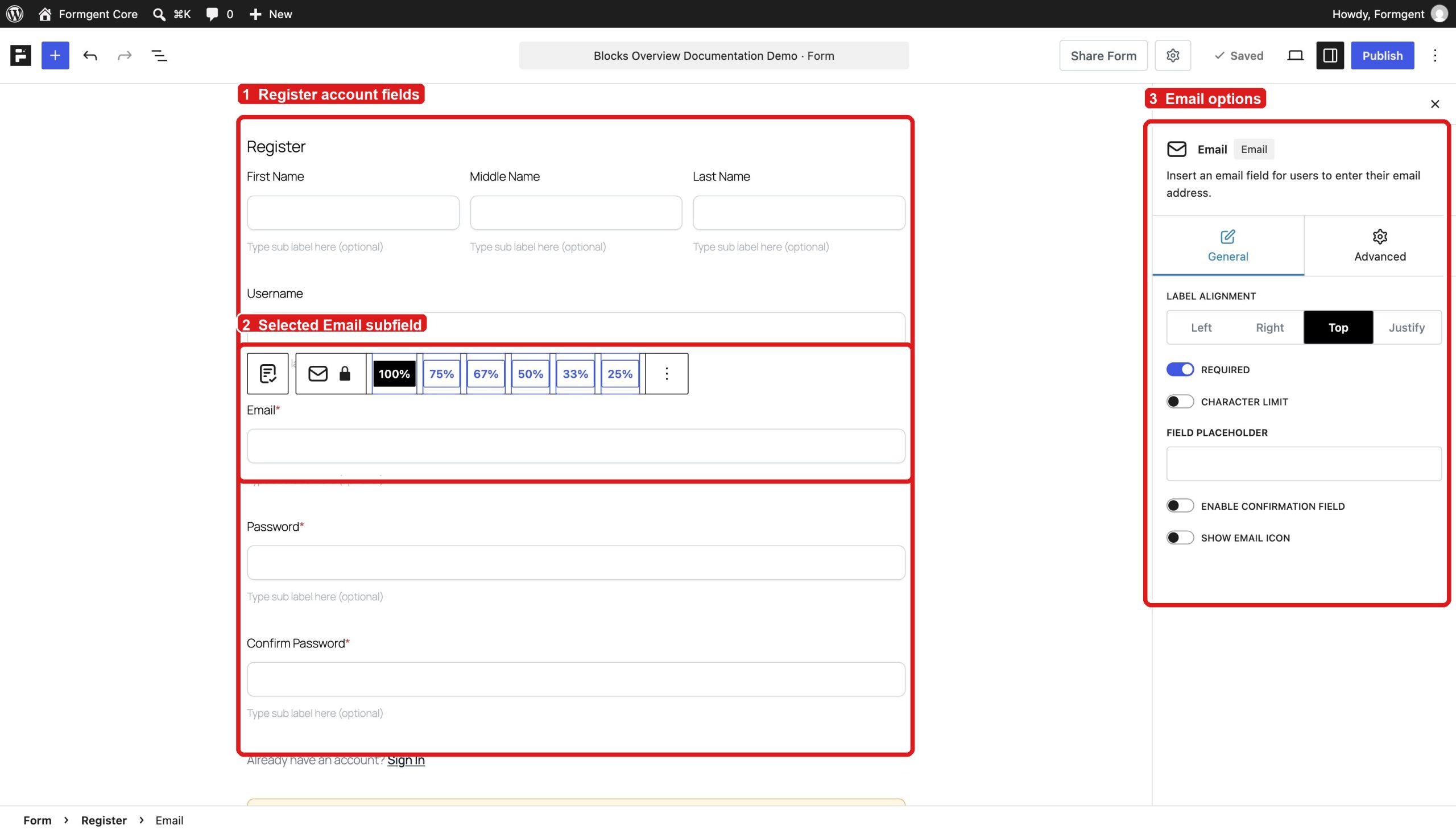
Register #
Adds the fields needed to create a WordPress user:
- First, middle, and last name
- Username
- Password
- Confirm password
- Sign-in link
Open the form’s User Registration settings and complete the registration setup before publishing.
Login #
Creates a WordPress login form.
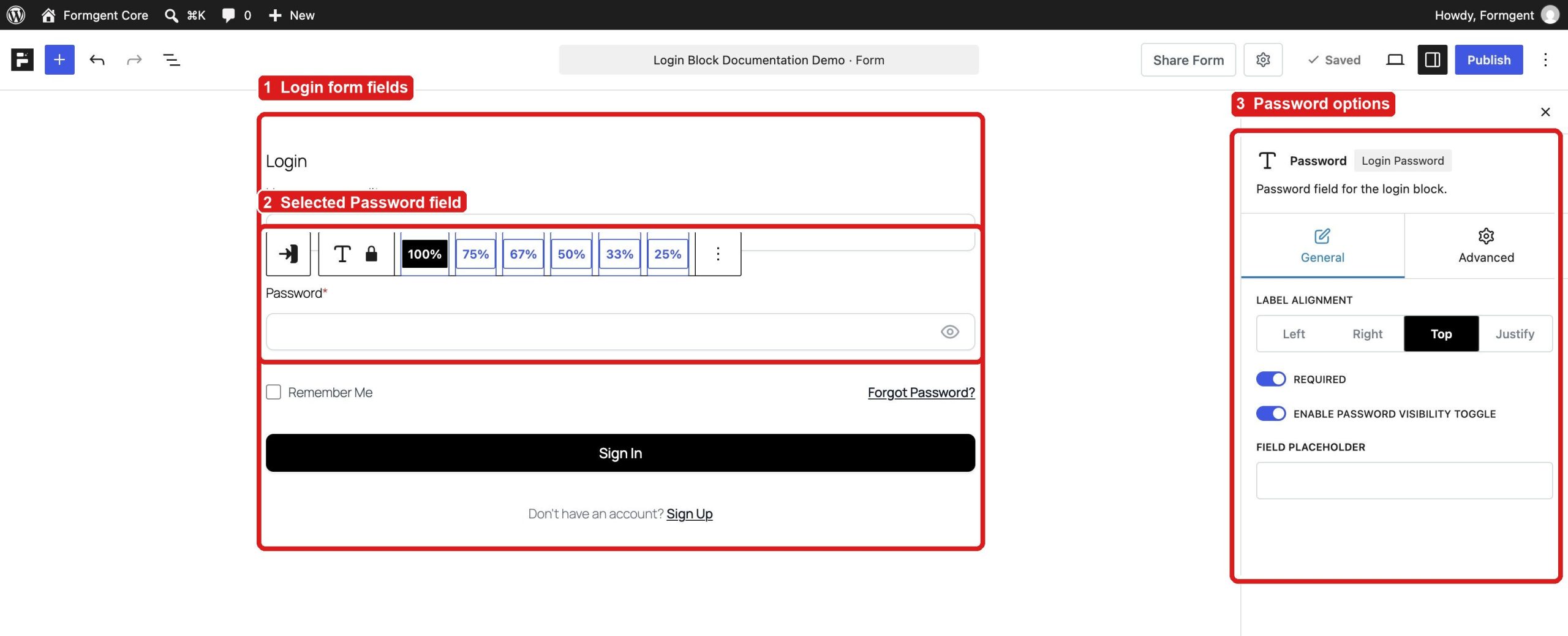
It can contain:
- Username or email
- Password
- Remember me
- Forgot password
- Sign-up link
Payment block #
Use the Payment block to collect one-time or recurring payments.
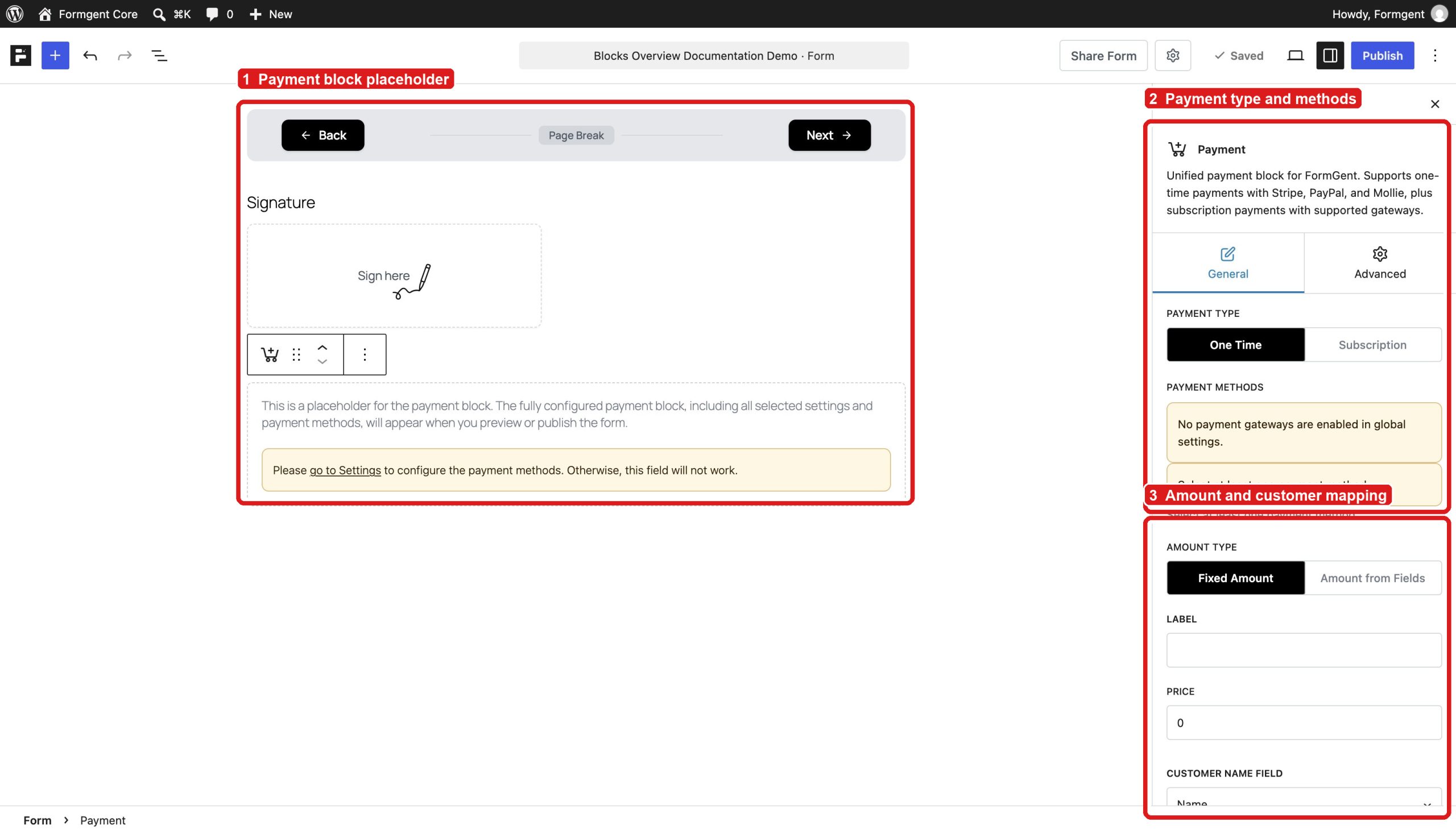
The block can use Stripe, PayPal, or Mollie when the gateway is available and configured. Subscription support depends on the gateway.
Set up the Payment block #
- Go to FormGent → Settings → Payment Settings.
- Connect and enable a payment gateway.
- Return to the form and add the Payment block.
- Choose One Time or Subscription.
- Select a payment method.
- Choose Fixed Amount or Amount from Fields.
- Enter the label and price.
- Map the customer name and email fields.
- Save the form and complete a test payment.
If no gateway is enabled, the block shows a warning and cannot collect a payment.
See Payment Integrations for the complete gateway setup.
Blocks for classic forms #
Classic forms use Page Break to split one form into several pages. Page Break is not available in the Conversational block library.
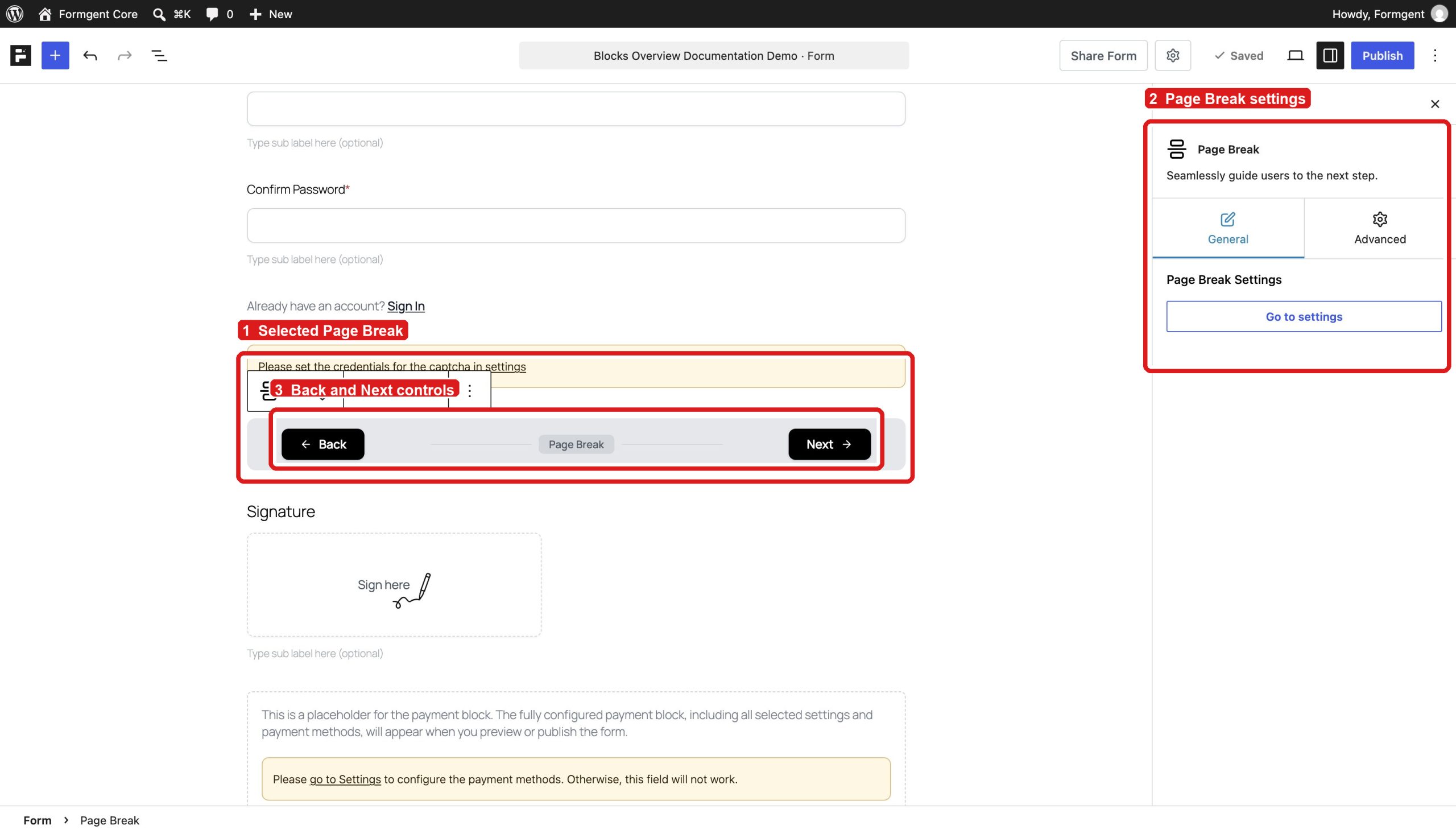
Page Break #
Splits a long form into steps. Select the block and click Go to settings to edit the step labels, navigation buttons, and progress indicator.
Place Page Break between groups of fields. Do not add one after the last group.
Blocks for conversational forms #
Turn on Conversational Form under the form’s General settings to use the conversational layout.
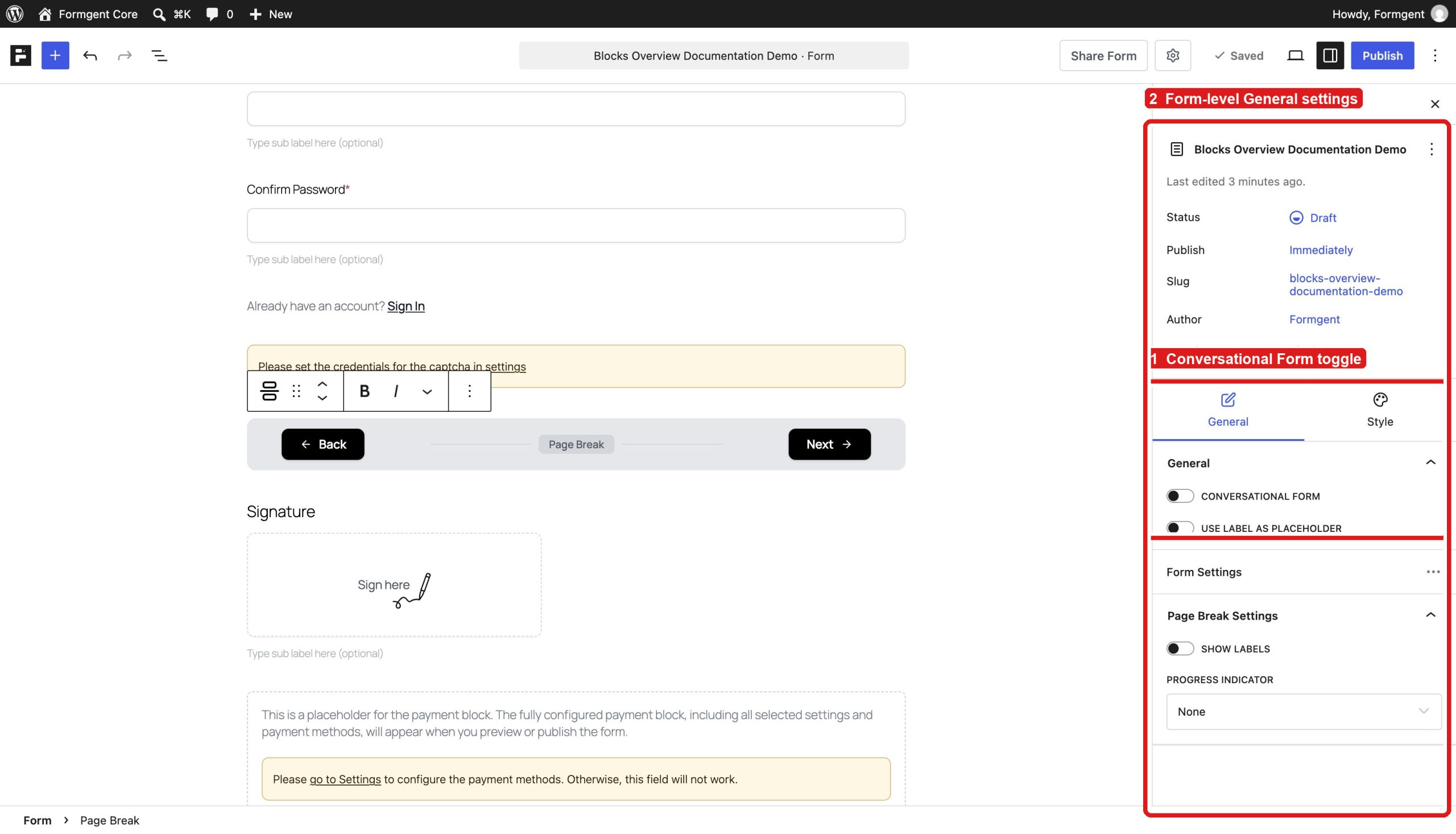
When you switch a form to Conversational, FormGent changes the layout and adds one Welcome block and one End block. These blocks replace Repeater and Page Break in the Conversational block library.
Welcome #
Shows the opening screen. Add a greeting, instructions, HTML, or media. A Conversational form can have one Welcome block.
End #
Shows the closing screen. Add a thank-you message, next step, link, or call to action. A Conversational form can have one End block.
Quick block reference #
This table lists all 30 user-facing blocks verified in the current editor.
| Block | Use it for | Classic | Conversational |
|---|---|---|---|
| Name | First, middle, and last name | Yes | Yes |
| Valid email address | Yes | Yes | |
| Single-Line Text | Short written answer | Yes | Yes |
| Multi-Line Text (Textarea) | Long written answer | Yes | Yes |
| Hidden | Value that visitors do not see | Yes | Yes |
| Number | Numeric value or calculation | Yes | Yes |
| Phone Number | Phone number and country code | Yes | Yes |
| Dropdown | One choice from a list | Yes | Yes |
| Single Choice | One radio-button choice | Yes | Yes |
| Multiple Choice | Several checkbox choices | Yes | Yes |
| Address | Full address | Yes | Yes |
| Google Map | Search or select a location | Yes | Yes |
| GDPR Compliance | Consent checkbox | Yes | Yes |
| Website URL | Website address | Yes | Yes |
| Input Masking | Answer in a fixed format | Yes | Yes |
| HTML | Instructions or display content | Yes | Yes |
| Custom Button | Add a form action button | Yes | Yes |
| Repeater | Repeat a group of fields | Yes | No |
| File Upload | Upload one or more files | Yes | Yes |
| Rating | Select a score with an icon | Yes | Yes |
| Range Slider | Select a number on a slider | Yes | Yes |
| Date & Time Picker | Select a date or time | Yes | Yes |
| Register | Create a WordPress account | Yes | Yes |
| Login | Sign in to WordPress | Yes | Yes |
| Captcha | Block spam submissions | Yes | Yes |
| Page Break | Split a form into steps | Yes | No |
| Digital Signature | Add a signature | Yes | Yes |
| Payment | Collect a payment | Yes | Yes |
| Welcome | Open a conversational form | No | Yes |
| End | Close a conversational form | No | Yes |
Check the form before publishing #
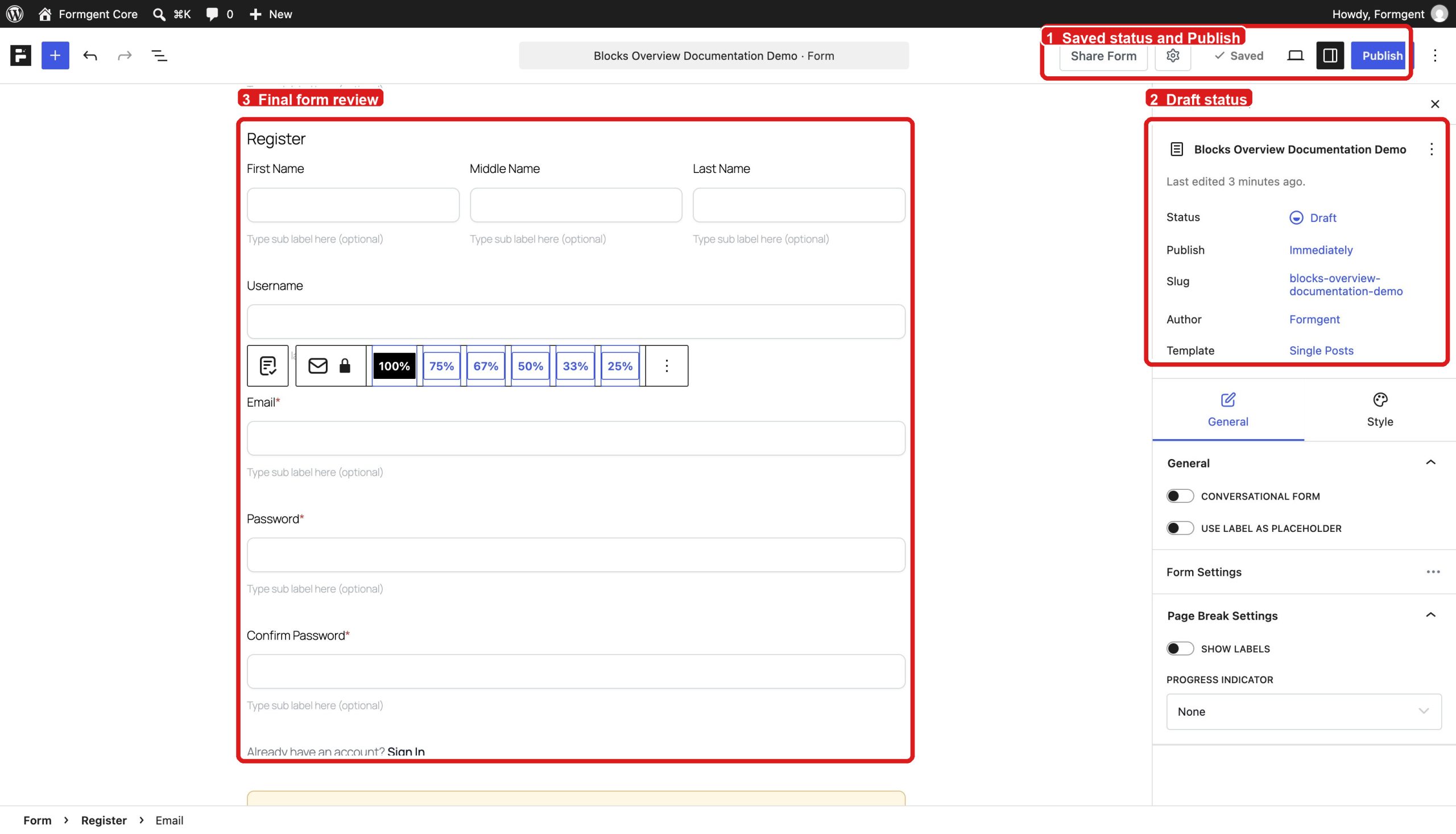
- Click Save draft.
- Use View to check the form on desktop, tablet, and mobile.
- Submit the form once as a visitor.
- Check required fields and error messages.
- Test any upload, Captcha, registration, login, signature, calculation, and payment blocks.
- Check that connected services receive the correct data.
- Click Publish when every test passes.


