
Quiz #
Formgent allows you to turn any form into an interactive quiz with scoring and result display. This is perfect for educational tools, assessments, knowledge checks, or fun interactive content.
You can configure quiz behavior from the Form tab > Quiz section. To activate quiz functionality, simply toggle on Enable Quiz.
Configure Quiz Questions #
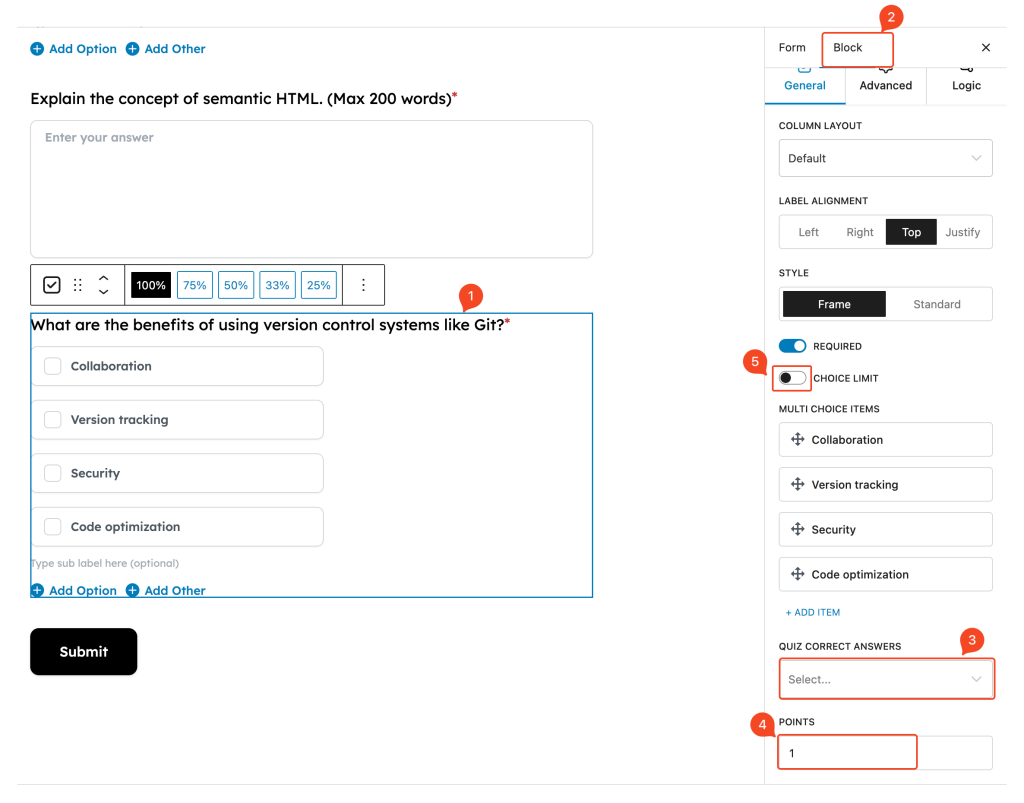
Once quiz mode is enabled, you can set up individual questions to be scored. Here’s how:
- Add a Question Block
Insert a question type that supports scoring, such as Single Choice, Dropdown, or Short Text. - Go to the Block Tab
Click on the question and navigate to the Block tab in the sidebar. - Select the Correct Answer
Use the Quiz Correct Answer dropdown to choose the right option for that question. This tells the system which answer is correct when calculating scores. - Assign Points
In the Points field, enter how many points this question should carry. You can assign different points per question based on difficulty or importance. - You can also limit the number of selections for multi-select choice-type questions. Just toggle on “Choice Limit” and set the maximum number of choices allowed.
Grade System #
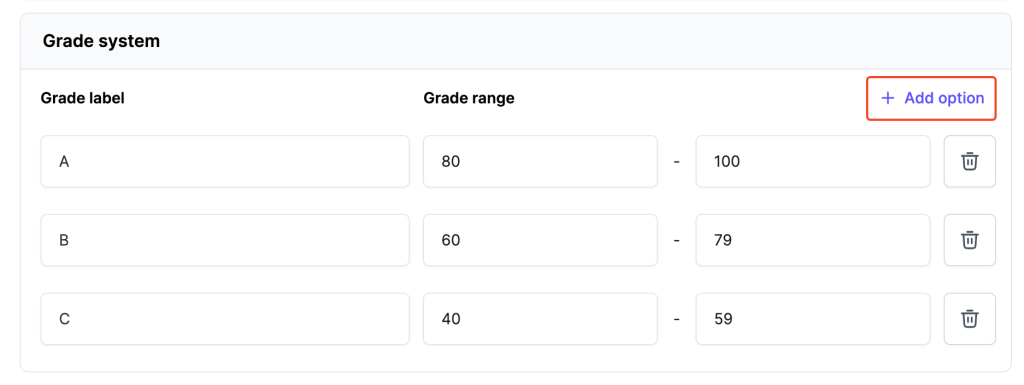
After setting up your questions, you can define how overall scores are interpreted.
Add Grade Ranges #
Each grade range includes:
- Grade Label – What users will see (e.g., A, B, Pass, Try Again)
- Score Range – The percentage range that qualifies for each label (e.g., 80–100 for A)
Click + Add Option to create more ranges, or remove any using the trash icon.
Formgent automatically calculates the total score and assigns a grade based on these settings.
⚠️ Important #
- You must manually configure correct answers on individual fields (Single Choice, Multiple Choice, etc.) for the quiz scoring to work properly.
- Scores are calculated based on the number of correct responses.


