
What is Mailchimp Integration? #
FormGent Mailchimp integration allows you to automatically sync form submissions into your Mailchimp audience list and ensures that your email list stays updated without any manual effort.
Integrate Mailchimp with FormGent: Step-by-step Guide #
Step 1: Go to FormGent Integrations #
From your WordPress dashboard, navigate to: FormGent → Settings → Integrations.
Here you’ll see the list of available integrations, including Mailchimp.
Step 2: Connect Mailchimp #
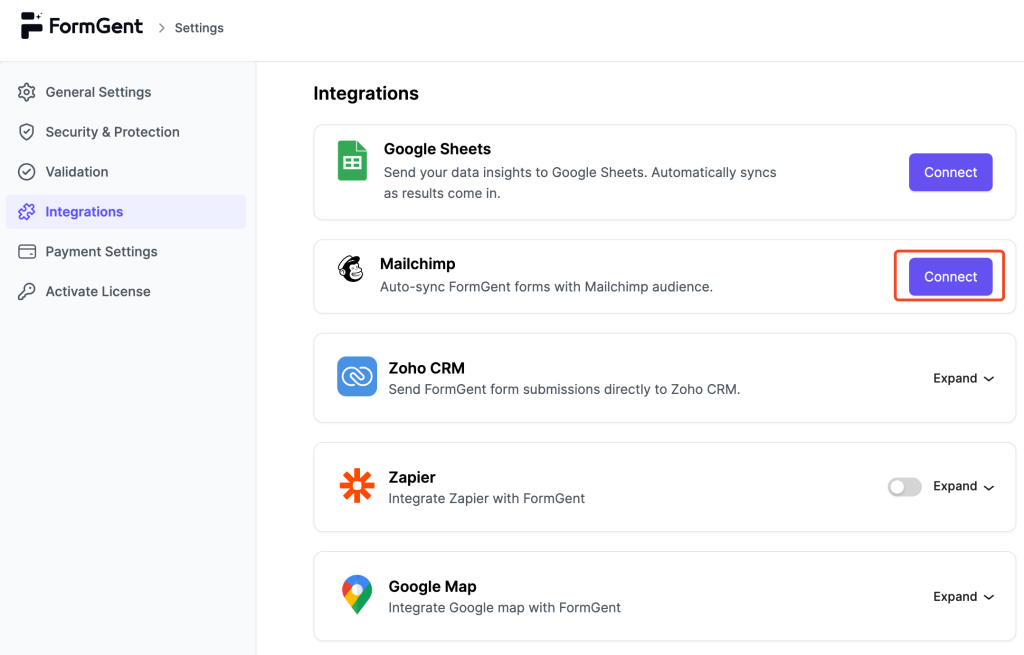
- Find Mailchimp in the integrations list.
- Click the Connect button to start the connection.
Step 3: Log in to Mailchimp #
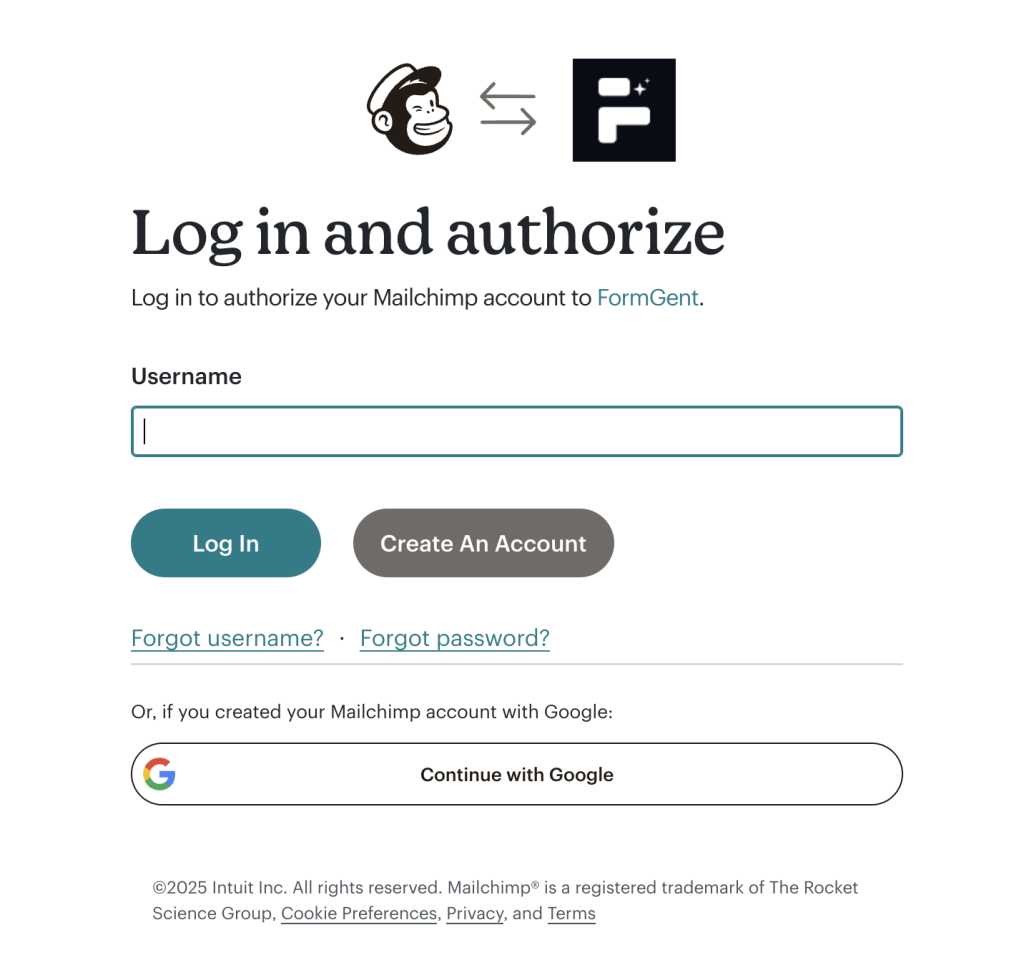
A login window will appear. You can log in with:
- Your Mailchimp username and password
- Or use Continue with Google if your account is linked.
Step 4: Authorize FormGent #
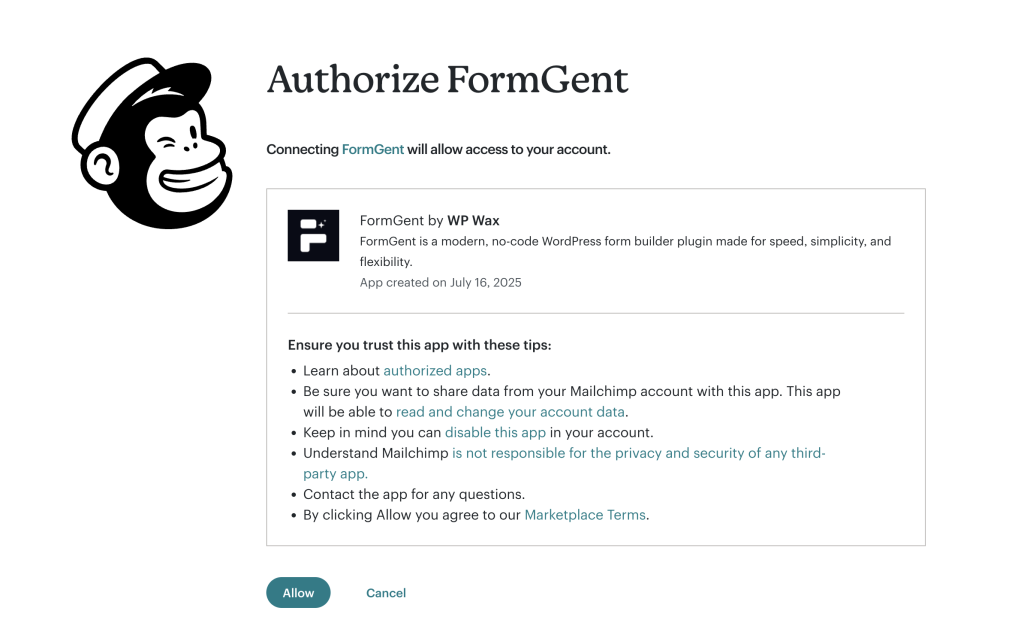
Once logged in, Mailchimp will ask you to authorize FormGent.
- Review the app details
- Click Allow to confirm.
Step 5: Connection Successful #

After authorization, you’ll see a green Connected badge under Mailchimp in the integrations panel.
Step 6: Manage Integration #
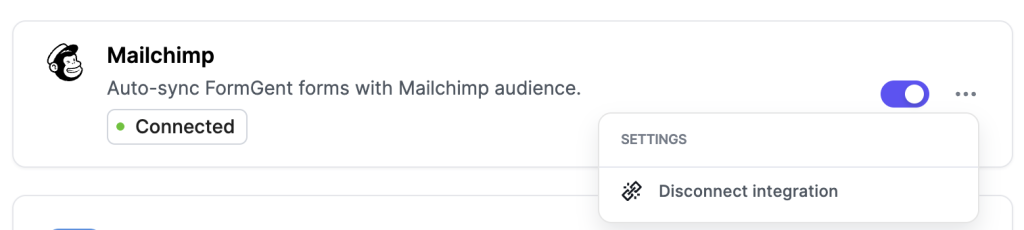
- Use the toggle to enable/disable the integration and sync.
- Click the three dots (…) menu to disconnect integration if needed.
Use Cases #
- Newsletter Signups: Automatically add newsletter subscribers from a signup form to your Mailchimp list.
- Lead Generation: Capture leads from your website forms and organize them in Mailchimp for campaigns.
- Opt-out or Unsubscribe: Unsubscribe users based on checkbox or field response.
For troubleshooting or any error, contact with our Support or Mailchimp support based on the issue.


