
FormGent’s Export and Import features let you move or reuse a form without rebuilding it. Export saves the form structure and settings as a .json file, while Import uses that file to create a new editable form. It does not import responses, uploaded files, or integration credentials.
This is useful when you want to:
- move a form to another WordPress website;
- move a form from a local or staging website to a live website;
- keep a reusable form template;
- share a form with another FormGent user; or
- keep a backup of the form layout and settings.
Important: The Import button accepts a FormGent export file. It does not accept a normal HTML file or any random JSON file.
Before you start #
You need:
- WordPress admin access;
- FormGent installed on both websites; and
- a .json file created with the FormGent Export action.
It is best to use the same or a compatible FormGent version on both websites.
Export a form #
Use these steps on the website that already has the form.
1. Open All Forms #
In the WordPress dashboard, go to:
FormGent → All Forms
2. Open the form action menu #
Find the form you want to export. In the More column, click the three dots (…).
3. Click Export #
Click Export in the menu.
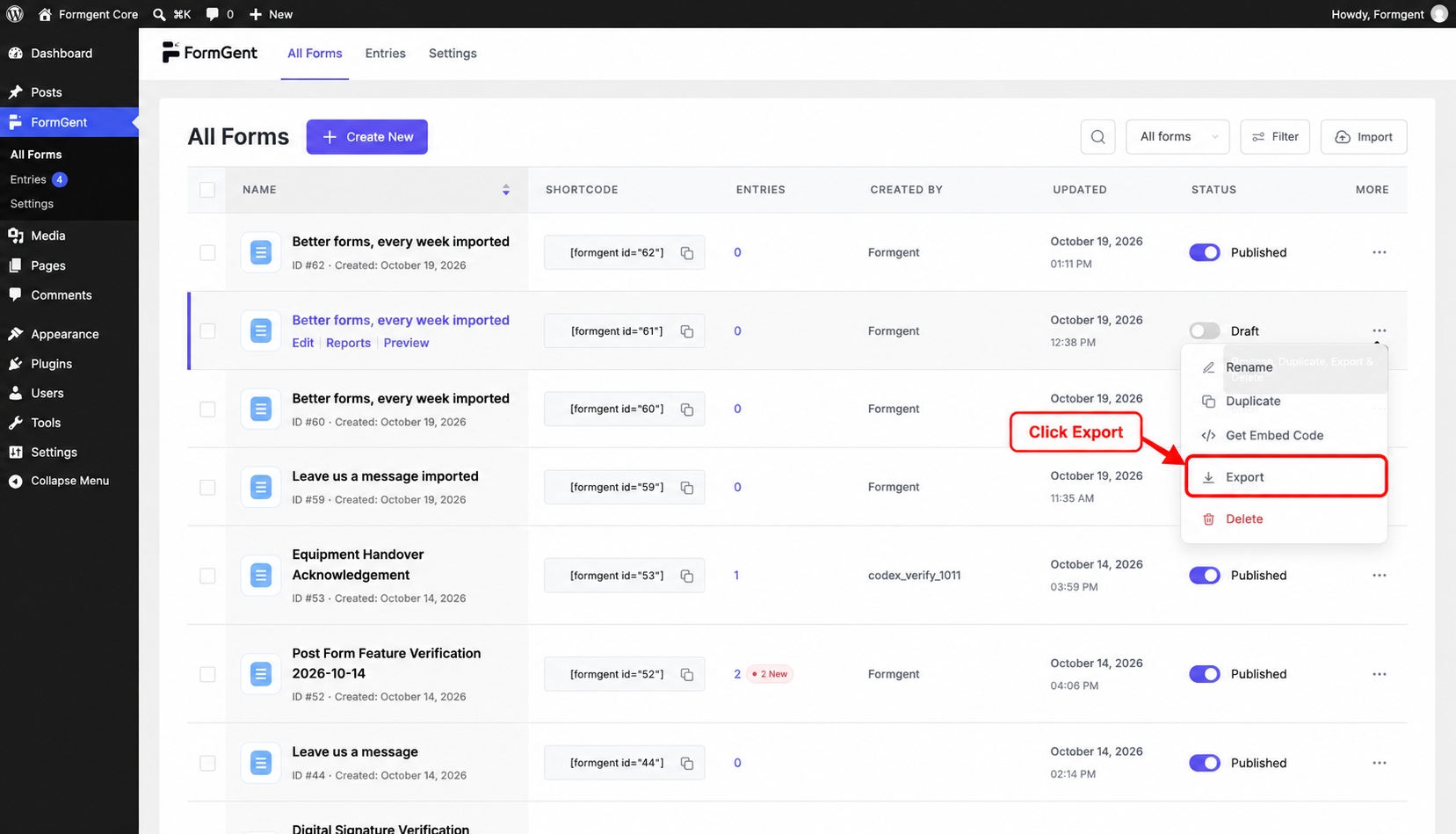
FormGent will download a .json file to your computer.
You will also see this message:
The form has been exported successfully.
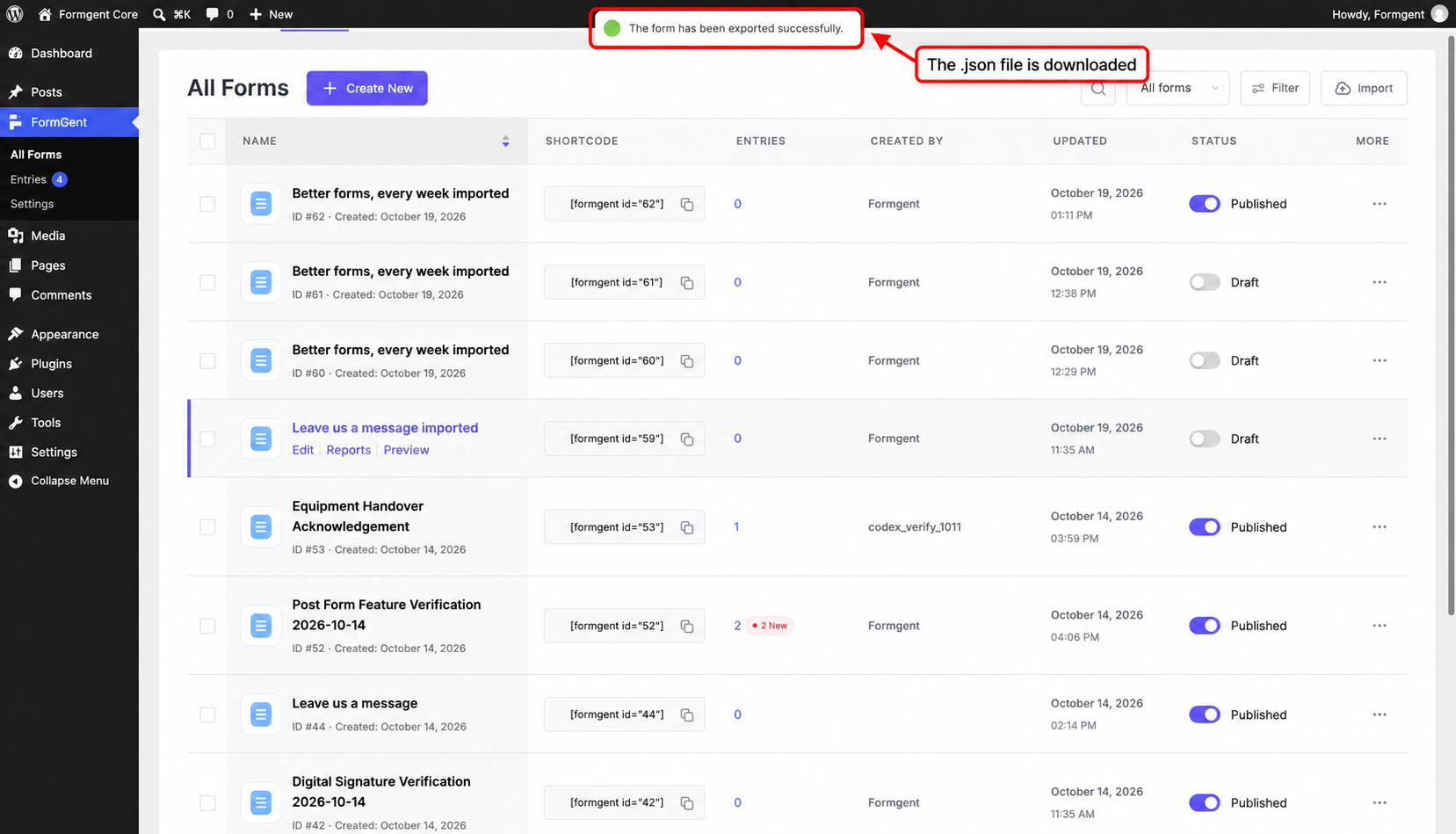
Keep the downloaded .json file. You will use it during the import.
Import a form #
Use these steps on the website where you want to add the form.
1. Open All Forms #
In the WordPress dashboard, go to:
FormGent → All Forms
2. Click Import #
Click Import near the upper-right corner of the All Forms page.
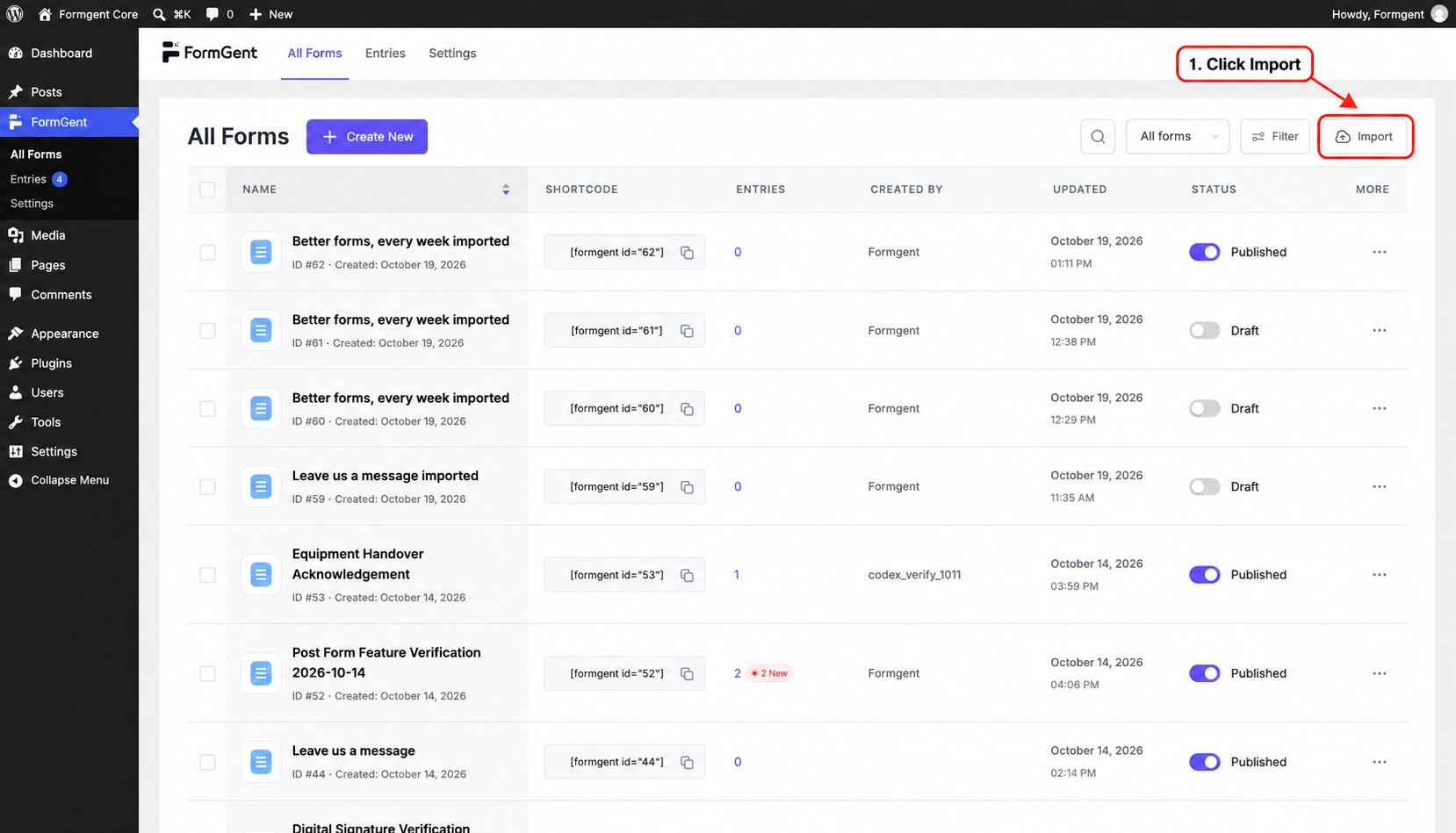
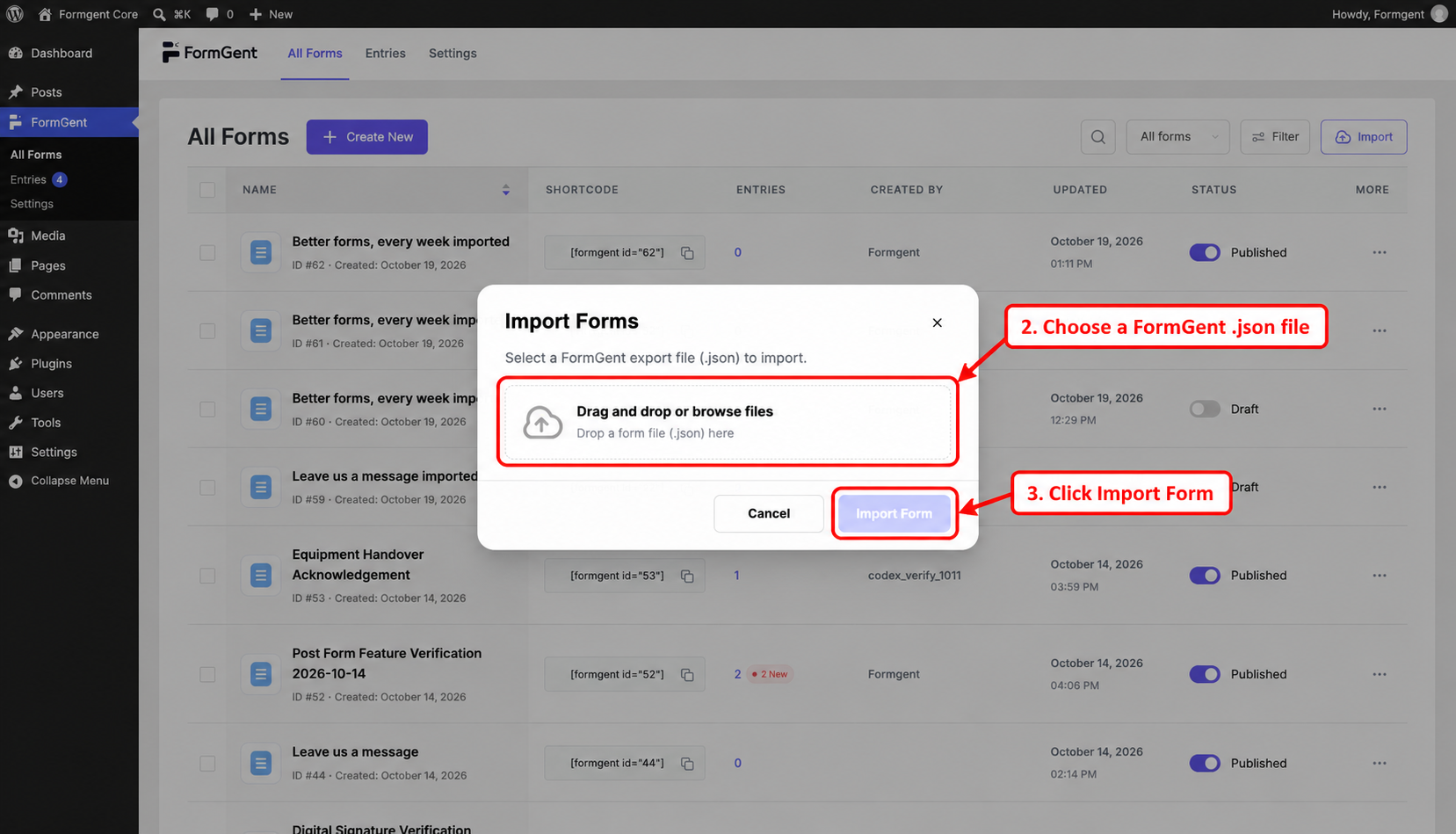
The Import Forms window will open.
3. Choose the export file #
Click Drag and drop or browse files.
Choose the .json file that you downloaded with the FormGent Export action.
You can also drag the file from your computer and drop it inside the upload area.
4. Click Import Form #
After FormGent accepts the file, click Import Form.
The imported form will appear on the All Forms page. It will have its own form ID and shortcode.
Fix the “valid FormGent form export file” error #
You may see this message:
Please select a valid FormGent form export file.
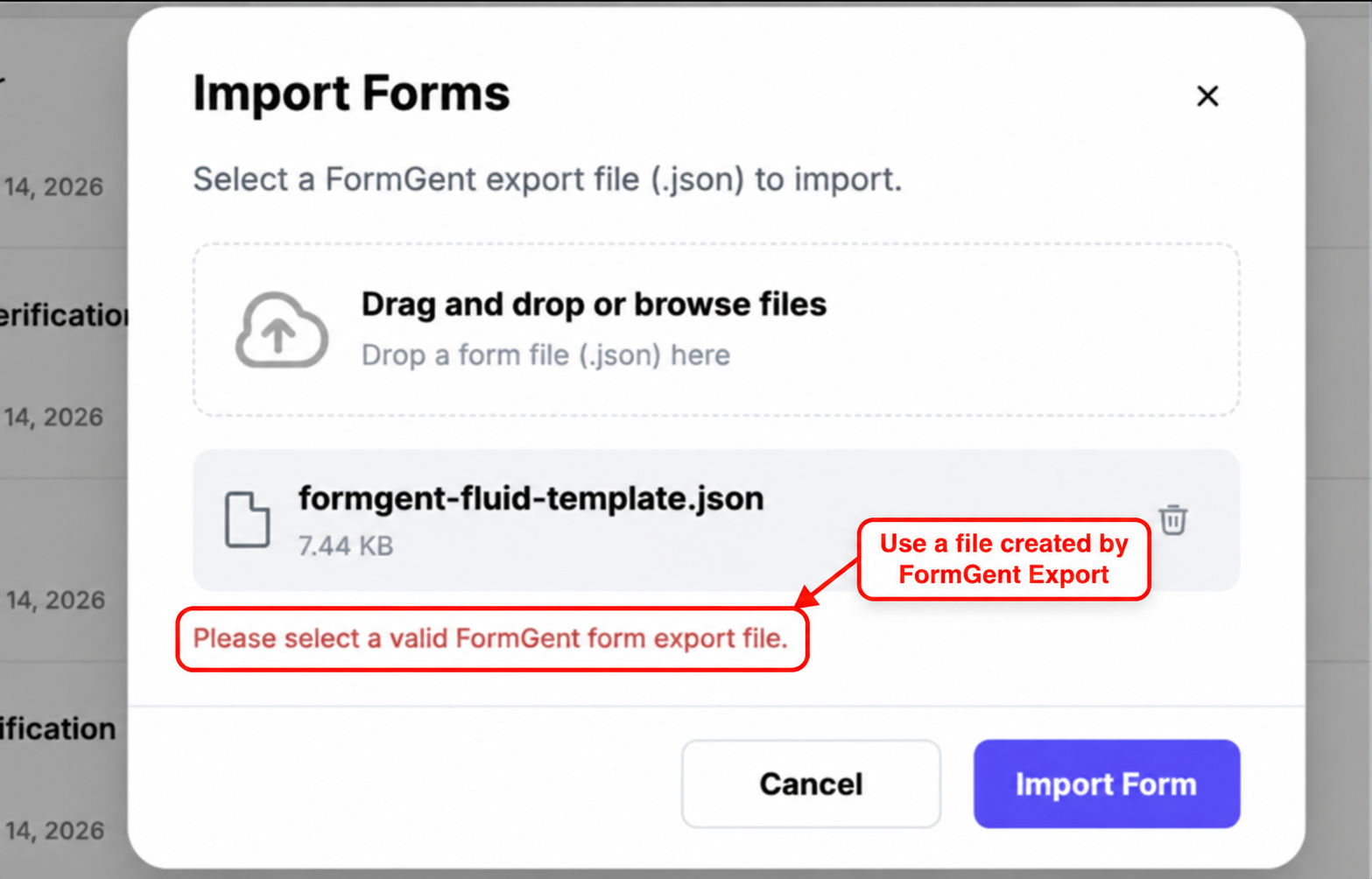
This message normally means the selected file is not a FormGent export file.
To fix it:
- Return to FormGent → All Forms on the original website.
- Open the three-dot menu for the form.
- Click Export.
- Use the new .json file in the Import Forms window.
Do not create a normal JSON file and only change its name to .json. The file must contain FormGent’s export structure.


