
FormGent allows you to collect payments directly through your forms using built-in integrations with PayPal and Stripe. From the global settings, you can configure payment gateways, choose your default currency, and define success/failure pages for transactions.
How to Enable Payments in FormGent #
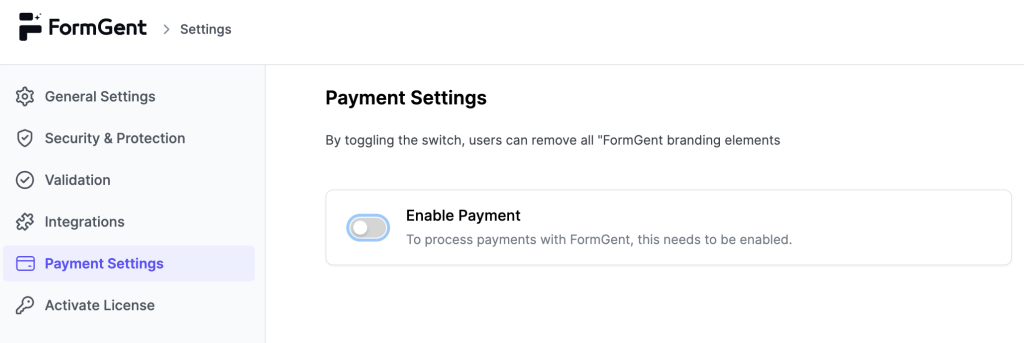
- Go to FormGent → Settings → Payment Settings.
- Toggle Enable Payment to turn on payment processing.
- This unlocks additional configuration options like page setup, currency, and gateways.
FormGent automatically generates dedicated pages for payment results. You can assign or customize them:
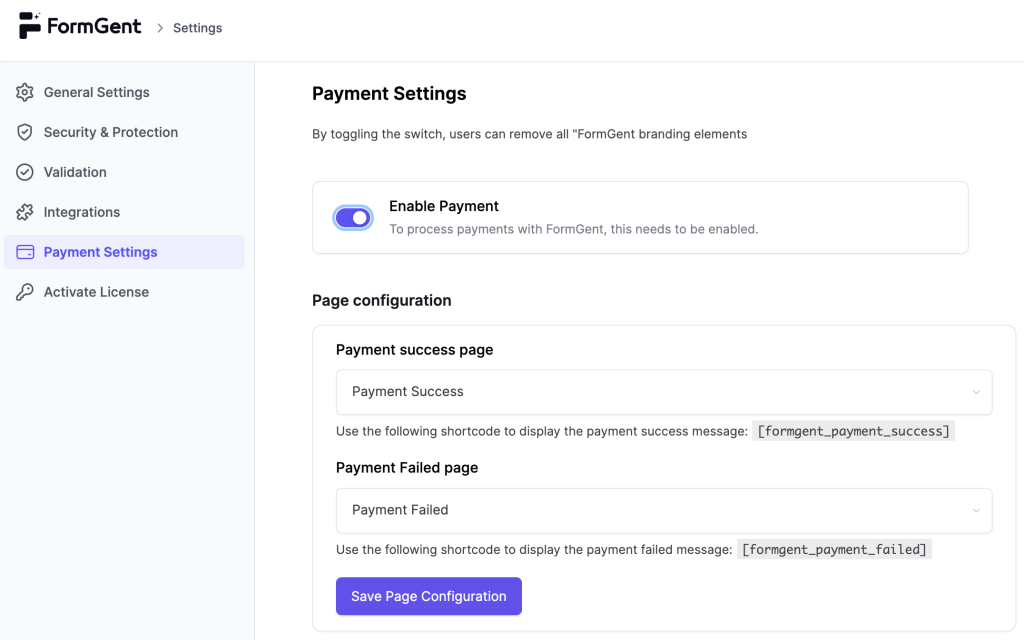
Payment Success Page: Select the page where users will be redirected after a successful payment. Use shortcode:
[formgent_payment_success]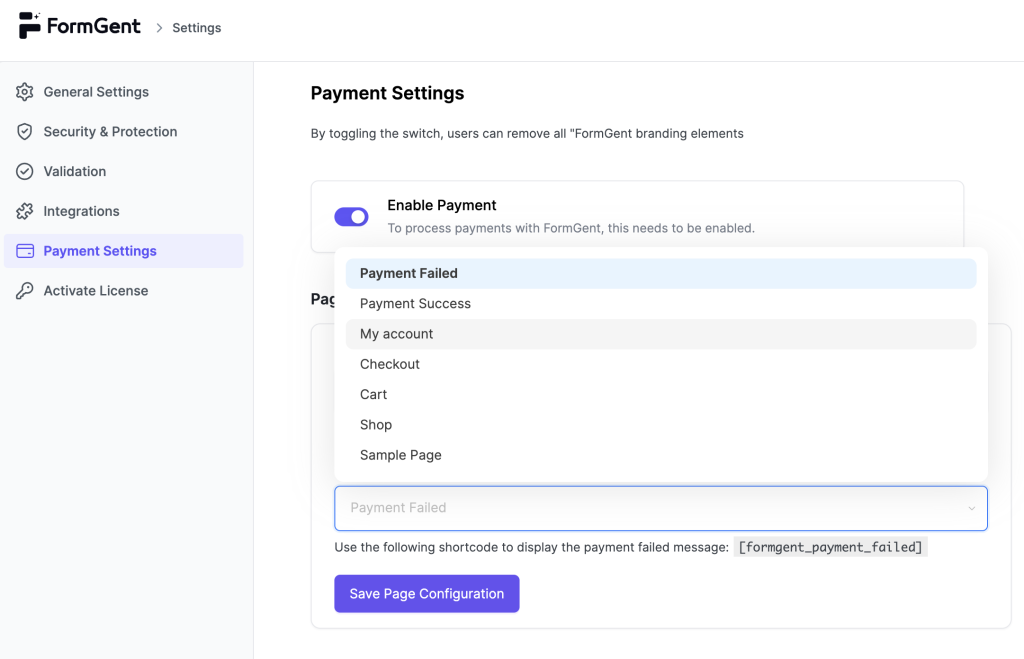
Payment Failed Page: Select the page to display when a payment fails. Use shortcode:
[formgent_payment_failed]Click Save Page Configuration to apply changes.
Currency Settings #
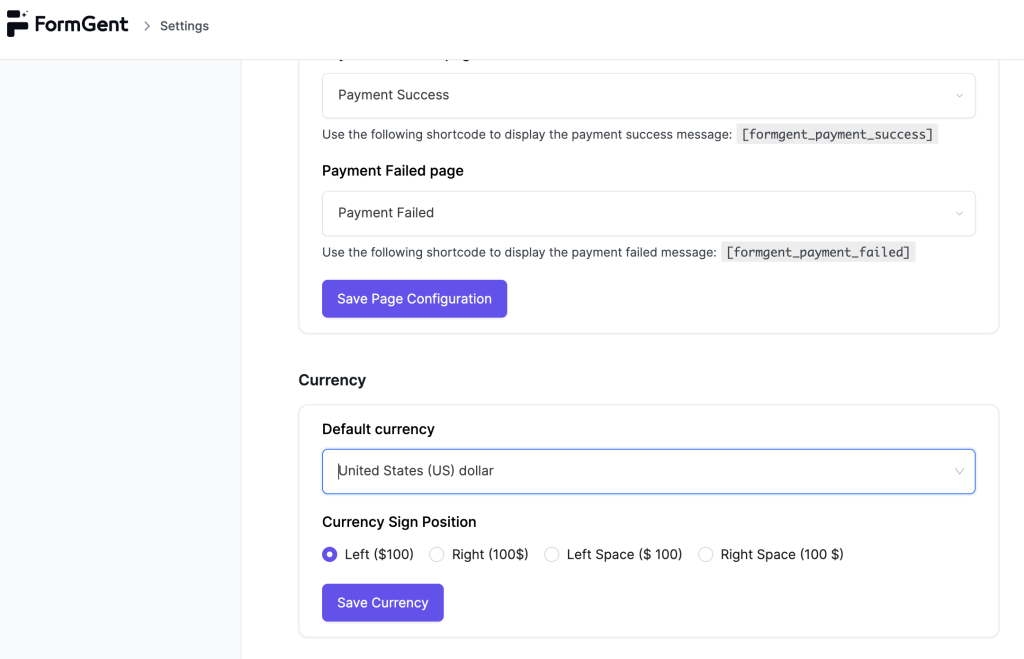
- Choose your default currency from the dropdown list.
- Select how the currency sign will appear (e.g., $100, 100$, $ 100, 100 $).
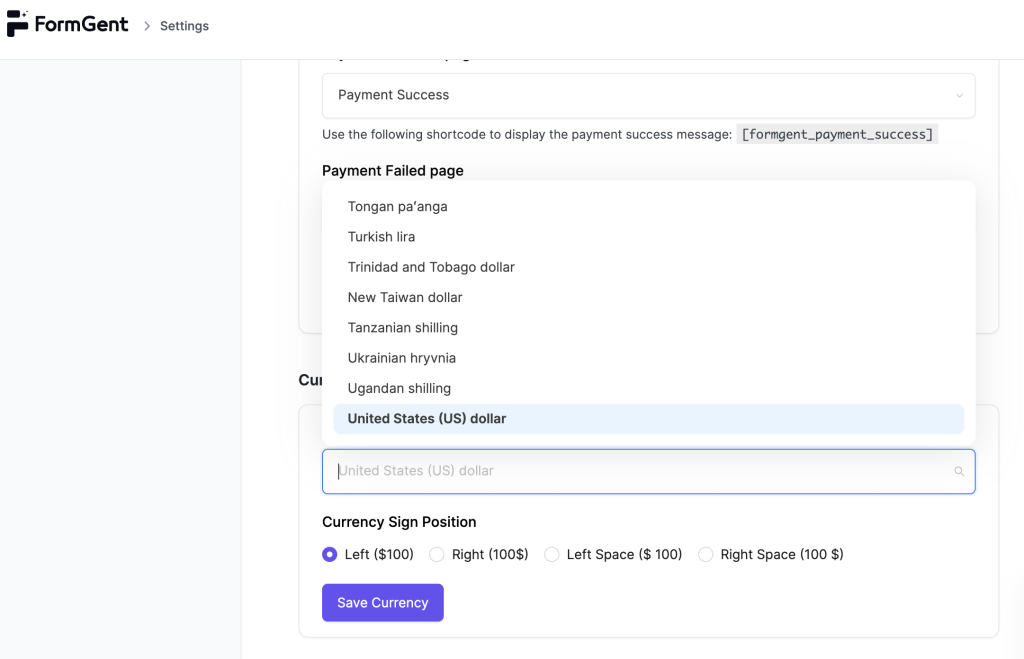
Click Save Currency to confirm.
Available Payment Gateways #
FormGent supports two gateways:
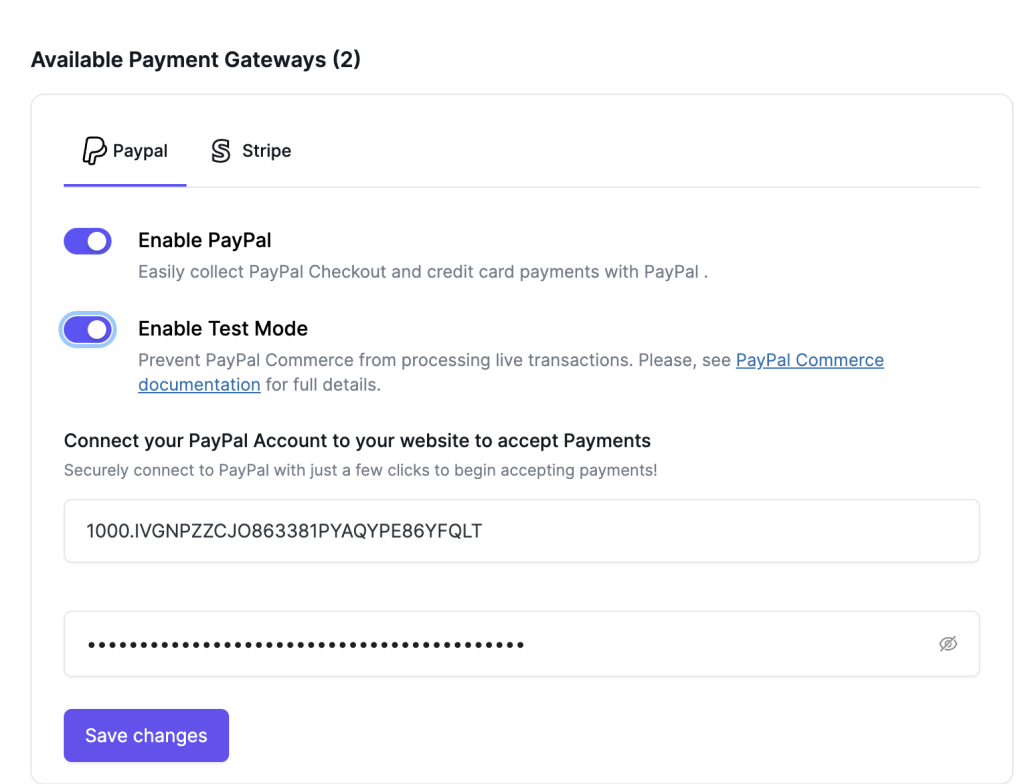
PayPal #
- Toogle Enable PayPal button.
- (Optional) Enable Test Mode to run sandbox transactions before going live.
- Connect your PayPal account by pasting the credentials provided by PayPal.
- Click Save changes.
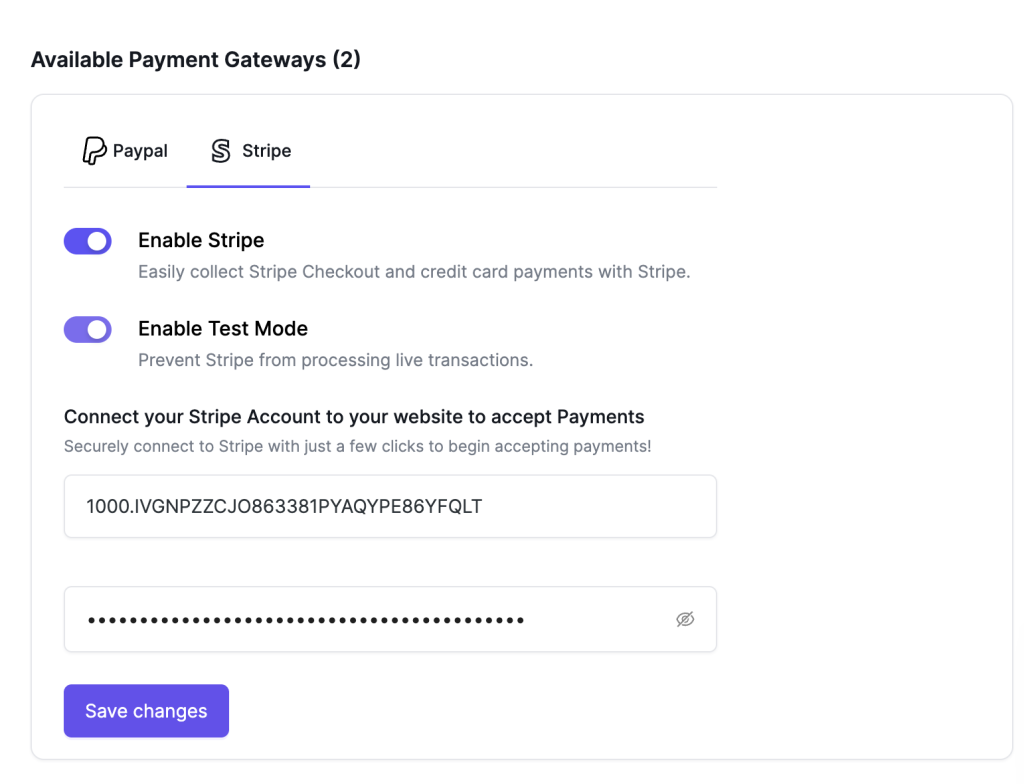
Stripe #
- Toogle Enable Stripe button.
- (Optional) Enable Test Mode to test transactions safely.
- Enter your Stripe account credentials.
- Click Save changes.
Use Cases #
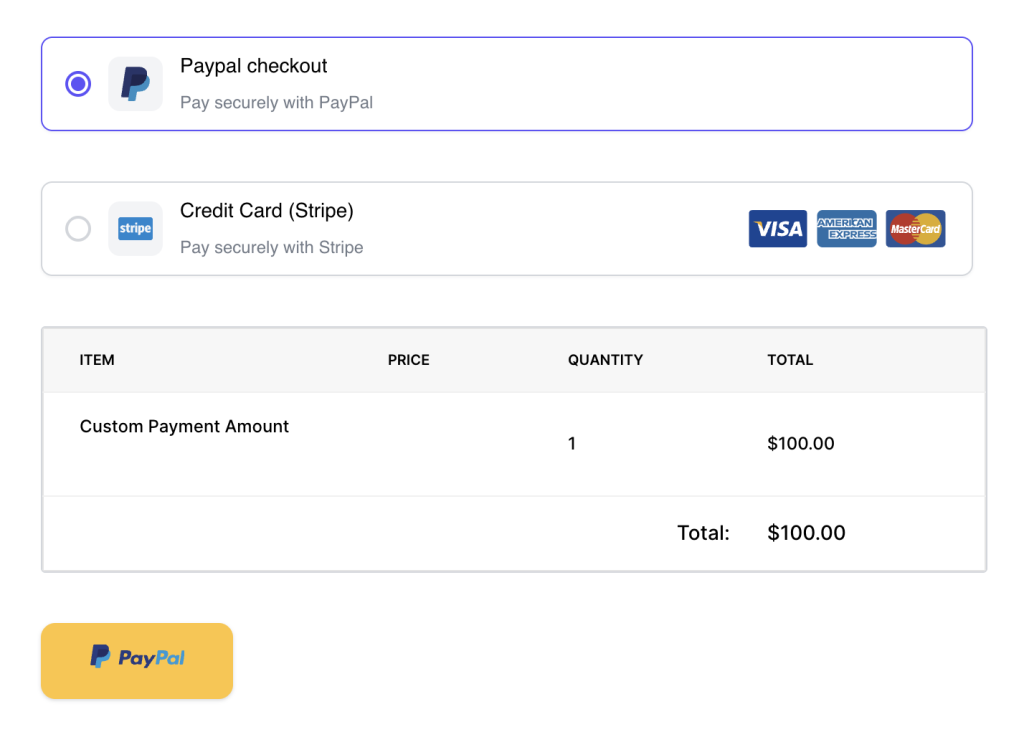
- Collecting payments for event registrations, booking and eCommerce.
- Selling digital downloads or memberships.
- Accepting donations or service fees directly from your forms.


