
Install and activate FormGent Pro before activating its license. The Pro plugin provides the Pro functionality, while the license connects the site to automatic Pro updates and professional support.
Before You Start #
You need:
- An active FormGent Pro subscription
- Administrator access to the WordPress site
- The free FormGent plugin installed and active
- The FormGent Pro ZIP file from your FormGent account
Keep your license key private. Never place a real key in screenshots, public documentation, or support messages.
Step 1: Open Downloads in Your FormGent Account #
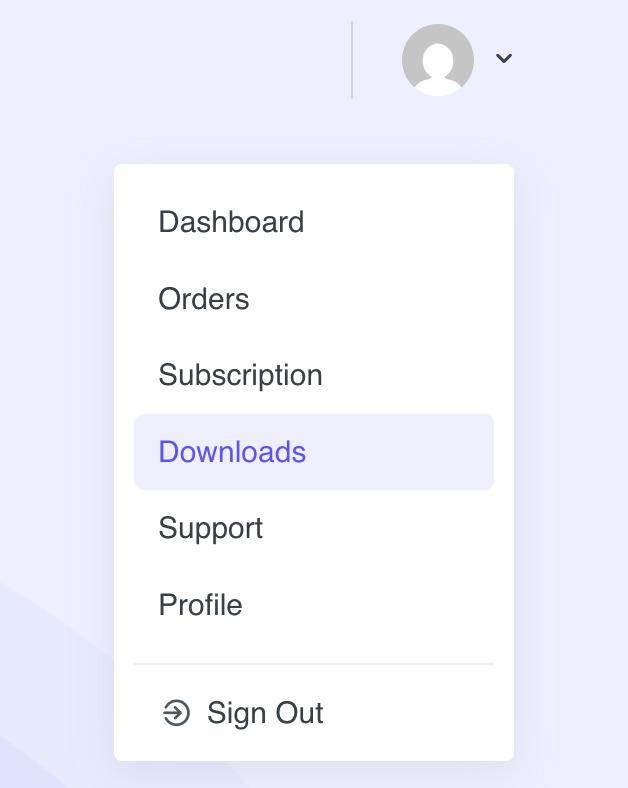
- Sign in to your account on the FormGent website.
- Open the profile menu.
- Select Downloads.
Use the account that owns the FormGent Pro subscription. Creating another account will not make the existing purchase or license appear there.
Step 2: Download FormGent Pro #
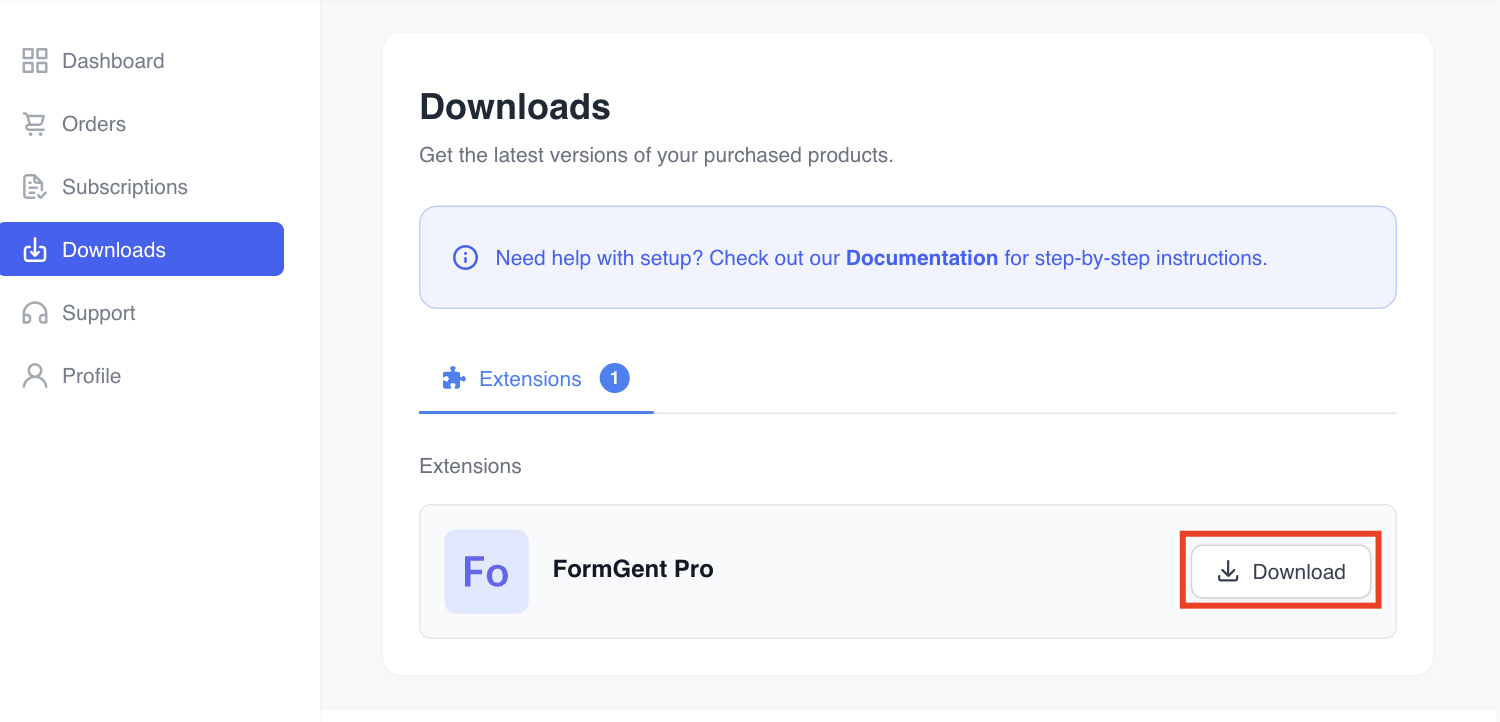
- Find FormGent Pro on the Downloads screen.
- Click Download.
- Keep the downloaded file in ZIP format. Do not extract it before uploading it to WordPress.
Step 3: Upload FormGent Pro to WordPress #
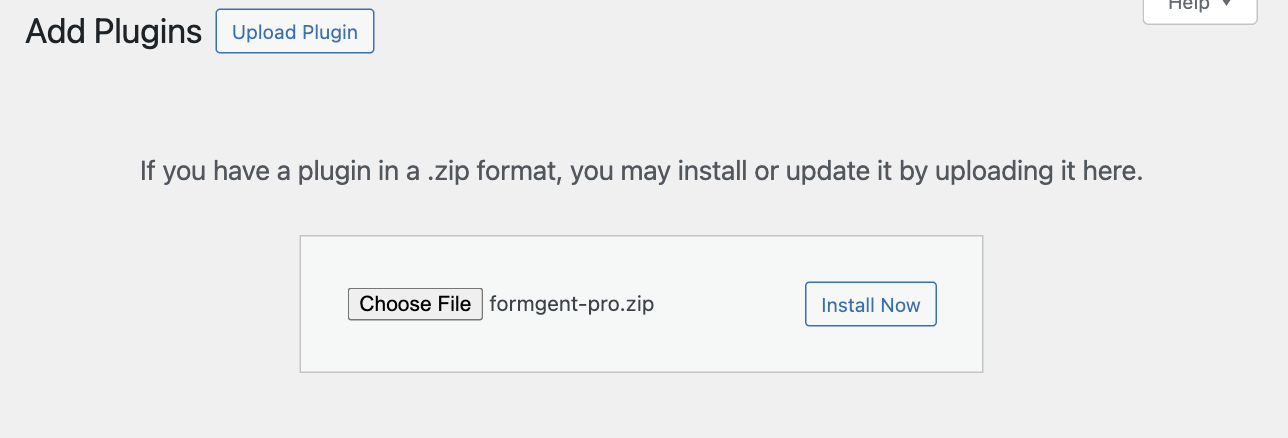
- Open your WordPress Admin Dashboard.
- Go to Plugins → Add Plugin.
- Click Upload Plugin.
- Choose the FormGent Pro ZIP file.
- Click Install Now.
- When installation finishes, click Activate Plugin.
Uploading the ZIP requires a WordPress administrator account with permission to install plugins.
Step 4: Confirm Both FormGent Plugins Are Active #
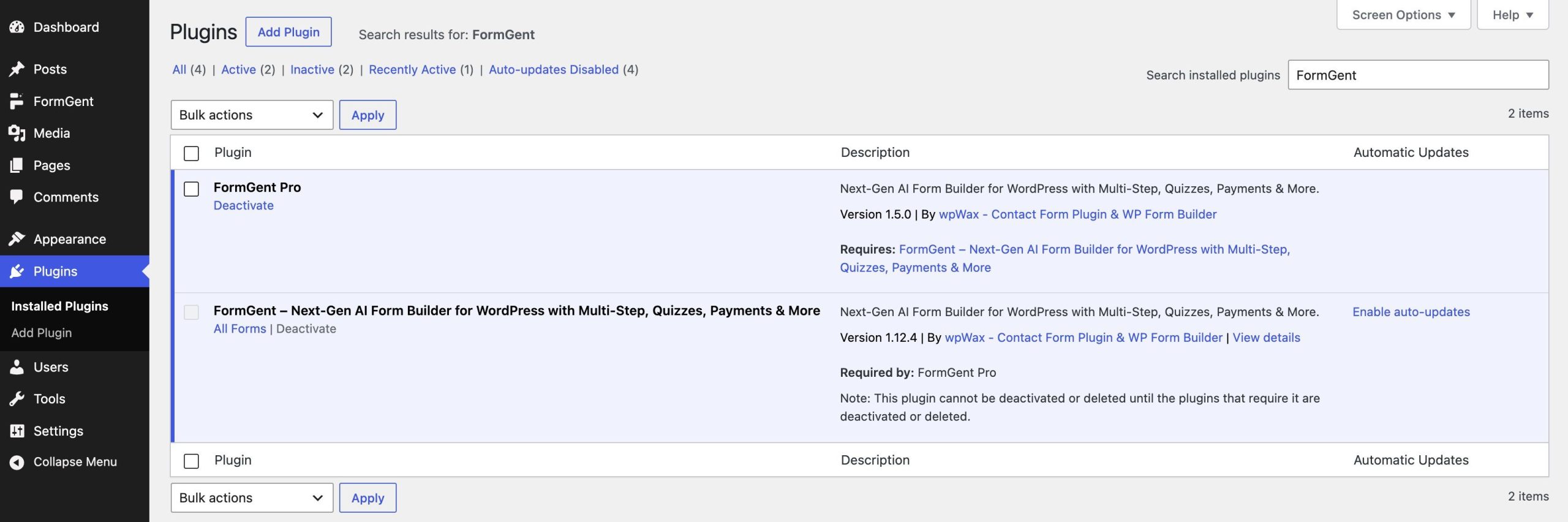
Go to Plugins → Installed Plugins and search for FormGent.
Confirm that:
- FormGent Pro shows a Deactivate action, which means it is active.
- FormGent is active and is listed as required by FormGent Pro.
If FormGent Pro shows Activate, click it before continuing. FormGent Pro depends on the free FormGent plugin.
Step 5: Copy the License Key #
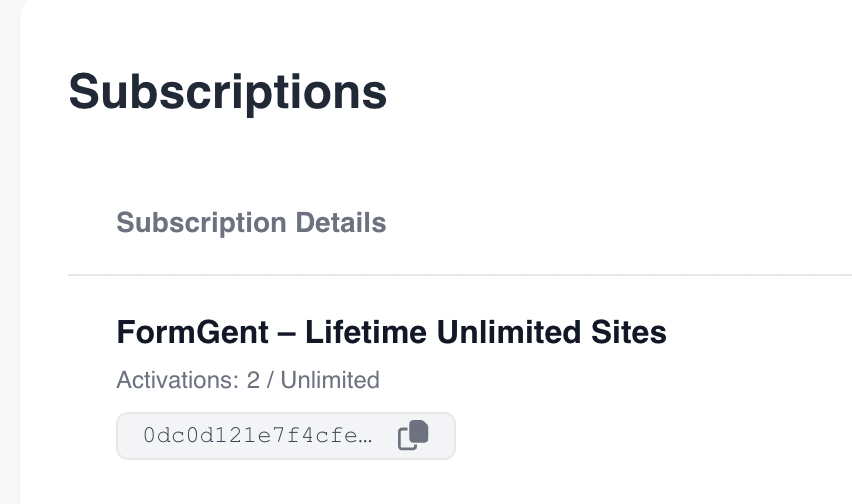
- Return to your FormGent account.
- Open Subscriptions.
- Find the subscription for FormGent Pro.
- Use the copy button beside the license key.
The screenshot masks most of the key. Your account displays the key associated with your own subscription.
Step 6: Enter and Activate the License #
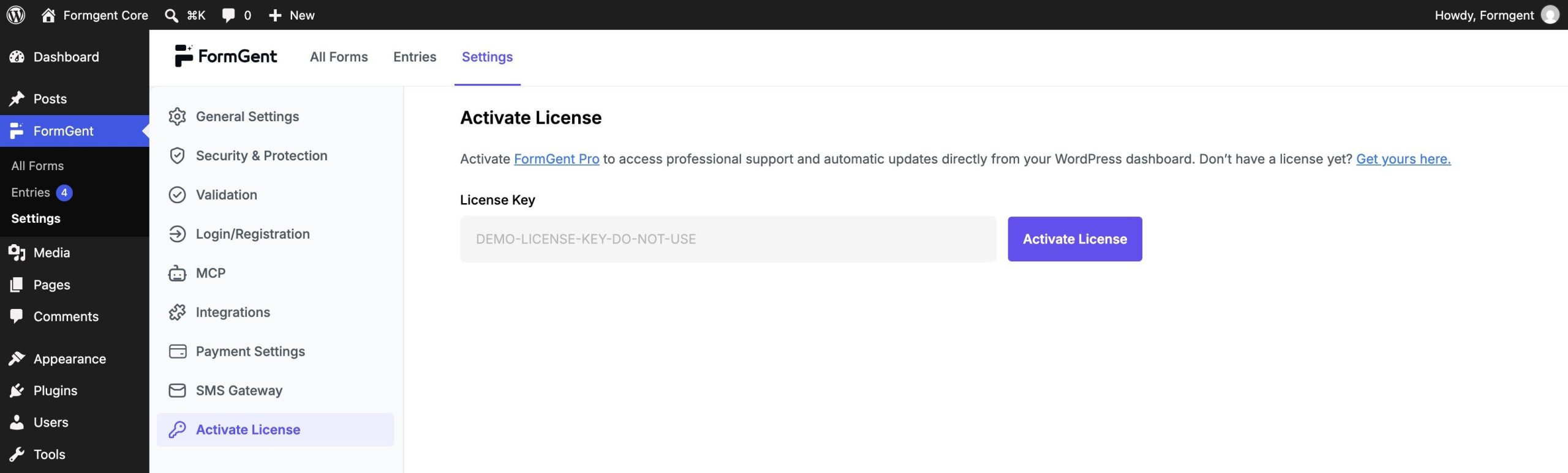
- Paste your real license key into License Key.
- Click Activate License.
- Wait for the activation request to finish.
Step 7: Confirm the License Is Active #
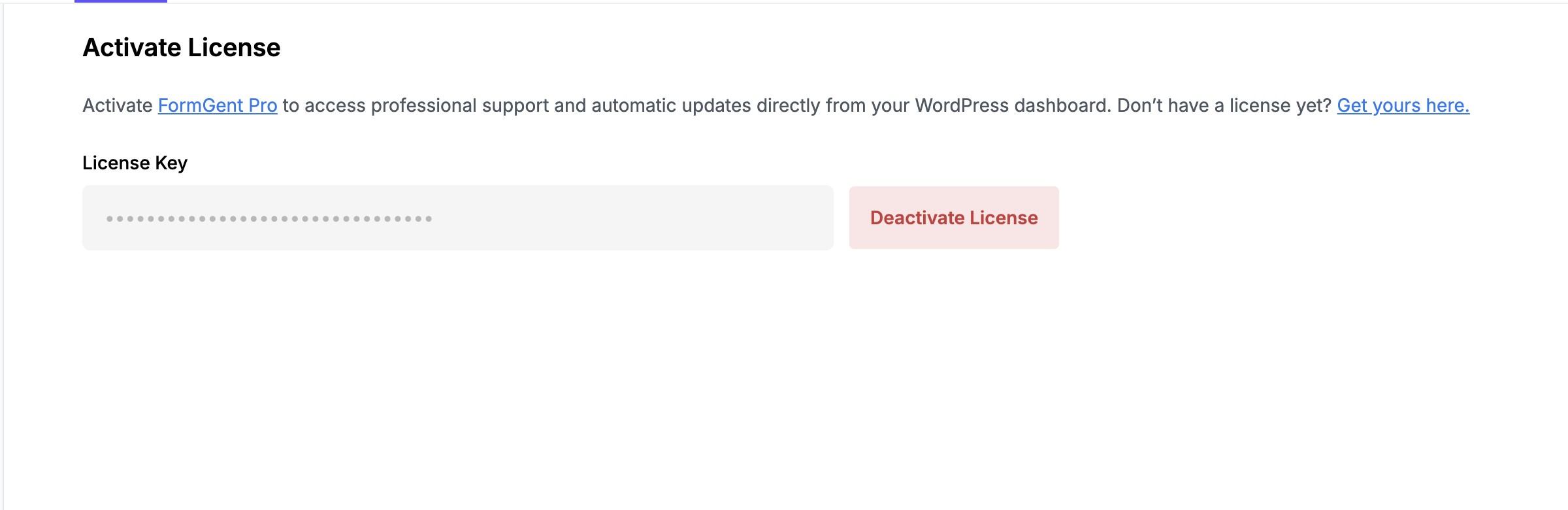
Activation is complete when the key is masked and the action changes to Deactivate License.
Troubleshooting #
If activation fails:
- Copy the key again from Subscriptions and make sure it has no extra spaces.
- Confirm that both FormGent and FormGent Pro are active.
- Confirm that the subscription is active and has an available site activation.
- Check that WordPress can make outgoing HTTPS requests.
- Update FormGent and FormGent Pro to compatible versions.
- Retry activation, then contact FormGent support if the error continues.
Do not deactivate a working license merely to repeat the tutorial. Use Deactivate License only when you intend to remove the activation from this site or move a limited-site license elsewhere.
Why Activate Your License? #
- Stay Updated: Receive automatic updates with the latest features and security enhancements.
- Premium Support: Gain access to priority support for troubleshooting and guidance.
- Enhanced Features: Unlock pro-level functionality to build even more advanced forms.


