
This guide explains how to create login and registration forms with FormGent. It is written for site owners and WordPress administrators.
What You Can Build #
FormGent includes two account-related blocks:
- Login: lets visitors sign in with a username or email address and password.
- Register: lets visitors create a WordPress user account from a FormGent form.
You can use these blocks on normal FormGent forms and conversational forms.
Before You Start #
User registration must be enabled in WordPress.
- Go to WordPress Dashboard > Settings > General.
- Enable Anyone can register.
- Choose the default role you want WordPress to use for new users.
- Save changes.
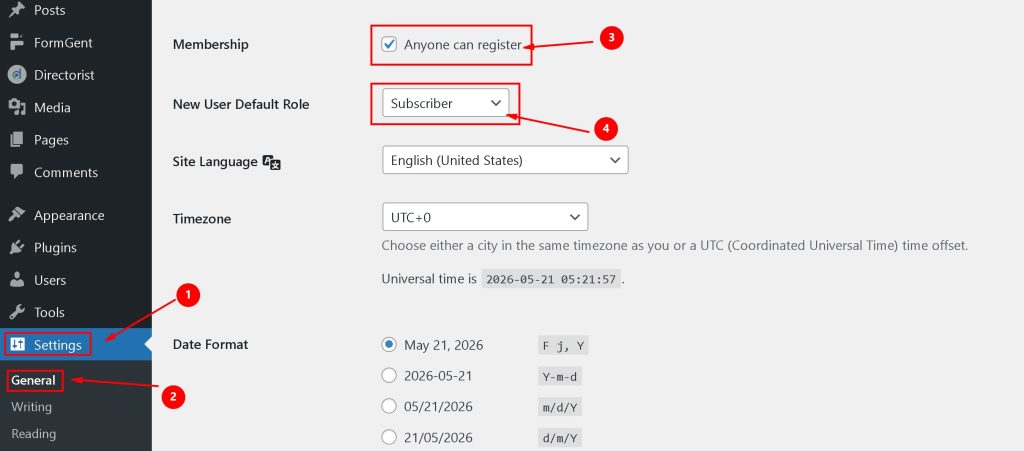
If this WordPress setting is disabled, FormGent registration submissions will show: User registration is currently disabled.
Create a Login Form #
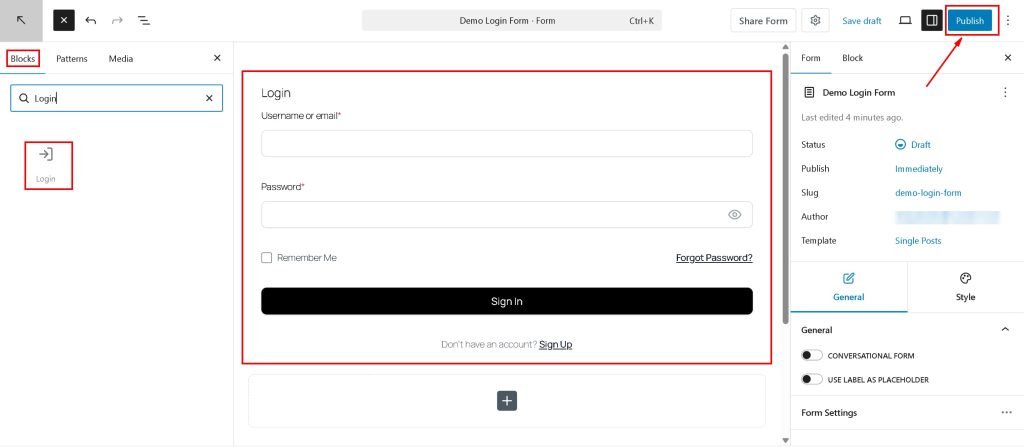
- Create or edit a FormGent form.
- Add the Login block.
- The block adds these fields automatically:
- Username or email
- Password
- Remember Me
- Forgot Password link
- Sign Up link
- Sign In button
- Edit the labels, placeholder text, link text, alignment, and button text as needed.
- Publish or embed the form on your login page.
When a visitor logs in successfully, FormGent redirects them to the site home page by default. If the visitor is already logged in, the login block shows a message with their display name and a logout link.
Create a Registration Form #
Create or edit a FormGent form. Add the Register block.
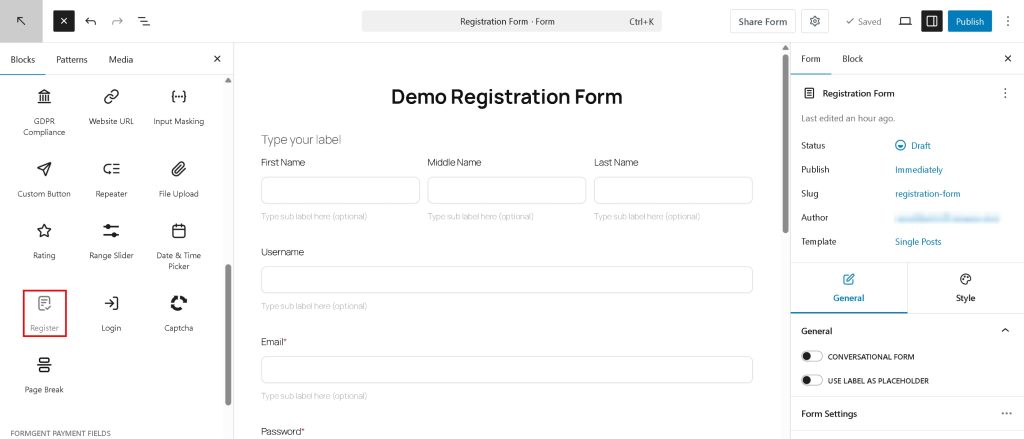
The block adds these fields automatically:
- First Name
- Middle Name
- Last Name
- Username
- Password
- Confirm Password
- Sign In link
Edit the field labels and field settings as needed.
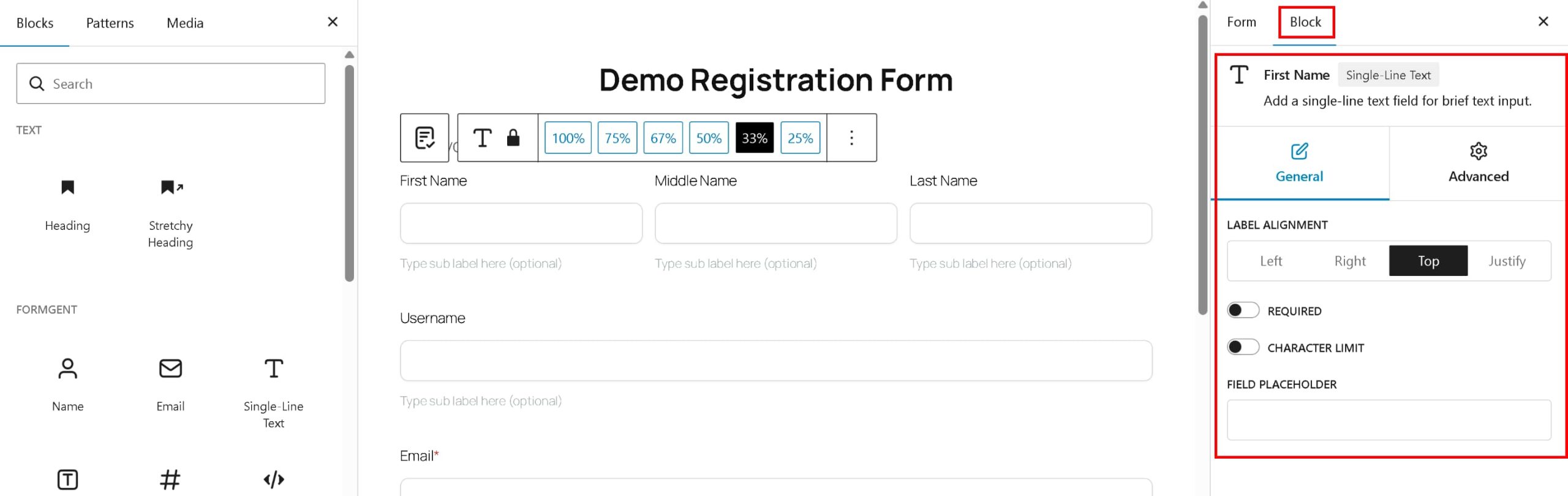
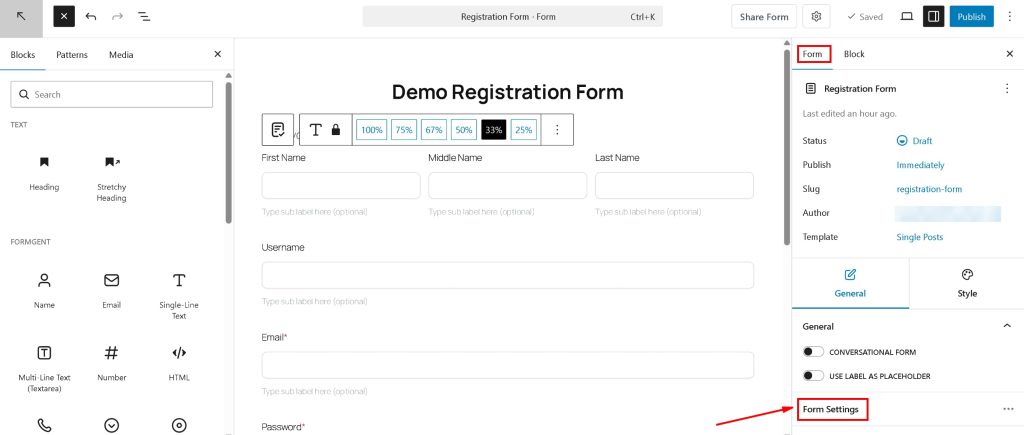
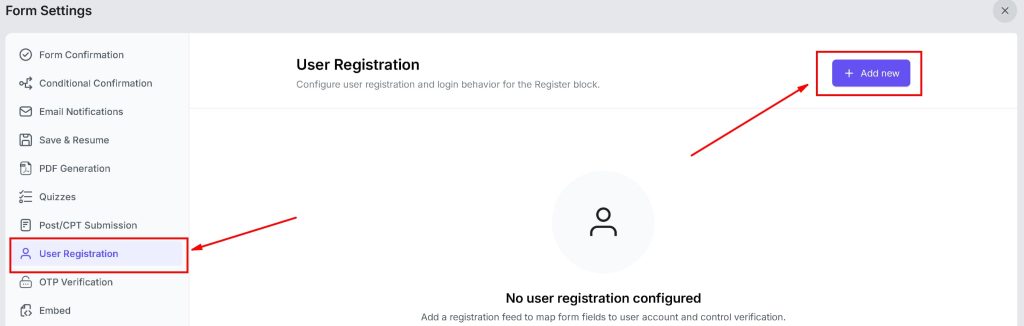
Go to the form Settings > User Registration.
Add a registration feed.
A registration feed controls how FormGent creates the WordPress user account, what role the user receives, whether the user is logged in automatically, and whether verification is required.
Registration Feed Settings #
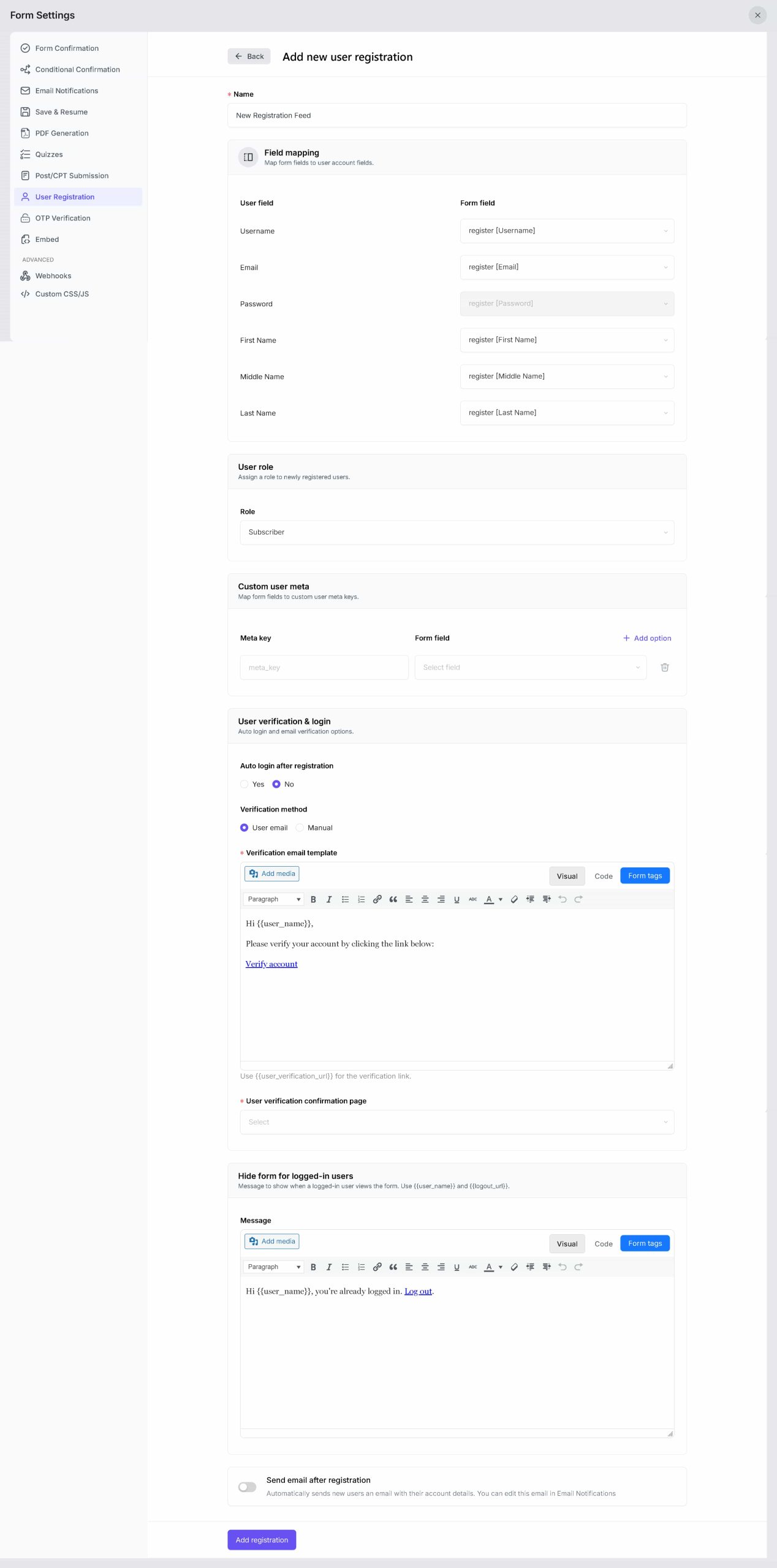
Name #

Use a clear name such as Main registration. This helps you identify the feed later.
Field Mapping #
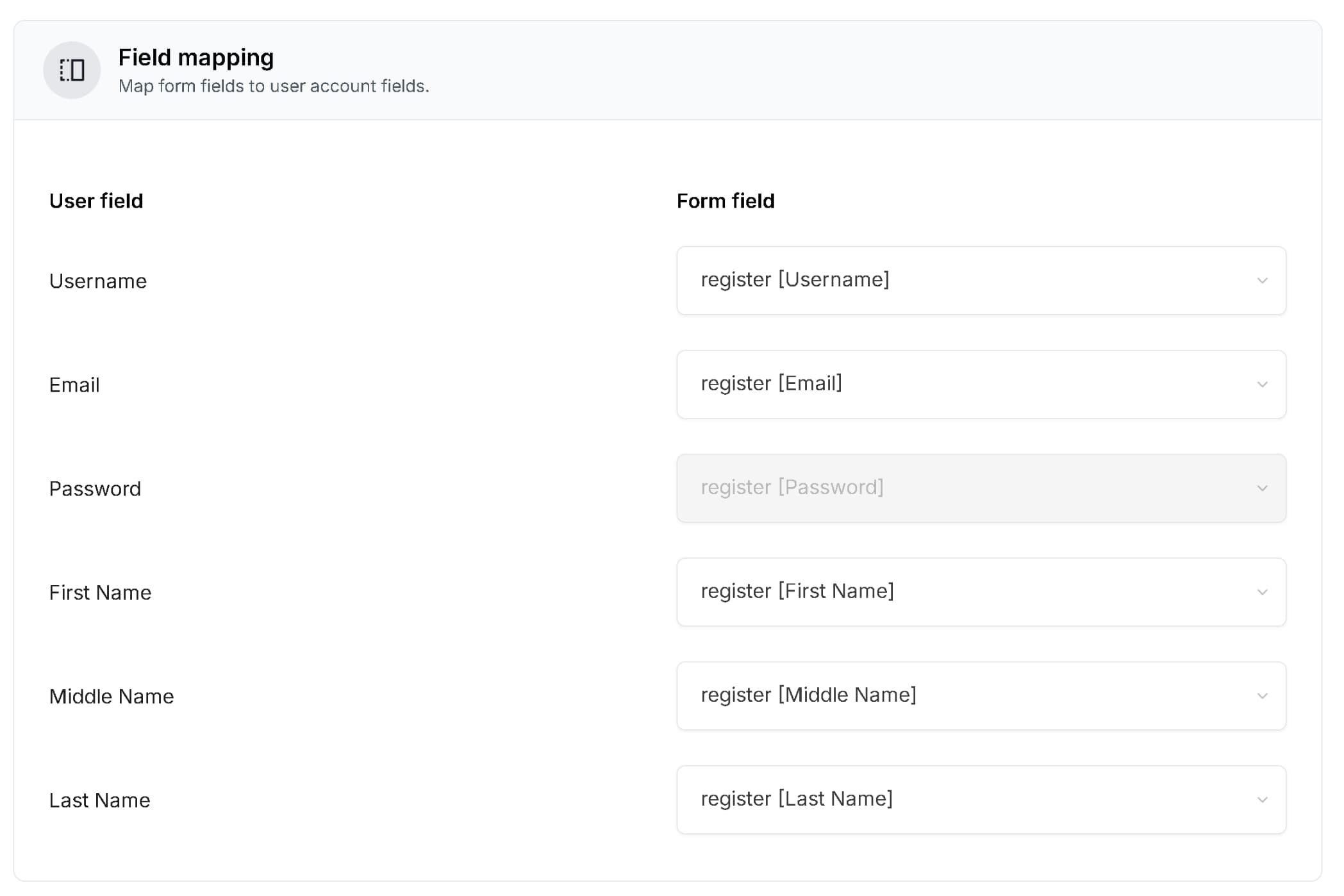
Map form fields to WordPress user fields:
- Username
- Password
- First Name
- Middle Name
- Last Name
For a standard Register block, most of these fields are already available. Email and password are required for account creation. If username is empty, FormGent uses the part before @ in the email address and makes it unique if needed.
User Role #
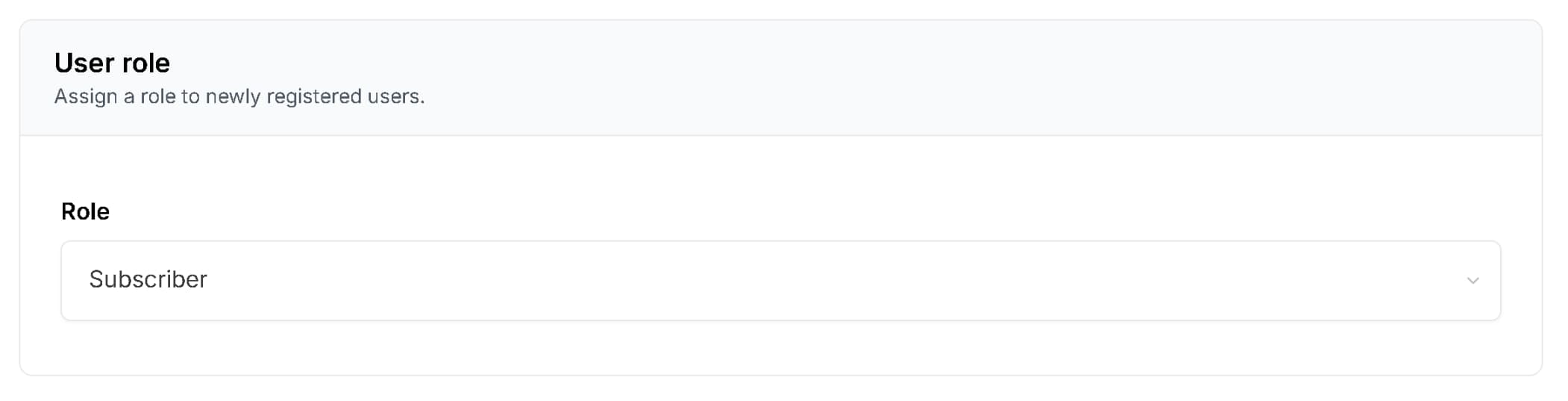
Choose the role assigned to new users:
- Author
- Contributor
- Subscriber
For safety, FormGent does not allow frontend registration to create Administrator or Editor users. If an unsafe or invalid role is selected, the user is created as a Subscriber.
Custom User Meta #
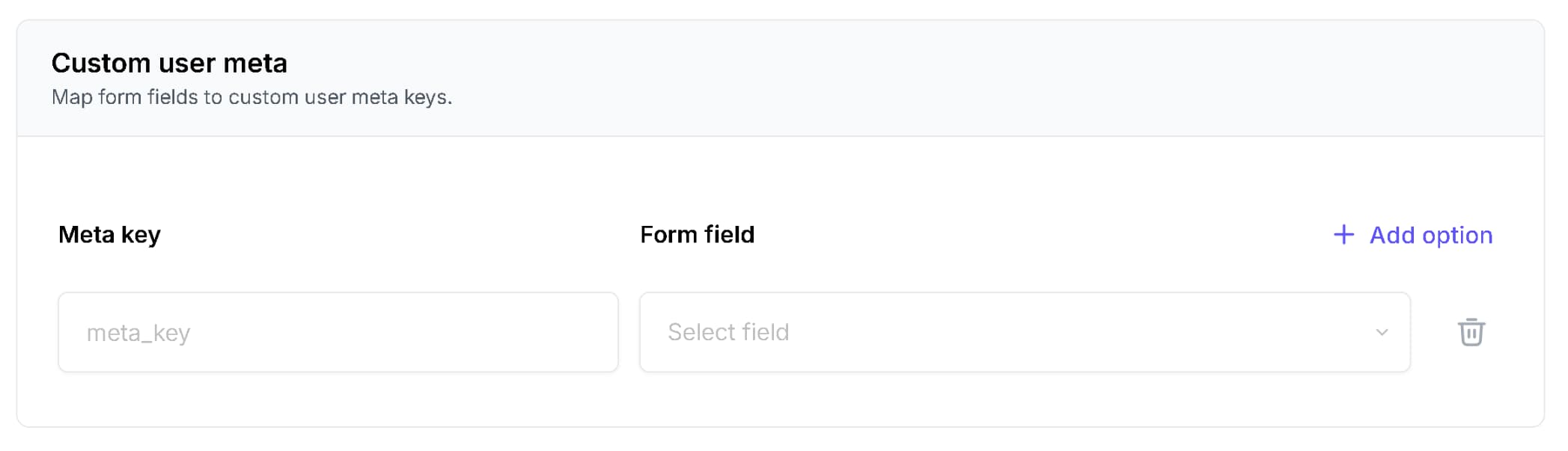
Use this section if you want to save additional form answers to WordPress user meta.
Example:
- Meta key:
company_name - Form field: Company Name
Auto Login and Verification #
In User verification & login, choose whether new users should be logged in immediately after registration.
Auto Login: Yes #
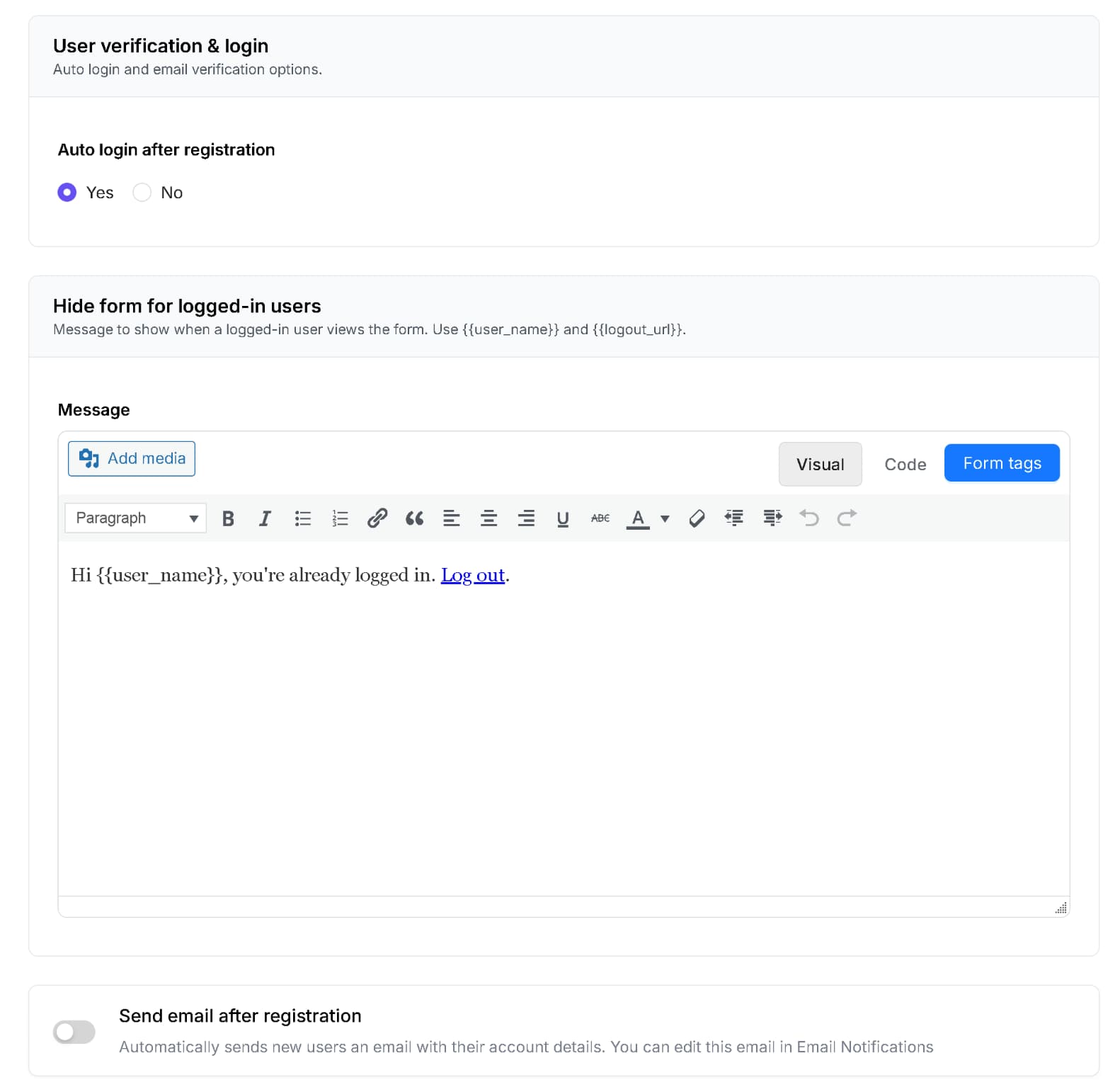
Use this if new users should enter the site immediately after submitting the form.
After successful registration:
- FormGent creates the WordPress user.
- FormGent logs the user in.
- The registration form is hidden.
- The logged-in message is shown.
- The user is redirected to the home page by default.
Auto Login: No #
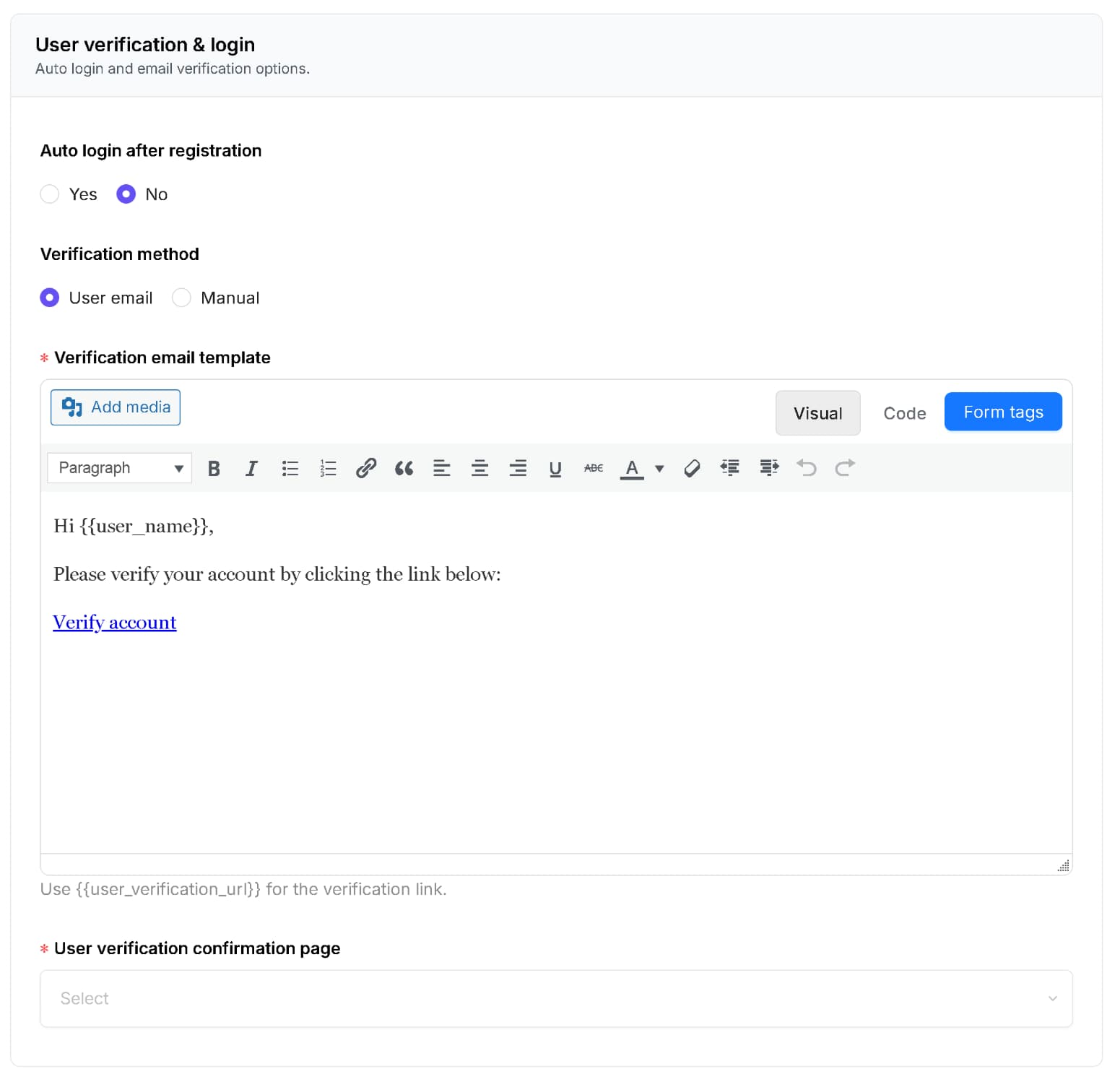
Use this if users must verify or be approved before they can sign in.
You must choose a verification method:
- User email: FormGent sends a verification email with a verification link.
- Manual: an admin must approve the user from the WordPress user profile screen.
You must also select a User verification confirmation page. After a user clicks a verification link, FormGent sends them to that page and adds a result to the URL, such as formgent_verification=success, formgent_verification=expired, or formgent_verification=invalid.
Email verification links expire after 2 days.
Verification Email Template #
When using User email verification, write the email sent to new users. Include the verification link tag:
{{user_verification_url}}
Available tags include:
{{user_name}}{{user_email}}{{user_verification_url}}{{site_url}}{{site_name}}
If the verification link is missing, users will not have a way to verify their account from the email.
Manual Approval #
When manual verification is enabled:
Go to WordPress Dashboard > Users. Edit the pending user.
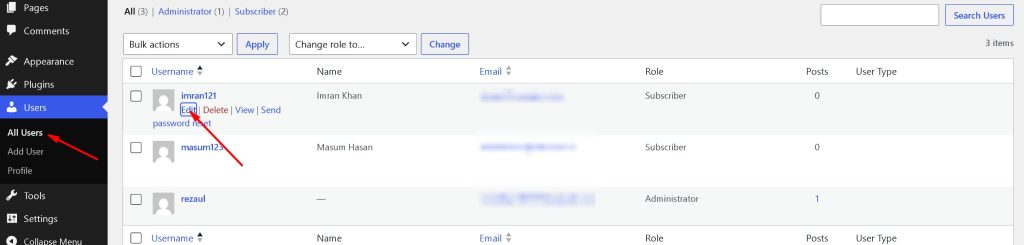
Find the FormGent account verification section. Select Mark this user as verified. Update the profile.
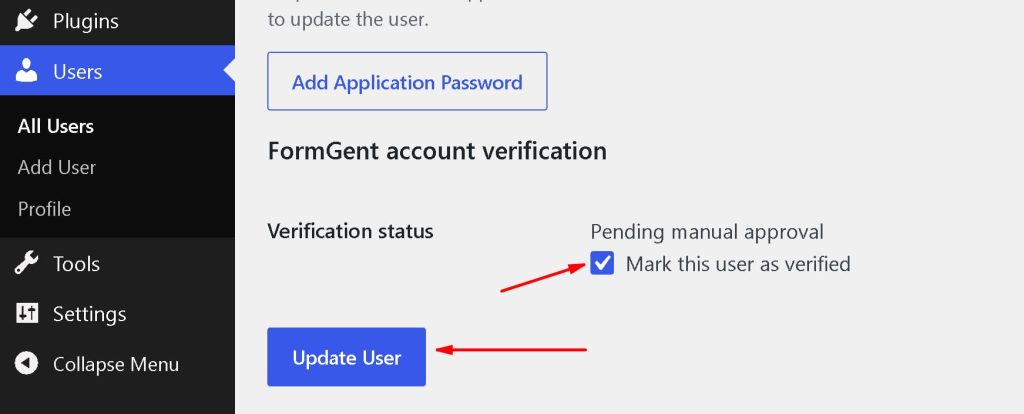
Pending users cannot log in until they are verified.
Hide Registration Form for Logged-In Users #
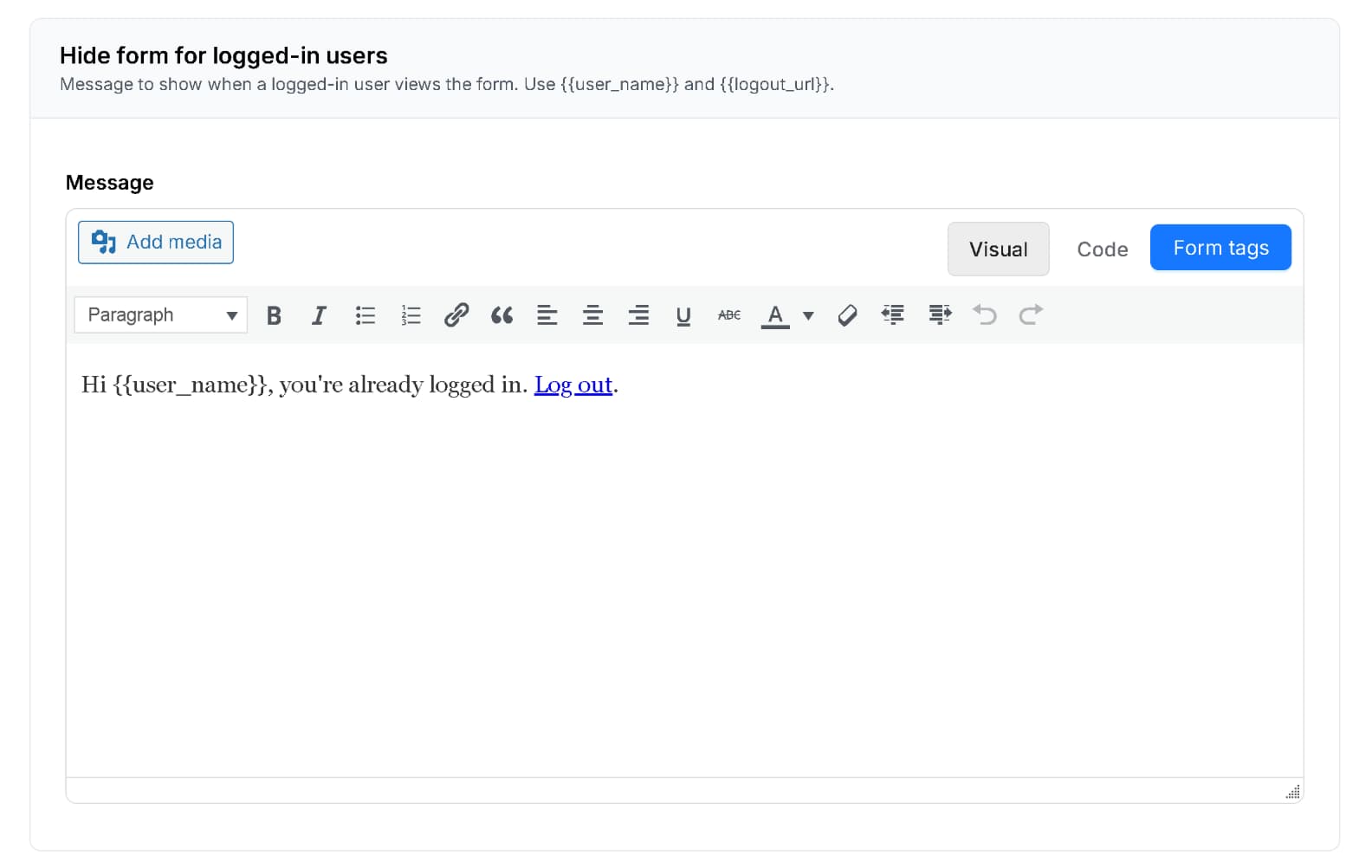
Use Hide form for logged-in users to show a message instead of the registration form when a logged-in user visits the page.
Default message:
Hi {{user_name}}, you're already logged in. <a href="{{logout_url}}">Log out</a>.
Available tags:
{{user_name}}{{logout_url}}
Send Email After Registration #

Enable Send email after registration if you want FormGent to send a separate account-created email after registration.
When a registration feed is created, FormGent also creates a draft email notification named User Registration Email. You can edit it in Email Notifications and enable it from the registration feed setting.
This is separate from the verification email. If email verification is enabled, users may receive both messages depending on your settings.
Custom Login and Registration Pages #
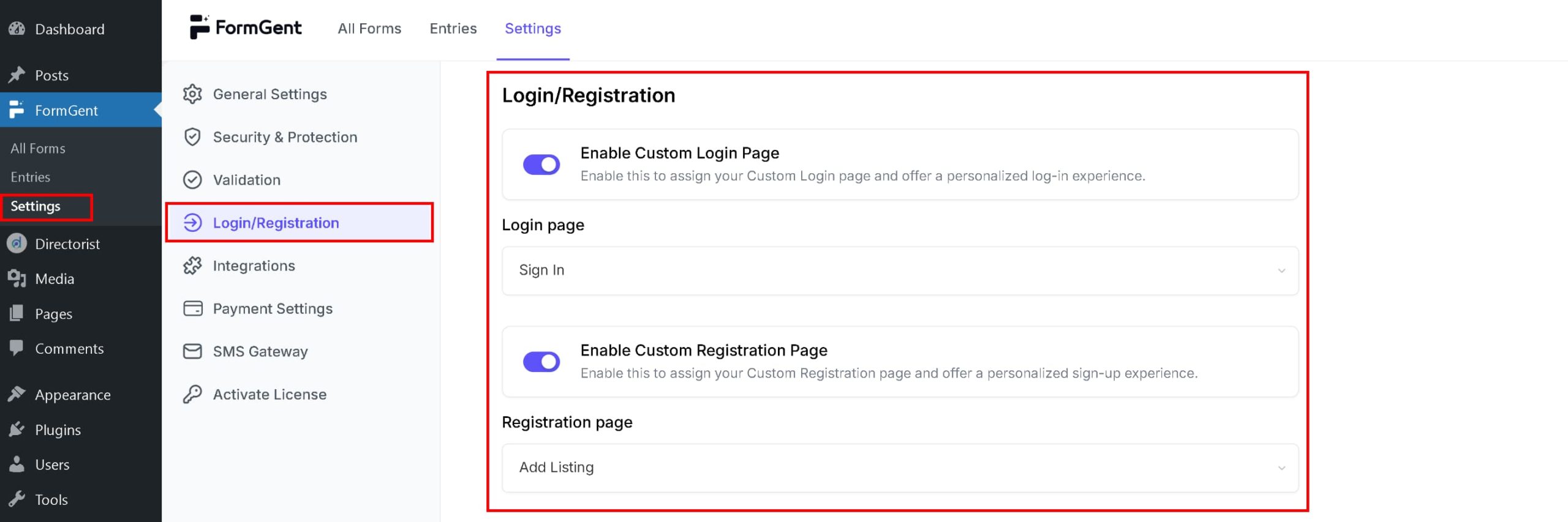
FormGent can replace the default WordPress login and registration URLs with your own pages.
- Go to FormGent > Global Settings > Login/Registration.
- Enable Custom Login Page and choose the page that contains your FormGent login form.
- Enable Custom Registration Page and choose the page that contains your FormGent registration form.
- Save changes.
After this:
- WordPress login links point to your selected login page.
- WordPress registration links point to your selected registration page.
- Direct visits to
wp-login.php?action=registerandwp-signup.phpredirect to your custom registration page. - Direct visits to
wp-login.phpredirect to your custom login page.
Password reset, lost password, logout, and similar special WordPress login actions are not redirected.
Forgot Password and Sign-In Links #
The Login block includes a Forgot Password link. If you do not enter a custom URL, it uses the default WordPress lost password page.
The Login block also includes a Sign Up link. If you do not enter a custom URL, it uses the WordPress registration URL, which may point to your custom registration page if configured.
The Register block includes a Sign In link. If you do not enter a custom URL, it uses the WordPress login URL, which may point to your custom login page if configured.
Password Rules #
The registration password field can include:
- Password confirmation
- Show/hide password toggle
- Optional password strength checking
Password strength levels are:
- Weak: at least 6 characters
- Medium: at least 8 characters with letters and a number
- Strong: at least 10 characters with uppercase, lowercase, a number, and a symbol
If password strength is enabled and the password does not meet the selected level, registration is blocked.
What Visitors See #
Successful Login #
The visitor sees a success message briefly and is redirected.
Failed Login #
The visitor sees an error message. For security, invalid username, email, or password errors are shown as a generic login failure.
Pending Email Verification #
If the user has not verified their email, login is blocked and the user sees a message asking them to verify the account from email.
Pending Manual Approval #
If the user is awaiting admin approval, login is blocked and the user sees a manual approval message.
Successful Registration #
The visitor sees a success message. Depending on your feed settings, they may also be logged in, redirected, asked to verify their email, or told that manual approval is required.
Troubleshooting #
Registration says it is disabled #
Enable Anyone can register in WordPress Dashboard > Settings > General.
Users do not receive verification emails #
Check that WordPress email is working. On local sites, use your local mail tool. On production sites, use a reliable SMTP plugin or mail service.
Users cannot log in after registering #
Check whether the registration feed has Auto Login: No. If email verification or manual approval is enabled, the user must be verified first.
The verification link says expired #
Verification links expire after 2 days. Ask the user to register again or verify them manually from WordPress Dashboard > Users.
The login or registration page still goes to WordPress default pages #
Go to FormGent > Global Settings > Login/Registration and confirm the custom page is enabled and a page is selected.
The registration form is not visible to logged-in users #
This is expected when Hide form for logged-in users is configured. Log out or update the logged-in message in the registration feed.


