
When you open an entry from the Entries dashboard, FormGent displays the Single Entry view. This page shows the complete submission details along with additional information about the user and the submission environment. It allows you to review the submitted data, edit responses if needed, download the entry data, and add internal notes for future reference.
You can open this page from the Entries Dashboard by clicking the Submission ID (for example, Entry #14) or by clicking the View icon in the Actions column. Both actions open the same entry details page.
Page Navigation #
At the top of the screen, FormGent displays the navigation path:
Entries → Entry #14
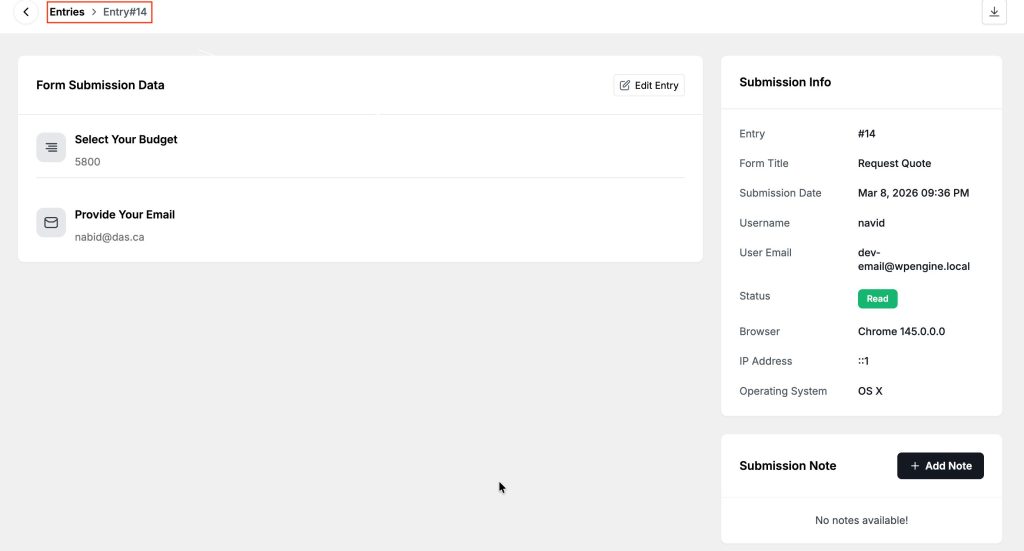
This breadcrumb helps you understand where you are in the system. Clicking Entries will take you back to the Entries dashboard.
Form Submission Data #
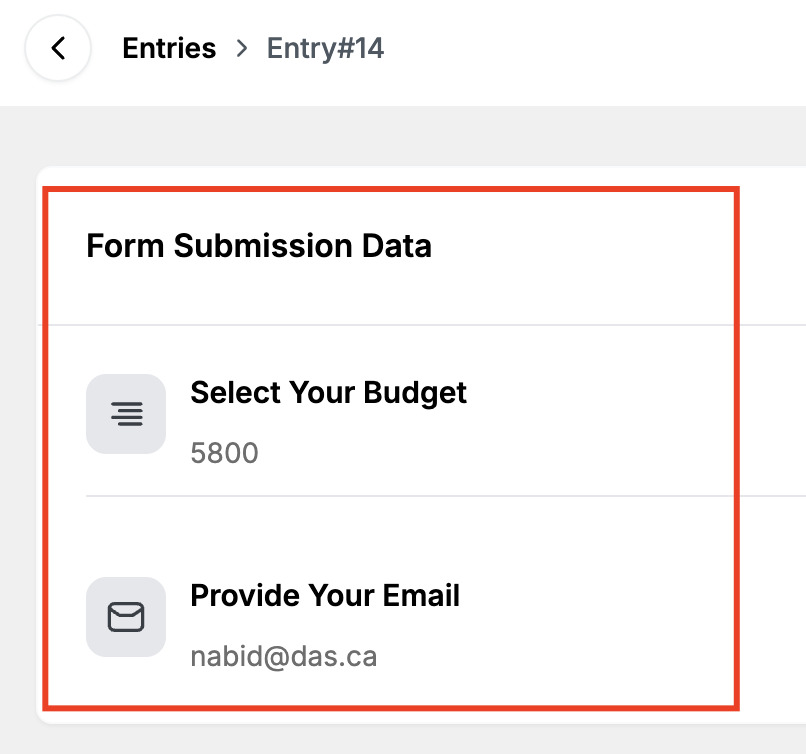
The Form Submission Data section displays the information submitted through the form. Each field appears exactly as the user filled it out, making it easy to review responses without opening the form builder.
Edit Entry #
If you need to modify any submitted information, you can click the Edit Entry button.
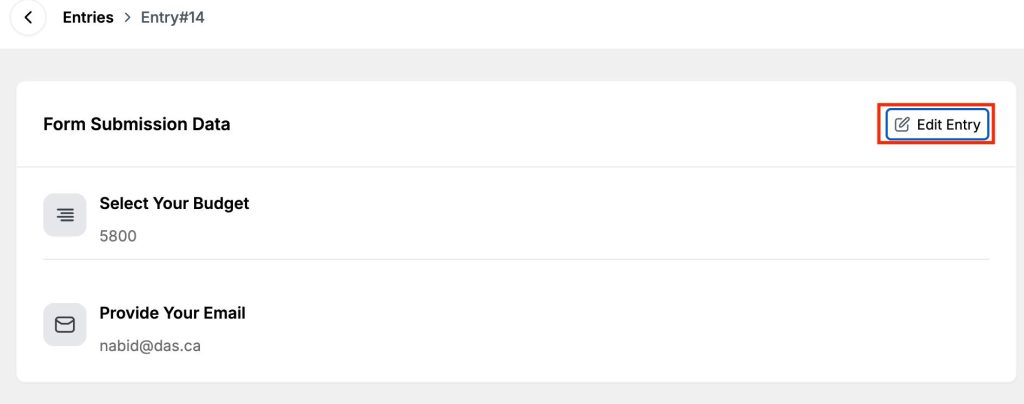
This opens an editable view of the submission where the values can be updated.
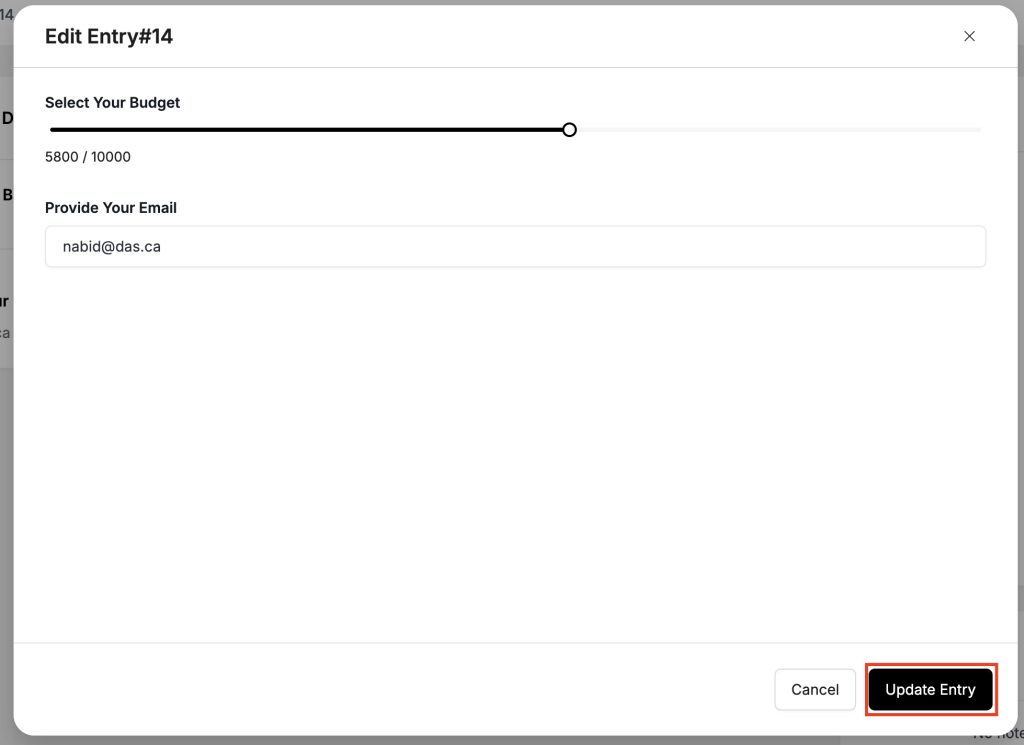
After making the necessary changes, click Update Entry to save the modifications.
Submission Info #
On the right side of the page, the Submission Info panel provides additional context about the entry.
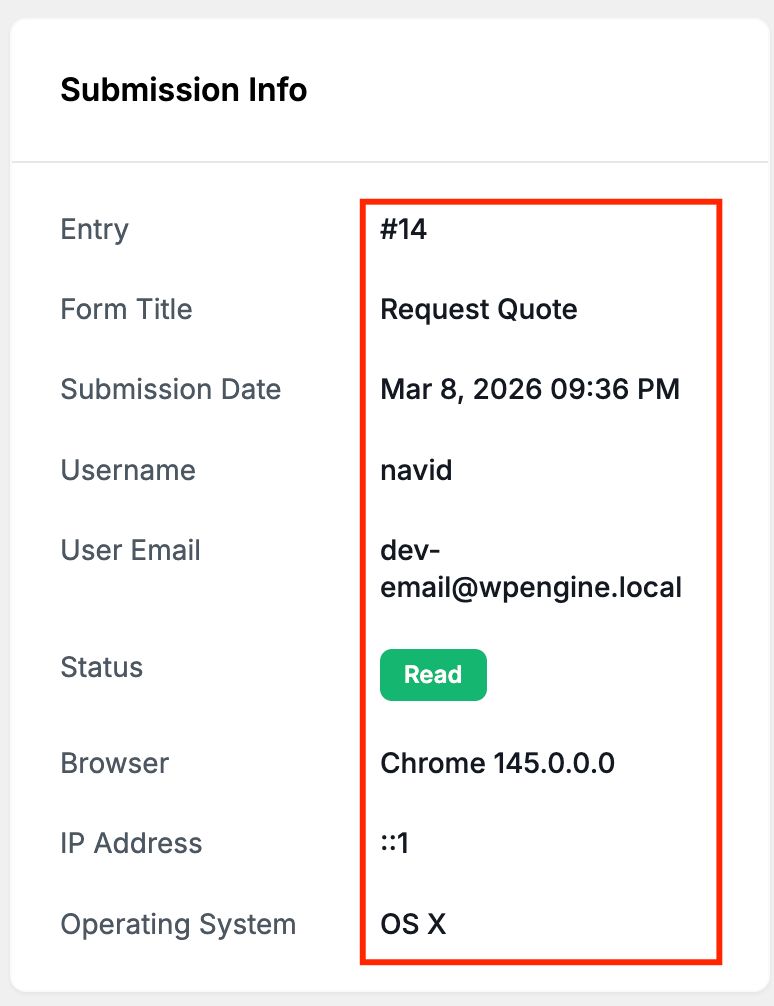
This section includes:
| Field | Description |
|---|---|
| Entry | The unique ID assigned to the submission. |
| Form Title | The name of the form used to submit the entry. |
| Submission Date | The exact date and time when the form was submitted. |
| Username | The WordPress username associated with the submission if the user was logged in. |
| User Email | The email address connected to the user account or submission. |
| Status | Indicates whether the entry has been viewed. |
| Browser | The web browser used when the form was submitted. |
| IP Address | The IP address from which the form was submitted. |
| Operating System | The operating system of the device used during submission. |
These details help administrators understand the source of the submission and can be useful when reviewing or troubleshooting form activity.
Downloading Entry Data #
The top-right corner of the page contains a Download button.
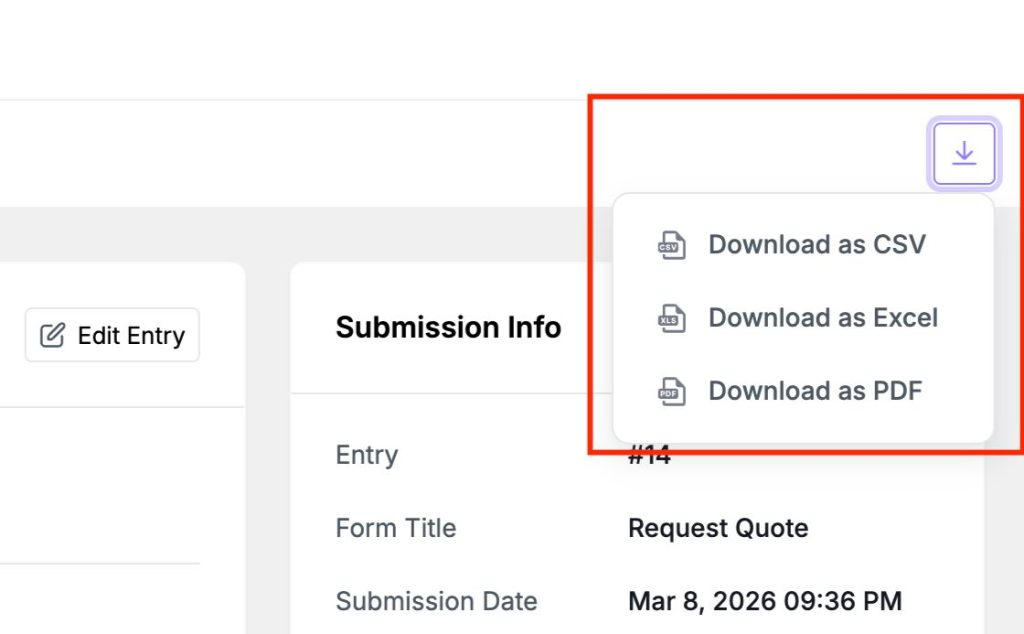
This option allows you to export the entry data in CSV, Excel, or PDF. This is useful when you need to share the submission with a team member, store it for records, or analyze form responses outside WordPress.
Submission Notes #
At the bottom right, Submission Note section allows administrators to attach internal notes to a specific entry.
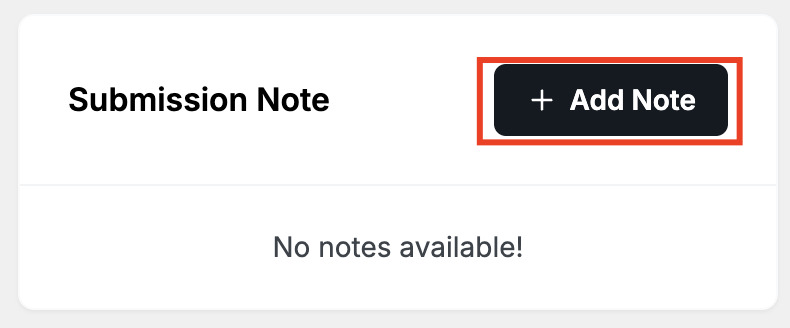
These notes are not visible to the form submitter and are intended only for internal tracking.
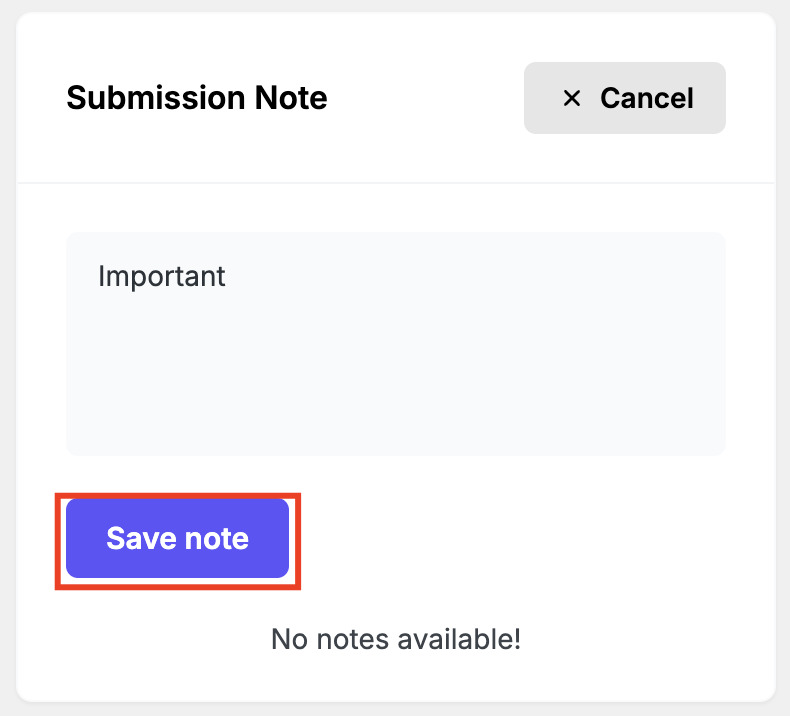
Saved notes appear in the same section and include the date they were added.
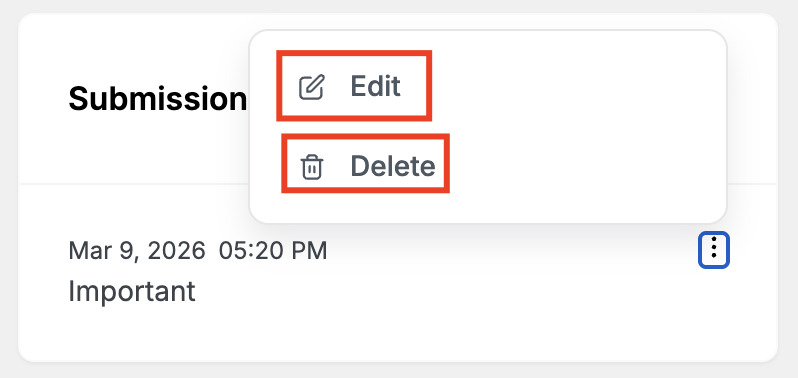
Each note also includes a small action menu where it can be edited or deleted if needed.
The Single Entry page combines the user’s submitted data, submission metadata, export options, and internal note tracking into one view.


