
The Style panel in Formgent gives you full visual control to match your form’s look and feel with your website.
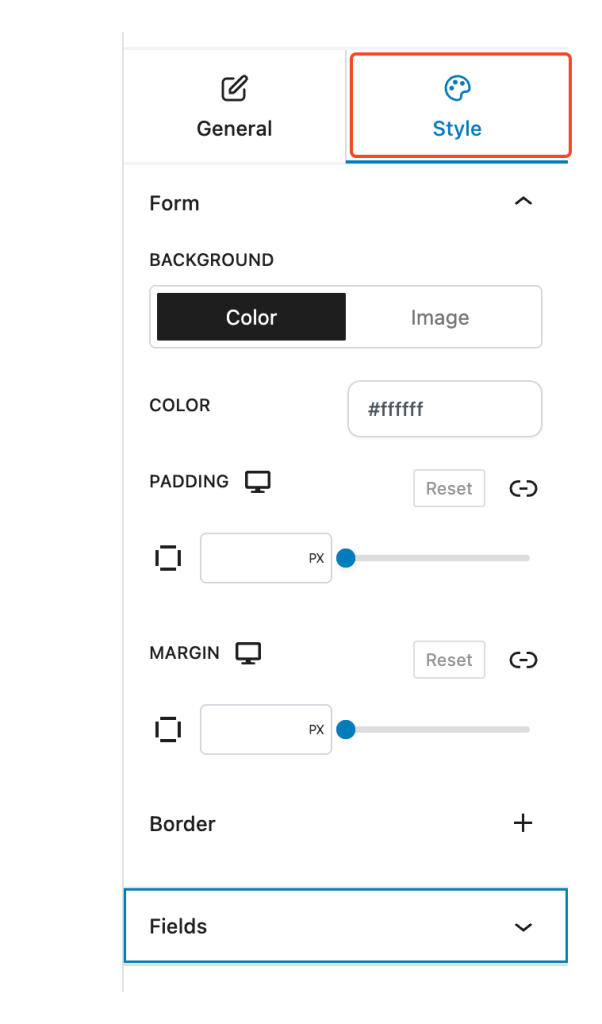
You’ll find the Style tab next to General in the right sidebar while editing any form.
Form Style #
This section lets you design the overall appearance of the form container.
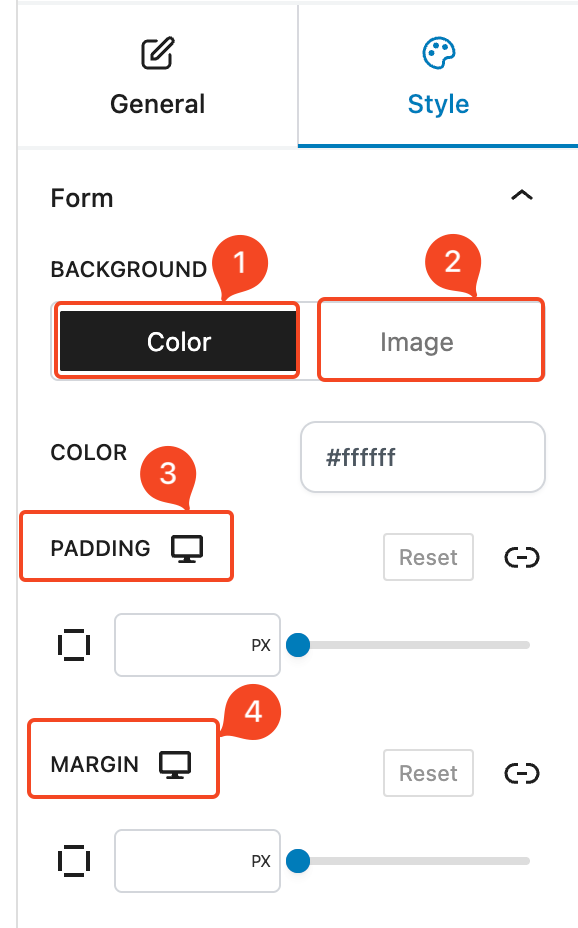
Available Options: #
- Background Color – Choose a custom background color for the form.
- Background Image – Upload or insert a background image.
- Padding – Add internal spacing inside the form container.
- Margin – Add space around the outside of the form.
Use these settings to make your form stand out, blend in, or align with your site’s branding.
Form Border / Radius #
You can customize the form’s outer border using the Border section under the Style settings.
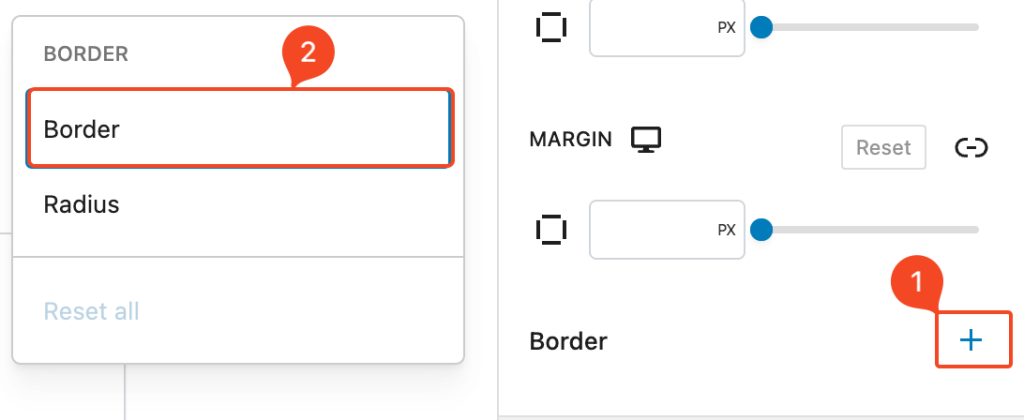
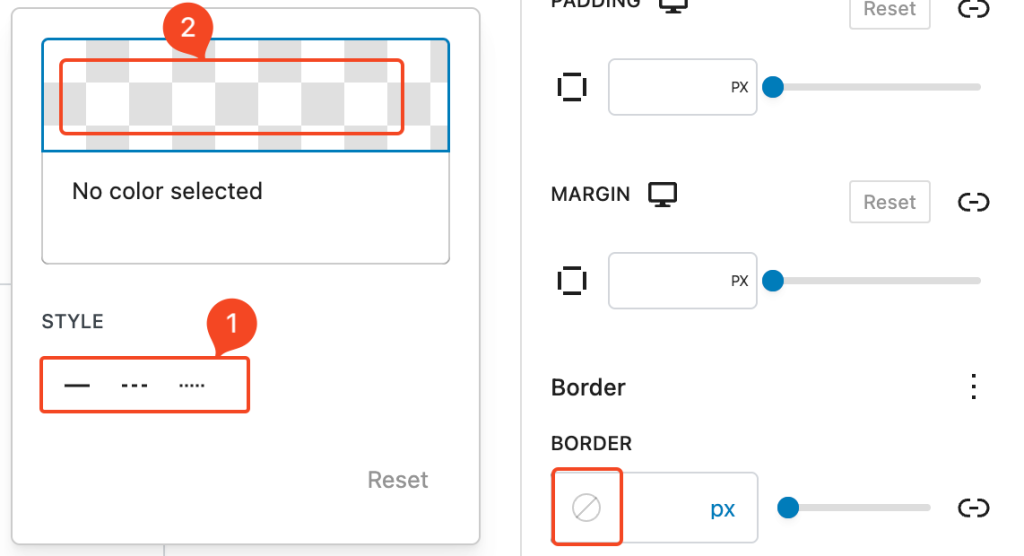
Step 1: Add Border or Radius
- Click the “+” icon to add a new style rule.
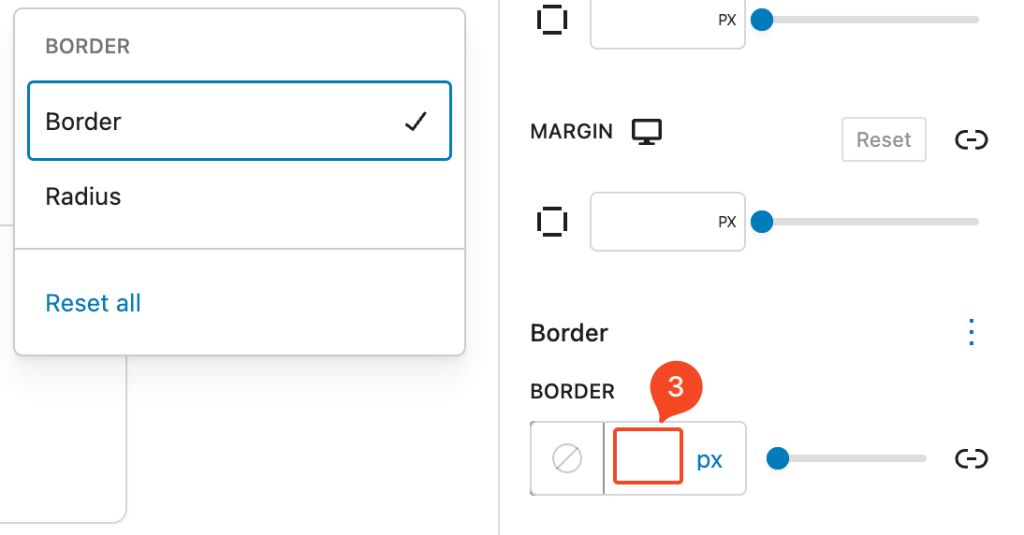
- Choose Border, Radius, or both.
- Set the border width (e.g.,
1px,2px, etc.). This controls how thick the border will appear.
Step 2: Choose Color and Style
- Choose a border style (e.g., solid, dashed, dotted) from the dropdown.
- Click the color picker icon to select your desired border color.
Field Style #
Customize how your form fields look and behave visually.
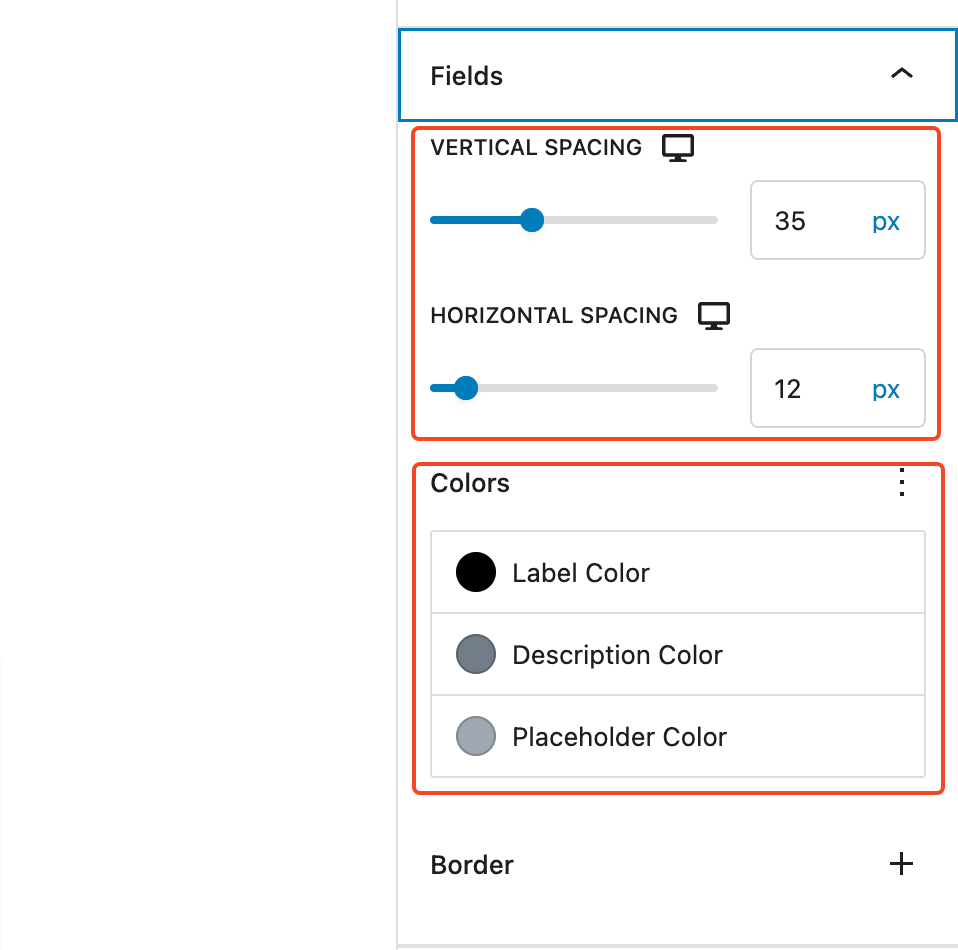
Spacing and Colors #
- Vertical Spacing – Adjust the space between each form field vertically.
- Horizontal Spacing – Control spacing for multi-column fields or grouped elements.
- Label Color – Change the color of field labels.
- Description Color – Style the helper or sub-label text.
- Placeholder Color – Set a color for placeholder text inside input fields.
Field Border / Radius #
You can customize the fields’ outer border using the Border section under the Style settings.
- Border Settings – Customize border thickness and color.
- Border Radius – Control the roundness of input field corners.
Step 1: Add Border or Radius #
- Click the “+” icon to add a new style rule.
- Choose Border, Radius, or both.
- Set the border width (e.g.,
1px,2px, etc.). This controls how thick the border will appear.
Step 2: Choose Color and Style #
- Choose a border style (e.g., solid, dashed, dotted) from the dropdown.
- Click the color picker icon to select your desired border color.


