
What Is Google Sheets Integration in Formgent? #
With our Google Sheets integration, you can automatically send form submission data to your selected spreadsheet in real time — no manual entry required.
This integration helps automate workflows, maintain clean records, and improve data collection efficiency for business, education, or personal use.
Why We Request Access to Google Sheets and Google Drive? #
To enable this feature securely using Google OAuth 2.0, Formgent requests the following permissions:
Google Drive (drive.readonly) #
We use this scope to list your Google Sheets files so that you can select an existing spreadsheet. Without this access, Formgent would not be able to show you a list of available sheets.
Google Sheets (spreadsheets) #
We use this scope to:
- Append form submission data to the sheet you select
- Read headers from your sheet for field mapping
- Create new sheets if needed
Formgent only accesses the specific sheets you choose and does not view or edit any unrelated files. You can revoke access at any time from your Formgent settings.
How to Connect Google Sheets with Formgent #
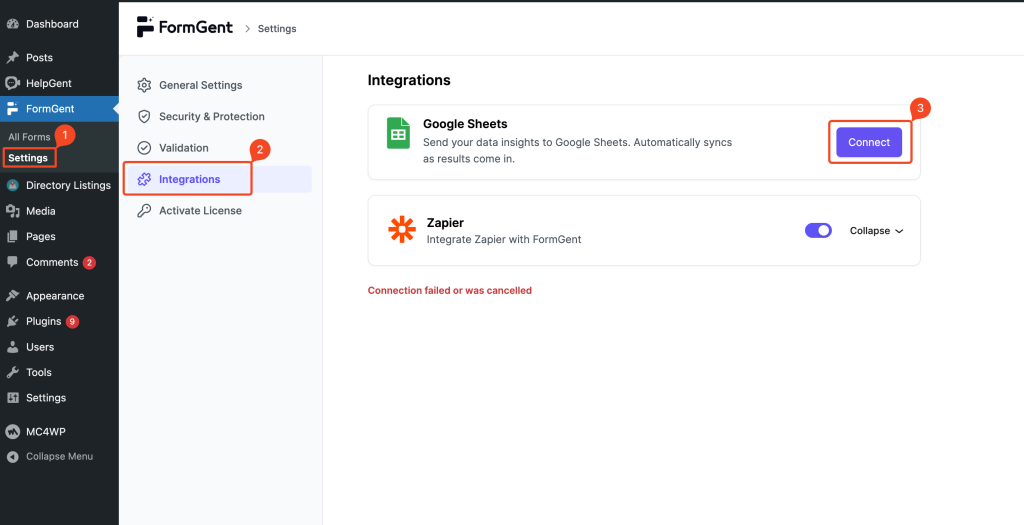
Step 1: Start the Integration #
- Go to your WordPress dashboard → Formgent > Settings
- Click on the Integration tab
- Choose Google Sheets and click the Connect button
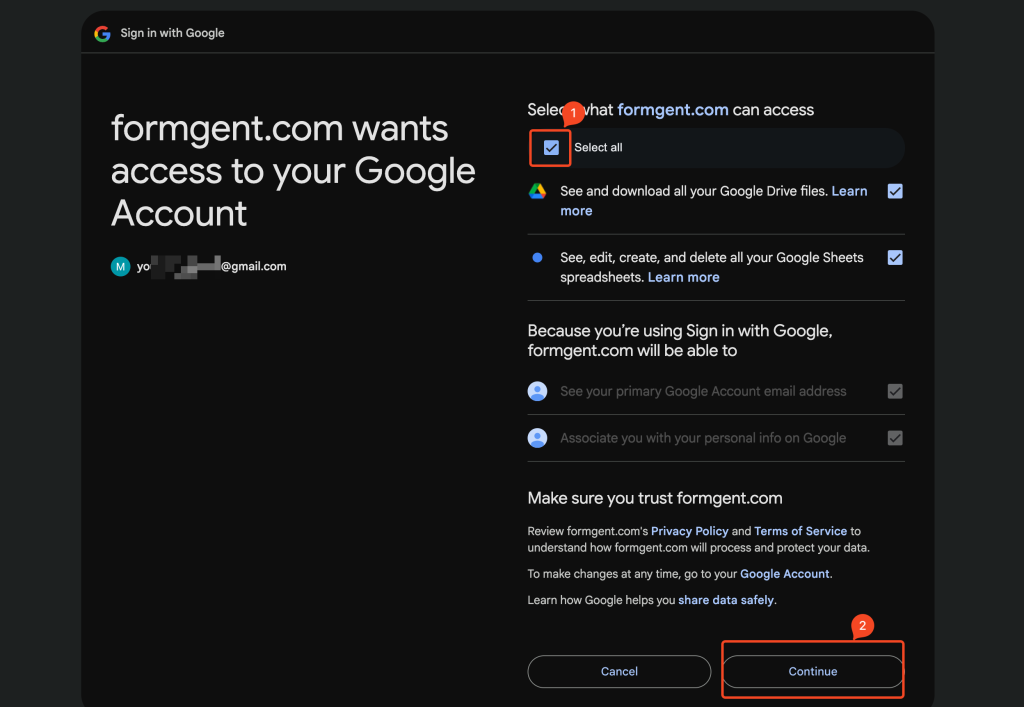
Step 2: Authorize via Google OAuth #
- You’ll be redirected to the Google OAuth consent screen
- Click Continue to authorize access
- After successful authentication, you’ll return to WordPress and see the connection status as Connected
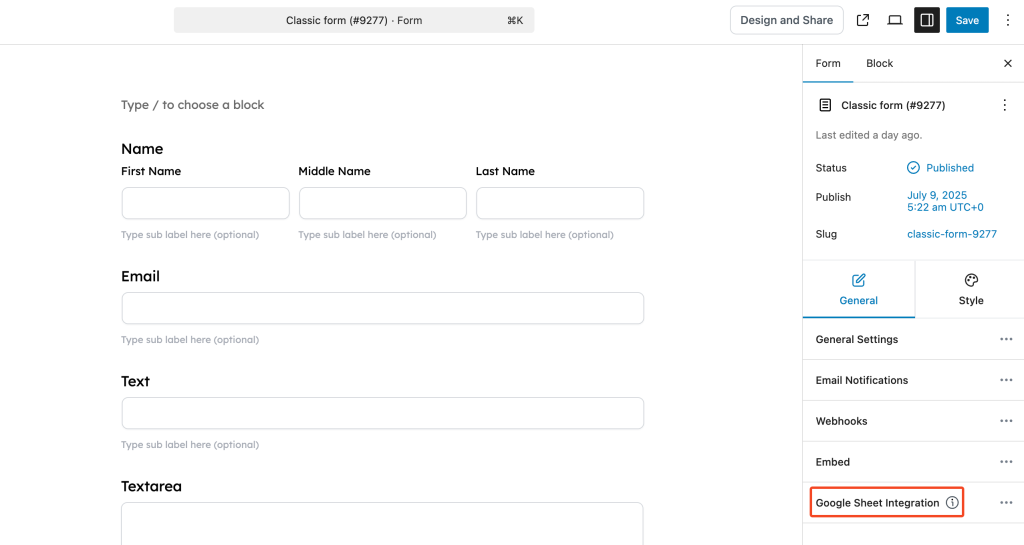
Step 3: Connect a Form #
- Choose any form you’ve created in Formgent
- Click Edit → Go to the Form tab → Click Google Sheets integration → Add New Connection
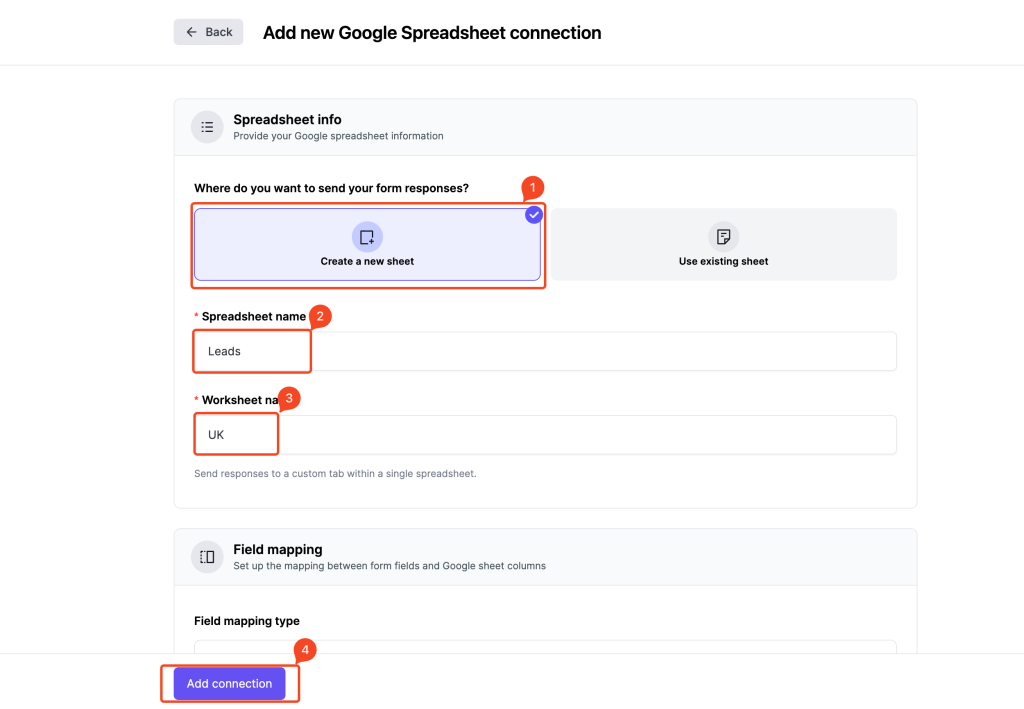
Step 4: Choose Where to Send Data #
You can either:
- Create a new spreadsheet:
- Click Add New Connection
- Enter your preferred sheet and tab names
- Click Connect
- Use an existing spreadsheet:
- Select the Use Existing option
- Choose your sheet and tab
- Click Connect
Step 5: Test Your Connection #
- Submit a test entry using the form
- You can view the connected sheet:
- Via Google Drive
- Or from Formgent > Settings > Connected Sheets → Click the View icon
- Your form data will appear in the spreadsheet in real time
Data Privacy & Security #
- We only request scopes strictly necessary to provide this feature
- Access tokens are securely stored on your WordPress site
- You can disconnect your Google account anytime
- We do not collect or share your data with third parties
To learn more, read our Privacy Policy and Terms & Conditions page.


