
FormGent includes plugin-wide settings for privacy, security, validation, integrations, payments, SMS delivery, and licensing. Follow this guide to review the essential settings before publishing your first form.
Step 1: Open FormGent Settings #
- Log in to your WordPress Admin Dashboard.
- Navigate to FormGent → Settings.
- Use the menu on the left to move between the nine settings sections.
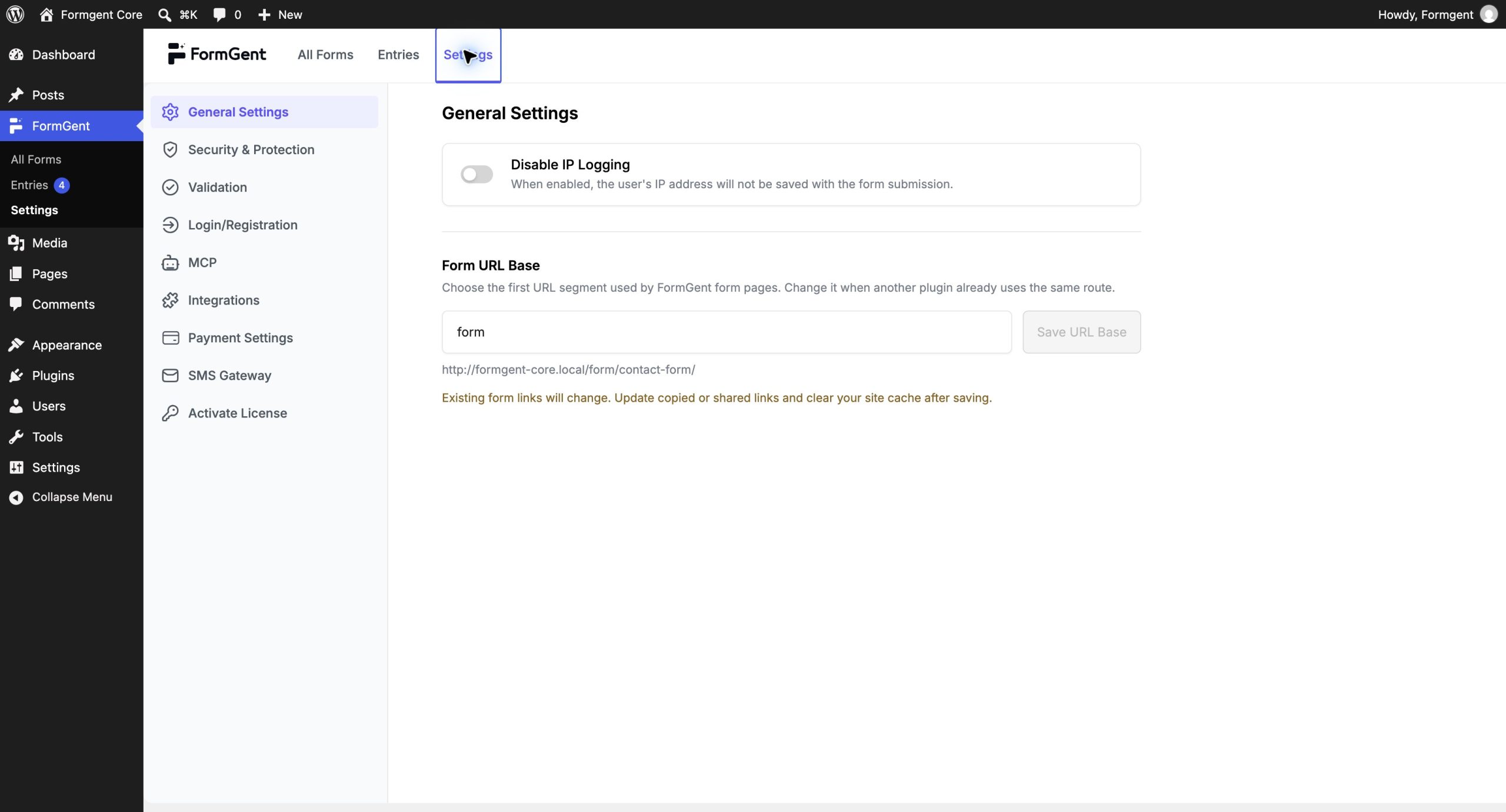
The available sections are:
- General Settings
- Security & Protection
- Validation
- Login/Registration
- MCP
- Integrations
- Payment Settings
- SMS Gateway
- Activate License
Step 2: Configure General Settings #
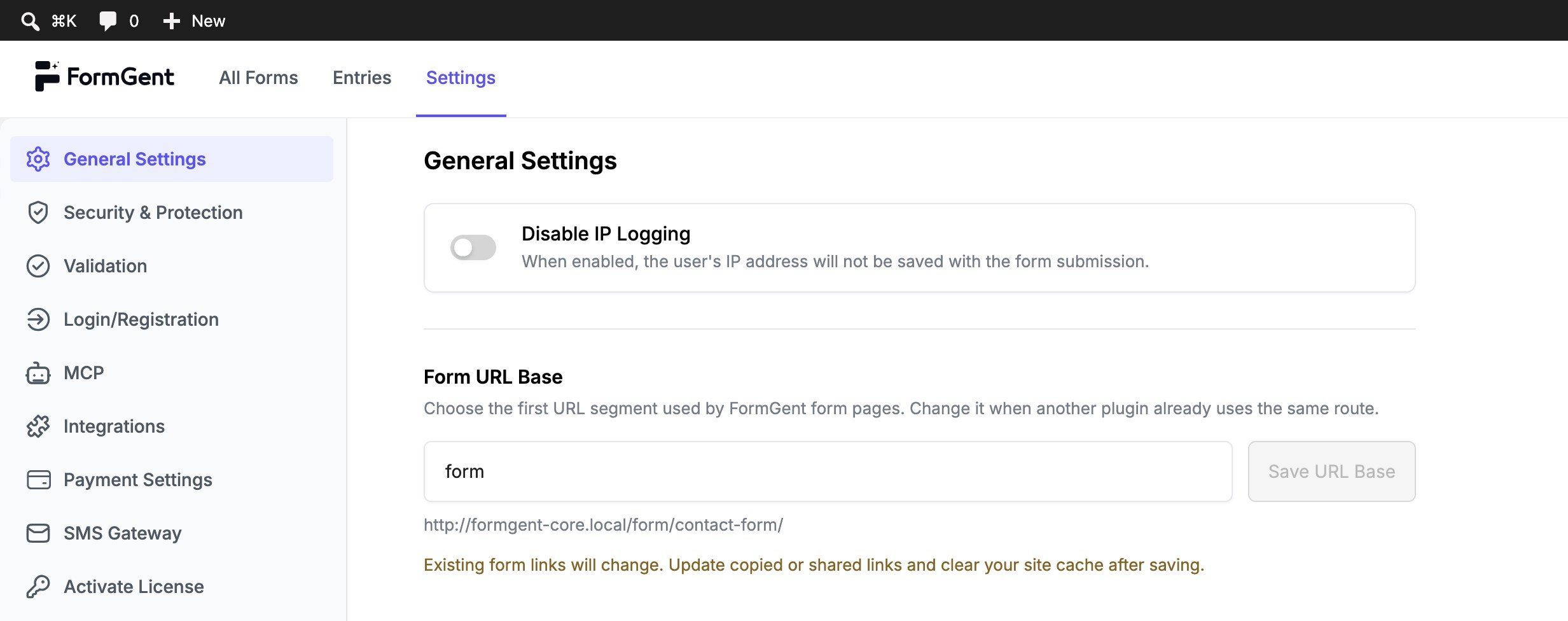
Open General Settings and review these options:
- Disable IP Logging: Turn this on when you do not want FormGent to save a visitor’s IP address with a submission.
- Form URL Base: Set the base used for direct FormGent form links.
Changing the Form URL Base changes existing direct form URLs. Update any links you have already shared and clear your site cache after saving the new value.
Click Save Changes when you are done.
Step 3: Set Up Security & Protection #
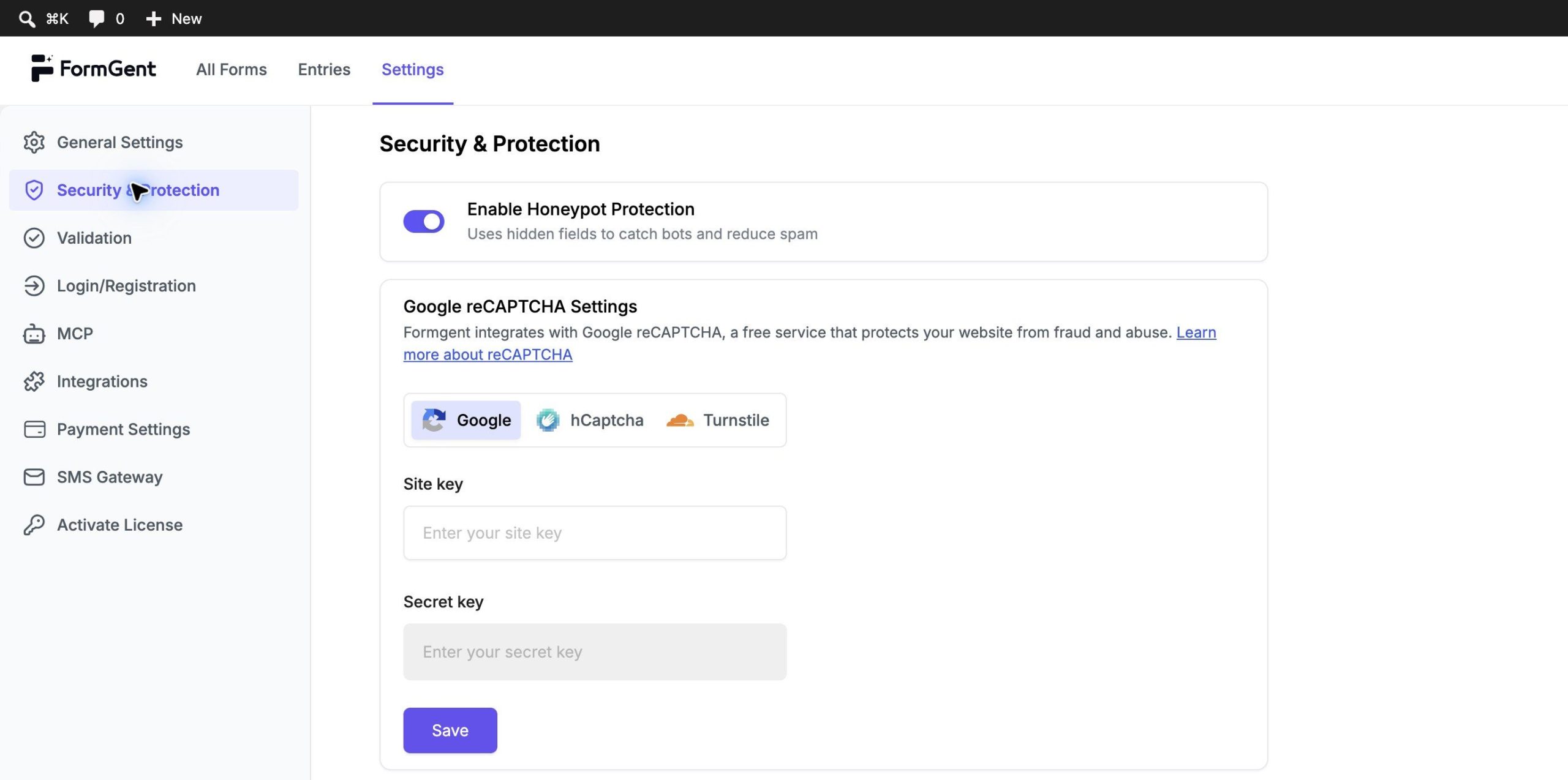
Open Security & Protection to configure spam protection.
- Turn on honeypot protection to add a hidden bot trap to your forms.
- Choose a supported CAPTCHA provider when you need an additional challenge.
- Enter the Site Key and Secret Key supplied by that CAPTCHA provider.
Save the settings, then add the CAPTCHA block to each form where you want to use it.
Step 4: Customize Validation Messages #
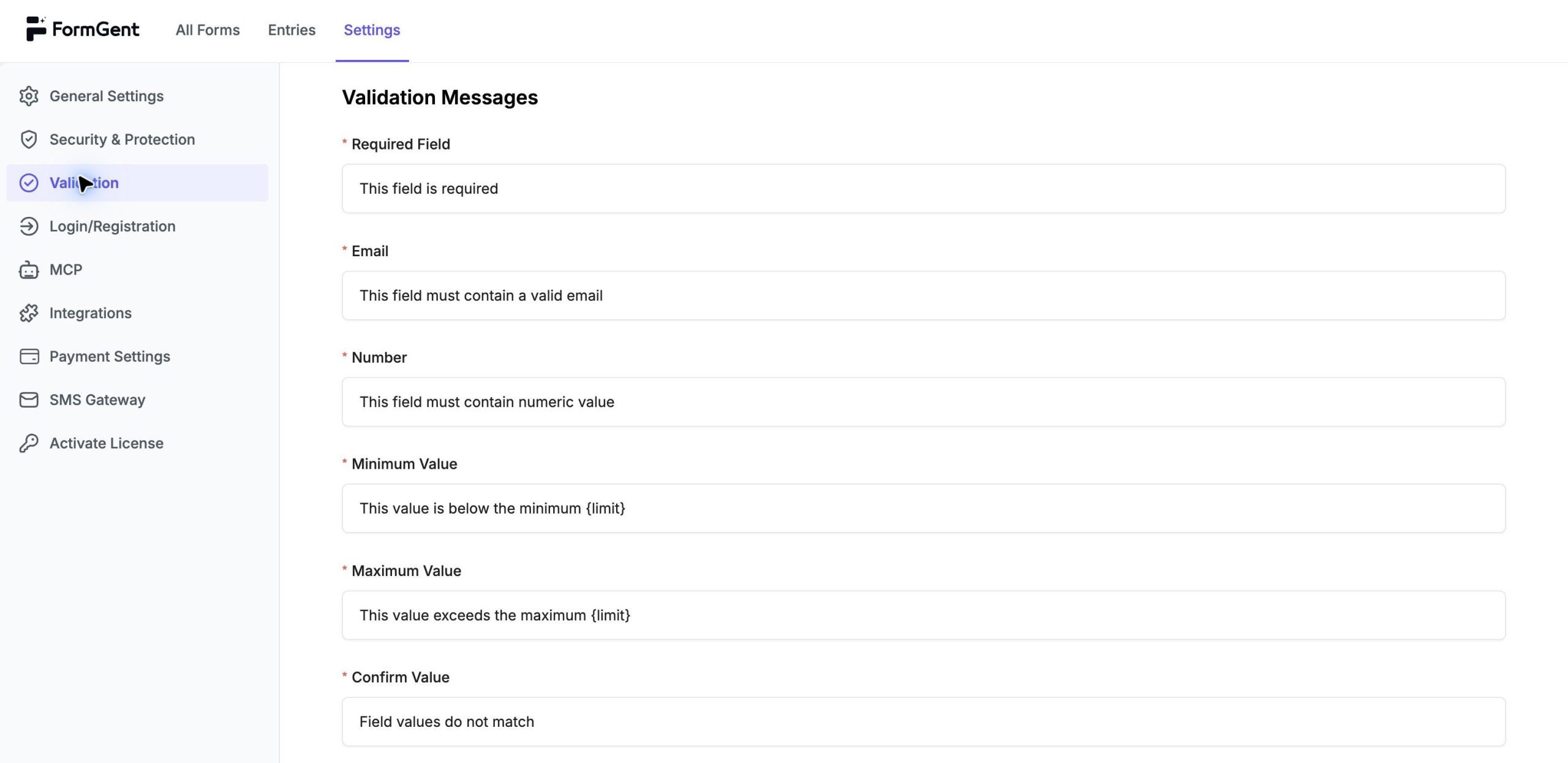
Open Validation to edit the messages visitors see when a value does not meet a field rule. The available messages cover required fields, email addresses, numbers, minimum and maximum values, confirmation fields, URLs, input masks, GDPR consent, and character limits.
Keep placeholders such as {limit} in messages that use them. FormGent replaces the placeholder with the value configured for the field.
Click Save Changes after editing the messages.
Step 5: Review Login and Registration #
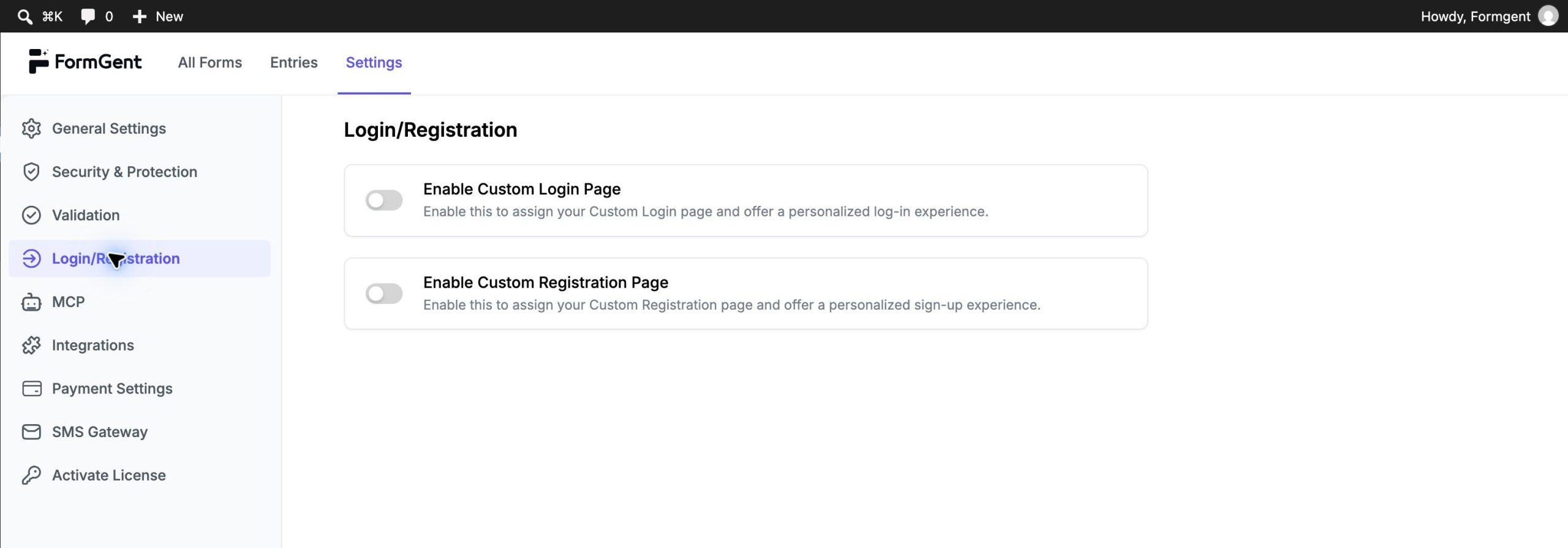
Open Login/Registration if your site uses login or registration forms. You can connect the appropriate WordPress pages to the login and registration experience from this section.
Step 6: Set Up MCP #
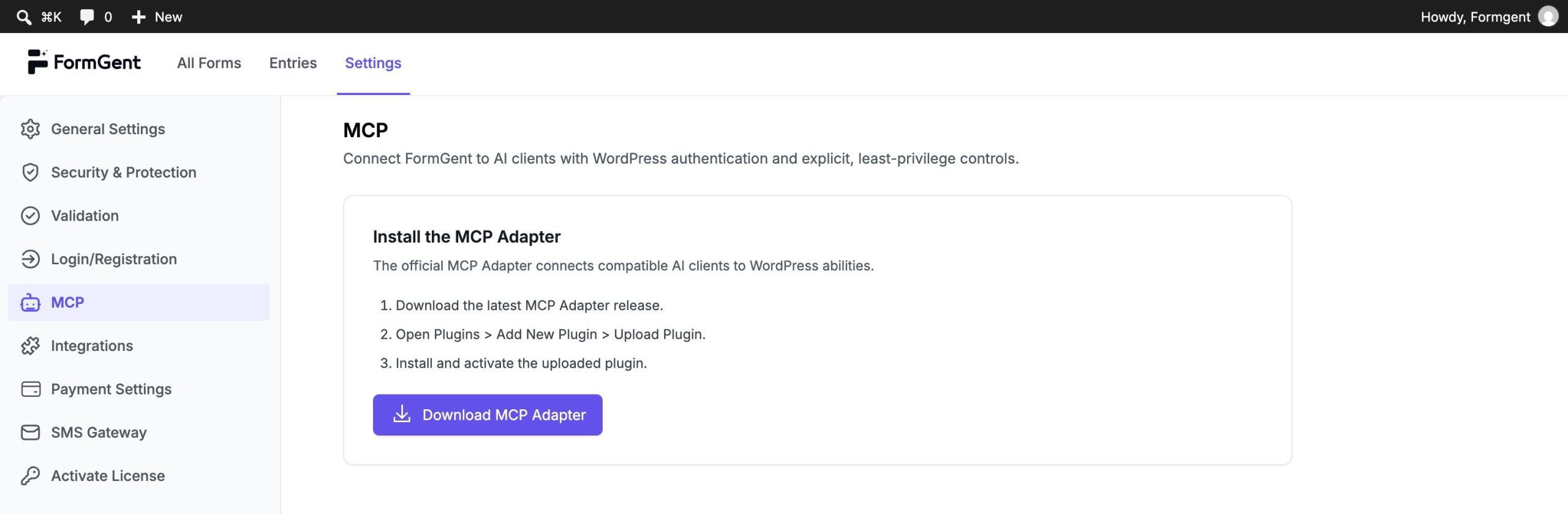
Open MCP when you want a compatible AI client to work with FormGent through WordPress.
- Download the official MCP Adapter from the MCP settings screen.
- In WordPress, go to Plugins → Add New Plugin → Upload Plugin.
- Install and activate the adapter.
- Return to FormGent → Settings → MCP and complete the connection setup for your AI client.
- Grant only the permissions the client needs and revoke unused credentials.
See Manage Forms With MCP for the complete setup, authentication, available tools, and security guidance.
Step 7: Connect Integrations #
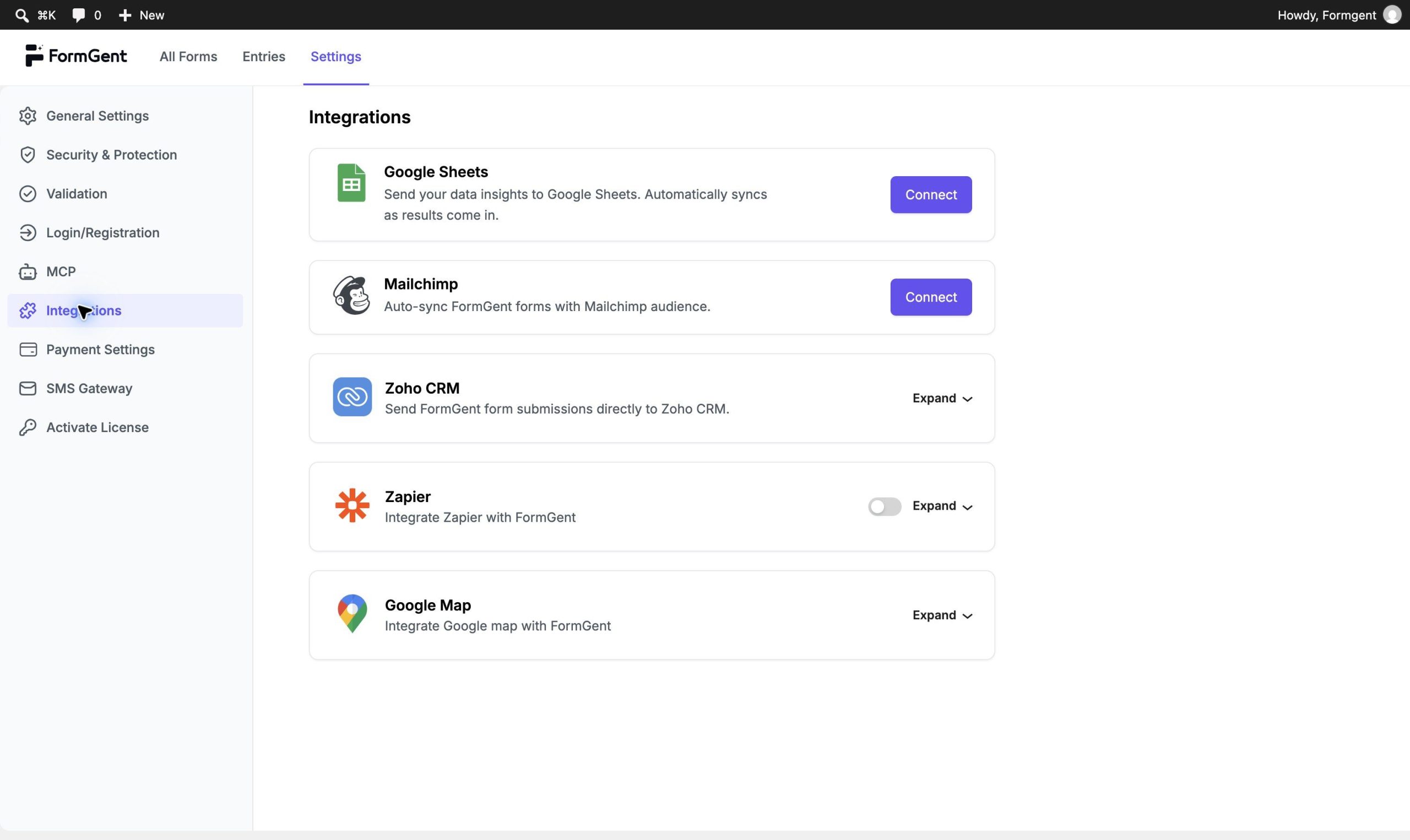
Open Integrations to connect supported services such as Google Sheets, Mailchimp, Zoho CRM, Zapier, and Google Maps. Each service has its own authorization and form-level setup.
Connect only the services you plan to use, then complete the related setup inside the form editor.
Step 8: Configure Payment Settings #
Open Payment Settings to configure PayPal, Stripe, or Mollie.
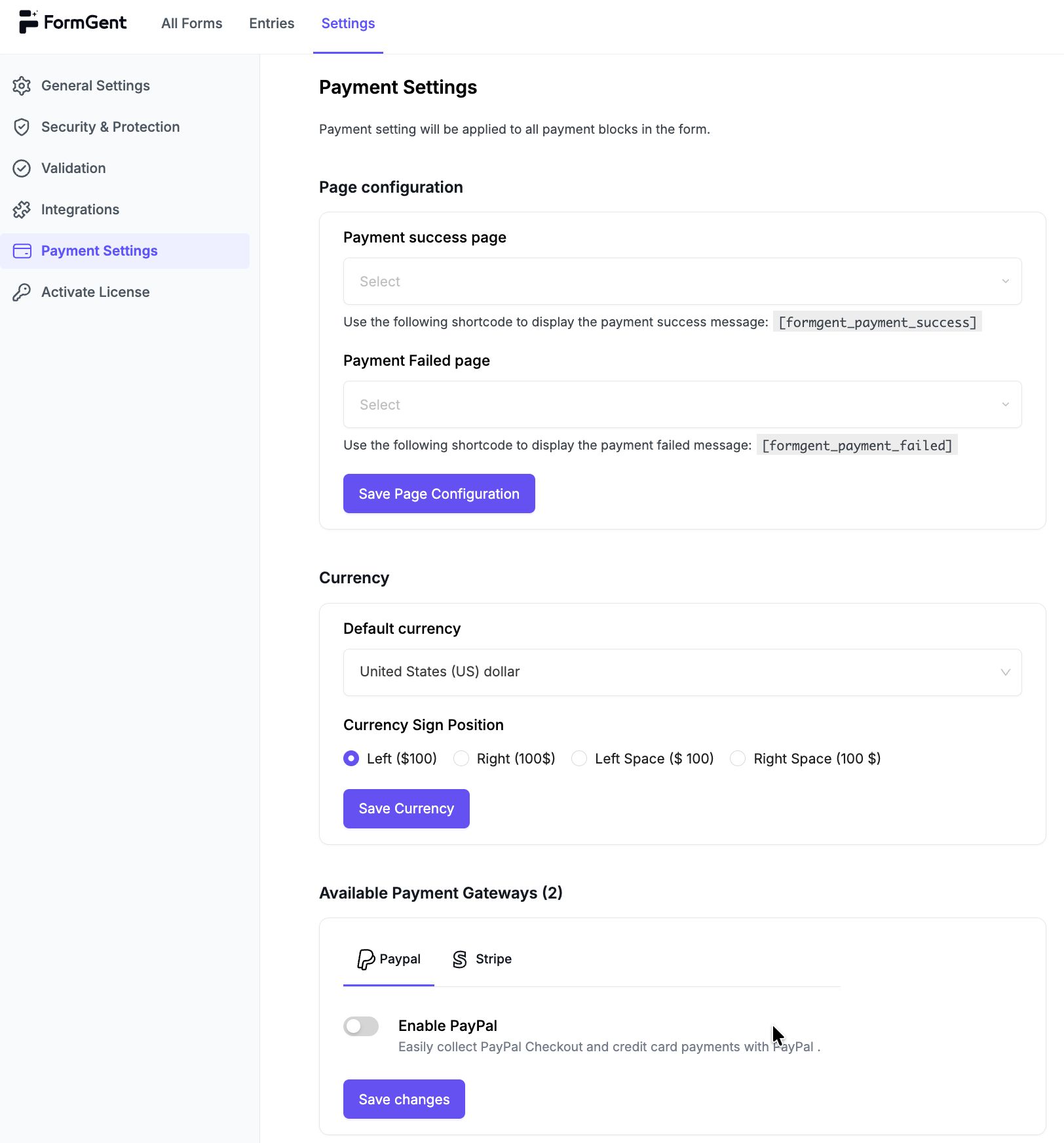
Choose the gateway your form will use, add its credentials, select the correct test or live mode, and configure the currency and payment result behavior. See Payment Integrations for the full gateway setup.
Step 9: Configure an SMS Gateway #
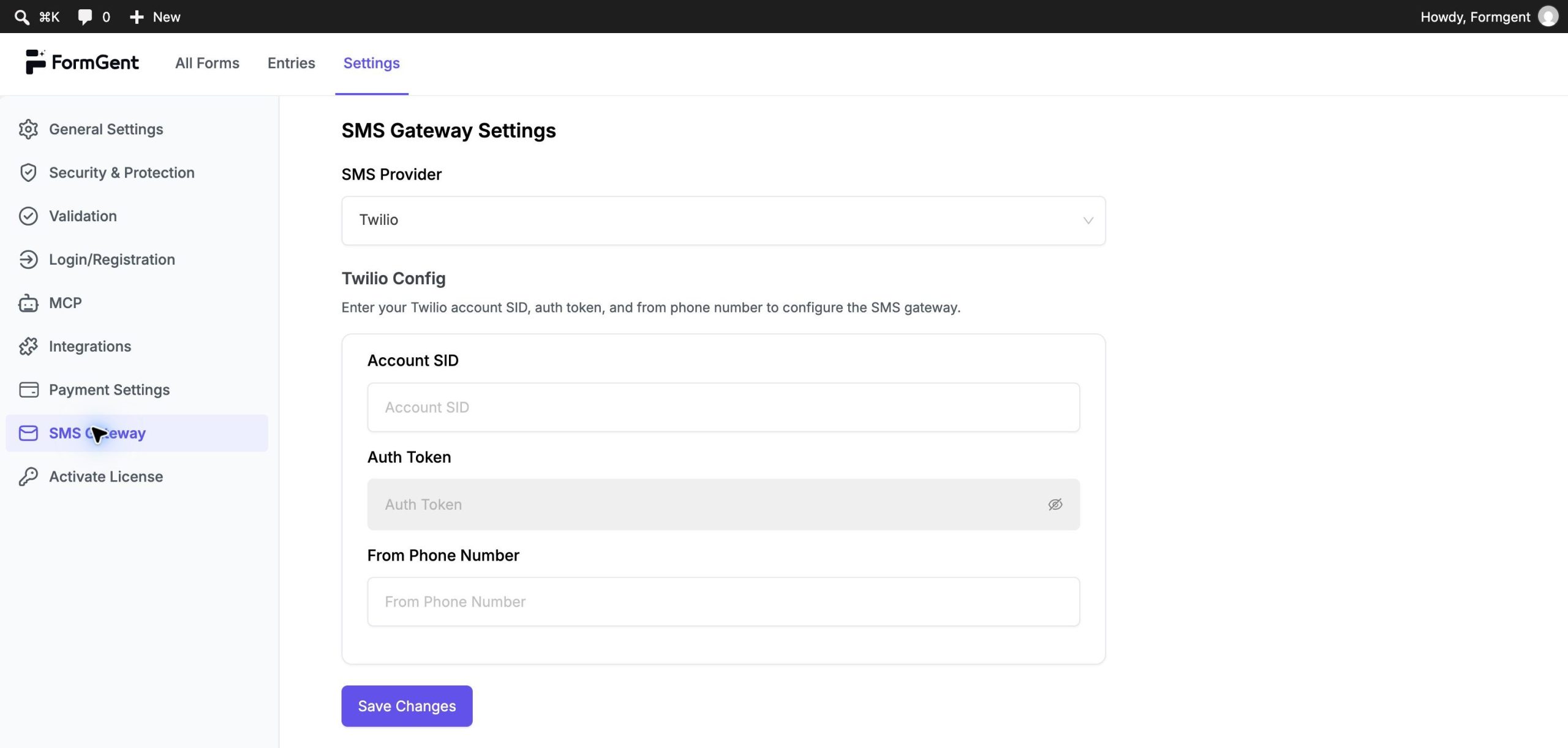
Open SMS Gateway when you want to deliver OTP codes by phone. Choose Twilio, Firebase, or a Custom Gateway and enter the settings required by that provider.
The SMS gateway is used by FormGent’s phone OTP verification workflow. See SMS Gateway Integration before enabling SMS verification on a form.
Step 10: Activate FormGent Pro #
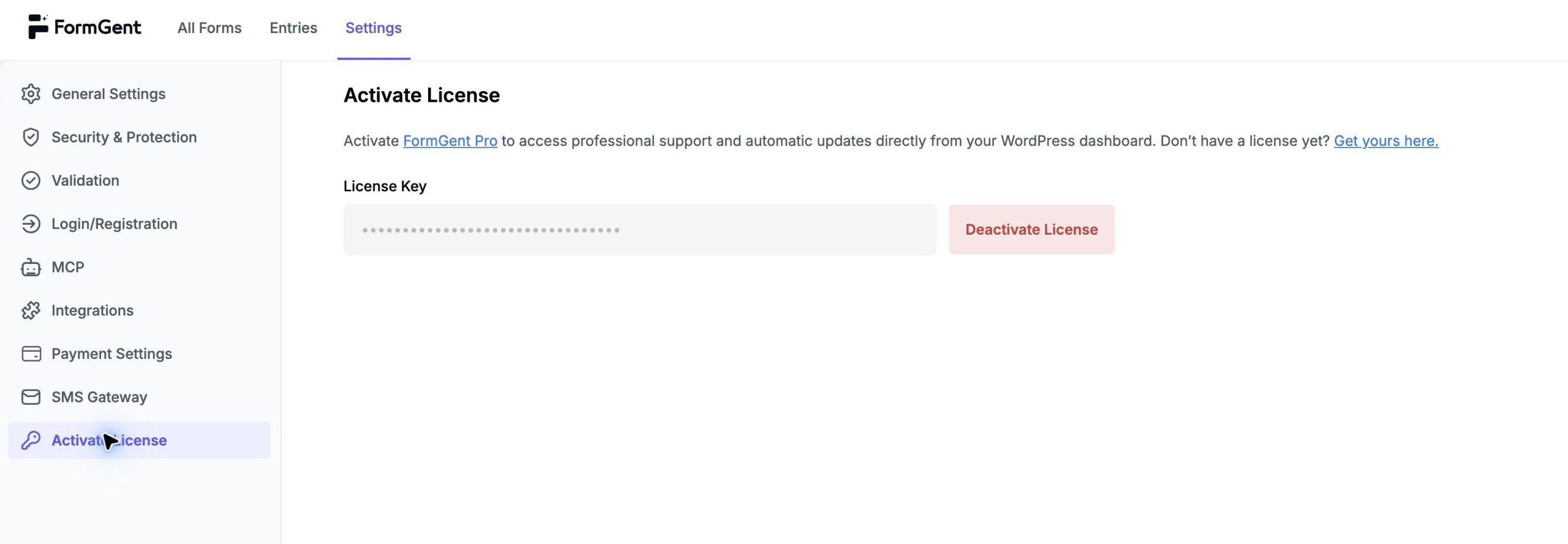
Open Activate License after installing FormGent Pro. A valid license provides access to automatic Pro updates and professional support and is also required by licensed capabilities such as the Pro MCP digital-signature automation.
See Activating FormGent Pro License for the complete process.
Final Check #
After saving your settings, create a test form and submit it once. Confirm that validation, confirmation, email delivery, integrations, payment mode, and OTP behavior work as expected before using the form on a live page.


