
FormGent includes a built-in MCP (Model Context Protocol) server, so AI clients like Claude Desktop, Claude Code, Cursor, VS Code, Continue, and ChatGPT desktop / Codex can work with your forms directly. Once connected, you can ask your AI assistant to list forms, check submissions, or build a new form, and it does the work through a secure, authenticated connection instead of you clicking through wp-admin.
Requirements #
Before you start, make sure you have:
- WordPress 6.9 or later.
- The current version of FormGent, installed and active.
- The MCP Adapter plugin. Minimum supported version: 0.5.0. Recommended: 0.6.1 or newer.
- Node.js installed on the computer running your AI client.
- HTTPS on your site, unless it’s a local development site.
- An MCP-compatible AI client, such as Claude Desktop, Claude Code, Cursor, VS Code, Continue, or ChatGPT desktop / Codex.
FormGent Pro is not required. If Pro is active and licensed, the same MCP connection also supports Pro automation features and the digital-signature field.
Enabling the MCP Server #
Path: WP Admin → FormGent → Settings → MCP
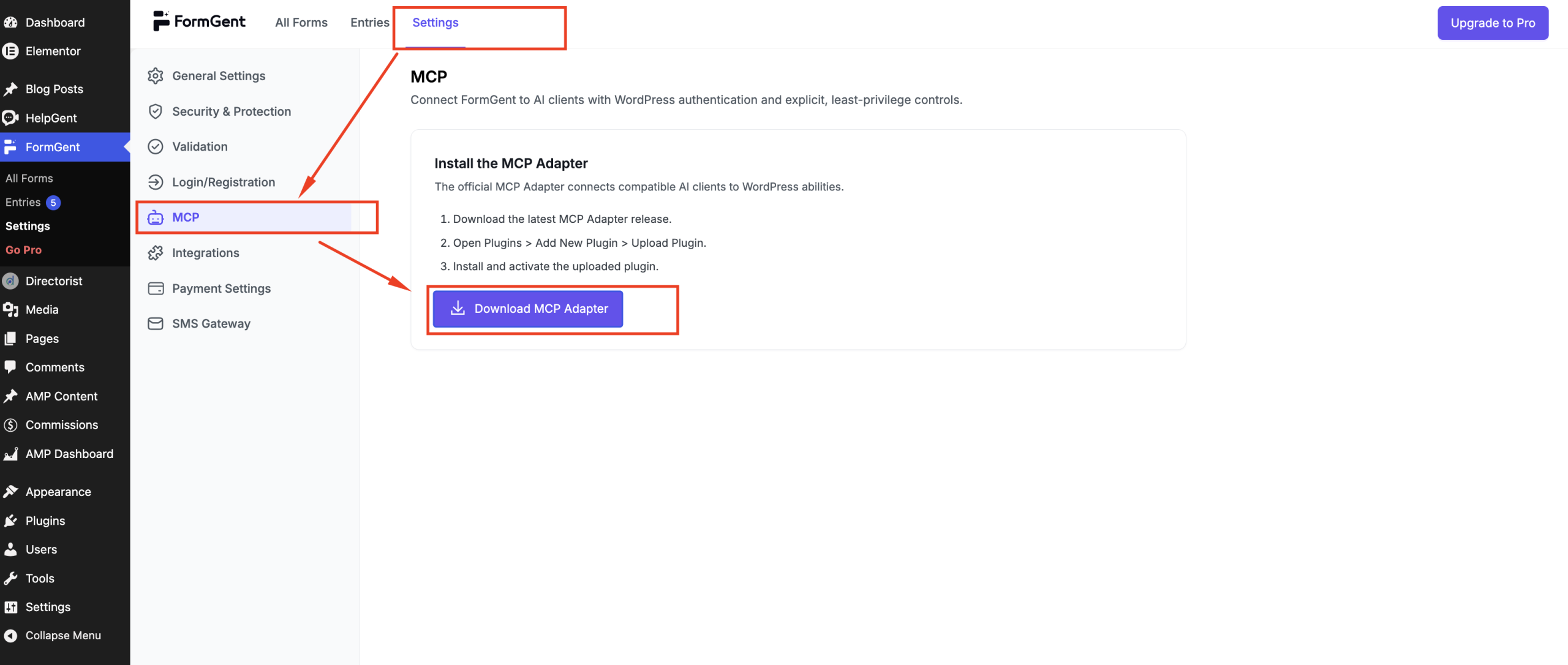
Step 1 – Install the MCP Adapter #
If the page shows a notice asking for the MCP Adapter:
- Click Download MCP Adapter.
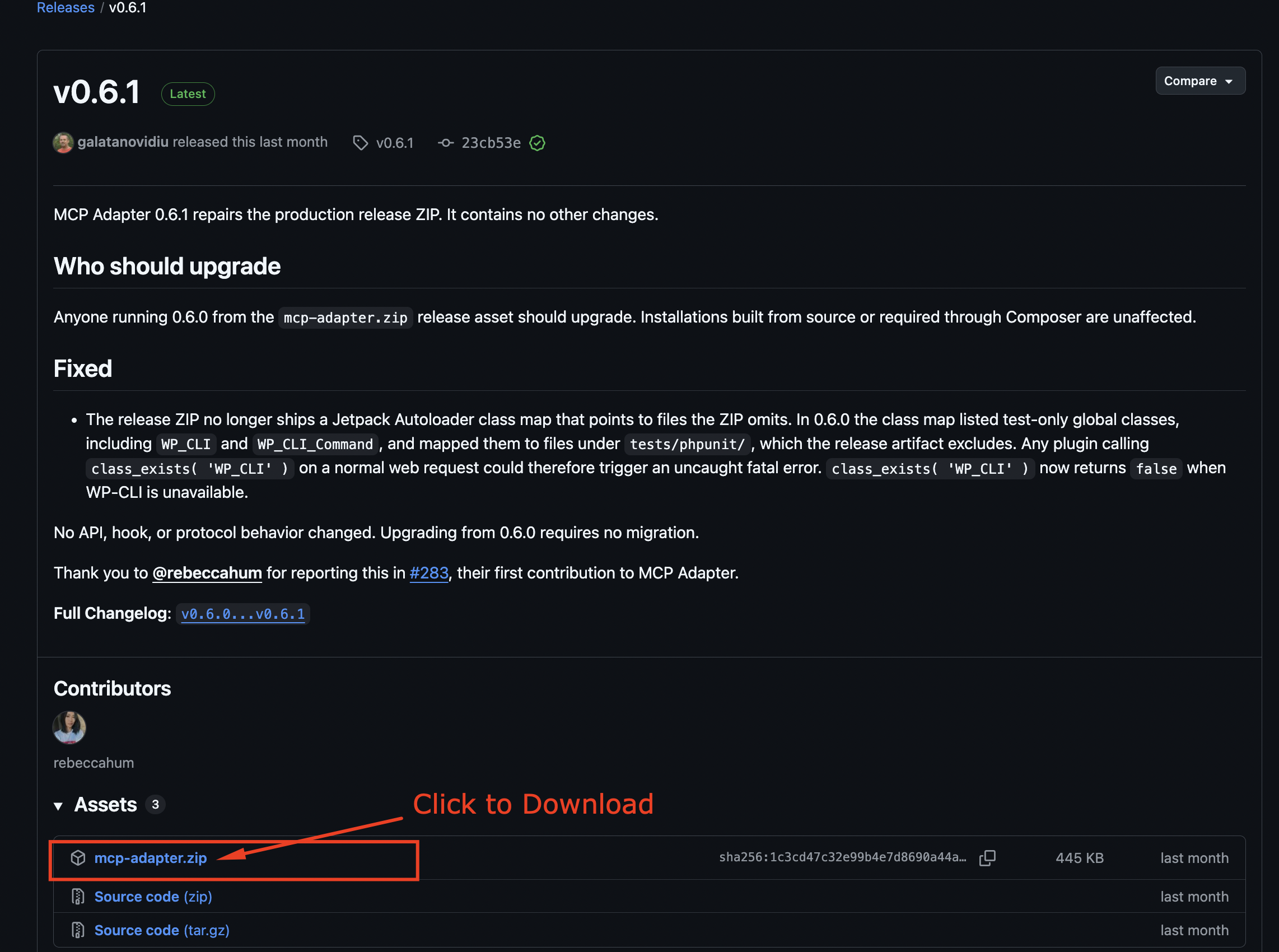
- Go to Plugins → Add New Plugin → Upload Plugin and upload the file.
- Click Activate.
- Return to the MCP settings page.
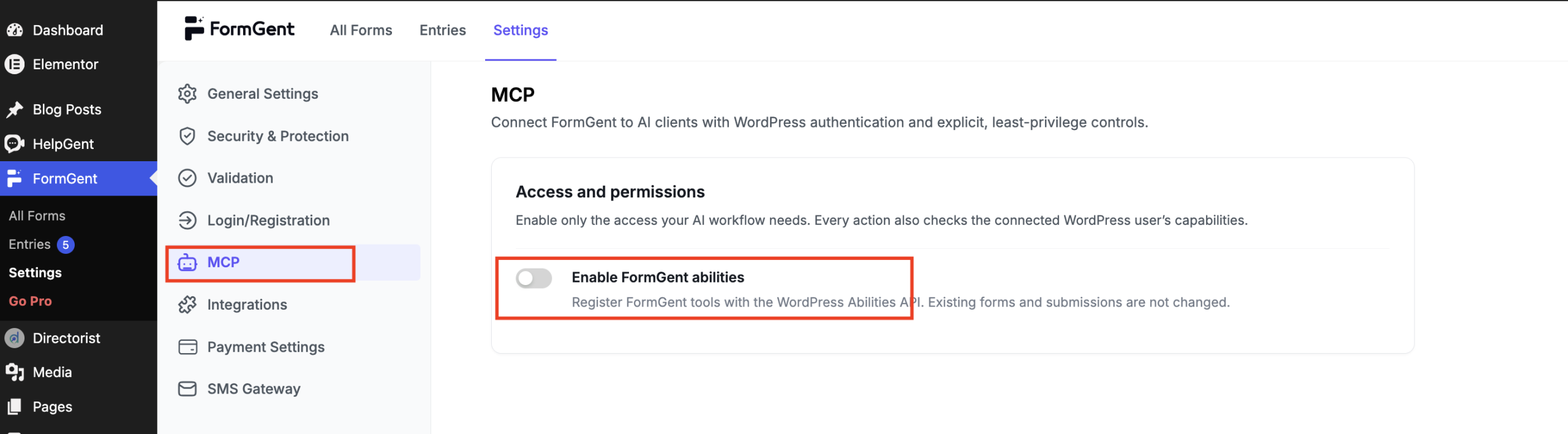
Step 2 – Turn on the switches you need #
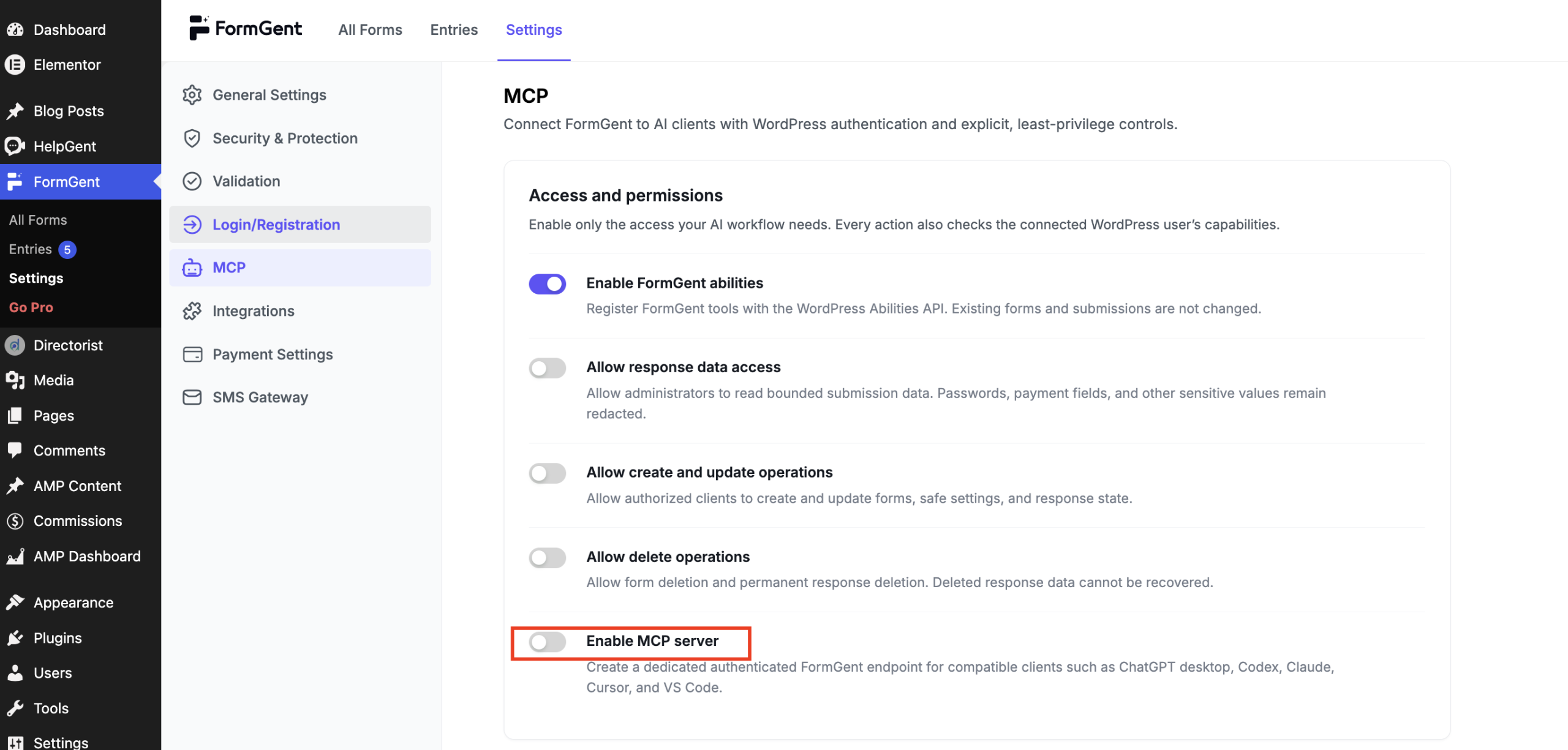
Every switch is off by default. Turn on only what your workflow needs:
| Switch | What it unlocks |
| Enable FormGent abilities | List and read forms, get embed codes, view stats, read safe settings. |
| Allow response data access | Read submission summaries and redacted submission details. |
| Allow create and update operations | Create, update, and duplicate forms; update safe settings; change a submission’s read/starred status. |
| Allow delete operations | Delete forms and permanently delete submissions. |
| Enable MCP server | Turns on the connection endpoint your AI client connects to. |
Some actions need more than one switch on together:
- Changing a submission’s read or starred status needs Allow response data access and Allow create and update operations.
- Permanently deleting a submission needs Allow response data access and Allow delete operations.
Step 3 – Copy your endpoint #
Once Enable MCP server is on, the page shows your Endpoint URL:
https://your-site.com/wp-json/formgent/v1/mcp
Click Copy to grab it.
Creating an Application Password #
AI clients sign in with a WordPress Application Password, not your normal login password. Give each client its own so you can disconnect one without affecting the others.
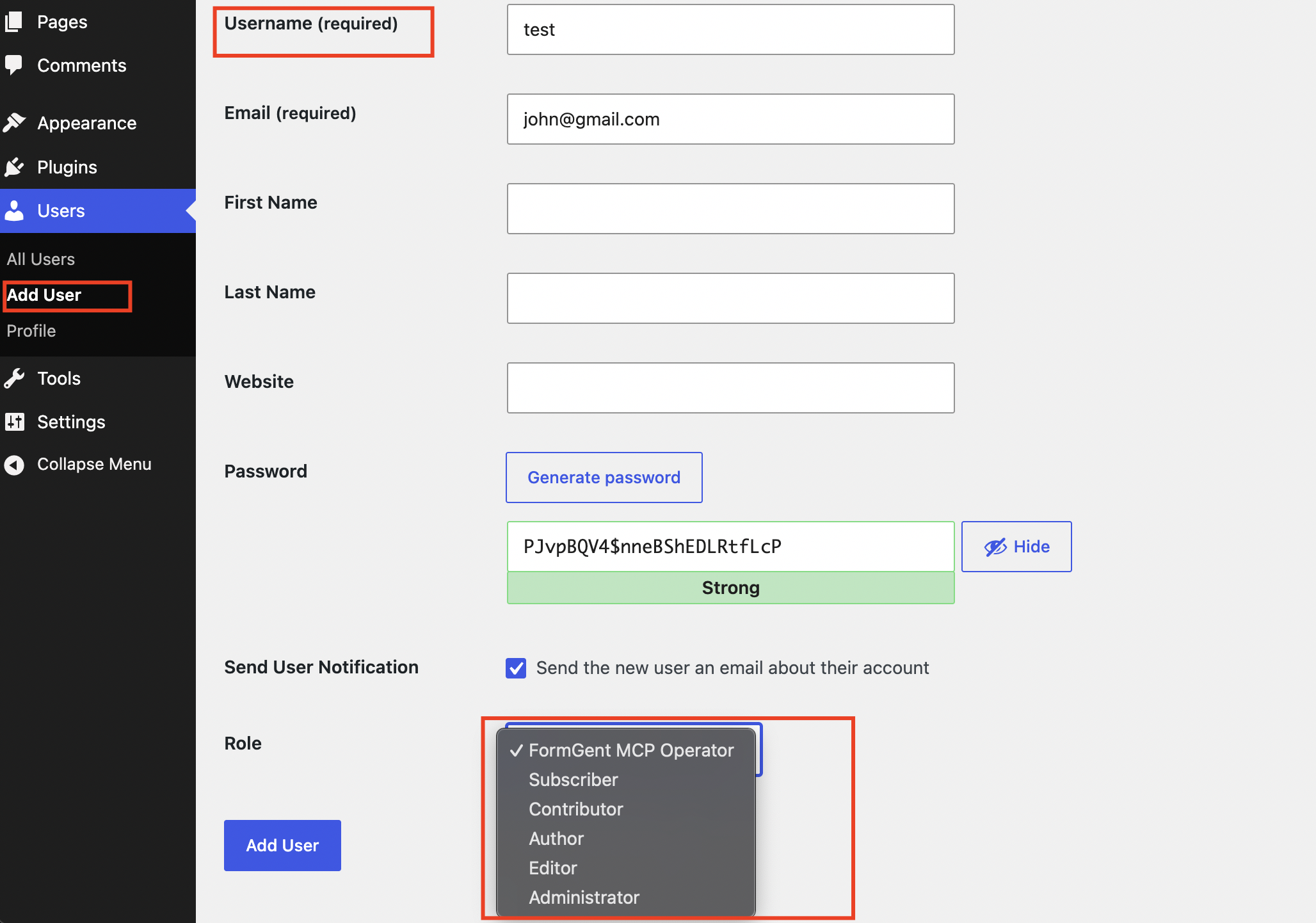
- Go to Users → Add Users.
- Create a new user and assign it the FormGent MCP Operator role. This role can use enabled FormGent abilities, but can’t manage users, plugins, themes, or site-wide settings.
- You will need this username in next step.
- Click Edit on that user, then scroll to Application Passwords.
- Type a name you’ll recognize later, such as FormGent – Claude Desktop.
- Click Add New Application Password.
- Click Copy to save the generated password somewhere safe.
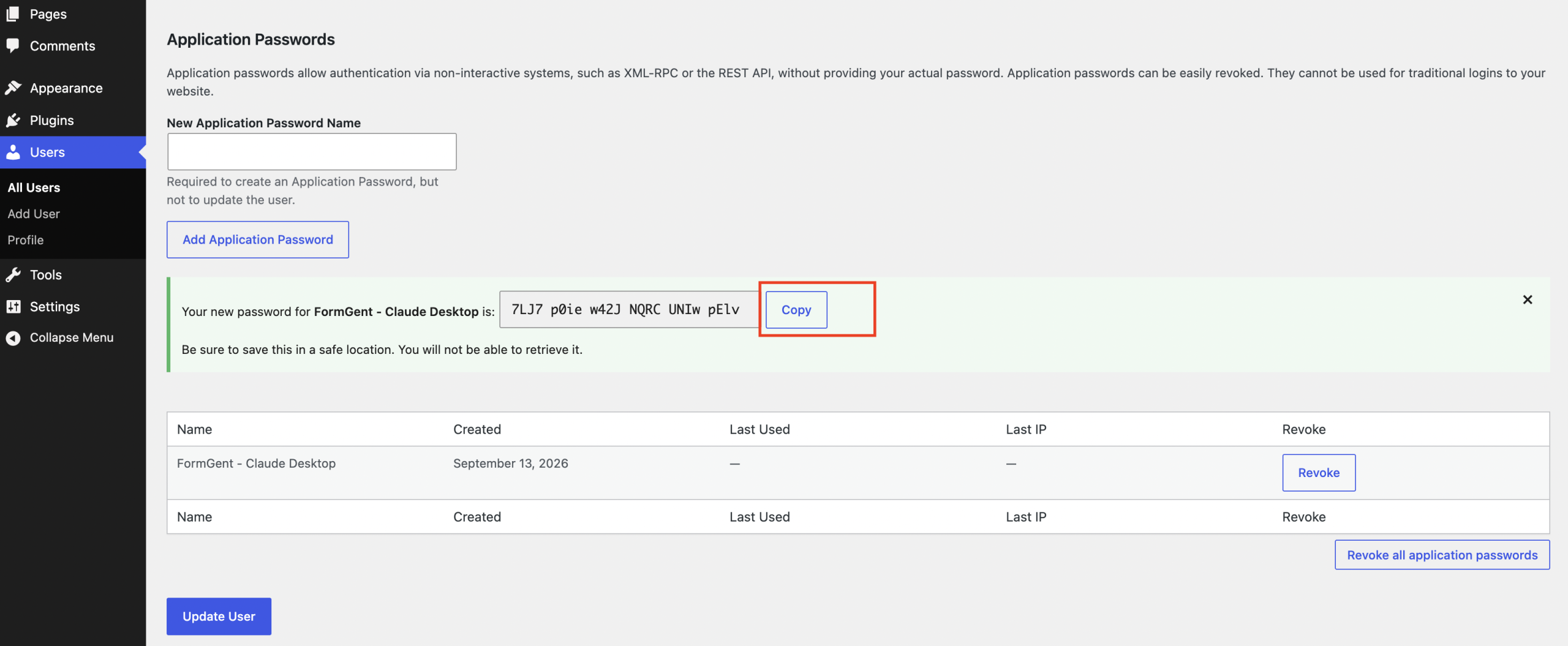
You won’t be able to see this password again once you leave the page — if you lose it, generate a new one.
Connecting Your AI Client #
Step 1 – Copy the configuration #
On the MCP settings page, go to Connect your AI client and select your client from the list.
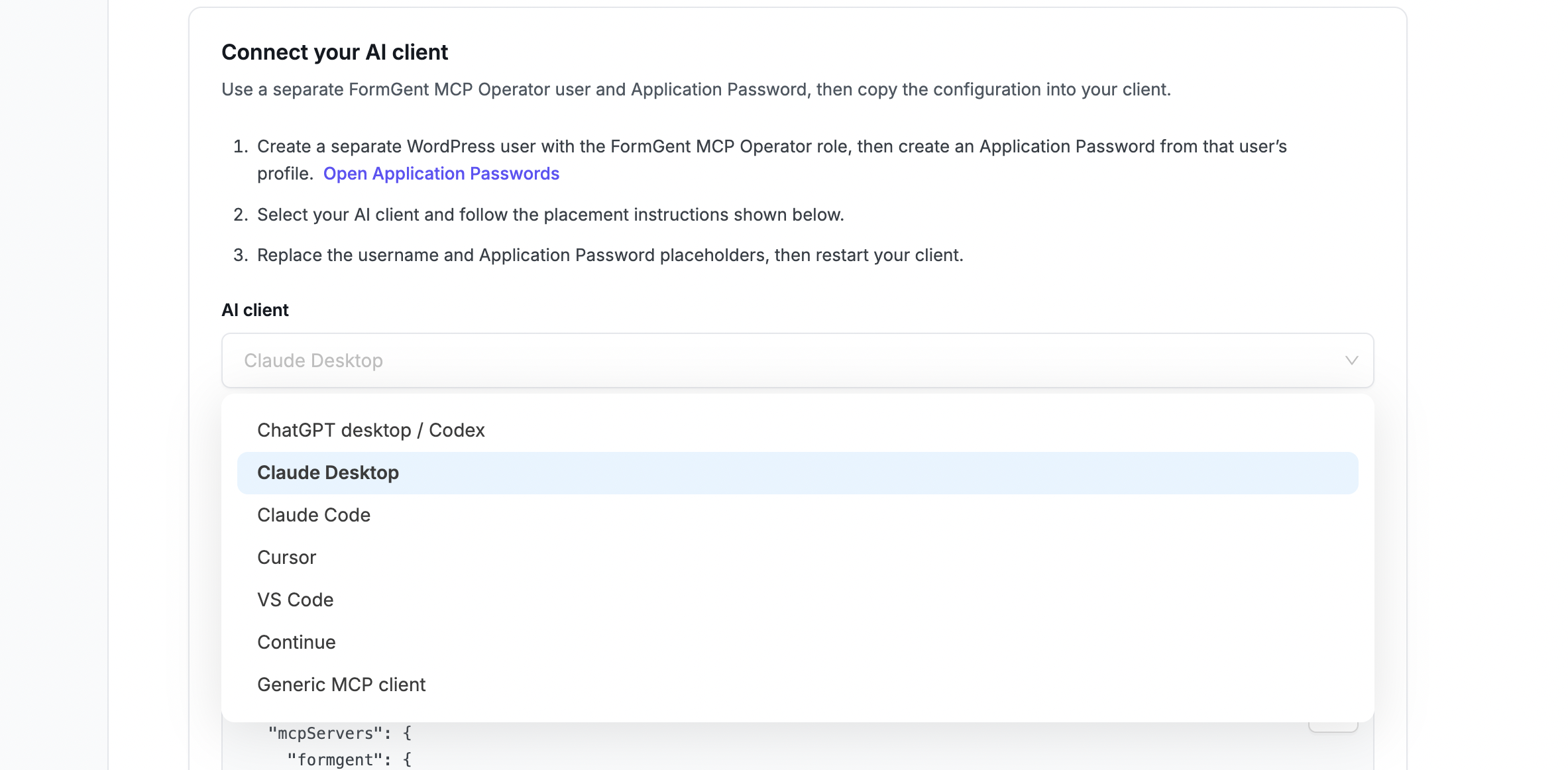
Step 2 – Fill in your credentials #
Replace wordpress-username and your-application-password in the copied configuration with your own values.
Step 3 – Paste it into your client #
Claude Desktop:
- Open Settings → Developer → Edit Config in Claude Desktop, or open the file directly:
- macOS: ~/Library/Application Support/Claude/claude_desktop_config.json
- Windows: %APPDATA%\Claude\claude_desktop_config.json
- Paste the configuration inside the mcpServers object. If other servers are already listed there, add formgent alongside them rather than replacing the file.
- Save the file.
- Fully quit Claude Desktop and reopen it — closing the window isn’t enough.
{
“mcpServers”: {
“formgent”: {
“command”: “npx”,
“args”: [“-y”, “@automattic/mcp-wordpress-remote@latest”],
“env”: {
“WP_API_URL”: “https://your-site.com/wp-json/formgent/v1/mcp”,
“WP_API_USERNAME”: “wordpress-username”,
“WP_API_PASSWORD”: “your-application-password”
}
}
}
}
For a local HTTPS site, add “NODE_USE_SYSTEM_CA”: “1” inside the env object above, then fully restart Claude Desktop. Leave it out when connecting to a live site with a standard certificate.
Other clients — save the same style of configuration to the location your client expects:
| Client | Where to save it |
| Claude Code | .mcp.json in your project’s root folder |
| ChatGPT desktop / Codex | Run the copied codex mcp add command in a terminal, or paste the TOML version into ~/.codex/config.toml |
| Cursor | .cursor/mcp.json (one project) or ~/.cursor/mcp.json (all projects) |
| VS Code | .vscode/mcp.json, or Command Palette → MCP: Open User Configuration |
| Continue | .continue/mcpServers/formgent.json |
Restart the client fully after saving.
Verifying the Connection #
- Open your AI client.
- Check that a server named formgent appears in its abilities or MCP panel.
- Ask it:
List my FormGent forms. Do not make any changes. - Approve the ability call if your client asks you to.
- Check that the reply matches your actual forms in FormGent → All Forms.
If the connection works but an ability is missing, go back and turn on the switch it needs, then reconnect your client.
What Your AI Client Can Do #
Your AI client only sees the abilities that match your enabled switches. You don’t need to name an ability — just describe what you want, and the AI picks the right one.
Forms #
| Ability | Description | Access needed |
| List forms | See all your forms with their status. | Read |
| Get a form | Read one form’s fields, settings, and layout. | Read |
| Get embed code | Get a form’s shortcode or block embed info. | Read |
| Create a form | Build a new form (always starts as a draft). | Write |
| Update a form | Update a form’s fields or layout. | Write |
| Duplicate a form | Create a draft copy of a form. | Write |
| Delete a form | Move a form to Trash, or delete it permanently if asked. | Delete |
Submissions #
| Ability | Description | Access needed |
| List submissions | See submission summaries, without answers. | Read (response data) |
| Get a submission | Read one submission, with sensitive fields redacted. | Read (response data) |
| Bulk-get submissions | Read up to 50 submissions at once, redacted. | Read (response data) |
| Update submission status | Mark a submission read/unread or starred/unstarred. | Write (response data + create/update) |
| Delete a submission | Permanently delete a submission, after you confirm. | Delete (response data + delete) |
Settings and automations #
| Ability | Description | Access needed |
| Get form automations | Read a form’s email notifications, PDF templates, and registration feeds. | Read |
| Update form automations | Replace one automation group at a time. | Write |
| Get global settings | Read a small set of safe FormGent settings. | Read |
| Update global settings | Update one settings category at a time. | Write |
Analytics #
| Ability | Description | Access needed |
| Get form stats | See entry counts and totals for a form. | Read |
| Get form analytics | See broader analytics for a form. | Read |
A few things worth knowing:
- New forms always start as a Draft — publishing still needs your normal WordPress publish permission.
- Updating a form’s fields replaces the whole field list. Updating its layout replaces the whole editor structure — conditional logic, page breaks, welcome/end screens, and nested blocks included. Only one of the two is sent at a time.
- Duplicating a form never copies payment credentials or connected integration logins.
- Deleting a form goes to Trash by default — permanent deletion only happens if it’s explicitly requested.
- Submission answers always have sensitive fields (passwords, payment data, CAPTCHA values) redacted, no matter which switches are on.
Choosing How Much Access to Give #
| Setup | Switches on | Good for |
| Read-only | Abilities + MCP server | Just checking forms and stats. |
| Submission review | Abilities + Response data + MCP server | Reading submissions too. |
| Form management | Abilities + Create/update + MCP server | Building and editing forms. |
| Full access | All five switches | Everything, including permanent deletion. |
Keeping Things Secure #
- Use a separate Application Password for every AI client — losing one device only means revoking that one password.
- Use the FormGent MCP Operator role instead of an admin account wherever you can.
- Turn off Allow delete operations as soon as a one-time deletion task is done.
- Never paste a configuration file (it contains your password) into a public repo, a shared chat, or a screenshot.
Example Prompts #
- “List my forms with their IDs, titles, and status.”
- “Show the embed code for form 42.”
- “Show analytics for form 42 over the last 30 days.”
- “List the unread submissions for form 42.”
- “Mark responses 315 and 316 as read.”
- “Create a draft contact form with name, email, and message fields.”
- “Duplicate form 42 as a draft named ‘Event Registration – August’.”
- “Move form 42 to Trash. Don’t permanently delete it.”
Disabling or Revoking Access #
| To do this | Do this |
| Disconnect every AI client at once | Turn off Enable MCP server. Your other switch choices are kept. |
| Turn off FormGent’s abilities entirely | Turn off Enable FormGent abilities. |
| Remove one type of access | Turn off that specific switch, then reconnect your clients. |
| Disconnect one client | Go to Users → that user’s Edit screen → Application Passwords, and revoke that entry. |
None of these delete your forms or submissions.
Troubleshooting #
- WordPress needs updating — Abilities API unavailable; forms keep working meanwhile.
- 401 Unauthorized — wrong username or password; generate a fresh Application Password.
- 403 Forbidden — login worked, but permission or switches don’t allow it.
- Server not showing in client — fully restart the client; check the config file for valid JSON/TOML (a missing comma is the usual culprit).
- No Application Passwords section — needs HTTPS or recognized local-dev status.
- Endpoint blocked — a firewall/security plugin may be blocking REST traffic; ask your host to allow /wp-json/formgent/v1/mcp.
- “Server failed to start” — Node.js missing; check with node -v, install from nodejs.org.
- Rate limited — wait and retry, reduce request size/frequency.
- Pro field unavailable — confirm Pro is active and licensed, reconnect.


