
FormGent allows you to verify users with a one-time password (OTP) via email or SMS before they can successfully submit a form. This adds an extra layer of authenticity to your form submissions and helps prevent spam and fake entries.
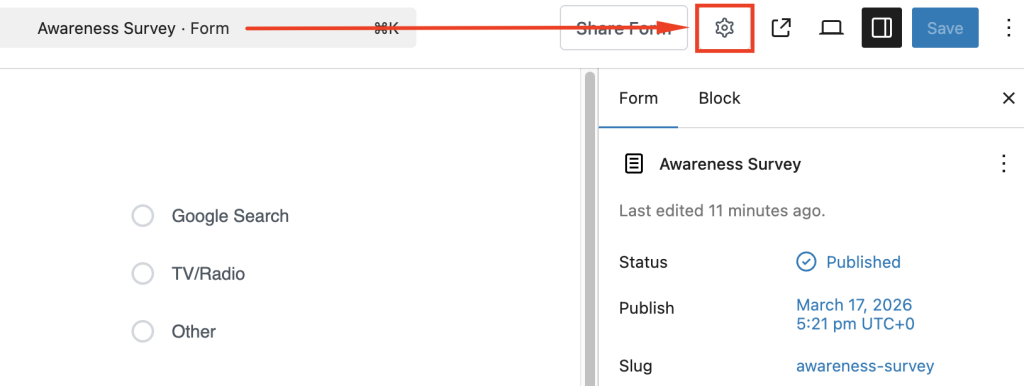
You’ll find this option in your single form settings when editing any form.
Enable OTP Verification #
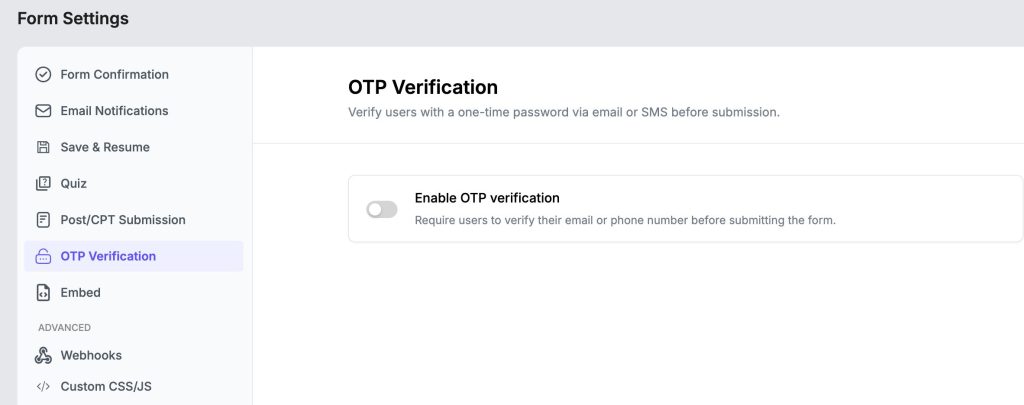
Toggle Enable OTP Verification to activate the feature. Once enabled, users will be required to verify their email address or phone number before the form submission goes through.
Make sure your form contains the appropriate field type before enabling OTP. Either one or both of the following blocks:
- Contact Number
Verification happens on submit – the OTP prompt appears when the user clicks the submit button.
Verification Type #
Choose how the OTP will be delivered to the user:
- Email – Sends the OTP to the user’s email address. This requires your WordPress site to have a working outgoing mail configuration (SMTP or default WordPress mail). If your site’s standard mail is not configured, OTP emails will not be delivered.
- SMS (On Contact Number) – Sends the OTP to the user’s phone number via SMS. This requires an active SMS Gateway configured under FormGent → Settings → SMS Gateway before selecting this option. Without a configured provider (Twilio, Firebase, or Custom Gateway), SMS delivery will fail.
Select Phone/Email Field #
Use this dropdown to select which form field contains the email address or phone number the OTP will be sent to. FormGent will auto-select the field if only one matching field is found in the form and display a notice confirming the selection.
OTP Behavior Settings #
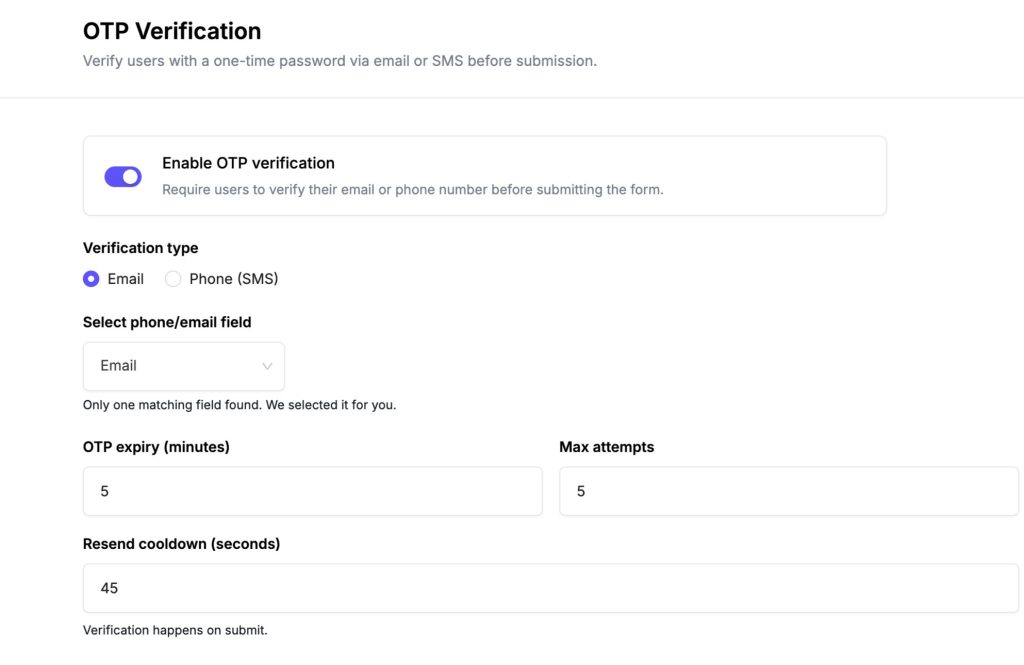
These three fields control how the OTP works during a session:
- OTP Expiry (minutes) – How long the OTP remains valid after being sent. Default is 5 minutes. Once expired, the user must request a new code. Use the
{{expiry}}tag in your email template to dynamically display this value to the user. - Max Attempts – The maximum number of times a user can enter an incorrect OTP before being blocked from retrying. Default is 5 attempts. This prevents brute-force guessing of the code.
- Resend Cooldown (seconds) – The waiting period before a user can request a new OTP. Default is 45 seconds. This prevents repeated or accidental resend requests in quick succession.
Templates #
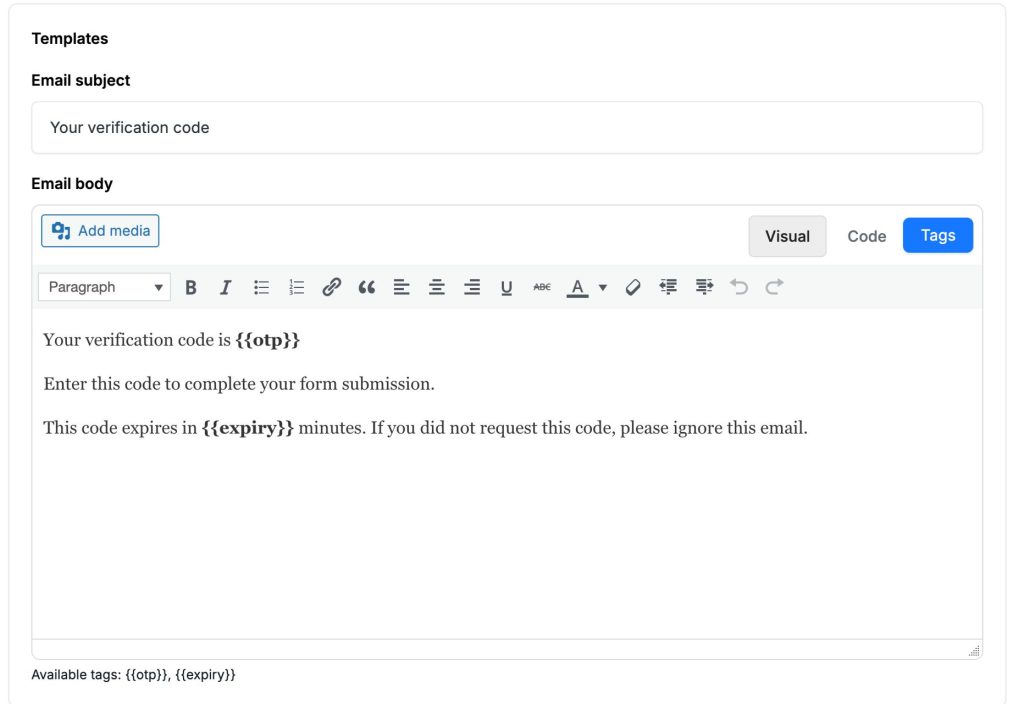
This section lets you customize the OTP message sent to the user.
When Email is selected as the verification type, the template fields are:
- Email Subject – The subject line of the OTP email. Default: Your verification code. Customize this to match your site’s tone or brand.
- Email Body – The body of the OTP email. Use the built-in visual editor to format the message. Two dynamic tags are available:
{{otp}}– Replaced with the actual one-time password generated for the user.{{expiry}}– Replaced with the OTP expiry duration in minutes.
When Contact Number (SMS) is selected as the verification type, the template fields are:
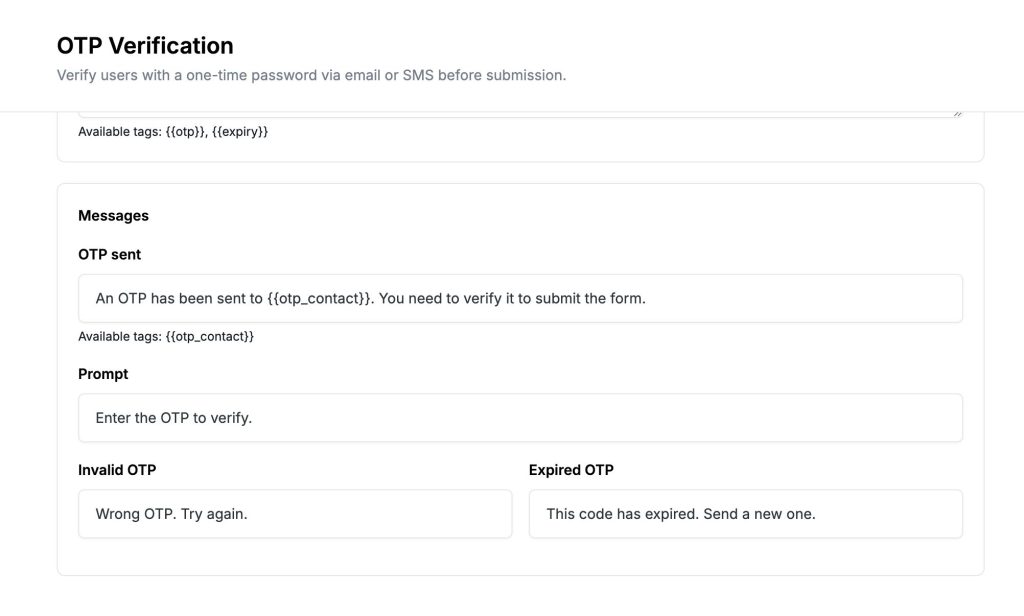
A single plain-text field appears:
- SMS Text – The text message sent to the user’s phone number. Keep it short and clear. The same two dynamic tags apply:
{{otp}}– Replaced with the generated one-time password.{{expiry}}– Replaced with the expiry duration in minutes.
Messages #
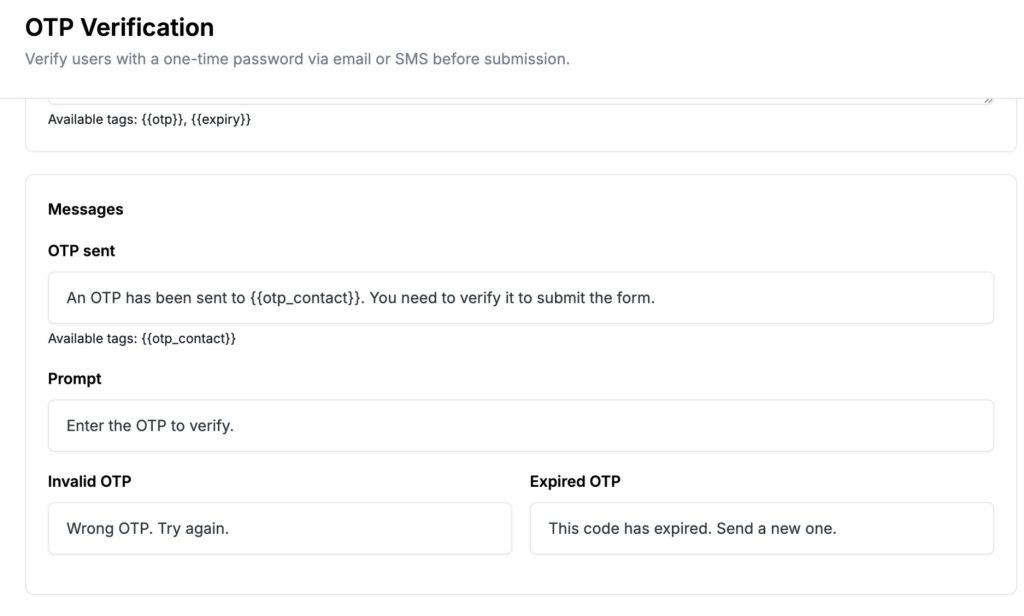
These are the UI messages displayed to the user during the OTP verification flow. Each can be customized to match your site’s language, tone, or localization needs.
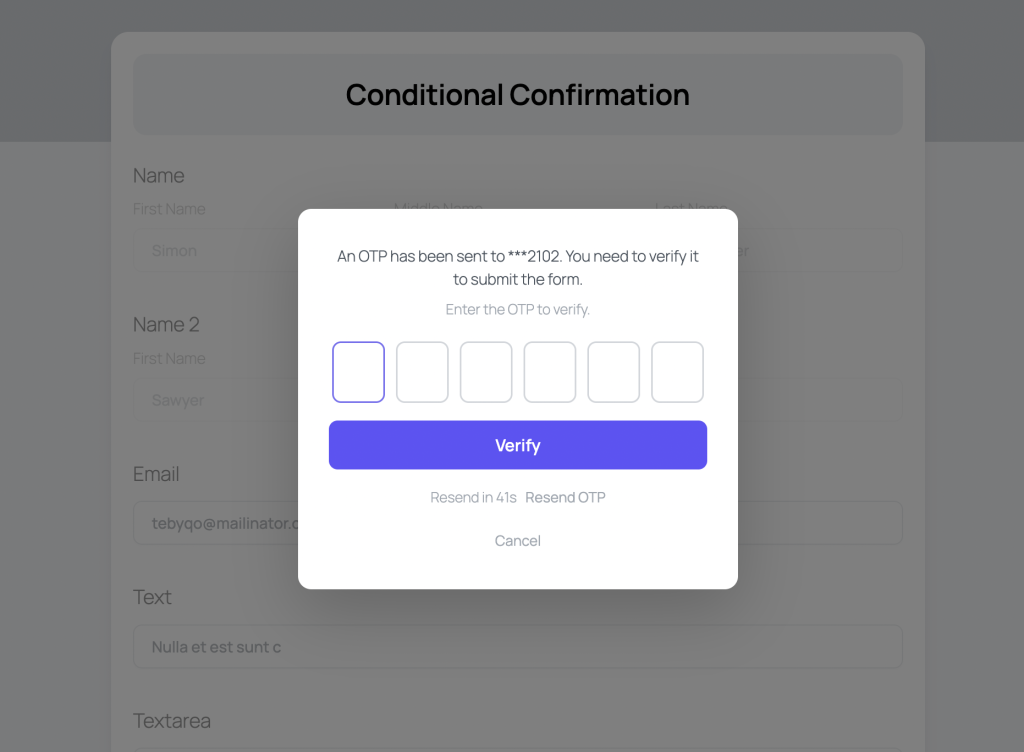
- OTP Sent – Shown after the OTP is successfully dispatched. Default: An OTP has been sent to
{{otp_contact}}. You need to verify it to submit the form. The{{otp_contact}}tag is automatically replaced with the user’s email or phone number. - Prompt – The instruction shown inside the OTP input field. Default: Enter the OTP to verify.
- Invalid OTP – Shown when the user enters a wrong code. Default: Wrong OTP. Try again.
- Expired OTP – Shown when the user enters a code that has passed its expiry time. Default: This code has expired. Send a new one.
Click Save Changes once you are done configuring OTP Verification for the form.
Frontend Preview #
Here’s how the OTP verification (via SMS) appears to end users in the frontend.
Use Cases #
OTP Verification is useful across a wide range of form scenarios where confirming a user’s identity or contact details matters before accepting a submission.
- Gated content or download forms – Confirm email ownership before granting access to resources, reducing disposable email abuse.
- Contact & inquiry forms – Verify that the email address provided is real and owned by the person submitting, reducing junk or fake inquiries.
- Registration & sign-up forms – Confirm a user’s email or phone number during onboarding before creating their account or profile.
- Appointment & booking forms – Ensure the contact details are valid so confirmations and reminders actually reach the right person.
- Lead generation forms – Filter out low-quality leads by requiring phone or email verification before the submission is recorded.
- Quote or proposal request forms – Add a trust layer to high-intent forms where following up with wrong contact details wastes sales time.
- Event registration forms – Verify attendee contact details upfront to ensure smooth communication before and after the event.


