
Formgent Webhooks allow you to send form submission data to external applications or services in real-time. You can use this to connect with CRMs, automation platforms, Slack, Discord, Zapier alternatives, or any service that accepts incoming web requests.
You’ll find this under the Form tab > Webhooks.
Create a New Webhook #
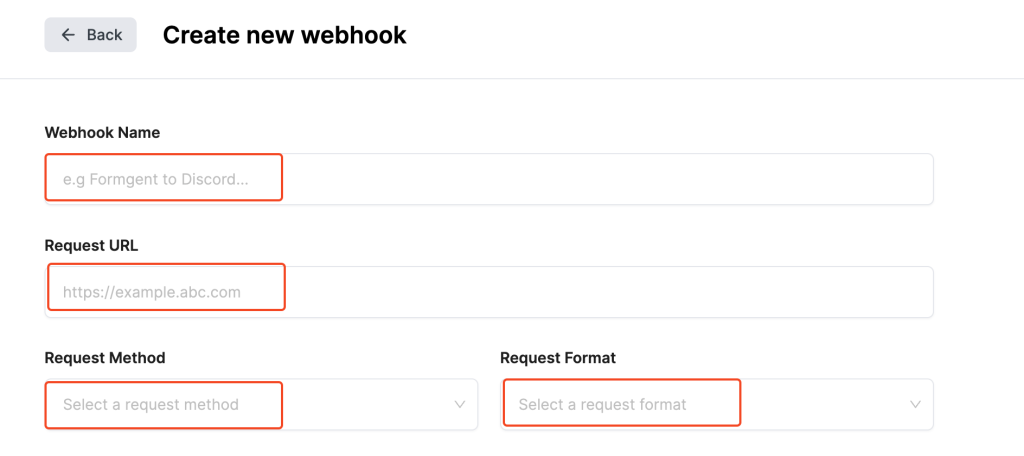
To set up a webhook, click “Add Webhook” and fill in the following fields:

Webhook Name #
- Choose a meaningful name for your webhook (e.g., Formgent to Discord, Send to CRM).
- This name is only for internal reference.
Request URL #
- Enter the URL where you want to send the form data.
- This must be the endpoint provided by the external service.
Request Method #
Select the HTTP method used to send data.
- GET
- POST
- PUT
- PATCH
- DELETE
Request Format #
Choose the format for how the data will be sent:
- JSON
- Form
Headers & Body #
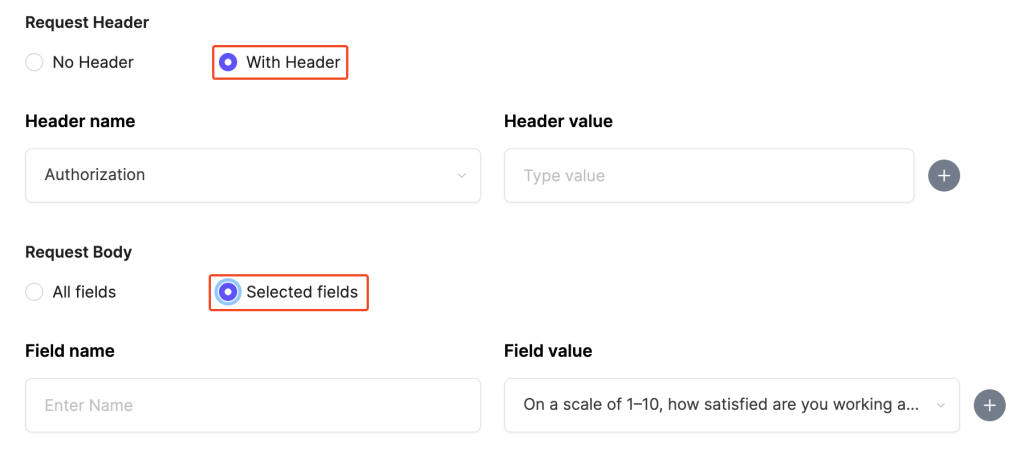
Request Header
- Choose whether to send additional headers with the request.
- No Header – Default option.
- With Header – Useful if your endpoint requires authentication or content-type headers. You can add multiple headers.
Request Body
- All Fields – Send all form data fields.
- Selected Fields – Choose specific fields to include in the request. You can add multiple bodies.
Conditional Logic (Optional) #
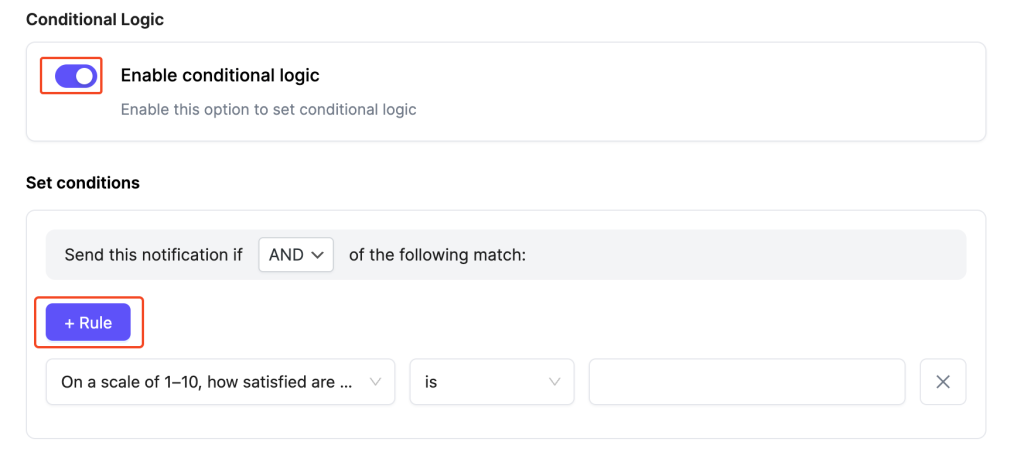
You can choose to trigger the webhook only when certain conditions are met.
- Toggle Enable conditional logic to turn this on.
- Set rules using the dropdowns to match specific form responses.
Final Step: Create Webhook #
Once everything is set:
- Review your configuration.
- Click Create Webhook to save and activate.


