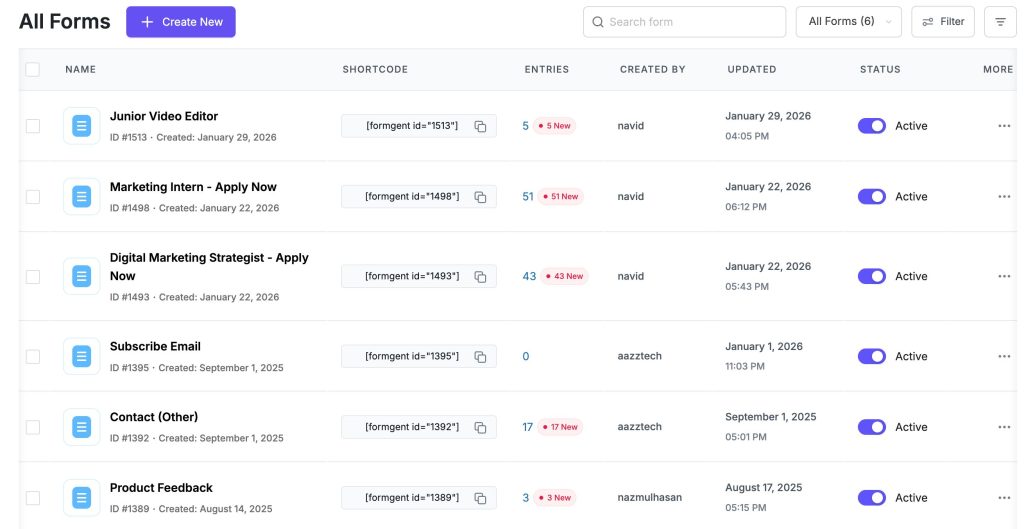
The All Forms dashboard gives you a bird’s-eye view of every form you’ve built with FormGent. It’s the central place to manage, organize, monitor, and act on your forms quickly.
Top Toolbar (Controls & Navigation) #
At the top of the dashboard, you’ll find useful controls for managing your forms efficiently:
- ➕ Create New: Click this to start building a new form using FormGent’s AI-powered builder.
- Search Bar: Instantly find a form by typing part of its name.
- Filter Button: Apply time-based filters to narrow down the form list by:
- All
- Today
- Yesterday
- Last Week
- Last Month
- Custom Date Range (using a calendar)
Sort Button: Sort your forms by:
- Date Created
- Last Modified
- Alphabetical (A–Z or Z–A)
- Unread
- Active
- Inactive
Form List View (Columns Breakdown) #
Each row in the list represents a form. Here’s what each column shows:
| Column | Description |
| Checkbox | Select forms for bulk actions (like Delete or Deactivate) |
| Name | The form’s title. The icon on the left of the title indicates its layout type (e.g., conversational or classic) |
| Shortcode | This is the unique shortcode (e.g., [ formgent id=”xx” ]) used to embed the form anywhere in WordPress. Hover to reveal the copy icon for quick copying |
| Entries | Total number of entries received in the filtered time period displayed on left and in the right shows a badge or new/unread responses since last accessed. |
| Created By | The username of the account that created the form |
| Updated | Timestamp of the most recent change to the form |
| Status | A toggle to switch the form between Active and Inactive states |
| More (⋯) | A contextual menu with vital actions such as Rename, Duplicate, Get Embed Code and Delete to quick renaming, making another copy, get the embed code without clicking the form or deleting the form. |
Hover Actions on a Single Form #
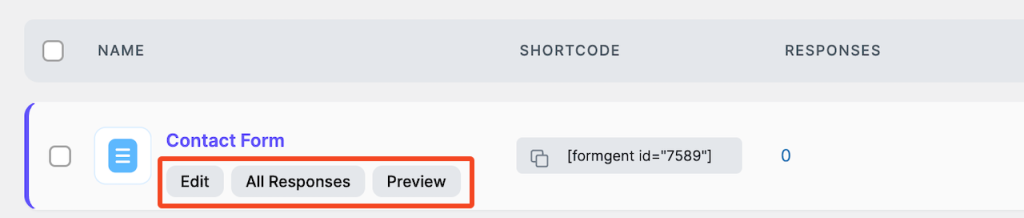
When you hover over any form row, three quick-access options appear:
- Edit – Launch the form editor to make changes
- All Responses – View all entries submitted through that form including advanced analytics (Pro feature).
- Preview – See a live preview of the form (available only when the form is Active)
Bulk Actions (Manage Multiple Forms) #
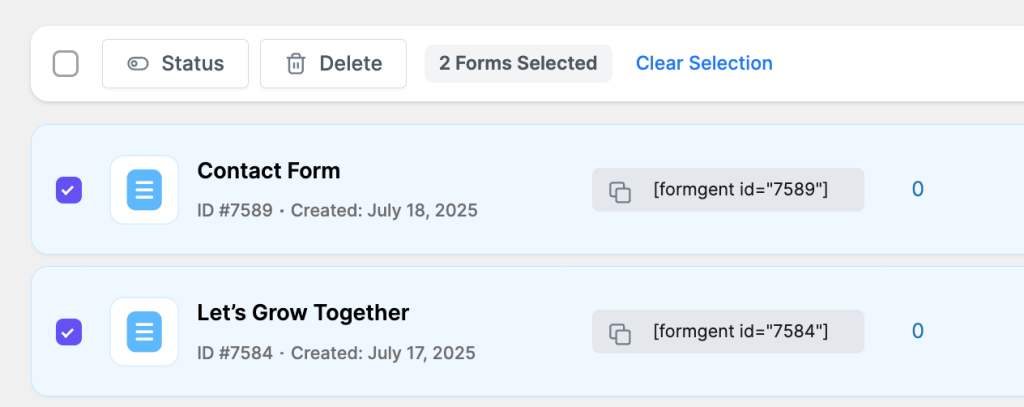
Selecting one or more checkboxes enables Bulk Actions at the top or bottom of the list:
- Activate – Turn on selected forms
- Deactivate – Disable selected forms without deleting
- Delete – Permanently remove selected forms
- Clear Responses – Keep the form but wipe all its submission data
Bulk actions are especially helpful when managing large form libraries or seasonal form clean-ups.