
How to Track Form Conversions in WordPress
-
- Tips and Tricks Practical Guide Making Better
- 18 mins read

Some visitors start filling out your form and leave before submitting it. The problem is, you may never know they dropped off. WordPress doesn’t show you this by default, and GA4 won’t give you the full picture automatically either.
This guide walks through three practical ways to track what’s happening. You’ll see who completes your form, where people leave, and which tracking method makes the most sense for your site. The first option is built directly into FormGent, so you can get started without setting up Google Analytics at all.
A lot of tutorials on form conversion tracking focus on a single product or analytics setup. This guide takes a broader approach and walks through three practical methods instead.
You’ll start with FormGent’s built-in analytics, then see how to capture which campaign, ad, or page brought in a lead without relying on Google Tag Manager. After that, we’ll cover the GA4 approach for anyone who wants form conversions reported alongside the rest of their website traffic.
What Counts as a “Form Conversion” in WordPress?
A form conversion happens when someone completes your form and successfully submits it. Simply viewing the form or starting to fill it out does not count.
This matters because a form can get plenty of views and starts but still perform poorly if people leave before finishing. If you only look at the number of submissions, you may miss the real problem. A low submission count could mean you are not getting enough traffic. It could also mean the form is too difficult, confusing, or broken. Tracking views, starts, and finishes helps you see the difference.
It also helps to understand two types of conversions:
- Micro-conversion: the form submission itself, such as completing a contact form, quiz, or lead form.
- Macro-conversion: the larger business result that comes after the submission, such as making a purchase, booking a call, or becoming an engaged subscriber.
Form tracking mainly measures the micro-conversion. It gives you an early signal of how well the form is working before you know whether that submission turns into a bigger business result.
Why Track Form Conversions in the First Place?
Without conversion data, it’s hard to know what’s really happening with your forms. Once tracking is in place, you can make much better decisions.
- You can see which forms and pages perform best. If one form converts much better than another, you’ll know which page may deserve more traffic, promotion, or attention.
- You can measure which traffic sources actually bring results. If visitors from a certain campaign rarely complete your form, you may need to improve the targeting, landing page, or offer.
- You can spot problems quickly. A sudden drop in submissions can point to a broken form, payment issue, plugin conflict, or overly strict spam protection. Tracking helps you notice these changes much sooner.
- You can identify where people drop off. Field-level data can show you which question causes visitors to leave. Instead of simply knowing the form converts poorly, you can see which part may need fixing.
Once your tracking method is set up, you don’t have to rely on guesswork. You can use real data to understand what’s working and what needs improvement. To learn more about FormGent’s tracking and other built-in tools, explore the FormGent features page.
3 Ways to Track Form Conversions: Which One Should You Use?
Many guides focus on a single plugin or analytics tool. This guide takes a broader look instead. Before choosing a setup, you can compare all three tracking methods side by side and see which one fits your needs best.
| Category | Method 1: Native form-builder analytics | Method 2: Native attribution capture | Method 3: GA4 / Google Tag Manager |
| Setup | Built in, nothing to configure | Built in, add a Hidden field | Requires a GA4 property, plus either Enhanced Measurement, Tag Manager, or a separate analytics plugin |
| Where the data lives | Your WordPress database | Your WordPress database, inside each form response | Google Analytics |
| Best for | Per-form views, submissions, completion time, and field-level drop-off | Knowing which campaign, ad, or page a submission came from | Form conversions alongside site-wide traffic, channel, and campaign data |
| Cookie/privacy footprint | Typically none, since counts happen server-side | Typically none, since it reads the URL at submission time | Depends on your GA4 setup and consent configuration |
| Requires Google Tag Manager | No | No | Optional (only for the GTM-based path) |
Methods 1 and 2 are already built into FormGent and work nicely together. Method 1 helps you understand how your form is performing, while Method 2 shows where your leads are coming from. If you also want to compare form conversions with your wider website traffic and campaign data, you can add Method 3 with GA4. You can use these methods separately or combine them based on what you need.
Method 1: Track Conversions With FormGent’s Built-In Analytics (No Code, No GA4 Needed)
FormGent starts tracking form performance as soon as you use it. In the free version, you can see five key metrics for each form: Views, Started, Finished, Completion rate, and Time to complete. FormGent Pro adds another layer with field-level drop-off data, so you can see which question is causing people to leave.
Here’s where to find the data:
- In your WordPress dashboard, go to FormGent → All Forms.
- Find the form you want to review and click Reports.
- The Summary tab opens first.
- Click the Analytics tab next to it.
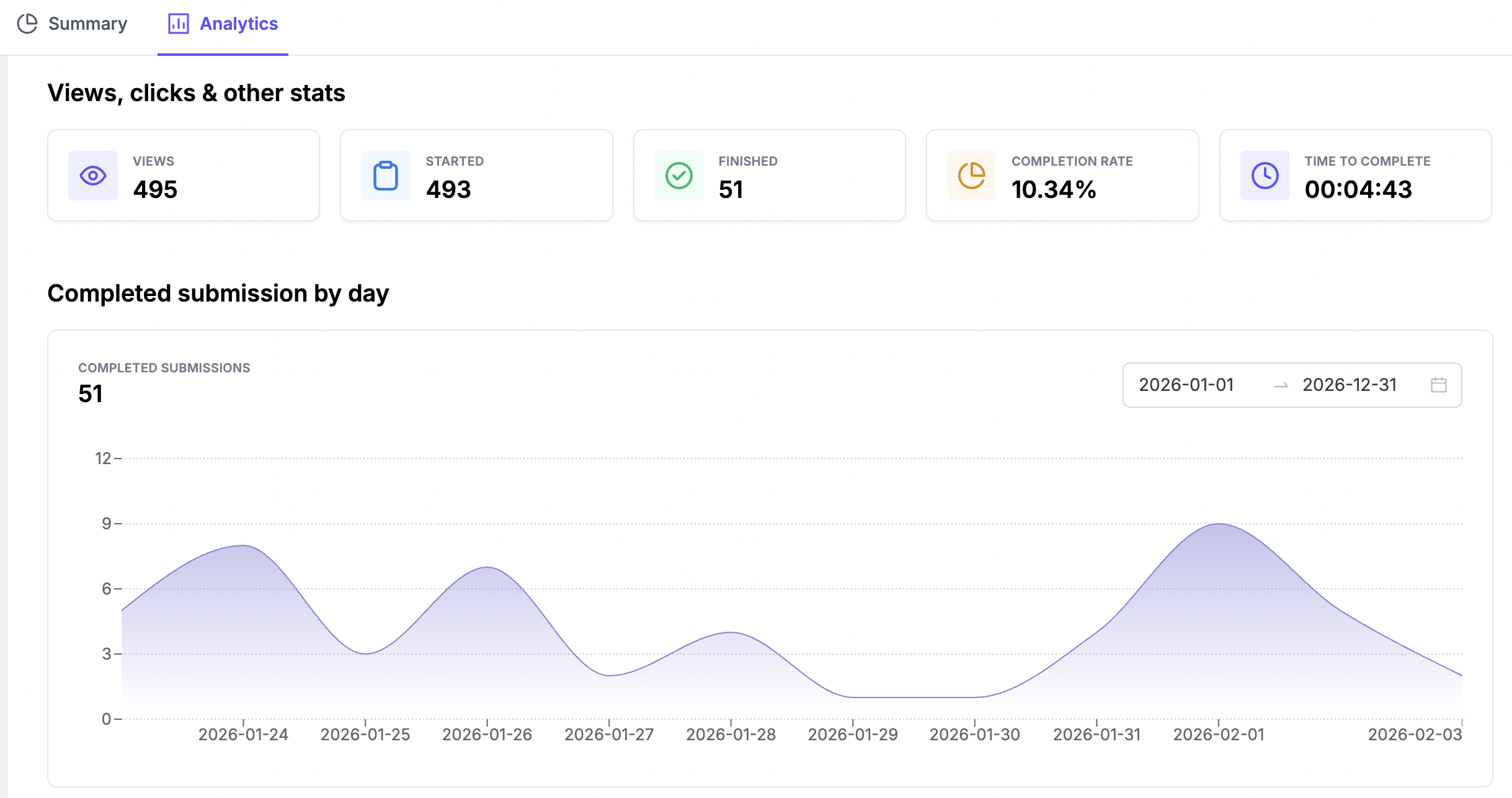
The numbers are easy to understand once you know what each one represents. Views shows how many people saw the form. Started shows how many began filling it out. Finished shows how many completed and submitted it. Time to complete tells you how long people usually take to finish the form.
Looking at these numbers together can reveal useful patterns. If Views is high but Started is low, people are reaching the form but not engaging with it. If Started and Finished are close, most people who begin the form are making it to the end.
FormGent also calculates the Completion rate automatically. This number is based on Finished divided by Started, not Finished divided by Views. So if 60 people start a form and 54 finish it, the completion rate is 90%. In other words, 9 out of 10 people who began the form completed it.
The Question Drop-Off section goes even deeper. It shows each field with its Views, Submissions, and Drop-off numbers. You can see both the total number of people who left at a field and the percentage. The field with the highest drop-off is highlighted automatically, making it easier to spot where people are getting stuck.
Create this form with FormGent
What FormGent Doesn’t Track Natively
If you notice that some data seems to be missing, that doesn’t necessarily mean anything is wrong. FormGent’s built-in analytics are focused on core form performance, so there are a few things they don’t currently track.
- Failed validation attempts. FormGent does not show how many submissions failed because someone skipped a required field or entered something incorrectly. Its analytics focus on views, starts, and completed submissions.
- Custom conversion goals. You can’t set a target conversion rate inside FormGent and compare your results against it automatically. If you have a goal in mind, you’ll need to compare it manually with the Completion rate shown in your reports.
- Country or device data. FormGent shows how many people viewed, started, and finished a form, but it doesn’t break that data down by location or device type. For that kind of reporting, you’ll need a broader analytics platform.
- AI-powered analytics insights. FormGent’s AI and MCP features can help you create and edit forms, but they don’t currently analyze your form performance or recommend changes based on your analytics data.
These limitations don’t make the existing analytics less useful or reliable. They simply define what FormGent tracks natively, so you know when another analytics tool may be needed.
Method 2: Capture Where Conversions Come From (No Google Tag Manager Required)
A submission count only tells you how many people completed the form. It doesn’t show you which source actually brought those submissions.
For example, imagine you share the same form on Facebook, in an email newsletter, and inside a blog post. If five people submit it, the total alone won’t tell you which source actually brought those leads. You could simply ask people how they found your form, but that adds another field, and the answers may not always be reliable.
FormGent can capture this information automatically. It uses data that is already available in the visitor’s link, such as a campaign or referral parameter, and saves that value with the submission.
This works through merge tags. You add a merge tag to a field’s Default Value, and FormGent replaces it with the actual visitor data when the form loads. So you can see where each submission came from automatically, with no extra question for the visitor and no Google Tag Manager setup.
Here are the ready-made tags for tracking where visitors came from:
| Picker label | Merge tag | Captures |
| UTM Source | {{query.utm_source}} | The utm_source parameter from the visitor’s URL |
| UTM Medium | {{query.utm_medium}} | The utm_medium parameter |
| UTM Campaign | {{query.utm_campaign}} | The utm_campaign parameter |
| Referral Query | {{query.ref}} | A ref parameter, if your links use one |
| Referrer URL | {{referrer_url}} | The page that linked to the form |
| Current Page URL | {{current_page_url}} | The exact page the form was submitted from |
| Cookie Value | {{cookie_value}} | A value from a specific cookie already set on your site |
Here’s the exact, step-by-step setup, using the real names you’ll see on screen:
- Go to FormGent → All Forms, find your form, and click Edit.
- Click the block inserter (the + button) anywhere on the form.
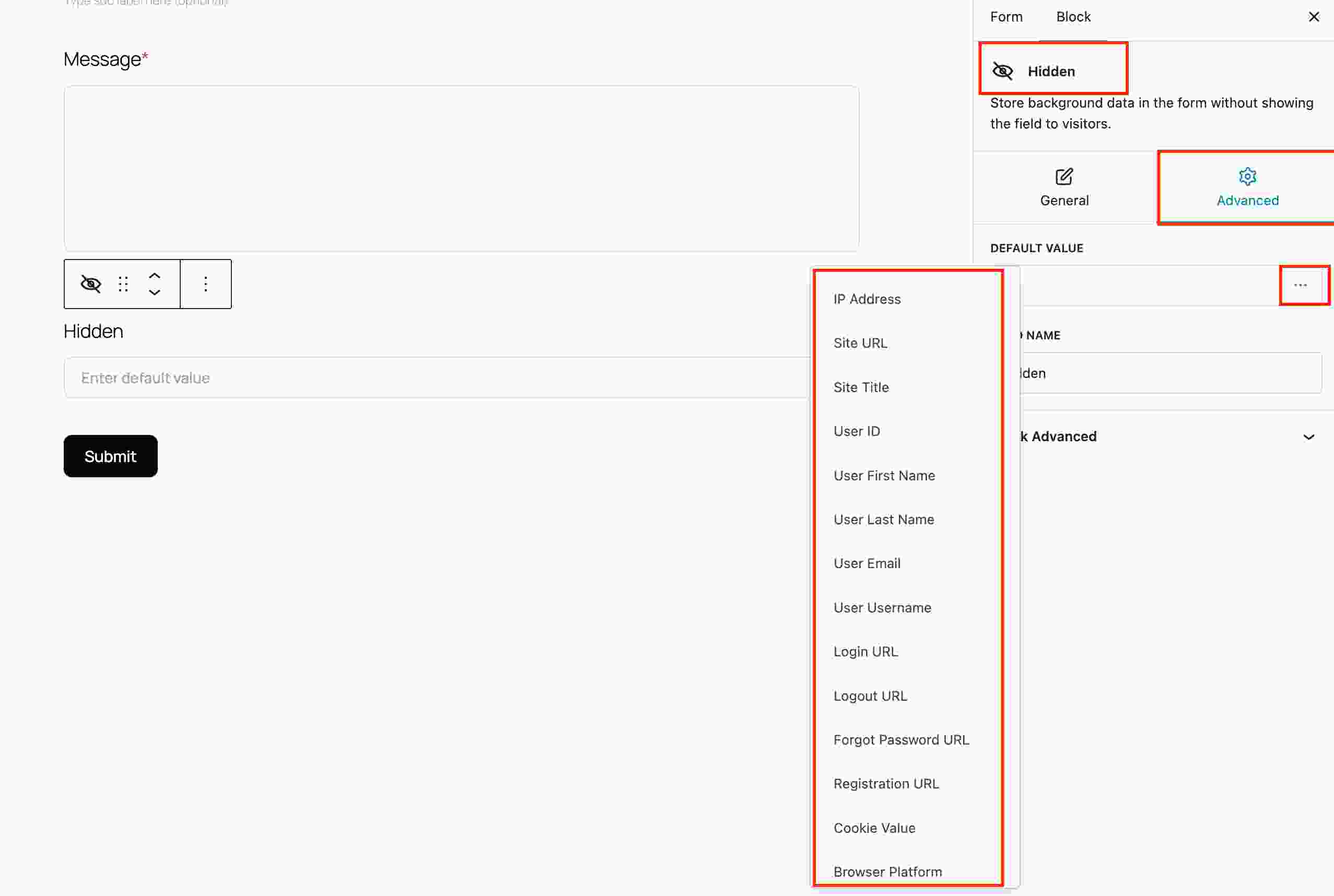
- Search for Hidden, then select it to add the field to your form. This block never shows up for visitors; it just quietly stores a value.
- Click the Hidden block you just added, so it’s selected.
- Open the Advanced panel from the settings area on the right.
- Inside it, find the Default Value field.
- Right next to that field is a small icon button. Click it.
- A dropdown menu will open with options such as UTM Source, UTM Campaign, Referrer URL, and the other tags listed above. Click UTM Source for now.
- The Default Value field is filled automatically, so there’s nothing you need to enter manually.
- Click Save (or Update) on your form.
That’s the entire setup. The Default Value field is still a normal text box underneath, so if you ever need a parameter that isn’t in the list, such as gclid, you can type {{query.gclid}} directly, using the same double-curly-brace pattern.
Here’s a simple example: Suppose you’re running a Facebook ad that points to yoursite.com/pricing/?utm_source=facebook&utm_campaign=spring_sale. You’ve already added a Hidden field and selected UTM Campaign as its value.
Now, whenever someone clicks that ad and submits the form, spring_sale is saved automatically with the submission. You can check it under FormGent → All Forms → your form → Reports to see which campaign brought in each lead. No JavaScript or Google Tag Manager setup is required.
That’s the whole payoff: one block, one dropdown click, and every lead that comes in tells you which ad, email, or page actually earned it.
Method 3: Track Form Conversions in Google Analytics 4
If you want your form conversions to appear alongside the rest of your website traffic, campaign data, and traffic sources, GA4 is the better place to track them.
If these tools are new to you, here’s the simple version. GA4 (Google Analytics 4) is Google’s free website analytics platform. It tracks things like page visits, traffic sources, and how people move through your site.
Google Tag Manager (GTM) is a separate tool that helps you send tracking events to GA4 without adding new code every time. For example, you can create a rule that tells GA4 whenever someone submits a form.
You don’t need GA4 or GTM for Method 1 or Method 2. They only become useful when you want your form conversion data included in the same reports as the rest of your website analytics.
There is one important limitation to know. GA4’s automatic form interactions tracking, which is part of Enhanced Measurement, does not work perfectly with every form. The form_submit event can fire for a standard form submission, but it may not confirm whether every required field was completed successfully. It can also be inconsistent with AJAX forms that submit without reloading the page.
That is a limitation of GA4’s tracking itself, not a problem with FormGent or another WordPress form plugin.
With that caveat in mind, here are the three realistic paths, starting with the easiest:
- Use an analytics plugin for the easiest setup. Some WordPress analytics plugins can connect your site directly to GA4 and track form submissions for you. MonsterInsights is one example. After connecting it to your GA4 property and enabling form tracking, submissions can be recorded automatically. This is a good option if you want a no-code setup and don’t want to work with Google Tag Manager.
- Use a Thank You page as the conversion point. If your form sends visitors to a unique page after a successful submission, such as /thank-you/, you can use that page visit as the conversion signal. Since GA4 already tracks pageviews, you simply need to mark that page as an important conversion event.
- Set up a custom event with Google Tag Manager. GTM gives you more control, but it also takes more setup. Its built-in Form Submission trigger can detect when a form is submitted and then send a custom event, such as form_submission, to GA4. The exact setup depends on whether your form reloads the page after submission or uses AJAX to submit in the background. Because GTM configuration can vary a lot, Google’s own documentation is the best place to follow the detailed trigger setup.
Once GA4 starts receiving the event, there’s one more step to complete. By default, GA4 doesn’t count every event as a conversion in your reports. You have to tell it to. Go to Admin → Events inside GA4, find your form event in the list, and toggle it on as a Key Event (this is what GA4 used to just call “conversion”). This is a setting inside Google’s own interface. No WordPress plugin, FormGent included, can flip that switch for you; you have to do it directly in GA4.
Build a Custom GA4 Report for Your Form Conversions
After your form event has been collecting data in GA4 for a few days, the standard reports may not give you enough detail. If you want to see which pages or traffic sources are driving form conversions, you can create a custom Explore report:
- Start by opening the Explore section in GA4 and choosing a blank report.
- Under Dimensions, click the + and add: Event name, Page path + query string, and Session source/medium.
- Under Metrics, click the + and add Event count.
- Add Event name and Session source/medium to the Rows section, then place Event count under Values.
- Drag Event name into the Filters box, set it to exactly matches, and type in your form’s event name (form_submit if you’re using GA4’s own Enhanced Measurement, or whatever name you gave the event in GTM).
You’ll now see a table of exactly which sources sent you a completed form, side by side. Two useful variations: swap Session source/medium for Page path + query string if your form appears on more than one page, so you can see which page’s version converts best; or swap it for a New/returning dimension to see whether your form mostly converts first-time visitors or people coming back.
A more advanced option, only worth knowing if you’re already comfortable with automation tools like Zapier: FormGent Pro includes Webhooks, a feature that sends your form’s submission data to any web address you specify, the moment someone submits. You can send the webhook data to Zapier or Make, then pass the event from there into GA4. This works, but it involves setting up a separate automation tool outside FormGent, so it’s not a one-click option. If this setup feels too technical, you can skip it. One of the first two options will usually get you there more quickly.
Need to send your form conversion data to Google Ads or Meta instead of GA4? FormGent has no native connector to either platform, so don’t go looking for one in the settings. The same Webhooks feature that reaches GA4 through Zapier or Make can just as easily point at Google Ads’ conversion import or Meta’s Conversions API instead, since both accept data from a general-purpose automation tool. It’s the same developer-adjacent setup either way, just a different destination at the end of the chain.
One more thing worth understanding regardless of which method you pick: a form’s “view” count is usually not the same as the page’s total pageviews. Most tracking systems, FormGent included, count a form as “viewed” only once it actually scrolls into view or a visitor interacts with it, not the instant the page loads. If your form sits near the bottom of a long page, some visitors will leave before ever reaching it, which shows up as a page view but not a form view. That’s expected behavior, not a tracking bug.
What’s a Good Form Conversion Rate?
There’s no single right number. It depends heavily on how many fields your form asks for and what you’re asking someone to do.
According to Digital Applied’s 2026 form conversion benchmark study, which aggregates data from HubSpot, Unbounce, WordStream, Baymard Institute, Hotjar, FullStory, and Contentsquare, the cross-industry median form conversion rate is 17.3%. Treat that as a rough starting point, not a target, since it blends form types and industries that behave very differently. Two patterns from that research narrow it down:
By form type:
| Form type | Median conversion rate |
| Newsletter signup | 32.1% |
| Contact form | 21.4% |
| Webinar registration | 19.6% |
| Lead-generation form (B2B) | 13.2% |
| Pricing / quote request | 9.8% |
| Demo request | 4.6% |
By field count, the drop is not a straight line. It’s mild at first, then falls off a cliff between 5 and 7 fields:
| Field count | Median conversion rate |
| 3 fields | 23.1% |
| 5 fields | 17.0% |
| 7 fields | 11.4% |
| 10+ fields | 6.9% |
Every field you add past the fifth one costs roughly twice as much conversion as fields one through five did. If your form is creeping past five visible fields, that’s the highest-leverage place to look for improvements, before touching colors or button text.
Rather than chasing an industry number, set your own goal based on your form’s own history, then use the field-level drop-off data from Method 1 to figure out what’s actually costing you.
Diagnosing and Fixing Low Conversion Rates
Once you know your numbers, here’s what to actually do about a low one, tied directly to the drop-off data from Method 1:
- Remove, simplify, or make optional any field where a lot of people drop off or make errors. If FormGent Pro shows that one field is losing far more visitors than the rest, that field is likely the main issue.
- Break longer forms into multiple steps with a Page Break field once the form grows beyond about five fields. The benchmark data above shows this consistently lifts completion, especially on longer forms.
- Add trust signals near sensitive fields, particularly anything involving payment or personal information. Adding a short privacy note near the submit button can help reduce form abandonment.
- Test on mobile specifically. Long fields and small tap targets hurt completion more on a phone than a desktop, and mobile traffic is often the majority of your visitors.
- Check your spam protection settings. Overly aggressive spam filtering can silently block legitimate submissions, and that looks exactly like a drop-off in your data even though it isn’t one. If you’re not sure your current setup strikes the right balance, see how to avoid spam submissions with an online form builder for a full rundown of your options.
Troubleshooting: Tracking Data Missing or Not Matching
Here are the issues that trip people up most, and what’s actually going on in each case.
- FormGent’s numbers and GA4’s numbers don’t match. This is expected, not a bug. They’re counting different things over different windows: FormGent counts form-level views, starts, and finishes from your own database; GA4 counts site-wide sessions and events with its own attribution rules. Treat the two as complementary views, not two measurements of the same thing that should agree.
- A conversion rate from another tool may not match the one shown in FormGent. Before assuming one of them is wrong, check what each one is actually dividing. FormGent’s Completion rate is Finished ÷ Started. Some tools calculate it using Views instead. Same idea, different denominator, so don’t expect the two percentages to line up even when both are correct.
- New tracking shows nothing yet. If you just set up a GA4 event, give it 24 to 48 hours to appear in standard reports (Realtime reports show it faster, but the standard reports need processing time). FormGent’s native analytics, by contrast, should show up immediately, since it reads straight from your WordPress database with no external processing delay.
- Submissions suddenly dropped to zero. Before assuming your tracking setup broke, check the form itself first. A payment gateway misconfiguration, a plugin conflict, or an update that broke a form’s rendering are far more common causes of a submission cliff than a tracking issue. Native analytics (Method 1) will still show you accurate views and starts even if the underlying form has a submission bug, which helps you tell the two problems apart quickly.
- The Analytics tab shows nothing at all, or says analytics is disabled. FormGent has a per-form toggle for this. Go to that form’s Settings → General and check the analytics option there; if it’s been switched off, you’ll see an “Analytics is disabled” message instead of any numbers. It’s on by default for new forms, so this usually only happens if someone turned it off deliberately.
Form Tracking, Cookies, and Privacy
A short, honest note on this: server-side form analytics, the kind that counts views, starts, and finishes directly in your WordPress database, typically doesn’t require a cookie-consent banner on its own, since nothing is being stored in the visitor’s browser to identify them.
Google Analytics 4 and Google Tag Manager are a different story. Both involve cookies and are subject to your site’s cookie-consent and privacy-policy obligations under GDPR and similar regulations, regardless of which WordPress plugin you’re using alongside them.
Separately, if you’re collecting personal data through a form (not just tracking that a submission happened, but actually storing someone’s name, email, or other details), you can add a GDPR consent field directly to the form itself. That’s a distinct requirement from analytics tracking, and it applies whether or not you’re tracking conversions at all.
This isn’t legal advice. If you’re uncertain about your specific compliance obligations, confirm the details with a qualified professional.
FAQs
What is form conversion tracking in WordPress? It’s the process of measuring how many people view, start, and finish your forms, then calculating a conversion rate from those numbers. WordPress doesn’t do this automatically. You can get this data either from built-in form analytics, such as FormGent’s, or by connecting your site to Google Analytics 4.
Why does tracking form conversions matter for WordPress forms? Without it, you can’t tell whether a low submission count means low traffic or a broken, frustrating form. Tracking views alongside submissions lets you calculate a real conversion rate and spot problems, like a field that’s losing people, before they cost you leads.
How do I track form conversions with FormGent? Open your form’s Analytics tab to see views, starts, finished submissions, completion rate, and completion time automatically, no setup required. For attribution data like campaign source, add a Hidden field and pick a tag such as “UTM Source” from its Default Value list. For GA4-level reporting, connect a separate analytics plugin or Google Tag Manager.
What’s the most effective way to improve my form conversion rate? Start with your drop-off data, not guesswork. Cut or simplify the specific field losing the most people, split forms past five fields into steps, and add a short trust note near sensitive fields like payment. Small, data-driven fixes usually beat a full redesign.
What are some practical examples of how form tracking can be set up? A lead-generation form can use a Hidden field with “UTM Campaign” to record which ad brought in each submission. A payment form using FormGent Pro’s field-level drop-off table to find that the address field was losing 30% of visitors. A contact form can redirect users to a thank-you page and use that visit as the conversion signal in GA4.
What related pages should I read next? Start with Form Analytics for WordPress Forms to understand what FormGent tracks natively, then Hidden Fields for WordPress Forms if you want to set up attribution capture, and How to Improve Form Completion Rate once you have drop-off data to act on.
Is Google Analytics required to track form conversions? No. FormGent’s built-in analytics tracks views, starts, finished submissions, completion rate, and completion time without any Google Analytics account. GA4 becomes useful once you want form data sitting alongside your site’s overall traffic, channel, and campaign reporting.
Why does my form get fewer views than the page itself? Form views are counted only when the form actually appears on screen or someone interacts with it. So if the form is placed farther down the page, some visitors may leave before reaching it. In that case, the page view is counted, but the form view is not.
Can I find out where a form submission came from without using Google Tag Manager? Yes. Add a Hidden field to your form, open its Default Value setting, and pick a tag like “UTM Source” or “Referrer URL” from the built-in list. FormGent automatically captures the value from the visitor’s URL or referring page when the form is submitted, so you don’t need to set up Google Tag Manager.
How long does it take for form tracking data to show up? FormGent’s built-in analytics refresh right away because the data comes directly from your WordPress database. GA4 works differently: new event data can take 24 to 48 hours to appear in standard reports, although Realtime usually shows it much sooner.


Leave a Reply