
Forget Form Builder: FormGent MCP Lets AI Build Your Forms
-
- Ai Simplify Form Building AI-Form Builder
- 7 mins read

Building a form usually goes like this. You open wp-admin, pick a template or start from scratch, drag a field onto the canvas, name it, set it to required, drag another one, realize you forgot the phone field, scroll back up, add it, preview the form, notice the layout looks off, adjust it, save, and finally publish. None of this is hard. It’s just a lot of small, repetitive decisions standing between the idea in your head and a working form.
There’s a faster way now, and it doesn’t involve a smarter form builder. It involves skipping the form builder.
Two very different ideas both called “AI form building”
If you’ve searched for AI and WordPress forms recently, you’ve probably seen plugins with a prompt box built into their form editor. You type “create a contact form with name, email, and message,” click a button, and the plugin generates the fields for you inside its own builder. It’s faster than dragging fields by hand, and it’s a real improvement. But you’re still in wp-admin. You still open the plugin, still click through its interface, still do the reviewing and publishing yourself.
That’s one idea. Here’s the other one.
Instead of opening a plugin’s AI prompt box, you open the AI assistant you already use for everything else, Claude, ChatGPT, or a coding tool like VS code or Cursor, and you just ask it to do the work on your WordPress site directly. You don’t switch to wp-admin at all. You type a sentence in the app you already have open, and a form appears in your dashboard, ready for you to review.
The connection behind this is called MCP or Model Context Protocol. In plain terms, MCP is a way for an AI assistant to securely use the tools a piece of software makes available, the same way a human would use a menu of actions. FormGent exposes a set of these actions, listing forms, creating one, reading submissions, checking stats, and your AI assistant picks the right one based on what you ask for.
Here’s how the two approaches actually compare:
| Comparison | AI prompt box inside the builder | Your own AI assistant, via FormGent MCP |
| Where you work | Inside wp-admin, inside the plugin | Wherever you already talk to your AI (desktop app, terminal, IDE) |
| What it can do | Usually just creates or edits fields | Creates forms, reads submissions, pulls stats, edits, duplicates, more |
| Extra software needed | None, it’s built into the plugin’s UI | A free WordPress companion plugin (the MCP Adapter), set up once |
| Feels like | Using a smarter version of the form builder | Asking a colleague to handle it for you |
Neither approach is wrong. If you’re already deep in the form builder styling a form, the in-app AI generator is genuinely convenient. But if your actual goal is to never open the form builder in the first place, the second approach is the one that delivers on that.
What you need before you start
You don’t need to be technical for this. Here’s the short list:
- An AI assistant you already use, such as Claude, ChatGPT, or Cursor.
- FormGent installed and active on your WordPress site. New to FormGent? Our step-by-step guide covers building your first form the regular way, which helps this make more sense.
- The free MCP Adapter plugin (FormGent’s setup page links directly to it).
- About two to three minutes to connect the two.
That’s it. No coding, no API keys to manage by hand, nothing you’d need a developer for. The full setup steps are in the section below, and the complete walkthrough lives in FormGent’s MCP documentation if you want every detail.
What it actually looks like to build a form this way
Say you’re organizing a small event and need a registration form. Instead of opening WordPress, you open Claude and type:
“Create a event registration form with fields for attendee name, email, phone number, and event selection.“
Your assistant doesn’t just guess and publish something. It reads the request, works out which FormGent action to use, and, because creating a form is a change, it shows you what it’s about to build first: the field list, in order, with types. You look it over. If something’s missing, you say so in plain language, “add a dietary restrictions field,” and it adjusts before creating anything. Once you approve, the form exists in FormGent as a draft, exactly like it would if you’d built it by hand, except you never opened the builder.
A second example, because one demo can make anything look like a trick. Say you already have a contact form and want a near-identical one for a different department:
“Duplicate my Contact Form as a draft called ‘Sales Inquiries’ and update the confirmation message to mention our sales team responds within one business day.“
Again, the assistant confirms the plan, makes the copy, and updates the one field you asked about, without touching anything else in the form. You end up with a second, slightly different form in under a minute, with zero clicking.
A third example shows how naturally you can course-correct mid-conversation, something a static prompt box can’t really do. Say the first draft of your event registration form came back missing something:
“Actually, add a checkbox for dietary restrictions, and make the phone number field optional instead of required.“
You don’t start over. The assistant reads the current form, makes just those two changes, and shows you the updated field list so you can confirm before anything is saved. It’s less like filling out a settings panel and more like giving quick feedback to someone building the form alongside you.
Every form created this way starts as a draft. Nothing goes live on your site until you tell it to publish.
It’s not just about building forms
This is where talking to your own AI assistant pulls ahead of any in-app prompt box, because the conversation doesn’t stop at creation. The same connection that builds a form can also work with the data that comes back from it.
A few things you can ask, once you’re connected:
- “Show me the unread submissions from the Contact Form.”
- “How many entries has the Event Registration form gotten this month?”
- “Add a required phone field to the Sales Inquiries form, show me the resulting field list first.”
- “Mark the last five submissions on the Feedback form as read.”
None of these require opening WordPress. You’re managing a form’s entire lifecycle, building it, reviewing responses, adjusting it later, from inside a conversation. An in-app AI generator that only creates fields can’t do any of this, because it isn’t a connection to your site, it’s a tool bolted onto one screen of one plugin.
Think about what a typical week with a busy contact form looks like without this. You open wp-admin, click into the plugin, click into entries, scroll past ones you’ve already read, find the new ones, and repeat that most days. With an AI assistant connected, that whole routine collapses into asking a question when you actually need the answer: “anything new on the contact form today?” The form still lives in WordPress. You just stopped needing to visit it to know what’s happening.
Is it safe to let AI touch your forms?
This is the fair question, and it deserves a real answer instead of a reassurance.
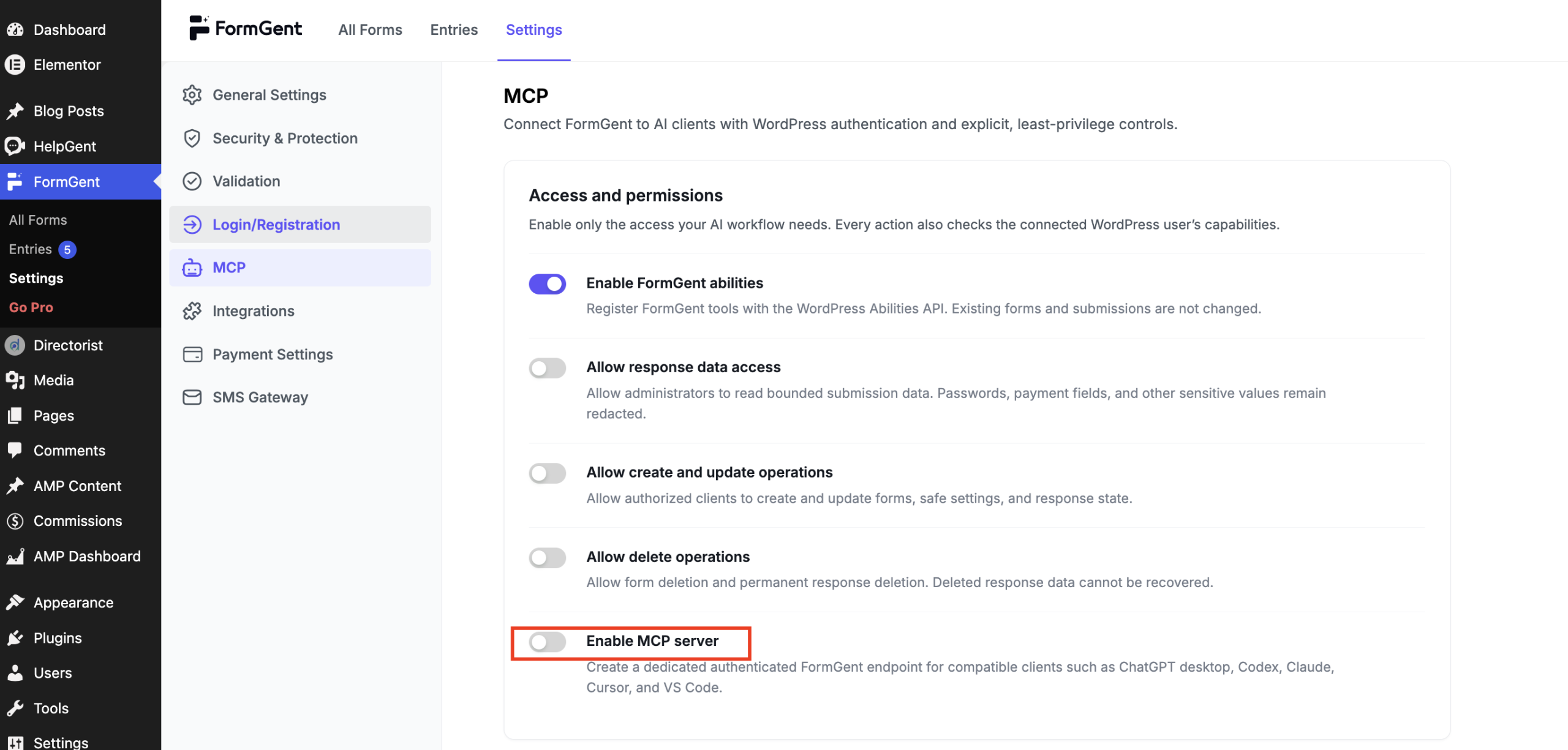
Nothing is turned on by default. FormGent’s MCP connection has separate switches for reading forms, reading submissions, creating or editing, and deleting, and every one of them starts off. You turn on only what a given assistant should be able to do, and nothing more. Want an assistant that can only look at your forms and never change them? Leave the write and delete switches off entirely.
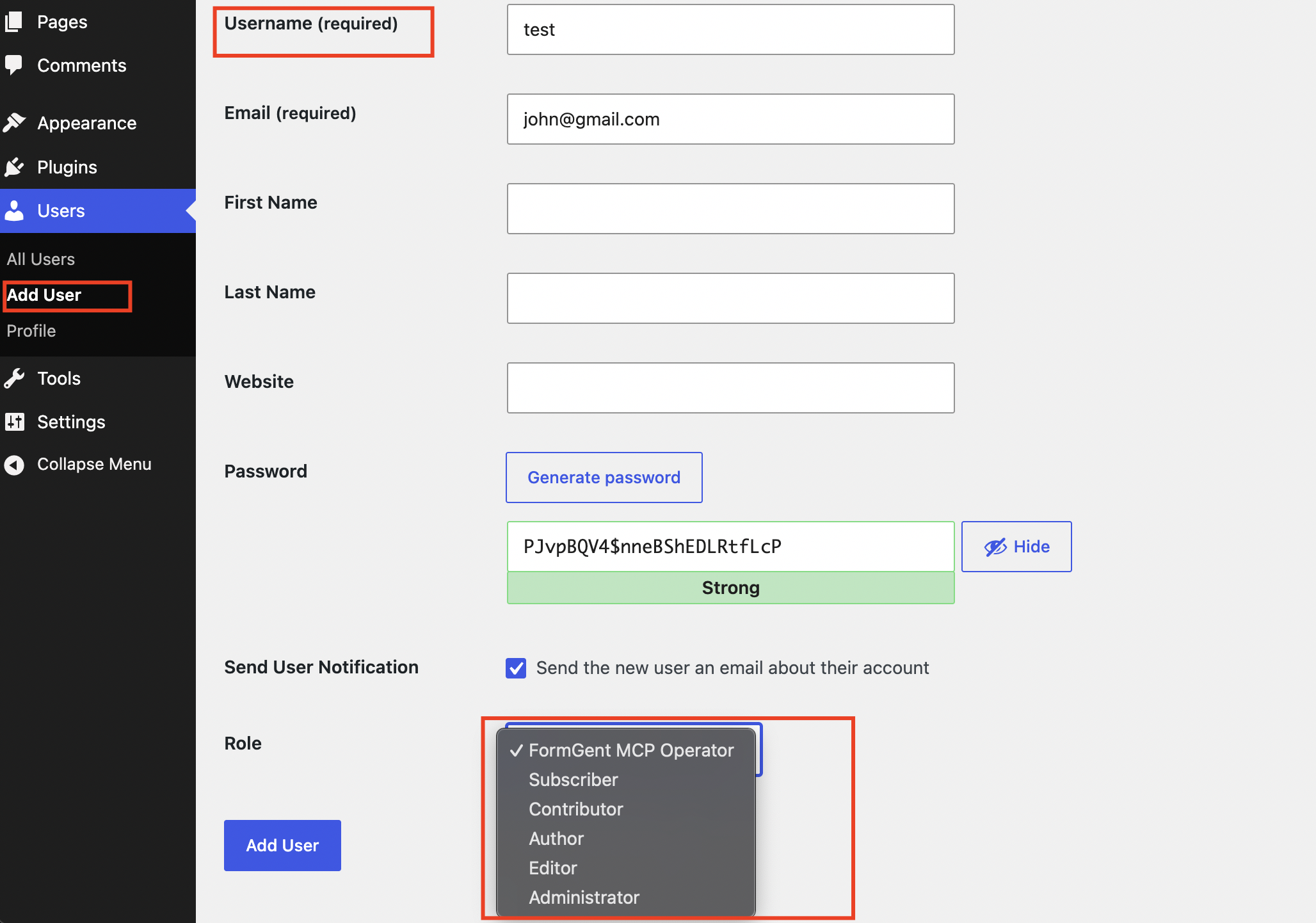
The AI also doesn’t sign in as you. It connects using a separate WordPress login called an Application Password, tied to its own limited user account, not your admin account and not your regular password. If you ever want to cut off one assistant’s access, you revoke that one password. Nothing else is affected.
Submission data gets the same caution. Sensitive fields, like anything password- or payment-related, stay hidden from the AI no matter which switches are on. And as covered above, nothing gets published or permanently deleted without a form-by-form or entry-by-entry confirmation.
The honest summary: you’re not handing your site over to an AI. You’re giving one specific assistant a specific, revocable set of permissions, the same way you’d hand a new hire a login with only the access their job needs.
It’s also worth saying plainly what this connection cannot do, because that matters as much as what it can. It can’t see or touch payment credentials, license keys, or any other plugin’s secrets. It can’t delete anything permanently unless that specific permission is on and you’ve confirmed the exact items to remove. And it can’t grant itself more access than you gave it, no matter how the request is worded. If you never turn on the delete permission, there is no prompt that talks the AI into deleting a form.
How to turn it on
If you want to try this on your own site, here’s the short version:
- Go to FormGent → Settings → MCP and install the MCP Adapter.
- Turn on the permissions you want your AI to have.
- Create a dedicated Application Password for your AI client, under Users → Application Passwords.
- Connect your AI client using the configuration FormGent generates for you.
- Ask it to list your forms. If it does, you’re connected.
Every step, including exact screenshots and troubleshooting, is covered in FormGent’s full MCP setup guide.
The point of all this
The form builder isn’t going anywhere, and it shouldn’t. But it doesn’t need to be the only way in. If the thing you actually want is a working form, and you already spend your day talking to an AI assistant anyway, there’s no real reason that conversation should stop at the edge of WordPress. Ask it to build the form. Review what it made. Publish when you’re ready. That’s the whole workflow.


Leave a Reply