
How to Limit Form Submissions and Block Abusive Users in WordPress
-
- Tips and Tricks Practical Guide Making Better
- 25 mins read

Two people land on this article with two different problems. One says, “I’m getting hundreds of fake entries a day and my inbox is a mess.” The other says, “One specific person keeps submitting the same message over and over, and I want them gone.”
Those sound like the same problem. They’re not. Fix the first one, and the second barely budges.
The first problem is volume. Bots and scripts hit your form fast, and they hit it often. The fix here is simple: limit how much your form will accept from anyone, within a set window of time.
The second problem is different. It’s not about how many submissions come in. It’s about who’s sending them. One known visitor, human or not, keeps coming back to your form again and again. The fix here isn’t a volume limit at all. It’s recognizing that one specific source, and blocking it directly.
This guide covers both problems, and it keeps them separate the whole way through. That distinction matters more than you’d guess. Mixing the two up is exactly why so many site owners end up frustrated with their own fix. They turn on a submission limit, expecting it to stop the abuse, and the same person keeps getting through anyway. Or they block an IP address to shut out one bad actor, and end up locking out half their own office in the process.
If you haven’t already, read WordPress Form Security: The Complete Guide first. It covers why forms get targeted at all and how the different layers of defense fit together. Want a faster, checklist-style pass instead? WordPress Form Security Checklist: 14 Things to Check Right Now is the hands-on companion piece. This guide builds on both and focuses on one specific piece: controlling volume, and dealing with a known repeat offender.
Limiting Submissions vs. Blocking Abusive Users: Know the Difference First
Limiting submissions means putting a ceiling on volume. No more than a set number of entries from this form, this email, or this IP address, in a given window. It doesn’t care who’s submitting. It just stops counting once it hits the number.
Blocking an abusive user works differently. It means recognizing one specific, identifiable source — an email, a domain, an IP address. Once you’ve identified it, you refuse that source specifically. Everyone else can keep submitting normally, at the same time, without any interruption.
You can have one problem without the other. A daily poll needs a submission limit (one vote per person) but might never see a genuinely abusive user. A small business contact form might get exactly one nasty email a week from a determined harasser — no volume problem at all, just one person to block.
Here’s a fast way to tell which section you need first:
| What you’re seeing | What it actually is | Where to go |
| Hundreds of entries in minutes, mostly nonsense | Bot volume | Stopping Bots Before They Ever Submit |
| Same person, same message, over days or weeks | A known abusive user | Blocking a Specific Abusive User |
| Multiple entries from one person you didn’t authorize | Missing a submission cap | Capping How Many Submissions a Form Accepts |
| A handful of duplicate entries seconds apart | An accidental double-submit, not abuse | See the note under Auditing What Got Blocked |
| Real leads, but too many low-quality ones | Under-verified identity | Verifying a Real Person Before the Submission Counts |
Most sites eventually need a combination of both. But figuring out which problem you actually have first saves you from flipping the wrong setting and wondering why nothing changed.
How to Tell If You Actually Have an Abuse Problem
Before you block anything, look at what you’re really dealing with. Open your form’s entries and check three things: the timestamps, the content, and the source.
Spam is automated. It arrives in bursts, often with garbled text, random links, or content that has nothing to do with your form’s purpose. It doesn’t know or care what your form is for.
A duplicate is one real action recorded twice. Same name, same email, same message, seconds apart. This usually isn’t a person or a bot trying to abuse anything — it’s a technical hiccup, most often a page refresh or a slow confirmation screen. More on this later, under Auditing What Got Blocked.
Abuse is a real, repeated, deliberate action from an identifiable source. The message is coherent. It’s clearly written by a person, or clearly designed by one to get past your defenses. It keeps coming back after you’d expect someone to give up.
Here’s a quick way to tell spam from abuse: check how many different IPs or emails are involved. Spam usually comes from many different sources in a short window. Abuse usually comes from the same handful of sources, repeated over a longer stretch of time.
Seeing high volume from lots of meaningless sources? That’s a bot problem — go to Stopping Bots Before They Ever Submit. Seeing the same source again and again, over days? That’s abuse — go to Blocking a Specific Abusive User.
Capping How Many Submissions a Form Accepts
A submission cap answers one question: how many entries is this form allowed to accept, total or per person, before it stops? Here’s how to set that ceiling, several different ways.
Hard total cap
Some forms have a real ceiling built into what they’re for. A workshop with 50 seats doesn’t need a 51st registration. A giveaway with one prize doesn’t need unlimited entries once the deadline hits.
Once the count is reached, a hard total cap replaces the form with a message — something like “All 50 spots have been filled.” Every visitor sees that same message. It doesn’t matter who they are, and it doesn’t matter whether they’ve submitted before. This is the simplest kind of limit there is. It isn’t trying to identify anyone. It’s just counting.
Per-person limits by email
This is what most people actually mean when they say “limit submissions”: one entry per person, not one entry total. The email address gets checked against existing entries, and a match gets blocked.
The useful part is the time window. You can allow one entry ever, one per day, one per week, or a rolling window like once every 30 days. A weekly feedback form can reset every Monday. A once-per-lifetime giveaway entry can block forever. Pick the window based on what the form is actually for, not whatever the default happens to be.
Email limits are fairly gentle on real visitors. But they’re also easy to get around. Someone can just use a second email address. Or they can use a plus-alias, like [email protected]. Most systems won’t catch that trick. The only ones that do are systems built specifically to strip out aliases before comparing addresses.
Per-person limits by IP
An IP-based limit works differently. Instead of checking the email address, it checks the network address. It blocks repeat submissions from that same network. This catches something an email limit misses: someone switching emails specifically to dodge it. Their email address might change, but their IP usually doesn’t — not as easily, anyway.
The tradeoff: an IP address doesn’t represent one person. It can represent an entire office. Or a school computer lab. Or a coffee shop, or an apartment building’s shared router. Block by IP, and you’re not just blocking the one person who caused the problem. You might be blocking the next twenty people who happen to share that same connection too.
Mobile networks make this worse. Carriers route huge numbers of phones through a small number of shared addresses. That means an IP-based limit can silently reject a total stranger. Someone who’s never even touched your form before. Their only “offense” is being on the same mobile network as someone who has.
Because of this, IP limits work best as a second layer alongside an email limit — not as a replacement for one. Checking both catches more evasion attempts than either would alone. And it still leaves a path open for a legitimate visitor who just happens to share a connection with someone who already submitted.
Restricting a form to logged-in users only
The strongest option doesn’t rely on a value someone typed into a field at all. Instead, it ties a submission to an actual WordPress account. A logged-out visitor sees a message instead of the form. A logged-in visitor submits normally, same as always. But their submission is permanently tied to their user ID.
This is the only method here that a visitor can’t get around. Not with a second email, not with a different device, not with a different network. It doesn’t rely on anything they control.
The tradeoff is just as clear, though: it asks visitors to have an account, and to be logged in before they can submit. That’s a fine ask for a membership site, an internal tool, or a vote among registered members. It’s the wrong ask entirely for a public contact form or a lead form. Those forms only work if strangers can reach you easily, with nothing standing in their way.
Scheduled availability windows and password-gating
Two more tools worth knowing about, especially if a cap alone isn’t enough.
A scheduled window opens and closes a form automatically, at set times you choose. It’s useful for a limited-time application period, or an event that only accepts entries before a certain date.
Password-gating works differently: it requires a shared password just to access the form at all. That’s a good fit for a private survey shared with a specific group, rather than one open to the public.
Stacking controls together
None of these need to work alone. Think about something that genuinely matters — an official vote, a limited-capacity registration, a scholarship application. A realistic setup for that combines several tools at once. Restrict the form to logged-in users. Add an email limit as backup, in case someone shares their login. And set a hard total cap, so the form closes automatically once capacity is reached.
Each layer plugs a hole the other layers leave open. A logged-in requirement stops anonymous ballot-stuffing but not a shared login. An email limit backstops that. A hard cap protects your actual capacity regardless of who’s submitting. So stack only what a given form’s stakes actually justify. A newsletter signup doesn’t need three layers of defense. Adding them anyway doesn’t make it safer — it just adds friction for the real subscribers trying to sign up.
FormGent note
FormGent’s real strength for abuse prevention is on the front end of the problem. It’s built to stop a submission from being fake or automated in the first place — something we cover in detail later in this guide. It’s not built around counting and capping submissions after they’ve already arrived. That’s worth knowing upfront, because it shapes what you should reach for here.
We checked FormGent’s settings, schema, and interface directly for three things. A submission cap. A unique-field duplicate check. And a logged-in-only toggle. None of the three exist as a built-in setting today.
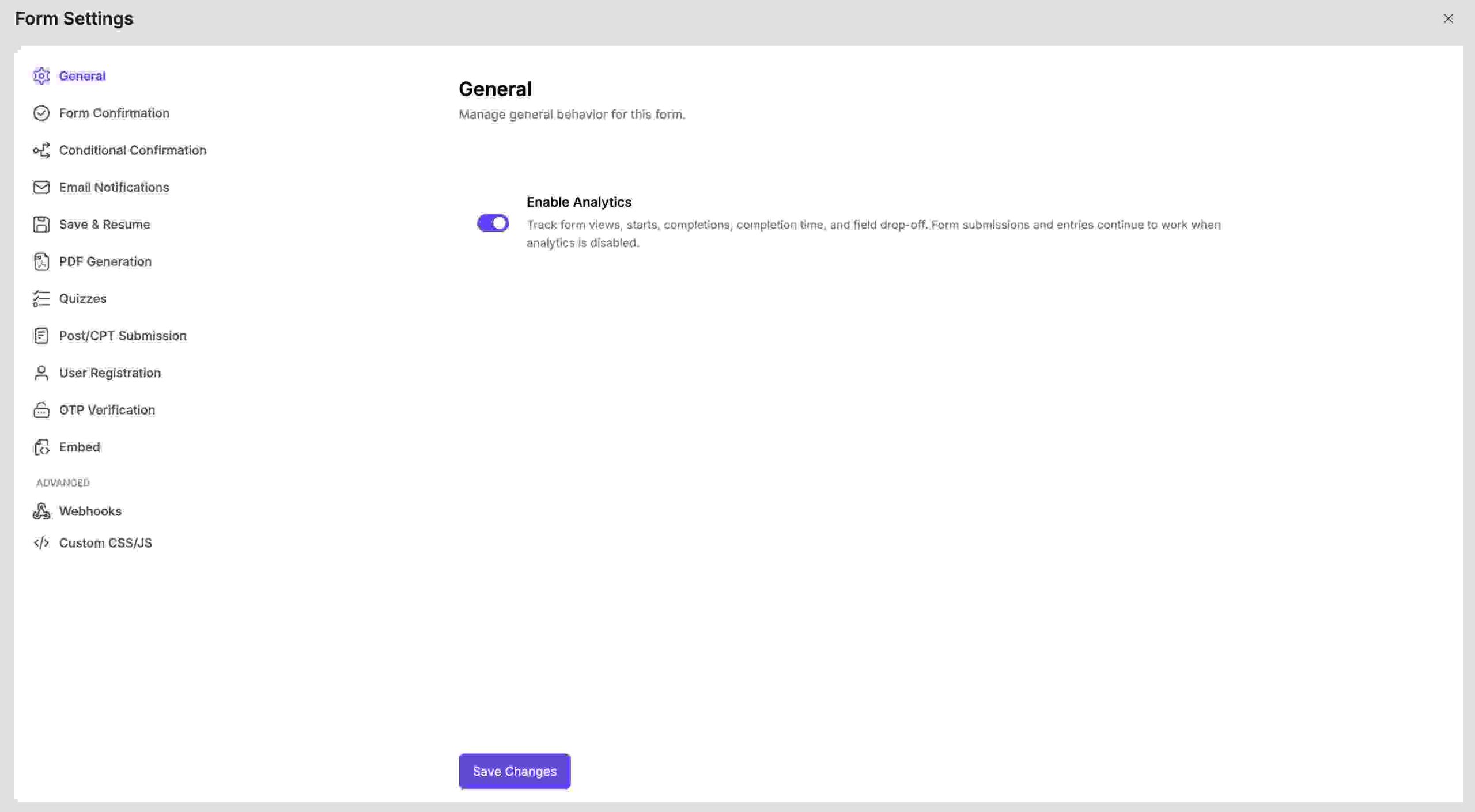
So say your specific form needs one of these — a hard cap, a duplicate-email check, or a logged-in gate. A limited-capacity registration form is a good example of that. Getting there currently takes custom development. The most realistic route is hooking into FormGent’s submission-handling actions. That lets you reject an entry before it ever gets saved.
If this comes up often enough for your team, it’s worth flagging to FormGent’s support or feature-request channel. A filter-based version of this would be a reasonable addition.
Server-Side vs. Client-Side: Where Each Limit Actually Gets Enforced
Every control in this guide is enforced somewhere. And where it’s enforced matters more than whether it exists at all.
A check that only runs in the visitor’s browser is easy to skip. Anyone can disable JavaScript. Or use a tool that talks directly to your form’s submission endpoint. Or simply view your page’s source and replay the request manually.
A server-side check is a different story. It happens after the data arrives, so there’s no browser trick that gets around it. The server makes the final decision, regardless of what the visitor’s browser did or didn’t do.
WordPress itself has a version of this idea already built in: the nonce system. WordPress’s own developer documentation notes a nonce stays valid for 12 to 24 hours by default, and it’s meant mainly for logged-in, admin-side actions. A public form submission works a bit differently, since the visitor isn’t logged in — that’s where a dedicated, server-generated response token, like the one covered in the table below, does the equivalent job.
| Control | Where it’s enforced | What defeats it |
| Hard total cap | Server-side | Nothing meaningful — it’s just a count |
| Unique-field / email limit | Server-side, checked against stored entries | A second email address or alias |
| IP-based limit | Server-side, but the identity itself is weak | Switching networks — Wi-Fi to mobile data, a VPN |
| Logged-in restriction | Server-side, tied to a WordPress user ID | Sharing login credentials |
| A server-generated submission token | Server-side — the server issues a token when the form loads and requires it back before accepting data | A bot that scripts both steps: loading the form for a token, then submitting with it |
| Honeypot | Client-side field check, in the browser | A bot that skips JavaScript and posts straight to the endpoint |
| CAPTCHA (real implementations) | Client-side challenge, server-side verification via the provider’s API | Nothing reliable for basic bots; sophisticated, human-assisted bot farms can still pass some challenges |
| Email/IP denylist | Server-side | A new, unlisted email or IP |
| Client-side field validation | Browser only | Disabling JavaScript, or posting directly to the endpoint |
The pattern worth remembering: anything checked only in the browser is a convenience, not a security measure. It stops accidental mistakes and unsophisticated bots, and nothing else. Anything your server checks against stored data is the part actually doing the defending. So is anything it verifies by calling out to a third party, like a CAPTCHA provider. So when you’re evaluating any plugin’s spam protection, start with one question. Does this check happen on my server? Or does it only happen in the visitor’s browser?
FormGent note: FormGent’s honeypot field check runs in the browser, not on the server. FormGent’s own security guide confirms this directly. It says plainly that a bot built to skip JavaScript and post straight to the submission endpoint isn’t stopped by the honeypot alone.
But FormGent does have a genuine server-side layer working alongside it. Every form submission requires a server-generated token. That token gets issued when the form first loads, and it’s checked against a real, stored response record before any data gets accepted. A script that tries to skip the form entirely, and post directly to the endpoint, gets rejected — because it never picked up a valid token in the first place.
The honest limit: a bot built specifically to defeat this still gets through, if it first requests the token and then submits with it. It’s a real check, not a silver bullet. Treat it the same way you’d treat any single layer in this table.
Blocking a Specific Abusive User
Once you’ve confirmed that, the goal changes. You’re no longer dealing with general bot noise — you’re dealing with a real, identifiable, repeat source. And the goal isn’t limiting volume anymore. It’s about recognizing that one source, and refusing it specifically.
Email denylists
The most direct option is blocking a specific email address. Or, if you want broader coverage, an entire domain with a wildcard. Either way, future submissions from that source get rejected automatically. This is the cleanest fix when you know exactly who’s causing the problem, and they’re using a consistent email address.
IP blocking, including WordPress’s own built-in route
You can block by IP address too, and you don’t necessarily need a form plugin to do it. WordPress itself has a built-in tool for this. It’s called the Disallowed Comment Keys list, and you’ll find it under Settings → Discussion. It can catch matching IPs. Some hosts and security plugins go a step further than that. They offer IP blocking at the server or firewall level — above WordPress entirely.
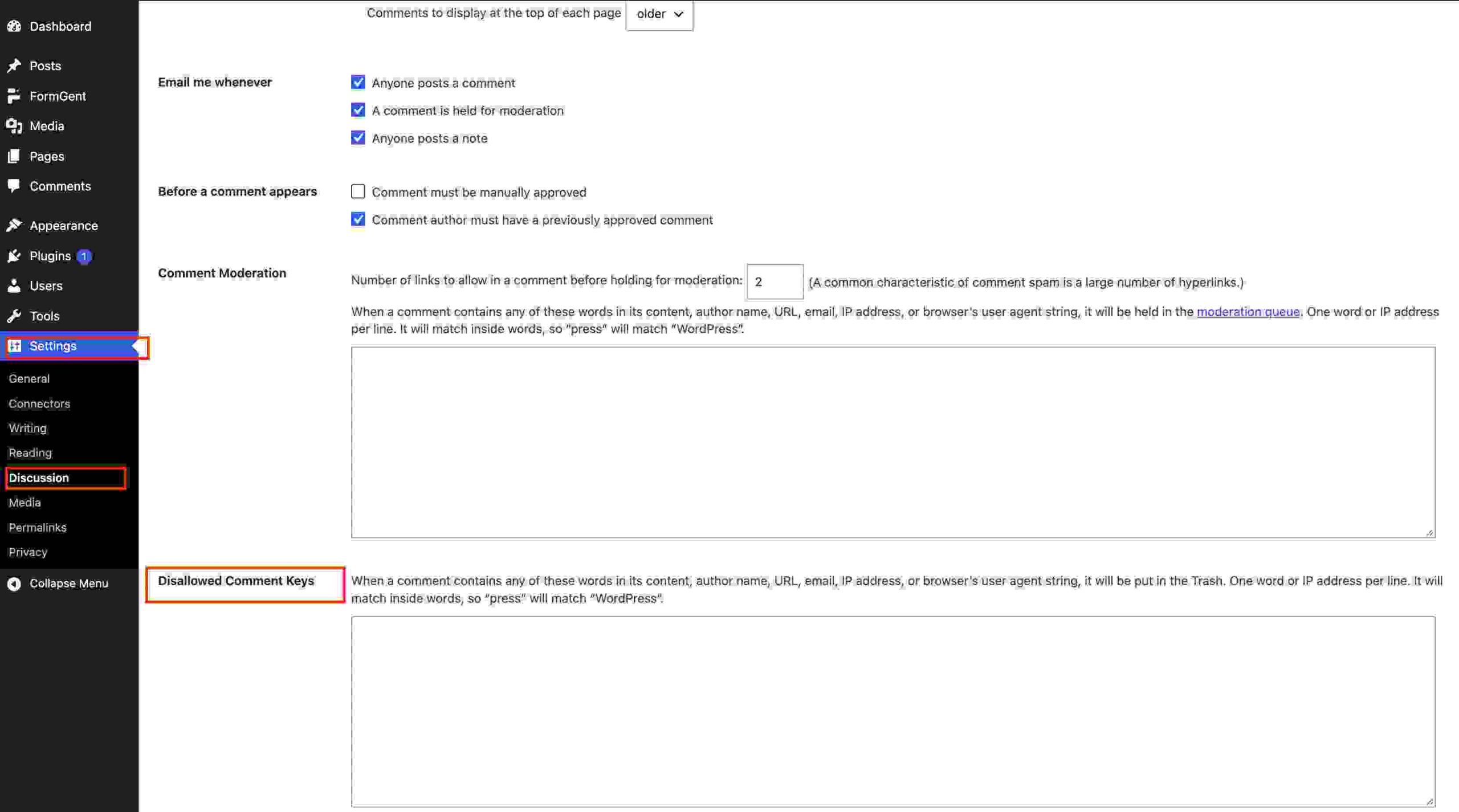
The same weakness applies here as with IP-based limits: an IP doesn’t always mean one person. Blocking it can catch other people on the same shared connection.
Country/geo-blocking
Sometimes abusive traffic consistently comes from one country or region — one you have no legitimate reason to serve. In that case, blocking that geography can cut off the source entirely. This usually happens through a CDN or a security plugin, not the form plugin itself. But it’s a blunt tool. It stops everyone from that region, including any real visitors you might have there.
Keyword filtering
Some tools let you filter submissions that contain specific words or phrases. This is useful when an abusive user’s messages share a consistent pattern — a slur, a specific threat, a repeated phrase. It catches content-based abuse that an IP or email block might miss, even if the person switches both.
Manual moderation review queues
Borderline submissions don’t have to be blocked automatically. Instead, they can go to a review queue. There, a person decides whether to approve, reject, or flag them. Sure, this is slower than an automatic rule. But it’s also the only option that can judge nuance — something an automated filter simply can’t do.
Automatic block duration vs. a permanent ban
When you block a source, decide one thing first: temporary, or permanent?
An automatic block can expire after a set period — say, 24 hours. That handles a burst of abuse well. It also avoids a real risk. You could permanently lock out someone who turns out, later, to be a legitimate visitor. Take a dynamic IP address that gets reassigned to someone new. That’s a good example of exactly this risk.
A permanent ban fits a different case better. Use it for a clearly identified, deliberate repeat offender — someone using a stable identifier, like a personal email address.
FormGent note
FormGent makes it easy to spot a repeat offender in the first place. It logs the submitter’s IP address on every response, by default — so a known troublemaker doesn’t stay invisible. You’ll find them right there on the Responses screen, every time. (Prefer tighter privacy instead? There’s an opt-out for IP logging — we cover it later, in the privacy section.)
So say you’ve spotted a known repeat offender. Head to the Responses screen. Reviewing or deleting their entries by hand takes just a couple of clicks from there.
Want that to happen automatically instead, so you’re not catching them by hand every time? FormGent’s submission process is built to be hooked into. A bit of custom development lets you check an incoming email or IP against a list you maintain yourself, and reject the entry automatically — before it’s ever saved.
A one-click denylist toggle for a specific email or IP isn’t in the settings screen yet. Worth knowing upfront if that’s what you were expecting to find there.
The False-Positive Problem: Who Gets Caught by Accident
None of the methods above are perfect. Every single one can catch someone who didn’t do anything wrong. Knowing who that might be is part of using any of these responsibly.
| Method | Who gets falsely caught | Why |
| IP blocking | Anyone sharing that connection — an office, a school, a coffee shop, a whole apartment building | An IP address identifies a network, not a person |
| Geo-blocking | Legitimate visitors and customers in the blocked region | The block doesn’t distinguish good traffic from bad within a country |
| Email/domain denylist | Someone at a company whose domain got blocked for one bad actor | Domain-wide blocks catch every employee, not just the offender |
| Keyword filtering | A genuine visitor whose message happens to contain a flagged word or phrase | Filters usually can’t tell context from intent |
| CAPTCHA | Visitors using screen readers, or with visual or motor impairments | Visual challenges assume a level of sight and dexterity not everyone has |
| Rate/submission limits | People on a shared network who submit around the same time, or a real person who made a genuine mistake and needs to resubmit | The limit can’t tell “same person retrying” from “different people, same network” |
Blocking by IP or domain? Then give legitimate visitors another way to reach you. A visible email address or phone number, outside the form, works well for this. That way, someone wrongly caught still has a path back to you.
There’s a second half to catching this early: reviewing what got blocked, every so often. More on that later.
Stopping Bots Before They Ever Submit
Here’s a different problem entirely: bots and CAPTCHA-style spam, as opposed to an identified human abuser. This one’s about volume: the fake, automated traffic that never should have reached your form in the first place.
And this isn’t just a hunch — it’s a real, measured number. Imperva’s 2026 Bad Bot Report found something striking: bots now make up over 53% of all web traffic. Narrow that down to bad bots specifically, and they account for 40% of it. That’s up from 37% the year before. That’s the seventh straight year in a row the figure has climbed.
Honeypot fields
Picture a form field that’s invisible to a real visitor. That’s a honeypot. A bot reading the page’s raw code sees it anyway. Some bots blindly fill in every field they find. That’s exactly what gets them caught. Real visitors, on the other hand, never see the field. So they never fill it in.
JavaScript-token / invisible detection
Here’s how some tools handle this. The moment a real browser loads the page, they issue a token automatically. That token gets checked again when the form submits. Most bots don’t run a full browser session the way a person does. So they often never pick up the token at all. Their submission just gets rejected — without ever showing the visitor anything.
CAPTCHA — real verification vs. a cosmetic widget
CAPTCHA asks a visitor to prove they’re human. Sometimes that proof is visible — a checkbox, or a puzzle. That’s the classic reCAPTCHA v2 or hCaptcha experience. Other times, that proof stays invisible. It happens in the background instead, using a risk score rather than a checkbox. That’s how reCAPTCHA v3 works. Cloudflare Turnstile usually works this way too.
Here’s the part worth understanding, though. Showing the widget and actually verifying it are two different things. A site can display that box on the page. And never once check the response with the provider. Cloudflare’s own developer docs call this out specifically for Turnstile — the widget alone doesn’t do the job; your server still has to confirm the result with Cloudflare. The result: a site that looks protected while doing nothing at all.
The real check happens somewhere else entirely. Your server reaches out to the CAPTCHA provider’s own verification service and asks it directly: is this response genuine? Only once that answer comes back does the submission get accepted.
There’s a real accessibility tradeoff here too. A visitor relying on a screen reader, or dealing with a visual or motor impairment, can get shut out by a puzzle-style challenge entirely. The W3C, the organization behind the web’s core accessibility standards, has flagged exactly this concern with visual CAPTCHA. An invisible option like Turnstile sidesteps most of it, simply because there’s usually nothing for the visitor to click, drag, or solve in the first place.
Want the full side-by-side of these three? Honeypot vs CAPTCHA vs Turnstile breaks down when to reach for each one.
A custom spam-check question
Here’s a low-tech alternative. Ask a simple question unique to your form — a basic math problem works fine (“what is 5 + 3?”). It’s easy to set up. And it barely adds any friction. But it’s also the weakest option here. Simple bots can solve basic math too, more often than not. And a determined human? It stops them not at all.
Third-party anti-spam plugins
Services like Akismet work differently. They check every submission against a constantly updated database of known spam patterns. That catches something none of the methods above can: a real human, typing out a scripted sales pitch by hand. A honeypot won’t catch that. Neither will CAPTCHA. Neither one actually reads what the message says — a reputation-based filter is the one that does.
Want to set one of these up alongside FormGent’s built-in defenses? FormGent’s own guide to avoiding spam submissions with an online form builder walks through exactly that.
FormGent note
FormGent turns its honeypot field on by default, across every form on your site. Zero setup required — you won’t need to add a block or flip a switch anywhere. Here’s where its check actually runs, though: in the browser. Not on the server. That means it catches unsophisticated bots without ever bothering a real visitor. But a bot built to skip JavaScript entirely gets past it.
That’s exactly why FormGent has a separate, server-generated submission token too — we covered it earlier. It exists alongside the honeypot, not instead of it.
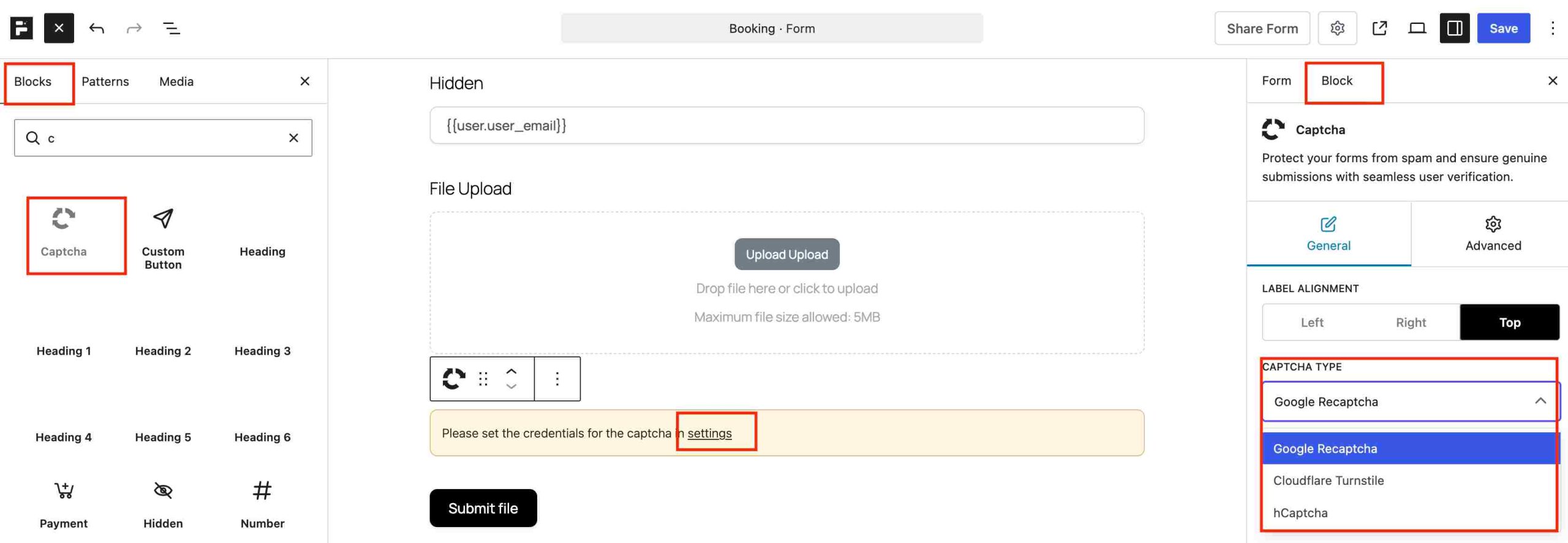
CAPTCHA works differently here, in one important way: it’s genuinely verified server-side, not just displayed on the page. Add FormGent’s Captcha field, and every submission’s response gets sent straight to the actual provider — Google, hCaptcha, or Cloudflare. Only once that provider confirms it does the form get accepted.
It supports the classic reCAPTCHA checkbox experience, plus hCaptcha and Cloudflare Turnstile. You configure each one with a site key and secret key, under Settings → Security & Protection — the same panel where the honeypot toggle covered earlier lives.
Verifying a Real Person Before the Submission Counts
There’s another layer worth knowing about, beyond just stopping bots outright. This one asks a different question: is a real, reachable person actually behind this submission? These tools confirm that, before the submission ever gets treated as legitimate.
Double Opt-In: It Gates Your Mailing List, Not the Submission
Double opt-in sends a confirmation email before adding someone to a mailing list. It’s worth being precise about what this actually gates: it protects the quality of your email list, not the form submission itself. Say the person never confirms. The entry still gets recorded either way. What actually changes is whether they get added to your ongoing email communication.
Email/SMS OTP verification
Here’s how OTP works. A one-time passcode gets sent to an email address or phone number. The visitor has to enter it before the submission counts as verified. This confirms one thing a simple format check can’t: that the contact detail is real, and actually reachable. Checking “does this look like an email address?” alone can’t tell you that.
FormGent note
FormGent’s double opt-in runs through its Mailchimp integration. Turn it on, and here’s what happens: a new contact’s Mailchimp status gets set to “pending” instead of “subscribed.” That’s what triggers Mailchimp’s own confirmation email.
Here’s the result. Your mailing list stays clean — full of people who genuinely want to be on it. And you don’t lose a single lead while that confirmation plays out, either. The form submission itself is still captured right away, regardless. For the full setup walkthrough, this guide has you covered: how to build a Mailchimp signup form in WordPress.
FormGent Pro’s OTP Verification takes this a step further. There’s genuine, built-in rate limiting behind it. Take sending a code: that’s capped at 5 requests, per IP, per form, per minute. Verifying one is capped at 20 attempts, same terms. Both limits reset every minute. The upshot: it’s a solid safeguard, ready to use out of the box, for any form that relies on OTP to confirm a real person is on the other end.
Rate Limiting Beyond the Plugin Layer
Everything covered so far operates in the same place: inside WordPress, at the plugin level. But there’s a layer above that too. It’s worth knowing about, especially if a site is ever under sustained, high-volume attack. That layer stops abusive traffic before it ever reaches WordPress in the first place.
A CDN like Cloudflare can apply rate-limiting rules right at the network edge. If an IP exceeds a request threshold, it gets blocked or challenged — before your site ever even loads for them.
Tools like fail2ban take a different approach, working at the server level instead. They keep watch over your logs, looking for requests that fail repeatedly, or ones that just look suspicious. Then they block the source directly at the firewall.
Here’s why this matters. Every request that reaches WordPress costs you something. Server resources. Database queries. Page-load time. That’s true even when your form plugin ultimately rejects the request.
Got a low-traffic contact form that gets the occasional spam wave? This layer is overkill for you. You don’t need it. But for a site actually under sustained attack, it’s a different story entirely. On one side: a minor nuisance. On the other: a real performance problem. This layer is what decides which one you get.
Privacy and GDPR Considerations of Blocking Abusive Users
Think about every method in this guide that identifies a specific source. Each one involves collecting and storing something — an IP address, say, or an email address. And that something is generally treated as personal data.
An IP address in particular is worth calling out here. At first glance, it doesn’t look like a name or an email address. But under GDPR and similar laws, it’s commonly treated as personal data anyway. The GDPR’s own definition spells this out directly — it lists IP addresses by name, as one kind of online identifier.
A handful of practical principles cover most of what actually matters here.
Only keep what you actually need for the purpose of dealing with abuse. Picture a running log of every visitor’s IP, kept forever “just in case.” That’s not a safety net. It’s a bigger liability than it is a benefit.
Have a retention approach, even a simple one — reviewing and clearing old entries once a year works fine. Put it in your privacy policy, too. Say that you log this information. Say why you do it. And if someone asks what you have on them, or asks you to delete it, have an actual way to do that. It can be a manual process today; it just needs to exist.
FormGent note
By default, FormGent logs the submitter’s IP address. It does that on every single response. That’s exactly what makes it possible to identify a repeat offender in the first place.
Would you rather not collect it at all? There’s a disable_ip_logging toggle for that, under General settings. Just know the tradeoff going in — it’s a direct one. Turning it off protects visitor privacy a bit further. But it takes something away too. Afterward, you lose the ability to identify a repeat abuser by IP on the Responses screen.
One thing it doesn’t touch, though: honeypot and CAPTCHA. Those keep working either way.
WordPress Multisite: How to Block One Abusive User Network-Wide
Running a WordPress multisite network, with forms on more than one site? Keep this in mind. A source abusing one site’s form may well try the others too.
Here’s the catch: blocking them on a single site won’t protect the rest of the network. Not automatically, anyway. Take most form-level blocking — a denylist entry, an IP block. It only applies to that one site. There’s just one exception: a tool built specifically to support network-wide rules.
So if this applies to you, check one thing first: does your security plugin or firewall offer network-wide IP blocking? That option usually lives above the form-plugin layer. It’s closer to the server, or the CDN rate-limiting tools we covered earlier.
It’s the far more reliable path. Block one source everywhere, all at once — that beats the alternative. The alternative being: replicating the same block by hand, site after site.
Choosing the Right Combination for Your Form Type
Not every form needs the same defenses. Match the setup to what’s actually at stake instead. Get that right, and you avoid two mistakes at once: underprotecting a form that matters, and overloading one that doesn’t.
| Form type | Priority | Recommended stack |
| Simple contact form | Low stakes, mostly nuisance spam | Honeypot (already on by default in FormGent) plus a basic CAPTCHA if spam gets through |
| Newsletter/lead-gen signup | List quality and deliverability | Honeypot, double opt-in, light email validation |
| Limited-capacity registration or giveaway | Enforcing a real ceiling | Hard total cap, plus a per-person email limit as backup |
| Official vote or poll | One entry per person, no ballot-stuffing | Logged-in restriction, or an email limit if login isn’t practical |
| Payment or donation form | Financial fraud risk | Honeypot plus CAPTCHA, plus close attention to confirmation and receipt clarity |
| Public form previously targeted by a known abuser | Recognizing one specific source | Email/IP blocking or manual review, layered on top of standard bot defenses |
This isn’t a rigid formula — it’s a starting point for the question “what’s actually at stake here” before you decide how much friction is worth adding.
Auditing What Got Blocked
No control in this guide is immune. Every single one of them can create a false positive. And here’s the tricky part: it can happen quietly. You might never even know.
There’s really only one way to catch that. Look at what’s actually being blocked. Do it every so often. Don’t just assume. A setting that worked once doesn’t mean it’s still working correctly now.
Do you have a moderation queue? Or maybe some other way to review blocked or flagged entries? Either way, check it now and then. Even a quick monthly glance can catch a rule that’s rejecting more real visitors than it should.
One case is worth calling out specifically. A handful of duplicate entries, seconds apart, is usually not abuse at all. It’s typically caused by a slow confirmation screen, or a visitor double-clicking submit before the page responds.
That’s a caching or confirmation-page fix. It’s not something a blocking tool should try to solve. Treat it as abuse instead, and reach for an IP block. All you’ve actually done is create a false positive — for someone who just made an honest mistake.
The Bottom Line
Start by figuring out which problem you actually have. Is it too much volume? Or one specific person you want gone? Those are different problems, with different fixes. Reaching for the wrong one is the most common reason this kind of setup doesn’t work the first time.
Here’s FormGent’s honest position. It’s genuinely strong on stopping a bad submission before it’s ever recorded. That includes a built-in honeypot, a server-side submission token, CAPTCHA verified by the provider, and Pro-level OTP verification backed by rate limiting.
It’s not yet built for counting or denylisting submissions after they’ve already arrived. No native submission cap. No unique-field check. No email or IP denylist. No logged-in-only gate for a general form.
Those gaps are real. It’s better to account for those gaps now than to discover them when you’re already dealing with a real abuse issue.
Ready to put the front-end defenses to work? Get started with FormGent — its honeypot and server-side token protection begin working as soon as you create your first form.
Does IP blocking punish people on shared connections?
Yes. That’s IP blocking’s core weakness. So use it as a second layer, alongside an email-based limit — not as your only defense.
What’s the difference between rate limiting and CAPTCHA?
Rate limiting counts submissions, no matter who’s sending them. CAPTCHA does something different. It tries to tell a human apart from a bot, before the submission is even accepted. Two different problems — and they solve each other’s blind spots well when used together.
Can someone get around a one-submission-per-person limit?
Usually, yes — unless it’s tied to a logged-in account. A second email address gets around an email limit. Switching networks gets around an IP limit.
Do I need a separate plugin for this? Or does my form builder already handle it?
It depends which controls you need. More and more, bot-stopping tools come built into form plugins by default. Submission caps and denylists haven’t caught up, though — they’re less consistently native. FormGent included.
Is blocking an email address the same as marking something spam?
No. These are two different things. Spam filtering catches automated or junk submissions as they arrive. Blocking works differently. It targets one known, identified source directly. And it does that regardless of whether any individual message actually looks like spam.
How many form submissions counts as normal? And when does that number become a sign of an attack?
There’s no universal number. What matters is a sharp deviation from your own form’s normal baseline. Take a contact form that usually gets five submissions a day. Then, suddenly, it gets five hundred. That jump is the signal. Not any fixed threshold.
Can bots get around CAPTCHA?
A properly implemented, server-verified CAPTCHA will stop most basic bots. But more sophisticated, human-assisted bot operations have had some success against certain challenges. That’s exactly why CAPTCHA should never be your only layer of defense.


How to Create an Event Registration Form in WordPress (2026)
October 6, 2026[…] but you won’t find it as a toggle anywhere in the dashboard. FormGent’s own guide on limiting form submissions and blocking abusive users covers this same territory in more depth, including the duplicate-entry and logged-in-only […]