
Honeypot vs CAPTCHA vs Turnstile: Which Spam Protection Should You Use?
-
- Comparison Form Builder
- 11 mins read

Honeypot, CAPTCHA, and Cloudflare Turnstile all stop spam bots from submitting your WordPress forms, but they work in different ways and fit different situations. A honeypot is a hidden field that catches simple bots for free with zero setup. CAPTCHA (Google reCAPTCHA or hCaptcha) asks visitors to prove they’re human, which stops more bots but adds friction. Turnstile sits in between: strong bot protection with almost no friction at all. Most WordPress sites end up using two of these together, and FormGent actually turns one of them on for you automatically, which we’ll get to shortly.
If you’ve landed here because your inbox is suddenly full of fake leads, or you’re setting up a new form and want to get spam protection right from day one, this guide will help you pick the right combination for your situation and show you exactly where to turn it on.
Quick Answer: Which Should You Use?
If you only remember one thing from this article, remember this table.
| Your situation | Start here |
| You haven’t touched any spam settings yet | Nothing to do — FormGent’s honeypot is already on |
| Basic contact form, occasional spam | Honeypot alone (already active) |
| Spam keeps getting through the honeypot | Add the Captcha field and choose Turnstile |
| You want the lowest possible friction for visitors | Turnstile |
| Your organization already uses Google’s security tools | Google reCAPTCHA |
| You’re moving away from reCAPTCHA, or your stack already uses hCaptcha | hCaptcha |
| Payment form, donation form, or anything involving money | Honeypot + Turnstile together |
| You don’t want to depend on a Google account or service | Turnstile or hCaptcha |
Whichever you pick, don’t stack more than one CAPTCHA-style challenge on the same form. It doesn’t add meaningful protection, and it does make real visitors give up.
What Is a Honeypot Field?
A honeypot is a form field that’s invisible to real visitors but visible to bots reading the page’s code.
Most spam bots don’t look at a form the way a person does. They scan the underlying HTML and fill in every field they can find, including ones hidden with CSS. A real visitor never sees the honeypot field, so they never fill it in. If a submission arrives with that field filled in, it almost certainly came from a bot.
How FormGent’s Built-In Honeypot Works
You don’t need to set this up. FormGent adds a hidden honeypot field to every form automatically, and it’s switched on by default. There’s no block to drag in, no setting to remember to enable, nothing to configure. If you’ve never touched a spam setting in FormGent, you already have this layer of protection running on every form on your site.
The moment the hidden field comes back with a value, FormGent stops that submission from going through. It’s exactly the behavior a honeypot is meant to have, and it quietly takes care of the mass-market bots that make up most of the spam a typical contact form sees, all without a single visible step for the people you actually want to hear from.
You can turn it off in Settings if you ever need to (some very unusual form-building scenarios call for it), but for the vast majority of sites, leaving it on is the right call.
Strengths
A honeypot costs nothing, sends no visitor data anywhere, and adds no delay or extra step to the form. Real visitors never know it’s there. It’s genuinely the lowest-friction spam protection that exists, and it catches a large share of basic bots that mechanically fill in every field they find. Pair it with a Captcha field when a form starts attracting more determined attention, and you’ve got a setup that scales with how much protection any given form actually needs.
What Is CAPTCHA? (Google reCAPTCHA and hCaptcha)
CAPTCHA asks a visitor to prove they’re human before a form will submit. FormGent’s Captcha field supports two CAPTCHA providers plus Cloudflare Turnstile (covered in the next section), and you choose which one from a dropdown when you add the field.
Google reCAPTCHA
Google reCAPTCHA is the most widely recognized option, mostly because of its “I’m not a robot” checkbox. There are two meaningfully different versions of reCAPTCHA, and it matters which one you’re thinking of. reCAPTCHA v2 shows a visible checkbox, and sometimes an image challenge on top of that. reCAPTCHA v3, by contrast, runs invisibly in the background and returns a risk score instead of showing a challenge at all.
FormGent’s Captcha field brings you the familiar checkbox experience your visitors have almost certainly seen on other sites before, which is part of what makes it such a comfortable, instantly recognizable option to offer.
reCAPTCHA is a reasonable choice if your organization already relies on Google’s security tools, or if you want a widely recognized option your visitors have likely seen before. The trade-off is that it adds a visible step to your form, and Google receives visitor interaction data when it runs, which is worth knowing before you enable it on a form for EU visitors.
hCaptcha
hCaptcha works a lot like reCAPTCHA v2 from a visitor’s point of view: a checkbox, sometimes followed by a puzzle. The meaningful difference is what happens to the data behind the scenes — hCaptcha’s documentation describes a different data-handling model than Google’s, which is why many teams moving away from reCAPTCHA choose hCaptcha specifically, since the two are close enough in behavior that migrating between them takes minimal rework.
hCaptcha makes sense if you’re already using it elsewhere in your stack, or if you’d rather not have Google involved in your form’s spam checks at all.
The Friction and Privacy Trade-Off
Both reCAPTCHA and hCaptcha ask something of your visitor, even if it’s just clicking a checkbox. Every extra step between “start filling out the form” and “submit” loses you a small percentage of real visitors who get distracted, give up, or find the challenge confusing on a small screen. Neither is difficult, but neither is invisible either.
This matters more on mobile than most people expect. An image-grid challenge that’s a minor speed bump on a laptop can mean tiny tap targets and a slow reload on a phone, and a large share of your form’s visitors are filling it out on one. If most of your traffic is mobile, that friction cost should weigh more heavily in your decision than the comparison table alone suggests.
There’s also an accessibility angle worth knowing before you rely on either as your main defense: visual CAPTCHA challenges create real friction for visitors using screen readers or with low vision, since the image-based puzzles rely on sight in a way a checkbox alone doesn’t fully solve. It’s not a reason to avoid CAPTCHA outright, but it’s a reason to have a plan for the visitor who gets stuck (more on that in the FAQ below).
What Is Cloudflare Turnstile?
Cloudflare Turnstile is the third option in FormGent’s Captcha field, and for most sites, it’s the best balance of protection and visitor experience.
How It Works
Turnstile runs a quiet check in the visitor’s browser and, in most cases, never shows the visitor anything at all — no checkbox to click, no puzzle to solve. Once that check finishes, the browser hands your form a token. Your site then needs to confirm that token is genuine before it trusts the submission.
Here’s the part that trips a lot of people up when they set up Turnstile on their own: showing the widget is not the same as verifying it. Cloudflare is explicit that the token has to be checked against their server before you can trust it — a site that displays the Turnstile box but never confirms the token with Cloudflare isn’t actually protected, it just looks protected. This is the single most common mistake in do-it-yourself Turnstile setups.
You don’t have to worry about that step in FormGent. When you choose Turnstile from the Captcha field’s dropdown, every submission is checked against Cloudflare’s verification service automatically before it’s accepted. You get the “widget looks right” part and the “actually verified” part together, without doing anything extra.
Why It’s Usually the Lowest-Friction Option
Because Turnstile typically doesn’t interrupt the visitor at all, it protects your form without costing you the conversions a visible CAPTCHA challenge can cost. It also doesn’t require your site to run through Cloudflare’s CDN — you can use Turnstile as a standalone spam check even if the rest of your site has nothing to do with Cloudflare.
Whether a specific visitor ever sees any interaction at all depends on a setting inside your Cloudflare account (called the widget’s “mode”), not on anything inside FormGent. Most sites use the fully invisible mode, but that choice happens on Cloudflare’s side, not in the FormGent dashboard.
Honeypot vs reCAPTCHA vs hCaptcha vs Turnstile: Full Comparison
| Honeypot | Google reCAPTCHA | hCaptcha | Cloudflare Turnstile | |
| Visitor sees anything? | No | Yes — checkbox, sometimes a puzzle | Yes — checkbox, sometimes a puzzle | Usually no |
| Cost | Free | Free tier, then usage-based | Free tier available | Free for the vast majority of sites |
| Data sent to a third party | No | Yes — to Google | Yes — to hCaptcha | Yes — to Cloudflare |
| Accessibility | No visible challenge to navigate | Can be difficult for screen-reader or low-vision users | Can be difficult for screen-reader or low-vision users | Generally the easiest of the three when running invisibly |
| Stops sophisticated bots | Limited on its own | Yes | Yes | Yes |
| Stops human-submitted spam (sales pitches) | No | No | No | No |
| FormGent setup effort | None — already on | Add field, paste site/secret key | Add field, paste site/secret key | Add field, paste site/secret key |
A note on precision: you’ll see other articles on this topic quote specific bot-catch percentages for each option. We’re not going to repeat those numbers here, because none of the sources publishing them show a study or methodology behind the figure, and real results depend heavily on your traffic, your form, and what’s currently targeting your site. Treat the guidance above as practical direction, not a lab-tested benchmark.
Every option in this table has the same weak spot: none of them can tell whether a real human is submitting a genuine sales pitch instead of a genuine inquiry. That’s a content problem, not a bot problem, and it needs a different kind of solution (usually just you or your team recognizing the pattern and ignoring those messages).
Does This Replace My Security Plugin?
No. Wordfence, Sucuri, and similar security plugins protect your whole site against a much broader set of threats: malware, brute-force login attempts, file changes, and more. Honeypot and CAPTCHA protect one specific thing, which is who’s allowed to submit your forms. Keep both. They’re not competing with each other; they’re covering different doors into your site.
Which Option for Which Form Type?
Not every form carries the same risk, so the right setup depends partly on what the form actually does.
Contact and Lead Forms
For a standard contact form or lead-capture form, the honeypot that’s already running is often enough by itself. If you start seeing spam get through anyway, add Turnstile as a second layer — it’s the lowest-friction way to raise your protection without asking more of the people you actually want to hear from. If you haven’t built your lead form yet, our guide on building a lead generation form walks through the setup.
Payment and Donation Forms
Money changes the calculation. A fake submission on a contact form wastes a few minutes of your time. A fake or fraudulent submission on a payment or donation form can mean chargebacks, wasted payment-processor fees, or fraudulent transactions you have to unwind. For any form connected to a payment, we’d recommend layering honeypot with Turnstile (or reCAPTCHA if your organization already standardizes on it) rather than relying on the honeypot alone. See our guides on creating a payment form in WordPress and creating a donation form in WordPress for the full setup.
Quizzes and Surveys
These forms typically don’t carry financial risk and aren’t usually a spam target the way public contact forms are. The default honeypot is usually all you need here.
How to Turn On Captcha in FormGent
If you’ve decided you want more than the honeypot’s automatic protection, here’s how to add it.
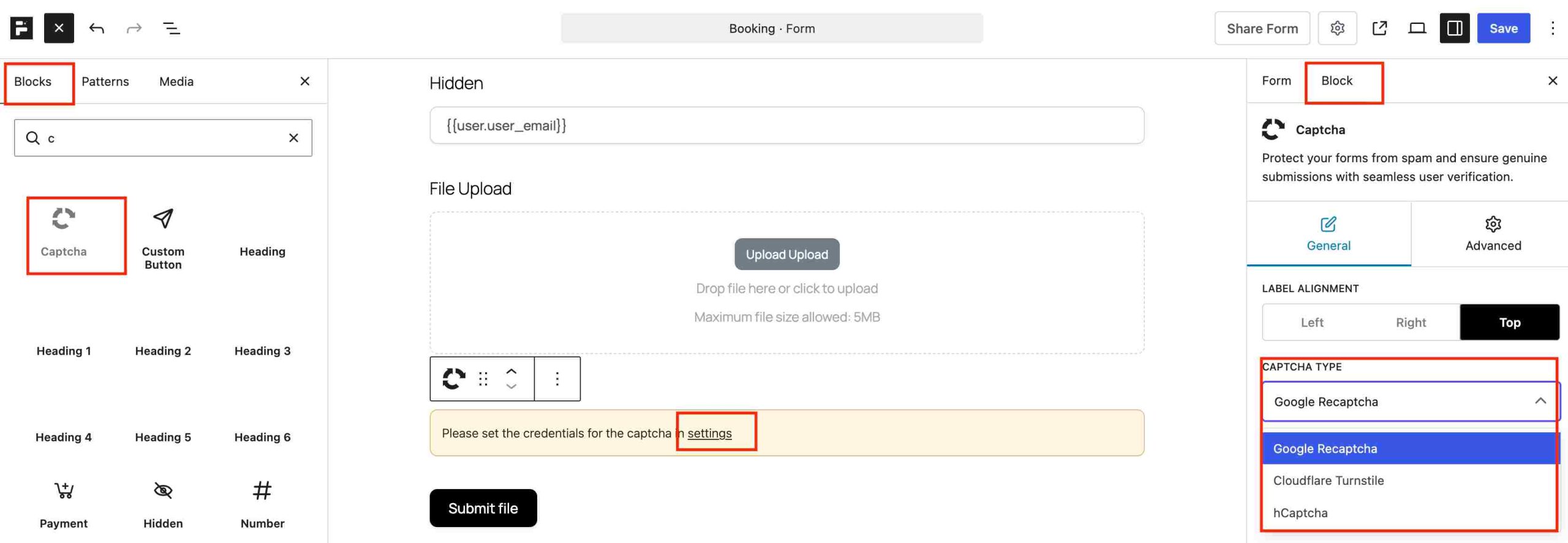
- Open the form in the FormGent builder and add the Captcha field from the fields panel.
- Choose your provider from the field’s dropdown: Google reCAPTCHA, hCaptcha, or Cloudflare Turnstile.
- Go to FormGent’s Settings and find the Captcha Keys section. Paste in the site key and secret key for whichever provider you chose. Each provider gives you these keys for free when you register your site with them — Cloudflare’s Turnstile dashboard, Google’s reCAPTCHA admin console, or hCaptcha’s dashboard, depending on which you picked.
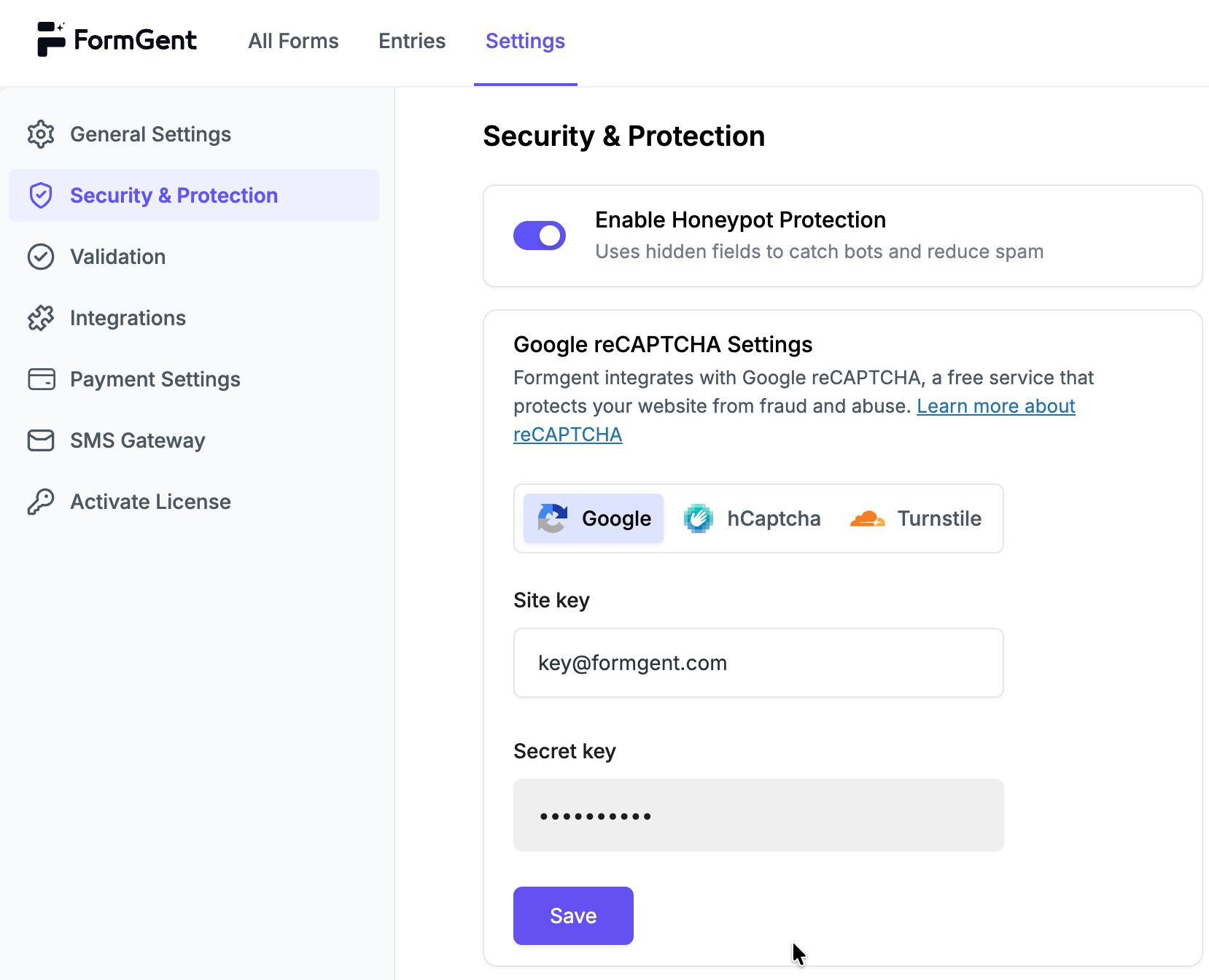
- Save, then preview your form. You should see the widget appear where you placed the Captcha field (or, if you chose Turnstile in its invisible mode, you may not see anything at all — that’s expected).
That’s it. FormGent verifies every submission’s token against the provider’s own servers automatically, so once your keys are in place, there’s nothing else to configure.
Ready to try it? Install FormGent— add a Captcha field whenever you’re ready for a second layer.
Start With What You Already Have
Spam protection isn’t a one-time setting you configure and forget. Start with what FormGent already gives you for free — the honeypot is running right now on every form you’ve built — and add a Captcha provider when you actually need the extra layer, not before. If you want the wider picture on reducing form spam beyond these three tools, our guide to avoiding spam submissions with an online form builder is a good next read.
Is a honeypot enough to stop WordPress form spam?
Often, yes, especially for a low-volume contact form. It catches most basic bots with zero setup and zero friction for visitors. If spam keeps getting through after the honeypot, that’s your signal to add Turnstile or another CAPTCHA option as a second layer rather than replacing the honeypot.
Is Cloudflare Turnstile better than Google reCAPTCHA?
It depends on what you’re optimizing for. Turnstile usually asks nothing of the visitor and doesn’t require a Google account or service. reCAPTCHA makes more sense if your organization already relies on Google’s security tools. Both are verified automatically by FormGent, so the setup effort is the same either way.
Can I use a honeypot and Captcha together?
Yes, and it’s a common setup. FormGent’s honeypot runs automatically regardless of which Captcha provider you add, so you’re never choosing one instead of the other — you’re choosing whether to add a second layer on top of the honeypot that’s already active.
Does adding a Captcha hurt accessibility?
Visible challenges like reCAPTCHA’s or hCaptcha’s checkbox-and-image format can be genuinely difficult for visitors using screen readers or with low vision. Turnstile, when running in its invisible mode, is generally the easier option for accessibility since there’s nothing to see or interact with in the first place.
Do honeypot or Captcha stop spam from real people, like sales pitches?
No. Both are built to catch automated bots, not to judge the content of a genuine human submission. A real person typing a scripted sales pitch will pass every check discussed in this article, because none of them are designed to evaluate what the message actually says.
Is Cloudflare Turnstile free?
Yes, for the vast majority of WordPress sites. Cloudflare’s free tier covers a very high volume of form submissions before any cost applies, which is more than enough for most contact, lead, and payment forms.
Do I still need a security plugin like Wordfence if I’m using Turnstile?
Yes. Turnstile and Wordfence protect different things. Turnstile decides whether a form submission looks human. Wordfence (or a similar security plugin) protects the rest of your site against malware, brute-force logins, and file changes. Keep both running.
What does a real visitor see if they fail the Captcha challenge?
With reCAPTCHA or hCaptcha, a failed or incomplete challenge typically means the form won’t submit until they try again, usually with a new challenge shown. With Turnstile, a failure is rare for a genuine visitor, but if it happens, they’ll usually just see the form fail to submit and can retry. It’s worth testing your own form’s failure state so you know what a stuck visitor is actually seeing.
Which should I use for a payment or donation form?
Given the financial stakes, we’d recommend layering the honeypot with Turnstile (or reCAPTCHA if you’re already using it elsewhere) rather than relying on the honeypot by itself. See the “Payment and Donation Forms” section above for the full reasoning.


A WPForms Alternative That Doesn't Paywall Basics
September 26, 2026[…] protection through Google reCAPTCHA, hCaptcha, and Cloudflare Turnstile — see our comparison of honeypot, CAPTCHA, and Turnstile if you want to know which one actually fits your […]
How to Create an Event Registration Form in WordPress (2026)
October 6, 2026[…] FormGent ships with a Honeypot field (invisible to a real visitor, but bots fill it in anyway, which gives them away) and three CAPTCHA options: Google reCAPTCHA, hCaptcha, and Cloudflare Turnstile. All of it’s free. Pick a CAPTCHA if you want something visible, or rely on the honeypot alone if you’d rather nobody notice any protection is there at all. Whichever CAPTCHA you pick, you’ll need a site key and secret key from that provider, for reCAPTCHA, that means registering your site in Google’s admin console before you can paste the keys into FormGent’s settings. For help picking the right combination, especially for a paid-ticket form, see FormGent’s full comparison. […]