
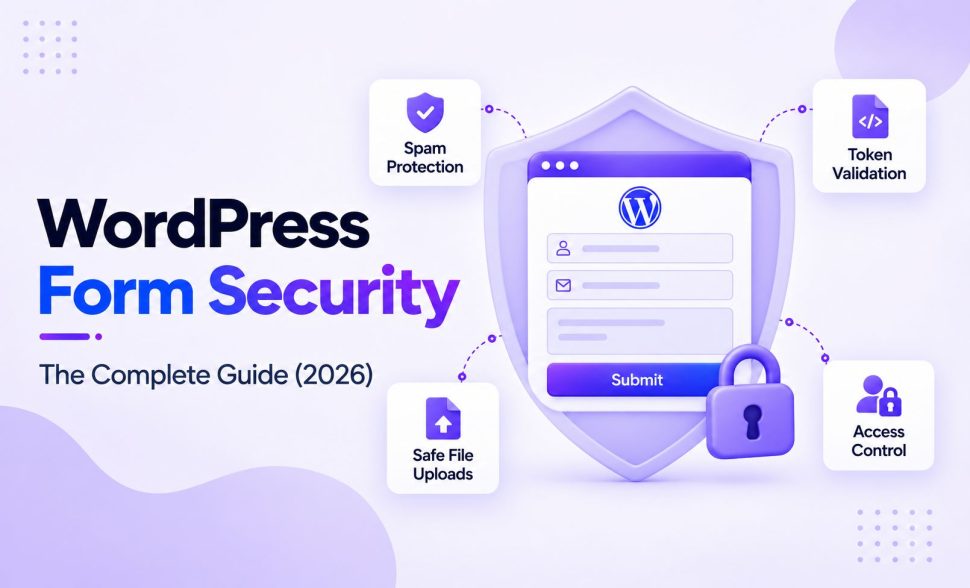
WordPress Form Security: The Complete Guide (2026)
-
- Practical Guide Making Better WordPress Plugins
- 21 mins read

A WordPress form isn’t dangerous by nature. It’s just the one part of your site that’s built to accept input from total strangers, on purpose. That’s exactly what makes it useful, and it’s exactly what makes it worth understanding properly instead of patching one setting at a time.
You’ve probably already seen a checklist or two. Turn on a honeypot, add CAPTCHA, keep things updated. Good advice. But it doesn’t explain why those things work. It doesn’t show how they fit together. And it won’t tell you whether you’ve actually done enough for the form you have right now. That’s what this guide is for.
We’re not going to hand you another line-by-line checklist here. That kind of guide is useful too, and we’ll be publishing one separately. This guide takes a different approach. Here’s what it covers:
- Why forms get targeted at all
- How the different layers of defense work together
- How to tell if a given form has enough protection
- What FormGent’s own security actually looks like, checked against the real code, not the marketing copy
Once you’ve read this, any checklist you run through afterward will make a lot more sense, and so will every setting you flip on.
Why Attackers Bother With Small, Ordinary Forms
Why would anyone bother attacking your little contact form? You’re not a bank. You don’t have a million users. Surely you’re not worth the effort.
That sounds reasonable. It’s also wrong.
Attacking a form doesn’t take real effort. Nobody sits at a keyboard typing junk into your contact form by hand. A single bot can hit thousands of WordPress sites a day, and once it’s set up, nobody even has to watch it run. Trying your site costs the attacker almost nothing, so there’s no reason to skip it just because you’re small.
And automated traffic isn’t rare. Imperva’s 2026 Bad Bot Report found that bots now make up over 53% of all web traffic, more than actual human visitors.
If your form is reachable and unprotected, it gets tried. The same way every unlocked door on a street gets tried eventually, not because the burglar cares about your specific house.
What are they actually after? A few things, and they’re not all the same threat:
- Volume spam. The simplest case. A bot fills out your form with garbage. Junk text, a link to a scam site, a phishing pitch. It’s hoping someone on your end reads it and clicks, or just gets so annoyed by the noise that they stop checking submissions carefully.
- Harvested data. Every email address, phone number, or name your form collects has some resale value on lists used for spam campaigns and scams. It’s small money per record, but bots don’t care about small money per record when they can hit ten thousand forms overnight.
- Credential stuffing setup. If your form handles account registration, a bot can use it to check which email addresses are actually active on your site. That’s not the real attack. It’s cheap reconnaissance for one happening somewhere else.
- A foothold, not the destination. Sometimes a form is just the easiest way in. An unrestricted file upload field is a good example. Or a submission field that isn’t sanitized properly. Either one can turn “this bot filled out my form” into “this bot is now running code on my server.”
Here’s how fast that can escalate. In June 2022, security researchers found a critical PHP object-injection flaw in Ninja Forms, a plugin running on over a million sites at the time. It was already being exploited in the wild. WordPress.org forced a security update onto every site running the plugin. Site owners didn’t get a say. The risk was serious enough that waiting for people to patch on their own wasn’t good enough. That’s the kind of thing that reminds you a form plugin isn’t a cosmetic choice.
None of this means you need to be paranoid about a low-traffic personal site. It does mean “nobody would bother with my form” isn’t a security strategy. It’s just a guess, and it’s usually wrong.
The Real Cost of an Unprotected Form
“You might get hacked” undersells what actually goes wrong here. Most sites with an insecure form don’t get dramatically hacked. They just quietly bleed value in ways that are easy to miss.
Start with your own time. Someone on your team has to look at every submission eventually, even to just delete it. A form drowning in spam buries the real inquiries under garbage. Eventually, whoever reads it starts skimming everything. That’s when a real customer’s message slips through unnoticed.
Then there’s deliverability. Say your form’s notification emails, or worse, the form itself, gets used to relay spam. Your domain’s sending reputation takes the hit. Once a mail provider flags your domain as spammy, all your legitimate emails start landing in spam folders. That includes invoices, password resets, newsletters, everything. And it hits every recipient, not just the people who filled out the compromised form. That’s a slow, quiet cost that’s genuinely hard to trace back to “oh, it was that unprotected form” months later.
There’s a trust cost too. A visitor who submits a form and gets an error, or worse, later finds out their data leaked somewhere, doesn’t usually come back to tell you about it. They just don’t trust the site again, and they don’t fill out another form on it.
And depending on what you collect, there’s real legal and compliance exposure. A form gathering names and emails without proper consent handling, or storing that data with no retention policy, isn’t just sloppy. In places with data-protection law, it’s a liability.
None of this requires a dramatic breach to hurt you. It just requires an unprotected form sitting there long enough.
A Systems View of Form Security: Why Layering Actually Works
Here’s the mental shift that makes the rest of this guide click into place. Stop thinking about form security as a list of individual tips, and start thinking about it as layers that each fail in different ways.
Picture four layers, stacked:
- The site and hosting layer. Is your server itself hardened? Is WordPress core current? Is the connection encrypted?
- The form-plugin layer. Does the plugin validate and sanitize what it receives, on the server, not just in the browser?
- The per-form configuration layer. Does this specific form have the protections it needs? Think CAPTCHA, rate limiting, file-type restrictions.
- The data-access layer. Once a submission is stored, who can actually see it, export it, or delete it?
This isn’t just about staying organized. Each layer fails for its own reason, separate from the others.
Take hosting. If your host gets compromised, that has nothing to do with your form plugin. It doesn’t matter how well the plugin sanitizes input.
Or take user roles. Say your form plugin validates everything perfectly on the server side. That’s great, but it won’t stop a logged-in Editor from exporting every entry the form has ever collected.
One layer being weak doesn’t mean the others are weak too. And one layer being strong doesn’t cover for a gap somewhere else.
| Layer | What it protects against | Fails independently because |
| Site & hosting | Server compromise, outdated core exposing known exploits | This is about your infrastructure, not your form plugin’s code at all |
| Form plugin logic | Malicious or malformed submissions getting accepted | This is about how the plugin’s code handles input, regardless of how good your hosting is |
| Per-form configuration | Spam, bot abuse, abuse of a specific field | This is about settings you choose per form, which can be right on one form and wrong on another |
| Data access | Who can see, export, or delete what’s already been collected | This is about your WordPress roles and permissions, unrelated to how the data got in |
That’s why “just add CAPTCHA” or “just get an SSL certificate” always feels incomplete as advice. It’s true, but it’s one layer of four, and treating any single layer as “the fix” leaves the other three exactly as exposed as before.
Matching Protection to Actual Risk: A Form-Type Framework
Not every form needs the same amount of protection, and piling every possible defense onto a simple newsletter signup is its own kind of mistake. It adds friction for real visitors without meaningfully reducing risk, because the risk was never that high to begin with.
A more useful question than “is this form secure” is “what’s actually at stake if this specific form goes wrong.” That answer changes a lot depending on what the form does.
| Form type | What’s actually at stake | Rough investment level |
| Simple contact form | Mostly spam and nuisance; low direct financial risk | Basic layer: spam defense, server-side validation. Don’t overbuild this. |
| Newsletter or lead-gen signup | Harvested email addresses, list quality, deliverability | Basic to moderate: spam defense, plus attention to consent and data handling |
| Registration or account-creation form | Account takeover, fake accounts, credential-stuffing reconnaissance | Moderate to high: stronger spam defense, careful validation, monitoring for abuse patterns |
| Payment or donation form | Financial fraud, compliance scope (PCI), real money on the line | Highest: every layer matters, and this is where “good enough” isn’t good enough |
| File-upload form | Malware, storage abuse, server compromise via a malicious file | High: file-type and storage handling matter more here than almost anywhere else |
This isn’t a strict formula. It’s a way to ask the right question before you turn anything on.
A five-field contact form on a personal blog and a payment form on an e-commerce checkout are both “WordPress forms.” That’s where the similarity ends. Treat them differently.
What Actually Happens When Someone Submits Your Form
It helps to actually understand the mechanics here, not just the settings screen. Most modern WordPress form plugins, FormGent included, work roughly like this:
- The page loads. The plugin issues a one-time token tied to that page load. Think of it like a wristband handed out at the door. It proves you actually walked in, instead of just showing up and claiming you were already inside.
- The visitor answers the fields and submits. The browser sends what they typed, plus that token, to a submission endpoint.
- The server checks the token. If it’s missing, doesn’t match, or has already been used once, the server can reject the whole thing before it even looks at what was typed.
- The server checks and cleans what was typed. This happens in two steps. First, validation checks the shape of the data: does this look like an email address, is this required field filled in. Then sanitization removes anything dangerous, like a stray script tag hiding in a text field, before that data gets stored or shown anywhere.
- The submission is stored, assuming it passed every check along the way.
That token step in the middle matters more than it sounds like it does. Without it, anyone could write a script that skips your form entirely. It would post data straight to wherever your submissions get sent, which is exactly what a spam bot wants to do. With the token in place, that script has to load the page first to get a valid one. That one extra step raises the bar meaningfully.
This is also where the difference between client-side and server-side checks becomes the whole ballgame. A check that only runs in the visitor’s browser, in JavaScript, is a convenience, not a security control. Anyone can turn off JavaScript, or skip the browser entirely and send a request directly to the server. If a check only exists client-side, it’s not really there at all from a security standpoint. The check that actually protects you is the one your server insists on, every time, no matter what the visitor’s browser did or didn’t run.
This is worth checking on your own site, not just taking on faith. A plugin’s marketing copy will tell you a protection is “on.” Only the plugin’s actual code tells you which layer it’s really running on.
The Categories of Spam and Bot Defense (and Why None of Them Work Alone)
There’s a real menu of options for stopping spam. It helps to think of them as categories, not a pile of individual settings. Each category catches a different kind of bot. Each one also misses a different kind.
Behavioral traps. A honeypot field is the classic example: a field that’s invisible to a real person but visible to a bot scanning the page’s raw code. Real visitors never fill it in, since they never see it. Bots that blindly fill every field they find get caught. This is quiet, doesn’t bother real visitors at all, and catches the least sophisticated bots. It does nothing against a bot built to skip that kind of trap.
Challenge-based methods. This is CAPTCHA territory: reCAPTCHA, hCaptcha, Cloudflare Turnstile. The visitor proves they’re human. Sometimes that’s a visible checkbox or puzzle. Sometimes it happens invisibly in the background. Either way, it stops bots that can’t or won’t solve the challenge.
There’s a real tradeoff here, though. Puzzle-style challenges add friction. Worse, they create a real accessibility problem for visitors who use screen readers or have visual or motor impairments. The W3C’s own guidance on visual Turing tests points this out. An invisible option like Turnstile avoids most of that problem. There’s usually nothing to interact with at all, which makes it both less annoying and more accessible.
Reputation-based filtering. Services like Akismet check submissions against a huge database of known spam patterns, updated constantly. This catches something a honeypot or CAPTCHA can’t: a real human typing out a scripted sales pitch by hand. Neither of those methods looks at what the message actually says. This one does.
Rate and access controls. Limiting how many times a form can be submitted, from one IP, one session, or one logged-in user, stops volume abuse even when every individual submission looks legitimate on its own.
None of these categories is “the” answer. A honeypot alone won’t stop a bot built to skip it. CAPTCHA alone won’t stop a determined human. Reputation filtering alone won’t stop a brand-new spam pattern nobody’s flagged yet. They’re meant to overlap, catching different failure modes of each other.
If you want the full head-to-head comparison of honeypot versus CAPTCHA versus Turnstile, including exactly when to reach for which one, see Honeypot vs CAPTCHA vs Turnstile. For the wider picture beyond these specific tools, our guide to avoiding spam submissions with an online form builder is a good next read.
File Uploads and Data Handling: Why They’re a Different Risk Category
Most form fields, if abused, just produce junk data. That’s annoying, but harmless. A file-upload field is different. If abused, it can produce something that runs. That’s a whole different category of risk. It deserves more than being lumped in with “just another field to validate.”
Here’s why. A text field can hold garbage, but garbage text can’t execute itself. A file can. Say your form accepts any file type with no restrictions, and that file lands somewhere your server will run code from. You’ve just handed an attacker a way onto your server, not just into your inbox.
Stored form data has its own, separate risk. Once it’s sitting in your database, it’s only as safe as whoever can access it. Think about what you’re collecting: names, emails, whatever else your forms gather. That’s sensitive business data, and it deserves the same protection you’d give any other sensitive data. Ask yourself who on your team can actually view, export, or delete it. Don’t just assume “admins only” is true by default. Check it.
So what does this look like in practice? Restrict file uploads by actual content type, not just the file extension someone typed in. Cap the file size and how many files someone can send. And be deliberate about who inside your organization can view, export, or delete the entries a form has already collected.
If you haven’t added a file-upload field to a form yet, our guide to adding file upload to a WordPress form walks through the settings in detail. Treat both of these, file restrictions and access control, as settings worth revisiting. They’re not a one-time setup step you configure once and forget.
Privacy and Compliance, at the Level a Business Owner Needs
You don’t need to become a privacy lawyer to handle this reasonably. A few principles cover most of what matters for a typical WordPress form. This applies whether or not you’re specifically targeting EU visitors. Good data practices are worth having no matter where your traffic comes from.
Consent, made clear at the point of collection. If you’re collecting personal information, the person should know it’s happening. They should agree to it, not discover it later buried in a privacy policy nobody reads.
Data minimization. Only ask for what you actually need. A field you don’t collect is a field that can’t leak. This sounds obvious, but plenty of forms ask for a phone number, a company name, and a job title for what’s really just a newsletter signup. Every extra field is extra risk sitting in your database for no real benefit.
A retention approach. Data that sits forever with no plan isn’t an asset, it’s a growing liability. Even a simple policy helps. Reviewing and clearing out old entries once a year is better than nothing.
A way to honor a deletion request. If someone asks you to delete what you have on them, you need an actual way to do that. A manual process today is fine. It doesn’t have to be automated yet.
This section is deliberately the overview version. We’re publishing a full, dedicated guide to building a genuinely GDPR-compliant WordPress form as its own piece. It’ll cover consent mechanics and retention tooling in real depth. This section is here for one reason: a “complete guide” to form security shouldn’t skip privacy entirely. It isn’t meant to replace that deeper guide once it’s out.
Evaluating Your Tool Stack: Form Plugin, Security Plugin, and Hosting Together
Most people think of form security, site security, and hosting security as three separate purchases. That’s a mistake. They’re really three layers of the same stack. Knowing where each one’s job starts and stops matters more than most people realize.
Your form plugin’s job is to handle the mechanics of a submission safely. That means validating input, protecting against CSRF-style forgery, offering spam defenses, and controlling who can access entries. This is everything covered earlier in this guide.
A site-wide WordPress security plugin works at a different level entirely. Think Wordfence, Sucuri, and similar tools. It watches your whole site for malware, scans files for signs of compromise, manages a firewall, and sometimes handles login-attempt limiting and two-factor authentication. It doesn’t know or care about your form’s specific fields. It’s a general-purpose site guard, not a form-specific one.
Your hosting provider handles the layer underneath both of those. That covers server hardening, keeping the underlying software stack patched, and network-level protection against things like denial-of-service traffic.
Here’s the mistake to avoid: assuming any one of these covers for the other two. A great security plugin won’t catch a form plugin that only validates client-side. That’s simply not what it’s looking for. And a form plugin with airtight server-side validation won’t protect you if your hosting account gets compromised through some unrelated vulnerability. These three layers are genuinely independent. That circles back to the layering idea from earlier in this guide: the goal is redundancy across independent layers, not finding one tool that claims to do everything.
When you’re evaluating any vendor in this stack, including a form plugin, a few questions cut through the marketing:
- Does it validate on the server, not just in the browser?
- Does the vendor have a visible way to report a security issue, and a track record of actually fixing disclosed problems once they’re found?
- What happens if this vendor’s product is compromised? Is your whole stack exposed, or just one layer of it?
There’s no single “most secure” stack. There’s a stack where each layer’s weaknesses are covered by a different layer, which is a more useful goal than chasing a single silver-bullet product.
A New Wrinkle: AI-Generated Forms and Security
Describing a form in plain language and having it built for you automatically is a genuinely new way to create a WordPress form. It’s different enough from manual form-building that it deserves its own word on what it means for security.
Here’s the upside. An AI form builder that defaults to sensible field configurations, reasonable validation rules, and appropriate spam protection out of the box can actually lower your risk compared to a rushed manual setup. Why? A distracted human building a form by hand is the one most likely to skip a setting entirely.
Here’s the catch. “AI-generated” doesn’t mean “security-reviewed.” A generated form deserves the same once-over you’d give a manually built one. Check what fields it actually included. Check whether a file-upload field ended up with sensible restrictions, or none at all. Check whether the spam protections you’d normally turn on are actually active. Speed of creation isn’t the same thing as correctness. A form that took thirty seconds to generate still deserves a few minutes of review before it goes live, especially if it collects anything more sensitive than a name and a comment.
Treat an AI-generated form the way you’d treat one built by a junior team member. It’s a good starting point. It still deserves a second look before it goes live.
Building an Ongoing Form Security Habit, Not a One-Time Fix
Everything above is about understanding the pieces. This part is about making sure the understanding doesn’t just sit in a document somewhere and get forgotten.
Someone should actually own this. You don’t need a dedicated security person. Most small teams don’t have one. You just need one specific person who knows it’s their job to periodically check on form security. Otherwise it’s easy to assume everything’s “handled” just because it was set up correctly once, two years ago.
Set a realistic review cadence. Quarterly works for most small-to-medium sites. Each time, run through a quick checklist. Are your plugins current? Has spam volume spiked unexpectedly? Has anything about the form’s configuration quietly changed? Higher-risk forms need more attention. Payment and registration forms especially deserve a shorter interval.
Write down a lightweight response plan before you need it. This doesn’t need to be a formal document nobody will read. Just write a short, practical note. Who gets notified if something looks wrong? What are the first three steps? Where do your backups live, and how recent are they? The middle of an actual incident is a bad time to figure any of this out for the first time.
This is a habit, not a checklist you complete once and file away. Security configurations drift over time. A plugin update changes a default. Someone adds a new integration nobody reviewed. A setting that used to matter stops mattering once your form’s purpose changes. A regular, unglamorous review catches that drift before it becomes a real problem.
FormGent’s Security Architecture, End to End
We built FormGent. It would be easy for us to just tell you it’s secure and move on. Instead, here’s what’s actually true, checked directly against the plugin’s code rather than assumed from the settings screen. It’s the same standard we’d want a competitor held to.
Every form submission in FormGent runs through a mandatory token check first. Nothing typed into the form gets accepted before that check passes. Here’s how it works: when a form loads, the server generates a token for that specific page load. When someone submits, that token comes back along with their answers, and the server checks it before accepting anything. This isn’t a setting you turn on. It’s built into how every form works. In practice, that means a script trying to skip your form and post directly to the submission endpoint won’t get anywhere. It has to go through the motions of actually loading the page first.
CAPTCHA support, when you add it, is genuinely verified server-side. FormGent’s Captcha field works with Google reCAPTCHA, hCaptcha, and Cloudflare Turnstile. For every single submission, FormGent sends the visitor’s response to the actual provider (Google, hCaptcha, or Cloudflare) and waits for real confirmation before accepting the form. That distinction matters more than it sounds like it should. Displaying a CAPTCHA widget on the page isn’t the same thing as checking it. A form can show the box while never actually verifying anything with the provider. FormGent does the real check.
Access to forms and entries runs through a proper capability system. FormGent registers its own set of permissions for reading, creating, editing, deleting, and publishing forms. By default, only Administrators (and any role that already has WordPress’s own manage_options capability) get any of them. An Editor role gets nothing automatically. If your team needs a more limited role, say someone who can view entries but never delete or export them, that’s not built into a settings screen today. It would take custom development to add.
Now for the honest limits. A case study that only lists strengths isn’t actually useful to you. The built-in honeypot field runs its check in the visitor’s browser, not on the server. That means a bot built to skip JavaScript entirely and post straight to the submission endpoint isn’t stopped by the honeypot alone. That’s exactly why it’s meant to work alongside the mandatory token check described above, not instead of it. File-upload field restrictions, the file types, sizes, and counts you configure, are enforced the same way: in the browser. On the server side, WordPress falls back to its own default allowed file types rather than the specific list you set. That default still blocks genuinely dangerous extensions, but it means a type you specifically disallowed for one field could theoretically still reach the server through a bypassed request. And there’s no general submission rate limiter built in today, outside of a narrowly scoped one that only applies to the Pro plan’s OTP verification feature.
We’re telling you this plainly for a simple reason. A plugin’s actual security posture is more useful to you than its claimed security posture. And this is exactly the kind of specific, checkable detail we’d want you asking about any tool in your stack, FormGent included.
How Much Is Enough? A Short Set of Questions to Ask About Your Form
There’s no universal finish line for “secure enough.” Instead, ask these about the specific form in front of you:
- What does this form actually collect? A name and a comment carry different stakes than a card number or a password.
- What would it actually cost if this data leaked, or the form stopped working, for a day? For some forms, the honest answer is “not much.” For others, it’s a real business problem.
- Who else touches this data after it’s submitted? Every integration, CRM sync or automation, or automated email is one more place the data has to stay secure, not just the form itself.
- How would you know if something had gone wrong? If the honest answer is “we wouldn’t, until someone complained,” that’s worth fixing before anything else on this list.
Answer those honestly for a specific form. You’ll usually already know which parts of this guide apply to you right now, and how much further you still need to go.
That’s your real next step. This guide gave you the map.
Is spam your main problem right now? Check the honeypot-vs-CAPTCHA comparison linked above. It’ll help you pick the right method.
Ready to build? FormGent handles these protections for you on the server side, so you get a solid foundation from day one.
Conclusion
Understanding how form security actually works is the foundation. Putting it into practice is the part that keeps your site safe. Run your own forms through the questions above. Then, when you’re ready, create your next form in FormGent. You’ll get server-verified token protection and real CAPTCHA validation from the start. Not just a settings screen that looks secure.
Do I need both a security plugin and a secure form plugin?
Yes, ideally. They protect different things. A form plugin secures the mechanics of a specific submission. A site-wide security plugin watches your whole site for malware, file changes, and broader attacks. Neither substitutes for the other.
How much should a small business actually invest in form security?
Match it to what the form collects and what’s at stake if it’s abused. A basic contact form needs the fundamentals: HTTPS, updates, spam defense. A payment or registration form justifies more time and possibly paid tools, since the downside of getting it wrong is genuinely higher.
Is a free WordPress form plugin less secure than a premium one?
Not automatically. Security depends on how the plugin is built and maintained, not its price tag. Check whether it validates server-side, publishes a security-disclosure process, and updates promptly when issues are found, regardless of whether it’s free or paid.
Why do bots even bother attacking small, low-traffic sites?
Because it costs an attacker almost nothing to try. A single bot can hit thousands of sites automatically, so there’s no meaningful reason for it to skip yours just because your traffic is modest. “Too small to matter” isn’t how automated attacks actually get filtered.
Does an AI-generated or prompt-built WordPress form need extra security review?
Yes, the same review you’d give any form. AI-assisted building can produce sensible defaults, but “generated quickly” isn’t the same as “reviewed.” Check the fields, restrictions, and spam protections before publishing it, just as you would with a manually built form.
What’s the difference between a WordPress security plugin and a form plugin’s built-in protections?
A security plugin (Wordfence, Sucuri, and similar tools) watches your entire site for malware, unauthorized file changes, and broad attack patterns. A form plugin’s protections are specific to what happens when someone submits a particular form. Running only one leaves the other’s job undone, so most sites are better off with both rather than treating it as a choice.
How often should form security actually be reviewed?
Quarterly is a reasonable default for most small sites. Forms handling payments or account registration deserve a shorter interval, since the stakes of something drifting unnoticed are higher.
Is a headless or decoupled WordPress setup more or less secure for forms?
It depends on the implementation, not the architecture itself. A headless setup can reduce some traditional attack surface. But it also means form submissions typically go through a custom API layer. That layer needs its own careful validation and token handling. Same fundamentals covered in this guide, just implemented differently.


WordPress Form Security Checklist: 14 Things to Check Right Now
September 13, 2026[…] the bigger picture first? WordPress Form Security: The Complete Guide (2026) covers why forms get targeted at all, how these individual checks fit together as layers, and how […]