
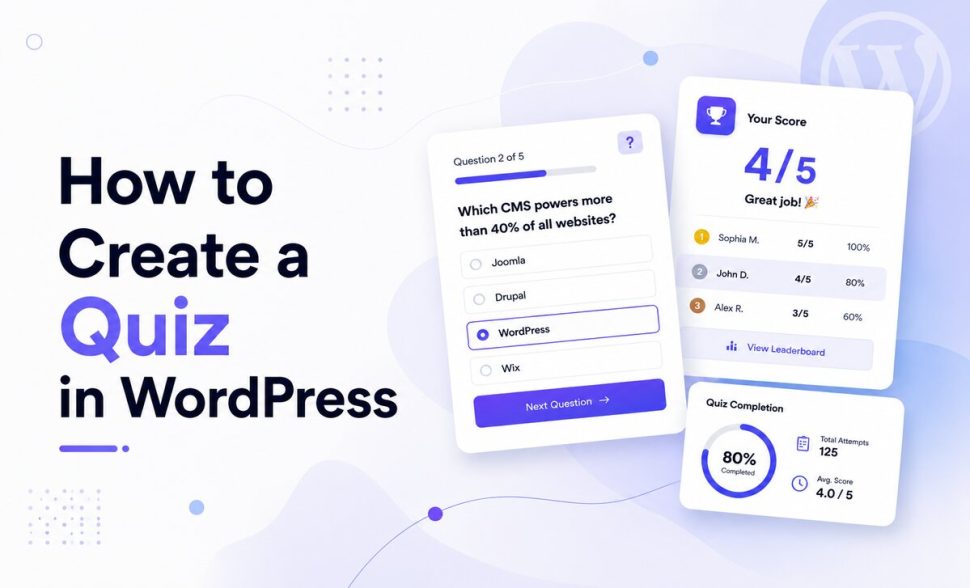
How to Create a Quiz in WordPress
-
- Tips and Tricks AI-Form Builder Form Builder
- 12 mins read

A WordPress quiz needs three things to work: a set of questions, a way to score or map those answers to a result, and a results screen that actually shows the participant something specific. You don’t need a separate quiz plugin or an embed widget from outside WordPress to pull this off — a native WordPress form can handle all three, and that’s exactly the kind of WordPress forms FormGent is built to create. This guide walks through picking the right quiz type, structuring your questions, avoiding the mistakes that quietly tank completion rates, and — unlike most quiz tutorials — actually measuring whether your quiz is working once it’s live.
Whether you’re building a graded knowledge test, a shareable personality quiz, or a lead-scoring assessment, the steps below apply. Let’s get into it.
What Counts as a WordPress Quiz (and What Doesn’t)
In plain terms, a WordPress quiz is a form where each question can carry a correct answer and a point value, and the submission ends with a calculated score — and, if you set one up, a grade label — shown back to the participant. That’s the core mechanic — everything else (question wording, styling, lead capture) is built around it.
Not every quiz works the same way, though, and picking the wrong type early on is the most common mistake. Here’s a decision table to sort that out before you build anything:
| Quiz type | What it does | Best for | Example |
|---|---|---|---|
| Graded quiz | Marks answers right/wrong and totals a score | Training, certification, trivia | “WordPress Basics Test” |
| Personality-style quiz | Uses the same points-and-grade engine, but with descriptive grade labels instead of A/B/C, so a score band reads as a result type | Engagement, social sharing, brand personality | “Which Content Strategy Fits You?” (0–33% → “The Planner”, 34–66% → “The Improviser”, 67–100% → “The Perfectionist”) |
| Weighted/scored quiz | Assigns different point values per question — each question is scored all-or-nothing, but questions can carry different weights | Lead scoring, nuanced assessments | “How Ready Is Your Site for Launch?” (score determines lead tier) |
| Outcome/routing quiz | Sends different participants to a different confirmation message or page based on their score, grade, or answers | Product/service recommendation | “Which FormGent Template Should You Use?” |
Worth flagging up front: the first three types run entirely on FormGent’s free Quiz feature. The fourth — actually routing people to different confirmations or pages based on their result — needs FormGent Pro’s Conditional Confirmation feature, which can use Quiz Score, Quiz Percentage, or Quiz Grade as a routing condition. More on exactly how that works in Step 5.
It also helps to know where a quiz sits relative to other form types. A plain survey collects opinions without scoring anything. A poll is a single question with no personalization. A quiz is the only one of the three that calculates something and shows it back — which is exactly why it engages people more than either of the others.
Why Add a Quiz to Your WordPress Site
Quizzes convert passive readers into active participants in a way most content simply doesn’t. Someone who spends two minutes answering questions has invested more attention than someone who skims a paragraph, and that investment is what makes personality and outcome quizzes so shareable — people want to see (and show others) what they got.
That same investment is what makes quizzes such effective lead-generation tools. A quiz that asks for an email before showing the full result — or frames it as “get your complete report” after a partial preview — consistently outperforms a plain newsletter signup box, because the visitor has already committed time before you ask for anything.
There’s also a content-strategy signal hiding in your quiz data that’s easy to miss: whichever quiz topics get the most completions tell you what your audience actually cares about. If a “Which Payment Gateway Fits Your Business” quiz consistently outperforms a “Which Form Field Should You Use” quiz, that’s a direct signal about where to put your next piece of content, or even your next product feature.
One thing almost no quiz guide covers is accessibility, and it matters here specifically because quizzes rely on visual right/wrong feedback more than most forms. Correct and incorrect answers should never be indicated by color alone — pair a green checkmark with the word “Correct,” not just a green highlight, since color-blind participants and screen readers won’t pick up on color changes. (source: https://www.w3.org/WAI/WCAG21/Understanding/use-of-color.html)
Every question and answer option should also be keyboard-navigable, and question labels need to be programmatically associated with their answer choices so a screen reader announces them correctly.
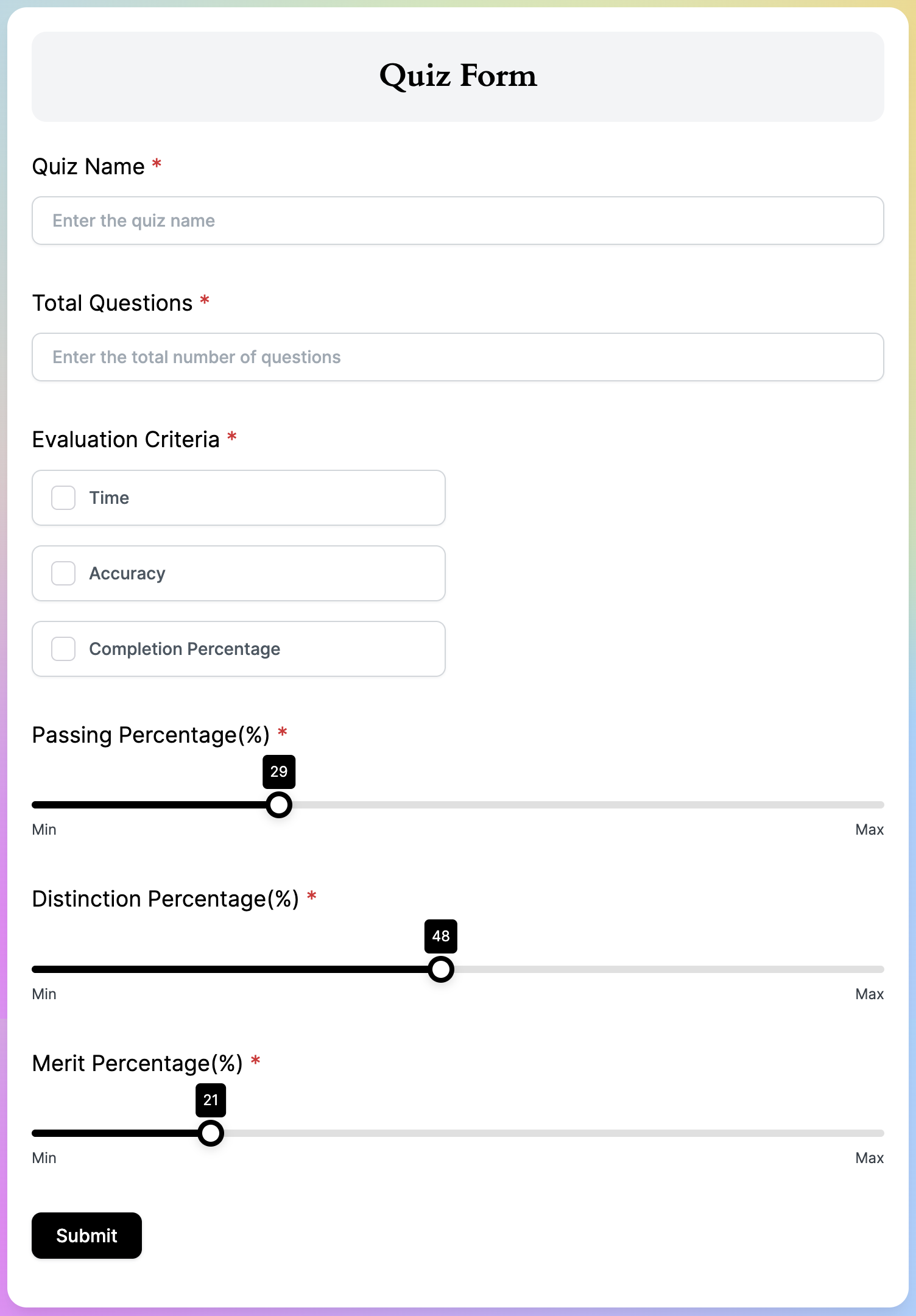
Ready to see this in your own dashboard? Create this form with FormGent and pick your quiz type in the same setup flow.
Building Your Quiz in FormGent, Step by Step
Here’s the complete process, from choosing a quiz type to publishing a tested, live quiz.
- Choose your quiz type. Use the decision table above — graded, personality, weighted, or outcome-based — before you write a single question.
- Start from a template or build from scratch. FormGent’s template library includes a quiz starting layout with question and scoring fields already in place. If you’d rather generate one from scratch, the AI form builder can draft questions and scoring from a plain-language prompt — try something like “Create a 6-question graded quiz about WordPress form builders for beginners.”
- Write your questions and answer options. Keep each question focused on a single idea. A question like “Do you find WordPress forms easy and fast to build?” is actually two questions bundled into one, and it muddies your scoring.
- Turn on Quiz and configure scoring. In the form editor, go to the Form tab → Quiz section and toggle on Enable Quiz. Then, for each question you want scored — Single Choice, Multiple Choice, Dropdown, or Short Text/Textarea fields all support it — click the question and open its Block tab: use the Quiz Correct Answer dropdown to mark the right option, and the Points field to assign its point value. For multi-select questions, you can also toggle Choice Limit to cap how many options someone can pick. Note that scoring on choice questions is all-or-nothing per question — a participant gets full credit only if they select every correct option and no incorrect ones — so “weighting” works by giving harder questions more points, not by awarding partial credit within one question.
- Set up grading and the results screen. Still under the Quiz section, use Grade System to add grade ranges — each one has a Grade Label (e.g., “A,” “Pass,” or a personality-style label like “The Planner”) and a Score Range (the percentage band that earns it). FormGent totals the score and matches it to a grade automatically. Whether the participant sees their result at all, and how much detail (just the score/grade, or a full correct/incorrect breakdown), is controlled by the quiz’s Show Results setting. For anything beyond that — showing a different message or redirecting to a different page depending on the participant’s score — you’re looking at FormGent Pro’s Conditional Confirmation feature (Form Settings → Conditional Confirmation), which can trigger on Quiz Score, Quiz Percentage, or Quiz Grade as a routing condition. The message editor for these confirmations also supports two dynamic score tags, {{total_points}} and {{percentage}}, so a message like “You scored {{total_points}} out of 100” personalizes itself per respondent (requires FormGent v1.8+; update your plugin if you don’t see these tags). This is the actual mechanism behind an “outcome quiz” that routes people to different results.
- Add participant-identifying fields if you need lead capture. Place name and email fields either before the questions or after, depending on whether you want to gate the result behind an email opt-in or let people see their result freely first.
- Enable spam protection. Public, shareable quizzes are a common target for bots trying to inflate completion numbers or scrape your lead list. Turn on reCAPTCHA, hCaptcha, or Cloudflare Turnstile before you publish.
- Test the full flow yourself. Take the quiz end to end, and don’t just check the default path — walk through every scoring branch and every outcome path to make sure each one calculates and displays correctly.
- Publish and choose how to share it. Your embedding choice affects completion rates more than people expect — see the comparison below.
Embedding and Sharing Options
| Method | Best for | Trade-off |
|---|---|---|
| Block/shortcode inside a page or post | Embedding a quiz within existing content | Easiest option, but shares the page’s surrounding styling and distractions |
| Dedicated quiz landing page | A standalone, focused quiz experience with no distractions | Higher completion rate, but needs its own traffic or promotion plan |
| Sidebar or footer widget | A low-commitment, always-visible quiz prompt | Convenient placement, but typically the lowest completion rate of the four |
| iFrame embed | Sharing the quiz outside WordPress entirely, like on a partner site | Widest reach, but loses some native styling inheritance from your theme |
Want to skip straight to a working layout? Start from this template in FormGent’s template library — it already includes question and scoring fields, ready to customize.
Quiz Examples, Microcopy, and Layouts That Work
Good vs. Bad Microcopy
Small wording choices in a quiz have an outsized effect on both completion and how the result lands. Here’s the difference in practice:
| Bad | Good | Why it works better |
|---|---|---|
| “Question 4” (no context) | “Question 4 of 8: How often do you update your website’s forms?” | States progress and keeps the question self-contained |
| “You got a low score.” | “You scored 4/10 — here’s where to start improving.” | Specific, and pairs the result with a next step instead of a flat judgment |
| “Submit” | “See My Results” | Sets a clear expectation of what happens after clicking |
| Correct/incorrect shown only in red/green highlighting | “✅ Correct” / “❌ Incorrect — the right answer was Stripe” | Doesn’t rely on color alone, and explains the correct answer instead of just marking it wrong |
Three Layout Variants
- Short trivia quiz — 5-7 questions, graded, instant score on submission. Ideal for engagement content and simple knowledge tests.
- Personality/outcome quiz — no right answers, just a shareable result mapped from answer patterns. Ideal for brand engagement and social sharing.
- Lead-scoring quiz — weighted questions, results gated behind an email field. Ideal for qualifying leads before a sales conversation.
Pre-Launch Quiz Checklist
Run through this before you publish any quiz:
- Quiz type chosen (graded, personality-style, weighted, or outcome-routing) and matched to the goal
- Each question focused on one idea, no double-barreled questions
- Quiz enabled under Form tab → Quiz, with correct answers and point values set on every scored question
- Grade ranges configured if you want a grade label instead of a bare score
- If you need score-based routing to different confirmations, FormGent Pro’s Conditional Confirmation is set up with the right Quiz Score/Percentage/Grade conditions
- Results/confirmation screen uses dynamic tags, not a generic message
- Correct/incorrect feedback doesn’t rely on color alone
- All fields and results are keyboard-navigable
- Spam protection enabled (reCAPTCHA, hCaptcha, or Turnstile)
- Question count kept tight — 5 to 10 for most use cases — to limit drop-off
- Mobile layout checked, including answer-option tap targets
- Full quiz tested end to end across every scoring and outcome branch
- Sharing/embed method chosen deliberately, not by default
Quiz Metrics Worth Tracking
This is the section almost no quiz tutorial covers, and it’s the difference between publishing a quiz and actually knowing whether it’s doing its job:
| Metric | What it tells you | How to improve it |
|---|---|---|
| Completion rate | The percentage of visitors who start the quiz vs. finish it | Shorten the quiz, front-load easier or more engaging questions, add a visible progress indicator |
| Drop-off point | Exactly which question causes people to abandon | Use form analytics to find the specific question, then simplify it or move it earlier or later |
| Result/share rate | The percentage of finishers who share or act on their result | Make the results page specific rather than generic, and add a clear share button or next-step CTA |
| Spam/invalid submission rate | Bot-driven fake completions inflating your numbers | Add spam protection without adding friction for genuine participants |
| Lead conversion rate | The percentage of quiz-takers who convert to a lead via email capture | Test gating results behind an email field against showing results freely with an optional opt-in afterward |
FormGent’s built-in form analytics tracks these numbers directly against your quiz forms, so you don’t need a separate analytics platform to see where people are dropping off. Many of the same completion-rate tactics carry over from other form types — FormGent’s booking form optimization tips covers conversion tactics that apply just as well to a quiz’s results and share rate.
Where to Go Next
If you’re still deciding on the right approach for your quiz, these are the natural next stops:
- Start from FormGent’s features overview if you haven’t picked a form builder yet — it covers native WordPress form creation, the AI builder, and every field type relevant to quizzes, from multiple choice to conditional logic.
- For the exact settings walkthrough — enabling Quiz, marking correct answers, assigning points, and building your grade ranges — FormGent’s Quiz documentation is the definitive reference for the mechanics covered in Step 4 and 5 above.
- If you want your quiz to route different participants to different confirmations or pages based on their score, that’s FormGent Pro’s Conditional Confirmation feature. What’s New in FormGent v1.8: Conditional Confirmation and More walks through how score-based routing (Quiz Score, Quiz Percentage, Quiz Grade) actually works, and the Conditional Confirmation documentation covers full setup.
- If you’d rather start from a finished layout than build from a blank canvas, browse the FormGent template library, which includes a ready-made quiz structure.
- If your quiz doubles as a lead-scoring tool tied to a booking or consultation request, 10 Booking Form Optimization Tips to Get More Appointments isn’t quiz-specific, but its conditional-logic and conditional-confirmation tactics carry over directly to a lead-scoring quiz gated behind a booking flow.
- For the bigger picture of where quizzes fit among other form types, FormGent’s Types of Forms guide is a useful side reference.
Conclusion
Building a quiz in WordPress comes down to the same core sequence every time: pick the right quiz type for your goal, write focused questions, configure scoring and grading correctly, and set up a results screen that actually reflects what the participant answered. The difference between a quiz that gets shared and one that gets abandoned halfway through usually isn’t the plugin — it’s whether the questions are tight, the feedback is accessible, and the result feels specific rather than generic.
The one step most quiz guides skip is measurement. Publishing the quiz isn’t the finish line — checking your completion rate, drop-off point, and lead conversion rate over the following weeks is what tells you whether it’s actually doing its job.
Ready to build yours? Try the AI form builder in FormGent, describe the quiz you want to create, and get a working quiz structured the way this guide recommends in minutes.
What is “how to create a quiz in WordPress”?
It’s the process of building a WordPress form where questions carry a correct answer, point value, or outcome mapping, connected to a results screen that shows the participant a specific score or result. FormGent handles the question structure, scoring logic, and results display natively inside WordPress.
Why does creating a quiz in WordPress matter for WordPress forms?
A well-built quiz drives higher engagement than static content, doubles as a lead-generation tool when gated behind an email field, and surfaces which topics your audience actually cares about based on completion data.
How do I implement it with FormGent?
Start from the template library or the AI builder, enable Quiz under the Form tab, mark each question’s correct answer and point value from that question’s Block tab, set up grade ranges to translate the score into a label, enable spam protection, and test every scoring path before publishing. Score-based routing to different confirmations requires FormGent Pro.
What are the best practices?
Keep each question focused on one idea, limit the quiz to 5-10 questions to reduce drop-off, make correct/incorrect feedback accessible beyond color alone, use dynamic tags on the results screen instead of a generic message, and test every scoring path before going live.
What examples should I follow?
Match your layout to your goal: a short graded trivia quiz for engagement and simple testing, a personality or outcome quiz for shareable brand engagement, or a weighted lead-scoring quiz gated behind an email field for qualifying prospects.
What related pages should I read next?
Start with FormGent’s features overview if you haven’t chosen a form builder yet. For quizzes with branching logic, see the Conditional Confirmation feature, or jump straight to the template library to build from a finished layout.
What is the best plugin or tool to create a quiz in WordPress?
It depends on what you need. A native WordPress form builder like FormGent works well if you want quizzes, lead forms, and payment forms all built the same way inside your dashboard, without juggling a separate quiz-specific plugin or an external embed widget.
Can I create a quiz in WordPress for free?
Yes. FormGent’s Quiz feature — enabling quiz mode, marking correct answers, assigning points, and setting up grade ranges — is fully available in the free plugin. The one piece that requires FormGent Pro is routing different participants to different confirmation messages or pages based on their score.
What’s the difference between a graded quiz and a personality quiz?
A graded quiz marks each answer as right or wrong, totals a numeric score, and suits training and trivia. A personality-style quiz uses that same scoring engine, just with descriptive grade labels instead of A/B/C, so a score band reads as a result type rather than a pass/fail grade — which is why it suits engagement and social sharing instead.
How many questions should a quiz have?
Most quizzes perform best with 5 to 10 questions. Fewer than that can feel too shallow to produce a meaningful result, while more than that increases drop-off, since each additional question is another chance for someone to abandon the quiz before finishing.
How do I stop spam or fake submissions on a public quiz?
Enable a spam-protection layer like reCAPTCHA, hCaptcha, or Cloudflare Turnstile on the form itself. These block automated bot submissions without adding friction for real participants, which matters especially for shareable quizzes that tend to attract more bot traffic than a typical contact form.

Leave a Reply