
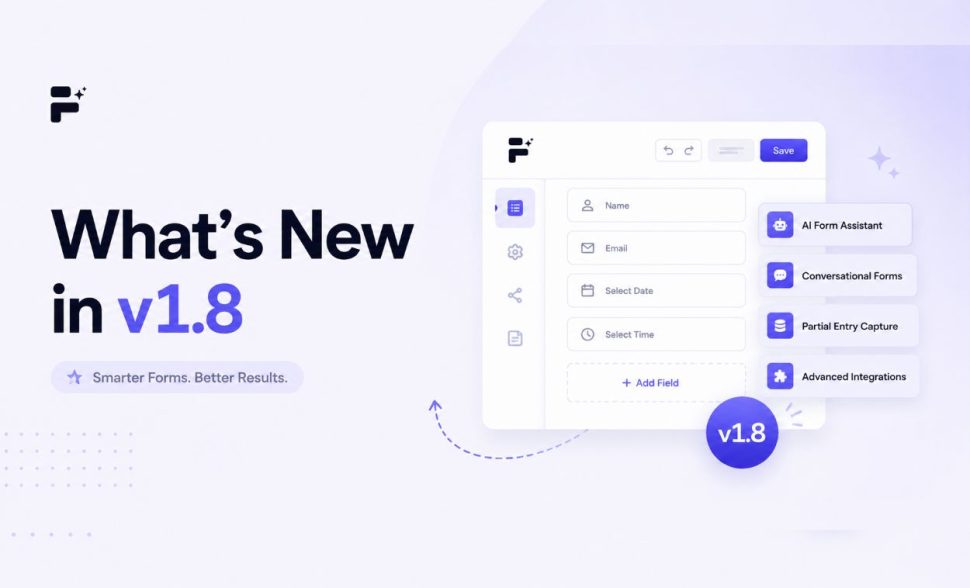
What’s New in FormGent v1.8: Conditional Confirmation and More
-
- Updates
- 9 mins read
FormGent v1.8 was released a few days ago shipping some essential features on a similar theme: what happens after a user submits your form matters as much as the form itself.
FormGent v1.8.0 landed on April 28, 2026. v1.8.1 followed on April 29. Together they bring Conditional Confirmation, a rebuilt quiz experience, REGEX support for conditional logic, and a set of fixes that clean up behaviour users had been working around for a while.
This is a focused release, not a platform overhaul. But for anyone running quizzes, routing leads, or managing integrations with Google Sheets, Mailchimp, or Zoho CRM, several things that didn’t work cleanly before now do.
If you’ve gone through the ChangeLog already, this article brings practical explanation to your setup. If you haven’t updated your plugin yet, read this article to understand what we shipped before you do. Without further discussion, let’s jump into the first big feature that’s tied to users post submission experience.
Conditional Confirmation – Display the Right Response to the Right Person
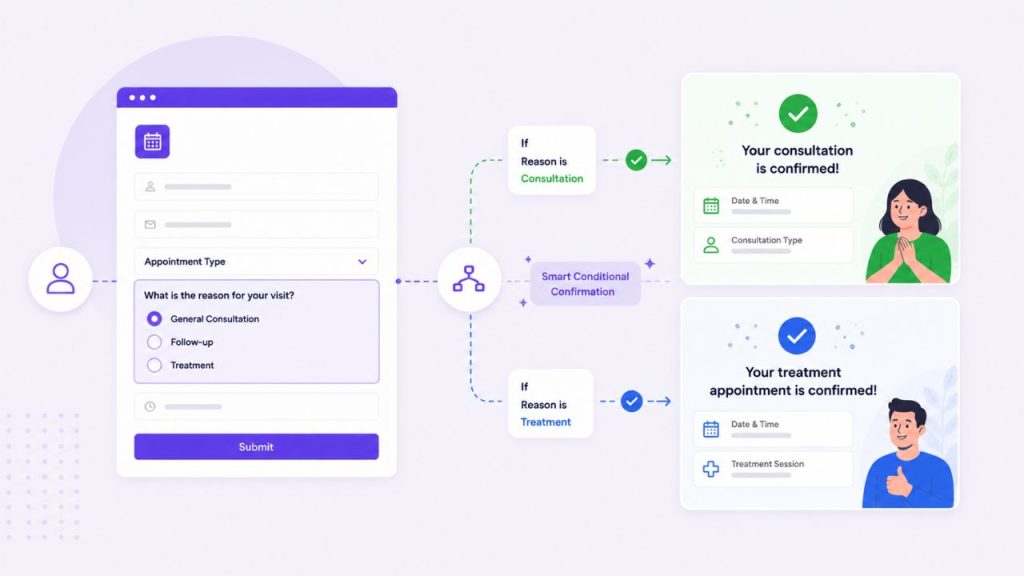
Every form has a default confirmation that can be set from single form settings. A thank you message and/or a page redirect. Whatever you set, everyone sees the same thing. Everyone gets the same message with minor changes in variable tags and fields.
That works for simple contact forms. It stops working the moment your form is doing something more specific – a quiz, a pre-sales intake, an event registration with multiple tracks, an application where applicant type determines next steps. In those cases, a single confirmation is a missed opportunity at best and actively wrong at worst.
Conditional Confirmation fixes this. It lets you define rules that sit on top of your default confirmation. When a submission matches a rule, the conditional confirmation fires instead. If no rule matches, the default confirmation shows as a fallback. The default always catches what the rules don’t without disrupting your user experience.
What You Can Trigger
Each conditional confirmation can do the same three things your default confirmation can:
- Show a custom success message – written in a visual editor, with full HTML support if needed.
- Redirect to a WordPress page – send the user to a specific page on your site.
- Redirect to a custom URL – send the user anywhere – landing pages, pre-sales page or a dashboard.
The combination of these three options means Conditional Confirmation isn’t just about personalized messaging. It’s a routing layer. A pre-sales inquiry can land on a booking page. A general enquiry sees a thank-you. A quiz high-scorer gets sent to a results page. A low-scorer sees an encouragement message and a retry prompt. All from a single form, without duplication of forms. Just the confirmation field that changes based on pre-set conditional logic.
Building the Rules
The logic panel is where you define when a confirmation fires. Each rule has three parts: an attribute, an operator, and a value.
Attributes cover a broad range:
- Quiz Score, Quiz Percentage, Quiz Grade – for score-based routing
- Response ID, Response IP, Response Device, Response Browser, Response Browser Version – for submission metadata conditions
- Any form field – dropdown selections, text inputs, radio choices, anything the user filled in
The only field types excluded from rule-building are HTML, Google Map, Repeater, Captcha, and Payment. These blocks don’t produce values that map cleanly to conditional comparisons, so they don’t appear in the attribute dropdown.
Operators include the standard set – is, is not, contains, does not contain, greater than, less than – plus REGEX, added in v1.8.1 for pattern-based matching.
Values are whatever you’re comparing against: a score threshold, a dropdown answer, a device type.
You can add as many rules as a single confirmation needs. Set whether all rules must match or any one is sufficient to fire it. Stack multiple confirmations to cover every scenario your form produces.
FormGent evaluates confirmations in the order you set them and fires the first one whose conditions are met. Order matters – it is worth thinking through rule priority before saving, especially when score ranges overlap or form field answers have partial matches.
Dynamic Score Tags
For quiz-based confirmations, the message editor includes two dynamic tags:
{{total_points}}– the user’s raw score{{percentage}}– the score as a percentage
These render differently for every respondent. A message that reads “You scored {{total_points}} out of 100” becomes personal without any manual work on your end. Combined with different confirmations per score band, you can build a quiz debrief experience that feels considered rather than generic.
Managing Confirmations
The Conditional Confirmation dashboard shows all your rules for a given form in a table: label, type, status, and actions. Each rule can be enabled or disabled independently without deleting it, duplicated as a starting point for a similar rule, and edited or removed from the same row.
This matters practically because it means you can build a library of confirmations for a form and switch them on or off as your needs change – a seasonal redirect, a campaign-specific message, a temporary routing change – without rebuilding anything from scratch.
Conditional Confirmation is a Pro feature. Access it under Form Settings → Conditional Confirmation for any form in your account.
Full configuration is documented in the Conditional Confirmation guide.
Quiz Improvements – Results, Security, and Cleaner Grading

Three separate changes in v1.8 affect how quizzes work. They are worth reading together because they move the quiz feature from something that scores submissions silently to something that actually communicates results to the people taking them.
Showing Results to Respondents
Before v1.8, quiz scoring happened on the backend. FormGent recorded a score and a grade, and you could see it in the Entries Dashboard. The person who took the quiz could not, unless you built something custom to surface it.
v1.8.0 adds the option to display quiz results directly to the user after submission. Enable it in your quiz settings and the result is shown on screen at the moment the form submits.
This matters more than it might seem at first. A quiz that grades silently and redirects everyone to the same page teaches the respondent nothing. A quiz that shows a result – especially one paired with a Conditional Confirmation that delivers a tailored message based on that result, closes the loop.
The respondent learns that they have a reason to engage further, share the result, or try again. For educators, coaches, and anyone using quizzes as a qualifying step, this is the piece that was missing.
Correct Answers No Longer Exposed
v1.8.0 also resolved a security issue where quiz correct answers could be exposed. This is worth stating plainly: if you run quizzes for certification, assessment, or any context where the correct answers carry real weight, the previous behaviour was a gap that could be exploited by someone who knew where to look. That gap is now closed. Grading happens server-side and the answers stay hidden from the response.
Grading as a Standalone Setting
The quiz Grading System was decoupled from the broader quiz configuration in v1.5, becoming an independent toggle in form settings. v1.8 continues that direction by making grading control cleaner. If you want to score a quiz without publishing a grading scale to respondents, or publish results without attaching a grade label, you now have that separation. Quiz scoring and grade display are distinct decisions.
REGEX Support Across All Conditional Logic
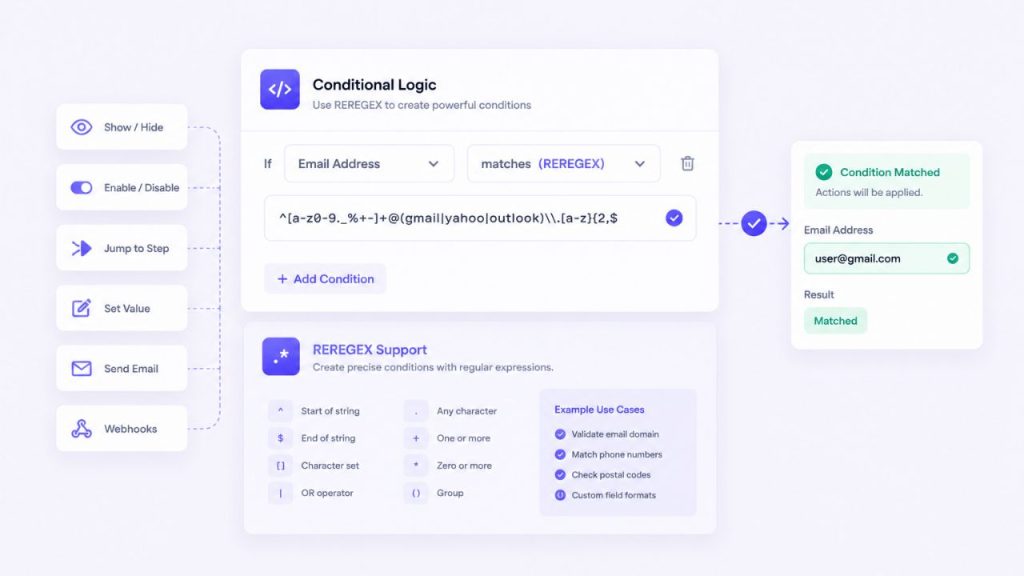
The conditional logic operator set in FormGent now includes REGEX, added in v1.8.1 and it applies across the entire conditional logic engine.
FormGent’s conditional logic appears in multiple contexts: field-level rules that show or hide form fields based on previous answers, conditional email notifications that fire only when certain conditions are met. REGEX is now available as an operator in all of them.
For the majority of forms, the standard operators cover everything: is, is not, contains, greater than, less than. But there is a category of need that these operators cannot handle cleanly by matching patterns rather than exact values.
Where REGEX becomes useful in practice:
- Show or hide fields based on input format – reveal a follow-up field only when a user types a value matching a specific pattern, such as a company email domain or a formatted reference number.
- Email domain routing – send a different email notification based on whether the submitted email matches a corporate domain versus a free provider.
- Phone number format validation – check whether an entered number follows a specific country or regional format and display warning if not before submission, without using OTP verification.
- Reference or ID field checks – confirm that an order ID, voucher code, or membership number follows the expected structure before the form proceeds or a confirmation fires.
Previously, handling any of these cases required using several operators with matching patterns or accepting that the logic could not be applied so vastly. REGEX brings pattern-based control into the same rule-building interface you already use for every other condition.
It is an advanced operator. You need to know how to write a regular expression to use it effectively. But for the users who need it, the scope here is meaningful: one operator addition that works everywhere conditions are built in FormGent. Conditional Logic inside the form is free to use but using it in Conditional Confirmation requires Pro access.
Integration Sync Fixes – Google Sheets, Mailchimp, Zoho CRM
v1.8.1 fixed sync logic inconsistencies across three integrations: Google Sheets, Mailchimp, and Zoho CRM.
The fix addresses cases where submission data was not syncing correctly to connected services – most likely related to how these integrations handled fields that were conditionally shown or hidden during form completion. If a field was never displayed to a user because of a show/hide rule, how that absence was handled during the sync was not always consistent.
If you use any of these three integrations and noticed data arriving incomplete or incorrectly in your connected spreadsheet, CRM, or mailing list, this fix applies automatically on update. No configuration changes are needed.
Email Notifications – Body Size Limit Removed
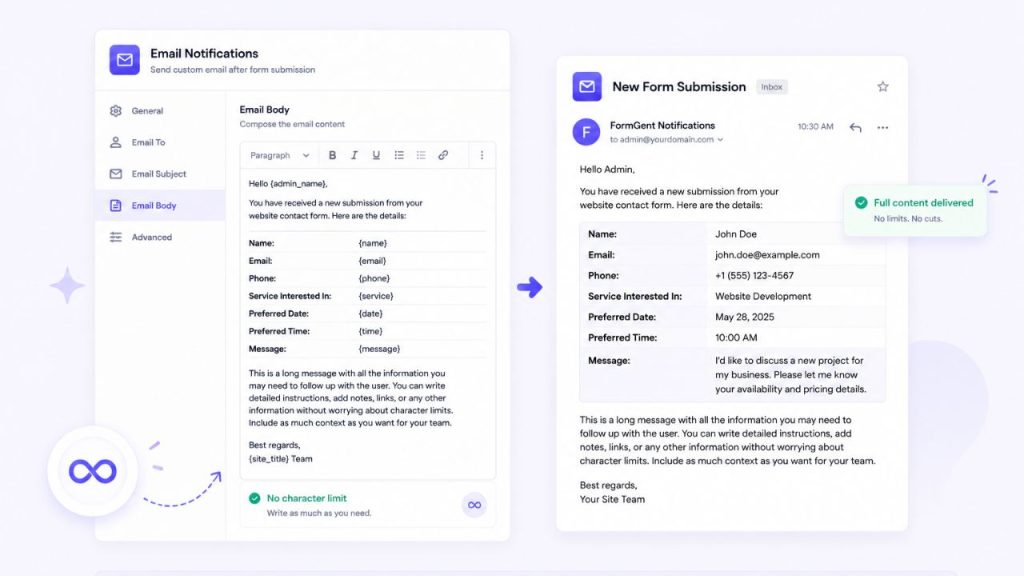
A quieter change, but a practical one: the content body size limit on email notifications has been removed in v1.8.1.
The previous limit was not documented prominently, which meant users sometimes discovered it indirectly – a notification template that was truncating, a full entry summary that was arriving incomplete, a confirmation message that was cutting off mid-sentence in certain email clients.
With the limit removed, notification templates can include as much content as your use case requires. Full entry summaries, detailed conditional confirmations sent as email copies, long-form acknowledgement messages, all of these will now send in full. If you have notification templates you shortened or simplified to work around the previous limit, it is worth revisiting them.
What These Releases Add Up To
FormGent v1.8 is a focused pair releases without adding new blocks or changes in infrastructure. What it delivers is smarter post-submission behavior, a more complete quiz experience, and cleaner integration reliability.
Taken together, Conditional Confirmation and the quiz results display close a gap that has existed since the launch of FormGent. Before, our WordPress form builder could collect data well and store it well, but at the moment of submissions, it wasn’t able to personalize confirmation messages.
What the user sees, what they learn, where they go next – all were a fixed experience regardless of what they actually submitted. That is no longer the case.
More is in progress. See the roadmap for what comes next.
Quick AppSumo Update
The FormGent AppSumo deal has now closed. If you came across FormGent through the Sumo community and missed the window, the free plan is still available and covers more than most plugins charge for.
FormGent new features like conditional Confirmation requires a Pro plan, as do Template Generation, OTP verification, save partial entries, and several other features built since launch. Pro is a single subscription that unlocks all of it. Explore the plans and get the one that fits your need. We can guarantee, you’ll love it.
Read More

S. M. Navid Anjum
Digital Marketing enthusiast who loves to write technical reviews and trendy contents. Currently working with WordPress Plugin Marketing and growth. Open to collaboration and co-marketing opportunities with any SaaS and plugins.

Leave a Reply