
How to Let Users Save and Resume WordPress Forms
-
- Practical Guide Making Better Tips and Tricks
- 9 mins read

Some forms take longer than one sitting. A job applicant may need to find employment dates. Someone seeking an accurate quote may need time to gather dimensions or images. A grant applicant may need an answer from a colleague.
A multi-step WordPress form can make that work easier to scan, but it cannot give someone more time. Save and resume lets the person keep the answers they have entered, leave the page, and continue later.
This guide explains how save and resume works, how to configure it, what to test before launch, and how to protect the information stored in an unfinished form.
What does save and resume mean in a WordPress form?
Save and resume stores the answers entered so far and gives the visitor a way back to the unfinished form. When the visitor returns, the saved values are loaded into their fields so they can review, change, and submit them.
The basic lifecycle is:
- A visitor starts a form.
- FormGent records the available draft values.
- The visitor gets a private resume URL, with an option to send it by email.
- The visitor opens that URL within 30 days.
- FormGent restores the saved answers.
- The visitor finishes the form and submits it.
- The final response appears as Completed in FormGent Entries.
The resume URL is important. Anyone who has it may be able to view the saved values until it expires, so it should be handled like a private access link.
When should you use save and resume?
Save and resume is useful when a form asks for information that people may not have in front of them.
| Form type | Why a visitor may need to pause |
|---|---|
| Job, school, or grant application | They need dates, references, documents, or approval from someone else |
| Client onboarding | They need account details, brand assets, or information from another team |
| Detailed quote request | They need measurements, quantities, photos, or budget approval |
| Research survey | The questions require careful answers or input from several people |
| Event or program registration | They need attendee, travel, accessibility, or payment details |
If you are building an application form, save and resume can prevent a missing detail from forcing the applicant to start again.
A short contact form usually does not need this feature. Adding another link and another retention path to a three-field form may create more choice without solving a real problem.
Autosave and resume links solve different problems
FormGent’s Save & Resume settings include two related controls.
Auto save partial entries
Autosave is meant to protect progress while the person is still working. It can also help when a page is refreshed or a browser session is interrupted. You can display a disclaimer below the form so visitors know that their unfinished answers are being retained.
Test autosave while signed in and signed out. Browser storage, cookies, caching, and the visitor’s login state can affect how a draft is recovered.
Save and Resume Later
The manual link is for a deliberate pause. A visitor chooses Save and Resume Later and receives a private URL. The confirmation can also include an email field so FormGent can send the URL to the address the visitor provides.
In the current FormGent Pro code, the link expires after 30 days. It is not deleted the first time it is opened, so do not describe it as a one-time link. The visitor should keep it private and delete the email when it is no longer needed.
How to add save and resume to a WordPress form with FormGent
Save & Resume requires FormGent Pro. Install and activate both FormGent and FormGent Pro before following these steps.
1. Create or open the form
In WordPress, go to FormGent > All Forms. If you are starting from scratch, follow this step-by-step guide to creating a form in WordPress; otherwise, edit the form you already use.
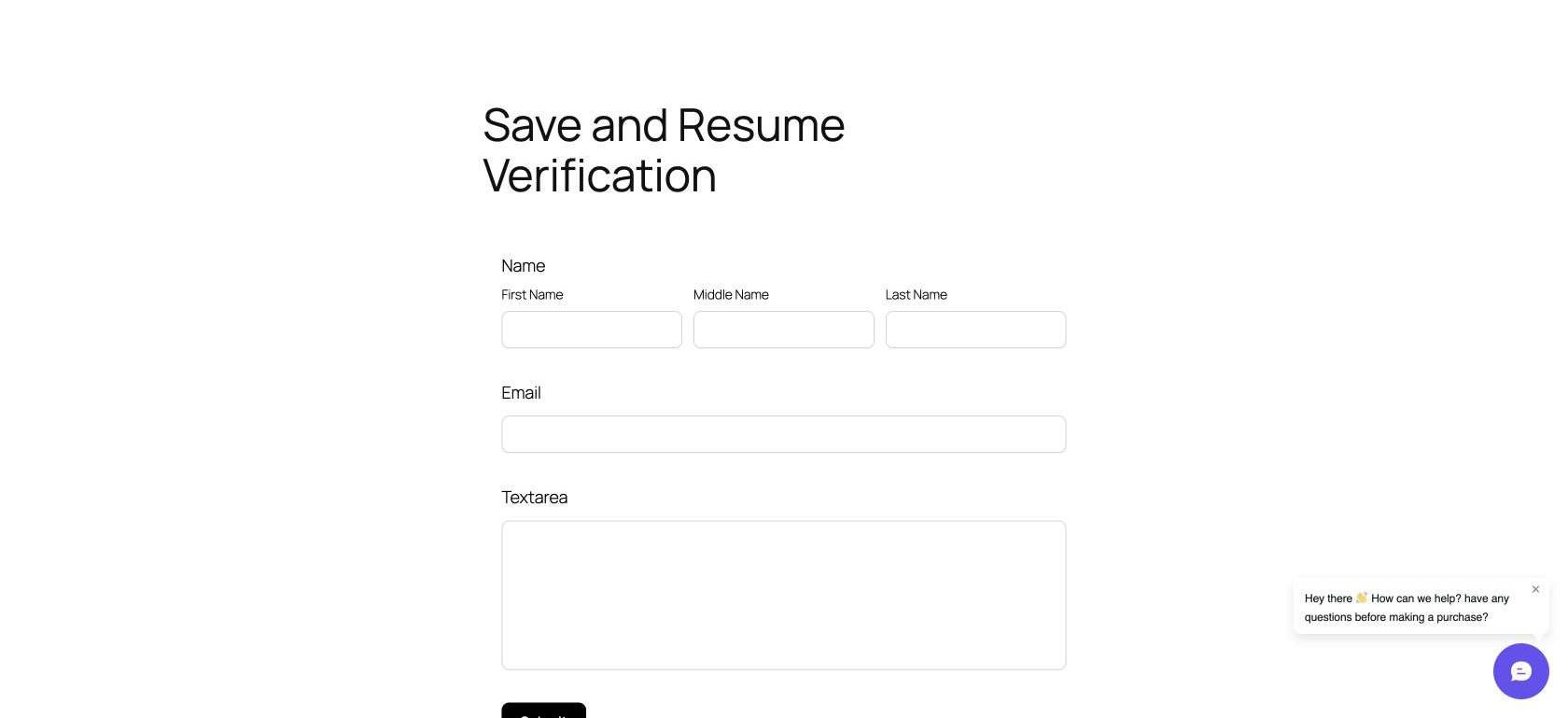
Add the fields the workflow needs. Build the test form with at least one grouped input, such as Name, plus two regular inputs like Email and Textarea. This catches restoration problems that a one-field test can miss.
2. Open the Save & Resume settings
In the form editor, select the Form tab in the right sidebar. Open Form Settings, then choose Save & Resume.
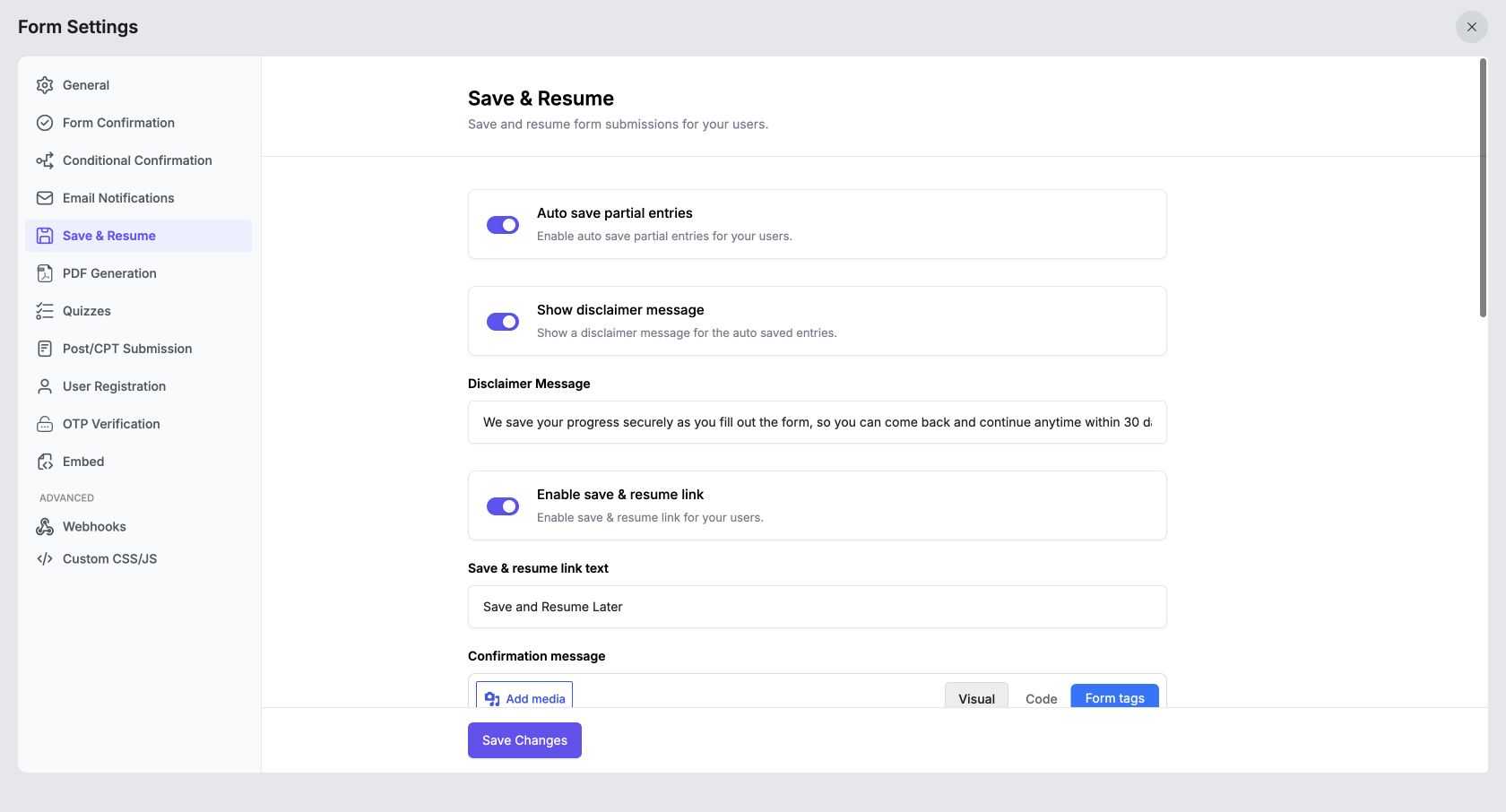
The current settings screen includes:
- Auto save partial entries
- Show disclaimer message
- Disclaimer Message
- Enable save & resume link
- Save & resume link text
- Confirmation message
- Email confirmation message
- Email template
3. Configure automatic saving
Turn on Auto save partial entries if you want FormGent to retain progress while someone fills the form.
Enable Show disclaimer message and write a notice that matches your data practices. The default copy states that progress is saved and can be continued within 30 days. Adjust it if your privacy notice or internal retention policy needs more detail.
Avoid calling the draft “secure” unless your complete WordPress, hosting, access-control, backup, and email setup supports that claim.
4. Enable the manual resume link
Turn on Enable save & resume link. The default link text is “Save and Resume Later,” but you can replace it with a clearer label for your audience. “Save application and finish later” may be better on an application form, for example.
On the frontend, the link appears near the Submit button with the disclaimer below it.
5. Customize the confirmation and email copy
The Confirmation message is shown after FormGent creates the resume URL. Keep it short and tell the visitor what to do next.
The current message editor supports these important tags:
- {{resume_url}} for the private return link
- {{save_email_input}} for the email field in the on-page confirmation
- {{save_email}} in the email-sent confirmation
- {{form_title}} and {{site_name}} in the email template
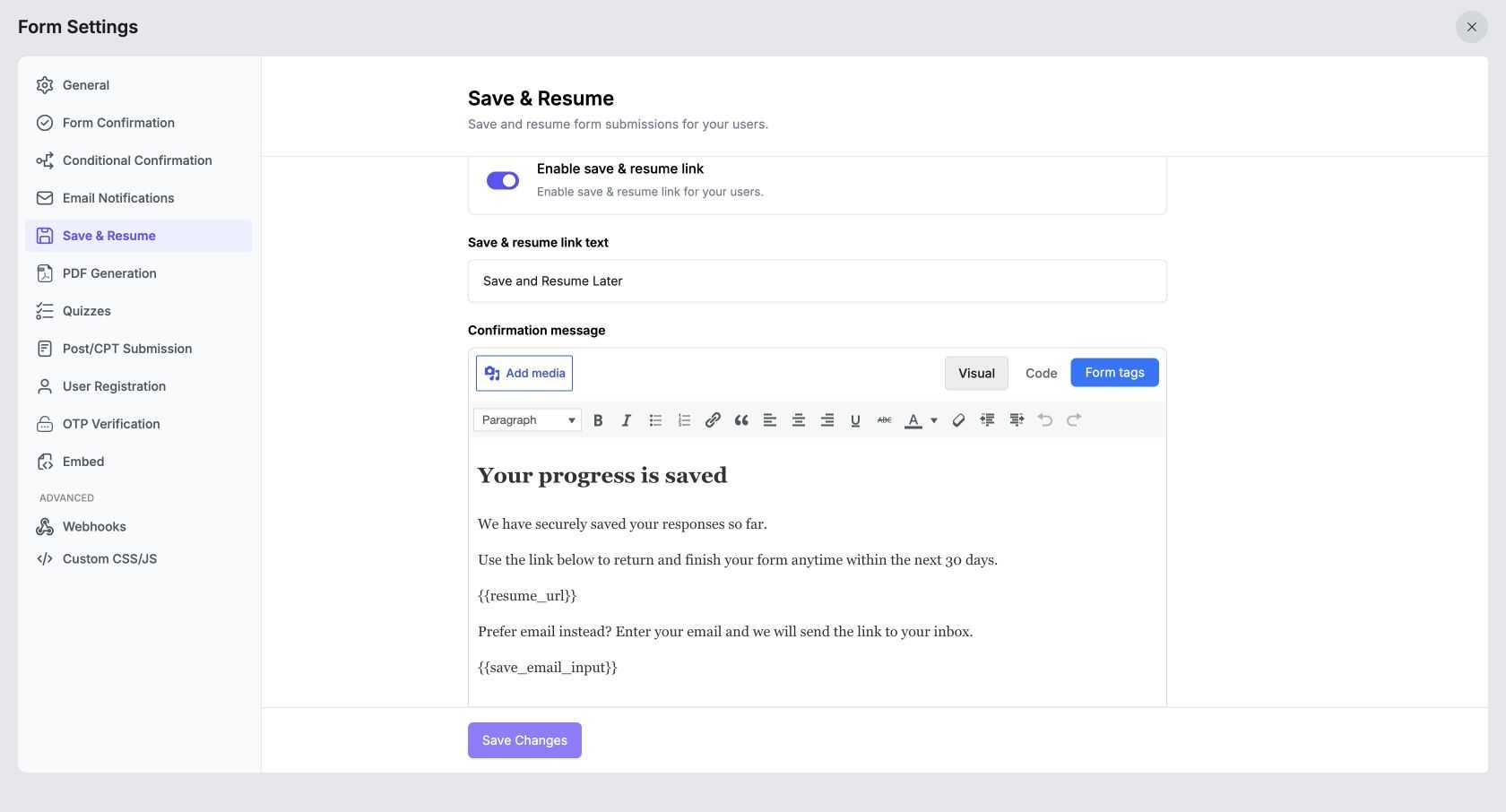
A practical on-page message should say that progress has been saved, show the return link, explain the 30-day limit, and offer to email the link. The email itself should remind the visitor not to forward the URL.
FormGent sends the message through WordPress email. That means delivery depends on the site’s email configuration. A correct template does not guarantee that the message will reach the inbox. The official wp_mail() documentation also notes that a successful return value only confirms that WordPress processed the request without an error—not that the recipient received the message.
6. Save and publish the form
Select Save Changes inside Form Settings. Then save or publish the form in the editor.
Do not launch it yet. A save and resume feature should be tested as a complete journey, not only by checking that the settings are enabled.
Test the full workflow before launch
Use dummy information that is safe to store. Do not test with a real applicant’s personal data.
- Open the published form in a fresh browser session.
- Enter values in the Name, Email, and a longer text field.
- Choose Save and Resume Later.
- Copy the generated URL.
- If you use the email option, send it to a test inbox you control.
- Close the page.
- Open the resume URL in another tab or browser.
- Confirm that every saved value has returned to the correct field.
- Change one value, then submit the form.
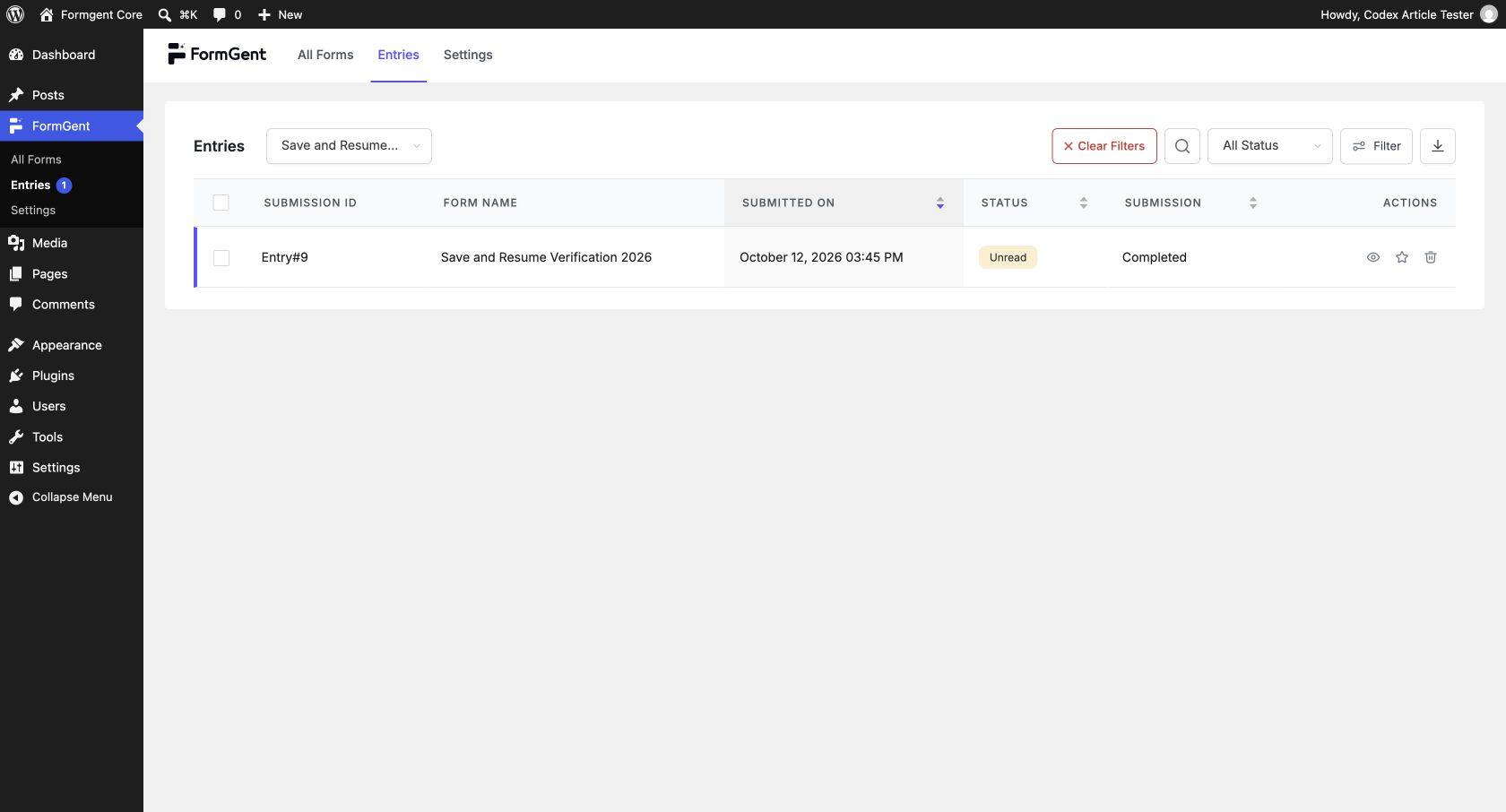
- In WordPress, go to FormGent > Entries and confirm that the final entry is marked Completed.
Our verification restored a grouped Name field plus Email and Textarea values from a 30-day token. The resumed form could be edited and submitted successfully.
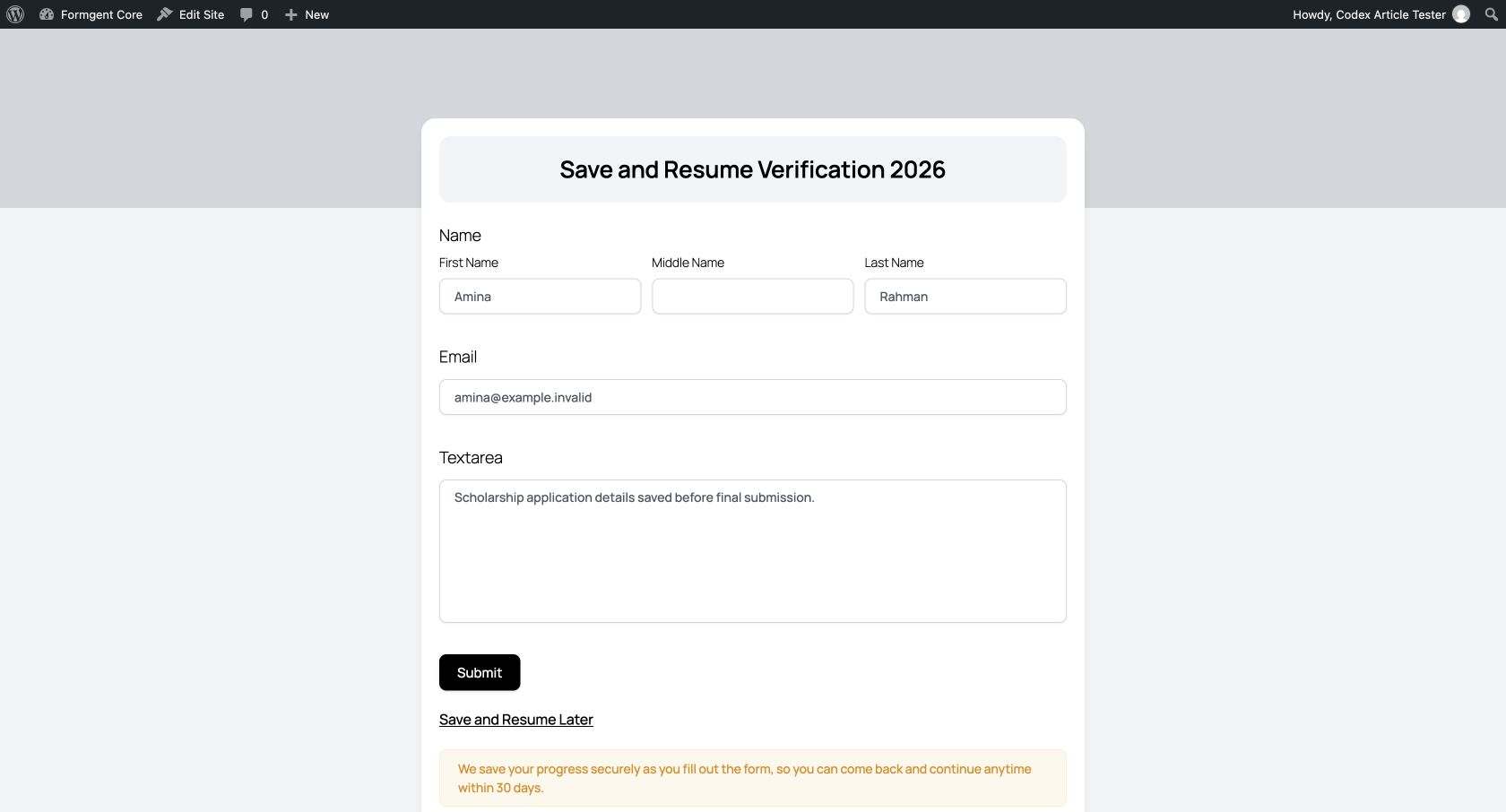
The completed response then appeared in the Entries screen.
Repeat the test while logged out. The manual resume-link endpoint accepts guest drafts, but guest and signed-in autosave paths should both be checked on the exact version and caching setup used by the live site.
If the form uses conditional logic, choices, repeaters, or several steps, include each of them in the test. Do not assume that a successful Email-field test proves every complex field works. After launch, track form conversions in WordPress and compare form starts with successful submissions. A change in completion behavior can reveal where the live workflow needs another round of testing.
Protect saved form data
An unfinished form can contain the same personal information as a completed submission. Treat it with the same care. Use the WordPress form security checklist to review the wider form, site, and administrative controls before launch.
Treat the resume URL as the access key
Do not place a resume URL in public notes, analytics labels, support screenshots, or shared chat channels. Anyone who receives it may be able to open the saved draft until the token expires.
Use HTTPS on the live site
The local screenshots in this guide use a local HTTP development address. A public form and its resume URL should use HTTPS.
Collect only what you need
Do not add password, payment, government-identifier, or health fields to a saved workflow unless you have a clear business need and have tested how that data is stored. FormGent’s current Save & Resume process accepts the field values sent with the draft. Do not assume sensitive fields are automatically removed.
If the GDPR applies to your organization, review the European Commission’s principles of personal data processing. They explain why personal data should be limited to what is necessary and retained only as long as the stated purpose requires.
Explain the retention window
The current resume token lasts 30 days. Put that limit in the on-page confirmation and email. Also explain unfinished-form retention in the site’s privacy notice when the saved information is personal data.
Review access to WordPress
Limit access to FormGent Entries, use separate admin accounts, keep WordPress and plugins updated, and protect backups. A private resume URL is only one part of the data-protection setup.
Troubleshooting save and resume forms
The Save and Resume Later link does nothing
Confirm that FormGent Pro is active and that Enable save & resume link is saved. Clear page and asset caches, then test again in a private browser window.
Check the browser console and the WordPress REST request if the link is visible but the confirmation screen does not open. This can indicate a frontend-script regression even when the resume-token endpoint itself works. Test the shipping plugin build before publishing the form.
Saved values do not return
Create a new link and test simple text fields first. Add each grouped or conditional field separately and test after every change. A form structure that changed after the link was created may no longer match the stored values.
Also confirm that the URL still contains the resume token when it first opens. FormGent removes that token from the visible address after it has been processed.
The resume URL shows a 404 or the wrong page
In WordPress, resave Settings > Permalinks to refresh rewrite rules. Then check whether another active plugin uses the same /form/ route. Our local test found such a route conflict with another form product. Removing the conflict and flushing rewrite rules restored FormGent’s standalone form page.
Embedding the form on a normal WordPress page can also avoid a standalone-route conflict, but the complete save and resume workflow still needs to be retested on that page.
The resume email does not arrive
Confirm that ordinary WordPress emails are being delivered. Check spam, verify the recipient address, inspect mail logs, and configure a reliable SMTP or transactional email service if needed.
The Send Link action uses WordPress email. It cannot fix a server that is not delivering mail.
Autosave does not restore after a reload
Test signed-in and guest sessions separately. Check whether the browser blocks local storage or cookies, whether a cache serves stale scripts, and whether security software blocks the REST request. Confirm that the same form and browser profile are used during the test.
A changed form no longer matches an old draft
Avoid deleting or renaming important fields while active resume links exist. If a major change is necessary, consider waiting for the 30-day window to end or warning affected users to create a new draft.
Give people time to finish without starting over
Long forms often require details people do not have immediately available. Save and resume gives them the freedom to pause, gather what they need, and return without losing their answers.
Before publishing, test the entire journey: save the form, leave the page, reopen it, restore the answers, make changes, and complete the submission. Repeat the process as both a guest and a signed-in user, and ensure your privacy notice clearly explains how unfinished entries are handled.
Ready to make longer forms easier to complete? Explore the available plans and find the right option for your forms.
Is Save & Resume available in the free version of FormGent?
No. Save & Resume is a FormGent Pro feature in the versions reviewed for this guide.
Can guests save a FormGent form and return later?
The manual resume-link endpoint supports guest drafts. Check every step as a guest on the published form, as automatic saving and manual resume links rely on different methods to recover saved answers.
How long does a FormGent resume link work?
The current token expires 30 days after it is created. The current settings screen does not provide a control for changing that duration.
Can someone continue on another device?
Yes, if they have the private resume URL and it has not expired. This is the main advantage of a link over recovery tied only to one browser.
Is the resume link single-use?
No. The current code does not delete a token after its first successful read. Treat the URL as private for its full 30-day lifetime.

Leave a Reply