
How to Create Application Forms in WordPress Using FormGent
-
- Tips and Tricks
- 10 mins read

Did you know that approximately 81% of users abandon online forms when they are too long or poorly designed? How can you ensure your WordPress application forms remain user-friendly and engaging from the very first field to the final submission?
A well-crafted application form not only gathers essential information but also builds trust by offering a seamless submission experience. With numerous WordPress plugins available—both free and premium—the real challenge is choosing the one that best meets your unique needs.
This guide will show you how to create application forms in WordPress that deliver smooth navigation for both users and administrators while enhancing your website’s functionality and overall user experience.
Nearly 50% of marketers believe web forms are their most effective lead-generation tool
Why You Need an Application Form on Your Website
Website application forms are mandatory because any platform designed to obtain information through job submissions, event enrollments, or service ordering needs them. Application forms establish data organization methods that shorten user navigation and enhance system service excellence.
i. Collect structured data professionally
Your application form guarantees receipt of the necessary information in the format you desire. The form designer enables you to create fields requiring input while adding dropdowns and file upload options, which ensures consistent professional data collection by each user.
ii. Better data organization and filtering
Data that resides in structured fields simplifies every aspect of sorting and filtering operations and subsequent analysis methods. The system enables people who need to hire to sort through candidates according to their position, skills or regional characteristics. Your site can effortlessly merge FormGent-created forms with your website so you maintain full control of your data organization.
iii. Automate communication and save time
One essential benefit of using the FormGent tool is automation. FormGent enables you to schedule automatic confirmation emails for applicants while telling team members about new entries and directing users to thank-you pages or onboarding instructions. Your team can maintain perfect synchronization, expedite follow-up times, and minimize labor while operating without additional effort.
iv. Create a seamless applicant experience
User experience is vital in determining users’ successful completion of forms. A well-designed application form should be easy to understand, fast to complete, and mobile-friendly. With features like multi-step layouts and conditional logic, FormGent helps keep your forms clean and user-centric, ensuring more people complete and submit them successfully.
Why Use FormGent to Create Application Forms?
Manual application form development and old plugins lead to time-consuming creation processes alongside technical complexity and functional restrictions. People abandon online forms primarily due to security concerns (29%), too many fields (27%), ads or upsells (11%), and unnecessary questions (10%).
There are many form plugins available in the WordPress market, but today, we will use FormGent to create application forms in WordPress. FormGent is a modern AI-powered no-code application form solution that focuses on meeting WordPress user needs, and it has some features that make it the perfect match for our requirements.
i. AI-driven form creation
FormGent provides users with its AI-smart assistant to automatically build form structures through brief input commands. The AI performs all necessary work to generate forms for applications, vendor requests, order form and event signups, thus reducing time requirements.
ii. Drag-and-drop builder with zero coding
Through its easy-to-use interface, FormGent empowers users to create operational forms that function flawlessly using a graphical editor. The system requires no programming skills from users and allows novice users to access it while delivering efficient performance to experienced users.
iii. Conditional logic for smarter forms
The system shows or hides specific data sections depending on how users answer questions in the survey. The conditional logic feature helps collect information that is important while maintaining clean and user-focused forms.
iv. Multi-step support
Many users benefit when long forms get divided into smaller segments because these steps let users proceed while reducing form obstacles. Programs consisting of multiple form stages work best for complex information collection needs.
v. Spam protection
Spam protection functionality within the system maintains genuine, high-quality user submissions. The innovative spam protection system removes both robotic intrusions and unspecified unwanted emails from your inbox.
vi. Easy integration and styling
Users can incorporate FormGent effortlessly into their WordPress system and it enables them to create design elements that match their company brand identity. The platform enables form embedding through shortcodes that work for page posts and widgets.
vii. Analytics & insights
The analytics system of FormGent enables tracking how users interact with your forms. The analytics system lets you understand user behavior to improve form completion rates and create more engaging interactions.
viii. Mobile responsive and lightweight
All forms designed in FormGent automatically adapt to deliver maximum performance efficiency on mobile platforms. The forms adopt efficient loading times together with a professional appearance as they adjust seamlessly to various device screens.
A Better alternative to traditional methods
FormGent offers a faster, more innovative, and more efficient way to handle applications than manual forms or outdated plugins. Traditional methods often lack flexibility, require custom development, and create a poor user experience. FormGent brings everything together in one powerful, user-friendly tool.
Utilizing autofill in forms can enhance the conversion rate by more than 10%
Prerequisites
Before you begin creating your application form with FormGent, make sure you have the following in place:
1. A WordPress Website
You’ll need a live WordPress site where you want to display and manage your application form.
2. FormGent Plugin Installed and Activated
Download and install the FormGent plugin from the WordPress repository or the official FormGent website. Once installed, make sure it’s activated on your site.
3. A Basic Idea of the Fields You Want
Determine the fields you wish to include in your form, such as name, email, resume upload, availability, or any other custom input relevant to your needs. This will facilitate a more efficient form-creation process.
Forms that contain more than 3 fields significantly increase the rate of abandonment
Step-by-Step Guide: How to Create an Application Form Using FormGent
This section provides an exact tutorial about how to build an operational application form in your WordPress site using FormGent. All users, regardless of their skill level can utilize this guide for its application.
Step 1: Install and activate FormGent
To get started, you need to install the FormGent plugin on WordPress. Please follow these steps:
1. Log in to your WordPress Dashboard.
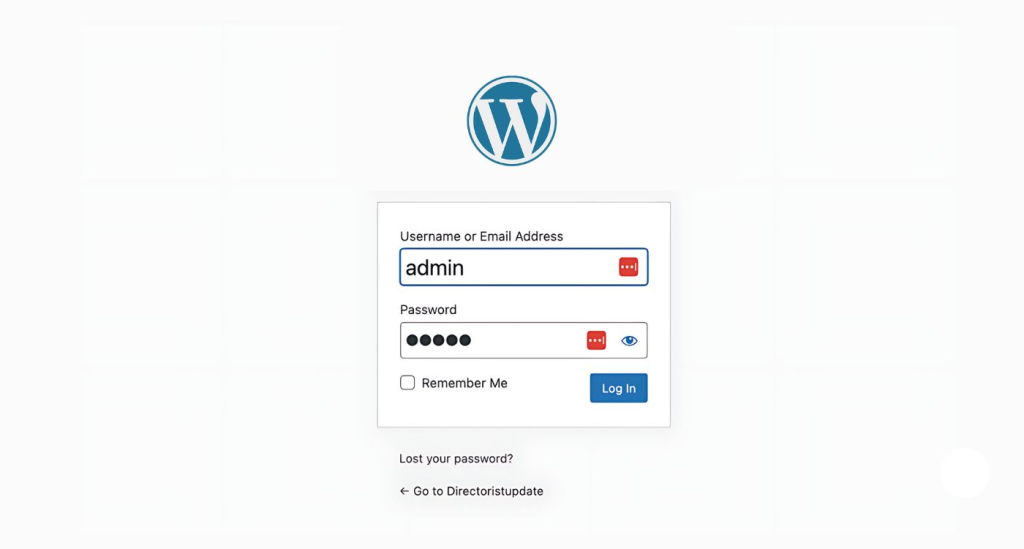
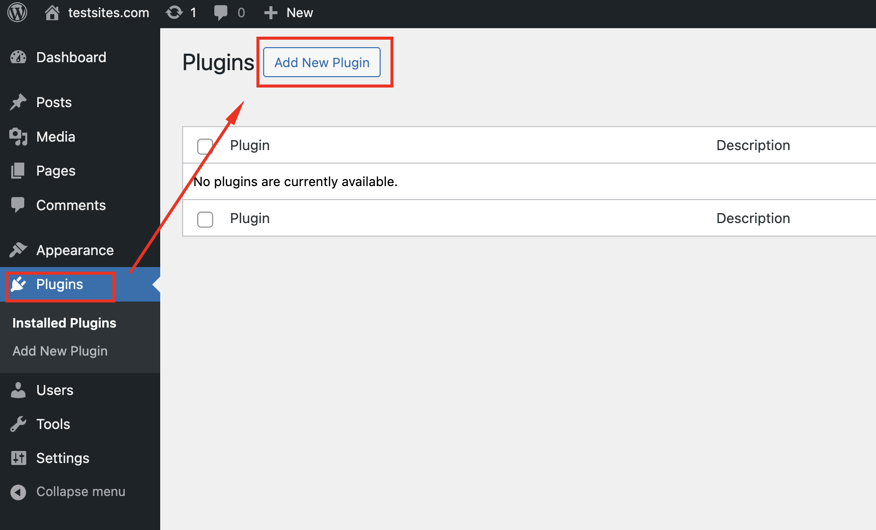
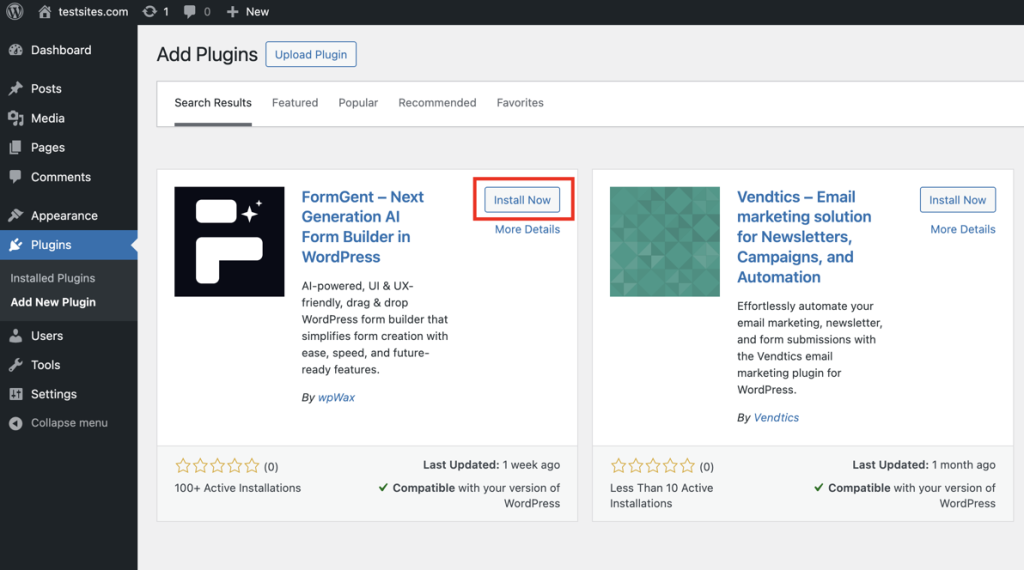
2. Navigate to Plugins → Add New.
3. Use the search bar to look for FormGent.
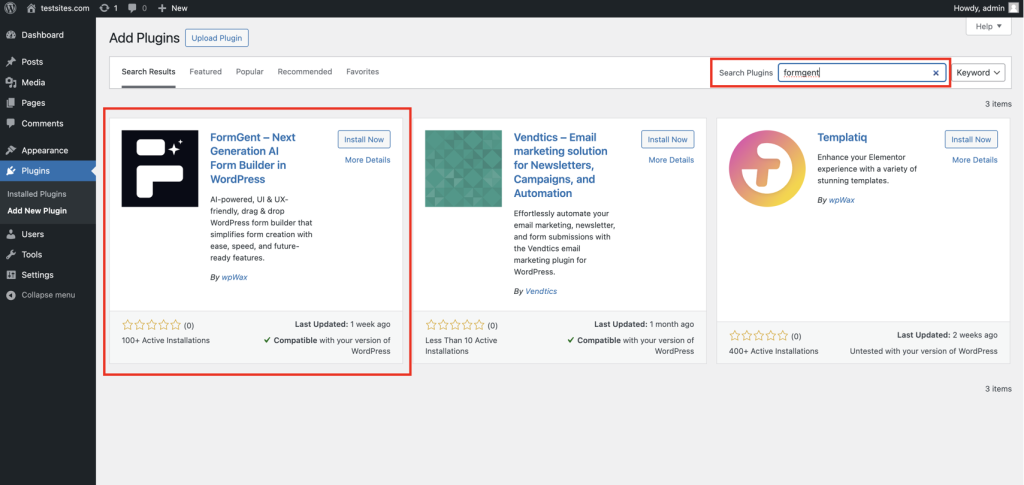
4. From the search results, click Install Now.
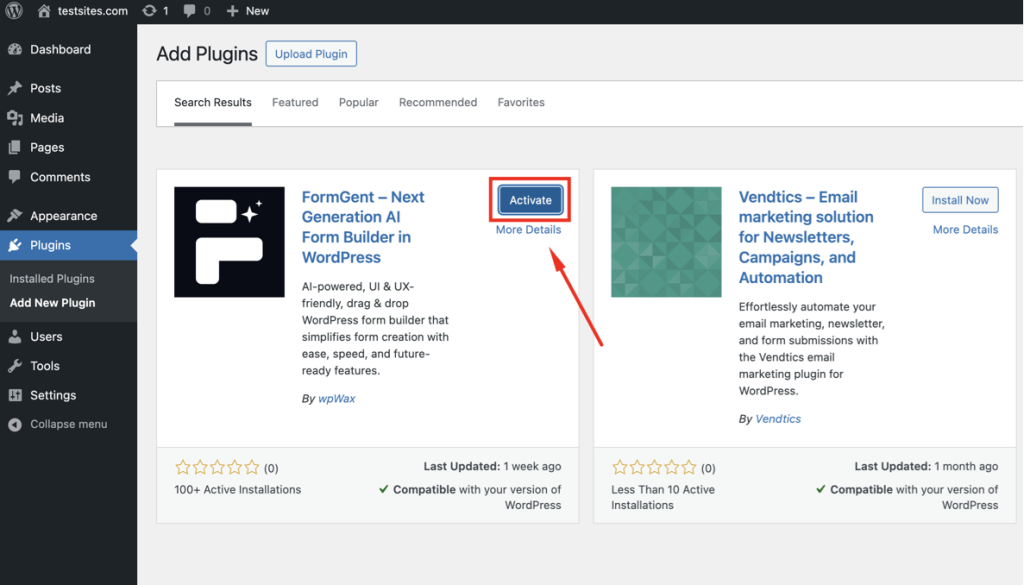
5. After installing, click Activate to enable the plugin.
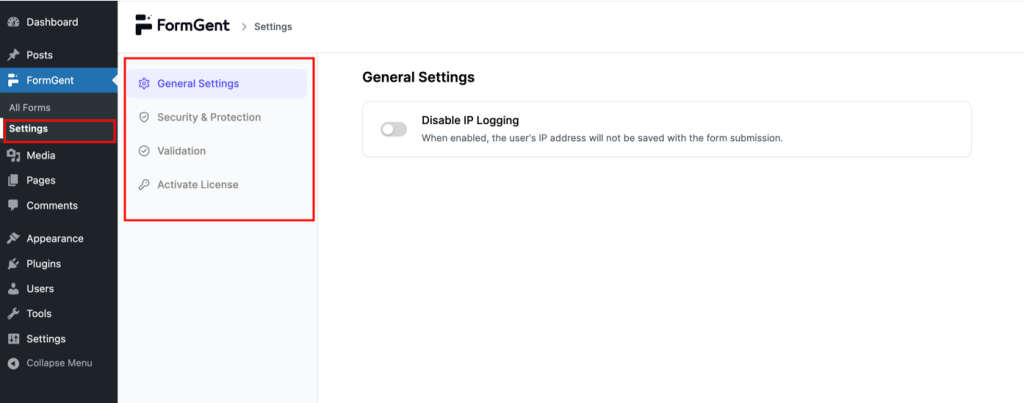
6. Once activated, go to the FormGent Settings to configure basic options, including General Settings, Security & Protection, Validation, and Active License.
Step 2: Create a New Form
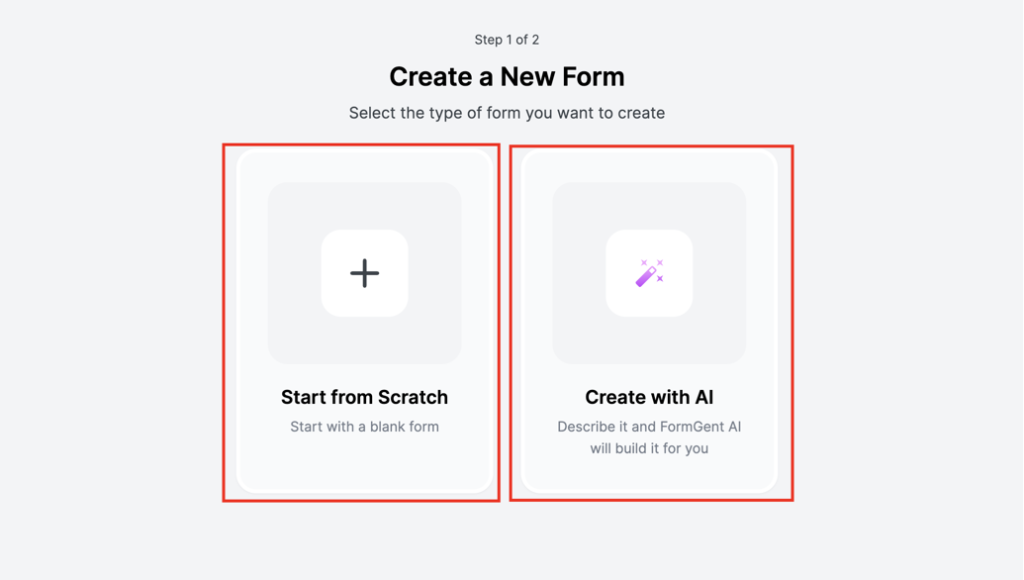
You can begin making a new application form after the FormGent installation is completed. FormGent supplies customers with two possible entry points.
- Start from Scratch: You can use the drag-and-drop builder to construct your Form from the base level through the application.
- Create with AI: FormGent’s AI technology will create an entire form that matches either your written description or pre-established prompts.
Step 3: Using FormGent’s AI to create an application form
1. Navigate to the FormGent menu in your WordPress dashboard.
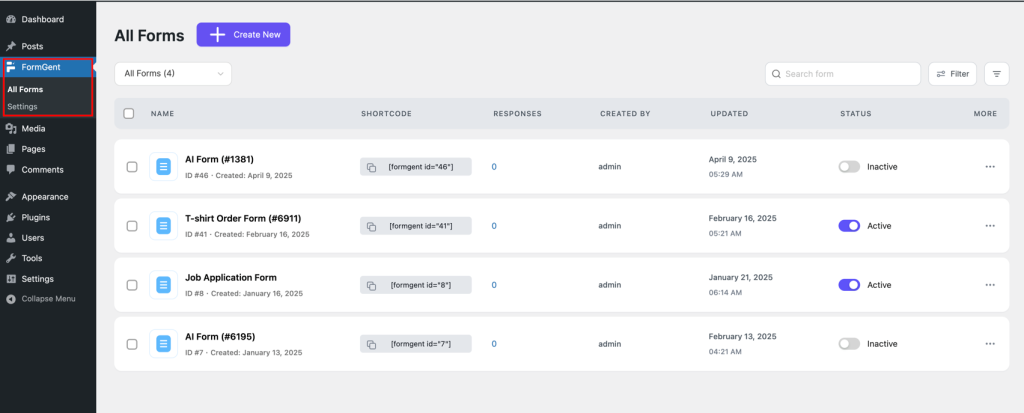
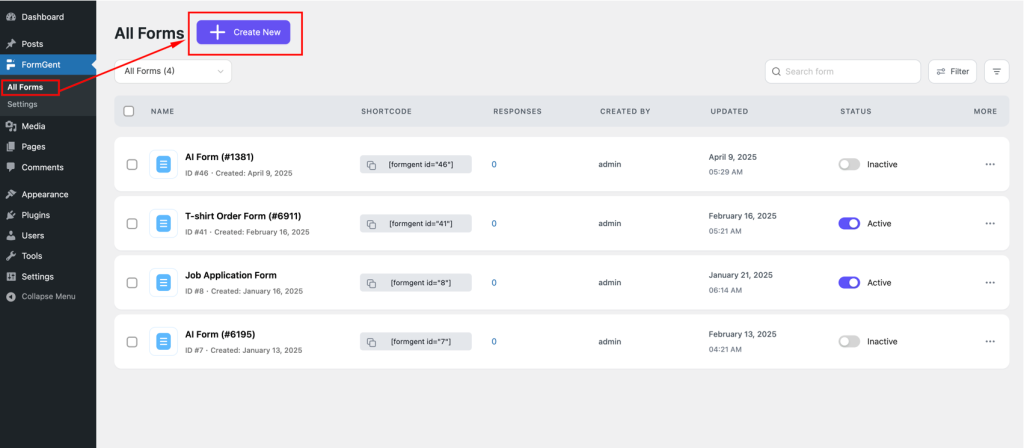
2. Click on “All Forms,” then select “Create New” to start a new form.
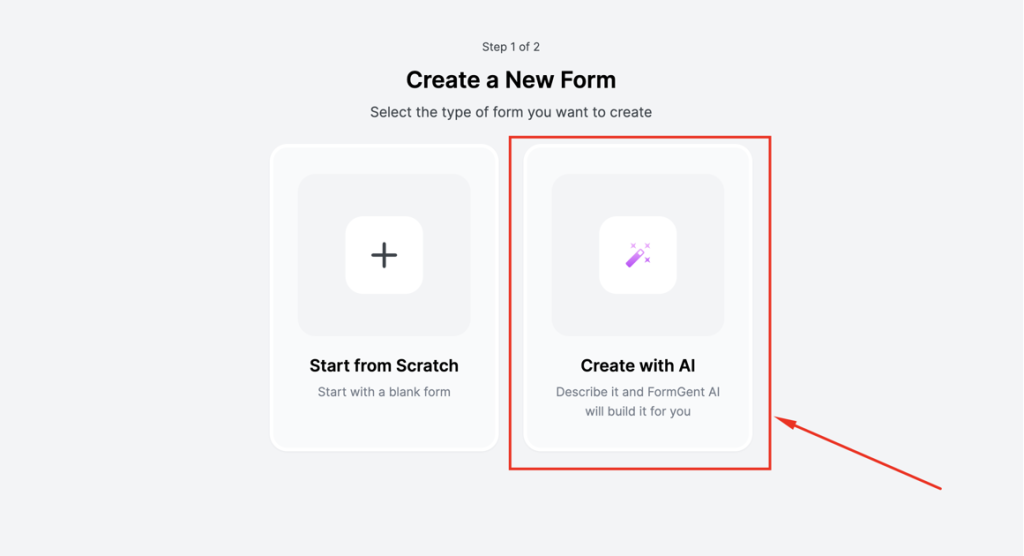
3. Choose the “Create with AI” option to use FormGent’s built-in AI to create faster forms.
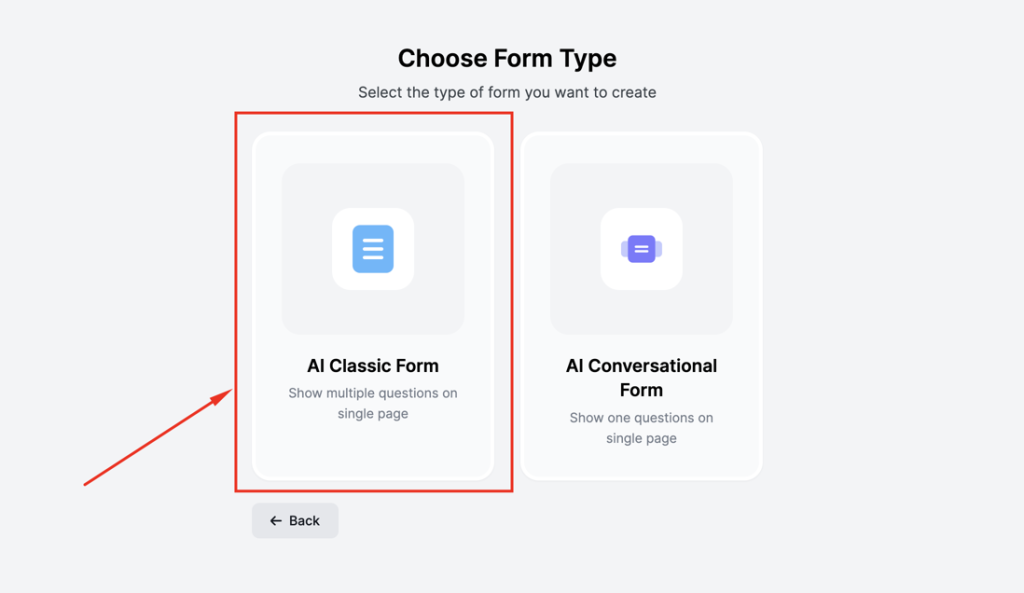
4. Select “AI Classic Form” to begin the automated setup.
5. In the “Describe the goal of your form” field, briefly describe your Form’s purpose (max 500 characters).
- Example: “Create an application form with full name, email address, and phone number. Include a file upload option for resumes or portfolios, dropdown menus for positions being applied for, and text areas for a short introduction or cover letter.”
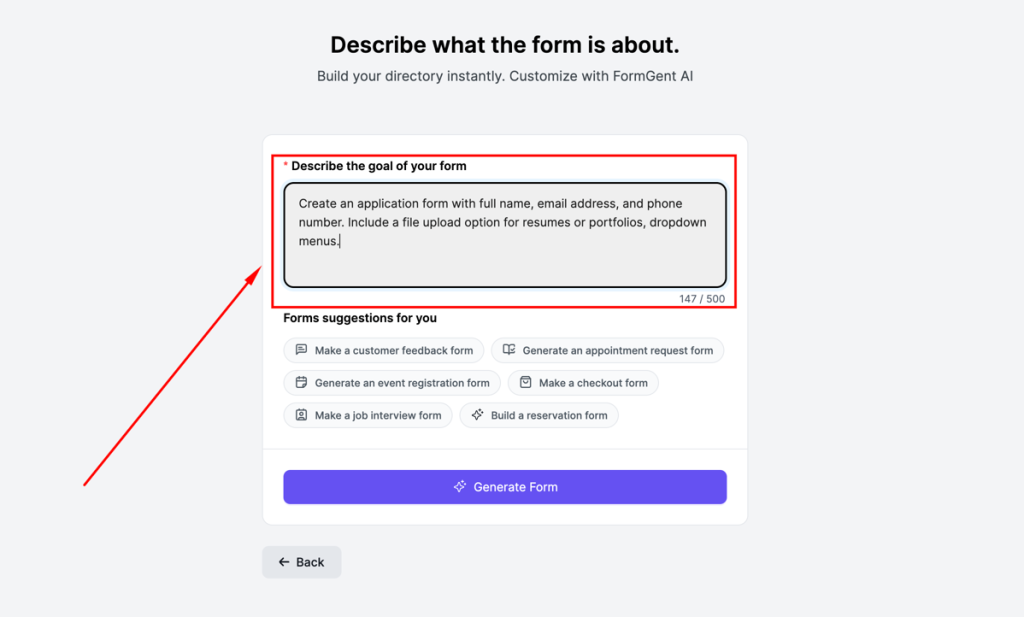
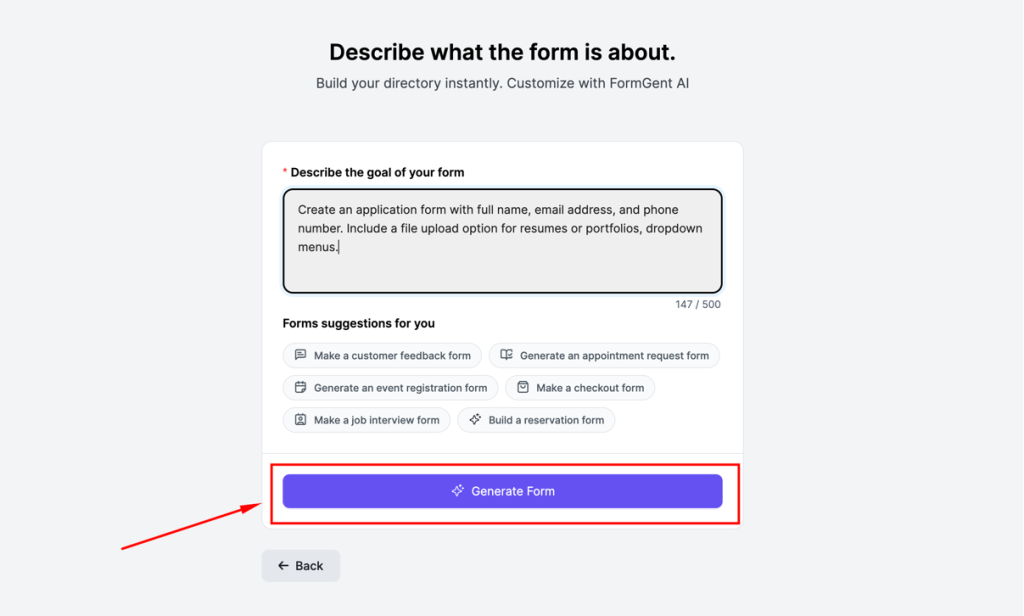
6. Click “Generate Form,” and FormGent’s AI will instantly create a fully functional application form tailored to your needs.
7. Now, your Form is ready within a few seconds.
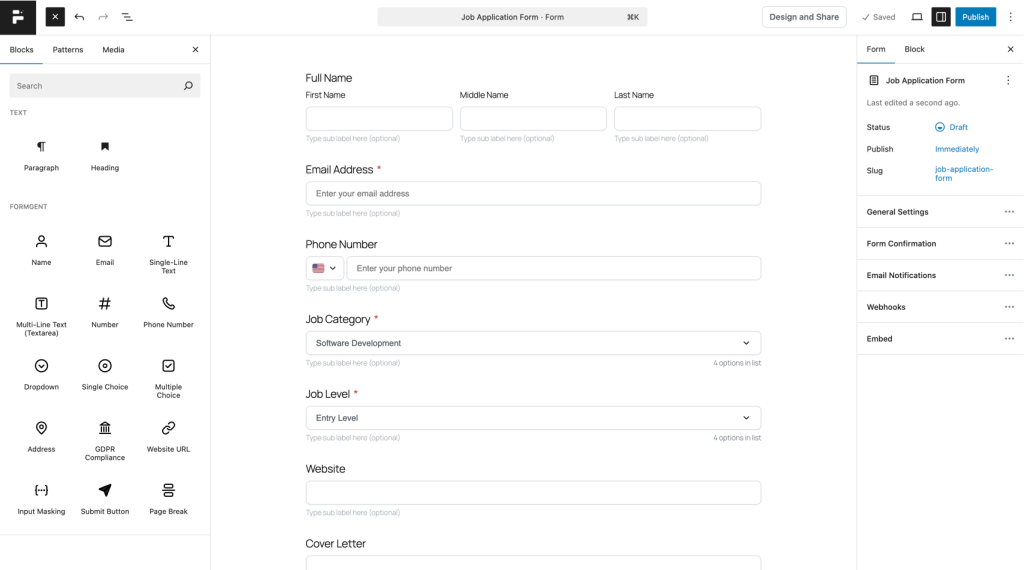
Step 4: Use Conditional Logic (Optional but Powerful)
FormGent enables you to make fields visible or invisible according to what users input into the form. FormGent also maintains user-friendliness by keeping the Form components relevant.
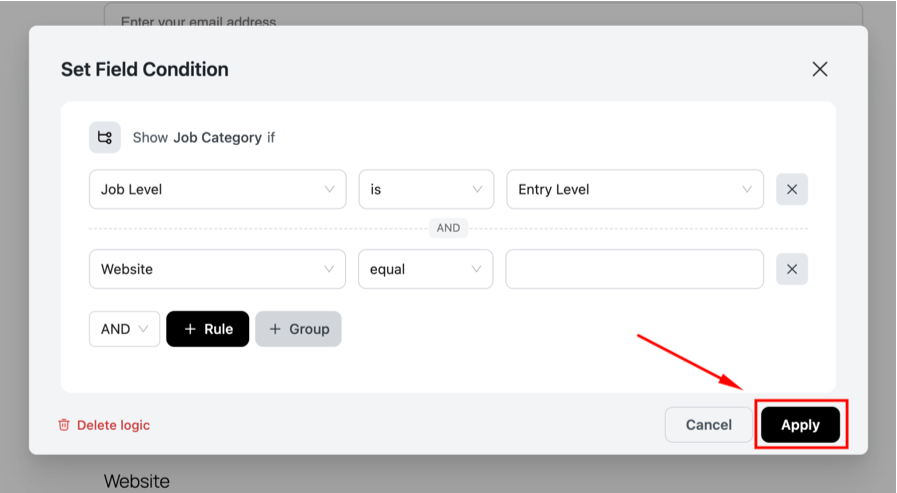
- First select the question that you want to add logic to, then from the left side of the menu bar select Block → Logic → Set Conditional Logic.
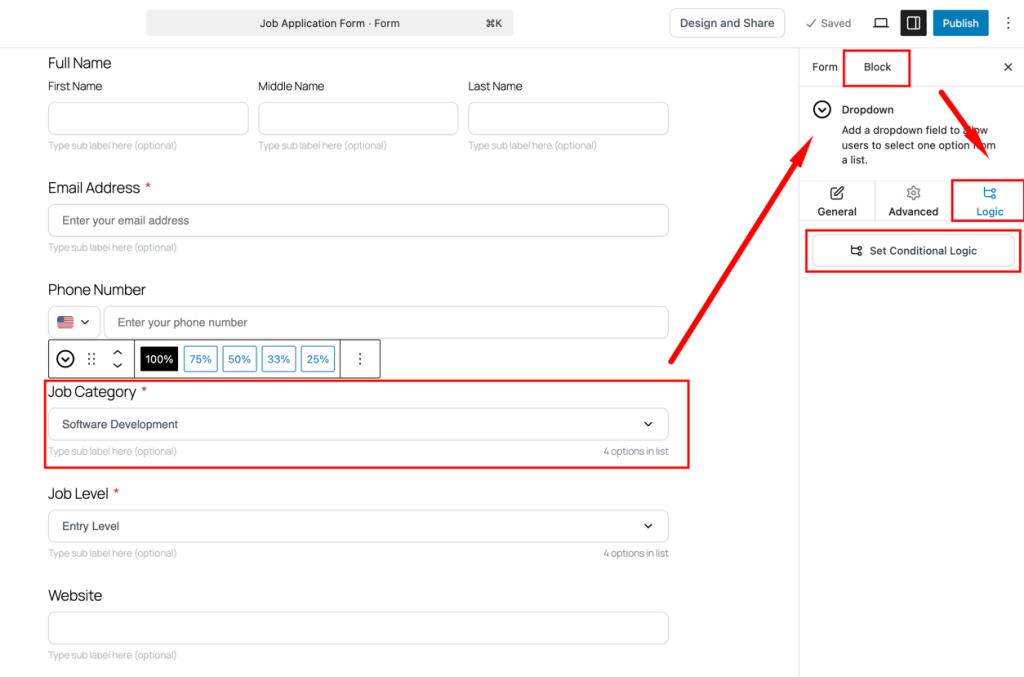
- Now in the Conditional Logic Window, you can Set Field Condition → Apply
Step 5: Customize Notifications & Confirmations
Through the Notifications tab you direct email notifications to reach both the site admin and the applicant. You have the option to define unique success notifications which will display after users finish submitting a form.
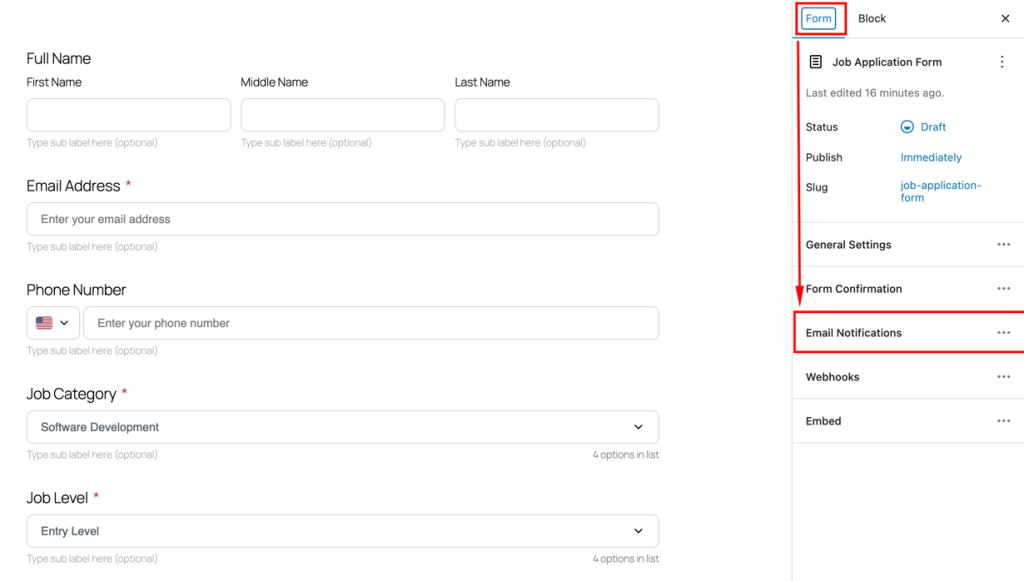
- To do that, go to the Form then click Email Notification.
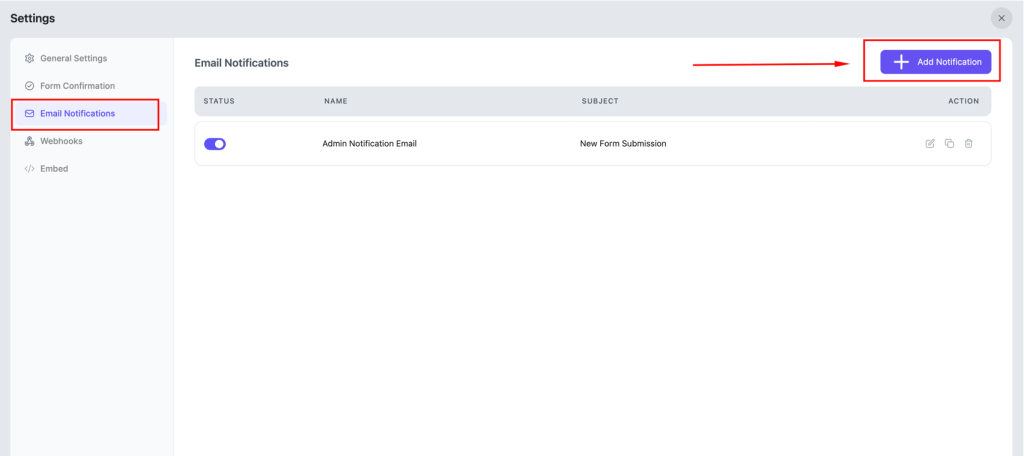
- In this Email Notification window you can add a new notification by clicking the “Add Notification” button.
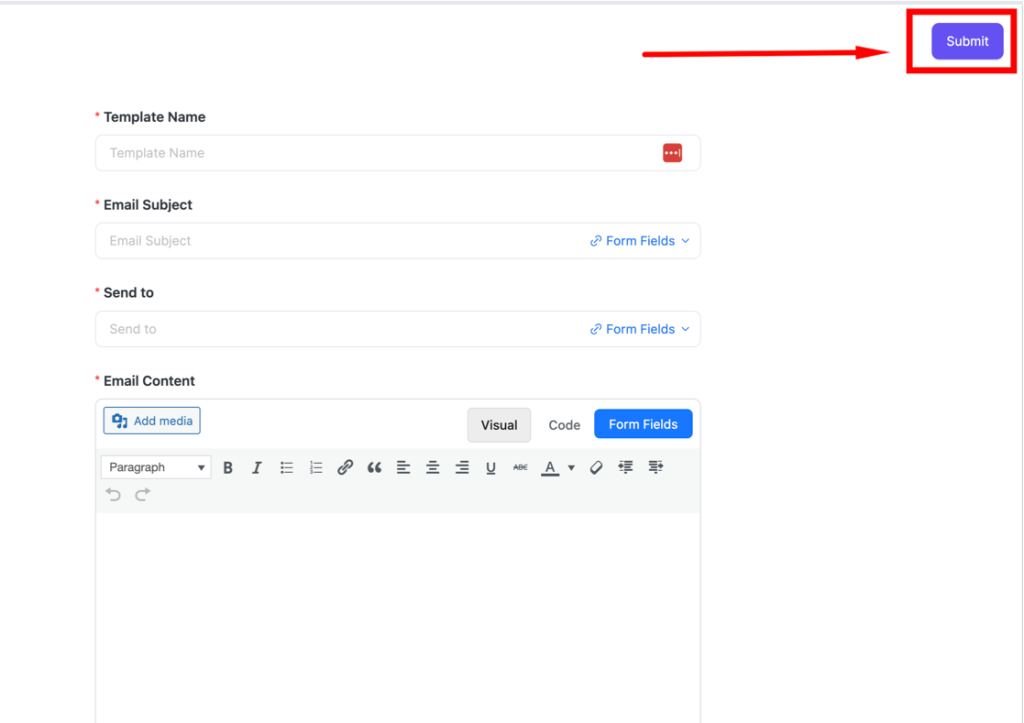
- In the new window we have Template Name, Email Subject, Send To & Email Content.
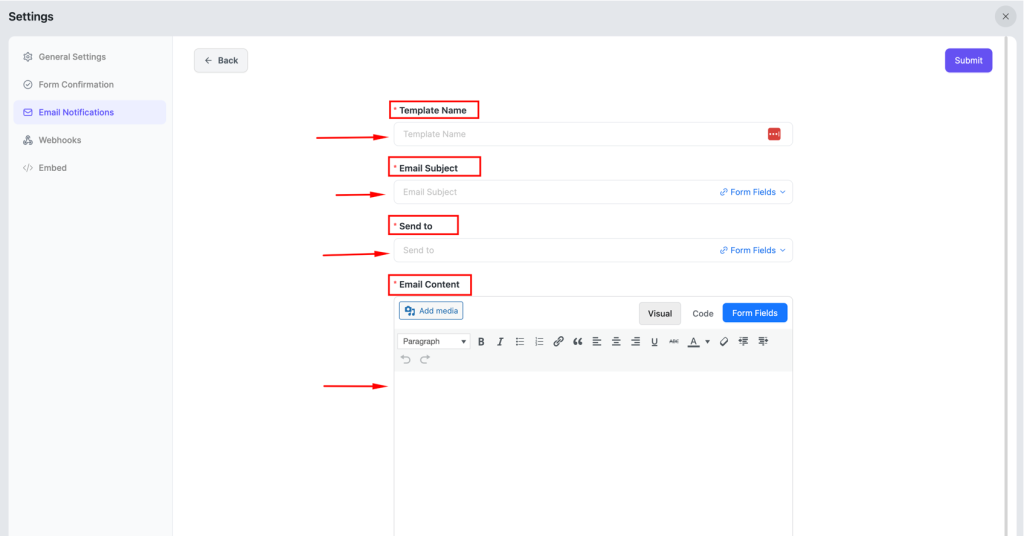
- After you are done with those fields, click “Submit”.
Alternatively, you can send them to a designated thank-you page.
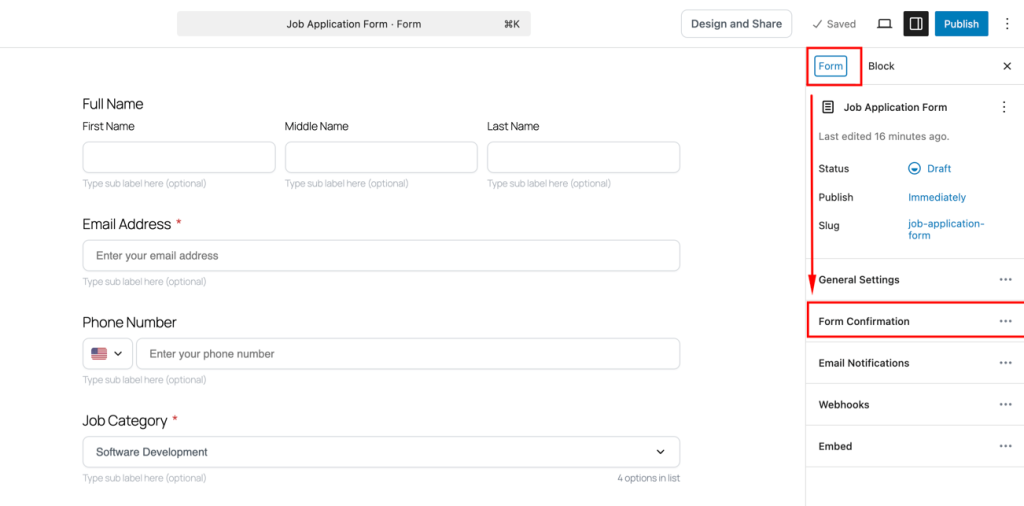
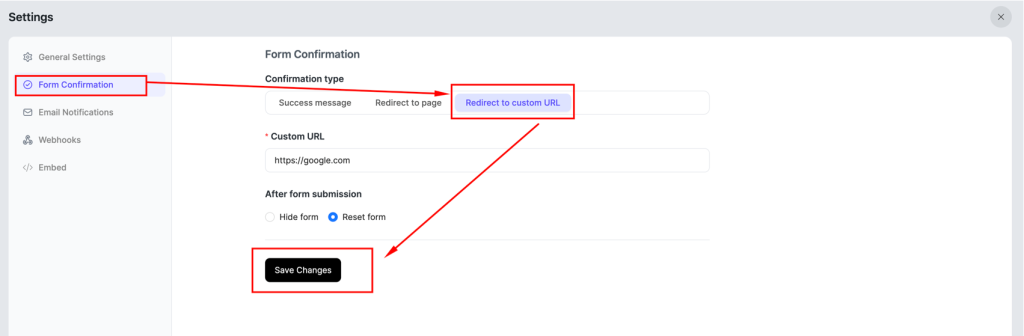
- To do that, go to the Form → Form Confirmation.
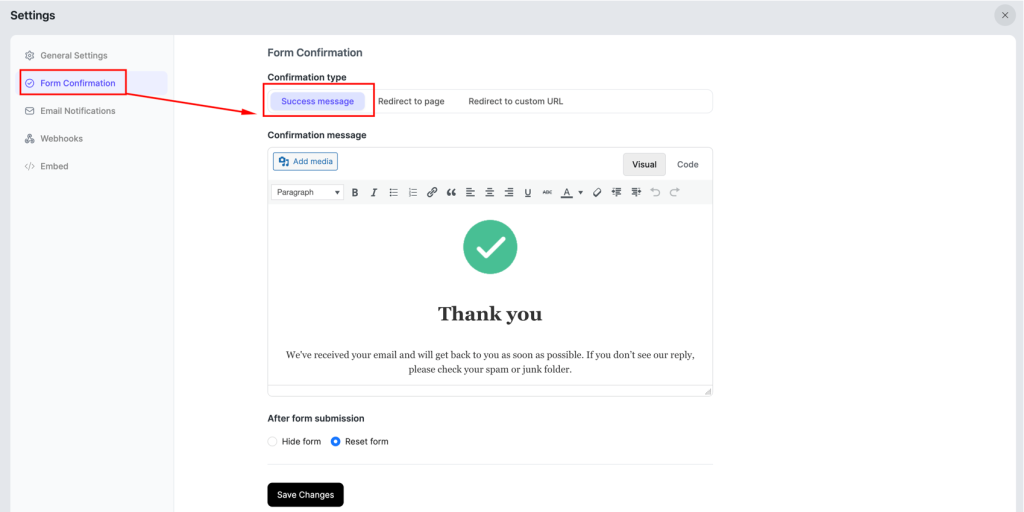
- In this window, you can customize the Success Message and Save changes.
- You can also Redirect to a page or
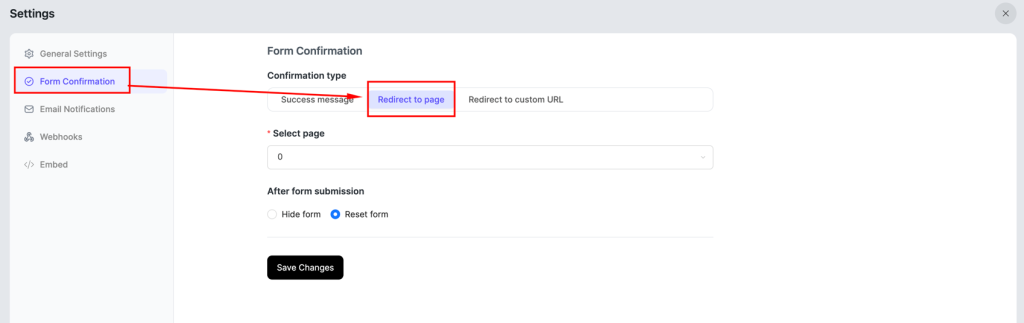
- You can Redirect to a custom URL and Save changes.
Step 6: Style Your Form (Appearance Settings)
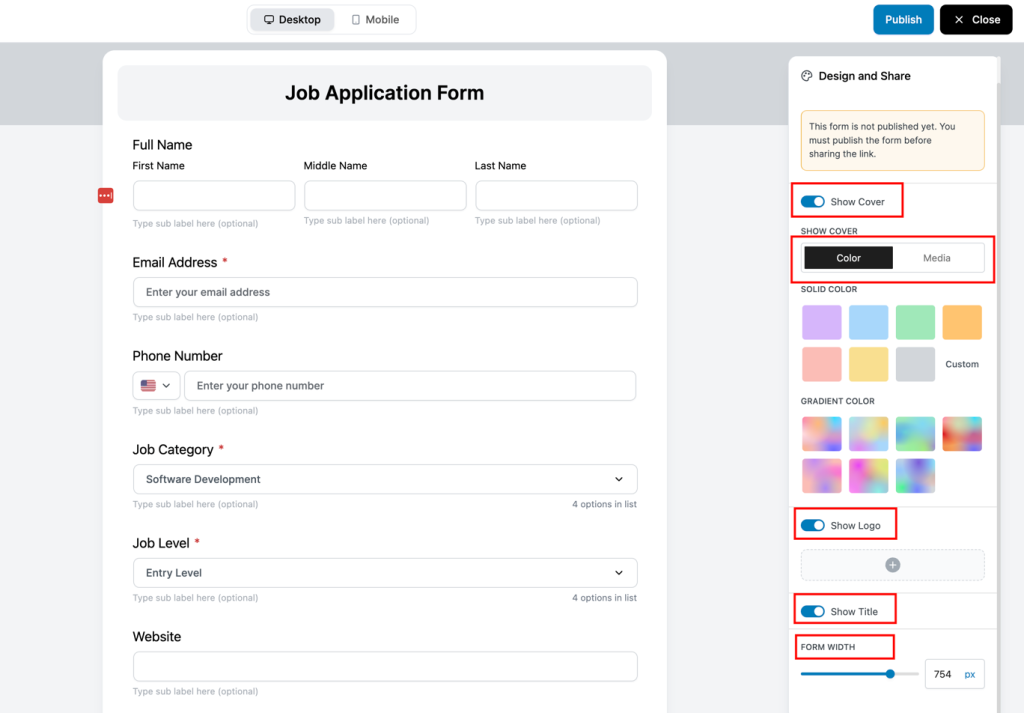
Your website branding should influence the design elements of the Form. Modifying layout spacing, font sizes, button styles, and label positioning settings will ensure a seamless visual experience for users.
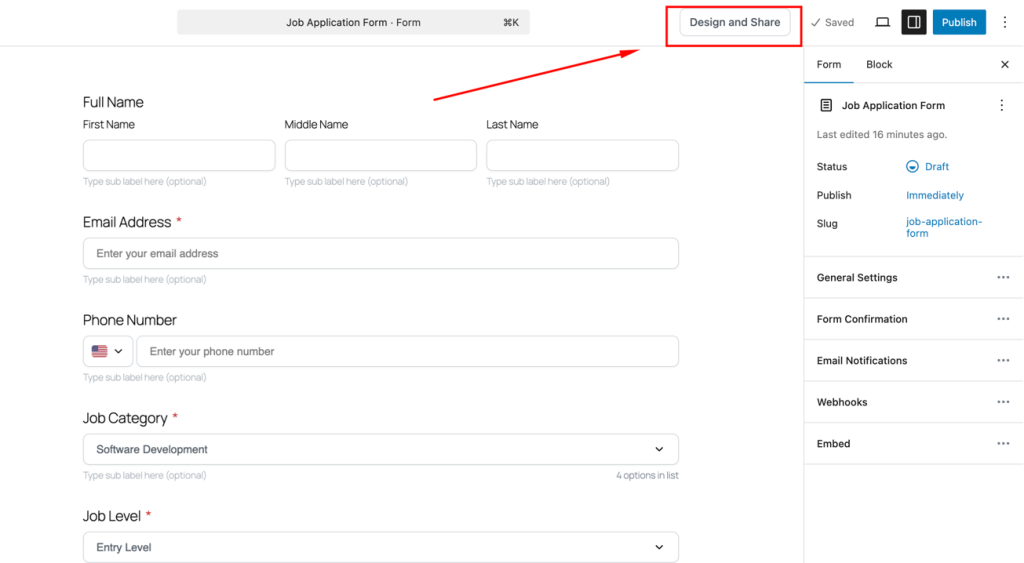
- To do that, from this Form go to the “Design & Share” from the upper right corner.
- In the new window, you can work on layout color, spacing, font sizes, button styles, and label positioning etc. to make a seamless visual experience for users.
Step 7: Publish and share
Now that you’ve customized the Form’s fields and design, it’s time to make it live. Before sharing, you must publish the Form to enable its visibility and access options.
- Enable Sharing – Activate “Enable Share” to allow access. [If Published]
![Enable Sharing – Activate "Enable Share" to allow access. [If Published]](https://formgent.com/wp-content/uploads/2025/04/image-22-1024x602.png "How to Create Application Forms in WordPress Using FormGent 28")
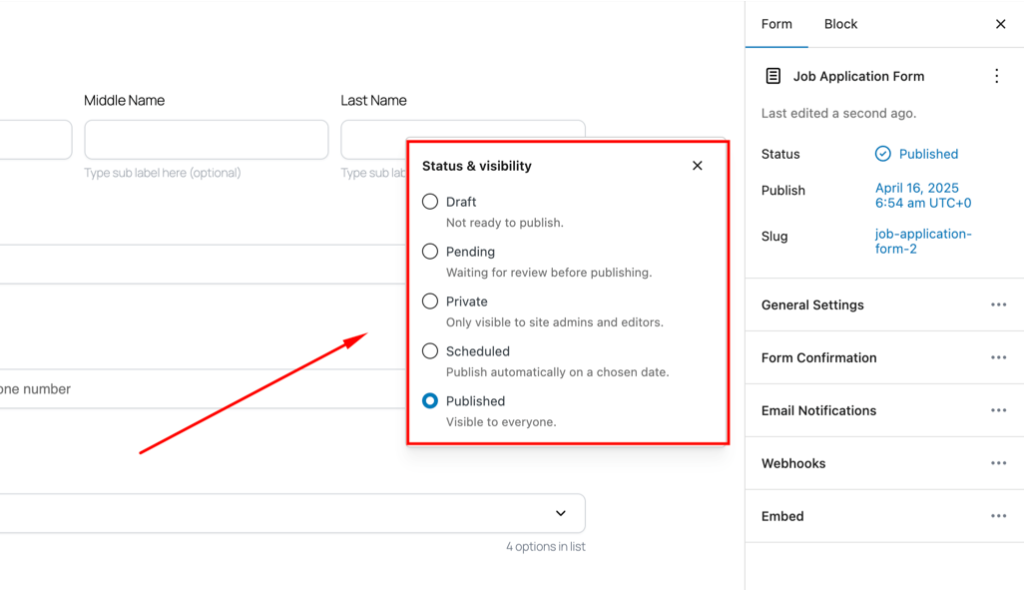
- Set Status – Choose from Draft, Pending, Private, Scheduled, or Published.
- Customize URL – Make the link easy to remember.
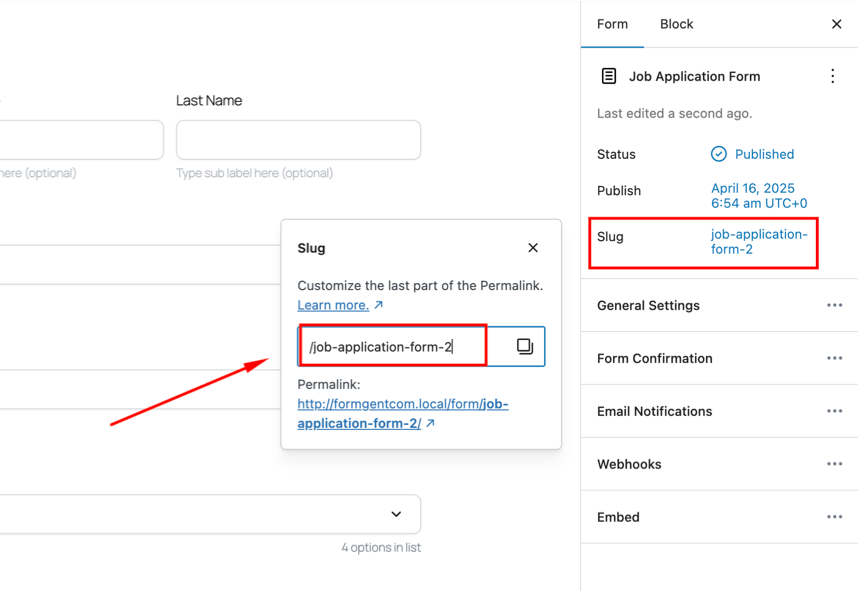
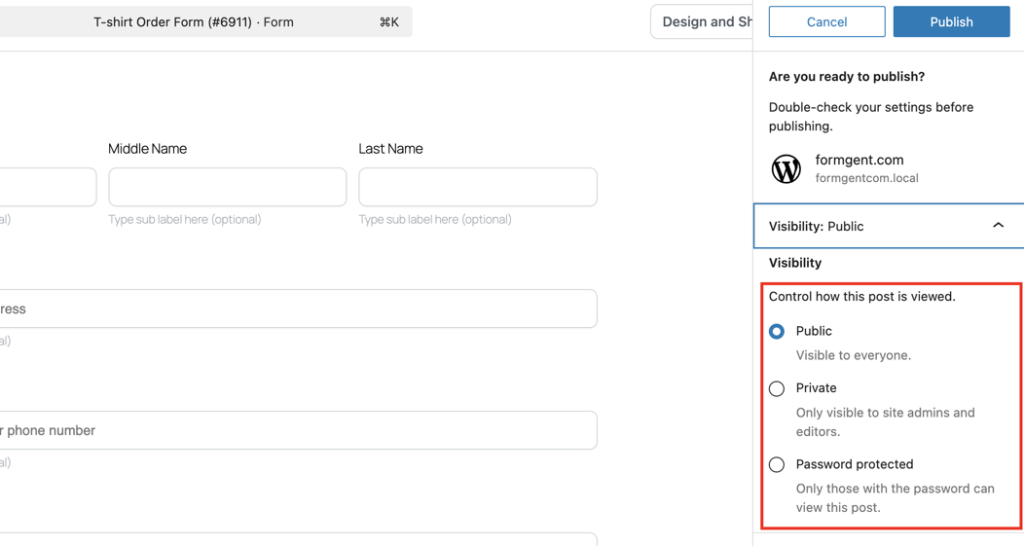
- Quick Publish – Click “Publish,” and select from Public, Private, or Password Protected, then confirm your choice.
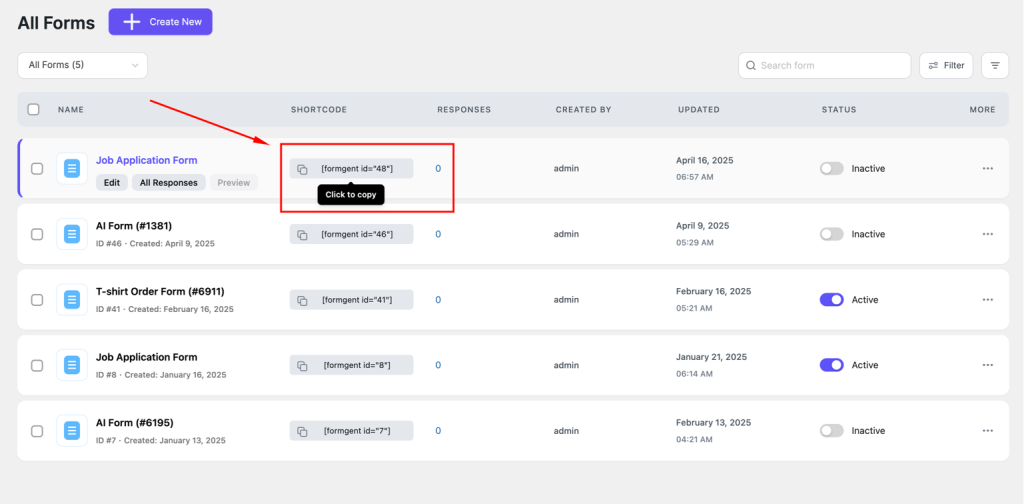
- Share & Embed – Copy the URL for sharing via email or social media, or use the FormGent shortcode to embed it on your WordPress site.
Your application form is now live and ready for applicants to apply. You have successfully learned to create and customize a powerful application form using the FormGent plugin.
Pro Tips for Better Application Forms
The success of your application form depends on something more than just its creation process. Follow these professional guidelines to enhance application form performance with better user experience and superior data quality.
i. Keep the Form Short and Relevant
Ask only for the essential information which you require. Candidates drop off when they face extensive form procedures that disrupt their application process. The form should contain essential components only along with brevity.
ii. Use Multi-Step if the Form is Long
Your form contains multiple fields, which can be handled better through FormGent’s multi-step feature. Better usability across a process reduces the number of drop-offs, improving the quality of your user experience.
iii. Use Required Fields Wisely
The essential fields should be marked as required. Too many required form fields can make users hesitant, and too few requirements may cause users to submit incomplete information.
iv. Test on Desktop and Mobile
Your form must display a high-quality interface and faultless performance across all device systems. The main factor for success lies in having mobile-friendly options since users tend to complete applications from their phones and tablets.
v. Enable File Size Limits for Uploads
Users can submit files by using fields that include proper size limitations when they require submitting their resumes or portfolios. Setting file size restrictions helps avoid server errors which results in uninterrupted document upload operations.
vi. Enable Spam Protection (Honeypot or reCAPTCHA)
Activate FormGent’s spam protection feature to prevent robot submissions. Two successful data cleanup methods involve using Honeypot fields and Google reCAPTCHA.
vii. Test the Form Before Going Live
Before you make your form public, you must have a preview followed by required form testing. Perform some test submissions to review the appearance, field inputs, notification processes, and confirmation response.
Study reveals that 67% of customers favor self-service options over speaking with a company representative
Wrapping Up
Creating application forms doesn’t have to be complicated or time-consuming. With FormGent, you can build professional, user-friendly forms in minutes, without writing a single line of code.
From AI-assisted form creation to advanced features like conditional logic, multi-step layouts, and spam protection, FormGent gives you everything you need to streamline how you collect and manage applications.
Whether hiring, enrolling students, organizing an event, or collecting client briefs, FormGent makes the process faster, smarter, and more manageable. Ready to build your first application form?
Get Started with FormGent Now!
Ready to Get Started?
Don’t wait to streamline your application process. Download FormGent and start building powerful, conversion-friendly forms in just a few clicks.
- ? Download FormGent from the WordPress Plugin Directory
- ? Visit the Official Plugin Page to explore all features and use cases
Want to do more with FormGent?
Check out our advanced tutorials to learn how to build multi-step forms, use conditional logic, and more.
FAQs – How to Create Application Forms
1. Is FormGent beginner-friendly?
Definitely, FormGent is designed for users of all skill levels, offering an intuitive interface and helpful AI features.
2. Why should I use FormGent to create application forms?
FormGent offers a no-code, drag-and-drop builder with AI assistance, making creating professional and fully customizable forms easy.
3. Can I create multi-step application forms with FormGent?
Yes, FormGent supports multi-step forms to improve user experience and reduce form abandonment.
4. Does FormGent support conditional logic?
Absolutely. You can use conditional logic to show or hide fields based on user responses.
5. Is it possible to integrate FormGent with email marketing tools?
Yes, FormGent supports integrations with popular tools, allowing seamless email follow-ups.
6. Is FormGent mobile-responsive?
Yes, all forms built with FormGent are fully responsive and work smoothly on mobile devices.
7. Can I receive email notifications for new form submissions?
Yes, you can set up instant email alerts for every new submission.
8. Does FormGent store form entries in the WordPress dashboard?
Yes, all form submissions are securely stored and easily accessible from your WordPress admin panel.
9. Is FormGent beginner-friendly?
Definitely, FormGent is designed for users of all skill levels, offering an intuitive interface and helpful AI features.

Zarakhan09
April 28, 2025“Thanks for sharing this! Form Gent seems like a great tool for creating application forms easily in WordPress without needing to code. A user-friendly interface and customization options really make a difference for both beginners and experienced users. Excited to explore its features further!”
Zarakhan09
May 9, 2025Great topic! Creating application forms in WordPress using FormGent is a straightforward process. Start by installing and activating the FormGent plugin, then navigate to the form builder to design your application form using the drag-and-drop interface. You can customize fields, add conditional logic, and integrate email notifications for seamless data collection. Once the form is ready, simply embed it on your desired page using the provided shortcode. Anyone here used FormGent before? Would love to hear how it worked for your specific use case!
Zarakhan09
May 21, 2025“FormGent offers a user-friendly way to create application forms in WordPress without any coding. After installing and activating the plugin, you can easily build your form using the drag-and-drop editor—adding fields like text inputs, dropdowns, file uploads, and more. Once your form is ready, simply embed it on a page or post using the provided shortcode. It’s a great solution for managing submissions efficiently and customizing forms to suit various application needs.”
Convert WordPress Form Submissions to PDF Automatically
October 16, 2026[…] an applicant-facing workflow, build and test the fields first with the FormGent application-form guide, then create a separate PDF layout for the applicant copy and internal review […]