
WordPress Form Analytics: Find and Fix Drop-Off
-
- Tips and Tricks Practical Guide Making Better
- 14 mins read

A submission count tells you how many attempts reached the finish line. It does not tell you how many people saw the form, how many started it, or where the unfinished attempts stopped.
That is what WordPress form analytics is for. It turns the form into a measurable journey. If tracking is not set up yet, start with this guide to tracking form conversions in WordPress; the workflow below begins after data is being collected.
View → Start → Answer questions → Successful submission
Once that journey is visible, the weakest transition gives you a concrete place to investigate and a baseline for judging the next change.
This guide shows you how to do that, using FormGent Analytics to walk through each step.
What WordPress form analytics tells you
WordPress form analytics measures what happens between a form appearing and a successful submission. Depending on the tool, it may report form views, starts, finishes, time to complete, validation errors, and field- or question-level drop-off.
That is different from checking entries. Entries show completed responses. Analytics also helps you understand the attempts that did not become entries.
The form metrics that matter
| Metric | What it measures | What it can help you diagnose |
|---|---|---|
| Views | Times the form was seen according to the tool’s view rule | Whether enough people reach the form |
| Started | Attempts counted under the tool’s start rule | Whether the form earns initial engagement |
| Finished | Successful submissions | How many starts reached the intended outcome |
| View-to-finish conversion | Finished ÷ Views × 100 | The performance of the full form journey |
| Start-to-finish completion | Finished ÷ Started × 100 | How well the form retains people who begin |
| Time to complete | How long successful attempts usually take | Whether the task may require more effort than expected |
| Question drop-off | Unfinished attempts attributed to a question or field | Where to begin investigating in-form friction |
Name the denominator whenever you discuss a rate. “Conversion rate” is sometimes calculated from views, while “completion rate” is often calculated from starts. Each measure is valuable, but it provides a different kind of insight.
For example, imagine a form with 1,000 views, 300 starts, and 180 finishes:
- View-to-finish conversion: 180 ÷ 1,000 = 18%
- Start-to-finish completion: 180 ÷ 300 = 60%
The first rate describes the entire journey. The second describes what happened after a person engaged with the form. Mixing them will lead to a misleading comparison.
Find the leak before changing the form
Read your form as a funnel. Start at the top and move down only after you understand the previous transition.
Check views against starts
If the form attracts attention but fails to encourage interaction, investigate the experience before changing its questions. Investigate what happens before the first interaction.
Possible causes include:
- The value of completing the form is unclear.
- The form looks longer or more demanding than expected.
- The page may not establish enough confidence before requesting personal data.
- The form is poorly positioned or partly hidden on smaller screens.
- A loading, layout, or script problem makes the form difficult to use.
- The traffic source brings visitors with the wrong expectations.
Do not remove fields just because the view-to-start rate is weak. First confirm that visitors understand why they should begin and that the form works when it appears.
Check starts against finishes
A large start-to-finish gap points inside the form. The task may be longer than expected, a question may feel irrelevant or intrusive, a format may be unclear, validation may be frustrating, or the final submission may be failing.
This is where question-level analytics becomes especially useful. Instead of treating every field as equally suspicious, you can focus on the part of the form where unfinished attempts cluster.
Inspect question-level drop-off
Analytics tools calculate question drop-off differently. Some attribute an unfinished attempt to the last field reached or interacted with; others compare field views with the number of recorded answers or submissions for that field. In either case, the field is an investigation point not a proven cause.
It does not automatically prove that the field caused the exit.
A visitor may leave on the Email field because the previous explanation was confusing. A final Comments field may receive the most drop-off simply because everyone who leaves late in the form is attributed there. Someone may also get distracted for reasons unrelated to the form.
Treat the report as a map of where to inspect, not a verdict about why people left.
Compare equivalent segments and periods
Aggregate data can hide a localized problem. When your analytics setup supports it, compare:
- Mobile and desktop
- One landing page against another
- Paid, organic, referral, and direct traffic
- Browsers
- New and returning visitors
- Equivalent dates before and after a change
A mobile-only problem needs a different fix from a traffic-source mismatch. Keep the form, audience, and time window as comparable as possible before drawing a conclusion.
A quick diagnostic matrix
| Signal | Plausible explanations | What to check next | Possible response |
|---|---|---|---|
| High views, low starts | Weak value, trust concern, intimidating first impression, rendering issue | Form placement, opening copy, mobile rendering, page intent | Clarify the outcome, reduce visual weight, fix the page or form display |
| Healthy starts, low finishes | In-form friction, unexpected effort, validation or submission failure | Question drop-off, completion time, manual test | Audit the highest-loss questions and submit the form yourself |
| High drop-off on a sensitive question | Question arrives too early or lacks context | Is it necessary now? Is the reason explained? | Defer it, make it optional, or explain why it is needed |
| High drop-off around a formatted field | Input expectations or validation are unclear | Try valid and invalid values on mobile and desktop | Add a visible format example and specific error feedback |
| Sudden finish-rate decline | Site, plugin, integration, or campaign change | Recent updates, console/network errors, confirmation behavior | Fix the technical failure before redesigning the form |
| Completion improves but lead quality falls | The form became easier for everyone, including poor-fit leads | Qualified-lead and downstream conversion rate | Restore a necessary qualifier or improve routing rather than chasing completion alone |
How to use Analytics to locate drop-off
Use the following workflow to locate drop-off points with FormGent Analytics.
1. Enable analytics for the form
Open the form in the WordPress editor. In the form sidebar, select Form Settings, stay on General, turn on Enable Analytics, and select Save Changes.
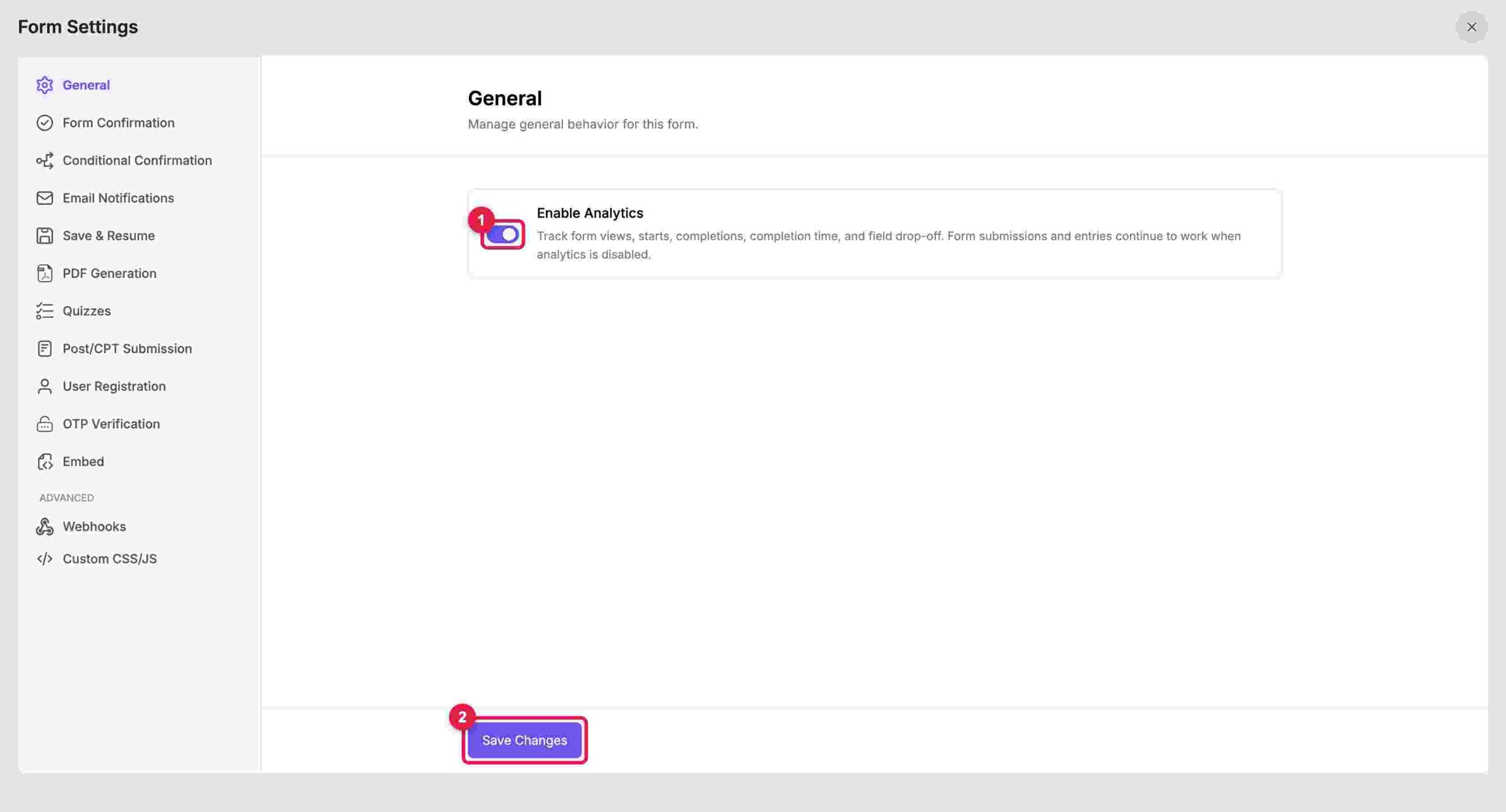
Form submissions and entries continue working when analytics is disabled, but FormGent will not collect the analytics used in this report. Enable tracking before the period you want to evaluate; it cannot reconstruct interactions that were never recorded.
2. Open Reports for the form
In your WordPress dashboard:
- Go to FormGent → All Forms.
- Find the form you want to review.
- Hover over its row to reveal the form actions.
- Select Reports.
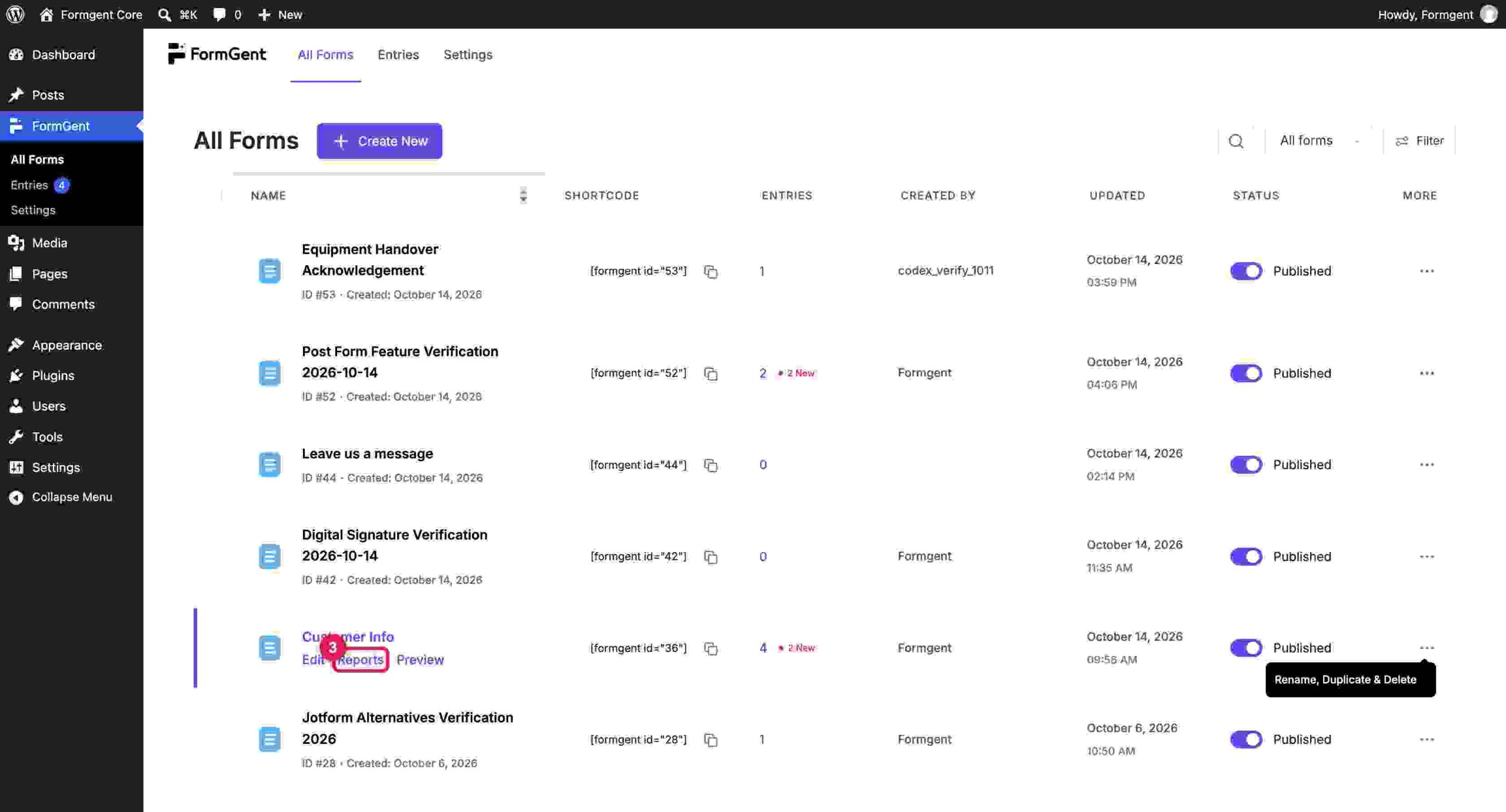
On the Reports screen, select the Analytics tab.

3. Read the funnel metrics and choose a date range
The report displays five top-level metrics:
- Views
- Started
- Finished
- Completion Rate
- Time to Complete
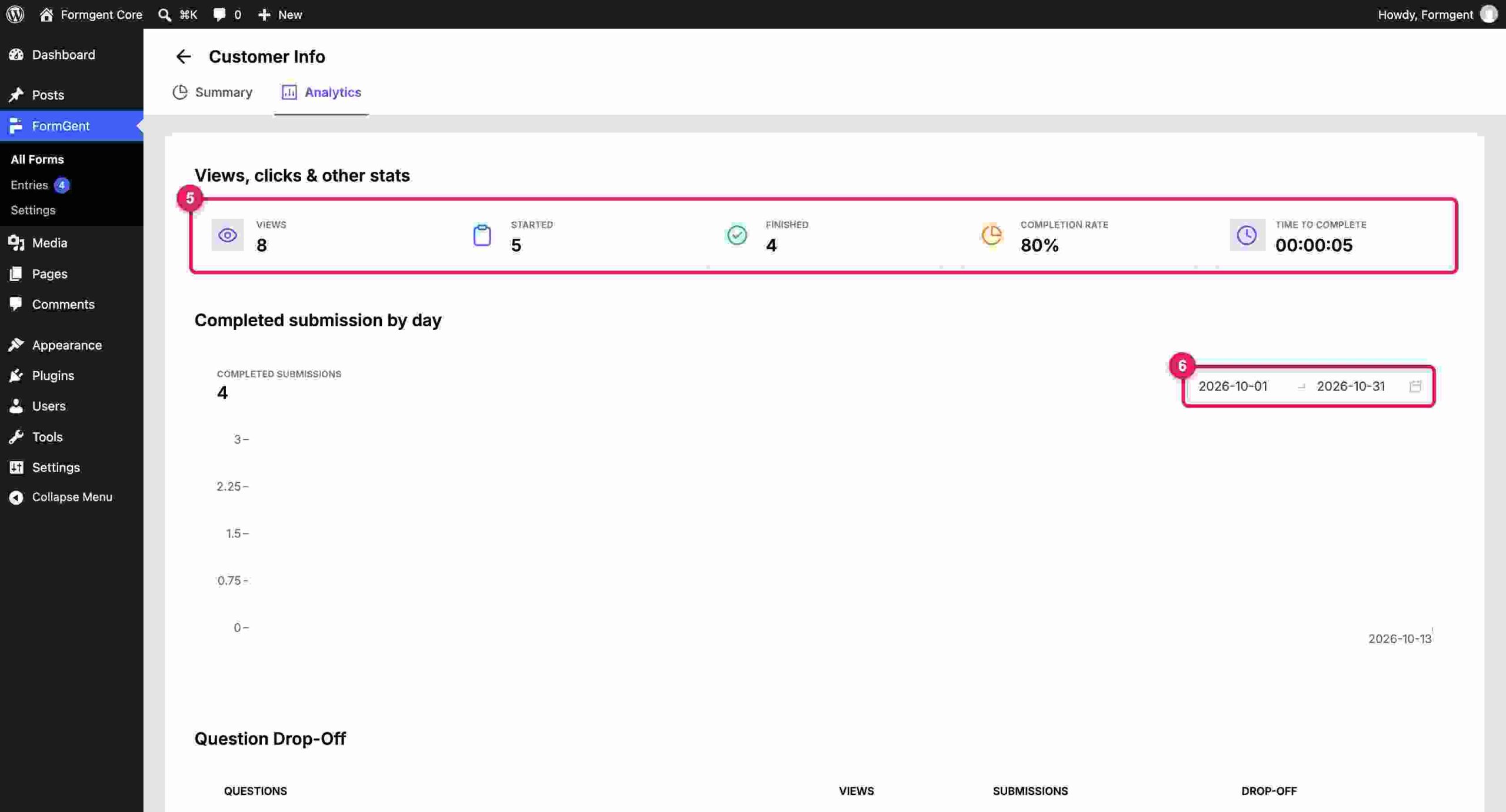
For example, 5 starts and 4 finishes produce an 80% Completion Rate. In FormGent, this rate is calculated as Finished ÷ Started.
FormGent records an initiated response as Started and a successfully completed response as Finished. Time to Complete shows the average duration of completed responses, while Views is recorded separately.
The Completed submission by day chart lets you review completed submissions over a selected date range. Use the same length and similar traffic conditions when comparing two periods.
The headline metrics are available in FormGent, while the date-based completion chart and question-level report require FormGent Pro. Feature availability may vary by version or plan.
4. Read the Question Drop-Off table
Below the trend chart, Question Drop-Off lists:
- Questions
- Views
- Submissions
- Drop-Off as a count and percentage
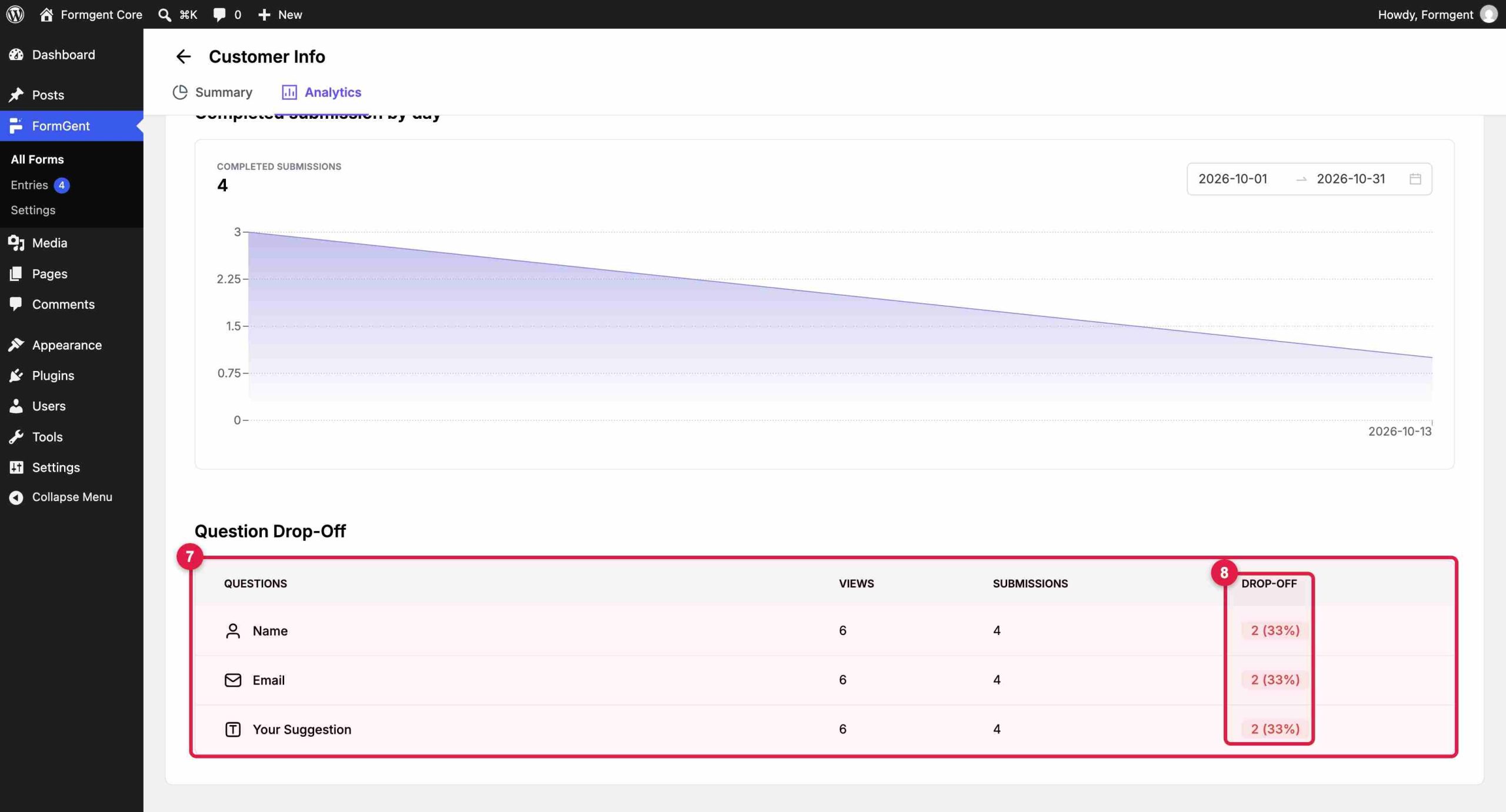
FormGent calculates a question’s Drop-Off count by subtracting its recorded submissions from its views. The displayed percentage divides that difference by the question’s views. This explains what the column measures, but it still does not prove why somebody stopped.
Start with a question that combines meaningful reach and meaningful loss. A 50% drop-off on a field reached by four people may be less urgent than a 20% drop-off on a field reached by 500.
To analyze device, browser, traffic source, validation errors, or per-field time, pair the report with a compatible analytics layer.
Turn a drop-off signal into a testable hypothesis
After identifying an investigation point, review the field in context. The goal is to write a specific explanation that could be proven wrong.
“Users dislike this field” is too vague to serve as a testable hypothesis.
“Visitors leave because the required Budget Range appears before the form explains that it is used to recommend the right service tier” is testable. You could add a short explanation, move the field later, or make it optional, then compare the result.
Audit the question from the visitor’s perspective
Ask:
- Is this information necessary at this stage?
- Does the label say exactly what to enter?
- Is the field visibly required or optional?
- Is the accepted format clear before an error occurs?
- Could the question feel sensitive or unexpected?
- Does the form explain why the information is needed?
- Is the field relevant to every visitor?
- Does it use the right input type and mobile keyboard?
- Is the validation message specific and easy to find?
- Does valid input survive after another field fails validation?
- Does the form still work with a keyboard and at mobile width?
- Does the successful submission produce a clear confirmation?
The W3C Web Accessibility Initiative’s forms guidance recommends asking only for information required to complete the process. It also covers visible, descriptive labels, instructions for required states and formats, and validation feedback that helps people correct a mistake.
Reproduce the journey yourself
Submit the form as a visitor would. Test at least:
- A desktop viewport
- A narrow mobile viewport
- Valid input
- Missing required input
- Incorrectly formatted input
- Conditional branches
- The final submission and confirmation
Analytics can tell you where a pattern appears. A hands-on test can reveal a broken date picker, a keyboard covering the active field, a vague error, or a button that never confirms success.
If the reason remains unclear, add qualitative evidence. A short usability test, support-ticket review, feedback form, or privacy-conscious session-level tool can help. Use individual sessions to generate hypotheses—not to claim that every visitor behaves the same way.
Choose the smallest fix that matches the evidence
Let the strength of the evidence determine how significant the change should be. If a label is unclear, rewrite the label before rebuilding the whole form.
Remove or defer unnecessary questions
If nobody uses the answer, remove the field. If the information is needed later, collect it after the first conversion or move it to a later step.
Do not apply a universal field-count rule. A two-field form can fail if both questions feel intrusive, while a longer application can succeed when every question is expected and necessary.
Make the request clearer
Replace ambiguous labels with concrete ones. Explain unfamiliar terms. Show the expected format before submission.
Placeholder text can provide an example, but it should not replace a visible label. It disappears when the visitor types and can make it harder to review an answer. The W3C forms tutorial also explains how to present required, optional, and format information so users—including screen-reader users—can perceive it.
Reduce validation friction
An error should say what happened and how to fix it. Replace a general error such as “Invalid input” with a specific instruction like “Use the DD/MM/YYYY date format.”
Show feedback close to the relevant field, make it programmatically available to assistive technology, and keep valid answers intact when another field fails. Client-side feedback can make correction easier, but the server must still validate submitted data. See the W3C guidance on validating input.
Show only relevant questions
Conditional logic can hide branches a visitor does not need. This reduces irrelevant work without removing information required for another audience.
Check every branch before publishing. A hidden required field or circular condition can create a new submission blocker.
Split a genuinely long form into logical steps
If the task is necessarily long, group related questions into meaningful steps. A progress indicator can make the remaining work easier to understand.
Adding multiple steps does not necessarily lead to a higher completion rate. Test the new version against your own baseline. If your data supports the change, follow the practical guide to create a multi-step form in WordPress.
Test a different presentation
A one-question-at-a-time format may suit interviews, assessments, or guided lead qualification. It may be slower for people who want to scan a short form before answering.
Treat presentation as an experiment. If the use case fits, you can create a conversational form and compare completion, time, and lead quality with the original.
Fix technical failures first
If submissions suddenly fall, verify the form before rewriting it. Check:
- Does the form render for logged-out visitors?
- Does validation complete?
- Does the server accept the submission?
- Does the success message or redirect appear?
- Do payment and integration steps complete?
- Did caching or script optimization delay a required asset?
- Did a recent update change the form behavior?
A click on the Submit button is not the same as a confirmed successful submission. Build reporting around the success state whenever possible.
Prioritize the changes that matter most
When several fields look weak, compare each opportunity using five questions:
| Factor | Question |
|---|---|
| Exposure | How many people reach this point? |
| Abandoned attempts | How many unfinished attempts are attributed here? |
| Outcome importance | How much does this form or step matter to the organization? |
| Evidence quality | How well do the report and manual checks support the suspected cause? |
| Change cost and risk | How difficult is the change, and what could it disrupt? |
Start with an issue that affects many attempts and an important outcome, especially when the evidence is strong and the likely fix is small and reversible.
Do not optimize completion in isolation. A quote form that produces more submissions but fewer qualified opportunities may have become easier in the wrong way. Track a guardrail such as valid submissions, qualified leads, booked calls, completed registrations, or successful payments.
Measure whether the fix worked
Use the same loop for every change:
- Choose a stable baseline window. Avoid mixing an ordinary week with a sale, launch, or paid campaign spike.
- Record the baseline. Save Views, Started, Finished, Completion Rate, Time to Complete, and the target question’s Drop-Off.
- Choose one primary metric. For an in-form change, this may be question drop-off or start-to-finish completion.
- Make one material change. Multiple simultaneous changes prevent you from knowing what mattered.
- Wait for a comparable window. Keep the form placement, traffic mix, and measurement rule as consistent as possible.
- Check the primary metric and guardrails. Confirm that better completion did not reduce data quality or downstream success.
- Keep, revise, or reverse the change. Record the result so the next decision starts with evidence.
Worked example
The following numbers are illustrative.
A quote form records 600 views, 240 starts, and 120 finishes. Its start-to-finish completion rate is 50%.
The Street Address question is reached by 210 people and is associated with 55 unfinished attempts. During a manual test, the full address is required early, before the form explains why it is needed.
The team forms this hypothesis:
Visitors hesitate because the form requests a full street address before explaining that the location is used to check service coverage.
They add a short explanation—“We use your address to confirm that your project is within our service area” and move the field after the project details. They leave the other fields unchanged.
During a comparable period, the team checks:
- Whether Street Address drop-off moved
- Whether overall completion changed
- Whether time to complete changed
- Whether the number of reachable, qualified leads remained healthy
If completion rises but out-of-area requests also increase, the change needs refinement. If the field’s drop-off remains unchanged, the original hypothesis was probably incomplete.
What if the form has low traffic?
Do not declare a winner after a handful of starts. Use a longer observation window, avoid changing several elements together, and treat early movement as directional rather than conclusive.
For a low-traffic, high-value form, a few observed usability sessions may reveal more than waiting months for a formal split test. Combine those observations with the aggregate report instead of replacing it.
Avoid these form analytics mistakes
Using page views as form views
A visitor can load a page without ever reaching an embedded form. Use the analytics tool’s form-view rule, and learn whether it counts page load, visibility, or interaction.
Mixing rate definitions
Do not compare Finished ÷ Views with Finished ÷ Started as though they were the same rate. Label every chart and report clearly.
Blaming the highest-drop-off field
The field marks where the attempt ended, not necessarily why. Inspect the previous question, the page context, validation, and technical behavior.
Changing everything at once
Shortening the form, changing the CTA, adding steps, and rewriting every error at the same time may improve the result—but you will not know which change to repeat elsewhere.
Ignoring analytics quality
Internal tests, bots, script blockers, consent settings, cached assets, AJAX flows, and incorrect success detection can distort the report. Submit a known test and confirm where it appears before making a business decision.
Treating analytics and partial entries as the same thing
Anonymous interaction analytics can record that an attempt stopped near a field without storing what the person typed. Partial-entry capture stores some incomplete answers and may support lead recovery.
Those are different data practices with different privacy, consent, access, security, and retention considerations. Recovering an incomplete lead also does not remove the friction that caused the form to be abandoned.
Chasing a generic benchmark
Form type, offer, audience, traffic source, device mix, and measurement rules all affect the rate. Your most useful benchmark is usually the same form under comparable conditions before and after a controlled change.
Use GA4 as context, not a replacement for field-level analytics
Google documents form_start and form_submit as automatically collected web events when form interactions are enabled through enhanced measurement. These events can help you compare form activity with pages, traffic sources, and campaigns in GA4. See Google’s automatically collected events reference.
GA4 does not automatically give every WordPress form a reliable field-by-field report. Modern forms may use AJAX, custom JavaScript, iframes, or nonstandard success states. Test the specific form and confirm that a recorded submit represents a successful result not merely a click or attempted submission.
A practical setup can use both layers:
- Native form analytics for the view-to-finish journey and question-level drop-off
- GA4 for page, source, campaign, and wider site context
A repeatable WordPress form optimization checklist
- Confirm the analytics setup records a known test correctly.
- Choose one form and a stable date range.
- Record Views, Started, Finished, Completion Rate, and Time to Complete.
- Identify whether the main leak occurs before or after the start.
- Review Question Drop-Off for a frequently reached investigation point.
- Test the form manually on desktop and mobile.
- Check labels, instructions, required states, validation, conditional branches, and success behavior.
- Write one specific hypothesis.
- Compare exposure, abandoned attempts, outcome importance, evidence quality, and change cost.
- Make one focused change.
- Compare an equivalent period.
- Check completion and a business-quality guardrail.
- Save the outcome of the test before addressing the next priority.
Make the next form change from evidence
Knowing your form’s conversion rate is only the beginning of the analysis. It is, “Which transition is weak, what evidence explains it, and what is the smallest change worth testing?”
Verify the tracking. Read views, starts, and finishes as a funnel. Use question drop-off to choose an investigation point. Test the form yourself, make one evidence-matched change, and compare an equivalent period without losing sight of lead quality.
FormGent brings that workflow into WordPress with form-level metrics, completion trends, and question drop-off in one Analytics report. Explore FormGent when you want to move from submission counts to a clearer optimization cycle.
What is form drop-off?
Form drop-off occurs when a person begins or progresses through a form but does not complete a successful submission. Analytics tools define and attribute it differently, so check the product’s measurement rules before comparing reports.
How do I calculate form completion rate?
For people who started the form, use:
Completion rate = Finished submissions ÷ Starts × 100
If you divide finishes by views, label the result as view-to-finish conversion so readers know the denominator.
Does the highest-drop-off field always cause abandonment?
No. It shows where unfinished attempts are attributed, which is a strong place to investigate. The actual cause may be the field, an earlier question, confusing context, validation, a technical problem, or an unrelated interruption.
How much data do I need before changing a form?
There is no universal number. A high-traffic form can support faster comparisons, while a low-traffic form needs a longer window. Avoid firm conclusions from a handful of attempts, and use qualitative testing when waiting for large samples is impractical.
Is form abandonment tracking the same as saving partial entries?
No. Drop-off analytics may store only interaction metadata. Partial-entry tools can store values entered before submission. Review consent, security, access, retention, and deletion before collecting incomplete personal data.
Can GA4 show which WordPress form field caused drop-off?
GA4 can track starts, submits, and custom events, but field-level diagnosis usually requires additional event instrumentation or native form analytics. Confirm every event against the form’s actual success behavior.


Leave a Reply