
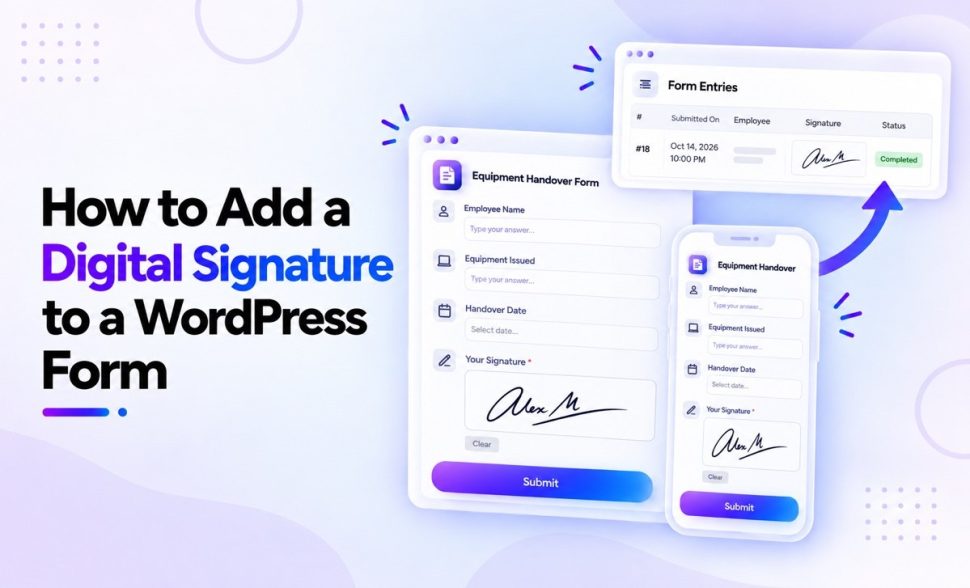
How to Add a Digital Signature to a WordPress Form
-
- Practical Guide Making Better WordPress Plugins
- 9 mins read

Seeing a signature on the form is not proof that you captured it. The real test comes after submission: can you open the entry, understand what was acknowledged, and retrieve the signature stored with it? If any part is missing, the record is incomplete even if the visitor received a success message.
This guide shows you how to build a WordPress digital signature form around that complete record. An equipment handover acknowledgement serves as the working example, connecting the employee details, acknowledgement, and drawn signature in one saved submission.
You can apply the same approach to receipt acknowledgements, internal approvals, delivery confirmations, and other low-risk records. If you are starting with an empty form, follow this guide to create a form in WordPress first.
Electronic signature vs. digital signature: know what you are collecting
People often use “electronic signature” and “digital signature” interchangeably, but they do not always mean the same thing.
| Term | What it means in this guide |
|---|---|
| Electronic-signature image | A mark that a person draws in the form and that WordPress stores as an image with the submission. |
| Cryptographic digital signature | A signature produced using cryptographic keys and algorithms to support checks such as origin authentication and data integrity. |
The NIST definition of a digital signature describes a cryptographic transformation, not simply a picture of handwriting. FormGent stores the drawn mark as an image with the form entry. Do not present that image as certificate-backed signing, identity verification, tamper-proofing, or proof of non-repudiation.
A signature field also does not establish, by itself, that the signer understood the agreement, had authority to sign, or met the legal requirements for a particular transaction. The words around the field and the process used to collect and preserve the submission matter too.
When a WordPress signature form is a sensible choice
A basic WordPress digital signature form can be useful when the signature is one part of a straightforward record.
| A form field may suit | Consider a dedicated e-signature platform |
|---|---|
| Internal approvals | High-value or regulated agreements |
| Policy or receipt acknowledgements | Formal identity-proofing requirements |
| Low-risk consent processes | Ordered signing by several parties |
| Delivery or service confirmations | Certificate-backed signatures |
| A waiver reviewed for your use case and jurisdiction | Tamper-evident document packages and detailed audit trails |
Risk is the deciding factor. If a disputed signature could create significant financial, safety, employment, healthcare, or regulatory consequences, get appropriate legal and security advice before relying on a general-purpose form field.
What you need before you start
Prepare the following before opening the form builder:
- A self-hosted WordPress site where you can install and manage plugins.
- A FormGent installation where the Digital Signature block is available.
- The agreement, acknowledgement, or policy the person will sign.
- A decision about who may view submissions and how long you will keep signature images.
- A desktop browser and a real phone or tablet for testing.
The official FormGent block overview can help you identify the fields available in the builder.
How to add a digital signature to a WordPress form with FormGent
Step 1: Create or open a FormGent form
In the WordPress dashboard, go to FormGent → All Forms. Create a new form or open the form that needs a signature.
Give the form a name tied to its purpose, such as “Equipment Receipt Acknowledgement” or “Project Approval.” A specific name helps administrators understand what each entry represents later.
Step 2: Add identity, agreement, and consent fields
Do not begin with an unexplained signature box. Build the context the signer needs first:
- Add only the identifying fields the process needs, such as name and email.
- Display the exact agreement, acknowledgement, or policy before the signature.
- Add a required consent control if your process calls for an explicit confirmation.
- Add any necessary date or reference information without implying that the form creates a complete legal audit trail.
For example, you could start with this consent wording:
I have read the statement above and agree that the signature I draw below records my approval.
Treat that sentence as a drafting example, not legal advice. Adapt it to the action the person is taking and have important or regulated language reviewed by a qualified professional.
Step 3: Add the Digital Signature block
Open the block inserter in the FormGent builder, find Digital Signature, and add it after the agreement and consent fields. Use a clear label such as Signature or Authorized signature.
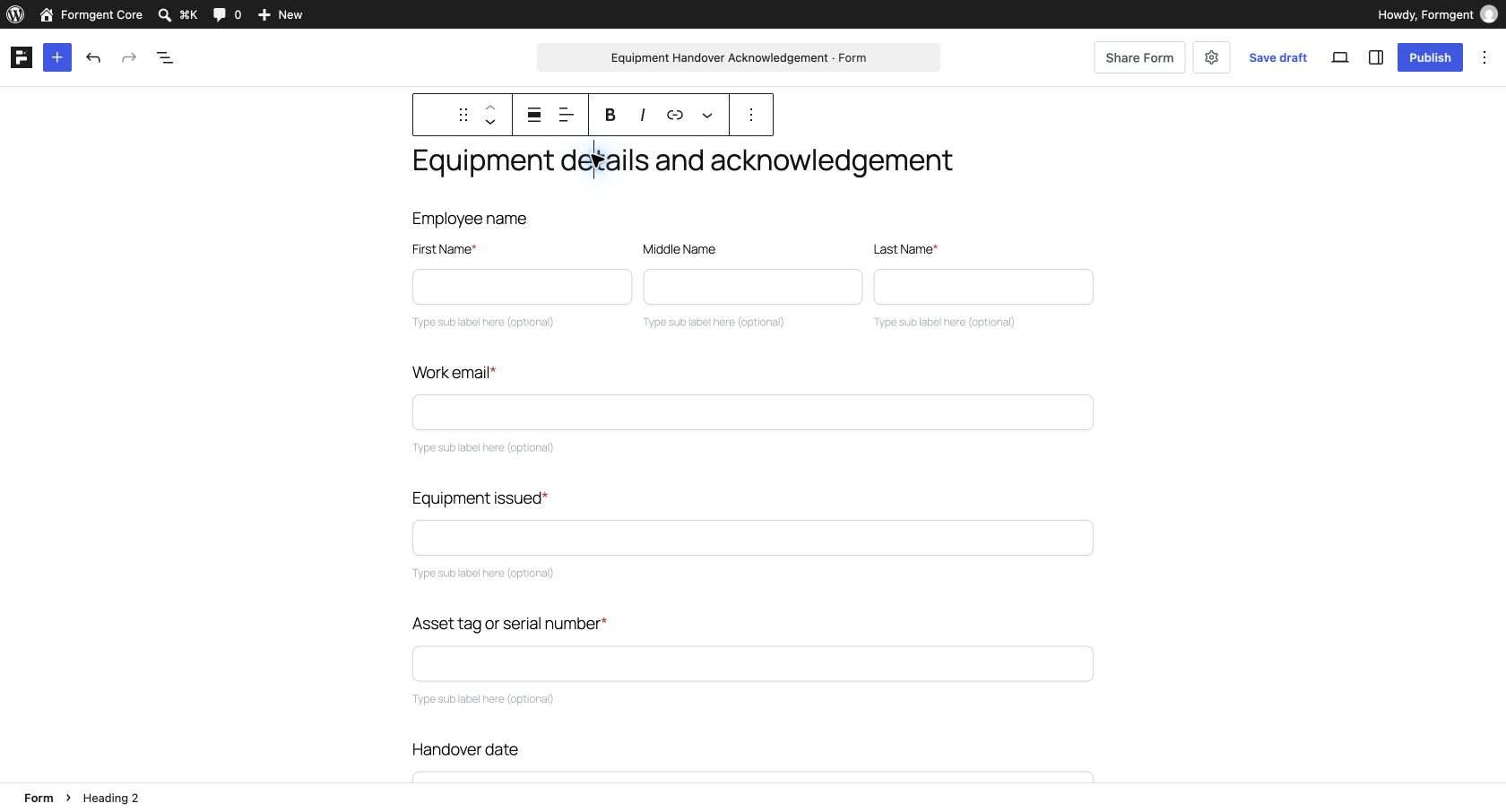
A descriptive label is better than asking the user to infer what an empty signing control means. It also makes the stored answer easier for administrators to recognize.
Step 4: Choose the signature type
Select the Digital Signature block and open its General settings. The Signature Type menu gives you four choices:
| Option | What it allows |
|---|---|
| Draw | The visitor draws a signature on the signing canvas. |
| Type | The visitor types a name and chooses the available signature style. |
| Upload | The visitor uploads an existing signature image. |
| All | The visitor can choose Draw, Type, or Upload. |
Signatures created through Draw, Type, or Upload can be submitted and reviewed in FormGent Entries. Selecting All places all three methods in the same signing field so the visitor can choose one.
Choose the option that fits your form and audience. This walkthrough uses Draw so the instructions and screenshots follow one consistent signing path. Then:
- Enable Required if the form must not be submitted without a signature.
- Review the label, field name, alignment, and width.
- Save the form.
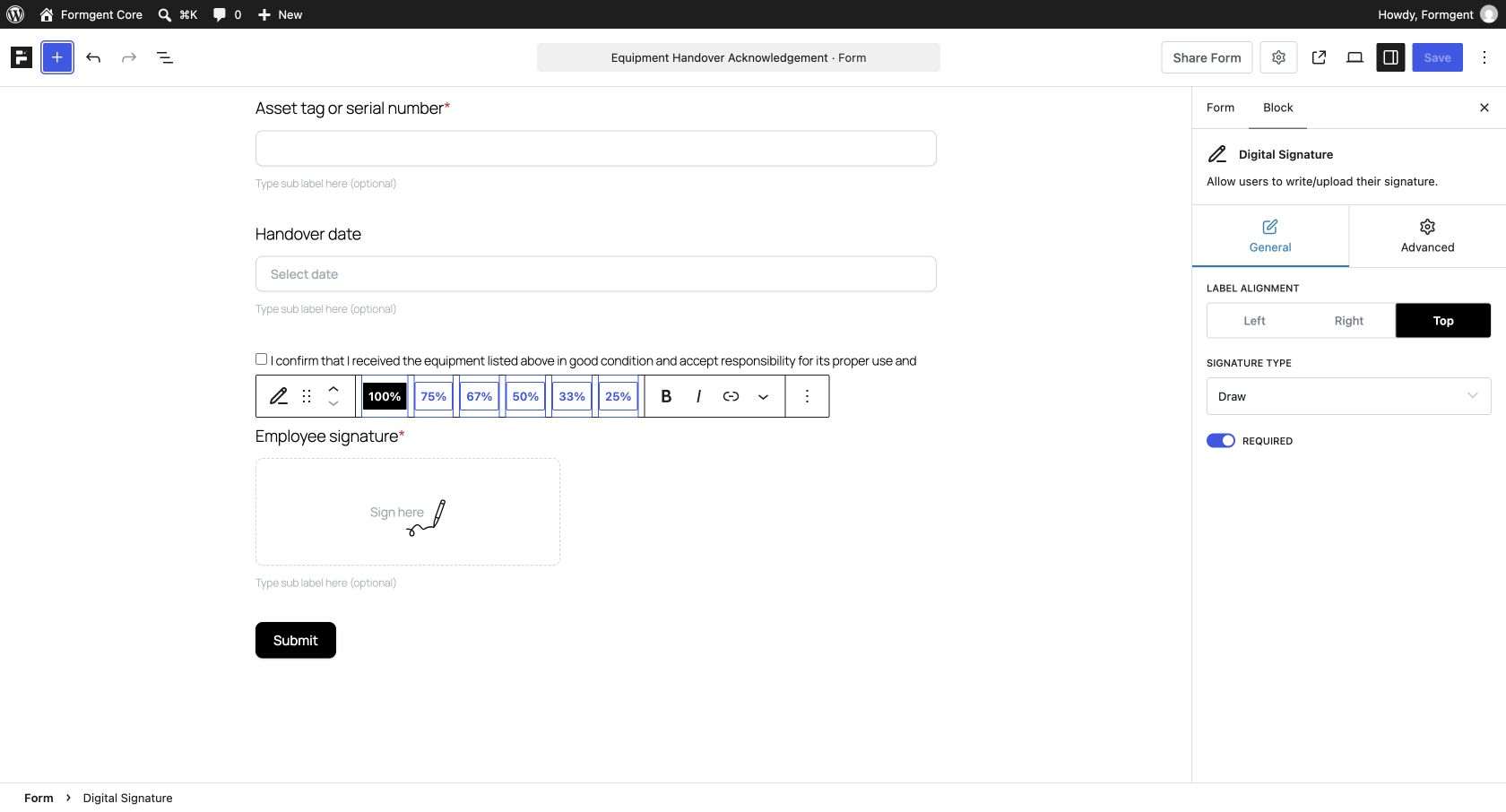
Whichever option you select, complete a practice submission with every method you make available and confirm the saved signature under Entries before opening the form to users.
Step 5: Publish and open the live form
Publish the form, then open its public URL or the WordPress page where you embedded it. Complete a practice submission on the visitor-facing page instead of relying only on the builder preview.
Confirm that the page displays the Signature label and the Sign here control.
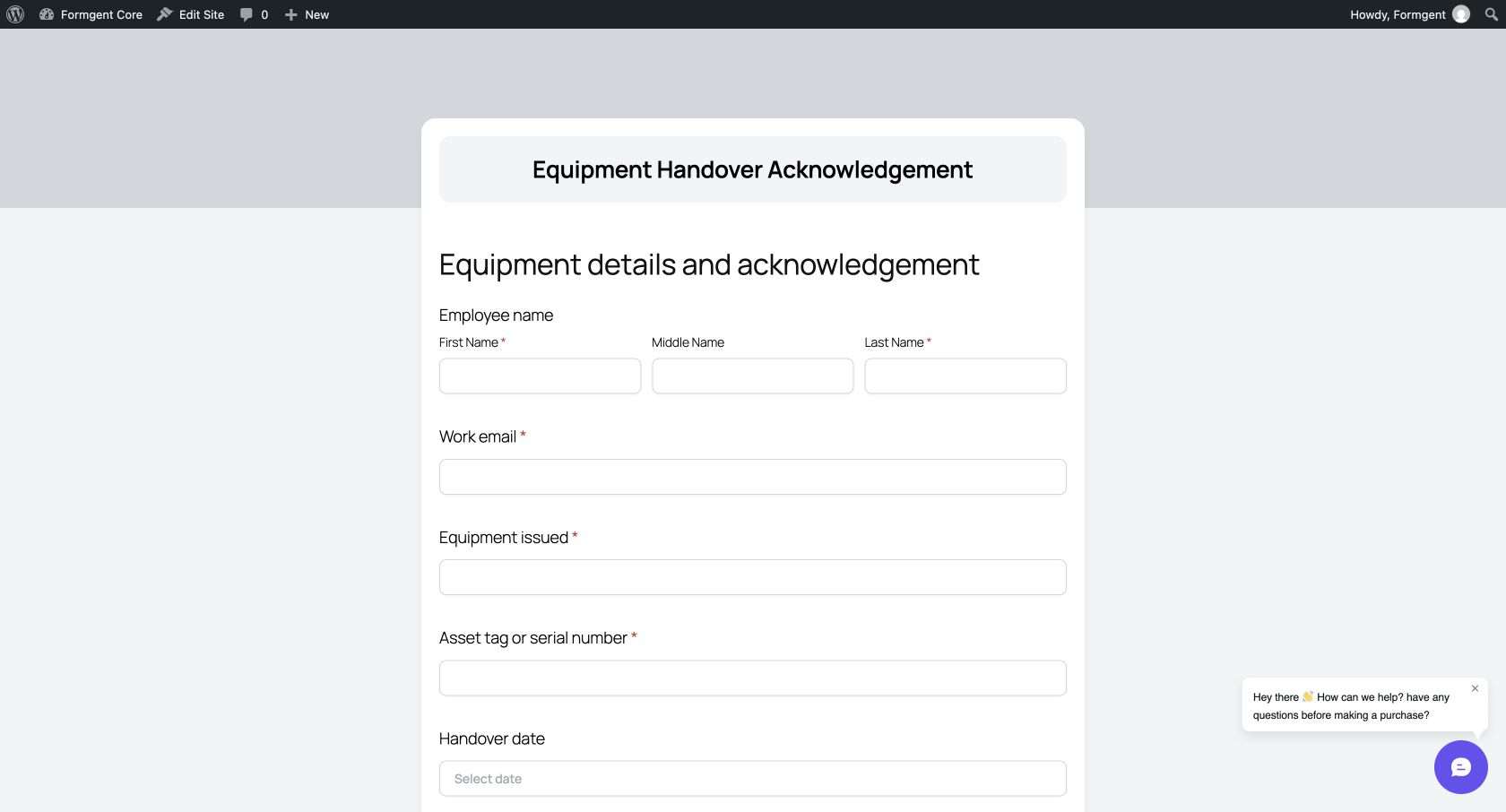
If a standalone form URL does not load, confirm that the form is published and try embedding it on a normal WordPress page. A routing or plugin conflict can affect the standalone route even when the embedded form works.
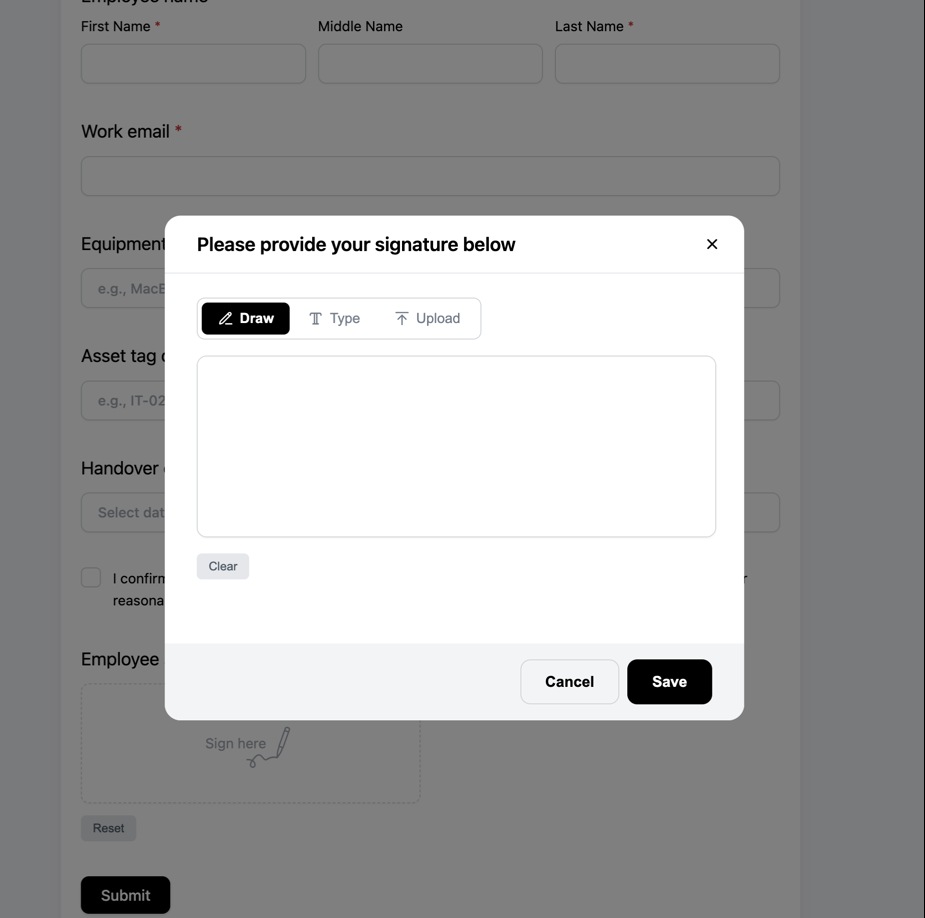
Step 6: Draw, save, and submit the signature
Run the same sequence a visitor will use:
- Select Sign here.
- Draw a visible practice signature on the canvas.
- Use Clear and try again if needed.
- Select Save.
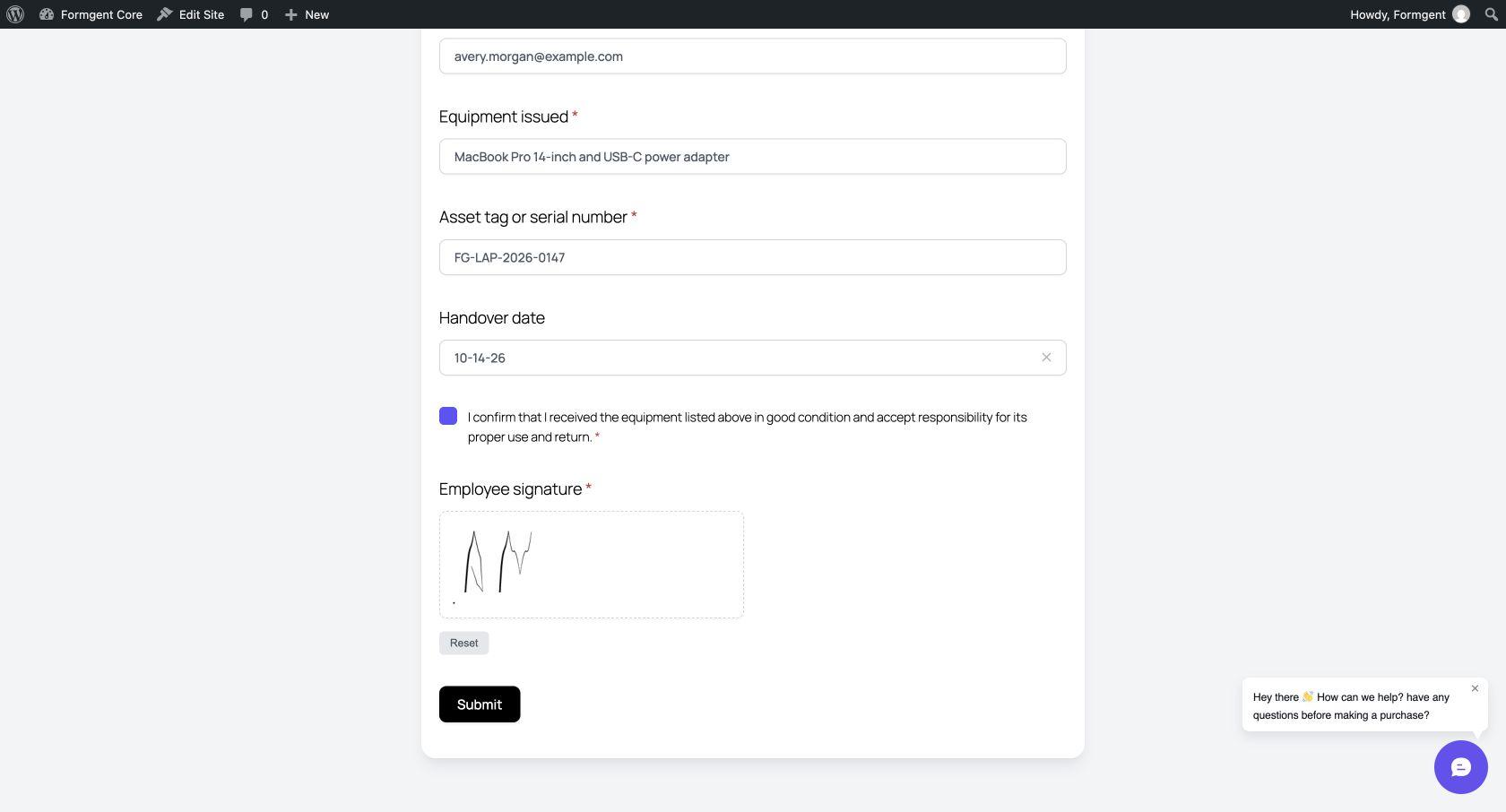
- Confirm that the drawn mark replaces the empty field state.
- Complete the other required fields and submit the form.
After saving, check that the signature appears with the agreement and equipment details before selecting Submit.
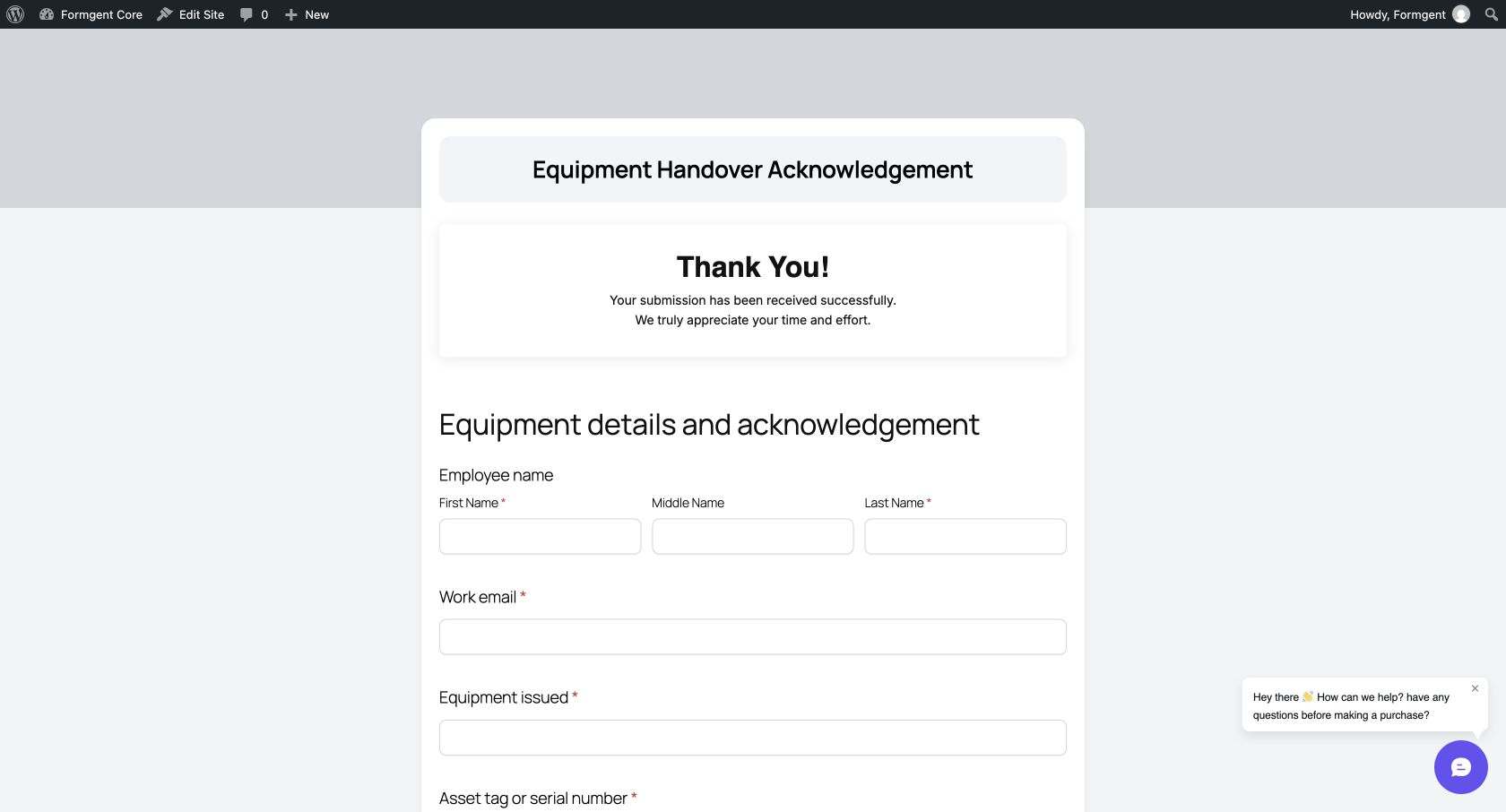
Wait for the confirmation, but do not stop there. A success message tells you what the front end displayed; it does not independently prove that the completed entry contains the signature.
Step 7: Verify the signature in FormGent Entries
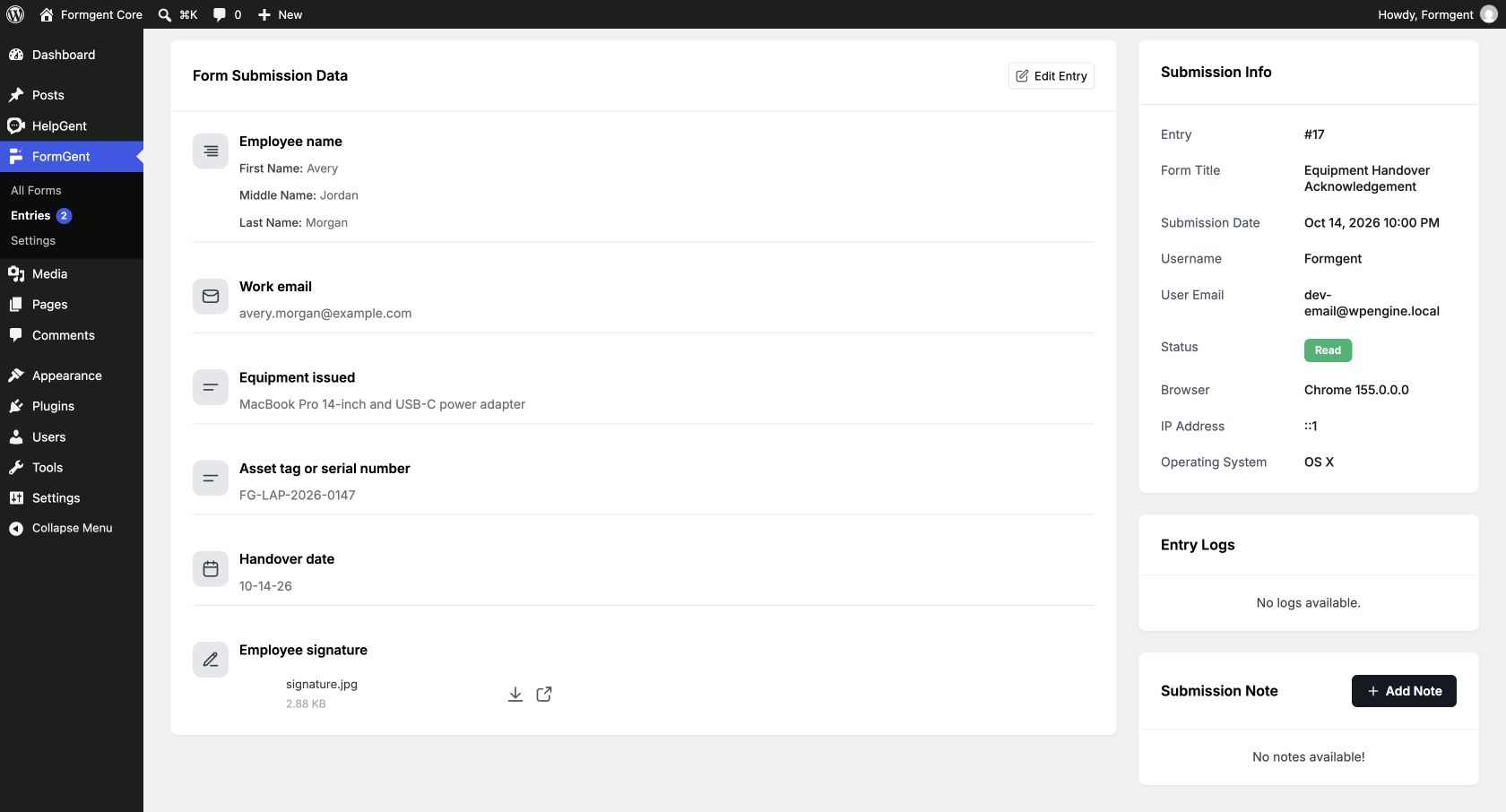
Return to the WordPress dashboard and go to FormGent → Entries. Filter the list by your form if necessary, then:
- Confirm that the submission has Completed status.
- Open the submission ID or its View action.
- Locate the Signature field.
- Confirm that the saved image is visible and readable.
FormGent’s guide to viewing a single entry provides more detail on opening an individual submission.
The completed entry should contain the employee name, work email, equipment details, asset tag, handover date, and the saved signature image. This administrator view confirms that the signature was stored with the submission instead of appearing only on the confirmation screen.
Build a better consent and evidence trail
The signature image is only one piece of the record. Make the whole interaction easier to understand and administer:
- Put the agreement before the signature so the signer knows what the mark refers to.
- Use consent wording that names the action instead of a vague “I agree.”
- Collect only the identity and contact information the process needs.
- Review which submission date and technical details FormGent records on your site. Do not assume every site or configuration captures identical metadata.
- Restrict entry access to administrators who need it.
- Define when signature images and related personal data will be deleted.
- Check the complete submission workflow after plugin, theme, caching, security, or server changes.
The Single Entry screen may include details such as the submission date, username, user email, browser, IP address, and operating system. These details add context, but they do not automatically establish identity or make the record legally sufficient.
Pre-launch checklist for a WordPress signature form
Before collecting real signatures, verify each item on the live page:
- The agreement is understandable and appears before the signature.
- Required identity and consent fields are present.
- The selected Signature Type matches the signing methods you intend to offer.
- The signature field is required when appropriate.
- Drawing, clearing, saving, and starting again work on desktop.
- Every enabled signing method creates a readable signature in the completed entry.
- Touch input works on a real phone or tablet.
- Keyboard users can reach and operate the surrounding controls.
- The form works on its actual public URL.
- The practice submission appears as Completed in FormGent Entries.
- The saved signature image opens and is readable.
- Submission access is limited to authorized users.
- Retention and deletion rules are documented.
- The workflow will be retested after product updates.
Troubleshooting common signature-form problems
The Save button closes the modal, but the field is empty
Treat an empty field as a failed save. Reopen the modal and test Draw on a published form. If you can inspect browser diagnostics, look for a failed attachment request or a missing form session. Do not proceed until the signature is visible in the field.
If you plan to offer Type or Upload, complete a separate submission with each mode and confirm the saved signature under Entries before launch.
The form says the signature is required
Open Sign here, draw a visible mark, and select Save. Confirm that the mark appears in the form before submitting. Simply opening and closing the signing window does not satisfy the required field.
The success message appears, but no entry is stored
Check FormGent → Entries instead of relying on the visitor-facing message. Make sure you are viewing the correct form and looking for a Completed submission. If nothing is stored, reproduce the issue with a minimal form and check for plugin, theme, caching, or server conflicts.
The standalone form page says the form cannot be found
Confirm that the form is published. Test the form embedded on a regular WordPress page, refresh the site’s permalink settings if appropriate, and isolate routing or plugin conflicts before launch.
The signature works on desktop but not mobile
Use a real touch device to test drawing, modal size, scrolling, screen orientation, and the Clear and Save controls. A desktop browser’s responsive preview does not fully reproduce touch behavior.
Frequently asked questions
Can WordPress collect electronic signatures?
Yes. FormGent’s Digital Signature block lets a signer draw, type, or upload a signature. You can also select All to offer all three methods in one field. After submission, the saved signature can be reviewed with the rest of the response in FormGent → Entries.
Is a drawn signature the same as a cryptographic digital signature?
No. A drawn mark stored as an image is an electronic signature. A cryptographic digital signature uses keys and algorithms to support authenticity and integrity checks.
Are electronic signatures legally binding?
Electronic signatures can have legal effect in many situations, but the answer depends on the jurisdiction, transaction, consent, evidence, and collection process. For example, 15 U.S.C. § 7001 generally prevents a signature or contract from being denied legal effect solely because it is electronic in covered U.S. transactions. That does not make every WordPress signature process enforceable or suitable for every document. Obtain qualified advice for your specific use case.
Where does FormGent show the saved signature?
Go to FormGent → Entries, open the completed submission, and review the Signature field in the Single Entry view.
Should I allow drawing, typing, and uploading?
FormGent provides Draw, Type, Upload, and All as Signature Type options. Draw lets the visitor make a handwritten mark, Type lets them enter a name and choose a signature style, Upload lets them select an existing signature image, and All presents all three choices. Each method can be submitted and reviewed in FormGent Entries. Select the option that best suits your audience, or use All when you want visitors to choose their preferred method.
Finish with proof you can retrieve
Before accepting real responses, prove the entire chain works. The signer should be able to read the acknowledgement, save a visible mark, and submit the live form. An administrator should then be able to open the completed entry and retrieve that mark.
Choose the Signature Type that suits your form, complete it on the public page, and inspect the result under Entries. If you offer more than one signing method, repeat the test for each one. Check the workflow on desktop and mobile before launch so your team has a repeatable process for collecting and reviewing low-risk signature records.


Leave a Reply