
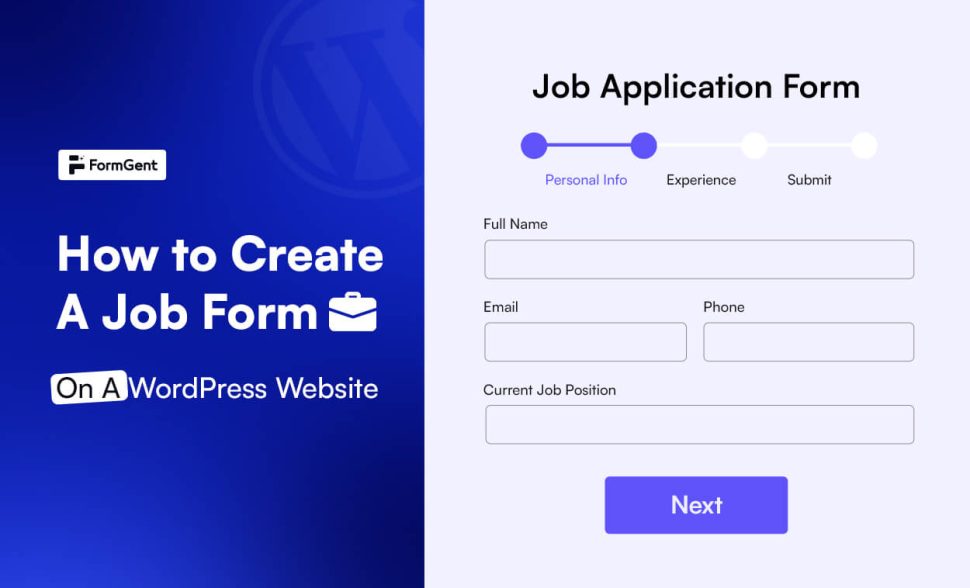
How to Create a Job Application Form Online
-
- Tips and Tricks
- 9 mins read

Ever applied for a job and felt frustrated by a slow, confusing and hard-to-use form? And then again, you ask yourself how to create a job application form? A smooth, professional job application form doesn’t just make life easier for recruiters but also leaves a strong first impression on potential hires. It shows you’re organized, modern, and serious about the hiring process.
That’s why more businesses today are turning to online job application forms that streamline submissions, keep applicant data in one place, and make the process easier for everyone involved.
In this blog post, we’ll walk you through how to create a job application form in WordPress with a form builder step by step. You’ll also learn how the webform’s features make the form-building experience interactive and help you build a better experience for both recruiters and applicants.
What Is a Job Application Form and Why Does It Matter?
A job application form is an online form where job seekers fill in their personal and professional details to apply for a job. It usually asks for basic information like name, email, work experience and education lets applicants upload their resume or cover letter.
A well-crafted job application form is important because:
- It standardizes the hiring process
- Reduces back-and-forth communication
- Employers can quickly filter the most relevant candidates
- Speed up the screening process
- Find responses and attachments all in one place
Best Ways To Create a Job Application Form Online
With so many options out there, online form-building experience has become an easy gateway to get started. Some of the users may look for a conversational form to make it more personalized while others are looking for getting mass responses and nothing else.
So, here are some of the options from beginners to advanced users to create a job application form online.
Google Form, is a widely used online form builder because it’s free, super simple and integrates with Google Sheets. You can add different patterns of questions like MCQs, checkboxes, textarea, dropdown, Likert scale, etc. It also offers pre-made templates. You can share via email or a link for free. Because of its handy nature, zero cost and integrations with other Google products in the ecosystem, it is used by a wide range of users, including teachers, online coaches, students, event organizers, researchers, and non-profit organizations.
Jot Form, on the flip side, is perfect for those who need more than just a basic form. Let’s say you’re hiring for multiple positions and want to collect detailed info such as resumes, portfolios, signatures, or even application fees. It comes with a drag-and-drop builder, tons of ready-to-use templates, and features like file uploads, conditional logic, and payment integration. You can also connect it with apps like Google Drive, Slack, or your CRM to make the workflow run smoothly and automate your submission. Unlike Google Forms, Jotform lets you fully customize your form to match your brand with no awkward “Powered by” tags if you’re on a paid plan.
It’s a great fit for HR professionals, recruitment agencies, or any business that needs a smarter way to collect and manage job applications.
Canva, is a newer but surprisingly handy option for creating stylish and on-brand forms, especially if you care about visuals. While Canva is mostly known for its design tools, the form builder lets you create simple, eye-catching forms. It’s not overloaded with advanced features like Jotform, but it’s perfect for those who want something clean, creative, and easy to share. You can create a form using Canva’s pre-built templates.
Canva Forms is ideal for small teams, personal brands, freelancers, or anyone who’s already using Canva for marketing and wants everything in one place.
The most popular and professional way to create and manage job application forms is by implementing them on the company website’s career pages. Popular CMS like WordPress come with thousands of form plugins that you can use to create stunning, highly functional job application forms. Most importantly, they can be integrated with your company CRM or other online tools such as Zapier, Google Sheets, Mailchimp, etc, to automate sending submission responses or storing submissions on the cloud.
What makes it different? It gives you full control. You’re not just adding a form, you’re building something that works smoothly with your theme, plugins, and existing tools. All response data, attachments and URLs. Everything is stored natively inside your website backend. Not only it’s convenient managing so many information and documents, but also secure.
Benefits of Using Website Forms
Creating a job application form directly on your company website has several benefits. It builds trust with candidates, as they’re more comfortable sharing their details on an official company page rather than on a third-party site or a random Google Form. It also gives your hiring process a more professional and reliable look. Online forms help recruiters collect, organize, and evaluate candidate data efficiently.
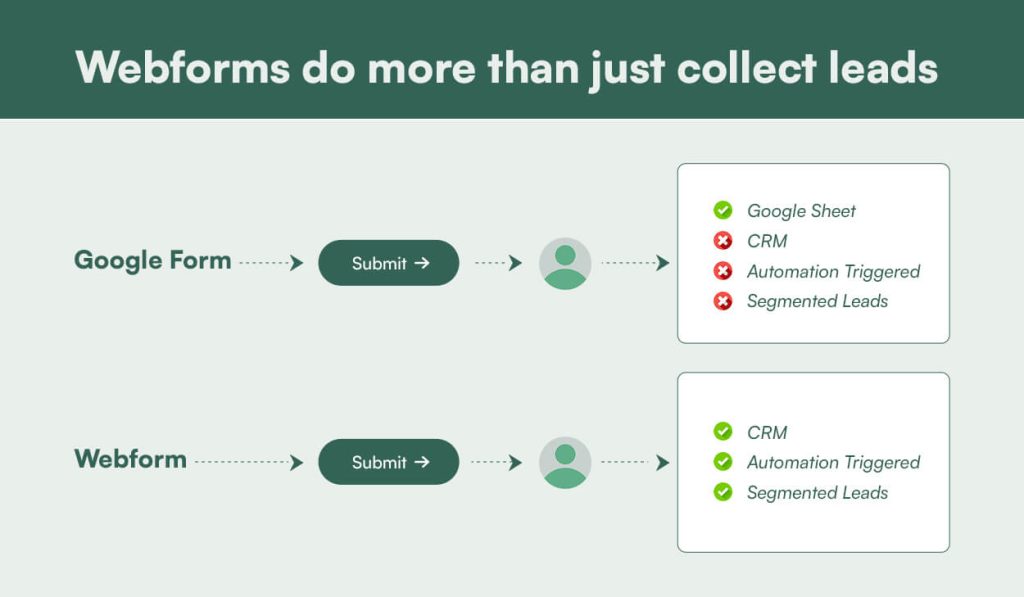
Although Google Forms remains one of the most popular online form tools for recruiters worldwide, it’s not always the most secure or reliable option. The main concern is trust—anyone can create a form on Google Forms, making it hard for applicants to know if it’s legitimate. In contrast, only authorized personnel have access to a company’s official website, so job application forms hosted there are more trustworthy and credible.
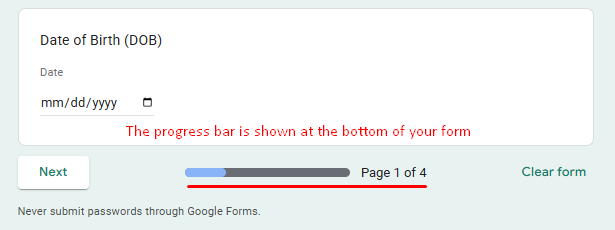
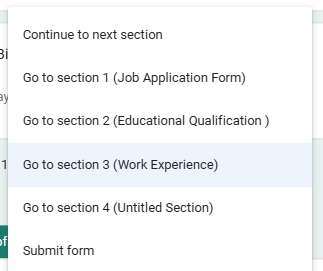
In addition, Google Forms lacks advanced conditional logic, which is often essential for recruiters, especially when gathering detailed information from international candidates, such as demographics and professional expertise. In contrast, website forms are highly customizable. They allow for complex fields, conditional logic, and tailored workflows, making them a more effective solution for creating and managing job application forms.
Another benefit of website forms is that they support advanced input validation. On Google Forms, candidates can enter invalid information, like an incorrect email address and still submit the form. However, website forms can be set up to validate entries in real time, preventing these kinds of errors. This applies to other important fields as well, such as phone numbers, mailing addresses, and years of experience, ensuring you receive accurate and complete data from every applicant.
Finally, Google Forms and other third-party form tools don’t integrate as seamlessly with automation tools as most website forms do. Recruiters often want to send a confirmation email to candidates immediately after they apply. This can be easily done with website forms by integrating with email services like Mailchimp, making the process more efficient and professional.
How to Create a Job Application Form in WordPress (4 Steps)
There are tons of WordPress form plugins available to create a job application form. You can create a simple job application form in under a minute. Popular form plugins such as WP Form, Gravity Form, and Ninja Form have many crafted job application templates built in, which can be used with a few clicks. To create something advanced, this form will require a paid plan. For starters, we’ll be using a relatively new but highly efficient form plugin called FormGent. It offers many advanced and premium features, right within its free plan. That means you won’t have to worry about paying anything to create your first job application form on your WordPress website.
Using FormGent, we will show how to create a job application form for a website. Here’s a quick look at all the steps you have to take:
- Step 1. Create a New Form
- Step 2. Add Form Fields (Step-by-Step)
- Step 3. Publish your form
- Step 4. Finalize and Embed the Form
Step 1: Create a New Form
If you already have the FormGent plugin installed, you can start by creating a form. However, if you do not have it, you can go to your WordPress website backend and then go to Plugins>Add New Plugin>Search “FormGent” >Install > Activate to get it installed and activated.
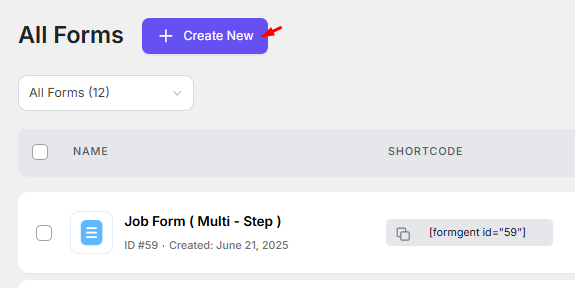
- Once it is installed and activated, go to FormGent > Create New
- Choose the Form Type and select start from scratch. You can also create your job application form with AI, which enables you to save time.
- You can select from Classic Form and Conversational Form.
- In Classic Form, you can show multiple questions on a single page, which is ideal for candidates to follow up.
- If you want the application process to be more interactive, you can build a conversational job application form, but they are not very popular for the recruitment process.
- Name your form something like “Job Form” so that you can identify it later.
Step 2: Add Form Fields
It’s a simple drag-and-drop process in which you can drag all the required fields one by one and organize them as you need. There’s no coding skill required to build a job application form using FormGent.
i. Personal Information
- Add a Single Line Text for Full Name
- Add an Email field
- Add a Phone field
- Click on Add Page Break to move to the next step
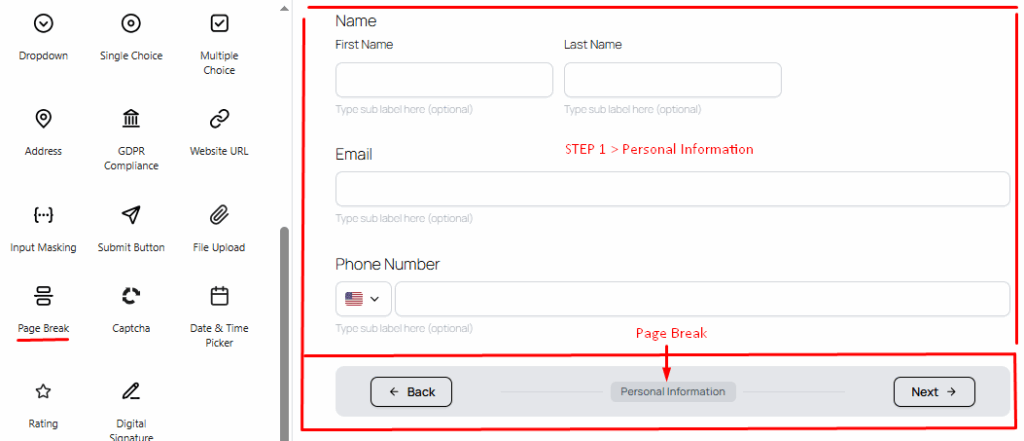
Now do the same for the next two steps.
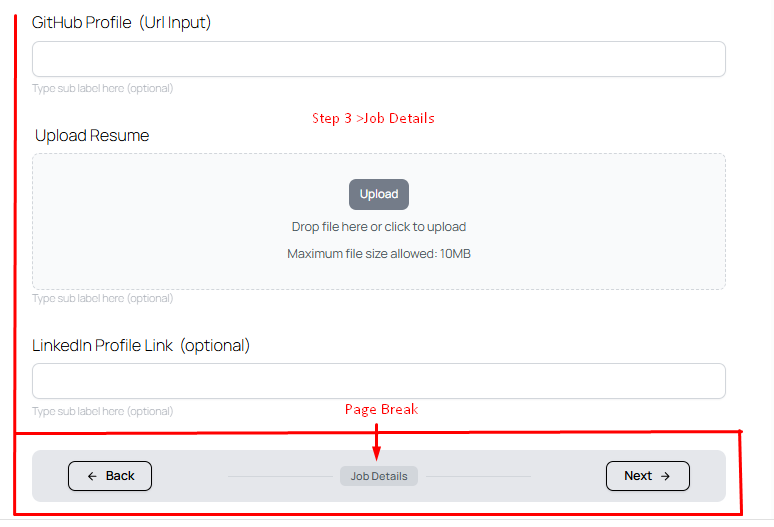
ii. Job Details
- Add a Dropdown field for “Position Applied For”
- Options: Content Writer, Graphic Designer, Developer
- Add a Single Line Text field labelled “GitHub Profile”
- Add a File Upload field for Resume
- Add a Single Line Text field for LinkedIn Profile (mark it optional)
- Click on Add Page Break
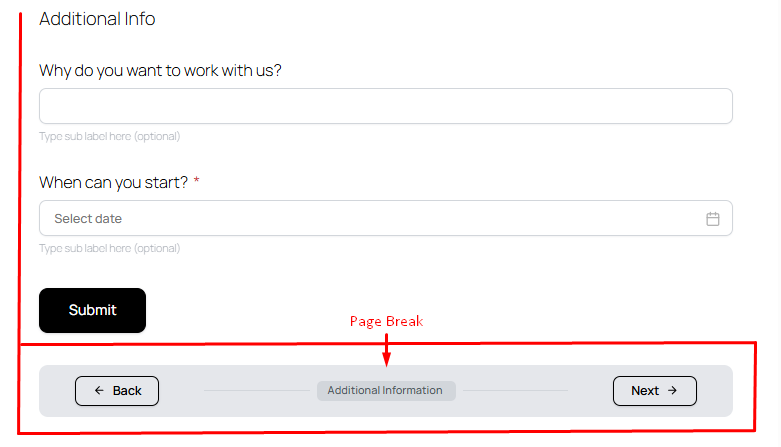
iii. Additional Information
- Add a Paragraph Text field for “Why do you want to work with us?
- Add a Date & Time Picker or Dropdown field for “When can you start?”
Step 3: Add Conditional Logic
Now let’s add a condition to show the GitHub Profile field only if the applicant selects “Front End Developer” from the dropdown.
But How to Apply the Conditional Logic?
- Click on the “GitHub Profile” field
- Go to the Conditional Logic tab
- Enable Show this field if logic
Set condition: Show this field if “Position Applied For” is “Front End Developer”
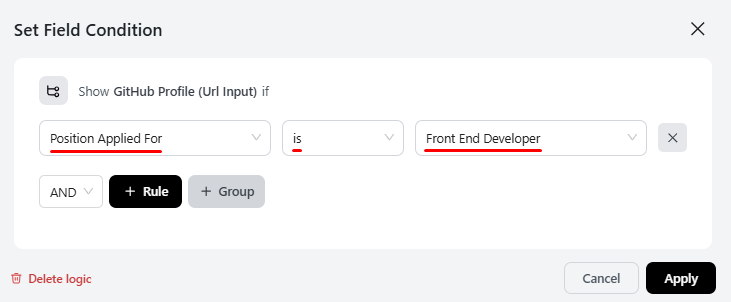
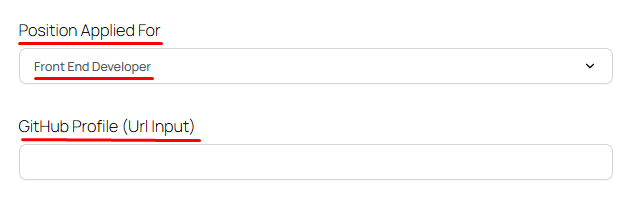
That’s it! Now the GitHub field will only appear when someone selects “Front End Developer.”
( Go to the preview tab to see the condition applied )
Step 4. Finalize and Embed the Form
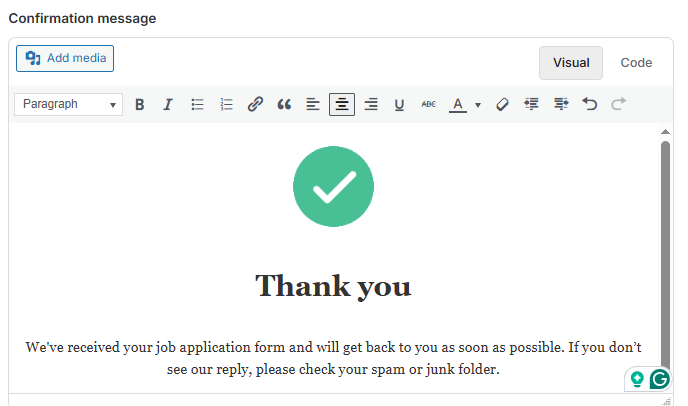
- Go to ‘Form Confirmation’
- Customize the confirmation message and save the form
- Use the shortcode provided by FormGent to embed the form into any page or post.
Here’s the bonus for you:
You can also bring the form dynamically without having the shortcode.
Once active, the form from the FormGent dashboard, you’ll be able to make it dynamic.
Go to Pages > dynamic form > select the form (See, it’s already here)
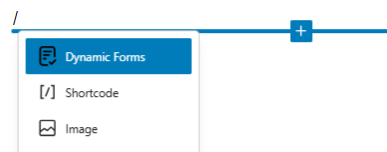
Then you’ll see the page like this.

Think All Form Builders Are the Same? Think Again.
So far, we’ve created the job form with FormGent, right? Was that easy for you? You can comment below anytime.
Many form builders let you create any type of form you want. But FormGent stands aside for its user-friendly experience. Meaning that if you’ve never heard about WordPress or felt the necessity of having a form, you can still create beautiful forms without seeing the documentation or tutorials. This is how easy it is, just drag and drop.
But other form builders also work fine. But here’s the catch: this form offers you more. Don’t you wonder how?
Form builders are designed in a way that will limit your functionality at some point and ask you to go for the pro version. Sometimes creating a simple and plain form will satisfy your need, but when you want to do something unusual or A/B test to see the user’s behaviour, FormGent is your good friend here. In the free version, it will let you create a form where you ask one question at a time to your user. See the image below.

How will it benefit you? It will increase your form completion rate. It goes even further. If you want to hide or show any options based on user input, it will automatically do that. That’s not all. If you want to make quizzes for your students, you can do it here as well.

You can play around with font, button colour, GIFs, animations, styles, and many more.
If you want to play with forms, you may look here to learn more.
FormGent Isn’t Just for Job Applications
Once you get the hang of building forms with FormGent, the possibilities don’t stop at job applications. You can repurpose the same drag-and-drop simplicity for other HR and internal tasks, too. Here are just a few examples of what you can create next:
- Employee Onboarding Form
- Employee Survey Form
- Internship Application Form
- Leave Request Form
- Performance Review Form
- Exit Interview Form
- Remote Work Request Form
- Team Feedback Form
- Training Registration Form
- Internal Job Transfer Request Form
Final Thoughts
Website forms are a smart solution for recruiters because they offer more control, better security, and smarter functionality compared to generic third-party tools. When choosing a form tool like FormGent, it’s not about comparing features anymore, it’s about using a reliable system that makes form creation simple, spam-free, and fully customizable. With the right setup, recruiters can collect detailed, validated information, manage submissions efficiently, and streamline the entire hiring process and all from their website.


Leave a Reply