

How to Connect WordPress Forms to Google Sheets Without Zapier or API Setup
-
- FormGent Integrations
- 9 mins read
You Googled “WordPress forms to Google Sheets.” Found a tutorial. Followed every step.
Then came the Google Cloud Console. Create a project. Enable the Sheets API. Set up OAuth consent. Add credentials. Download a JSON key file…
Twenty minutes later — “This app isn’t verified.” Form still broken. You still have no data in your spreadsheet.
Sound familiar?
This is where most people give up. And honestly? It’s not your fault. The three most popular methods all have a serious catch:
Google API + a connector plugin sounds free — until you realize the setup alone takes 45 minutes, breaks every few months when OAuth tokens expire, and loses your data silently while you sleep.
Zapier feels easier — until the 100 free tasks run out mid-campaign and you’re suddenly paying $20/month just to keep a form talking to a spreadsheet.
WPForms Pro + Google Sheets Addon works well — but at $199/year, it’s a steep price just to automate something this basic.
Every method asks you to either wrestle with Google’s API or pull out your credit card. Neither should be the price of connecting a form to a spreadsheet.
The good news? There’s a way to do this in under 5 minutes — no API setup, no Zapier account, no paid plan. Just a WordPress plugin that handles everything for you out of the box.
Let’s get into it.
Why You Actually Need This Integration
When someone submits your WordPress form, that data sits inside your WordPress dashboard. Only people with WordPress login access can see it. You have to manually export it if your team needs it. And analyzing it? That means digging through entries one by one.
Google Sheets changes all of that.
Your sales team can monitor new leads in real time — without a WordPress login. Your HR manager can filter through job applications in seconds. Your client can see event registrations as they come in, in a spreadsheet they already know how to use.
A few concrete examples of what this looks like in practice:
- A lead generation form submits → name, email, and phone number appear instantly in your sheet → your sales team follows up within minutes
- A job application form submits → applicant details land in a shared HR sheet → hiring managers filter and shortlist without touching WordPress
- A feedback survey submits → responses accumulate in one place → you build a chart and send a monthly report in minutes
No manual exports. No copy-pasting. No “can you send me the latest entries?” messages.
Once it’s set up, it just works — every submission, automatically, in real time.
Now let’s set it up. Here’s how to do it without touching a single API setting.
The Easy Fix: Meet FormGent
So if Google API setup is a headache and Zapier costs money — what’s the alternative?
FormGent.
It’s a WordPress-native form builder built by wpWax, and it has Google Sheets integration built right in. No middleware. No API console. No third-party accounts. You connect your Google account with one click, pick your spreadsheet, and you’re done.
Here’s what makes it different from everything else you’ve tried:
No Google API setup. FormGent handles the OAuth authentication behind the scenes. You never see a Client ID, a JSON key file, or an “app not verified” error.
No Zapier setup. The connection between your form and Google Sheets is direct — no third-party tool sitting in the middle, no task limits, no monthly bill for a basic automation.
Free plan includes Google Sheets. Most plugins lock integrations behind a paid tier. FormGent doesn’t. The Google Sheets integration is available on the free plan — unlimited submissions, no expiry date.
Built for WordPress. FormGent uses the native block editor, so building a form feels like editing any other page on your site. No separate interface to learn.
Is FormGent perfect for every situation? Not necessarily — if you’re deeply invested in WPForms or Gravity Forms already, switching isn’t always worth it. But if you’re starting fresh, or you’re tired of fighting with API setups and Zapier limits, FormGent is genuinely the simplest path from form submission to Google Sheets row.
In the next section, we’ll set the whole thing up — step by step.
Step-by-Step: Connect Your WordPress Form to Google Sheets with FormGent
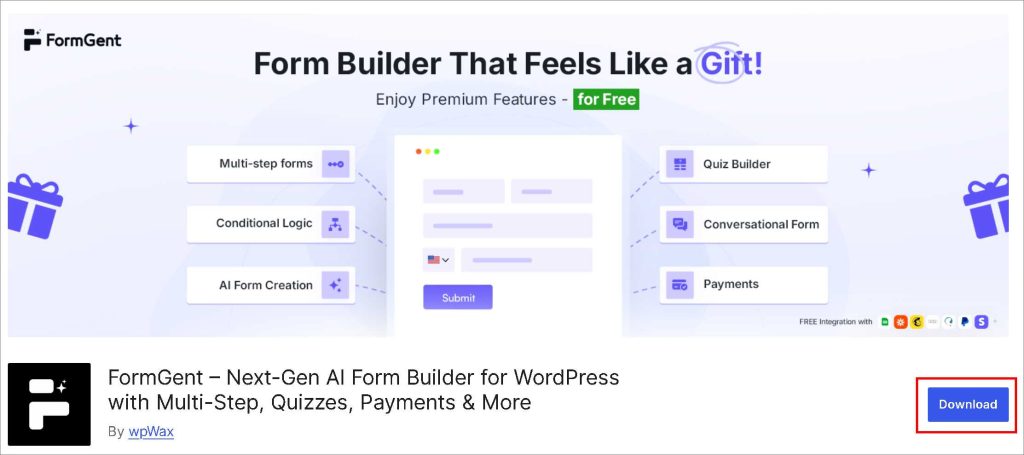
Install & Activate FormGent
Go to your WordPress dashboard → Plugins → Add New. Search for “FormGent”. Click Install Now, then Activate.
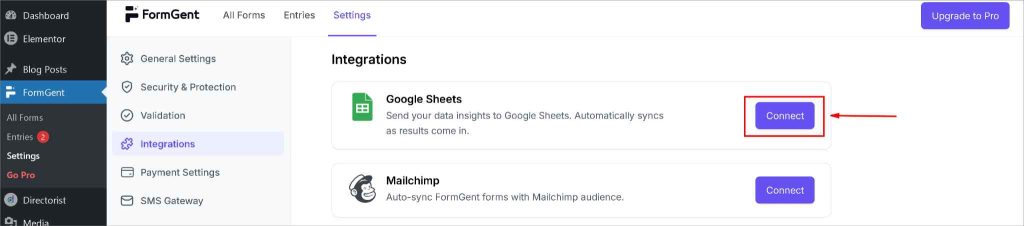
Access WordPress Settings
FormGent > Settings > Integrations > Google Sheets. Initiate Google Drive Connection. Click “Connect” to start linking your WordPress forms with Google Drive.
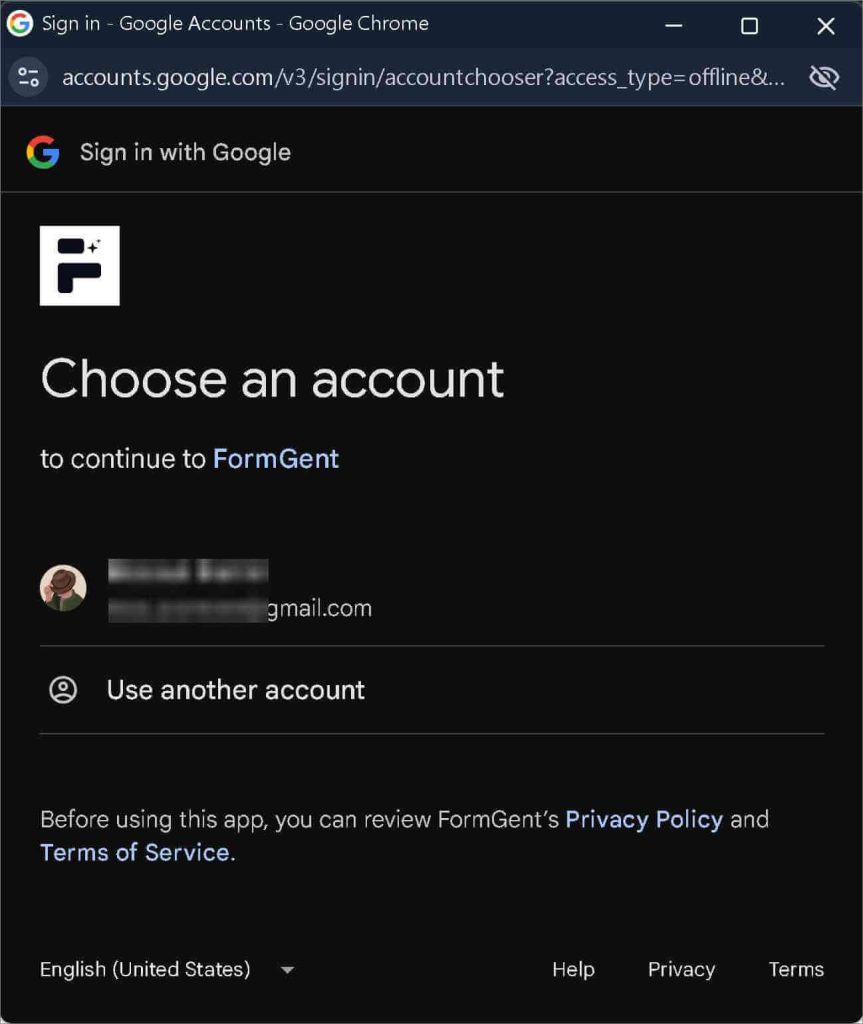
Switch to Google Sign-In & Select Google Account
This action will redirect to the “accounts.google.com” tab to sign in to your Google account. Click your Google account email to proceed with authentication.
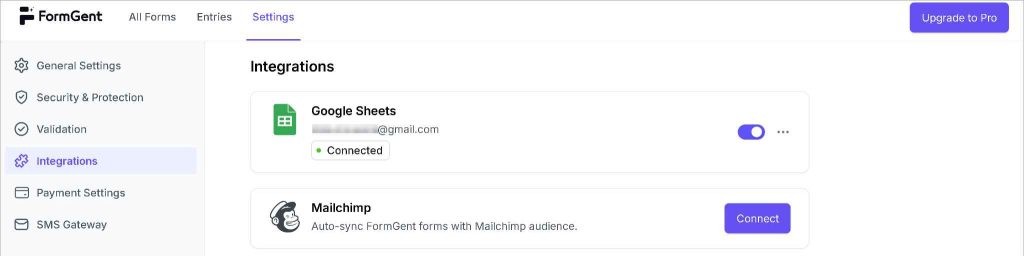
Return to WordPress Dashboard
Switch back to the “WP Dashboard” tab to continue configuring your form.
Create or Select Form For connecting with Google Sheets
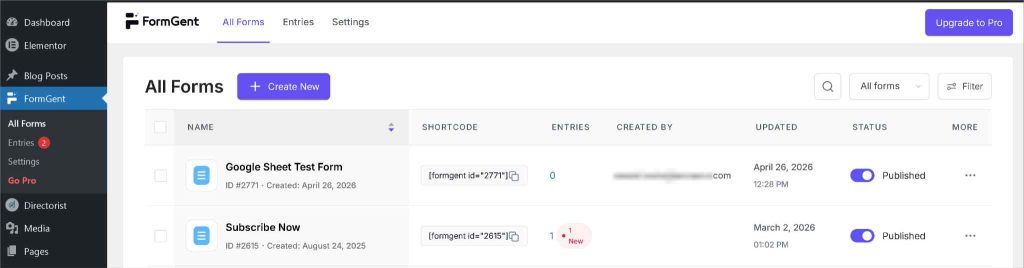
Click “All Forms” to view and manage your existing WordPress forms. You can create a new form by clicking the “Create Now” option or can connect the existing form with Google Sheets. For this tutorial, we are using the existing form.
Create a New Form
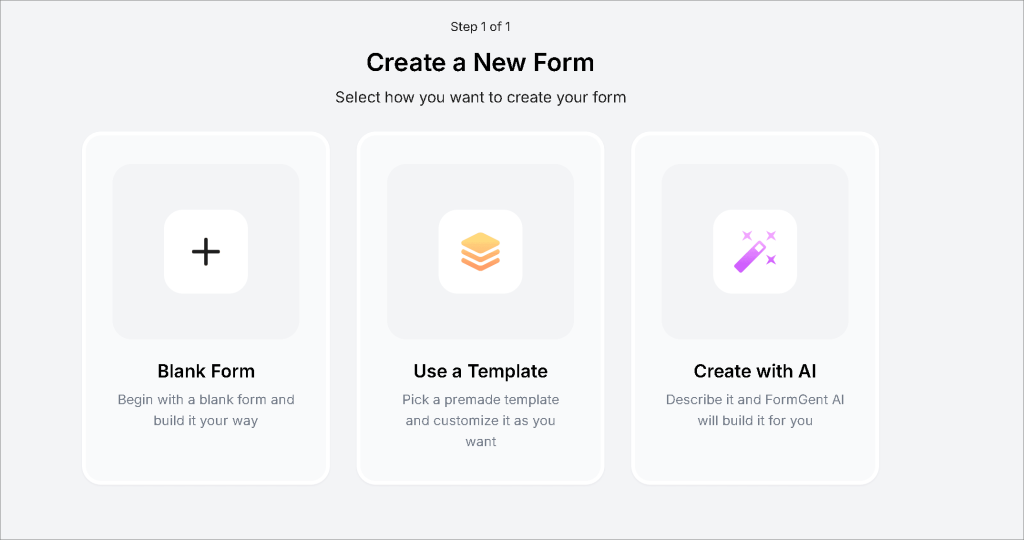
In your dashboard sidebar, click FormGent → Add New. You’ll see three options:
- Black Form — Create from Scratch
- Start from a template — pick one that fits your use case (contact form, job application, lead form, etc.)
- Use AI — type something like “Create a contact form with name, email, phone, and message” and FormGent builds it for you in seconds
Either way, you’ll land in the drag-and-drop form builder.
Customize Your Form Fields
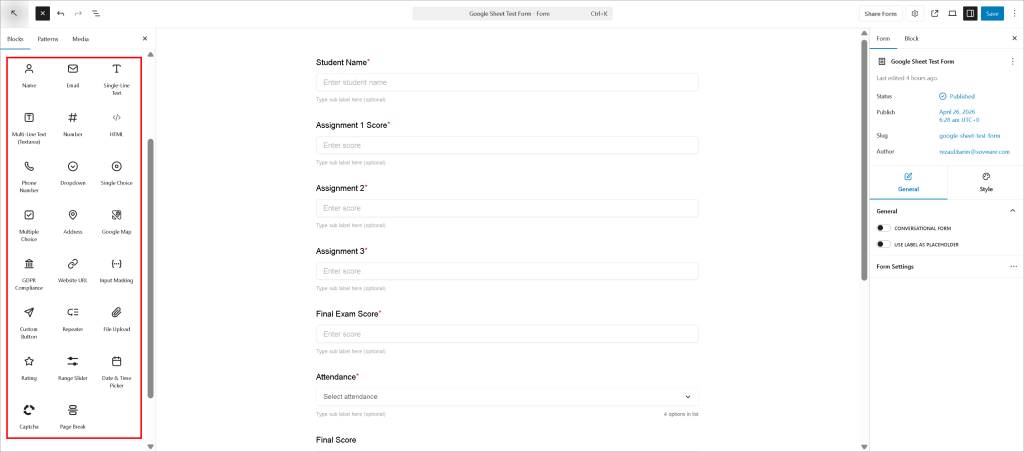
Add, remove, or rearrange fields using the drag-and-drop builder. Set your labels and placeholder text. Make sure every field you want to capture in Google Sheets has a clear, descriptive label. When you’re happy with the form, hit Save.
Open the Integrations Settings
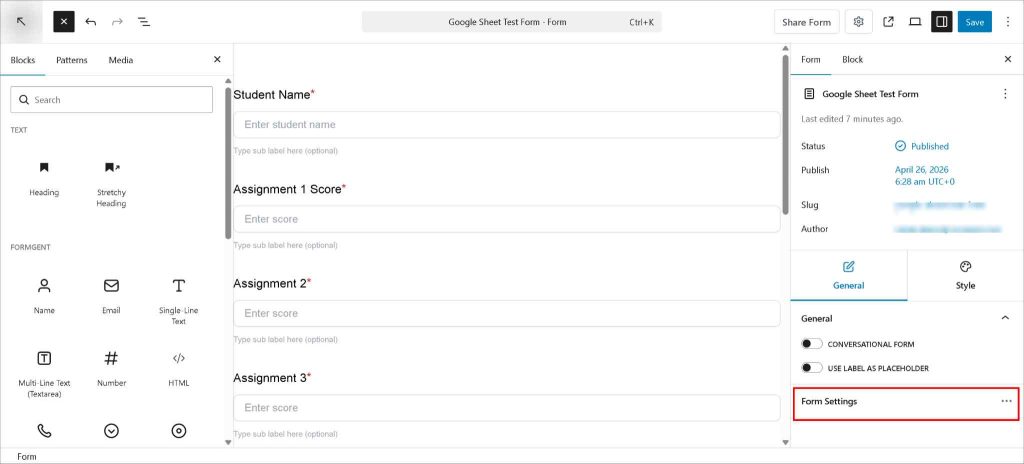
Click “Form Settings” to open the form settings and integration options.
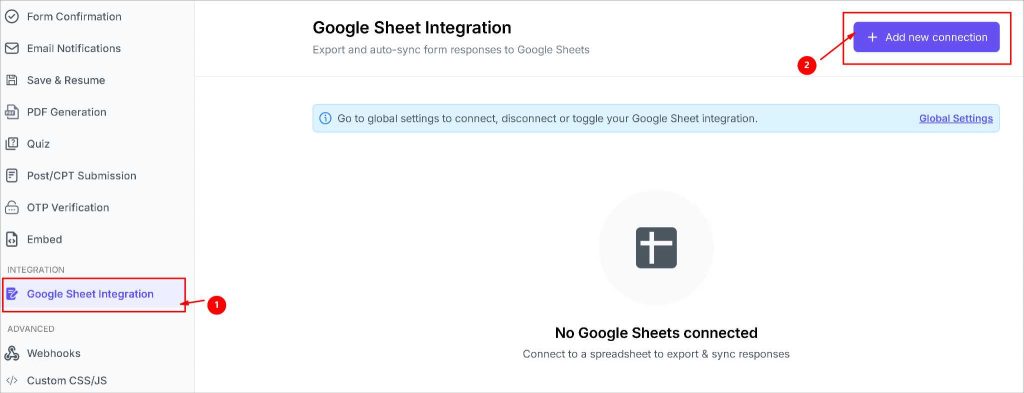
Add New Connection Google Sheet Integration
Click “Google Sheet Integration” to manage your spreadsheet connections and Click “Add new connection” to create a new link between your form and a Google Sheet.
Select Spreadsheet and Worksheet
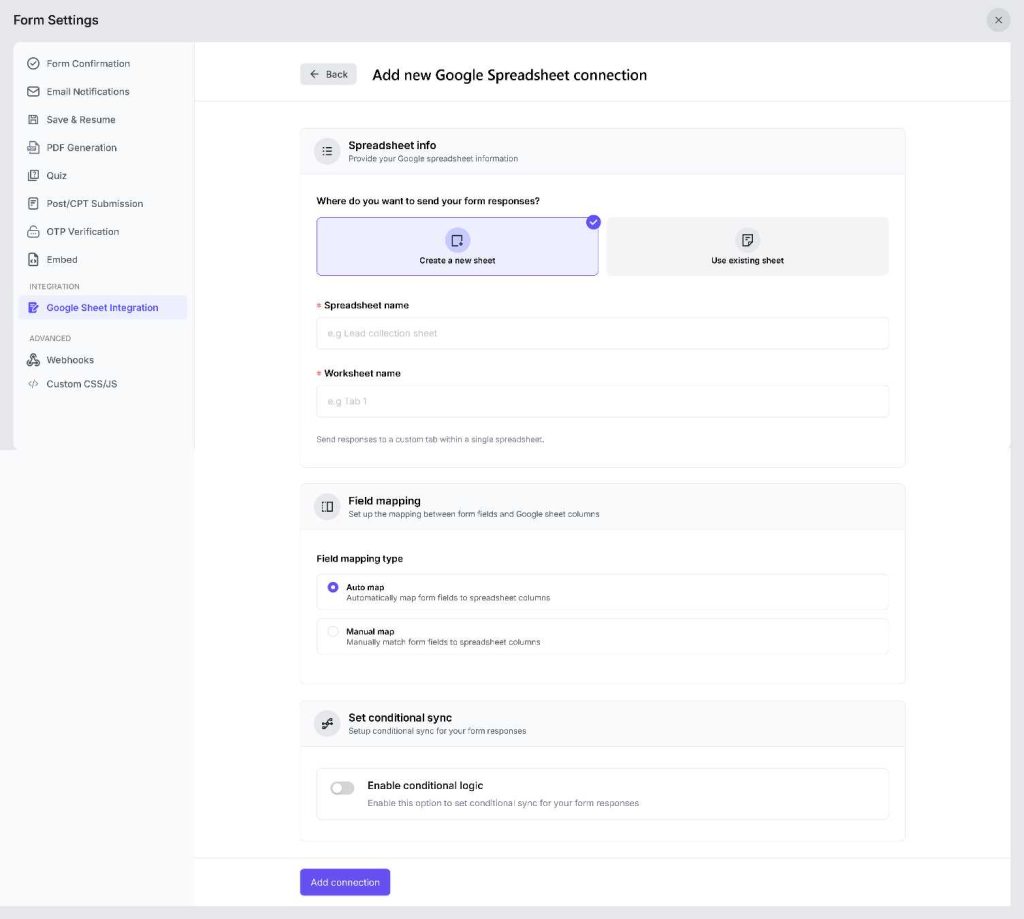
Here you can Create a new sheet or Use an existing sheet to collect the form response.
For Create a New Sheet
Click “Spreadsheet name” to specify the Google Sheet you want to connect. Set up the field mapping and enable conditional logic if required. Now click on “Add Connection”
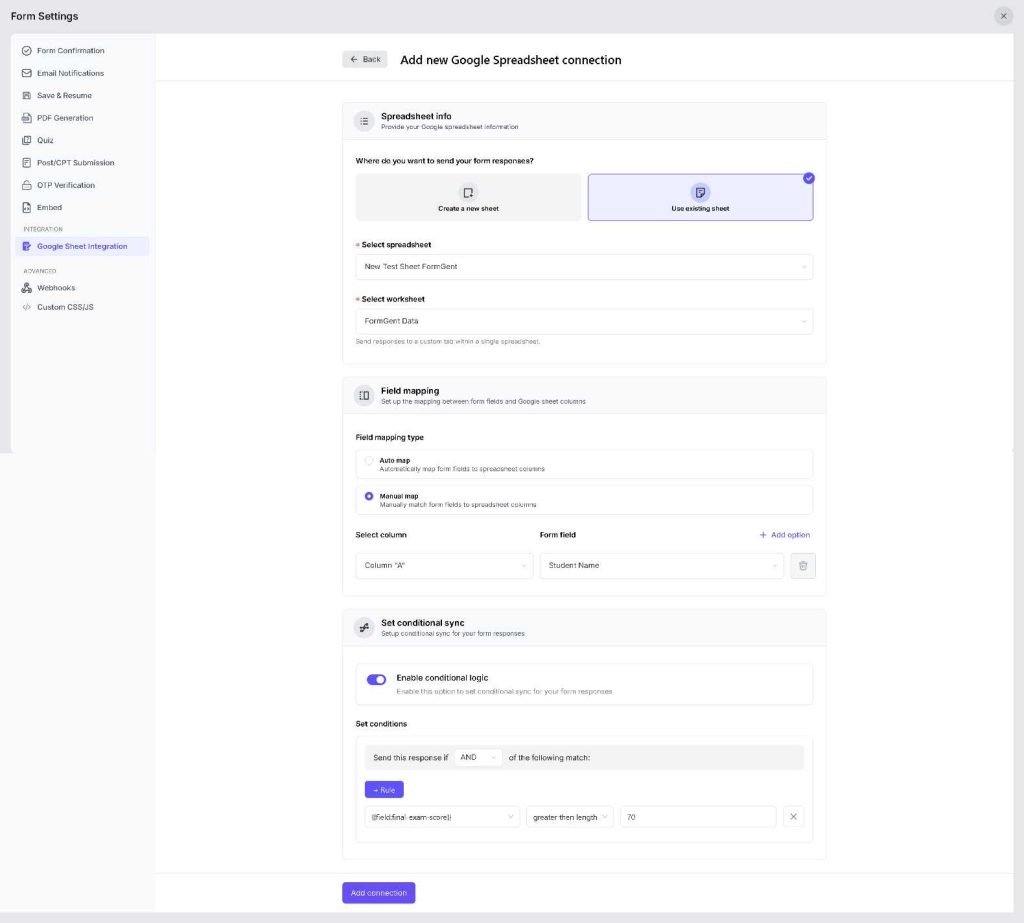
For Use existing Sheet
Browse & Select from your existing spreadsheet & worksheet. The set up process field mapping and conditional logic are the same as creating a new sheet. After finalizing all the process, don’t forget to click “Add connection”
Check The Process By Test Submission
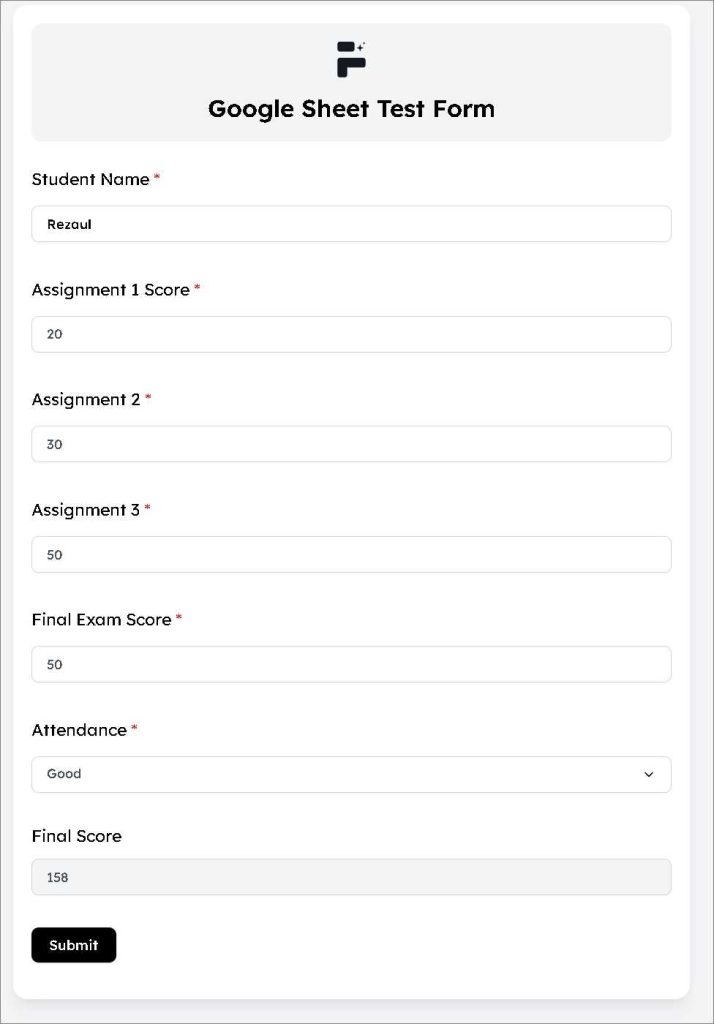
After all the setup is done, make a test submission to make sure that everything is working properly.
Click “Preview”
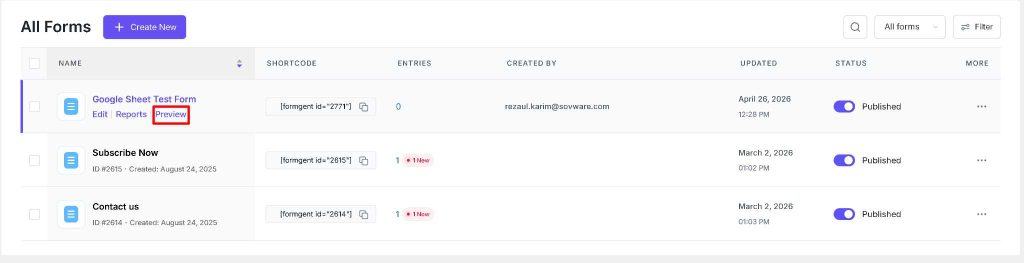
Fill up the form & “Submit”
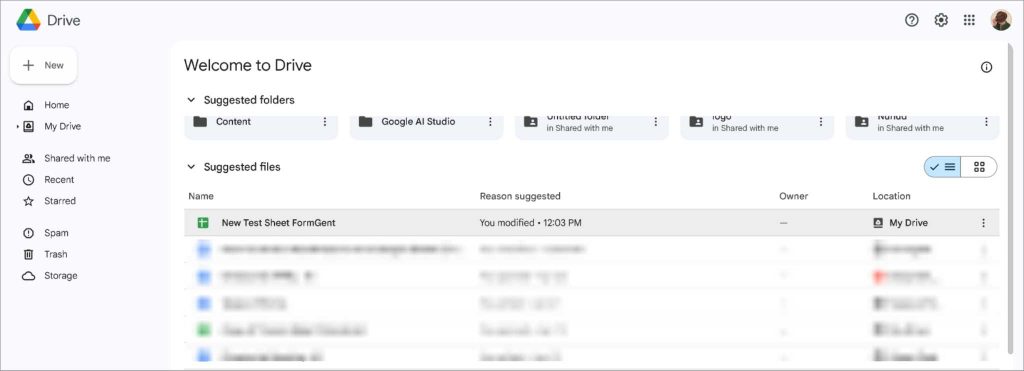
Switch to the “drive.google.com” tab to access your Google Drive files. Browse and open the connected Google Sheet file.
Here, you’ll find all the submitted data through your form.
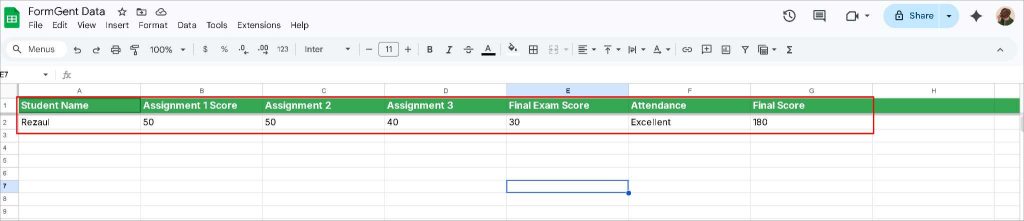
Congratulations! You’ve successfully connected your WordPress form to Google Sheets with FormGent.
Real-World Use Cases: Who Actually Benefits From This?
The setup is done. But let’s make it concrete — here’s what this integration looks like when real businesses use it day to day.
Lead Generation Forms
You’re running a landing page. Visitors fill out a contact form — name, email, phone number, maybe a budget range. Without Google Sheets, that data sits in WordPress. Your sales team has to log in, export entries, and manually update their CRM.
With FormGent connected to Google Sheets, every new lead appears in a shared spreadsheet the moment they submit. Your sales team gets a notification, opens the sheet, and follows up — no WordPress access required, no exports, no delay.
Job Application Forms
Your hiring manager doesn’t have — and shouldn’t need — a WordPress login. But they need to see every application as it comes in.
Set up a FormGent application form with fields for name, position, experience, and a file upload for CVs. Every submission lands directly in a shared Google Sheet. Your HR team can filter by position, sort by date, leave comments in adjacent columns, and build a shortlist — all without touching your website.
Event Registration Forms
Running a webinar, a workshop, or an in-person event? Your registration form collects names, emails, and ticket preferences. Google Sheets turns that into an automatic attendee list that updates in real time.
When the event is a week away, you already have a clean, exportable list ready to go — no last-minute data wrangling.
Customer Feedback and Surveys
Post-purchase feedback forms, NPS surveys, course evaluations — these are only useful if you actually analyze the responses. When every submission goes straight into Google Sheets, you can use built-in charts, filters, and pivot tables to spot patterns immediately, or quickly create a pie chart to visualize customer sentiment and response trends.
Monthly reporting goes from a manual chore to a five-minute task.
The common thread across all of these? The right people get the data, in the right format, automatically. Nobody has to log into WordPress. Nobody has to ask for an export. It just flows.
Frequently Asked Questions
Q: Can I send WordPress form data to Google Sheets for free?
Yes. FormGent’s free plan includes the Google Sheets integration with no submission limits and no expiry date. You don’t need to upgrade to a paid plan just to get this feature.
Q: Do I need Zapier to connect WordPress forms to Google Sheets?
No. FormGent connects directly to Google Sheets without Zapier or any other third-party automation tool. There’s no task limit, no monthly bill, and no extra account to manage.
Q: Do I need to set up a Google API or Google Cloud project?
No. This is the biggest difference between FormGent and most other methods. FormGent handles the Google authentication behind the scenes. You click “Connect with Google,” sign in, and you’re done — no Client ID, no JSON file, no OAuth consent screen.
Q: Will FormGent work with my existing Google Sheets?
Yes. During setup, you can select any existing spreadsheet from your Google Drive. You don’t need to create a new one unless you want to.
Q: What happens if someone submits the form while I’m offline?
The integration runs server-side, not in your browser. So it works 24/7 regardless of whether you’re logged into WordPress or Google Sheets.
Q: Is there a limit on how many submissions get sent to Google Sheets?
No. Unlike Zapier’s free plan — which caps you at 100 tasks per month — FormGent doesn’t put a ceiling on how many submissions get passed to your spreadsheet.
Q: What if a submission doesn’t show up in my sheet?
A few things to check. First, make sure you clicked Save after setting up the integration. Second, check that your Google account is still connected under Settings → Integrations. Third, confirm that the sheet you selected still exists and hasn’t been renamed or deleted. If everything looks right, submit another test entry and see if that one comes through.
Q: Can I send data from multiple forms to the same Google Sheet?
Yes. Just connect each form to the same spreadsheet — either the same worksheet or different tabs. Each form’s submissions will land in the sheet you mapped it to.
Q: Does FormGent work with the WordPress block editor (Gutenberg)?
Yes. FormGent has a native block, so you can embed any form directly inside the block editor without using a shortcode — though the shortcode option is available too if you prefer it.
Conclusion: The Simpler Path Was Always There
Let’s recap where most people end up when they try to connect WordPress forms to Google Sheets.
They spend 45 minutes inside Google Cloud Console, hit an OAuth error, and quietly give up. Or they sign up for Zapier, run out of free tasks during a busy week, and start paying $20 a month for something that should be free. Or they buy a premium plugin license just to unlock one integration they needed from day one.
None of that is necessary.
FormGent connects your WordPress form to Google Sheets in under 5 minutes — with no API setup, no Zapier account, and no paid plan required. Every submission lands in your spreadsheet automatically, in real time, without you lifting a finger after the initial setup.
That’s it. That’s the whole thing.
If you’ve been putting this off because the other methods looked too complicated — this is your sign to just get it done today. It genuinely takes less time than reading this article did.
Didn’t install FormGent yet?
? Download FormGent for free →
Install it, connect your Google Sheet, and submit a test entry. Five minutes from now, you’ll have a live integration that works — no API console required.

Rezaul Karim
Rezaul Karim is a passionate Digital Marketer driven by curiosity and creativity in the ever-evolving world of online marketing. With over 6 years of hands-on experience in Content Writing, Copywriting, SEO, and Social Media Marketing, he brings a strategic edge to crafting content that engages and converts. Always eager to explore new trends and tools, Rezaul thrives on finding smarter ways to connect brands with their audiences. Outside of work, he enjoys diving into books or recharging in nature.


How to Create an Event Registration Form in WordPress (2026)
September 29, 2026[…] for handing a list to someone who doesn’t need dashboard access at all. FormGent’s own guide to connecting WordPress forms to Google Sheets walks through the one-click setup if you want the full […]
How to Build a Lead Generation Form in WordPress (10-Step Guide)
September 29, 2026[…] the destination your team uses. Depending on the integration available to you, that could be a Google Sheet, a Mailchimp list, Zoho CRM, or an automation through Zapier. FormGent also offers a webhook option […]