

How to Create Feedback Forms in WordPress (Free)
-
- Tips and Tricks
- 14 mins read

Someone visited your site today, got confused or frustrated by something small, and left without saying a word. You’ll never know what it was. Most visitors don’t complain. They just leave.
A feedback form is how you catch that before it becomes a pattern. But there’s a trap: it’s easy to build a bad one. Three vague questions. A pile of “it was fine, thanks” responses. Nothing you can actually act on.
Building a good one isn’t about the plugin. It’s about five minutes of thinking before you touch a single field: what are you actually trying to learn, and which question will get you a real answer?
This guide covers both halves. You’ll have a working feedback form live on your WordPress site in a few minutes using FormGent, a free WordPress form builder. You’ll also learn which question to ask for which situation, which field type captures useful data instead of noise, and where to place the form so people actually stop and answer it.
The stakes are real: according to Zendesk, more than half of customers will switch to a competitor after just one bad experience. You can’t fix what you don’t know about. A feedback form is how you find out before it’s too late.
What Is a Feedback Form?
A feedback form is a short, focused form that asks people what they think. About a product, a website, a support interaction, an event, or a workplace.
It’s different from a contact form, which routes one specific request to one specific person. It’s also different from a full market-research survey, which tends to be long, sent to a carefully sampled audience, and analyzed for statistical significance. A feedback form sits in between: short enough that people actually finish it, specific enough that the answers point somewhere useful.
Why Bother Asking?
If you don’t ask, you don’t find out until it’s expensive. People who have a bad experience rarely tell you directly. They just don’t come back. Or worse, they leave a public review instead of a private one.
A feedback form gives people a low-friction way to say something before they give up on you entirely. It’s a lot cheaper to fix a confusing checkout step because three people mentioned it than to discover the same problem through a quarter of lost revenue.
Types of Feedback Forms
“Feedback form” covers a lot of ground. The type you’re building should shape which questions you ask and where you put the form.
Customer or product feedback forms ask how satisfied someone is with something they’ve already used. Fields typically include a satisfaction rating, a recommend-likelihood question, and one open-ended “what would make this better” question. Best placed on an order confirmation page, in a post-purchase email, or inside a product dashboard.
Website or UX feedback forms focus on the site itself. Can people find what they’re looking for? Does navigation make sense? Is anything confusing or broken? These lean toward multiple choice (“What were you trying to do today?”) plus a short open text box. Place them as a small floating tab or footer link that doesn’t interrupt browsing, or on a dedicated feedback page.
Customer support feedback forms measure how one specific support interaction went. Was the agent helpful? Was the issue actually resolved? Trigger these right after a ticket closes, while the interaction is still fresh. Keep it to two or three questions — people who just finished a support conversation have little patience for a long survey.
Employee feedback forms ask about workload, management, tools, or general morale. These benefit the most from an anonymity option, since people are far more candid when their name isn’t attached. Multiple choice and rating questions tend to work better than open text here, since anonymous open text can be hard to act on without more context.
Event feedback forms go out after a webinar, conference, or in-person event. Cover the content, the format, the venue or platform, and what to change next time. Send these within 24 hours — response rates drop fast after that window.
| Form type | Typical field mix | Best placement |
| Customer / Product | Rating + recommend-likelihood + open text | Order confirmation, post-purchase email |
| Website / UX | Multiple choice + short open text | Floating tab, footer link, dedicated page |
| Customer Support | 2–3 rating questions | Immediately after ticket closes |
| Employee | Multiple choice + rating, anonymous option | Internal intranet, HR portal |
| Event | Rating + multiple choice + open text | Email within 24 hours of the event |
Before You Build: Define Your Goal and Questions
The build itself takes a few minutes. What determines whether the form is actually useful happens before you open the form builder.
Pick One Objective Per Form
A single form trying to cover product quality, website usability, and support quality at once produces muddy, hard-to-act-on data. Pick one objective. If you need feedback on more than one area, build more than one form, and place each where it’s relevant.
Mix Measurable and Open-Ended Questions
Measurable questions — a rating, a scale, a multiple-choice pick — give you numbers you can track over time and compare across responses. Open-ended questions capture the specific “why” behind a high or low score, but they take longer to read and harder to summarize at scale. Use one or two, not five.
A little rewording goes a long way. A plain yes/no often collapses too much nuance into two buckets:
| Instead of | Try |
| Did you find what you were looking for? (Yes / No) | How easily did you find the information you needed? (Very easy / Easy / Somewhat easy / Difficult / Very difficult / I didn’t find it) |
| Was the support agent helpful? (Yes / No) | How would you rate the help you received? (1–5 scale) |
| Did you like the event? (Yes / No) | Would you attend a similar event in the future? (Not at all likely – Extremely likely) |
Build In an “Other” Option
Whenever you give people a fixed list of choices, someone’s real answer won’t be on it. FormGent’s Multiple Choice (checkbox) field has a genuine built-in “Other” option. Turn it on, and a text box appears automatically when someone selects it — no extra setup.
Single Choice (radio button) doesn’t have that built in. You can recreate the pattern yourself: add a Text field labeled “Please specify,” then use conditional logic so it only shows up when “Other” is selected.
Quick Start: Build the Form With FormGent
Here’s the fast path. Using the free plugin’s AI builder, you can have a working form in under two minutes.
Step 1: Install and Activate FormGent
- Log in to your WordPress dashboard.
- Go to Plugins → Add New.
- Search for FormGent.
- Click Install Now, then Activate.
Full walkthrough with screenshots: how to install and activate FormGent.
Step 2: Start a New Form
Click FormGent in the sidebar, then All Forms, then Create New. You’ll see three paths:
- Blank Form — build everything yourself
- Use a Template — start from a premade layout and customize it
- Create with AI — describe what you need, get a starting form in seconds
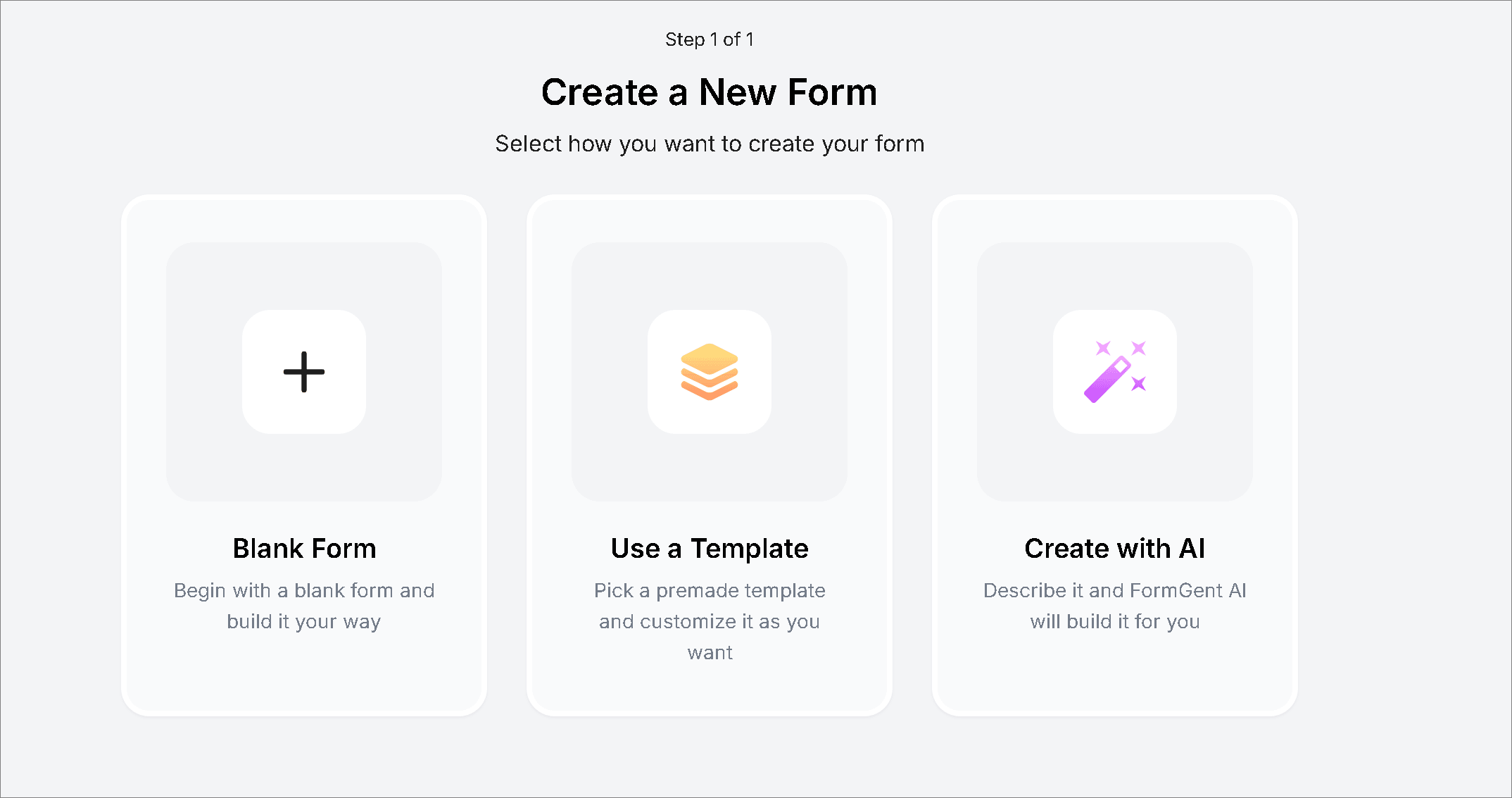
If the template library already has something close to what you need, that can save you a step. For most feedback forms, though, the AI path is the fastest way to a solid starting point.
Step 3: Build With AI
Click Create with AI, then pick a form type: Classic Form shows all your questions on a single page; Conversational Form shows one question per page, chat-style. Classic Form is the simpler choice for most feedback forms. Save Conversational for longer surveys where you want to soften the feeling of a long list.
Either way, you’ll get a text box to describe your form. A detailed prompt gives you a more useful result. “Make a feedback form” gives you something generic. A prompt that names your actual fields gives you something close to done:
- Customer / product feedback: “Create a customer feedback form with a satisfaction rating out of 5, a question asking how likely they are to recommend us, and an open text box for suggestions.”
- Website feedback: “Create a website feedback form asking what the visitor was trying to do today, whether they found it, and an open comment box.”
- Support feedback: “Create a support feedback form with a rating for how helpful the agent was and a yes/no for whether the issue was resolved.”
- Event feedback: “Build an event feedback form that asks attendees to rate their overall experience, choose the part they enjoyed most, and leave an optional comment.”
- Employee feedback: “Build an anonymous employee feedback form with a workload question, a question about support from management, and a space for additional comments.”
Click Generate Form. Review what it built before publishing — the AI gets you most of the way there, but check the field types against what’s below first.
Step 4: Pick the Right Fields
Whether you used AI or started blank, it helps to know exactly what each field does — the names aren’t always self-explanatory.
| FormGent field | What it does | Best for |
| Rating | A configurable scale — set the max (commonly 5), pick an icon style (star, heart, thumbs-up, or smiley) | Quick satisfaction scores |
| Range Slider (text mode) | A slider with custom labeled stops you define, like “Very Easy” through “Very Difficult” | A Likert-style scale in words, not numbers |
| Range Slider (number mode) | A draggable numeric slider with your own min and max | A 0–10 scale measuring someone’s willingness to recommend you |
| Single Choice | Radio buttons, one answer only | “What was the primary reason for your visit today?” |
| Multiple Choice | Checkboxes, multiple answers allowed, with a genuine built-in “Other” option | “Which parts of the event did you enjoy?” |
| Dropdown | A single-select dropdown menu | Category selection when the list is long |
| Text Area | An open-ended, multi-line text box | The “anything else?” question |
A quick note on terminology: FormGent doesn’t have a block literally called “NPS” or “Likert scale.” You build both out of what’s above. A Range Slider in number mode, set 0 to 10, works exactly like an NPS question. A Range Slider in text mode, with your own labeled stops, works exactly like a Likert scale.
To add any field, click the + block inserter inside the form builder and search by name. Each field’s settings — the rating limit, the slider labels, the “Other” toggle — live in the panel on the right once you select it.
Add Conditional Logic
Conditional logic shows or hides fields based on an earlier answer. It’s the mechanism behind the “Other” text box pattern, and it’s useful anywhere you want to skip irrelevant follow-ups — don’t ask about checkout if someone said they didn’t buy anything.
Select the field you want to control, open its settings, and look for the Logic section. Add a rule specifying which earlier field and answer should trigger it, then save.
Break Longer Forms Into Steps
If your form grows past five or six fields — an event survey covering content, venue, and logistics, say — break it into steps instead of one long scroll. Add a Page Break field at the end of each group of questions. Everything before the first Page Break becomes Step 1, everything after becomes Step 2, and so on. Each Page Break has its own label and progress indicator, so people can see how much is left.
Full walkthrough: how to create a multi-step form in WordPress.
Notifications, Confirmations, and Thank-You Messages
Once your questions are in place, decide what happens after someone submits.
Email notifications. Click Email Notification, then Add Notification. Set the recipient, subject line, and which field values to include. If more than one team should see feedback — support and product, say — add more than one notification with different recipients.
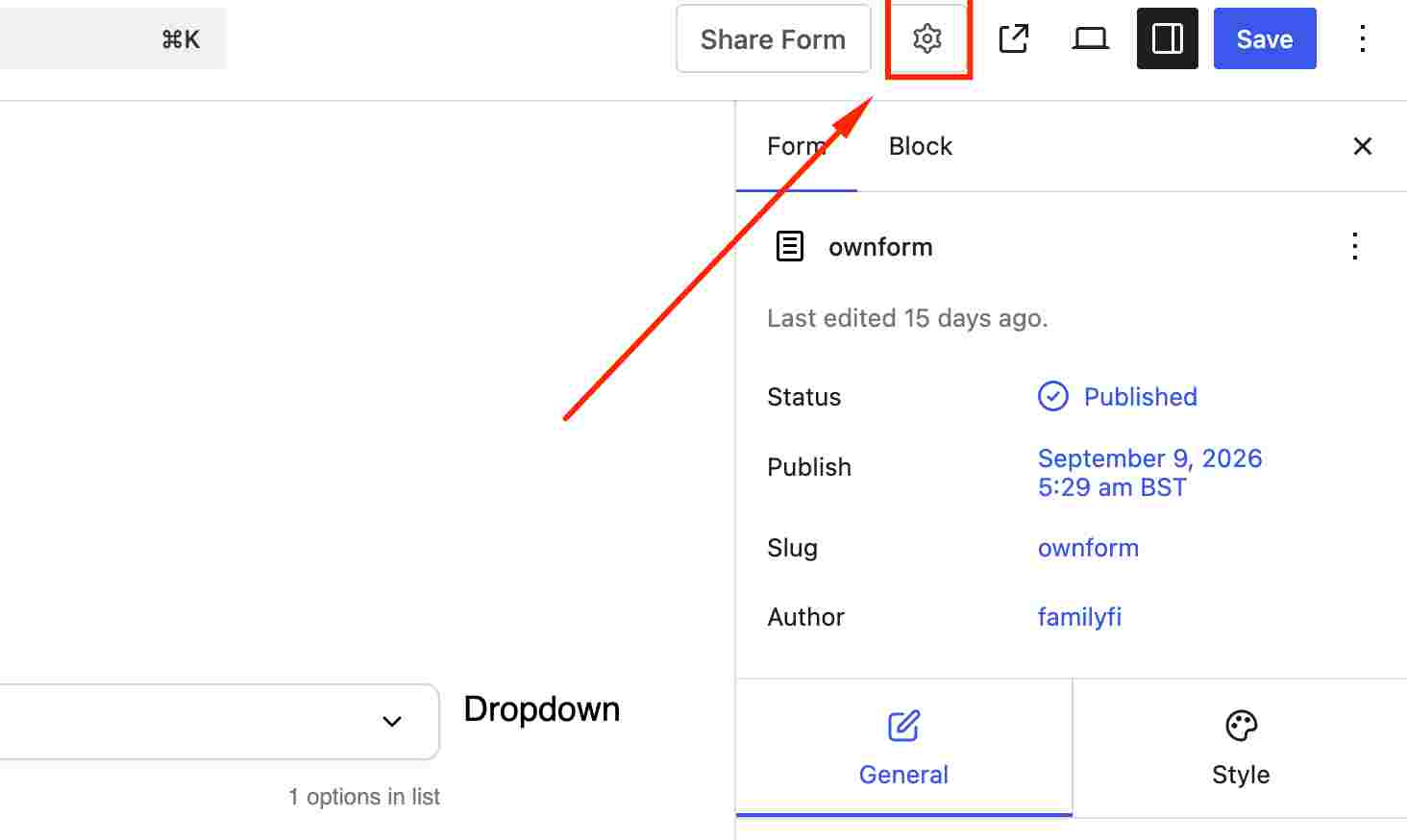
Confirmation message or redirect. Under Form → Form Confirmation, show a custom success message on the same page, or redirect to a thank-you page or custom URL. A short, specific message — “Thanks, we read every response personally” — feels more genuine than a generic “Submission received.”
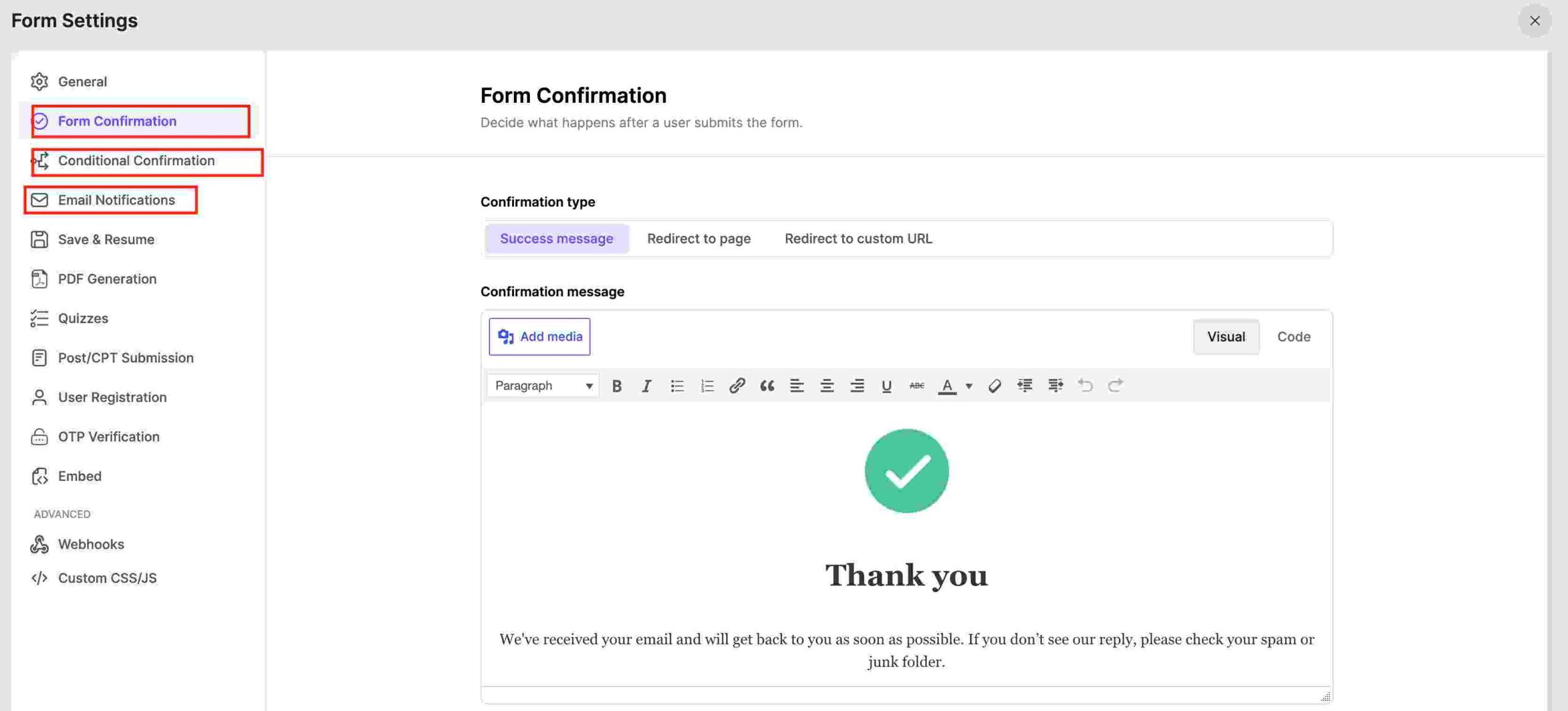
Design, Publish, and Place the Form
Open Design and Share at the top of the form editor to match your site’s colors, fonts, and button styles. Preview it on both desktop and mobile before publishing — a form that’s awkward to fill out on a phone will get abandoned, and most of your visitors are on one.
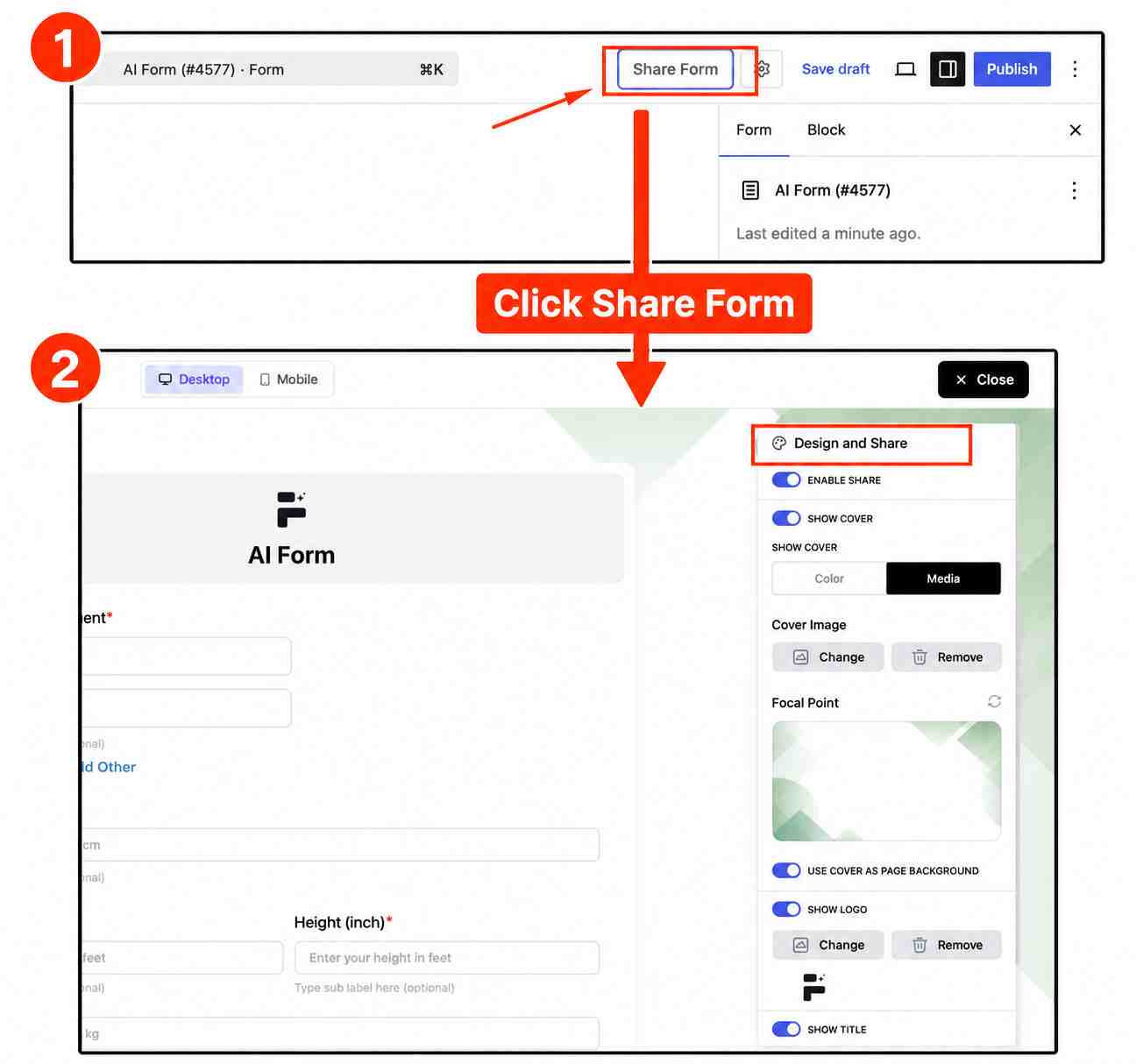
When it’s ready, enable sharing, set the form’s status (Draft, Pending, Private, Scheduled, or Published), and click Publish. You’ll get a shortcode to embed on any page or post, or a direct link you can share elsewhere.
Where to Put It
Placement matters as much as the questions themselves.
- Website feedback: a small floating tab in the corner, or a footer link — visible, not intrusive.
- Customer feedback: right after checkout, or in a follow-up email a few days later.
- Support feedback: immediately after a ticket is marked resolved.
- Product review form: a dedicated landing page, linked from a post-purchase email.
- Event feedback: a link sent directly to attendees within a day of the event ending.
Connecting Integrations
If responses need to flow somewhere besides your WordPress dashboard, FormGent integrates with Google Sheets, Mailchimp, and Zoho CRM. Check the specific plan requirements on the pricing page when setting these up, since availability can vary. FormGent Pro also includes Webhooks, which send every submission to an automation tool like Zapier or Make — a way to route feedback almost anywhere.
A Few Real Patterns to Learn From
These are illustrative patterns based on how different form types typically get structured — not any specific brand’s actual form.
A SaaS onboarding feedback form might ask one rating question (“How easy was it to get started?”) right after a new user finishes setup, followed by one open text field: “What almost stopped you?” Two questions asked right after setup may get more useful answers than a ten-question form sent a week later, when the experience is harder to remember.
A restaurant post-visit form might combine a few quick ratings (food, service, atmosphere) with a Single Choice question for location, plus an optional comment box. Keeping the ratings separate — rather than one overall score — lets the restaurant tell “food was great but service was slow” apart from a flat “it was fine.”
A support-ticket close-out form works best at two questions, max: a rating for how helpful the interaction was, and a Single Choice for whether the issue is actually resolved. Anything longer competes with the relief of just having the problem fixed.
A Few Questions to Get You Started
One example per form type, matched to the fields above:
- Customer / product: “How would you rate your experience with [product/service]?” — Rating, 1–5.
- Website / UX: “What did you come to our site to accomplish today” — Single Choice, with an “Other” text field via conditional logic.
- Support: “How would you describe the quality of the support you received?” — Rating, 1–5.
- Employee: “How manageable is your current workload?” — Range Slider, text mode, “Too light” through “Overwhelming.”
- Event: “How likely are you to attend a future event like this one?” — Range Slider, number mode, 0–10.
For a longer, proven list of questions — plus how to calculate and interpret results using mean, median, and Net Promoter Score — see our dedicated guide: 10+ Customer Satisfaction Survey Questions.
Reading Your Responses
Submissions land in your WordPress dashboard automatically. No external tool required. Go to FormGent → All Forms, open your form, and click Entries to see every response. Click into any individual entry for the full answer set. Full reference: entries dashboard and viewing a single entry.
As responses come in, watch for two different things: patterns that show up across many responses (a genuine, fixable issue) versus a single sharp complaint (worth reading, not necessarily worth rebuilding your process over). And don’t skip closing the loop. Even a brief acknowledgment that feedback was read and acted on measurably increases how likely people are to respond again.
A Few Best-Practice Reminders
Before you publish, check these:
- Keep it to 3–5 questions unless you have a specific reason to go longer.
- Mark non-essential fields optional. Forcing an answer to everything increases abandonment.
- Test on a phone, not just a desktop browser.
- Redirect to a thank-you page if you want to track completions as a conversion goal later.
- Double-check your spam protection isn’t so aggressive it’s silently blocking real submissions.
For the full breakdown of what actually moves response rates — including the mistakes that quietly kill completion — see 10 Pro Tips to Optimize Your Online Feedback Form.
Feedback Forms and Privacy
If you’re collecting anything beyond a fully anonymous response — a name, an email, an account ID — that’s personal data under regulations like GDPR, and it’s worth a short, visible note about how it’ll be used. FormGent includes a dedicated GDPR consent block you can add directly to the form: a simple checkbox confirming the respondent agrees to how their data will be handled.
For employee feedback forms specifically, consider making the form genuinely anonymous — no name or email field at all — rather than merely optional. People are noticeably more candid when there’s no way to trace an answer back to them, even if you’d never actually try.
This isn’t legal advice. If you’re collecting feedback in a context with specific compliance requirements, confirm the details with a qualified professional.
Troubleshooting
Getting very few responses. Check placement first — a form buried at the bottom of a long page won’t get seen. Then check length; a form that looks long at a glance gets skipped before anyone reads the first question.
Notifications aren’t arriving. Check spam or junk first, then confirm the recipient address in your Email Notification settings is correct.
Submissions look like spam. Review your spam protection settings — legitimate feedback can occasionally get caught by overly aggressive filtering. Full rundown: how to avoid spam submissions with an online form builder.
The form looks broken on mobile. Preview it in the Design and Share tab’s mobile view before publishing, and check any custom CSS for fixed widths that don’t shrink on smaller screens.
FAQs
How many questions should a feedback form have? Three to five for most feedback forms. Longer surveys — event feedback, employee feedback — can justify more, but break anything past five or six fields into steps with a Page Break.
Should feedback forms be anonymous? Depends on the type. Employee feedback benefits strongly from anonymity, since people are more honest without their name attached. Customer feedback often works better with an optional (not required) name or email field, since you may want to follow up.
What’s a good response rate for a feedback form? There’s no universal number. It depends heavily on placement, timing, and length. A form sent right after a relevant interaction — checkout, a closed support ticket — will consistently outperform one buried on a general contact page.
Rating vs. Range Slider vs. Single Choice — which should I use? Rating for quick satisfaction scores. Range Slider in number mode for a 0–10 recommend-likelihood question, or text mode for labeled points like “Very Easy” to “Very Difficult.” Single Choice when there’s one clear best answer among a short list. Multiple Choice when more than one can apply.
Can I create a feedback form without a plugin? Technically yes, with raw HTML and a custom backend script — but you’d need to build spam protection, notifications, and response storage yourself. A plugin like FormGent handles all of that out of the box.
Is FormGent free to use? Yes. The free plan includes the AI form builder, conditional logic, and every field type covered in this guide. Some integrations and advanced features are on paid plans; check the pricing page for the current breakdown.
How do I see feedback form responses in WordPress? Go to FormGent → All Forms, open your form, and click Entries. Every submission is stored directly in your WordPress database — no external tool needed.
Can I add a feedback form without coding? Yes. FormGent’s drag-and-drop builder and AI form generation both work with zero code.
Final Thoughts
A feedback form only earns its place on your site if the answers actually change something. Keep it short. Ask questions people can answer honestly. Place it where the experience is still fresh. And don’t skip the part most forms leave out: close the loop when you act on what you learn. That’s what turns a form from a formality into something people actually want to fill out again.


Leave a Reply