
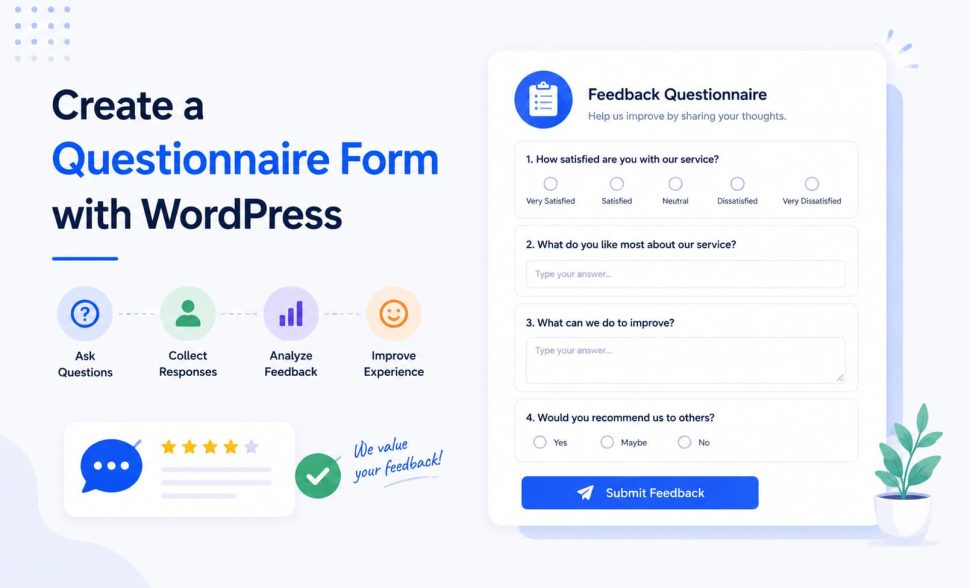
How to Create a Questionnaire Form (Step-by-Step Guide)
-
- Tips and Tricks
- 9 mins read
Questionnaire forms are one of the most effective ways to collect information, feedback, opinions, and customer insights from your website visitors. Whether you want to conduct market research, gather customer feedback, qualify leads, or create an online survey, a well-designed questionnaire form can help you collect valuable data without any hassle.
The good news is that creating a questionnaire form in WordPress no longer requires coding skills. With a modern form builder like FormGent, you can create professional questionnaires using a simple drag-and-drop interface.
In this guide, you’ll learn how to create a questionnaire form with WordPress step by step using FormGent.
What Is a Questionnaire Form?
A questionnaire form is an online form that contains multiple questions designed to collect information from users.
Unlike a simple contact form, questionnaire forms are more structured and usually contain:
- Multiple-choice questions
- Checkboxes
- Dropdown selections
- Rating scales
- Open-ended questions
- Conditional questions
Businesses, educators, healthcare providers, marketers, and service providers commonly use questionnaire forms to gather information efficiently.
Why Should You Use a Questionnaire Form on Your Website?
Questionnaire forms help you understand your audience better and make informed decisions.
Here are some common use cases:
- Customer satisfaction surveys
- Product feedback collection
- Lead qualification forms
- Event registration questionnaires
- Employee feedback forms
- Market research surveys
- Student assessments
- Client onboarding forms
Instead of manually asking every question through email or phone calls, you can automate the entire process with a questionnaire form.
Why Use FormGent to Create a Questionnaire Form in WordPress?
FormGent is a powerful WordPress form builder that allows you to create forms visually without writing code.
Some benefits include:
- Drag-and-drop form builder
- Beginner-friendly interface
- Multi-step forms
- Conditional logic
- Email notifications
- Mobile-responsive forms
- Spam protection
- Easy embedding options
Whether you’re building a simple questionnaire or a complex survey, FormGent makes the process straightforward.
What Do You Need Before Creating a Questionnaire Form?
Before you begin, make sure you have:
- A WordPress website
- FormGent installed and activated
- Administrator access to your website
If you haven’t installed FormGent yet, you can follow the official setup guide and complete the installation process first.
Once FormGent is active, you’re ready to build your questionnaire.
How Can You Create a New Questionnaire Form in WordPress?
Creating a questionnaire form starts with creating a new form inside FormGent.
Step 1: How Do You Create a New Form in FormGent?
Navigate to:
WordPress Dashboard → FormGent → Create Form
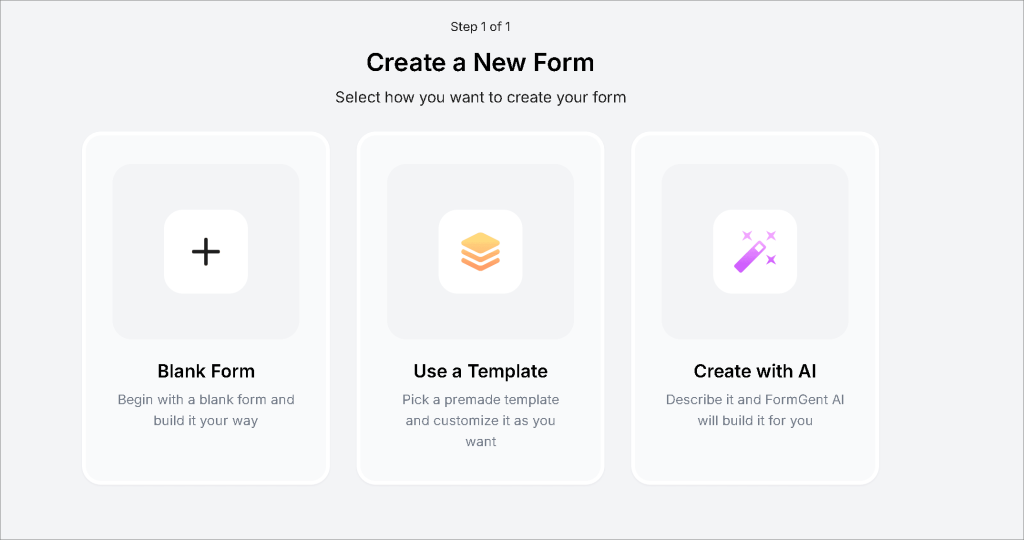
You can either:
- Start from scratch
- Use a pre-built template
- Customize an existing form
For questionnaire forms, starting with a blank form often provides more flexibility.
Give your form a descriptive name such as:
- Customer Feedback Questionnaire
- Lead Qualification Form
- Event Registration Questionnaire
- Product Satisfaction Survey
A clear form name makes management easier later.
Step 2: Which Fields Should You Add to a Questionnaire Form?
FormGent provides various field types that can be used to build questionnaires.
Common fields include:
Single Line Text
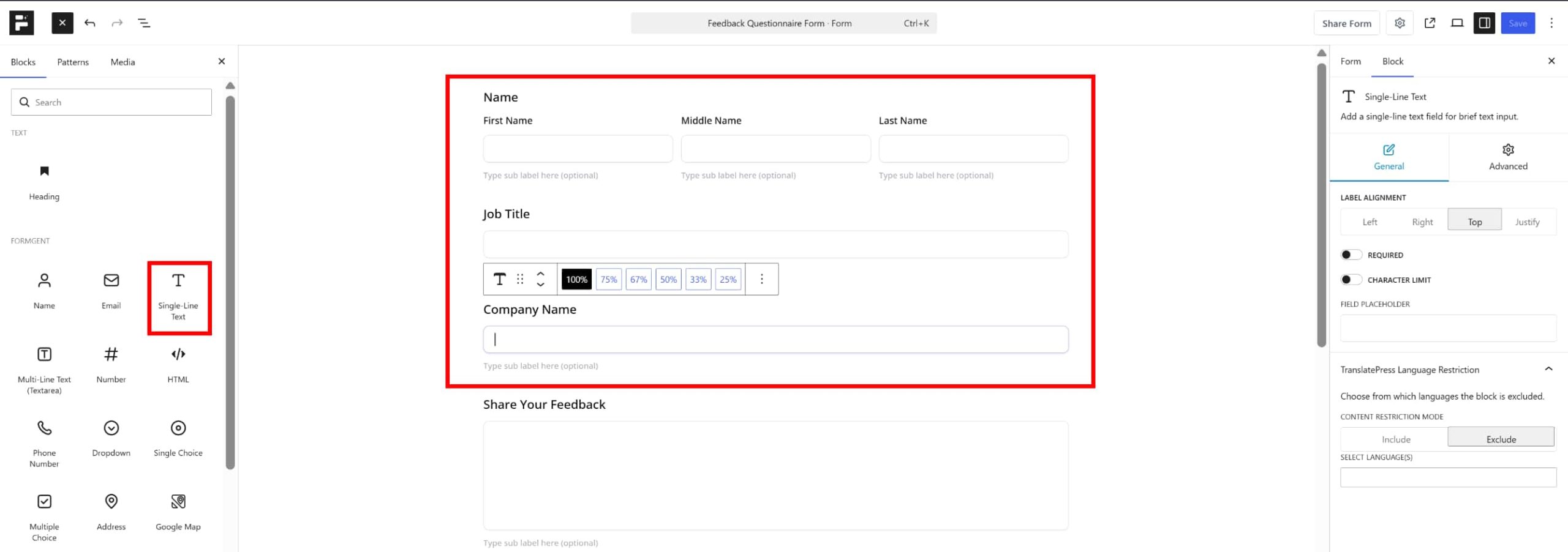
Useful for collecting:
- Names
- Job titles
- Company names
Multi Line Text
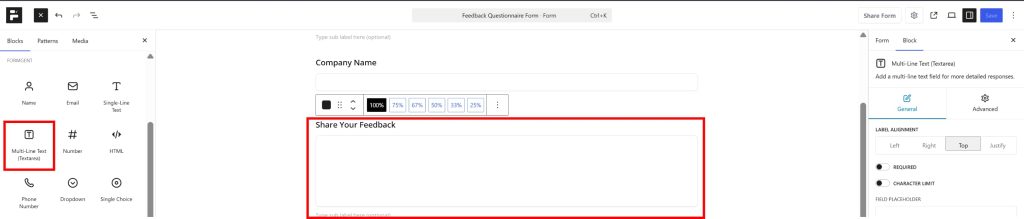
Ideal for:
- Detailed feedback
- Suggestions
- Long-form answers
Multiple Choice
Best for questions where users select one answer.
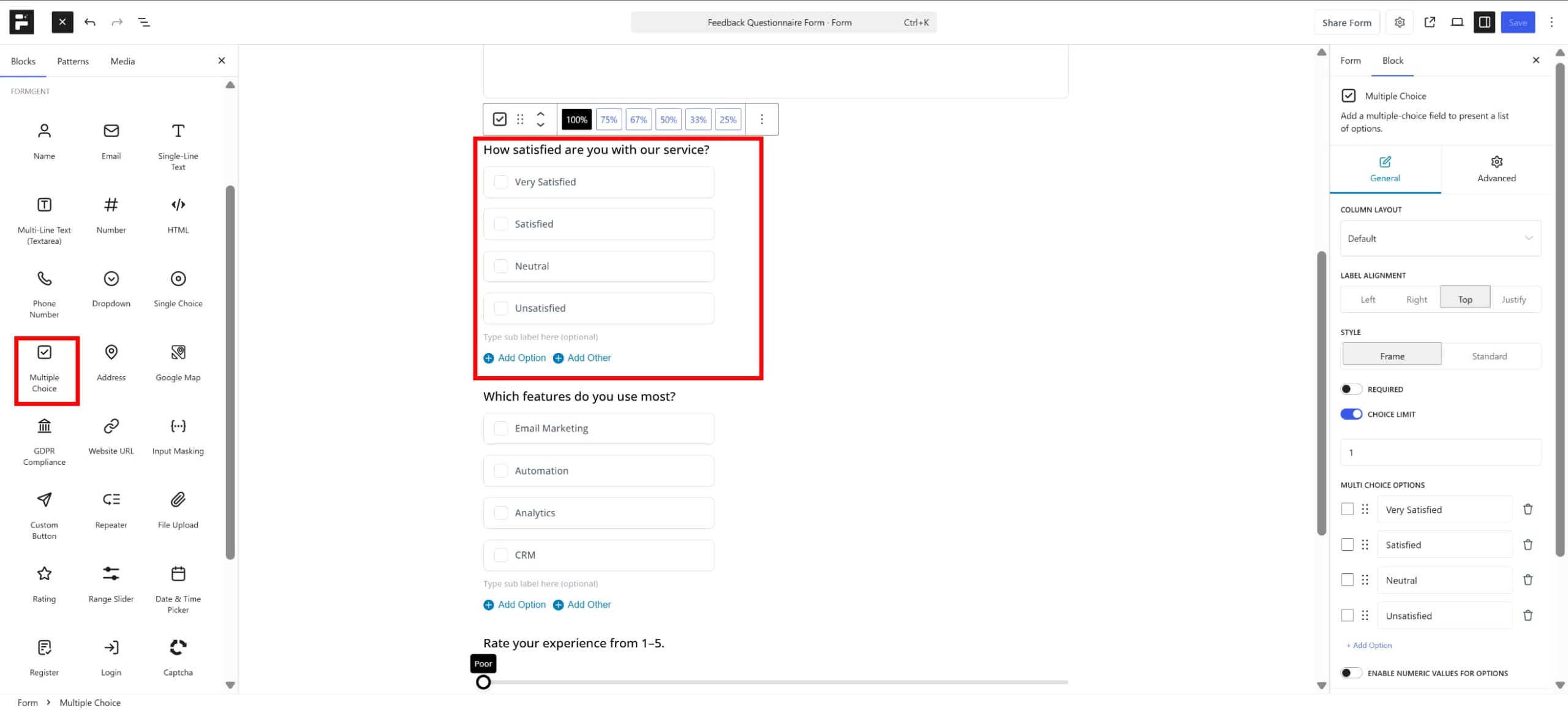
Example:
How satisfied are you with our service?
- Very Satisfied
- Satisfied
- Neutral
- Unsatisfied
Checkboxes
Perfect when users can choose multiple answers.
Example:
Which features do you use most?
- Email Marketing
- Automation
- Analytics
- CRM
Dropdown Menu
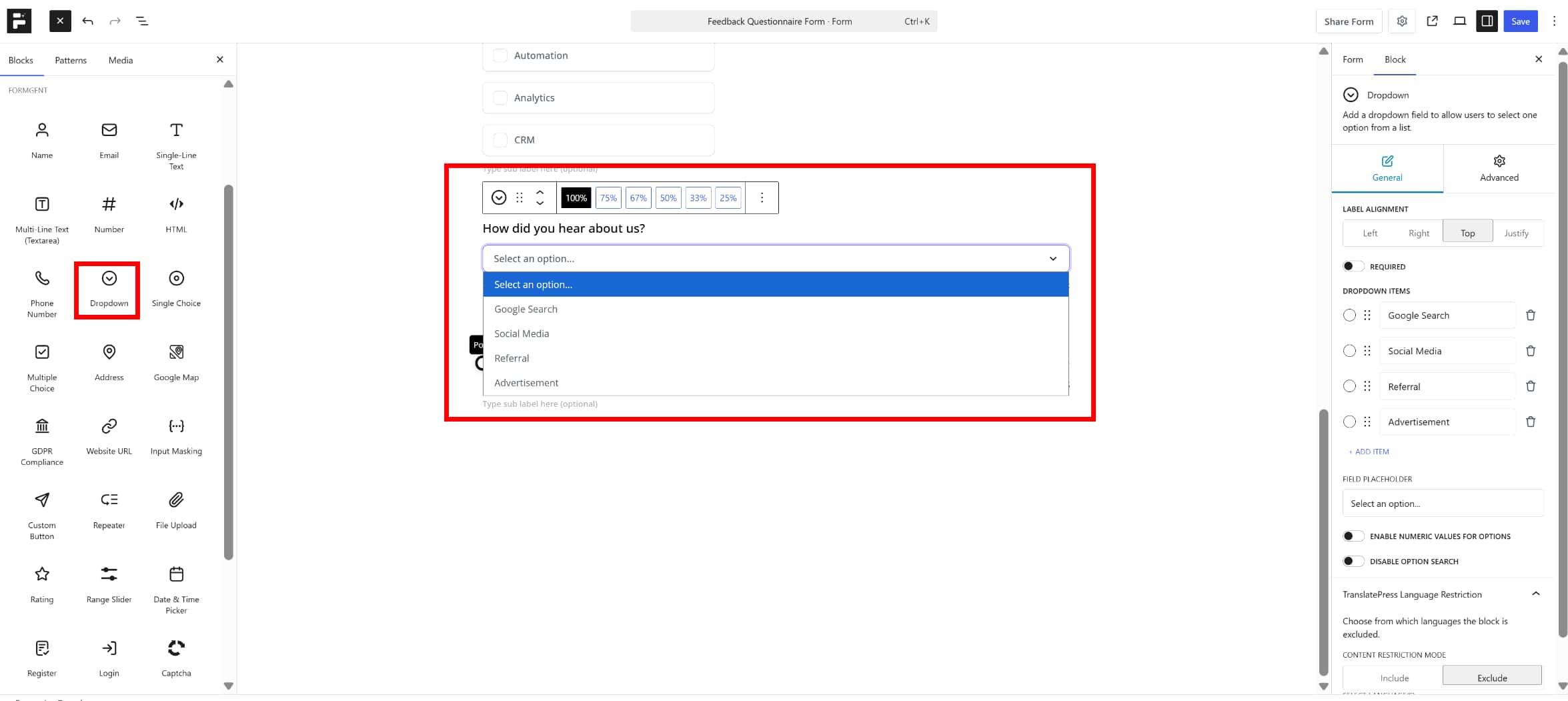
Helpful when you have many answer options and want to save space.
Rating Fields
Excellent for measuring customer satisfaction.
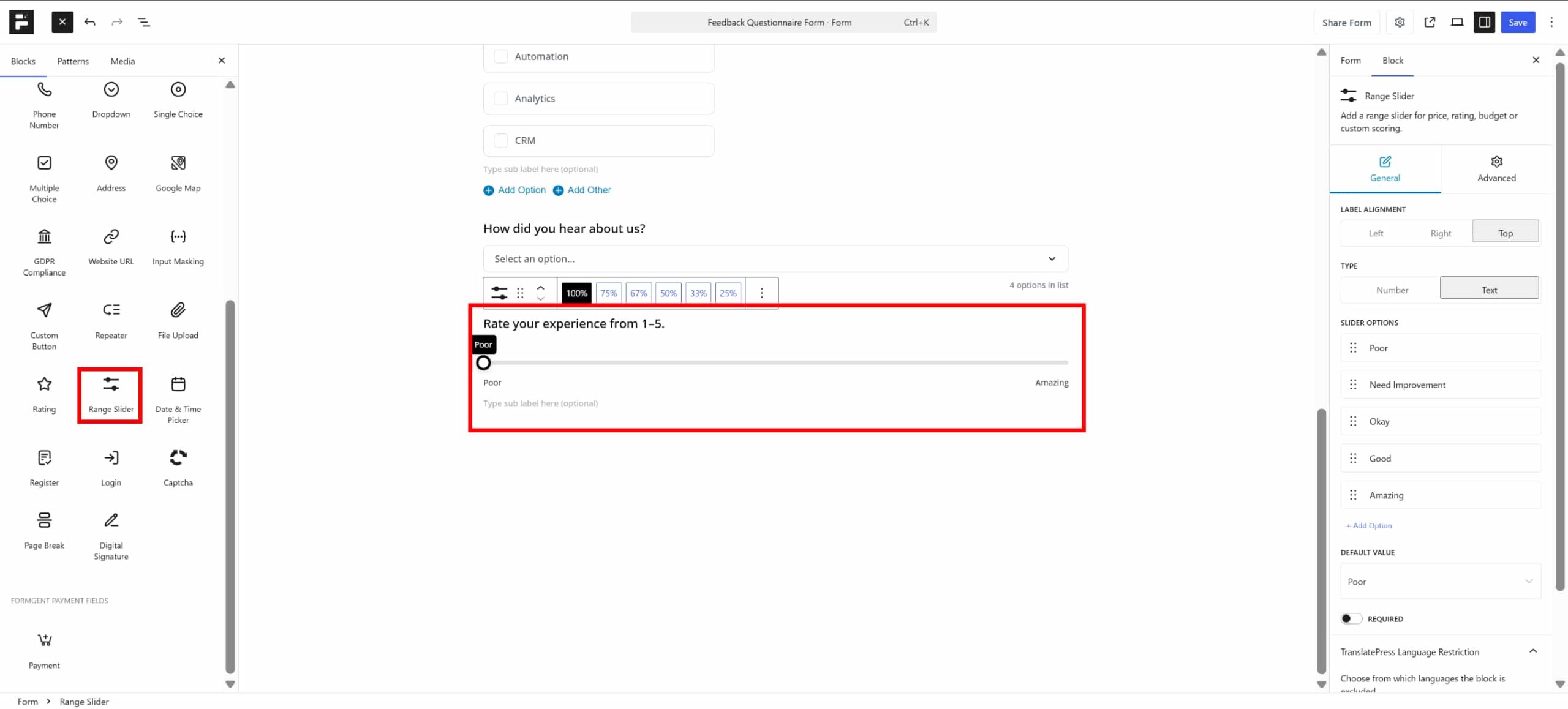
Example:
Rate your experience from 1–5.
Step 3: How Do You Organize Questions for Better User Experience?
The order of your questions significantly impacts completion rates.
A simple structure looks like this:
Section 1: Basic Information
Ask simple questions first.
Examples:
- Name
- Company
Section 2: Main Questionnaire
Include your core survey questions.
Section 3: Additional Feedback
End with optional comments and suggestions.
This structure helps users stay engaged throughout the form.
Step 4: How Do You Make Questions Required?
Some questions may be critical for your data collection.
For these fields:
- Select the field
- Open field settings
- Enable the Required option
Required fields ensure users cannot submit the questionnaire without providing essential information.
Use this feature carefully.
Too many required questions may reduce completion rates.
Step 5: How Do You Customize Field Labels and Instructions?
Clear instructions improve form accuracy.
Instead of writing:
Feedback
Write:
What improvements would you like to see in our product?
Good labels help users understand exactly what information you need.
You can also add:
- Field descriptions
- Placeholder text
- Helper messages
These small improvements often increase response quality.
How Can You Create Different Types of Questionnaire Questions?
Different question types help collect different kinds of information.
Let’s explore the most effective ones. You can also check out our pre-made template section where you can find a lot of popular form templates that saves your time.
How Do You Add Multiple Choice Questions?
Multiple-choice questions make answering quick and easy.
Example:
How did you hear about us?
- Google Search
- Social Media
- Referral
- Advertisement
Benefits:
- Easy to answer
- Easy to analyze
- High completion rates
How Do You Add Checkbox Questions?
Checkboxes allow users to select multiple answers.
Example:
Which services are you interested in?
- Website Design
- SEO
- Content Marketing
- Email Marketing
This provides richer data compared to single-selection questions.
How Do You Add Dropdown Questions?
Dropdowns are useful when you have many options.
Example:
Select Your Country
A dropdown keeps the form clean and organized.
How Do You Add Rating Scale Questions?
Ratings help measure opinions quickly.
Examples:
- Product satisfaction
- Customer experience
- Service quality
Users simply choose a rating value, making responses easy to analyze.
How Do You Add Long Text Feedback Questions?
Open-ended questions allow users to provide detailed insights.
Example:
What can we improve to better serve your needs?
These responses often reveal valuable information that structured questions may miss.
How Can You Make Your Questionnaire More Interactive?
Interactive forms often achieve higher completion rates.
Fortunately, FormGent provides several features that help.
How Do You Create a Multi-Step Questionnaire Form?
Long questionnaires can overwhelm users.
Instead of displaying everything on one page, split the questionnaire into multiple steps.
Benefits include:
- Better user experience
- Reduced form abandonment
- Improved completion rates
- Easier navigation
A multi-step questionnaire feels less intimidating and more engaging.
How Do You Use Conditional Logic to Show Relevant Questions Only?
Conditional logic allows you to display questions based on previous answers. You can use conditional logic in your form by following our guide: Mastering Conditional Logic in Forms: A Guide to Personalized User Experiences
Example:
Question:
Are you currently using a CRM?
If user selects:
Yes
Show:
Which CRM are you currently using?
If user selects:
No
Hide the follow-up question.
Benefits include:
- Shorter forms
- Better user experience
- More relevant responses
Users only see questions that matter to them.
How Do Conversational Forms Improve Questionnaire Completion Rates?
Conversational forms present questions one at a time.
Instead of showing a long list of fields, users answer questions step-by-step.
Advantages:
- More engaging experience
- Reduced overwhelm
- Better completion rates
- Mobile-friendly interaction
This approach often works particularly well for surveys and questionnaires.
How Can You Customize the Design of Your Questionnaire Form?
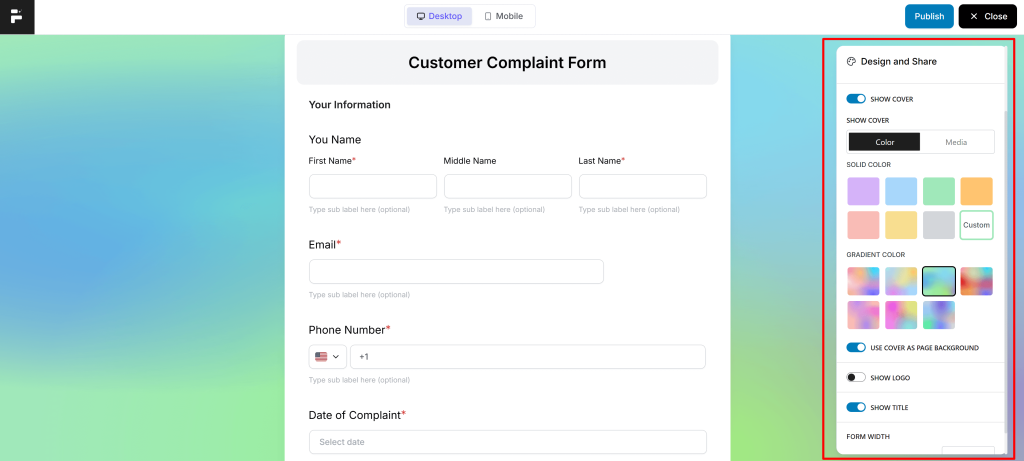
A professional-looking questionnaire encourages participation.
FormGent allows you to customize various design elements.
How Do You Change Form Layout and Styling?
You can adjust:
- Field spacing
- Form width
- Label positions
- Button text
- Typography settings
The goal is to make your questionnaire easy to read and complete.
How Do You Make Your Questionnaire Mobile-Friendly?
Most users complete forms from mobile devices.
Before publishing, verify:
- Fields are easy to tap
- Text is readable
- Buttons are large enough
- Forms load properly on smartphones
FormGent automatically creates responsive forms, but testing remains important.
How Can You Configure Questionnaire Form Settings?
Once your questions are ready, configure the form settings.
How Do You Set Up Submission Confirmations?
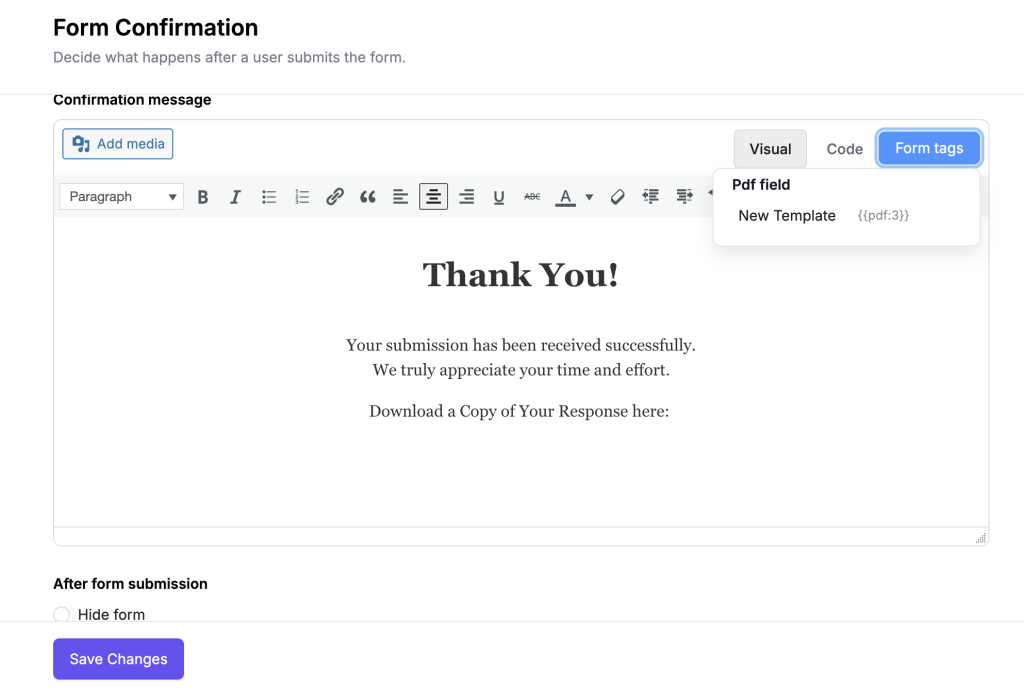
After submission, users should receive confirmation.
Examples:
Simple Thank You Message
Thank you for completing our questionnaire.
Redirect to a Page
Send users to:
- Thank you page
- Download page
- Appointment page
This improves the overall user experience.
How Do You Enable Email Notifications?
Email notifications help you stay informed whenever someone submits a questionnaire.
You can configure notifications for:
Admin Notifications
Receive alerts when a new submission arrives.
User Notifications
Send confirmation emails to respondents.
This keeps everyone informed automatically.
How Do You Prevent Spam Submissions?
Spam can negatively impact your questionnaire results.
To reduce spam:
- Enable CAPTCHA
- Use anti-spam protection
- Limit suspicious submissions
- Monitor form activity
A clean dataset leads to more accurate insights.
How Can You Publish a Questionnaire Form in WordPress?
After building your questionnaire, it’s time to make it live.
How Do You Embed the Form on a Page or Post?
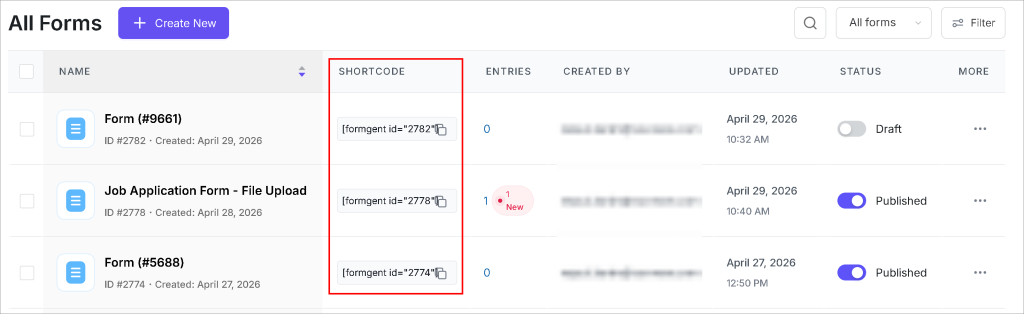
FormGent provides easy embedding options.
Simply:
- Open the page or post.
- Add the FormGent block.
- Select your questionnaire form.
- Publish the page.
Your questionnaire will immediately appear on the frontend.
How Do You Share the Form Using a Direct Link?

In some cases, you may want to share your questionnaire without embedding it on a page.
Examples include:
- Email campaigns
- Social media posts
- Customer support follow-ups
- Event invitations
Direct sharing helps increase participation.
How Can You Test Your Questionnaire Form Before Going Live?
Never publish a form without testing it first.
What Should You Check Before Publishing?
Review the following:
Form Functionality
- All fields work correctly
- Required fields validate properly
- Conditional logic functions as expected
Notifications
- Emails arrive correctly
- Confirmation messages display properly
Mobile Experience
- Form looks good on phones
- Buttons work correctly
- Navigation is smooth
Submission Process
- Test complete submissions
- Verify stored entries
- Review collected data
A few minutes of testing can prevent future issues.
How Can You View and Manage Questionnaire Responses?
Once users start submitting responses, you’ll want to review the data.
Where Are Questionnaire Entries Stored?
FormGent stores form submissions inside your WordPress dashboard.
You can:
- View entries
- Search submissions
- Filter responses
- Export data
Everything remains organized in one location.
How Do You Analyze Responses and Gather Insights?
After collecting responses, look for patterns.
Examples:
- Common customer complaints
- Frequently requested features
- Popular products
- User preferences
These insights can help improve:
- Products
- Services
- Marketing strategies
- Customer experience
Questionnaire forms become even more valuable when you use the collected data effectively.
What Are the Best Practices for Creating High-Converting Questionnaire Forms?
A good questionnaire isn’t just about asking questions. It’s about encouraging completion.
How Many Questions Should a Questionnaire Include?
Keep it as short as possible.
Ask only questions that provide valuable information.
Every unnecessary question increases abandonment risk.
How Can You Increase Form Completion Rates?
Follow these tips:
- Start with easy questions
- Use simple language
- Group related questions
- Use multi-step forms
- Display progress indicators
- Optimize for mobile devices
Small improvements can significantly boost completion rates.
What Mistakes Should You Avoid?
Avoid these common errors:
- Asking too many questions
- Using confusing wording
- Making every field required
- Ignoring mobile users
- Skipping form testing
- Using poor question structure
A clean, focused questionnaire almost always performs better.
Frequently Asked Questions
Can I Create a Questionnaire Form in WordPress Without Coding?
Yes. FormGent provides a visual drag-and-drop builder that allows you to create questionnaires without writing any code.
Can I Create Multi-Step Questionnaires with FormGent?
Yes. You can split long questionnaires into multiple steps to improve the user experience and increase completion rates.
Can I Use Conditional Logic in a Questionnaire Form?
Absolutely. FormGent allows you to show or hide questions based on user responses.
Can I Share My Questionnaire Outside WordPress?
Yes. You can share the form through pages, posts, emails, or direct links.
Can I Collect File Uploads Through a Questionnaire Form?
Yes. Depending on your form setup, FormGent supports collecting files alongside questionnaire responses.
Wrapping Up
Creating a questionnaire form in WordPress doesn’t have to be complicated. With FormGent, you can build professional questionnaires using a simple drag-and-drop interface, customize questions to fit your needs, and collect valuable insights without touching a single line of code.
Whether you’re gathering customer feedback, conducting market research, qualifying leads, or onboarding clients, FormGent provides all the tools needed to create engaging and effective questionnaire forms.
Start by creating your first questionnaire today, and turn visitor responses into actionable insights that help grow your business.

Rezaul Karim
Rezaul Karim is a passionate Digital Marketer driven by curiosity and creativity in the ever-evolving world of online marketing. With over 6 years of hands-on experience in Content Writing, Copywriting, SEO, and Social Media Marketing, he brings a strategic edge to crafting content that engages and converts. Always eager to explore new trends and tools, Rezaul thrives on finding smarter ways to connect brands with their audiences. Outside of work, he enjoys diving into books or recharging in nature.

Leave a Reply