
How to Convert WordPress Form Submissions to PDF Automatically
-
- Practical Guide Making Better Tips and Tricks
- 11 mins read

A WordPress form entry usually stays inside the dashboard or arrives as an email. That works for reviewing responses, but it is less convenient when a customer, applicant, or team member needs a document they can download and keep.
FormGent’s PDF Generation feature can turn an individual submission into a formatted PDF automatically. You create a reusable PDF template, insert tags for the form fields, and place the template’s PDF tag in the confirmation message or an email notification. After a successful submission, the tag becomes a secure download link.
This guide walks through that setup, explains what happens to the generated file, and shows how to test the complete journey before using it on a live site.
What Happens When You Export Form Entries as PDFs?
Converting a submission to PDF means taking the values from one completed entry and placing them in a document layout. A quote request could become a client summary. An order form could become an invoice. An assessment could become a certificate.
This is different from three other common tasks:
- A CSV export puts many entries into a spreadsheet for analysis.
- A static PDF download gives every visitor the same document.
- A browser printout captures the page as it appears, rather than applying a purpose-built template.
A generated PDF combines a fixed design with the values from one submission. In FormGent, you decide which fields appear and where they are placed.
How FormGent generates a submission PDF
The workflow has three parts:
- A PDF template defines the layout, paper settings, and field tags.
- A form submission supplies the values for those tags.
- A {{pdf:id}} tag in a confirmation or email tells FormGent to generate the file and show its download link.
Creating a template alone does not add a PDF to the visitor journey. The template’s PDF tag must also appear in a supported confirmation, conversational End screen, or email notification.
FormGent currently provides Business, Invoice, Certificate, and Custom starting layouts. You can change the content, use form-field tags such as {{field:email}}, and add general tags such as {{form_title}} and {{submission_date}}.
In our test of FormGent 1.12.3, PDF Generation remained available while FormGent Pro was deactivated. Feature availability and labels can change, so check the version installed on your site if your screen differs from this guide.
Before you begin
You will need:
- An active FormGent installation
- A form with the fields you want to place in the PDF
- Permission to install FormGent’s PDF library the first time you use the feature
- A published page or standalone form where you can make a test submission
- A test inbox if you want to deliver the link by email
If you need to build the form first, follow the FormGent form creation guide. Use dummy information during testing, especially if the live form will collect personal or financial details.
How to convert WordPress form submissions to PDF with FormGent
1. Create or open your form
In WordPress, go to FormGent and open an existing form or create a new one.
Add every field the workflow needs before designing the PDF. Field tags are tied to the form’s current fields, so changing the form later may require you to update the template.
For a quote request, for example, the form might include Name, Email, Company, Project type, Budget, and Message. A useful test form should contain at least one grouped field, such as Name, and one longer text field. This makes layout problems easier to spot.
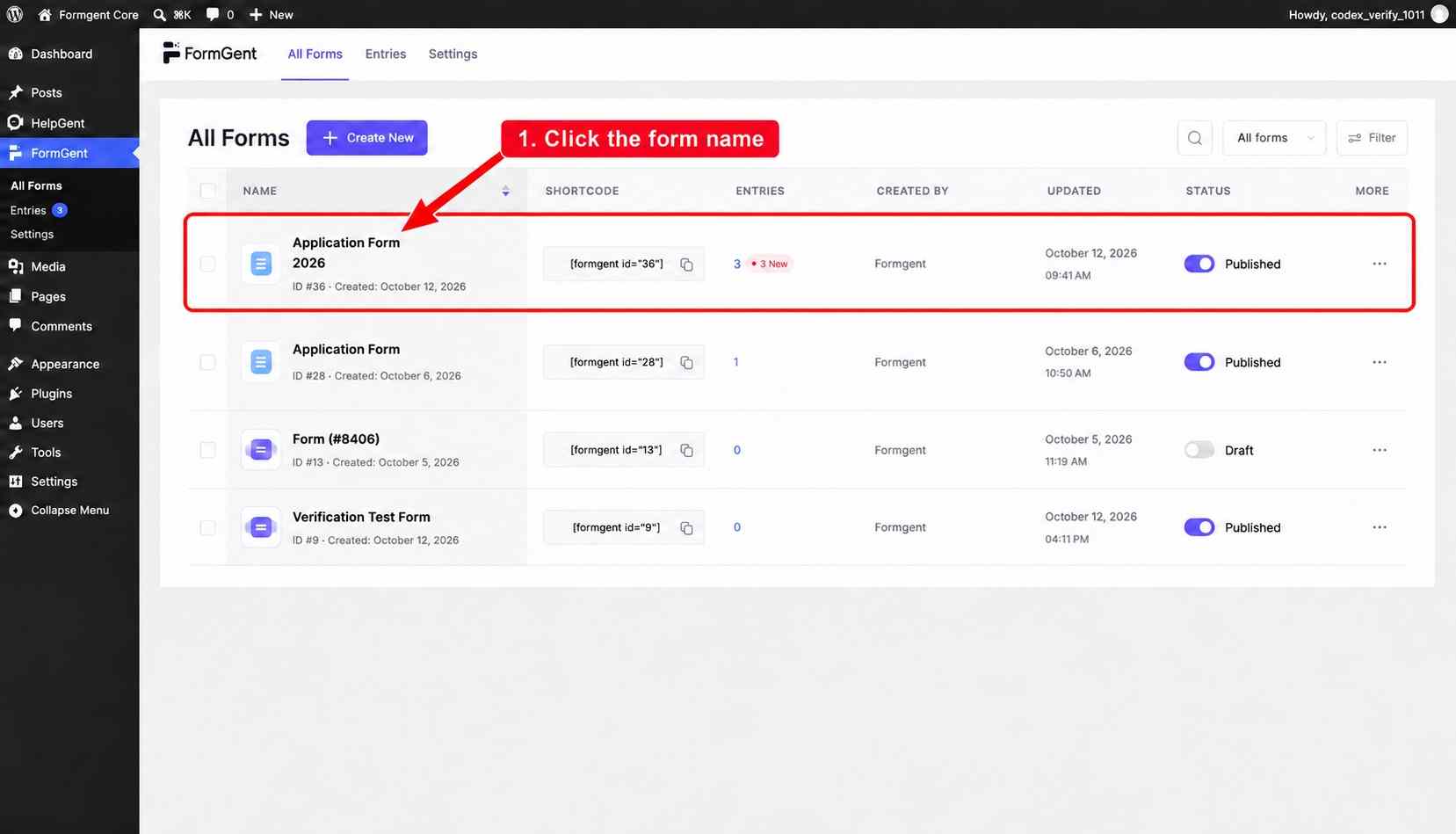
2. Open PDF Generation
Select the Form tab in the form editor. Open Form Settings, then choose PDF Generation.
On first use, FormGent displays Create Polished PDFs Without Extra Effort and a Get Started with PDFs button. Select the button to install the PDF resources. This is a one-time setup for the site.
If the setup prompt returns every time you open the panel, see the troubleshooting section below before continuing.
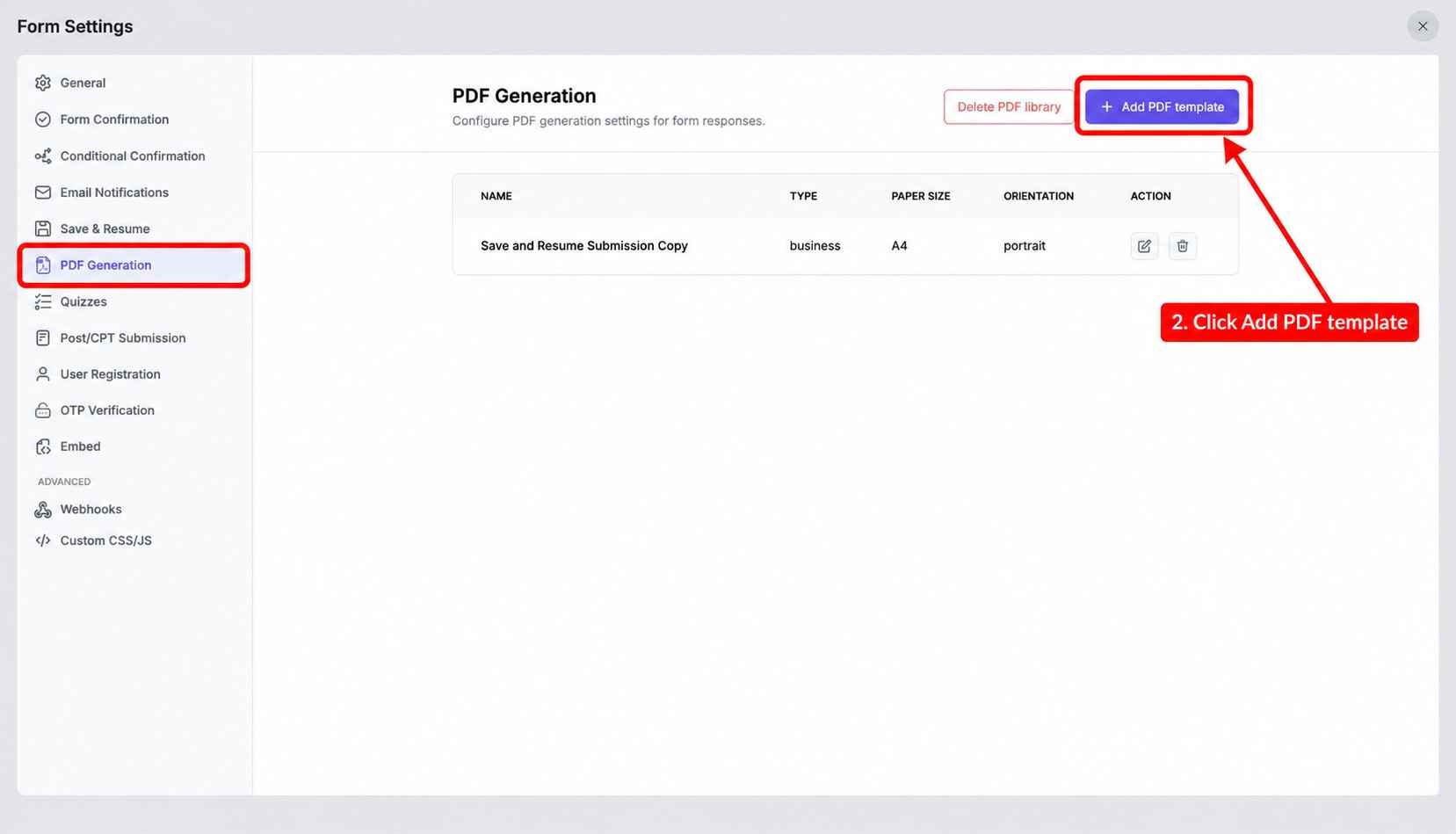
3. Add a PDF template
Choose Add PDF and give the template a descriptive name. Choose a name that explains the PDF’s purpose. “Quote request summary,” for example, is much clearer than a generic label like “PDF 1.”
Choose the closest starting layout:
| Template | Good starting point for |
|---|---|
| Business | Applications, intake records, and submission summaries |
| Invoice | Orders, estimates, and payment records |
| Certificate | Course completion, assessments, and acknowledgements |
| Custom | A layout that does not fit the other categories |
The template is only a starting point. Edit its headings, labels, colors, and content so the document matches its purpose.
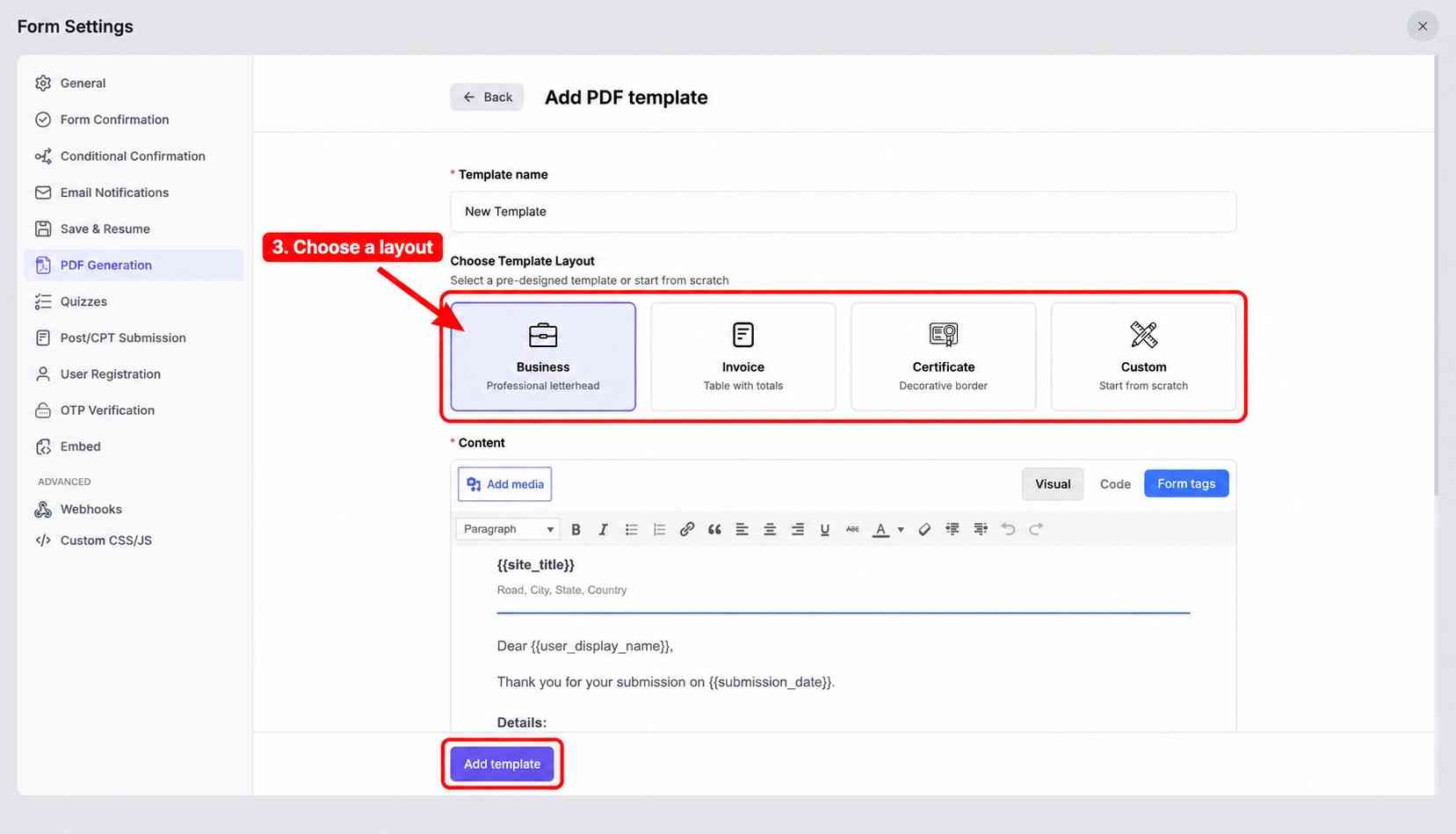
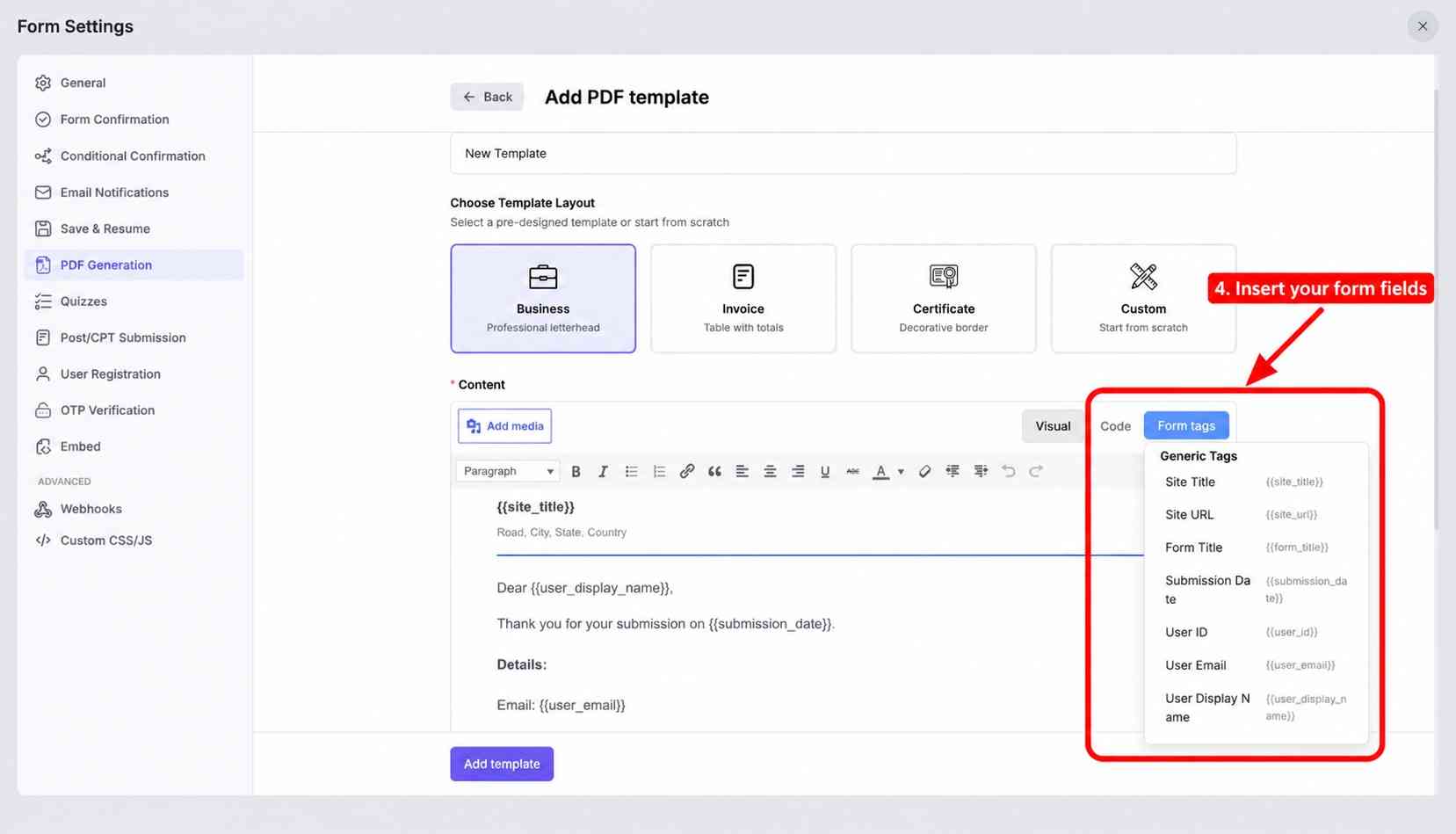
4. Insert submission values with tags
Place the cursor where a response should appear, then use the tag picker to insert the matching form field. A simple client summary could use content like this:
Submission Copy
Submitted: {{submission_date}}
First name: {{field:first_name}}
Last name: {{field:last_name}}
Email: {{field:email}}
Message: {{field:textarea}}
Use the tags shown in your own editor instead of copying field identifiers from another form. Two fields with the same visible label can have different internal identifiers.
Keep labels outside the tags so the PDF still makes sense when an optional value is blank. If the output contains many optional fields, submit a test with some of them empty and check that the document does not leave confusing headings or large gaps.
5. Choose the document settings
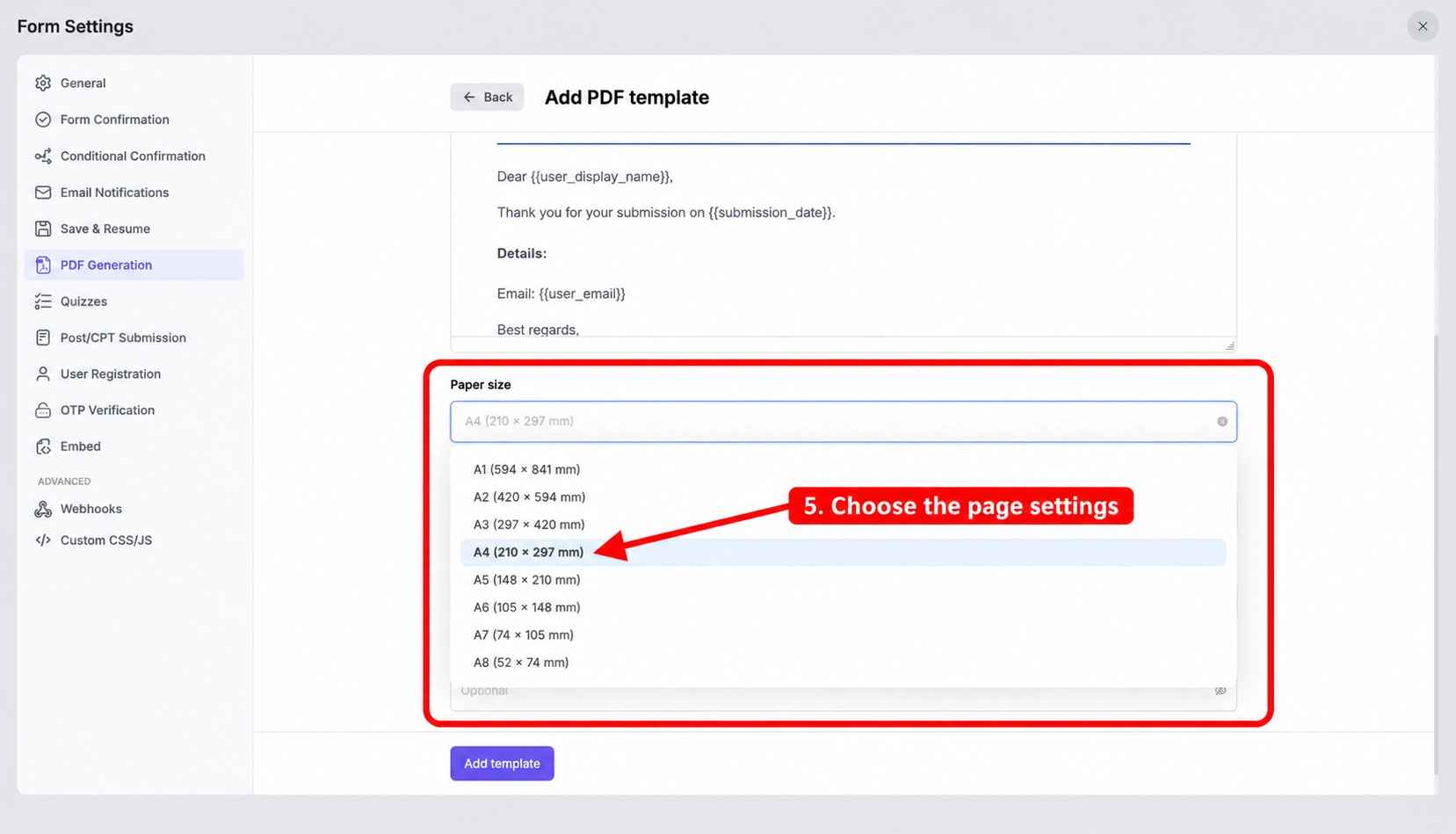
Set the page size, orientation, and text direction for the intended audience. The current settings include:
- Paper sizes including A4 and Letter
- Portrait or landscape orientation
- Left-to-right or right-to-left text
- An optional password
A4 portrait is a sensible default for most submission summaries. Landscape can help with wide tables, while right-to-left direction supports documents written in languages such as Arabic or Hebrew.
Use the password option only as part of a wider data-protection plan. You still need a safe way to give the password to the intended recipient, and sending it in the same message as the link weakens the benefit.
Save the PDF template when the content and settings are ready.
6. Add the PDF to the confirmation message
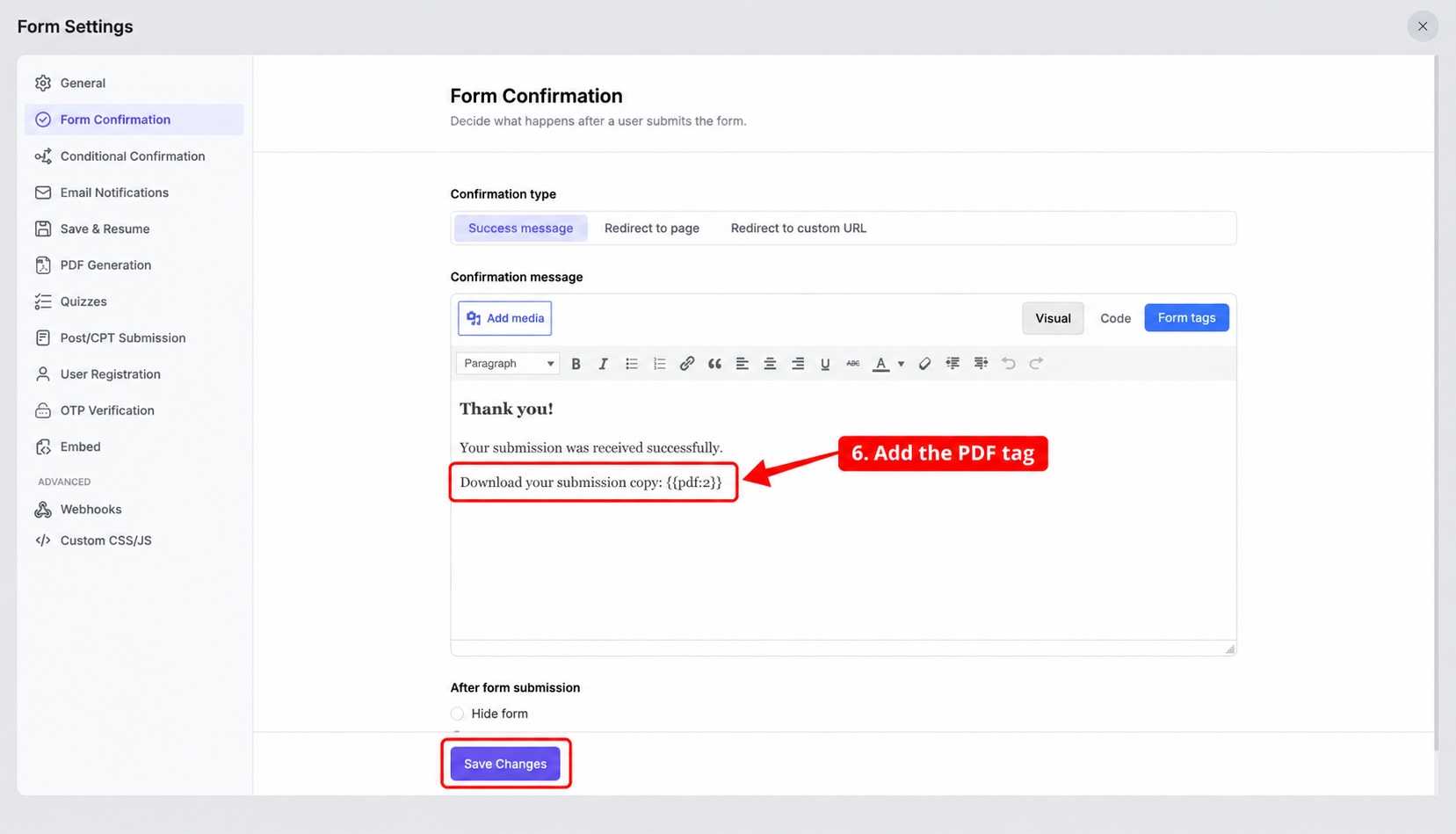
Each saved template has a PDF tag in the form {{pdf:id}}. Copy the exact tag shown for your template.
Open the form’s confirmation settings and add the tag where the download should appear. Include a clear instruction around it, such as:
Thanks. Your submission has been received.
Download your submission copy: {{pdf:2}}
For a classic form, place the tag in the submission confirmation message. For a conversational form, add it to the End screen.
After a successful submission, the raw tag becomes a download link. If the confirmation shows the tag as plain text or no link appears, check that the ID belongs to a PDF template saved on the same form.
7. Add the PDF link to an email notification
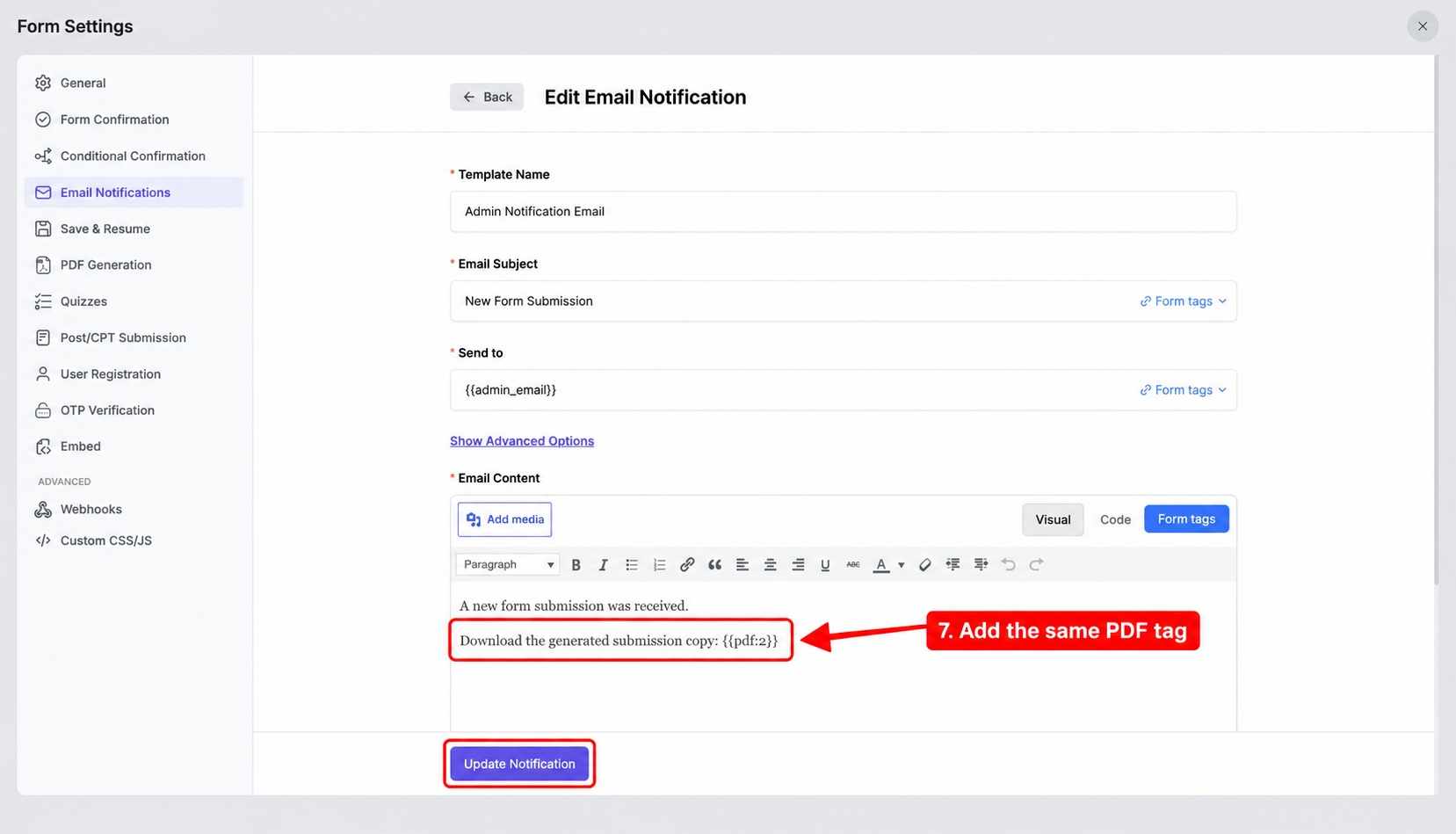
If the submitter or an administrator should receive the document, open Email Notifications and add the same PDF tag to the email body.
For example:
A new quote request has arrived.
Download the submission PDF: {{pdf:2}}
FormGent turns that tag into a secure link. In the version we tested, it did not attach the PDF file to the email. This keeps the message smaller, but it also means the recipient must open the link while the generated file is still available.
If you send the notification to the submitter, use the form’s Email field as the recipient and explain what the link contains. WordPress processes and sends the notification using its standard mail function. The wp_mail() documentation notes that a successful function result does not prove the email reached the inbox, so test delivery as well as generation.
8. Save, publish, and submit a realistic test
Save the notification and form settings, then publish or update the form.
Open the public form in a fresh browser session and submit realistic dummy values. Use a long name, a multi-line message, punctuation, and any optional fields that might affect the layout.
Our test used a Name field, an Email field, and a quote-request message. FormGent displayed the PDF link on the confirmation screen and placed another link in the notification email. The generated A4 document contained every submitted value and remained on one readable page.
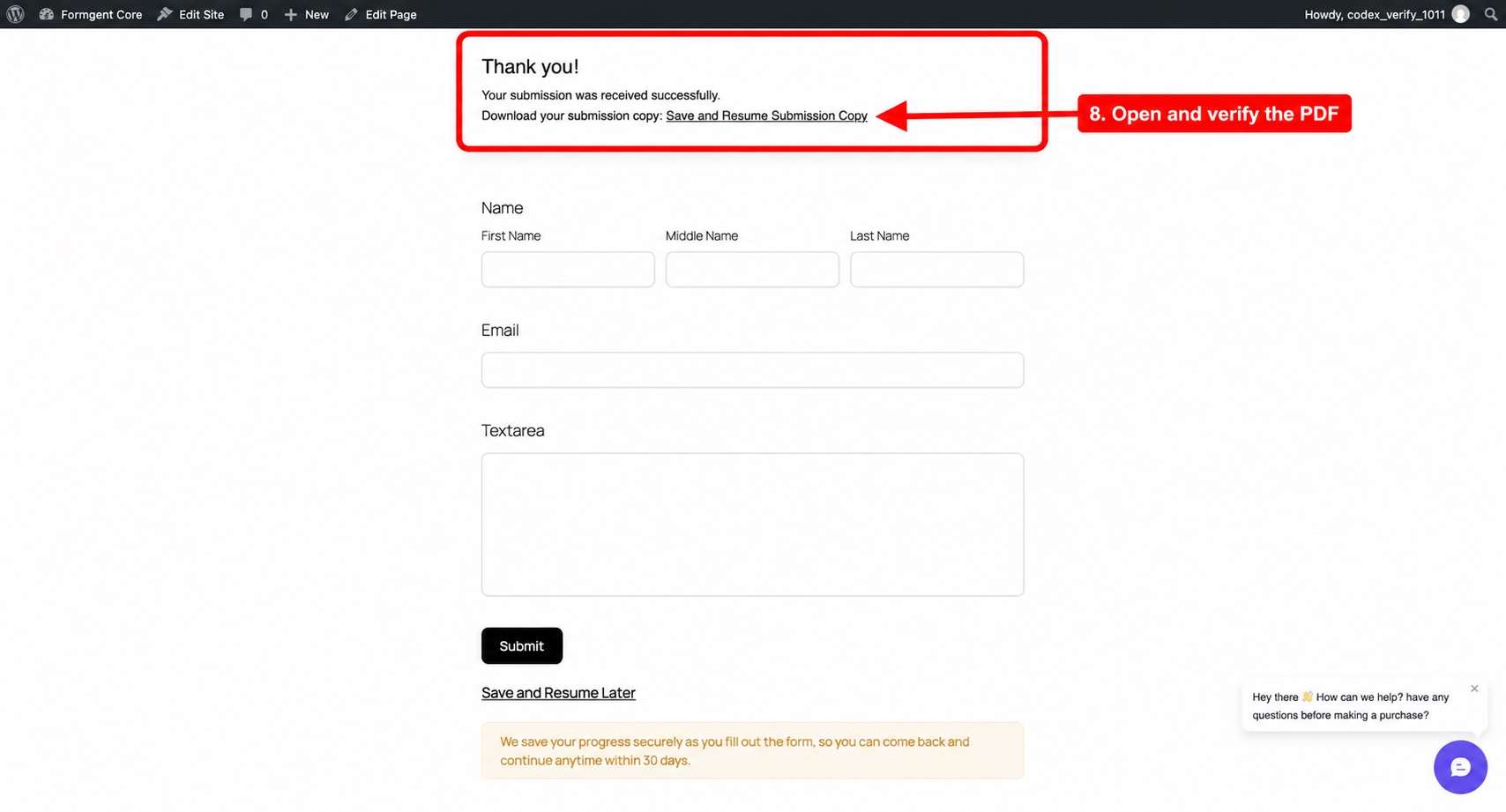
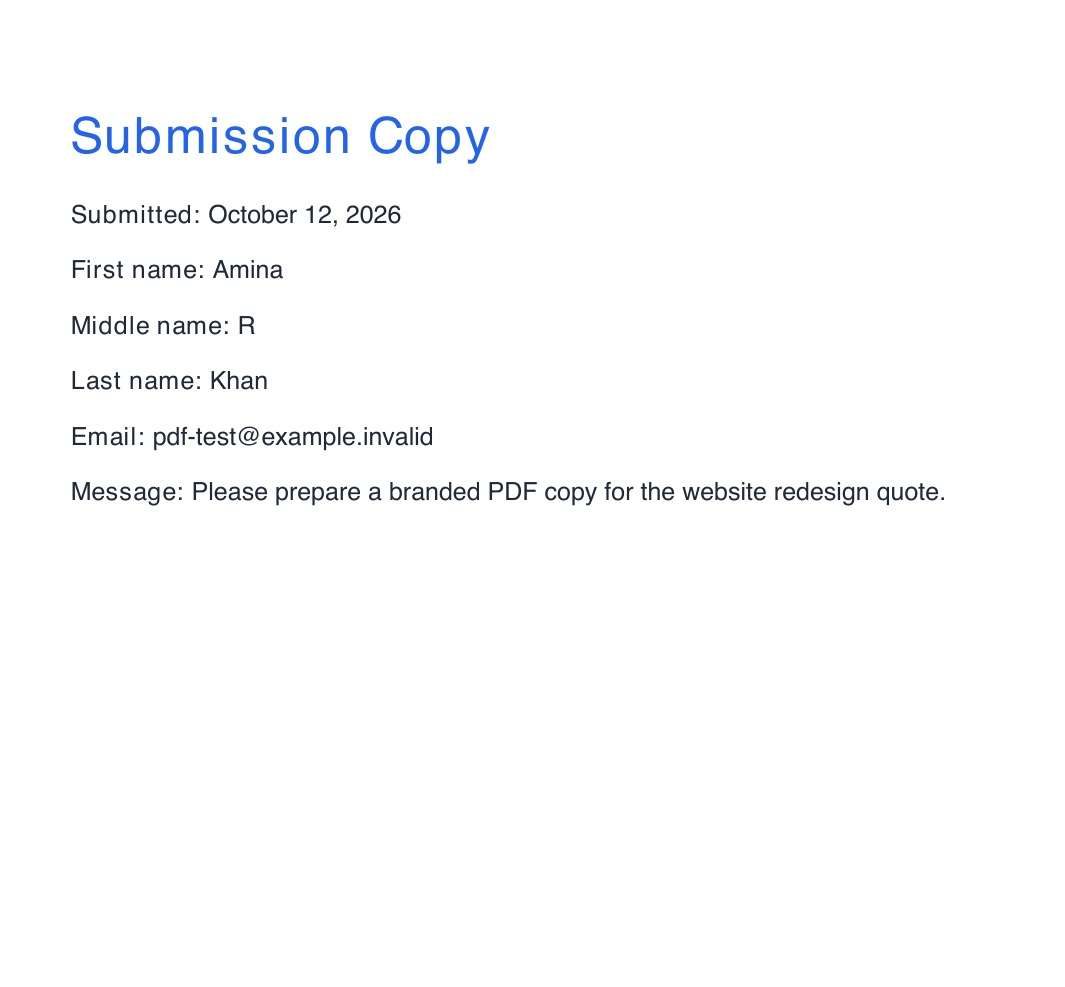
Open the PDF rather than treating the presence of a link as proof that the setup works. Check the title, labels, values, line wrapping, page breaks, and any images or non-Latin characters.
If people will rely on the document for an application, certificate, or official record, include accessibility in that review. The W3C PDF techniques cover practical checks such as real text, document titles, language, reading order, headings, tables, and meaningful link text. A PDF that looks correct is not automatically accessible.
A practical pre-launch test checklist
Run at least these checks before using generated PDFs with real submissions:
- Submit the form while logged out.
- Confirm the on-page download link opens the correct PDF.
- Confirm the notification goes to the intended recipient.
- Verify that the email contains a working link and is not expected to contain an attachment.
- Open the FormGent Entries dashboard and confirm the source submission is complete.
- Test long names, long paragraphs, punctuation, and accented or non-Latin characters used by your audience.
- Submit once with optional fields blank.
- Check both A4 and Letter if recipients may print in different regions.
- Test password-protected output if you enable that option.
- Confirm that payment details appear only after a successful payment when the form collects money.
- Repeat the test after changing field identifiers or the PDF template.
For payment workflows, build and verify the payment form first. The FormGent payment-form guide explains the broader setup, while the order-form guide covers a common invoice use case.
Common ways to use submission PDFs
| Use case | Useful PDF content | Suggested delivery |
|---|---|---|
| Quote request | Contact details, requested service, budget, message | Customer confirmation and sales notification |
| Order record | Items, quantities, total, payment status | Buyer confirmation after successful payment |
| Application | Applicant details, answers, submission date | Applicant copy and internal review email |
| Certificate | Participant name, course, date, result | End screen or participant email |
| Client intake | Contact information, preferences, project notes | Internal notification or restricted staff workflow |
For an applicant-facing workflow, build and test the fields first with the FormGent application-form guide, then create a separate PDF layout for the applicant copy and internal review copy.
Create separate templates when two audiences need different information. A customer copy may need a friendly summary, while an internal document may include routing notes or administrative values. FormGent supports more than one PDF template on a form, and each template has its own PDF tag.
Protect PDF links and submission data
Generating a PDF creates another copy of the submitted information. It may leave the WordPress dashboard and appear in a visitor’s browser history, email, downloads folder, backups, or shared storage.
Treat the PDF link as private. FormGent uses a hard-to-guess file name and serves the document through a dedicated endpoint, but anyone who receives a working link may be able to open it. Do not paste the link into public tickets, analytics labels, or shared documents. OWASP explains that query-string values can surface in browser history, web logs, browser caches, and referrer data, even when a site uses HTTPS.
The FormGent 1.12.3 code reviewed for this guide schedules daily cleanup and removes generated PDFs older than seven days by default. That makes the link temporary, not a permanent archive. If a recipient needs a long-term record, tell them to download it promptly and store it according to your organization’s policy.
Also follow these safeguards:
- Use HTTPS on the public WordPress site so form submissions and PDF downloads travel over an encrypted connection.
- Collect only the information the workflow genuinely needs.
- Avoid placing passwords, full payment-card details, or other highly sensitive values in the PDF.
- Limit WordPress administrative access and protect backups.
- Explain document delivery and retention in the site’s privacy information when appropriate.
- Use the optional PDF password only when you have a separate, safe password-sharing process.
The WordPress form security checklist can help you review the form, site, and operational controls together.
If the GDPR applies to your organization, the European Commission’s personal-data processing principles are a useful policy reference. They call for collecting only necessary data and retaining personal data no longer than its purpose requires. Map those principles to the form entry, generated PDF, email, backups, and any copy downloaded by staff.
Troubleshooting FormGent PDF generation
The PDF setup screen keeps asking you to get started
The PDF resources may not have installed correctly. Confirm that WordPress can write to the plugin’s PDF-resource location, check for a server or security rule blocking the installation request, and retry from the PDF Generation panel.
No PDF link appears after submission
Confirm that the correct {{pdf:id}} tag is in the active confirmation or End screen. Saving a template does not generate a document by itself. Also confirm that the template belongs to the same form and that the form changes were published.
The PDF opens, but one or more fields are blank
Edit the template and reinsert the fields from its tag picker. A copied tag may point to a field identifier that does not exist on this form. Retest after any field is deleted, replaced, or renamed internally.
The email arrives without a PDF attachment
That is expected in the tested version. FormGent replaces the PDF tag with a download link in the email body. If neither an attachment nor a link appears, confirm that the tag is present in the active notification and that the notification ran for that submission.
The email notification does not arrive
First confirm that the PDF link works on the confirmation screen. Then check the recipient address, spam folder, WordPress mail logs, and the site’s SMTP or transactional email configuration. PDF generation cannot repair an unrelated mail-delivery problem.
An older PDF link no longer works
Generated files are temporary. In the reviewed version, the default cleanup removes PDFs older than seven days. Submit the form again to generate a fresh document. Do not use the temporary link as the only copy of a record that must be retained.
A logo, image, or web font is missing
Remote assets may be unavailable to the PDF renderer even when they load in a browser. Use a locally hosted, accessible asset where possible. Verify the relevant file permissions and test the PDF in the live environment, where images and fonts may load differently than they do during development.
Payment information is missing
Wait for payment confirmation before creating and sending the PDF. Then confirm that the template uses the payment tags available for that form and test both successful and unsuccessful payment paths.
Frequently asked questions
Can WordPress convert form submissions to PDF by itself?
WordPress does not provide a built-in system for turning arbitrary form entries into custom PDFs. You need a form plugin or an integration that supplies a template, maps the submission values, and generates the file.
Is PDF Generation available in the free version of FormGent?
Yes. PDF Generation is available in the free version of FormGent.
Does FormGent email the PDF as an attachment?
No. FormGent adds a secure PDF download link to the email instead of attaching the file.
Can one form generate more than one PDF?
Yes. You can create multiple templates for the same form and place the relevant PDF tags in confirmations or notifications. This is useful when the submitter and your internal team need different documents.
Can a FormGent PDF be password protected?
Yes. The PDF settings include an optional password. Plan how the intended recipient will receive that password without placing it beside the download link.
Is the generated PDF link permanent?
No. FormGent removes generated PDFs after seven days, so download and save any document you need to keep.
Give each submission a useful document
A good submission PDF is more than a printout. It gives the recipient a clear record, uses only the fields they need, and arrives through a tested delivery path.
Build the template, add its PDF tag to the right confirmation or notification, and test the finished document with realistic values. Once the content, delivery, privacy, and expiry behavior all pass, the form is ready to generate useful PDFs automatically.
Ready to create PDFs from your own WordPress form submissions? Get started with FormGent for free, build your form, and use the steps above to turn your first test entry into a polished PDF.

Leave a Reply