
How to Build a Custom Login Form in WordPress
-
- Tips and Tricks Form Builder
- 8 mins read
WordPress comes with a default login page at wp-login.php. It does the job, but it looks nothing like your site. It has no branding, no custom fields, and no way to control where users go after they sign in. For most site owners, that is a problem worth fixing.
FormGent gives you a WordPress login block that lets you build a custom login form in WordPress and place it on any page. You get full control over the fields, links, and redirect behavior, and you can replace the default wp-login.php URL with your own page. No code needed.
This guide covers the full setup from start to finish.
Why Replace the Default WordPress Login Page
The default WordPress login page works, but it creates a disconnect between your site and the login experience. Anyone who visits wp-login.php lands on a generic page with the WordPress logo, no custom styling, and no connection to your brand.
Beyond looks, the default page is also a well-known URL. Bots and brute-force scripts target wp-login.php constantly because every WordPress site uses it by default. Replacing it with a custom wp-login.php alternative adds a basic but useful layer of protection.
A WordPress custom login page also lets you:
- Match the login page design to the rest of your site
- Add a sign-up link so new visitors can register easily
- Control where users land after they sign in
- Show a friendly message to users who are already logged in
Problems with wp-login.php
The default page has a few real limitations. You cannot change the layout or add your own logo without editing theme files or using a separate plugin. The URL is fixed, which means it is easy for automated tools to find. And if you have a custom registration page, the default login page still links back to wp-login.php?action=register, breaking the user experience you built.
What You Need Before Getting Started
Install and Activate FormGent
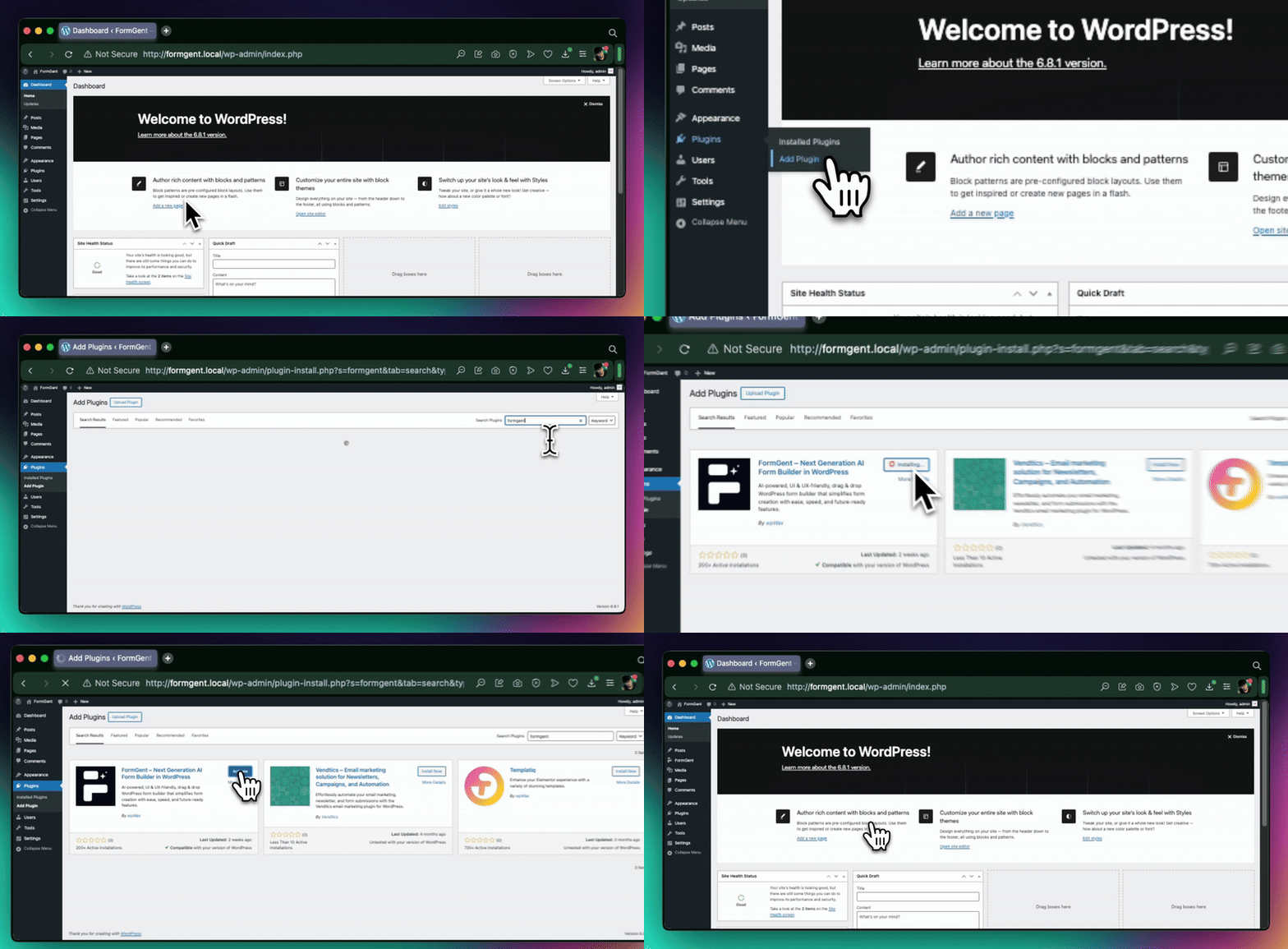
If FormGent is not installed yet:
- Go to WordPress Dashboard > Plugins > Add New
- Search for FormGent
- Click Install Now, then Activate
For the Pro version, download the plugin from your FormGent account, upload it through Plugins > Add New > Upload Plugin, and activate your license key under FormGent > Settings.
You do not need to change any WordPress settings before building a login form. Unlike registration, login works out of the box.
How to Create a Custom Login Form with FormGent
Create a New Form and Add the Login Block
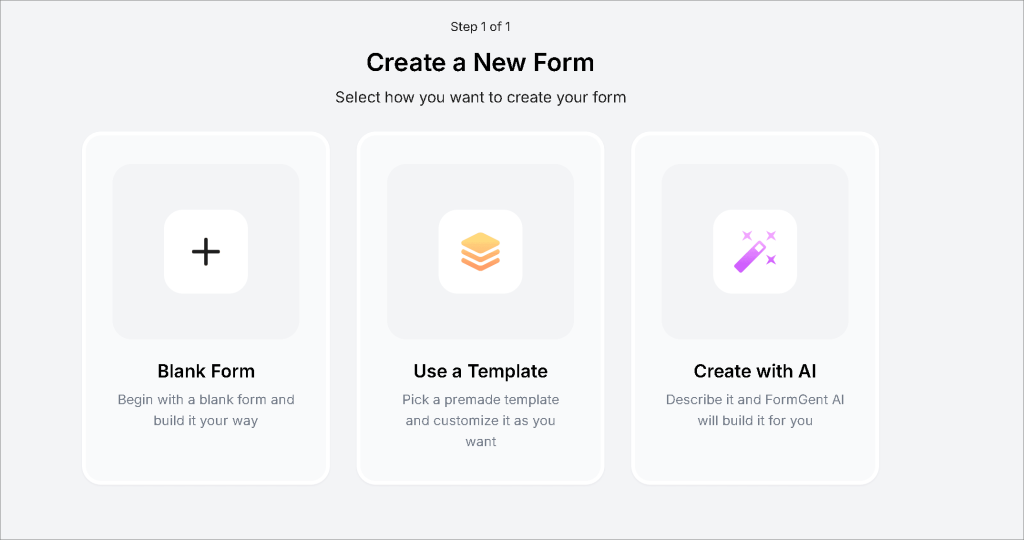
- Go to FormGent > All Forms
- Click Add New
- Choose a blank form or Use a template or Create With AI
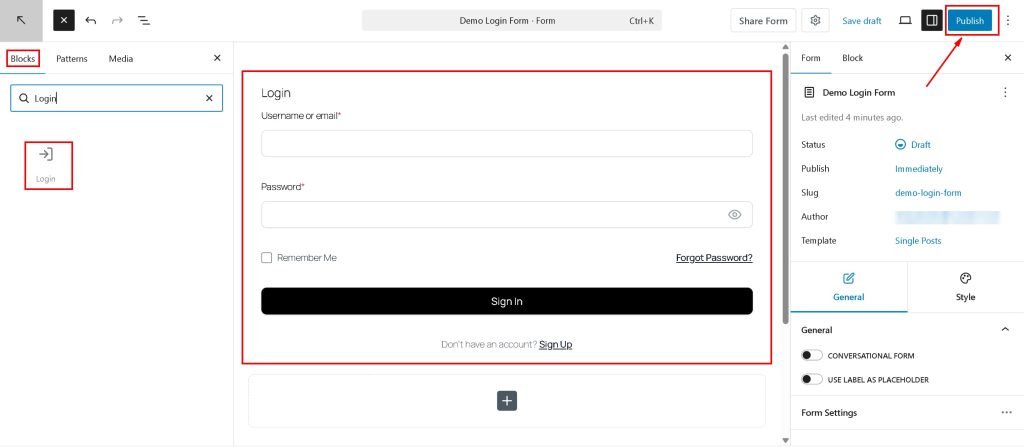
- In the block panel, find the Login block and add it to your form
The login block in FormGent adds all the standard sign-in fields automatically. This is the core of your frontend login form in WordPress, and it takes about 30 seconds to get the basic version in place.
Configure Login Field Options
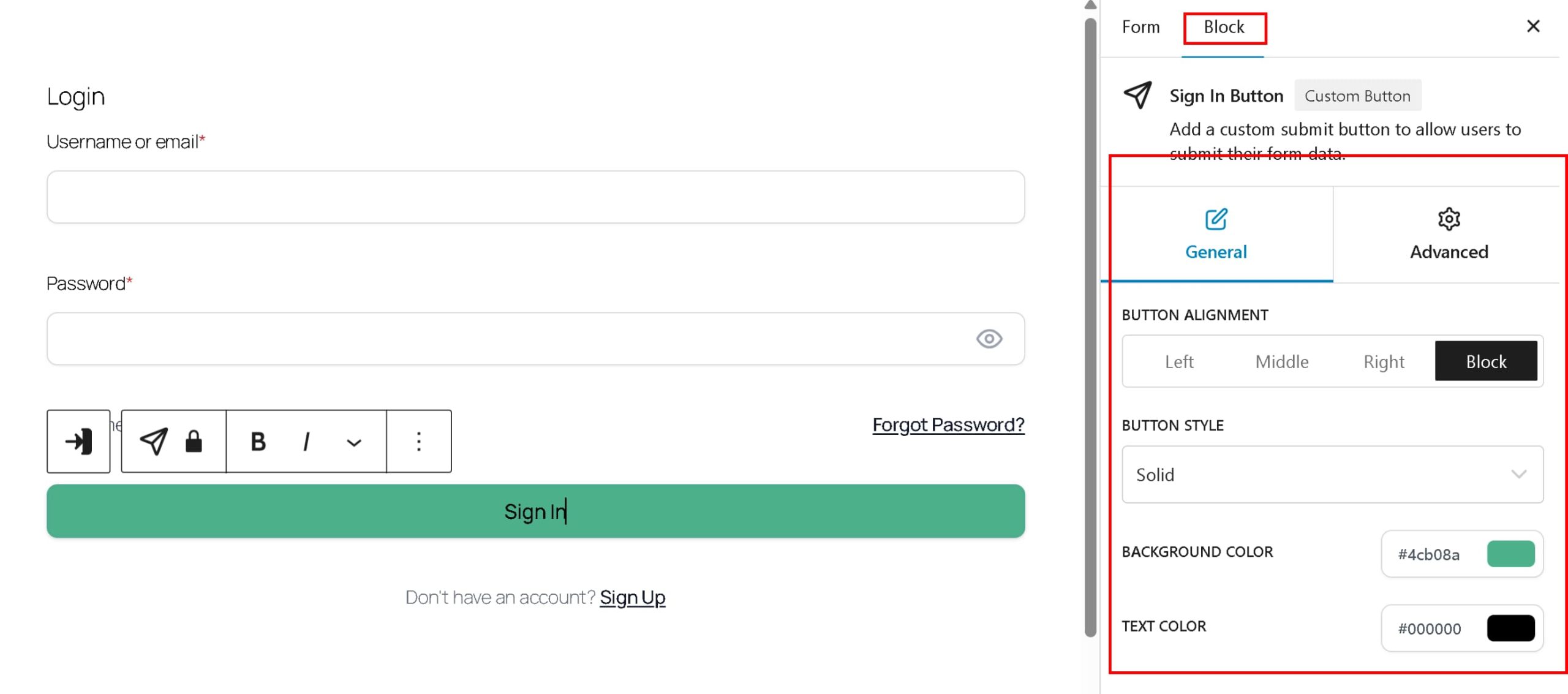
Once the Login block is on your form, you can edit how each field looks and behaves. The block includes these elements by default:
- Username or email field
- Password field
- Remember Me checkbox
- Forgot Password link
- Sign Up link
- Sign In button
This covers everything a standard WordPress username password form needs. You can edit the label text, placeholder text, button label, and alignment directly inside the block settings. Keep the labels clear and simple so visitors know exactly what to fill in.
The remember me option on the login form keeps users signed in across sessions. It is enabled by default and most users expect it, so leave it in unless you have a specific reason to remove it.
Set Up the Forgot Password Link
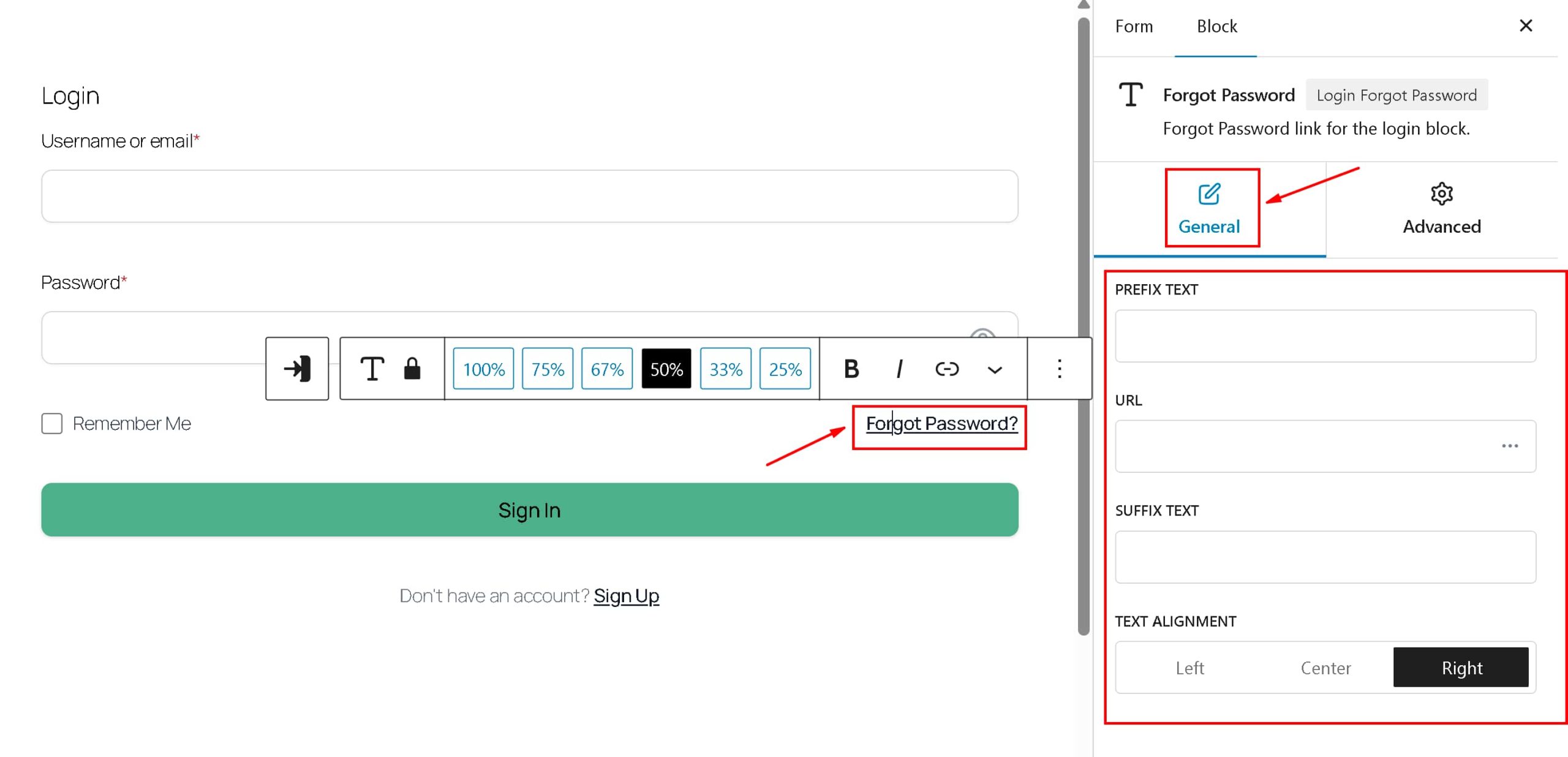
The Login block includes a forgot password link on the login form by default. If you do not enter a custom URL for it, FormGent uses the default WordPress lost password page.
If you want to send users to a custom password reset page instead, paste the URL into the Forgot Password field inside the block settings. This keeps users on your site rather than sending them to the generic WordPress page.
For most sites, the default WordPress lost password flow works fine. You only need a custom URL here if you have built a separate password reset experience.
Add a Sign Up Link for New Users
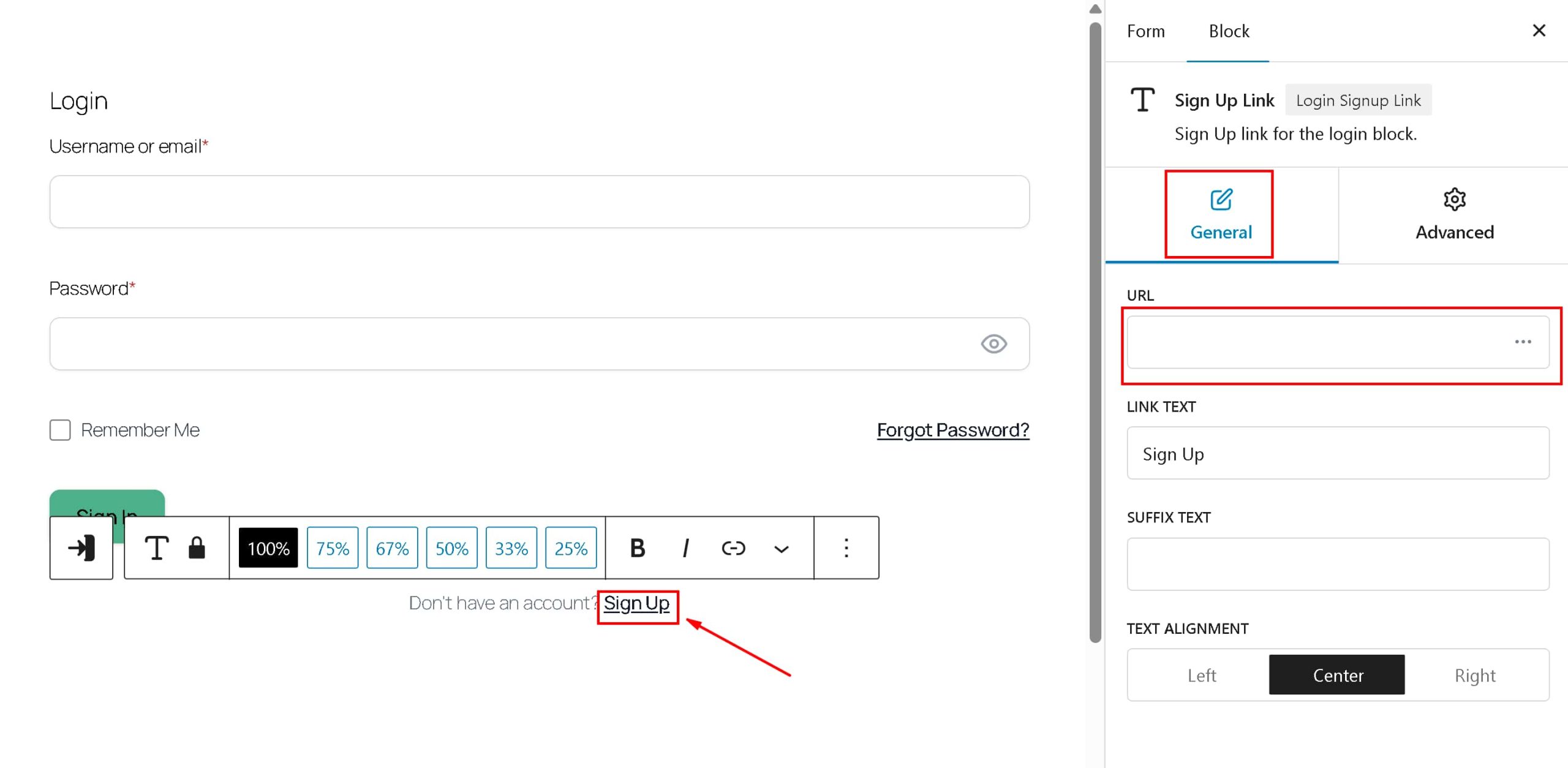
The Login block also includes a Sign Up link. By default, it points to the WordPress registration URL. You can also point to your custom registration page if you followed this guideline by creating a custom registration Page.
If you want it to go somewhere specific, paste the URL into the Sign Up link field in the block settings. This is useful when your registration page is on a different domain or subdomain, or when you want to track where sign-up clicks come from.
Keeping the sign-up link visible on your WordPress login form means new visitors do not hit a dead end if they land on the login page by mistake.
How to Set a Custom Login Page in WordPress
Configure Custom Login Page in FormGent Global Settings
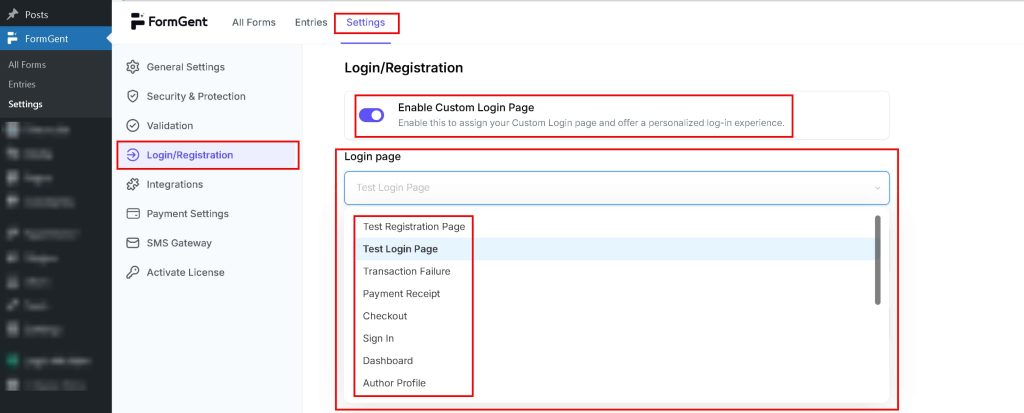
Once your login form is published and added to a WordPress page, you can make it the default login page for your entire site. This is where you truly replace the default WordPress login URL with your own.
- Go to FormGent > Global Settings > Login/Registration
- Enable Custom Login Page
- Select the page that contains your FormGent login form
- Save changes
This is the core of custom login page WordPress settings inside FormGent. After saving, all WordPress login links across your site point to your new page.
How WordPress Login URLs Behave After the Change
After you set the custom login page, here is what changes:
- Direct visits to
wp-login.phpredirect to your custom login page - WordPress login links in menus, widgets, and other areas point to your custom page
- The WordPress login page customization takes effect site-wide without editing any theme files
A few things do not change. Password reset, lost password, logout, and other special WordPress login actions still use the default WordPress handlers. FormGent only redirects the main login URL, not every action tied to wp-login.php.
How to Test Your Custom Login Form
Test Successful Login and Redirect
Before your form goes live, test it with a real user account. Log out of WordPress first, then visit the page where your login form is embedded.
Enter valid credentials and submit the form. After a successful login, FormGent redirects the user to the site home page by default. Check that the redirect after successful login works correctly. If you want users to land on a specific page after signing in, you can set a custom redirect URL inside the form settings.
Also check that the remember me option on the login form works by closing the browser and revisiting the site. If the user is still signed in, the session is being saved correctly.
Test Failed Login Error Message
Next, test what happens when someone enters wrong credentials. Type an incorrect password and submit the form. You should see a failed login error message appear below the form.
For security, FormGent shows a generic error rather than telling the visitor whether the username or the password was wrong. This is intentional. Specific error messages help attackers confirm which usernames exist on your site.
Make sure the error message is visible and readable. If it blends into your page design, adjust the form styling so users can clearly see what went wrong.
Common Issues and How to Fix Them
Login Page Still Redirecting to wp-login.php
If your site still sends users to the default WordPress login page, go back to FormGent > Global Settings > Login/Registration and confirm two things: the Custom Login Page toggle is enabled, and a specific page is selected in the dropdown. Saving the settings without selecting a page leaves the redirect inactive.
Also clear your site cache after making this change. Caching plugins sometimes serve the old redirect behavior until the cache refreshes.
Pending Verification Blocking Login
If a user registers but cannot log in, check whether your registration feed has Auto Login: No selected with email or manual verification enabled. Until the user verifies their email or an admin approves the account, login is blocked.
The user sees a clear message explaining the situation. If they missed the verification email, ask them to check their spam folder. On live sites, an SMTP plugin keeps verification emails out of spam reliably.
Who Should Use a Custom Login Form in WordPress
The default wp-login.php page works for site admins, but it is not a great experience for regular users. These are the situations where a custom login form makes a real difference.
Membership and Subscription Sites — Members log in regularly. A branded login page that matches your site feels more professional and builds trust. Sending members to a generic WordPress page every time they sign in breaks that experience.
Online Course Platforms — Students return to a course site repeatedly. A clean, custom login page with a clear sign-in form and a sign-up link for new visitors makes the experience smoother for both groups.
Client Portals — Businesses that give clients access to a private dashboard need a login page that reflects their brand. A custom login form signals professionalism from the moment a client tries to sign in.
eCommerce Sites — Customers who create accounts on your store should log in through a page that looks like part of your store, not a separate WordPress admin tool. A custom login page keeps the shopping experience consistent.
Multi-Author Blogs and Magazines — Sites with multiple contributors need a login page that writers and editors can use comfortably. A custom page with clear labels and a forgot password link reduces friction for non-technical users.
Sites Concerned About Security — Replacing the default wp-login.php URL with a custom page makes it harder for bots to find your login endpoint. It is not a complete security solution, but it removes the easiest target from plain sight.
Final Thoughts
The default wp-login.php page is functional but limited. With FormGent, you can build a custom login form in WordPress that fits your site’s design, handles logged-in users gracefully, links to your registration page, and replaces the default WordPress login URL entirely.
Combined with a custom registration form, you can have a complete WordPress login page customization setup built without touching any code. Both forms work together, link to each other, and give your users a consistent experience from signup through sign-in.

Rezaul Karim
Rezaul Karim is a passionate Digital Marketer driven by curiosity and creativity in the ever-evolving world of online marketing. With over 6 years of hands-on experience in Content Writing, Copywriting, SEO, and Social Media Marketing, he brings a strategic edge to crafting content that engages and converts. Always eager to explore new trends and tools, Rezaul thrives on finding smarter ways to connect brands with their audiences. Outside of work, he enjoys diving into books or recharging in nature.

Leave a Reply