

How to Create a Custom User Registration Form in WordPress
-
- Tips and Tricks Form Builder
- 6 mins read
WordPress has a built-in registration page, but it is plain, hard to customize, and gives you very little control over what information you collect from new users. If you want a custom registration form in WordPress that matches your site’s design, collects the right data, and handles things like email verification or role assignment, you need a proper form builder.
FormGent is a registration form plugin for WordPress that gives you all of that without writing a single line of code. You can build a WordPress user registration form, set up a registration feed, assign user roles, and even send a verification email before the account goes live.
This guide walks you through the full setup.
Why Use a Custom Registration Form in WordPress
Most WordPress sites use the default WordPress registration page at wp-login.php?action=register. It works, but it is bare. You cannot add extra fields, change the design, or control what happens after someone registers.
A proper WordPress sign up form gives you:
- Full control over which registration form fields appear
- The ability to assign a user role on signup
- Options for auto login after registration or email verification on registration
- A form that fits your site’s look and feel
Limitations of the Default WordPress Registration Page
The default page sends users a randomly generated password by email, which feels outdated. It has no way to collect extra data like a phone number or company name. You also cannot redirect users to a specific page after they sign up. For anyone who wants to allow users to register with a better experience, the default page falls short quickly.
What You Need Before Getting Started
Enable User Registration in WordPress
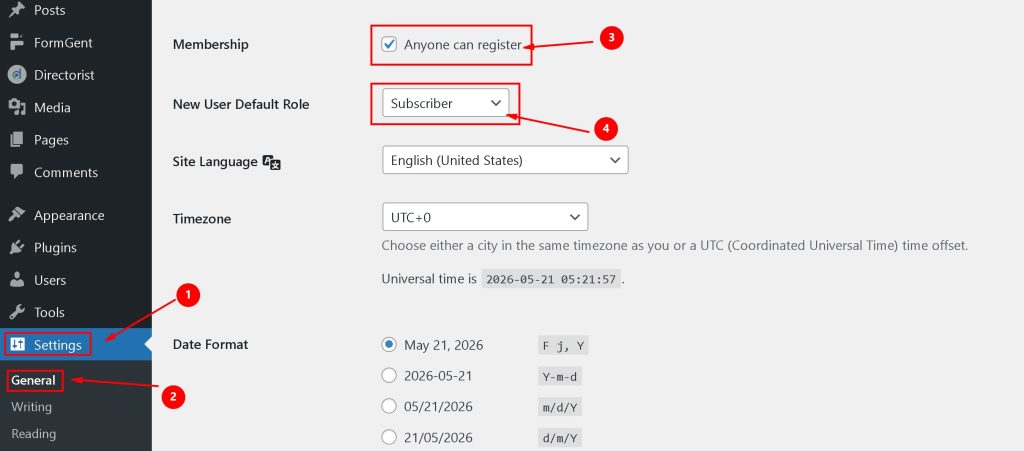
The first thing to check is your WordPress General Settings registration option. WordPress needs to allow new user registration before any form can create a new user account.
- Go to WordPress Dashboard > Settings > General
- Check the box next to Anyone can register
- Set the default user role (Subscriber works for most sites)
- Click Save Changes
If you skip this step, anyone who submits your form will see: “User registration is currently disabled.”
Opening registration to everyone also opens the door to bot signups. FormGent’s honeypot protection is on by default for every form, but if you want a deeper look at stopping spam entries, see our guide on avoiding spam submissions with an online form builder.
Install and Activate FormGent
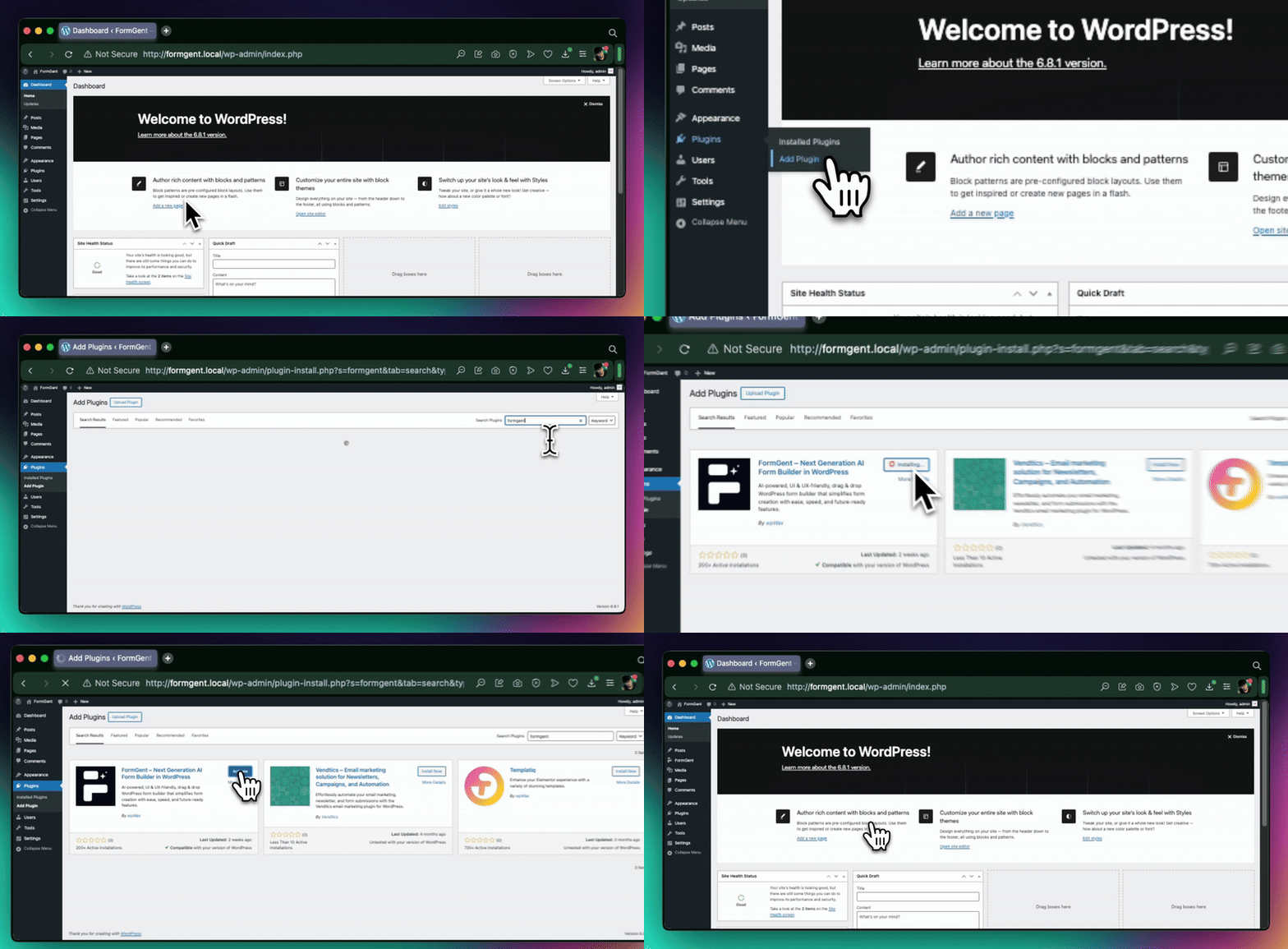
FormGent is a registration form plugin for WordPress that handles both standard and conversational forms. To install it:
- Go to WordPress Dashboard > Plugins > Add New
- Search for FormGent
- Click Install Now, then Activate
For the Pro version, install the plugin from your FormGent account and activate your license key under FormGent > Settings.
How to Create a User Registration Form in WordPress with FormGent
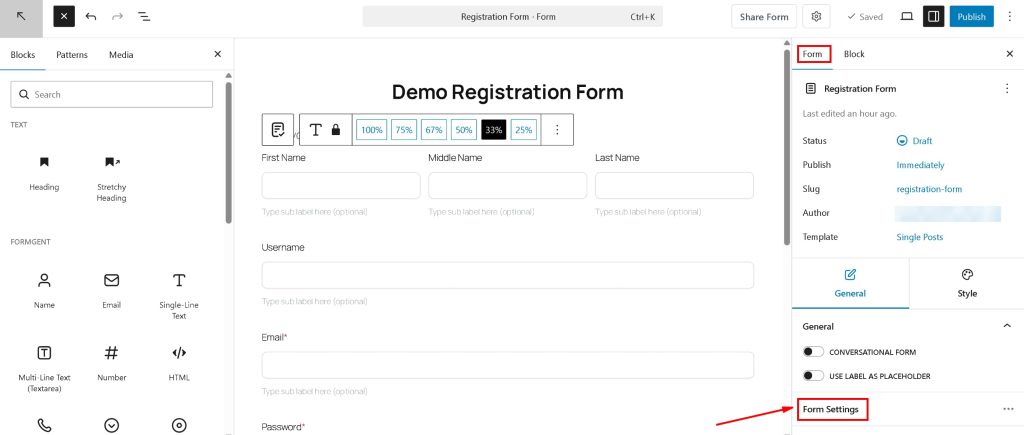
Create a New Form and Add the Register Block
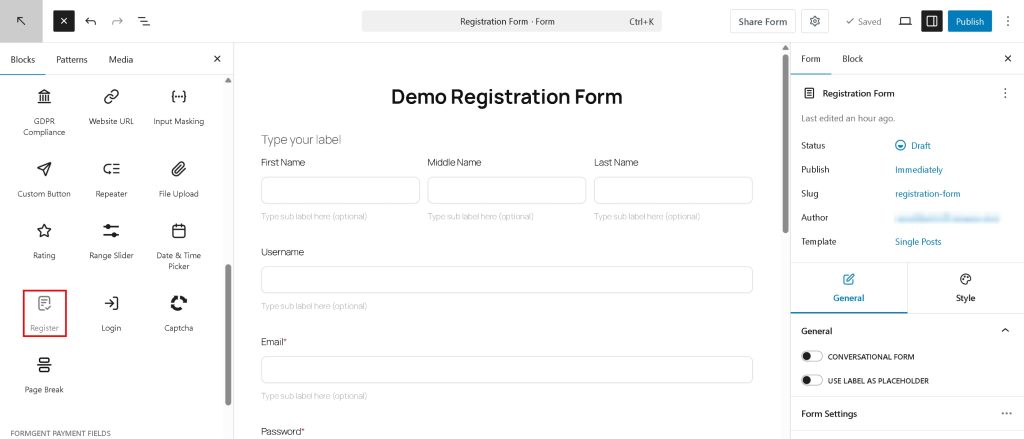
- Go to FormGent > All Forms
- Click Add New
- Choose a blank form or a conversational form
- In the block panel, find the Register block and add it to your form
This is the fastest way to create a registration form in WordPress without touching any code. The Register block sets up all the standard signup fields automatically.
Configure Form Fields
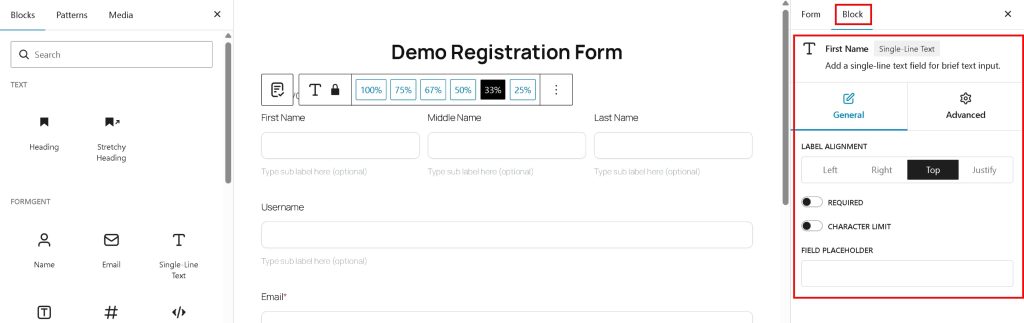
Once you add the Register block, FormGent includes these registration form fields by default:
- First Name
- Middle Name
- Last Name
- Username
- Password
- Confirm Password
- Sign In link
You can remove fields you do not need or edit the labels and placeholder text. Keep in mind that username, email, and password fields are required for every WordPress user account. If you leave the username field empty, FormGent uses the part before the @ in the email address as the username.
Add Payment to Your Registration Form (Optional)
If you’re charging for access, like a paid membership or a paid course, you can collect that payment right inside the same form. Connect a gateway (Stripe, PayPal, or Mollie) under FormGent > Settings > Payment Settings, then add the Payment block.
For the full walkthrough, gateway setup, amount types, subscriptions, and testing before you go live, see our guide on how to create a payment form in WordPress.
When someone submits the form, FormGent creates their WordPress account and sends them to complete the payment through your chosen gateway as part of that same submission. You don’t need to connect the two steps manually, FormGent handles both from one form.
Set Up the Registration Feed
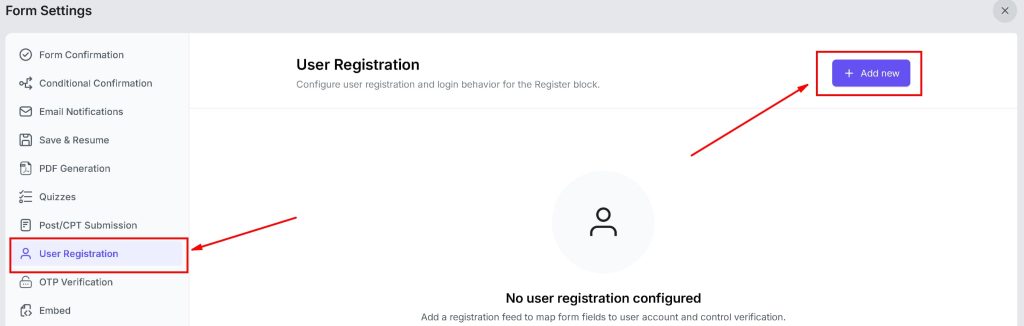
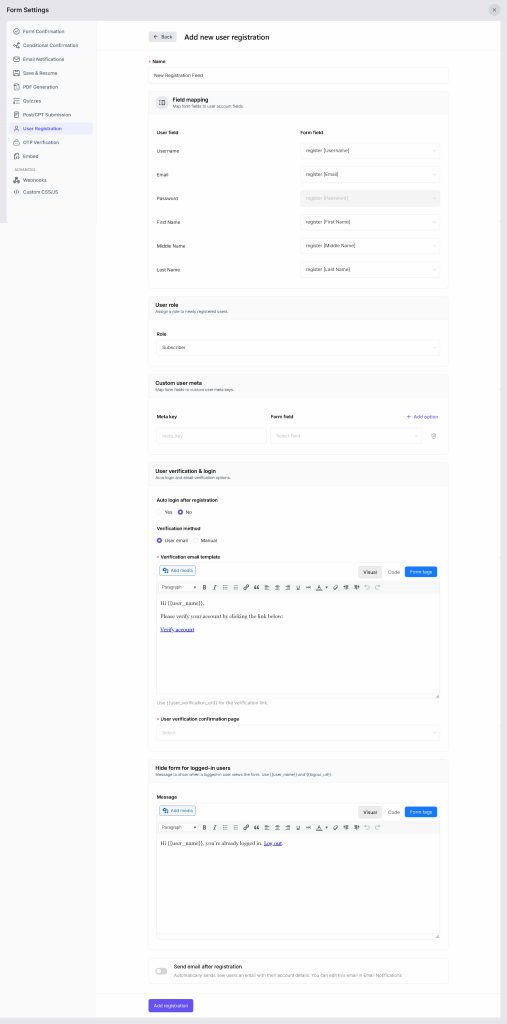
The registration feed settings control how FormGent creates a new WordPress user when someone submits the form.
- Open Form Settings
- Go to User Registration
- Click Add Registration Feed
Give the feed a clear name like Main Registration so you can find it later.
Learn more advance settings about Map Form Fields to WordPress User Data, Assign a User Role on Signup, Configure Auto Login and Email Verification on Registration, Save Additional Data with Custom User Meta from our login and registration documentation.
How to Display the Registration Form on Your Site
Embed the Form on a Page
Once your form is ready, click Publish in the form editor. Then add it to any WordPress page:
- Use the FormGent block in the Gutenberg editor and select your form from the dropdown
- Or copy the shortcode from the form list and paste it into any page or widget area
This is the standard way to set up a frontend registration in WordPress using any page you choose.
Set a Custom Registration Page in WordPress
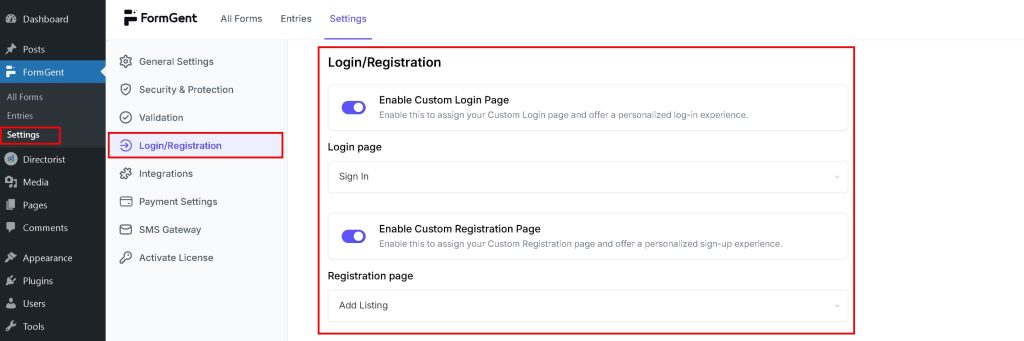
To make your form the default custom registration page in WordPress across your entire site:
- Go to FormGent > Global Settings > Login/Registration
- Enable Custom Registration Page
- Select the page that has your FormGent registration form
- Save changes
After this, all WordPress registration links point to your custom page. Direct visits to wp-login.php?action=register also redirect there automatically.
How to Test Your Registration Form
Before real users hit your WordPress new user registration form, test it yourself. Log out of WordPress first, then open the page where your form lives and fill in test data. After submitting, check:
- Does the success message appear?
- If auto login is on, does it redirect correctly?
- If email verification is on, does the verification email arrive?
- Does the new user appear under WordPress Dashboard > Users?
If hide form for logged-in users is turned on in your feed settings, make sure you are logged out before testing. The form will not show to anyone already signed in.
Common Issues and How to Fix Them
Registration Says It Is Disabled
Go to WordPress Dashboard > Settings > General and check that Anyone can register is enabled. This is the most common reason WordPress new user registration does not work after setup.
Users Not Receiving Verification Emails
WordPress email delivery fails on many hosting environments. Install an SMTP plugin and connect it to a reliable mail service. On local development sites, use a local mail testing tool like Mailhog.
Registration Form Not Visible to Logged-In Users
This happens when hide form for logged-in users is turned on inside the registration feed. It is expected behavior. Log out to see the form, or edit the logged-in message text directly inside the feed settings.
Wrapping Up
The default WordPress registration page works in a basic sense, but it does not give you much to work with. With FormGent, you can create a user registration form in WordPress that collects the right data, handles email verification on registration, assigns roles, and points users to a fully custom page. The setup takes under 30 minutes and needs no code.
Don’t wait more. Download FormGent and create your user registration form easily.

Rezaul Karim
Rezaul Karim is a passionate Digital Marketer driven by curiosity and creativity in the ever-evolving world of online marketing. With over 6 years of hands-on experience in Content Writing, Copywriting, SEO, and Social Media Marketing, he brings a strategic edge to crafting content that engages and converts. Always eager to explore new trends and tools, Rezaul thrives on finding smarter ways to connect brands with their audiences. Outside of work, he enjoys diving into books or recharging in nature.


Leave a Reply