
10 Booking Form Optimization Tips to Get More Appointments
-
- Tips and Tricks
- 9 mins read
Someone clicks your “Book Now” button. They start filling out the form – and then they’re gone.
No booking. No inquiry. Nothing.
This happens more than most business owners realize, and the cause is rarely a lack of interest. Most of the time, it’s a form of experience that works against the person trying to use it. Too many fields, a layout that breaks on mobile, a payment step that feels uncertain, a submit button that leaves them wondering whether anything actually happened.
Booking form optimization is about removing those moments of friction before they cost you an appointment. This guide covers a number of tips to optimize your booking form in a way that converts better and makes sure that your users enjoy a frictionless booking experience.
Booking Form Optimization Tips for Better Conversion – Top 10
Here are 10 practical ways to optimize your booking form for getting more appointments. The first seven focus on the form itself – design, logic, fields, and the experience of filling it out. The last three address what happens beyond the form: scheduling infrastructure, post-submission communication, and payment flexibility. For those, we’ll show you where FormGent handles the job and where pairing it with BookingPress gives you a more complete system.
1. Cut Your Form Down to What Actually Gets the Booking
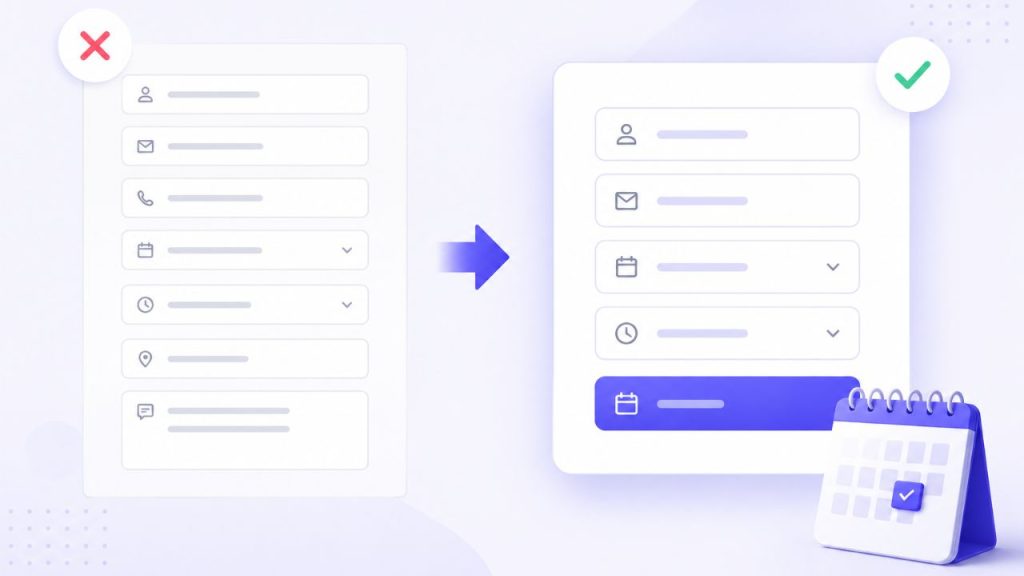
Every field you add is a decision the user has to make. The more decisions, the higher the chance they stop making them altogether.
Most booking forms ask for too much upfront. Full address, detailed preferences, multiple contact fields, optional inputs that aren’t really optional. None of this is needed to confirm the appointment. It’s just a habit.
The only fields you need to secure a booking are: name, email or phone number, the service they want, and a date and time. Everything else – special requirements, preferences, additional context – can be collected afterward through a follow-up email or a pre-appointment form.
With FormGent, you can build that focused form quickly and keep it that way. Multi-step layouts help too: if you do need to collect more information, breaking the form into steps makes the process feel shorter even when it isn’t. A progress indicator gives users a sense of where they are and how close they are to done.
Shorter forms don’t just feel easier. They get completed more often.
2. Make Your Form Work Properly on Mobile
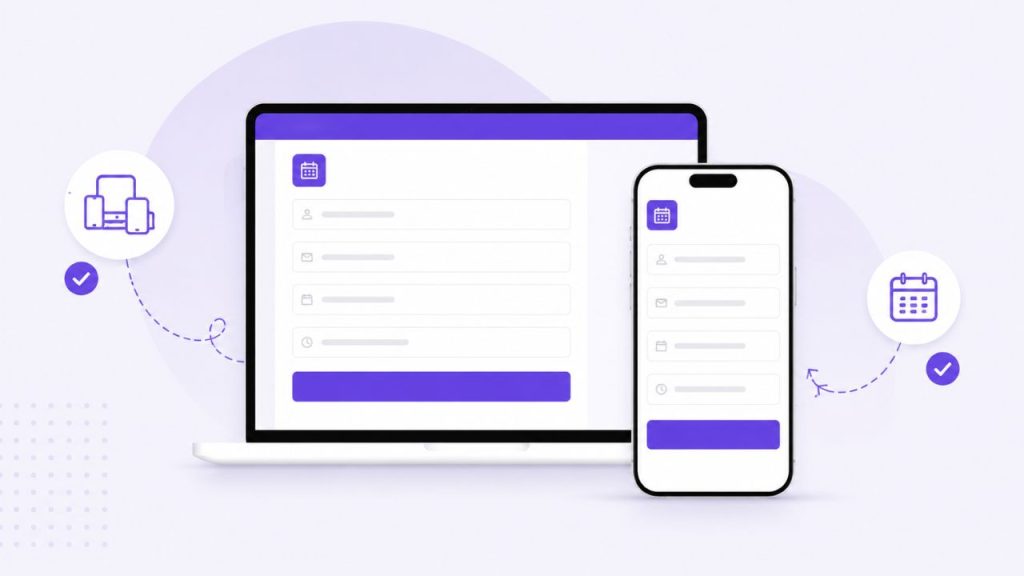
Most people who click your “Book Now” button are on their phone. If the form isn’t built for that, you’re not set to get more bookings. In fact, you’ll lose most customers before the first field is filled in.
The problems on mobile are specific: input fields that are too small to tap accurately, buttons that require precision rather than a thumb, layouts that force the user to scroll sideways, and load times that test patience before the form even appears.
A mobile-ready booking form uses a single-column layout, large touch targets, minimal typing (dropdowns and selectors where possible), and loads quickly on a standard mobile connection. FormGent’s forms are responsive by design, so the layout adjusts to the screen without you needing to configure it separately.
If your form doesn’t load within a couple of seconds on mobile, a meaningful number of users won’t wait. Keep the form lean: no heavy images inside it, no unnecessary scripts, a lightweight plugin that doesn’t add bulk to your page.
3. Use Conditional Logic to Show Only What’s Relevant
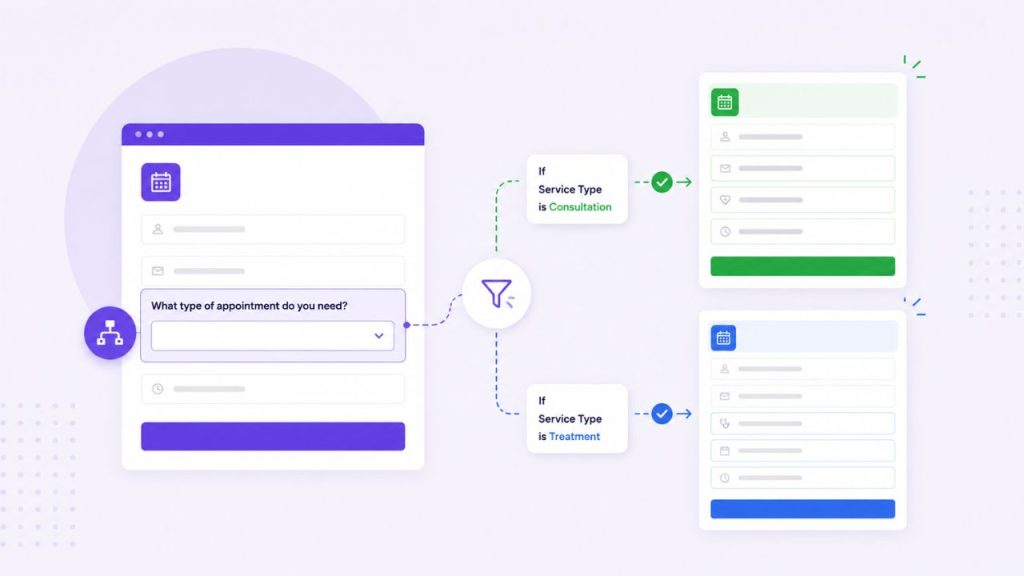
A form that shows every possible field to every possible user creates confusion. People see questions that don’t apply to them, scroll past things they don’t understand, and start to wonder whether this form is even meant for someone like them.
Booking form conversion optimization include using conditional logic that make the form respond to the user’s input in real time. If someone selects a basic consultation, they don’t need to see fields about project scope. If they select a specific service category, you can show only the staff members or time slots that apply to it. If they indicate they’re a returning client, you can skip fields you already have answers to.
The result is a form that feels shorter and more personal, even if the underlying data collected is the same. Less scrolling, less confusion, and a clearer path to clicking submit.
FormGent has conditional logic built in. You set the rules once – show this field if this other field has this value – and the form handles the rest without any code. Use it in your form and you’re guaranteed to get more bookings.
4. Reduce the Number of Choices at Each Step
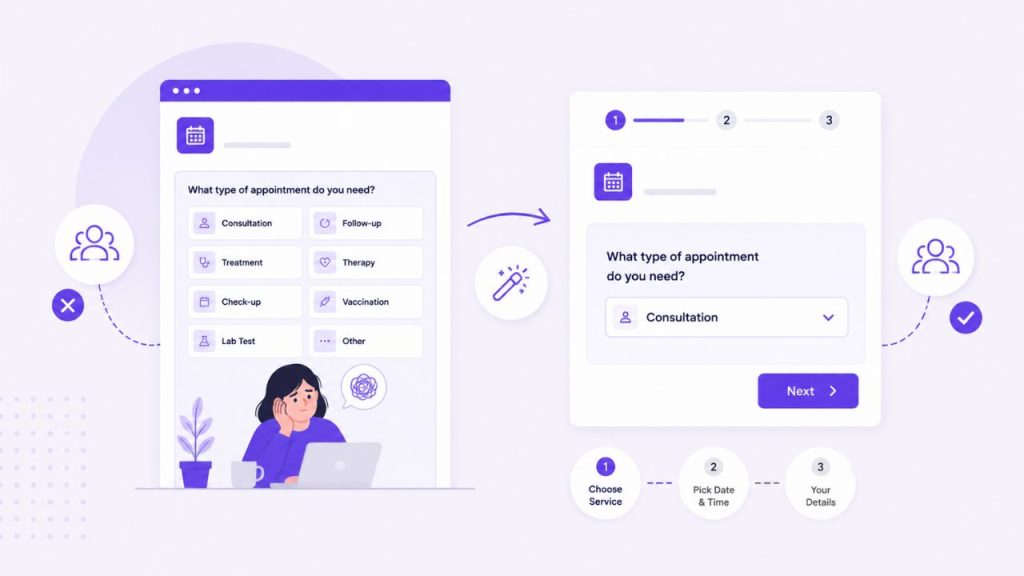
Too many options at once can stop someone from choosing anything at all. This is a well-documented pattern in decision-making, and booking forms are not immune to it.
If your form presents fifteen services in a single dropdown, some users will scroll through all of them, second-guess themselves, and leave without booking. Not because they didn’t want to book, but because the choice felt too heavy.
Group your services into clear categories and let users narrow down from there. Highlight the most common or recommended option. If you offer packages, present those as a simpler starting point than a full service list. The goal is to help the user find the right choice quickly, not to display everything you offer at once.
This is as much a content decision as a technical one. Think about the order your options appear in, which ones lead to the most bookings, and whether the labels you’re using are ones your clients would actually use.
5. Personalize the Form with Smart Conditional Confirmation
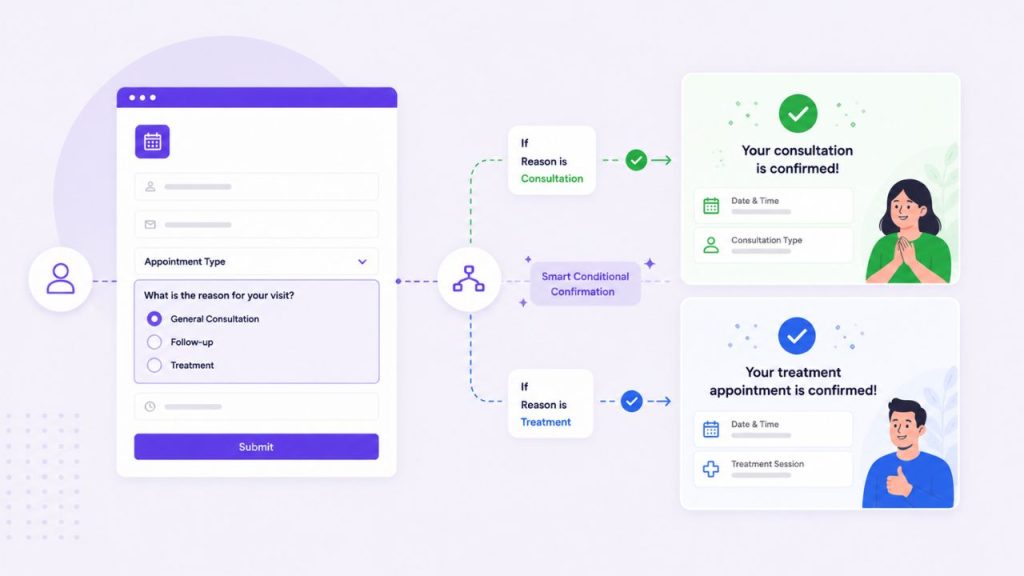
The moment after someone submits a booking form matters. Most forms show a generic “thank you” message and leave it at that. That’s a missed opportunity.
With FormGent’s Conditional Confirmation, you can show different messages based on what the user selected. Someone booking a free consultation sees a message relevant to that. Someone booking a paid service sees different next steps. Someone who selected a specific staff member gets a confirmation that acknowledges who they’ll be meeting. The message can include a summary of what they submitted, which reduces the “did that go through?” uncertainty that erodes trust right after a form is submitted.
This is also where FormGent’s email notifications come in. The moment a form is submitted, you can trigger confirmation emails to the client, to your team, or to multiple stakeholders with different content for each. These aren’t scheduled emails – they fire at the point of submission, confirming that the booking request was received and giving the client a record of what they submitted.
If your business needs post-booking communication beyond that – appointment reminders the day before, follow-ups after the appointment, rescheduling prompts – that’s a different layer. FormGent handles the submission confirmation; BookingPress handles the ongoing relationship. We’ll cover that in section 8.
6. Place Social Proof Where the Decision Happens
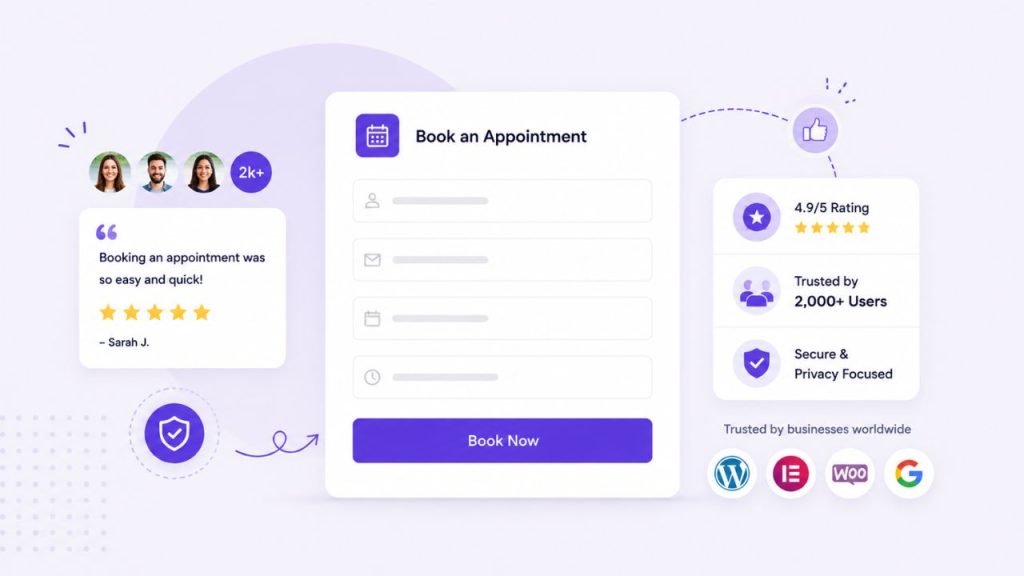
A testimonial buried on a separate page doesn’t help the person who is about to click submit and still has a small doubt in the back of their mind.
Social proof works best when it appears at the moment of decision – near the booking button, not on a dedicated reviews page the user may never visit. A short testimonial from a real client, a star rating, a note about how many appointments you’ve completed this month: any of these, placed close to your call to action, answers the question the user is quietly asking before they commit.
You don’t need many. One specific, credible testimonial placed well outperforms ten generic ones placed poorly.
With FormGent’s Custom HTML block, you can add testimonial content, trust badges, or any other HTML element directly inside or adjacent to your booking form – without needing a separate section or a page builder workaround.
7. Handle Payments in a Way That Feels Safe and Flexible
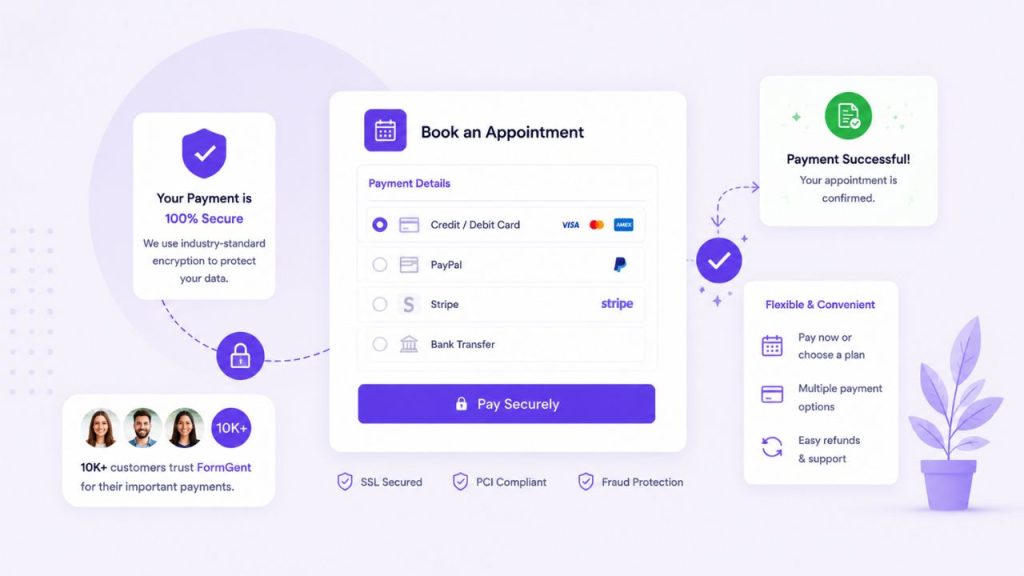
Payment friction at the booking stage loses appointments. If the payment step feels unfamiliar, unsecured, or inflexible, users abandon before completing.
FormGent supports PayPal and Stripe natively, which covers the majority of online payment preferences. You can collect full payments at the time of booking, which is appropriate for many service businesses and reduces no-shows significantly.
If your business needs deposit-only payments – collecting a partial amount upfront and the remainder on the day – or if you need to accept payments through regional gateways not supported by PayPal or Stripe, that’s where BookingPress adds meaningful capability. It supports a wider range of payment gateway integrations and handles deposit logic as part of its booking flow.
Typically FormGent’s payment integration is the right tool for most single-service booking forms. BookingPress extends that for businesses with more complex payment requirements. If you want to optimize booking forms, consider the payment requirements first before making the tool decision.
8. Add Real-Time Availability When You Need It
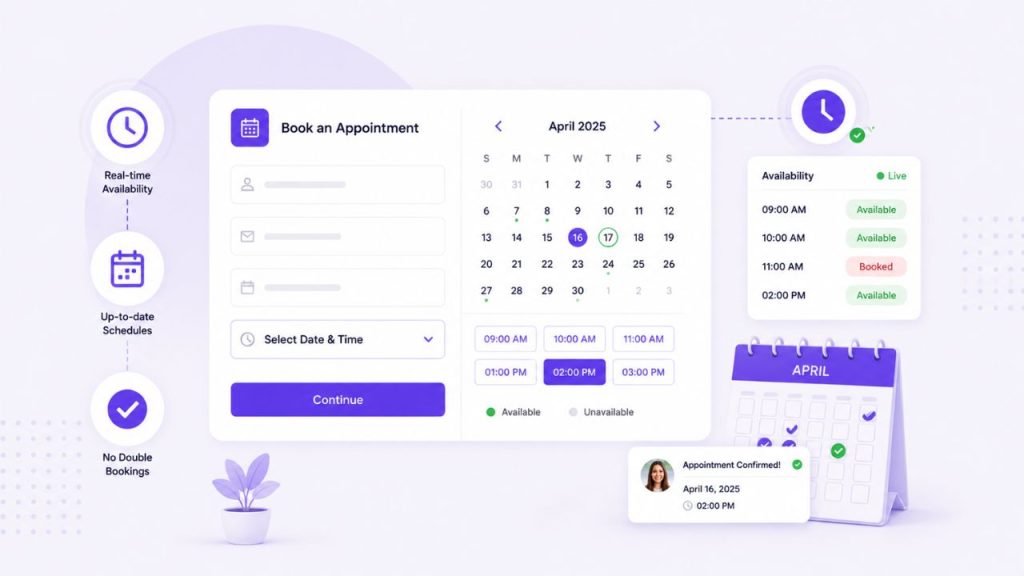
This is the point where a booking form and a booking system start to do different things.
FormGent’s date and time picker lets users select when they want to come in. What it doesn’t do is check whether that slot is actually available, prevent two people from booking at the same time, or adjust availability based on how long a particular service takes. For a business with a simple schedule and low booking volume, this may be manageable.
For anything more complex, it creates a risk of double bookings and manual cleanup. This is where you need to optimize booking forms by setting up more advanced system.
BookingPress is built to solve exactly this. It shows users only the slots that are genuinely available in real time, adjusts based on staff and service duration, and prevents conflicts automatically. If your scheduling is straightforward, FormGent alone handles the form experience well. If availability management is a real operational concern for your business, adding BookingPress to the stack removes that problem entirely.
9. Automate What Happens After the Booking
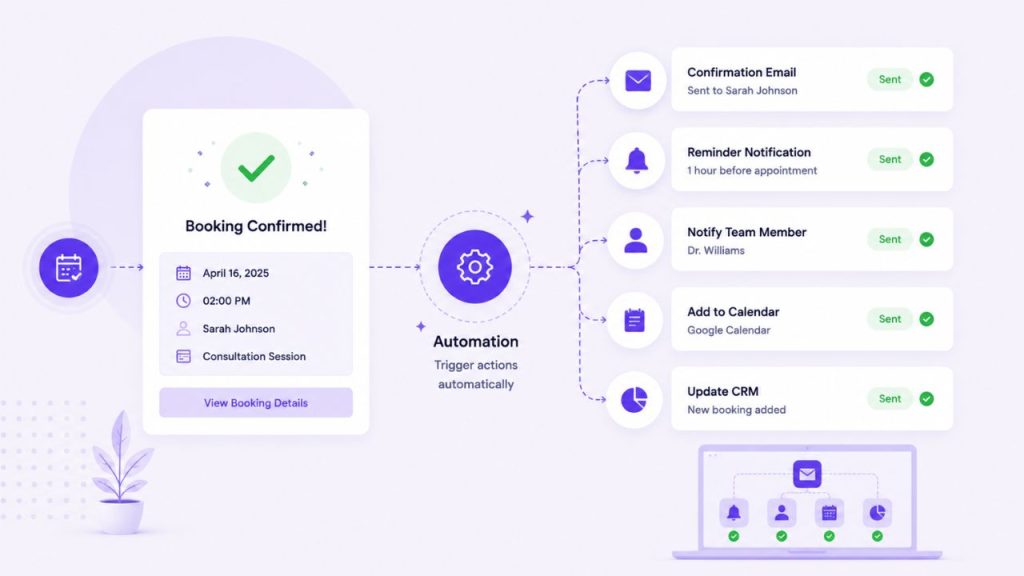
A booking form that submits successfully is the beginning of the appointment, not the end of it. What happens between the booking and the actual appointment affects whether the client shows up.
FormGent confirms the submission immediately. The client gets an email, you get a notification, and the record appears in your entries dashboard. That’s the submission layer, and it’s covered.
What FormGent doesn’t do is send a reminder 24 hours before the appointment, follow up afterward to ask for a review, or prompt the client to rebook after a set period. Those are time-based, scheduled communications that require a booking management system to track and trigger.
BookingPress handles this layer. It can send reminders via email, SMS, WhatsApp, and other channels at intervals you configure, without you needing to do anything manually per booking. For businesses where no-shows are a real cost, this alone justifies adding it to the setup.
10. Remove Urgency Theater – Use Real Scarcity Instead
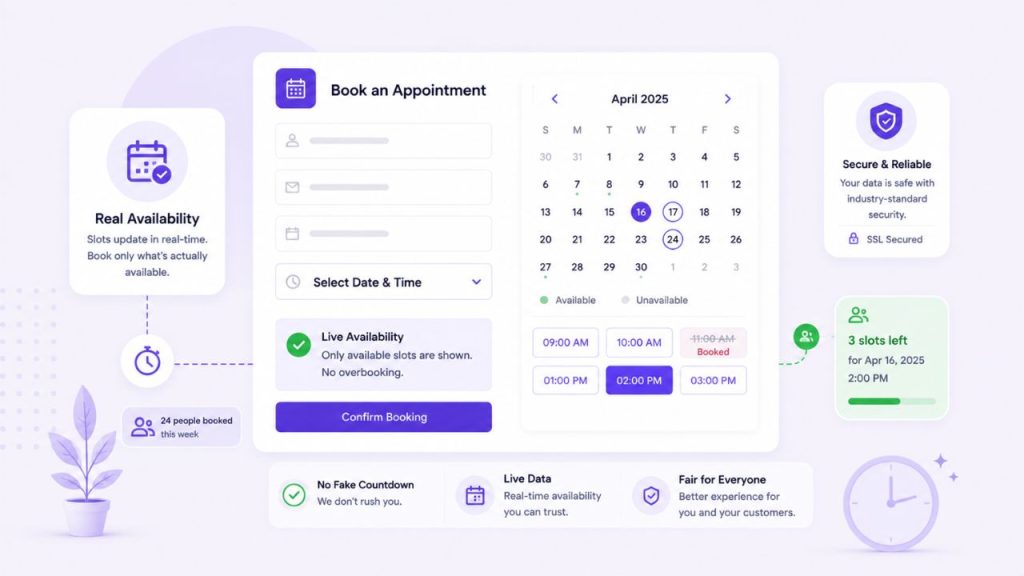
“Only 3 slots left!” means nothing if it’s always true or if it isn’t true at all. Users notice when urgency signals feel manufactured, and when they do, it damages trust rather than building it.
Real scarcity is more effective and requires no exaggeration. If your Thursday afternoon slots genuinely fill up quickly, showing that only two remain is accurate information that helps the user make a faster decision. If this week is genuinely busier than usual, saying so is useful context.
The difference between urgency that works and urgency that backfires is whether it reflects the actual state of your calendar. When BookingPress is managing your availability in real time, the scarcity signals are accurate by default – the form shows remaining slots as they actually exist, which is both honest and effective.
On the FormGent side, you can use conditional logic and custom messaging to surface availability context based on what the user selects, without fabricating it.
Putting It Together: FormGent and BookingPress as a Stack

These two tools solve adjacent problems.
FormGent is a form builder with a payment integration, conditional logic, and a flexible block system. It gives you full control over what a booking form looks like, what it asks, how it responds to user input, and what happens the moment someone submits it. For many service businesses, that’s everything they need.
BookingPress is an appointment management system. It manages availability in real time, handles staff and service assignments, automates post-booking communication, and supports a wider range of payment configurations. It’s the operational layer that runs behind the form.
Used together: FormGent handles the experience of booking, BookingPress handles the logistics of the appointment. You don’t have to choose one or the other – the question is how much operational complexity your business actually has, and whether that complexity justifies the additional setup.
If you’re starting out or running a simple service with predictable scheduling, FormGent alone gets you most of the way there. If your business has multiple staff, service-specific availability, or high enough booking volume that double bookings are a real risk, adding BookingPress to the stack closes the gaps.

S. M. Navid Anjum
Digital Marketing enthusiast who loves to write technical reviews and trendy contents. Currently working with WordPress Plugin Marketing and growth. Open to collaboration and co-marketing opportunities with any SaaS and plugins.
Leave a Reply