

How to Add a WordPress User Signup Form (Step-by-Step Guide)
-
- Tips and Tricks
- 8 mins read
Looking for a way to add a WordPress user signup form to your website? You’ve come to the right place.
Today we’ll show you the easy process to add a WordPress user signup form and how to use features like conversational forms, multi-step forms, Google Sheets and Zapier connections, and quizzes — without paying for any of it.
Sound interesting? Good. Let’s stop wasting time and get your WordPress user signup form live.
How to Add a WordPress User Signup Form
WordPress doesn’t come with a built-in signup form. The default registration page is bare — no branding, no custom fields, and no real way to control what users see. If you want something that actually fits your site, you need a plugin.
FormGent is a good option here. It’s free, works inside the WordPress block editor, and doesn’t hide basic features behind a paid plan. You can build a signup form manually or just describe what you need and let the AI handle the first draft.
Here’s how to do it from start to finish.
Step 1: Install FormGent
Go to WordPress Dashboard → Plugins → Add New. Search for “FormGent“, click Install Now, then Activate.
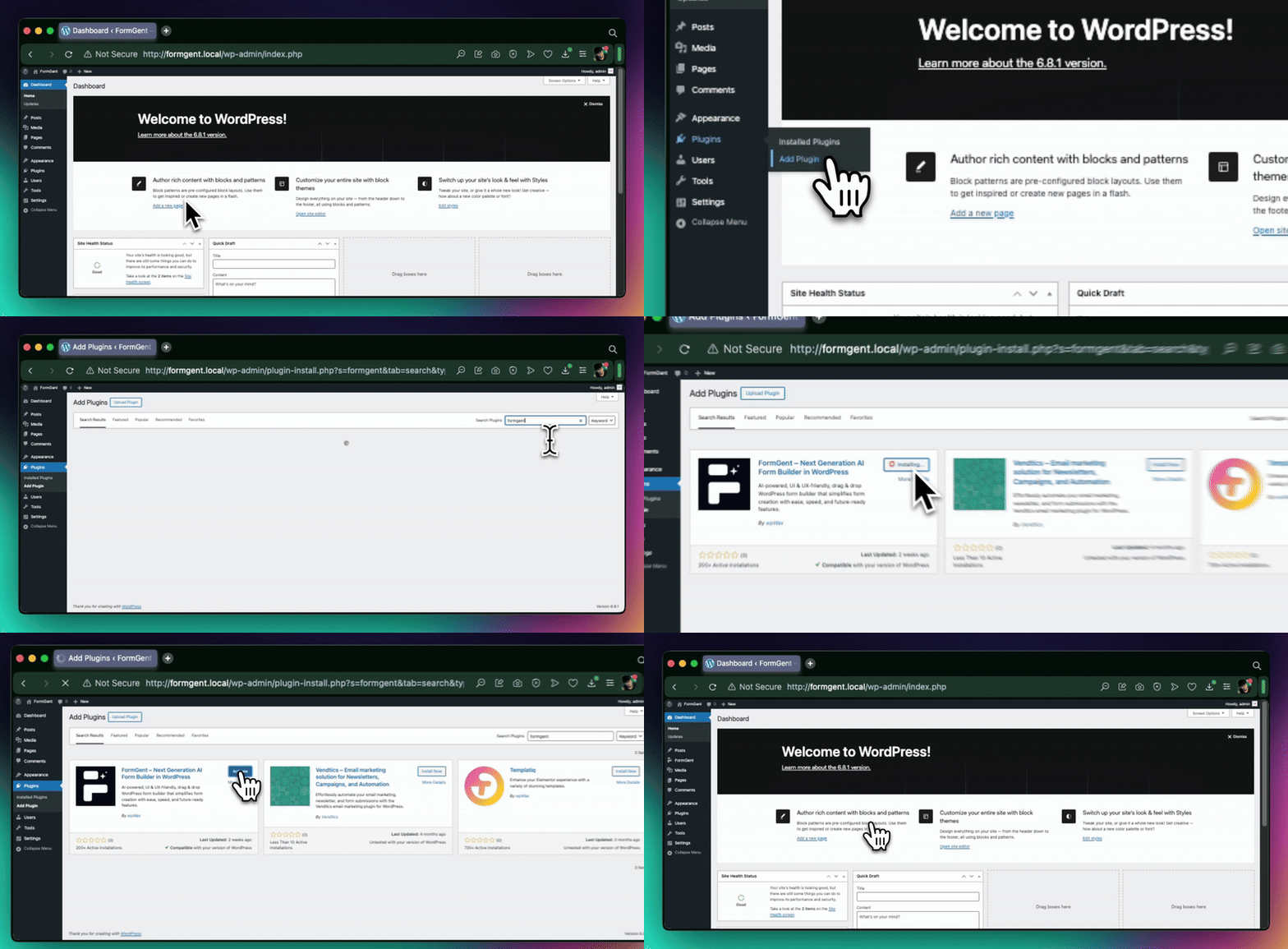
Once it’s active, you’ll see FormGent in your left sidebar. Click it and go to All Forms.
Step 2: Create a New Form
Click Create New. FormGent gives you three ways to start:
Blank form — you build everything from scratch, field by field.
Template — pick a ready-made layout from the template library and adjust it.
AI — type a short description like “Create a user signup form with name, email, and password” and FormGent generates the form for you. This is the fastest way, especially if you’re not sure which fields to start with.
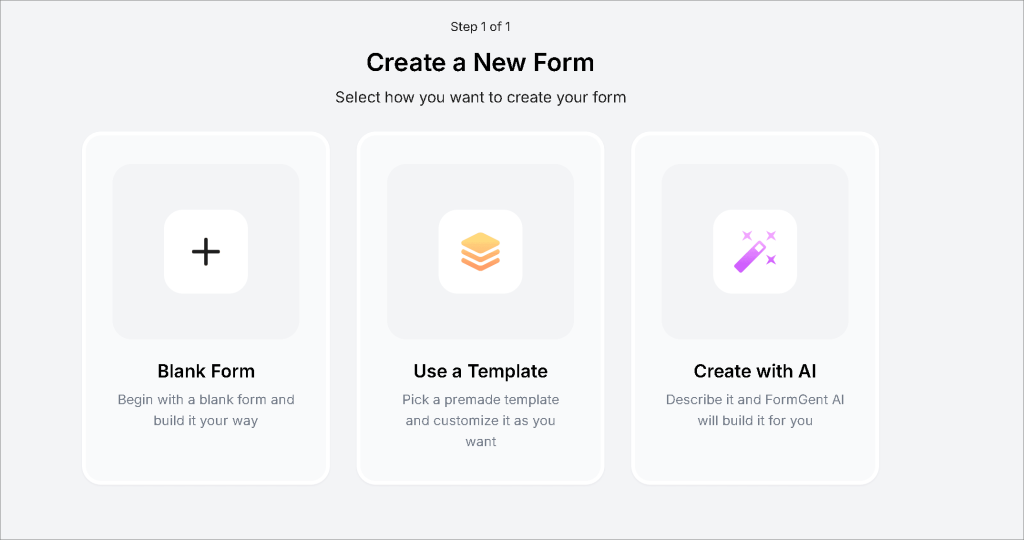
For a signup form, the AI route saves real time. You can always edit what it creates.
Step 3: Add and Edit Your Fields
Once the form opens in the editor, you’ll see a field panel on the right. Drag fields into the form or click to add them. For a standard WordPress user signup form, you’ll want:
- Full Name (Text field)
- Email Address (Email field)
- Password (Password field)
- Confirm Password (Password field)
- Optionally, a Dropdown for account type or role
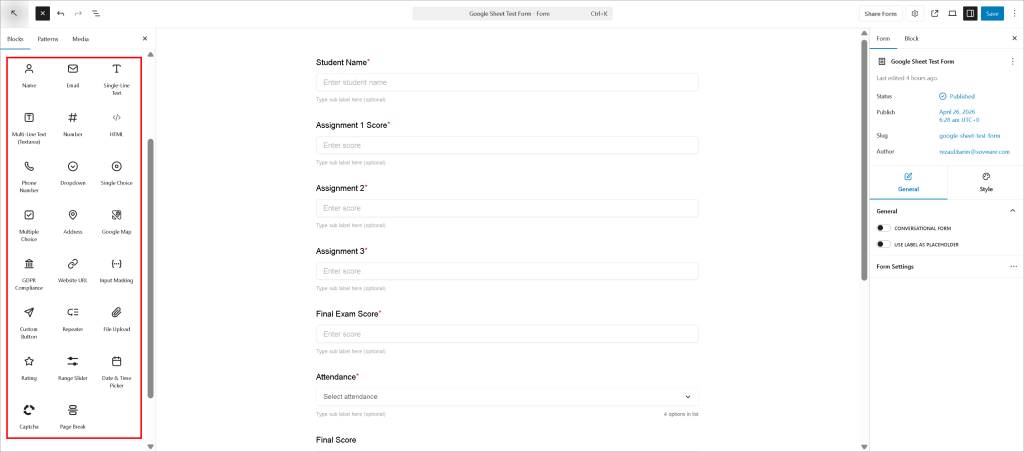
Click any field to edit its label, placeholder text, and validation rules. Marking fields as required means users can’t skip them. For the email field, FormGent checks the format automatically before the form submits.
If your signup flow is longer — say, you’re also collecting interests or preferences — you can use conditional logic to show or hide questions based on what the user already answered. That keeps the form from feeling overwhelming.
Step 4: Name Your Form
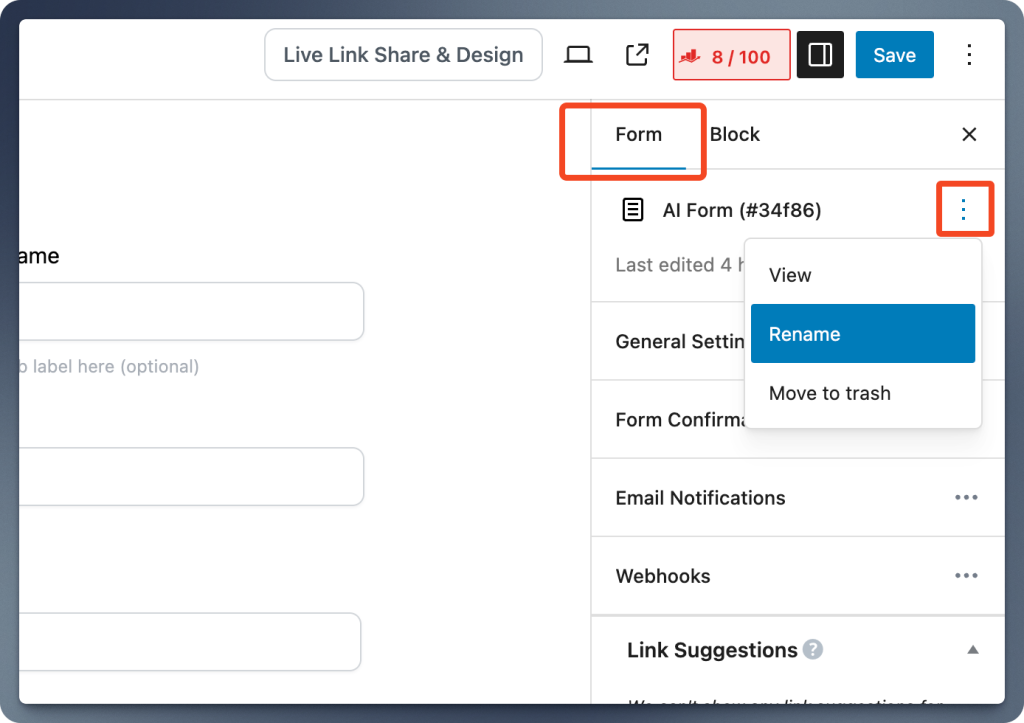
Before going further, give the form a proper name. Click the three-dot menu next to the form title on the right panel, select Rename, type something clear like “User Signup Form”, and save. It seems minor, but when you have multiple forms in your dashboard, you’ll thank yourself later.
Step 5: Set Up What Happens After Someone Signs Up
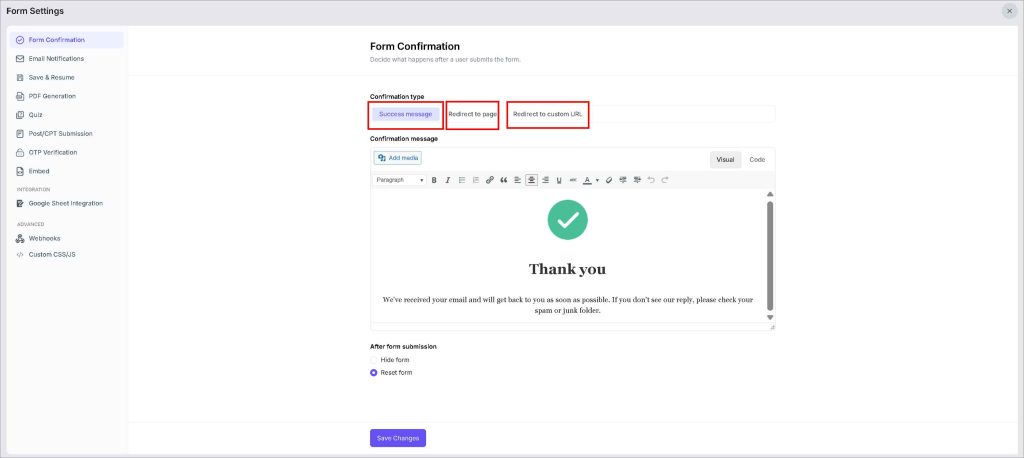
Go to the Form Options tab. There are two things to configure here:
Form Confirmation — this is what the user sees after they submit. You can show a simple success message like “Thanks for signing up! Check your email to confirm your account.” Or redirect them to a specific page on your site — a welcome page, a dashboard, whatever makes sense for your setup.
Email Notifications — turn this on so you get an alert every time someone registers. You can write your own subject line and email body, which is useful if you want the notification to include specific details from the form.
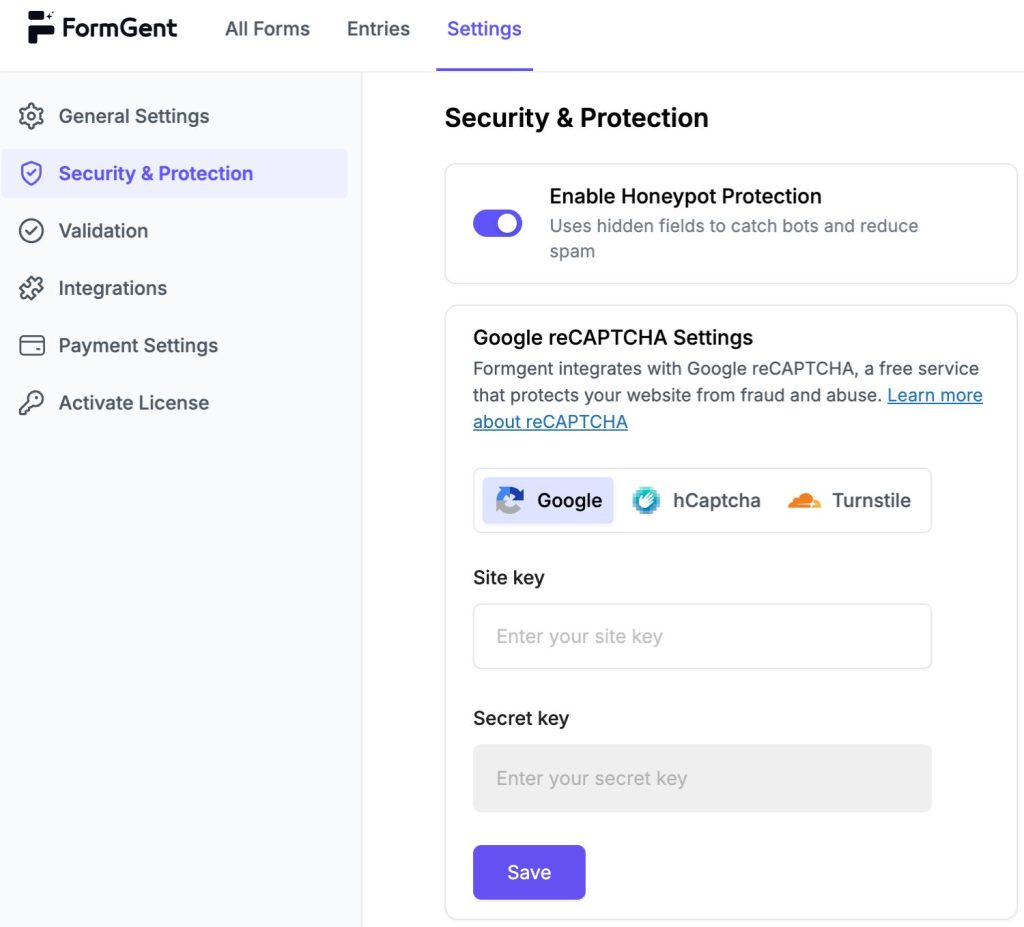
Also worth enabling: Google reCAPTCHA under the settings. Signup forms attract bots. reCAPTCHA blocks most of them without adding friction for real users.
Step 6: Style the Form
Click Design & Share in the editor. From here you can preview the form on desktop and mobile, adjust colors, add a logo, and toggle a shareable link if you want to send the form directly without embedding it anywhere.
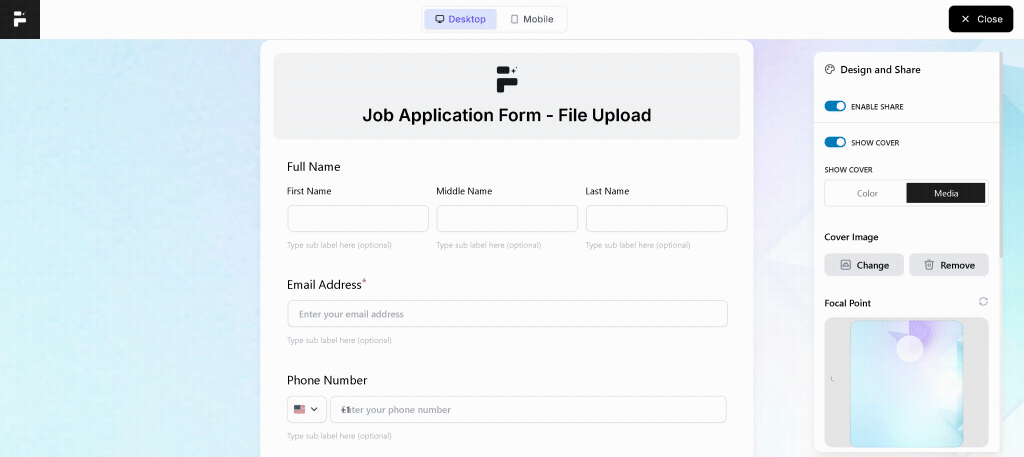
The styling panel is simple. Change the background, font, and button color to match your site. You don’t need to touch any CSS unless you want something very specific.
Step 7: Add the Form to a Page
When the form is ready, click Publish. Then:
- Go to Pages → Add New (or open an existing page)
- In the Gutenberg editor, click the + icon and search for “FormGent”
- Select your signup form from the dropdown
- Hit Publish
The form is now live. It works as a native Gutenberg block, so it fits cleanly into your page without shortcode or any extra setup.
To test it properly, open the page in an incognito window — you won’t see the form if you’re logged into WordPress as admin.
One thing worth noting: FormGent saves incomplete submission data. So if someone starts filling out your signup form and leaves without finishing, you still see what they entered. That can help you understand where people drop off, especially on longer forms. This options will require PRO plan. With the Pro Plan, you can enjoy more premium features which is worth your money.
Tips to Boost Signup Conversions

Getting the form live is just the first part. The harder part is getting people to actually fill it out.
Most signup forms lose people before they even start — too many fields, unclear labels, no reason to trust the page. These tips won’t require you to rebuild anything. Small changes make a real difference here.
1. Ask for relevant data, not more or irrelevant
Every field you add is a small reason to leave. Name and email is almost always enough to get started. If you need more details like phone number, role, preferences, make sure to collect that after the person is already registered. A two-field signup form will almost always get more completions than a six-field one.
2. Make the submit button say something real
“Submit” tells nobody anything. “Create My Account” or “Get Started Free” is clearer and feels less like a transaction. The button is the last thing a person reads before they commit. Make it count.
3. Add a short line of trust near the form
People hesitate when they’re not sure what happens next. One sentence helps — something like “No credit card required” or “We don’t share your information.” It doesn’t need to be long. It just needs to answer the quiet doubt most visitors have before they sign up.
4. Show what they’re signing up for
If your signup page doesn’t explain what users get by registering, a lot of people will pass. A short headline or two bullet points above the form like “Get access to X,” “Save your Y” will give people a reason to go through with it. Context matters more than design on this page.
5. Use a conversational form for longer signups
If your signup flow has more than four or five fields, showing them all at once can feel like a lot. FormGent’s conversational form style shows one question at a time, which makes the same form feel much shorter. Completion rates tend to go up when the form doesn’t look overwhelming from the start.
We have show the exact process of How To Create Conversational Forms On Your WordPress Website
6. Test on mobile before you publish
A large share of signups happen on phones. A form that looks fine on desktop can be awkward to fill out on a small screen such as fields too close together, buttons hard to tap, layout breaking. Open the page on your phone before it goes live. Fix what feels off.
7. Turn on email confirmation
An email that goes out right after completing the signup process. It confirms what the person just did and builds trust fast. It also filters out fake registrations. People who used a real email will confirm. Those who didn’t, won’t. That keeps your user list cleaner from day one.
Your Signup Form Is One Step Away
A signup form isn’t just a box on a page. It’s the real interaction someone has with your site as a user and that impression shapes whether they stick around or leave.
The good news is it doesn’t take much to get it right. A clean form with the right fields, a clear confirmation, and a little spam protection is genuinely enough to start. You don’t need a complicated setup or an expensive plugin to make it work.
WordPress gives you the foundation. FormGent handles the form. The rest is just deciding what you want to collect and where you want to take your users next.
If you’ve been putting this off because it seemed technical or time-consuming — it’s not. The whole process takes under thirty minutes, even if you’ve never built a form before. Pick your fields, set your confirmation, publish the page. That’s it.
Ready to build yours? Install FormGent from the WordPress plugin directory, create your first signup form, and have it live on your site today — no credit card, no complicated setup, no code.
Frequently Asked Questions
Does WordPress have a built-in signup form?
Not really. WordPress has a basic registration page at wp-login.php?action=register, but it’s minimal — just a username and email field with no customization options. To add a proper signup form with custom fields, branding, and control over what happens after submission, you need a plugin like FormGent.
How do I enable user registration on my WordPress site?
You can try FormGent to create a user registration form on your WordPress site.
What’s the difference between a signup form and a registration form?
They’re essentially the same thing. A signup form usually refers to collecting someone’s details to create an account or join a list. A registration form does the same — the terminology just varies by context. Both create a user record in your WordPress database when submitted.
How many fields should a signup form have?
As few as possible. Name and email is enough for most sites. Every extra field reduces the chance someone finishes. If you need additional information, collect it later — after the person has already signed up and is inside your site.
Is FormGent free to use?
Yes. FormGent has a free plan that covers the core form-building features — drag-and-drop editor, field customization, email notifications, and basic integrations. Some advanced features like OTP verification, webhooks, and PDF generation are on the paid plan, but you don’t need those to build a functional signup form.
Can I add a signup form to any WordPress page?
Yes. Once you publish a form in FormGent, it becomes a Gutenberg block you can drop into any page or post. You can also embed it in a sidebar widget or use the shareable link to send the form directly without embedding it anywhere.
How do I stop bots from filling out my signup form?
Enable Google reCAPTCHA in FormGent’s form settings. It runs quietly in the background and blocks most automated submissions without asking real users to solve anything. For extra protection, turn on email confirmation so only people with real email addresses can complete their registration.
What happens to signup data — where does it go?
All form submissions are stored in your WordPress dashboard under FormGent’s entries section. You can review them there anytime. You can also connect the form to Google Sheets or Mailchimp if you want submissions to go somewhere else automatically.
Can I redirect users to a specific page after they sign up?
Yes. In the form settings under Form Confirmation, choose “Redirect to Page” and pick any page on your site. A welcome page or onboarding page works well here — it gives new users something to do right after they register instead of landing on a blank confirmation screen.

Rezaul Karim
Rezaul Karim is a passionate Digital Marketer driven by curiosity and creativity in the ever-evolving world of online marketing. With over 6 years of hands-on experience in Content Writing, Copywriting, SEO, and Social Media Marketing, he brings a strategic edge to crafting content that engages and converts. Always eager to explore new trends and tools, Rezaul thrives on finding smarter ways to connect brands with their audiences. Outside of work, he enjoys diving into books or recharging in nature.


WordPress Form Security: The Complete Guide (2026)
September 13, 2026[…] Registration or account-creation form […]